
Avaya IP 600 Rack Mount Cabinet Installation This
Avaya IP 600 Rack Mount Cabinet Installation This slide show summarizes the installation procedures for the IP 600 rack mounted cabinet (RMC). Unpack and Inspect Install the System Cabinet Check AC Power and Ground Cable the System Install Patch Panel and External Modem Install Circuit Packs –EXIT For detailed installation procedures, see the IP 600 Installation and Configuration document in the IP 600 Reference section of this CD. 1
Avaya IP 600 Rack Mount Cabinet Installation. Unpack and Inspect – – Use lifting precautions! An empty cabinet weighs 35 - 39 lbs. Make sure each item shown in Figure 1 is present. Items may vary slightly in appearance and may ship in separate packages. For the IP 600 offer, the following circuit packs (CPs) are always provided (as part of the bundled PEC): • • • TN 795 Processor TN 744 Call Classifier / Detector TN 2302 Media Processor / Adapter TN 799 C C-LAN / 259 A Adapter 650 A Power Supply / AC Power Cord, or Power Cord kit (International) • (Future offers may vary). –EXIT If the optional “port” cabinet has also been provided, it comes with (as part of the bundled PEC): • 650 A Power Supply/AC Power Cord, or Power Cord kit (International) • Mounting screws/bolts • TDM / LAN cable and EMI gasket 2
Avaya IP 600 Rack Mount Cabinet Installation. Install the system cabinet – Single cabinet systems can be rack-mounted (preferred) or floormounted. • Floor Mount: The bag of fasteners included with the primary cabinet has screw-in plastic feet. – – Double cabinet systems must be rack-mounted. Make sure that the standard 19” rack equipment provided by the customer has been properly installed and solidly secured to the floor. NOTE: If the rack is not solidly secured, do not proceed with the installation. – Rack Mount steps: • Install one mounting screw on each side of the rack in the at the desired height for the top of the cabinet. Do not tighten the screw -- leave enough space between the screw head and rail surface to accept the mounting bracket. Note that the screw holes are not evenly spaced. See Figure 2 for proper positioning. • Remove the door, CPs, and the 650 A power supply from the RMC; then carefully lift the cabinet to the desired level (not higher than shoulder level unless two people are lifting) and position the keyholes over the screws. See Figure 3 –EXIT 3
Avaya IP 600 Rack Mount Cabinet Installation. Install the system cabinet • Let the weight rest on the screws while adding the other six screws; tighten all eight screws. • If installing a second cabinet, mount it above the first cabinet with minimum space between the cabinets. Before mounting the second cabinet, install the rectangular EMI gasket over the right routing slot on top of the first cabinet. Be sure that open corner of gasket faces the rear of the cabinet. Be sure to mount the second cabinet on the rack with screws; do not it leave it resting on the bottom cabinet. If mounted properly, the top cabinet will slightly compress the gasket. – – Remove the fan assembly and verify the carrier address ID on cabinet(s). See Figure 4 and Figure 5. The 650 A power supply is the same unit as provided with the CMC cabinet. The pre-existing instructions apply here. To summarize: –EXIT • Warnings: ! The alternating current(AC) power circuit must be dedicated to the system. The circuit must not be shared with other equipment and must not be controlled by a wall switch. The AC receptacle must not be located under the Main Distribution Frame and must be easily accessible. 4
Avaya IP 600 Rack Mount Cabinet Installation ! ! System grounding must comply with the general rules for grounding provided in Article 250 of the National Electrical Code (NEC), National Fire Protection Agency (NFPA) 70, or the applicable electric code in the country of installation. AC mains wiring and testing must be performed by a qualified electrician ad must conform to Article 250 of the NEC, NFPA 70 , or the applicable electric code in the country of installation. • Danger: see Figure 6 ! – The latch on the 650 A power supply only removes direct current (DC) power from the cabinet. Unseating the power supply removes AC power from the power supply, but not from the cabinet. To remove AC power from the cabinet, pull the AC power cord from the AC appliance connector on the rear of the cabinet. Check AC power and ground • The 650 A power supply provides auto-ranging (85 to 264 VAC), 47 - 63 Hz, 330 Watts, 4. 5 Amps (100 - 120 VAC) or 2. 3 Amps (200 to 240 VAC), at 500 Volt. Amps (VA). • The AC power source can be 1 phase of 120 VAC with neutral (100 VAC for Japan) with 15 -Amp circuit breaker, or 1 phase of 220 or 240 VAC (200 VAC for Japan) with 10 -Amp circuit breaker. The AC cord uses a NEMW 5 -15 P plug or and !EC 320 plug. • Before powering up the system, check the AC power in the equipment room using a KS-20599 digital voltmeter (DVM) (or equivalent). For details see the Installation Manual that ships with the system. • Approved Grounds: as in all installations, an approved ground must be assured. For details see the Installation Manual that ships with the system. –EXIT 5
Avaya IP 600 Rack Mount Cabinet Installation . Check AC power and ground (continued) – A recommended Uninterruptible Power Supply (UPS) may be used for power holdover. The type of UPS depends on the holdover requirements. The UPS must provide surge protection for the RMC cabinet. – Connect cabinet grounds. See Figure 7. • The approved ground wire must be green, 6 AWG (# 40) (16 mm 2), copper, stranded wire. • Bond all approved grounds at the single-point ground to form a single grounding electrode system. – –EXIT Connect power cord(s). 6
Avaya IP 600 Rack Mount Cabinet Installation. Cable the system – Install Processor Interface cable and the IP Media Processor adapter and 259 A C-LAN adapter. See Figure 8 – Cable a two-cabinet system. • Remove the bottom panel and fan assembly (if not already removed) from the top cabinet (port cabinet). • Remove the fan assembly (if not already removed) from the bottom cabinet (processor cabinet). • Remove the right TDM/LAN bus terminator from cabinet A and install it at the left end of cabinet B. See Figure 9 • Remove the nuts on the posts of the plate covering the bottom right routing slot of cabinet B and the plate covering the top right routing slot of cabinet A. See Figure 10 • Pull open the EMI gasket, and pass the TDM/LAN cable through the routing slots in both cabinets. Push the free end of the EMI gasket back in place. See Figure 11. • Install lower terminator of the TDM/LAN cable on the right end of the TDM/LAN bus in cabinet A. –EXIT 7
Avaya IP 600 Rack Mount Cabinet Installation • Install the upper terminator of the TDM/LAN bus cable on the right end of the TDM/LAN bus in cabinet B. • Reinstall the routing slot plates (now rotated). • Reinstall the fan assemblies and the bottom panel. . Install patch panel and external modem – – The cabinet may come with a patch panel kit rather than the traditional 110 A cross connect kind of gear. The patch panels are arrays of RJ 45 jacks and associated B 25 A cabling to accommodate 2 -wire, 24 -port DCP or analog port boards, and 8 -port analog trunk boards. See Figure 12 A shelf is provided to route the B 25 A cables and to provide a mounting surface for the external modem (and other optional equipment) See Figure 12. ! ! – –EXIT Note that you may use a locally obtained, type-approved external modem (V. 34 protocol). Contact your Avaya representative for more information. Warning: If you use a modem other than the U. S. Robotics modem, it must be configured in NT. Traditional 110 A cross-connect gear may be used. 8
Avaya IP 600 Rack Mount Cabinet Installation – Install patch panel and shelf • Using the supplied mounting screws, mount the patch panels on the rack below the processor cabinet. • Using the supplied mounting screws, mount the shelf on the rack below the patch panels. • Attach B 25 A cables to the circuit pack amphenol connectors and to the patch panels. ! ! ! Connect 24 -port DCP or analog circuit packs to the 24 -port patch panels Connect 8 -port analog trunk, “combo, ” or DID trunk circuit packs to either of the first two banks on the 8 -port patch panel. Connect 8 -port BRI trunk (TN 2185 B), if present, to the third bank on the 8 -port patch panel. NOTE: The patch panels don’t have to be mounted in the same rack as the cabinet; they can be located in phone closets, as appropriate. –EXIT 9
Avaya IP 600 Rack Mount Cabinet Installation. Circuit pack installation ! Warning: When handling circuit packs or any components of a DEFINITY ONE system, always wear an authorized wrist ground strap. Connect the strap to the ground connector provided on the system cabinet. See Figure ! – 13. Note: All of the circuit pack slots in the CMC are “universal slots. ” Any slot can contain any type of port circuit pack. Circuit pack slot loading. • Install the TN 795 Processor circuit pack in slot 2 of the cabinet. See Figure 13 • A TN 744 D Call Classifier/Tone Detector circuit pack is required. Slot 3 is preferred. • Load all port circuit packs. See the table in the IP 600 installation manual for recommended layout. –EXIT 10
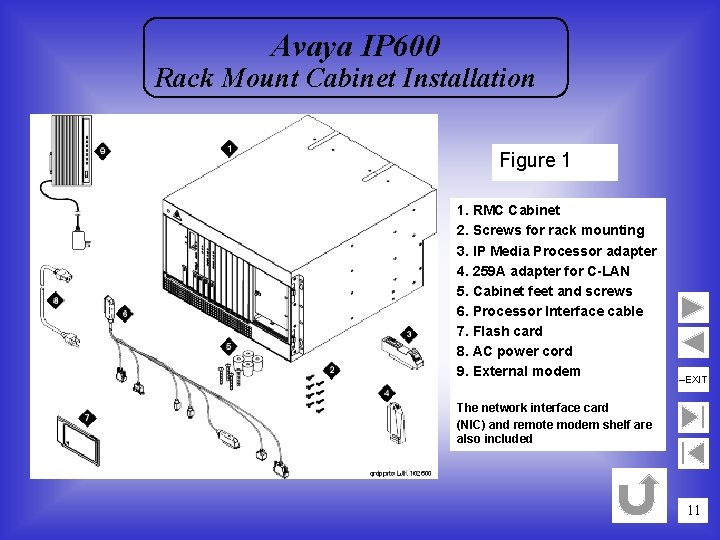
Avaya IP 600 Rack Mount Cabinet Installation Figure 1 1. RMC Cabinet 2. Screws for rack mounting 3. IP Media Processor adapter 4. 259 A adapter for C-LAN 5. Cabinet feet and screws 6. Processor Interface cable 7. Flash card 8. AC power cord 9. External modem –EXIT The network interface card (NIC) and remote modem shelf are also included 11
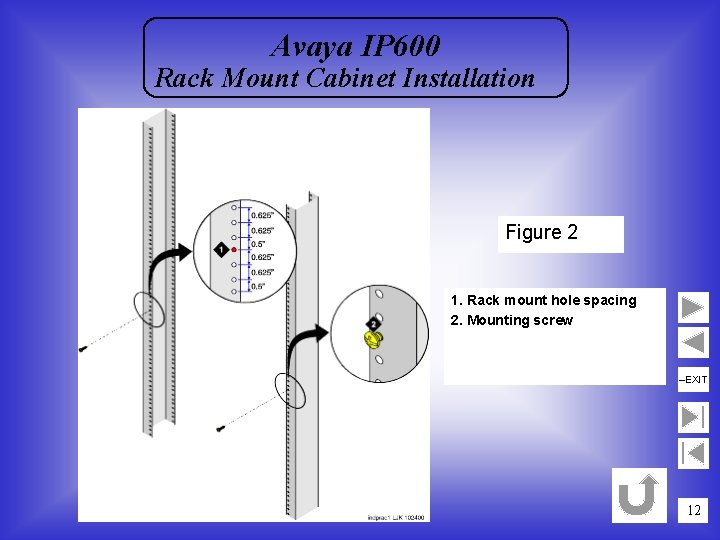
Avaya IP 600 Rack Mount Cabinet Installation Figure 2 1. Rack mount hole spacing 2. Mounting screw –EXIT 12
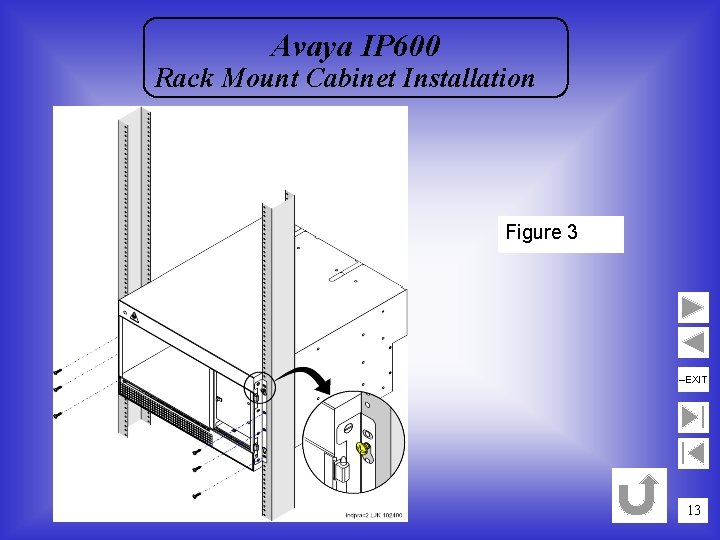
Avaya IP 600 Rack Mount Cabinet Installation Figure 3 –EXIT 13
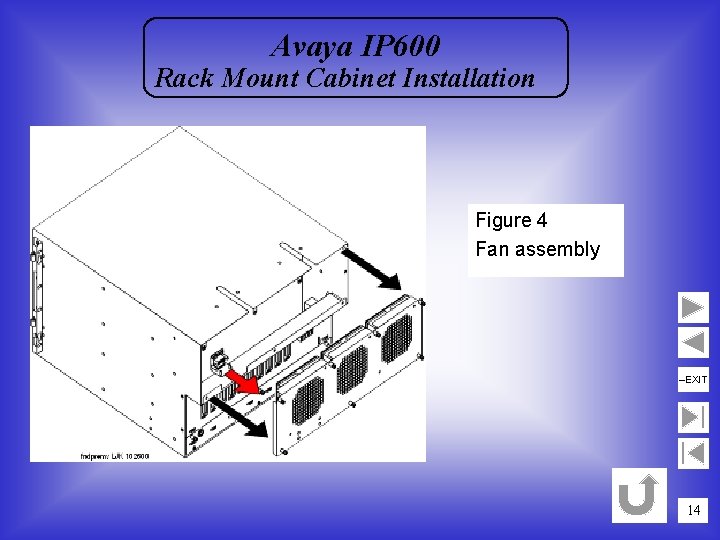
Avaya IP 600 Rack Mount Cabinet Installation Figure 4 Fan assembly –EXIT 14
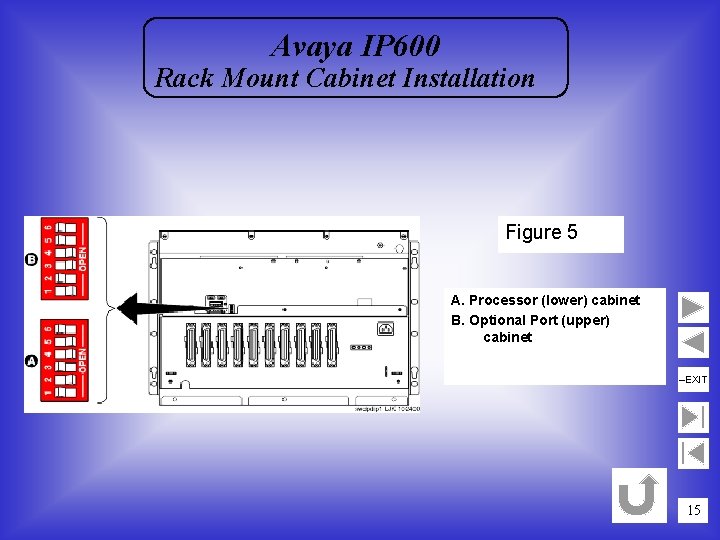
Avaya IP 600 Rack Mount Cabinet Installation Figure 5 A. Processor (lower) cabinet B. Optional Port (upper) cabinet –EXIT 15
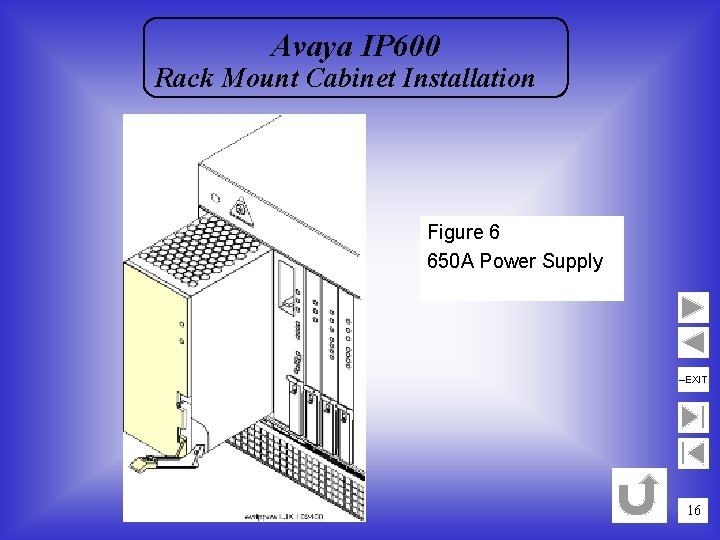
Avaya IP 600 Rack Mount Cabinet Installation Figure 6 650 A Power Supply –EXIT 16
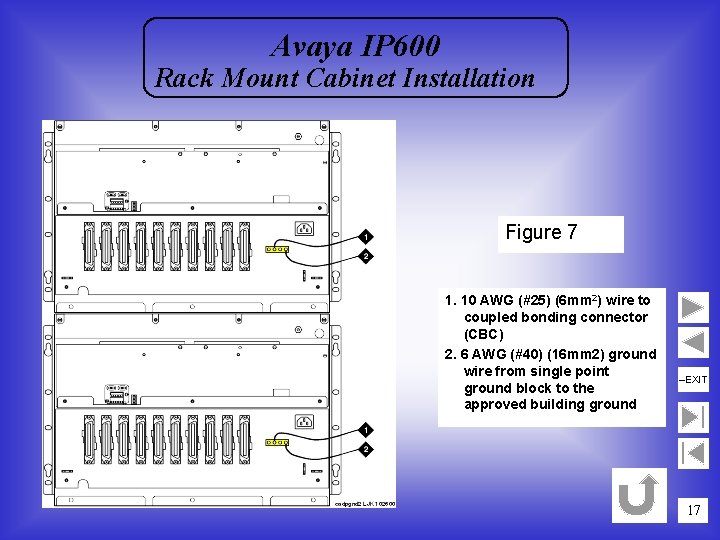
Avaya IP 600 Rack Mount Cabinet Installation Figure 7 1. 10 AWG (#25) (6 mm 2) wire to coupled bonding connector (CBC) 2. 6 AWG (#40) (16 mm 2) ground wire from single point ground block to the approved building ground –EXIT 17
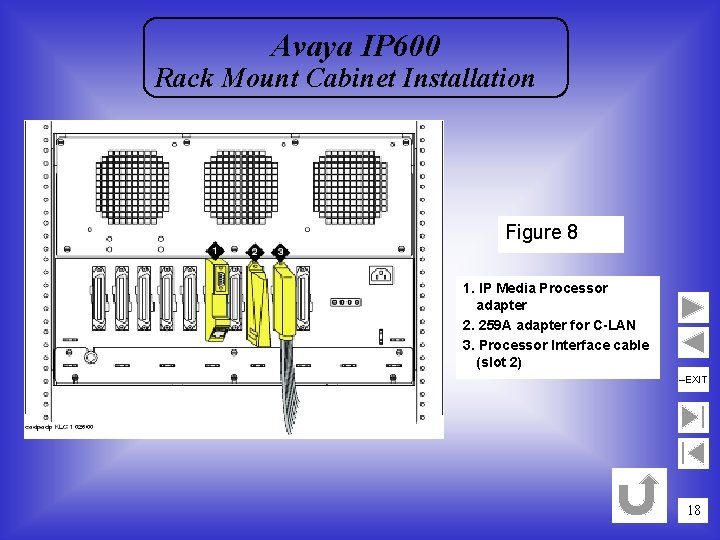
Avaya IP 600 Rack Mount Cabinet Installation Figure 8 1. IP Media Processor adapter 2. 259 A adapter for C-LAN 3. Processor Interface cable (slot 2) –EXIT 18
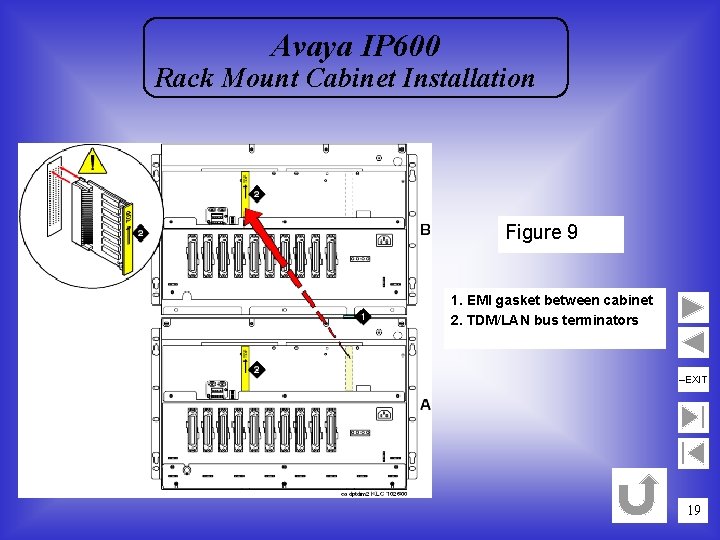
Avaya IP 600 Rack Mount Cabinet Installation Figure 9 1. EMI gasket between cabinet 2. TDM/LAN bus terminators –EXIT 19
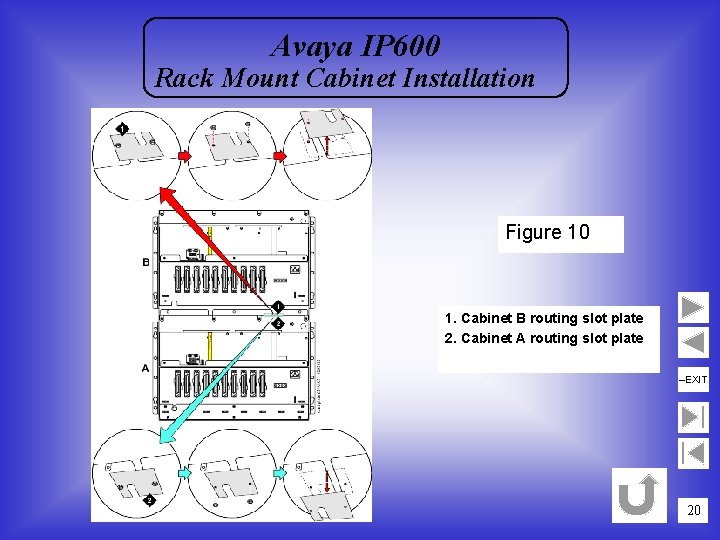
Avaya IP 600 Rack Mount Cabinet Installation Figure 10 1. Cabinet B routing slot plate 2. Cabinet A routing slot plate –EXIT 20
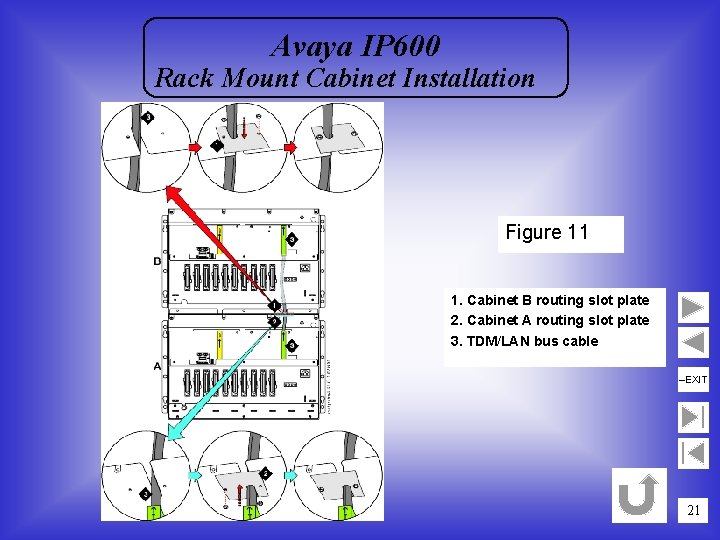
Avaya IP 600 Rack Mount Cabinet Installation Figure 11 1. Cabinet B routing slot plate 2. Cabinet A routing slot plate 3. TDM/LAN bus cable –EXIT 21
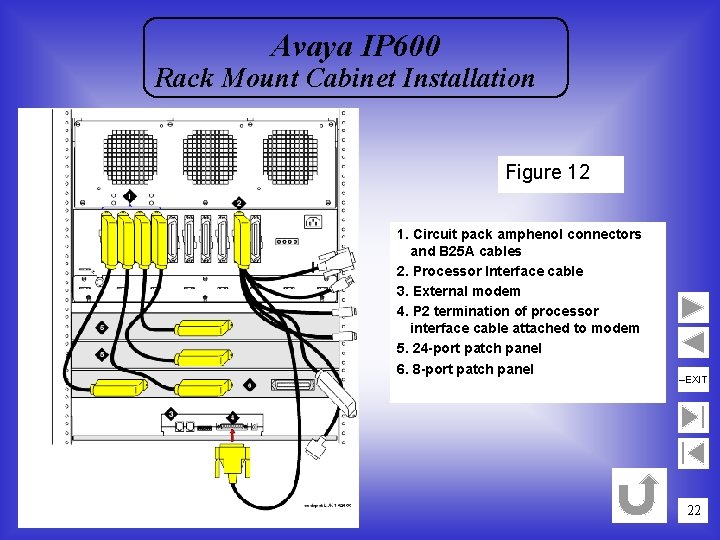
Avaya IP 600 Rack Mount Cabinet Installation Figure 12 1. Circuit pack amphenol connectors and B 25 A cables 2. Processor Interface cable 3. External modem 4. P 2 termination of processor interface cable attached to modem 5. 24 -port patch panel 6. 8 -port patch panel –EXIT 22
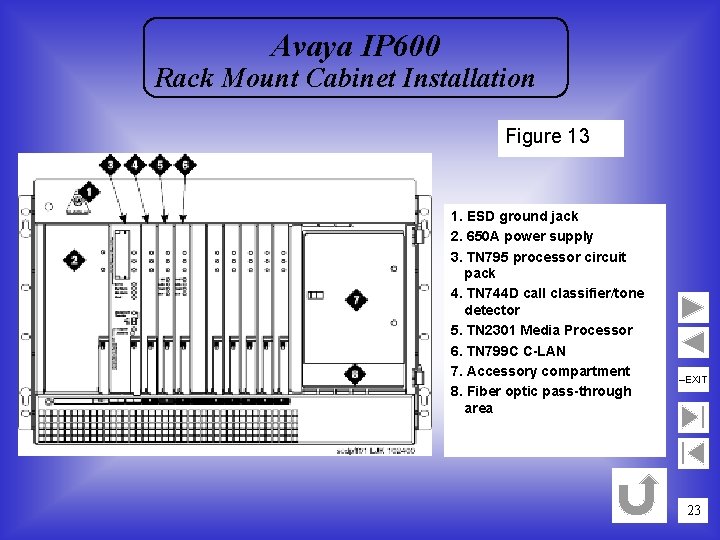
Avaya IP 600 Rack Mount Cabinet Installation Figure 13 1. ESD ground jack 2. 650 A power supply 3. TN 795 processor circuit pack 4. TN 744 D call classifier/tone detector 5. TN 2301 Media Processor 6. TN 799 C C-LAN 7. Accessory compartment 8. Fiber optic pass-through area –EXIT 23
- Slides: 23