
AUXILIARY UNITS HEAT EXCHANGER Tube side Heat Exchanger

AUXILIARY UNITS
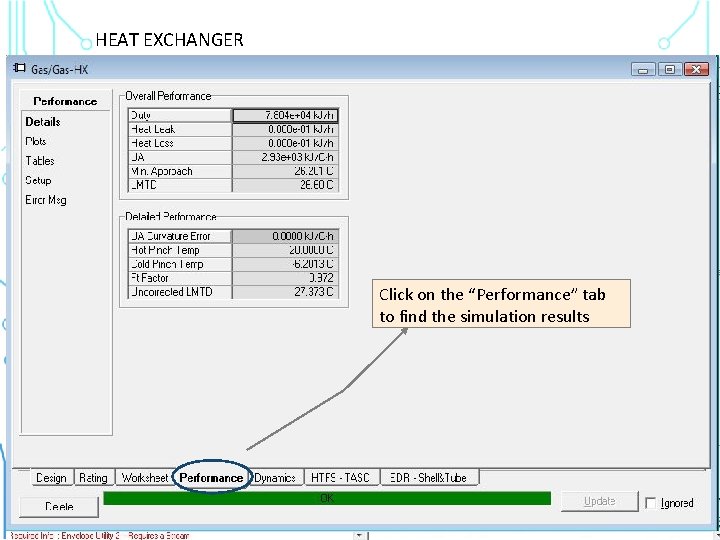
HEAT EXCHANGER Tube side Heat Exchanger Shell side Click on the “Parameters” tab to define Click on the “Performance” tab You can define different pressure drop and exchanger type to find the simulation results for shell and tube side From menu “Connections” define the streams exchanging energy You can change thermodynamic package independently for this unit
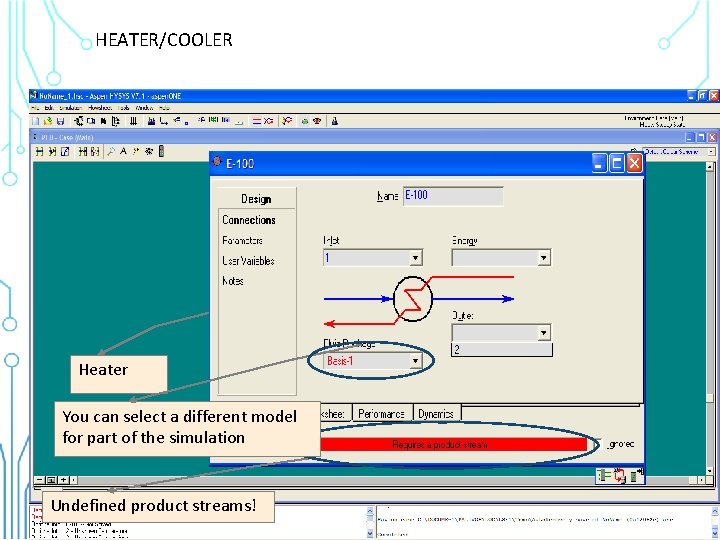
HEATER/COOLER Heater You can select a different model for part of the simulation Undefined product streams!
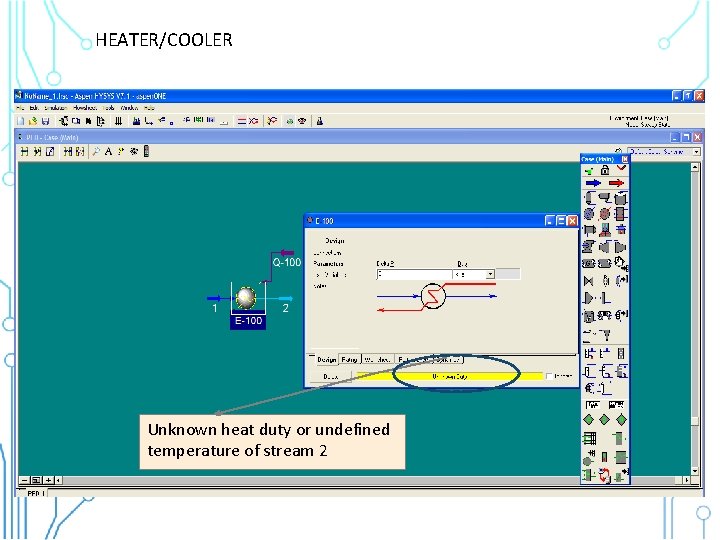
HEATER/COOLER Unknown heat duty or undefined temperature of stream 2
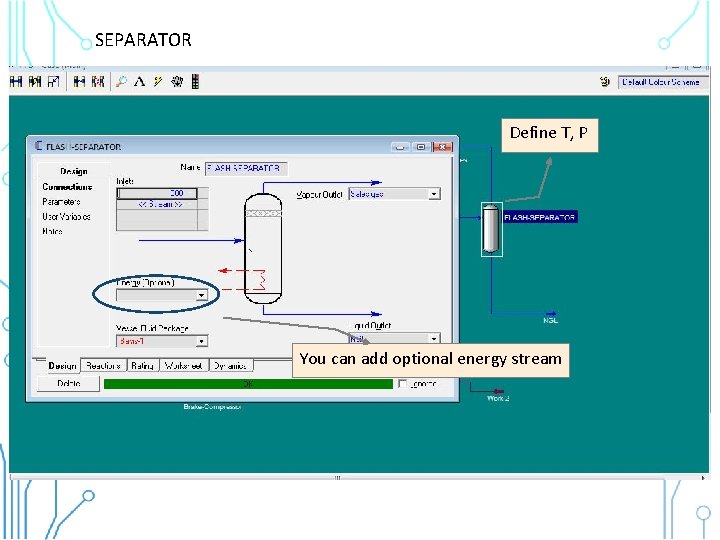
SEPARATOR Define T, P You can add optional energy stream
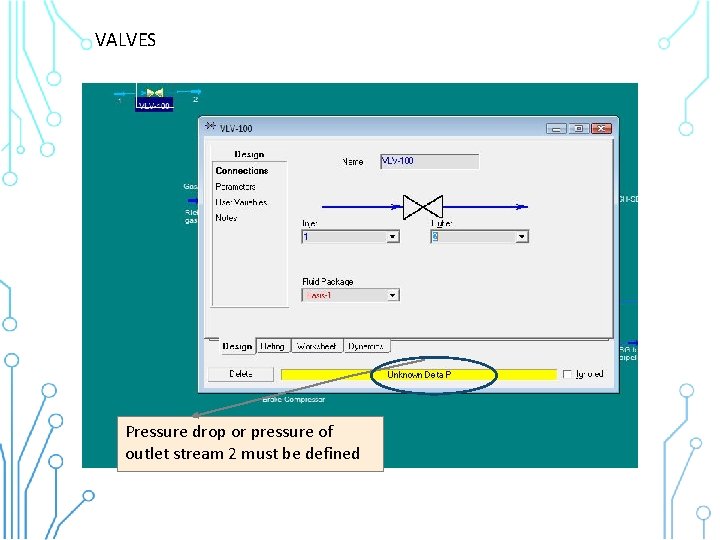
VALVES Pressure drop or pressure of outlet stream 2 must be defined
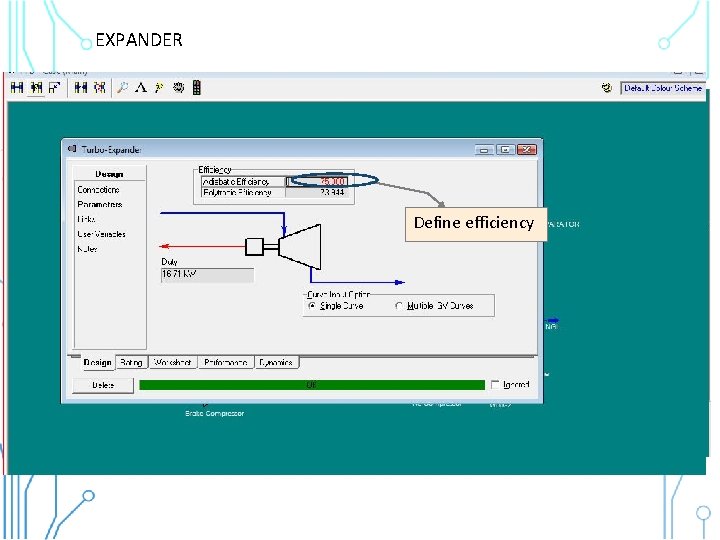
EXPANDER Define efficiency An energy stream must be defined
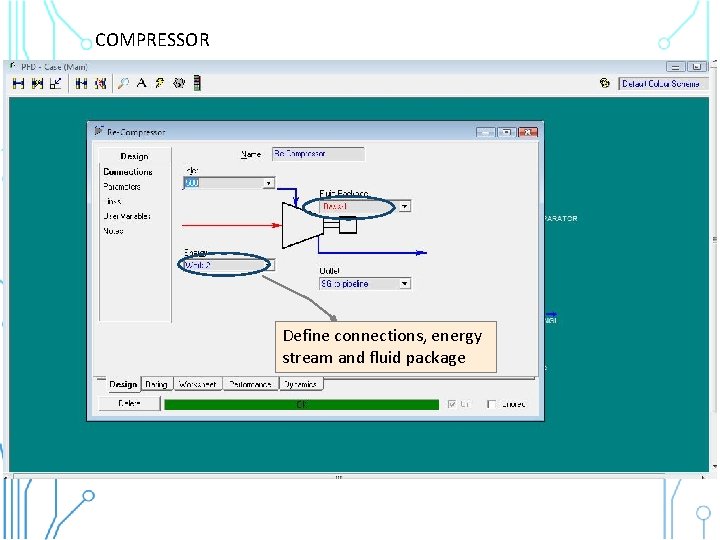
COMPRESSOR Define connections, energy stream and fluid package
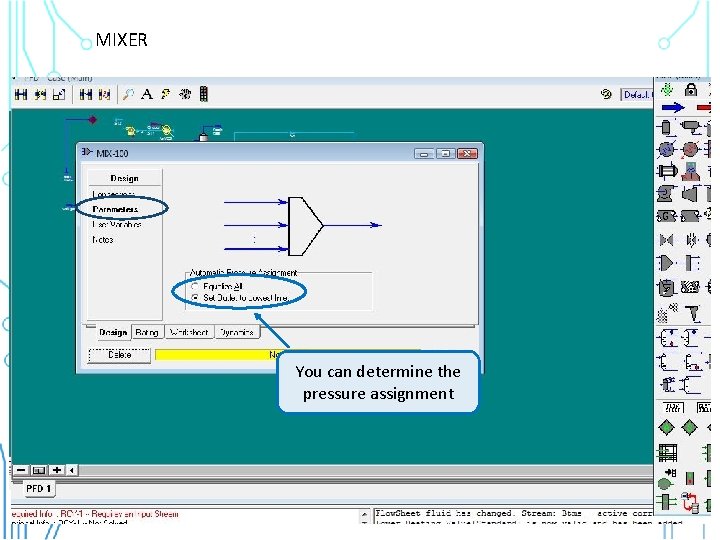
MIXER Insert outlet Insert inlet You can determine thestreams pressure assignment

LOGICAL OPERATORS
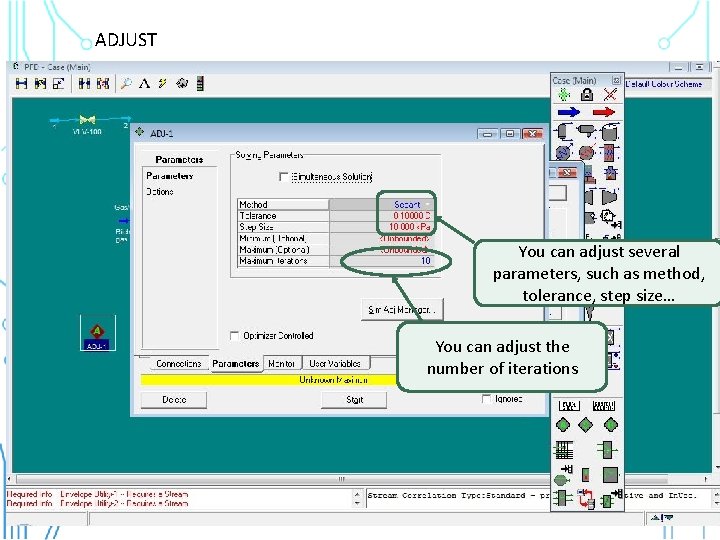
ADJUST Define object On the “select var. . ” tab choose object variable Specify target variable value You can adjust several parameters, method, On the “select such var. . ”astab tolerance, step size… choose manipulated variable You can adjust the number of iterations
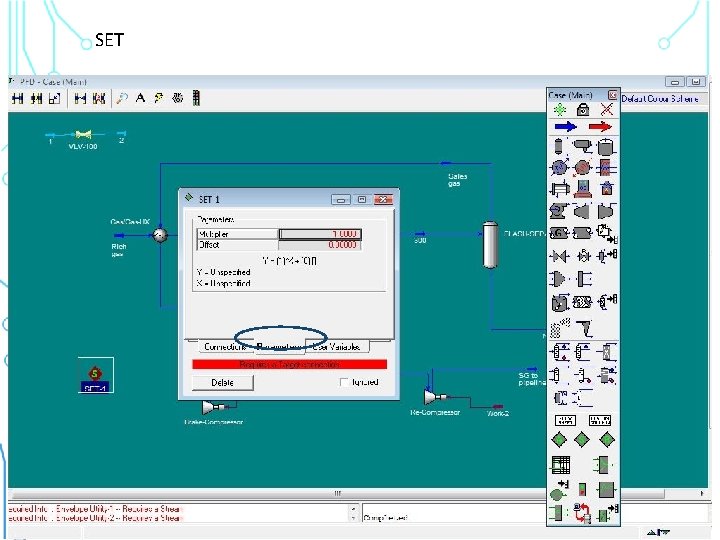
SET Define object variable Define source
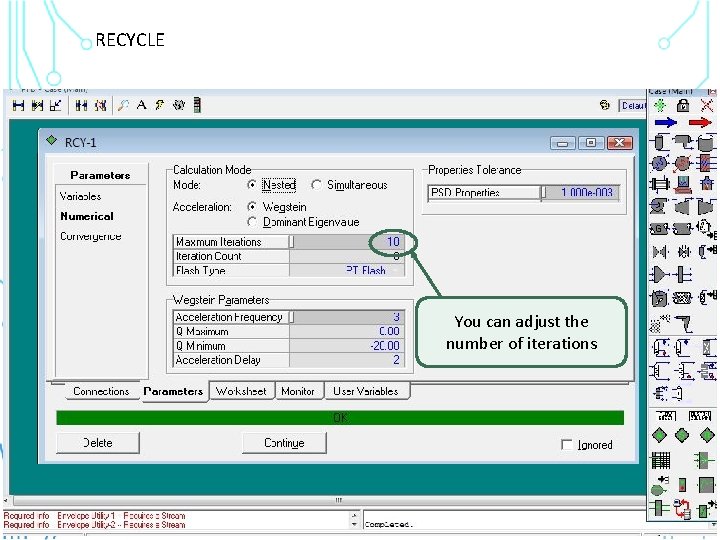
RECYCLE Define sensitivity You can adjust the number of iterations On the parameters tab

DISTILLATION DESIGN
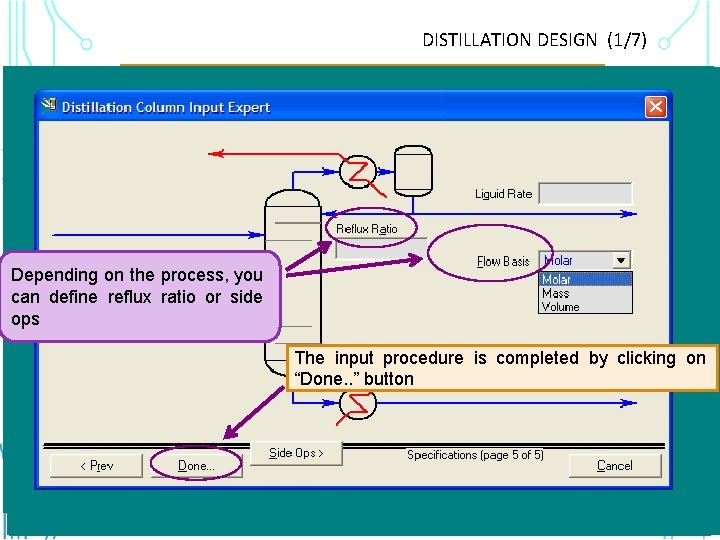
DISTILLATION DESIGN (1/7) By double clicking on the column the following wizard appears Reboiler configuration energy If needed, define Youon. Insert can give optional Depending the process, youdrop in streams pressure Select condenser type Define condenser and initial estimates for the Insert outlet can define reflux ratio or side condenser and reboiler Reboiler pressure temperature to help streams ops convergence Select. Insert on ornumber more feed of The input procedure is completed by clicking on stages by drag and drop “Done. . ” button You can also define existing streams or (optionally) more defining new ones outlet streams When all parameters are defined, click on the “Next” button
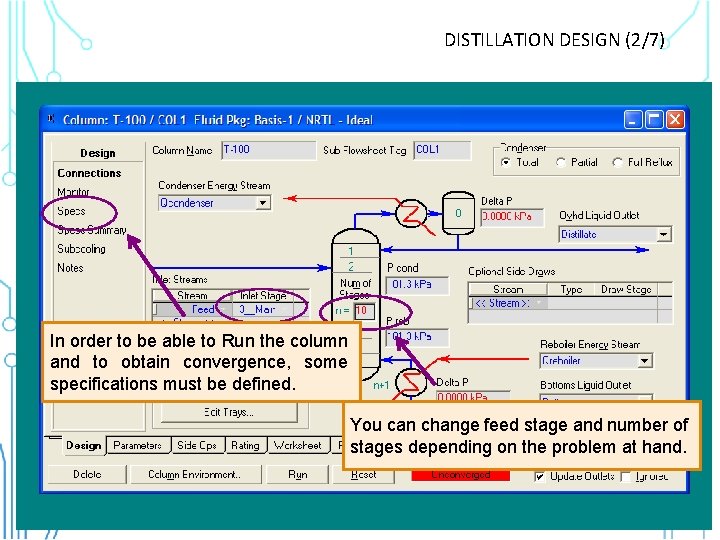
DISTILLATION DESIGN (2/7) In order to be able to Run the column and to obtain convergence, some specifications must be defined. You can change feed stage and number of stages depending on the problem at hand.
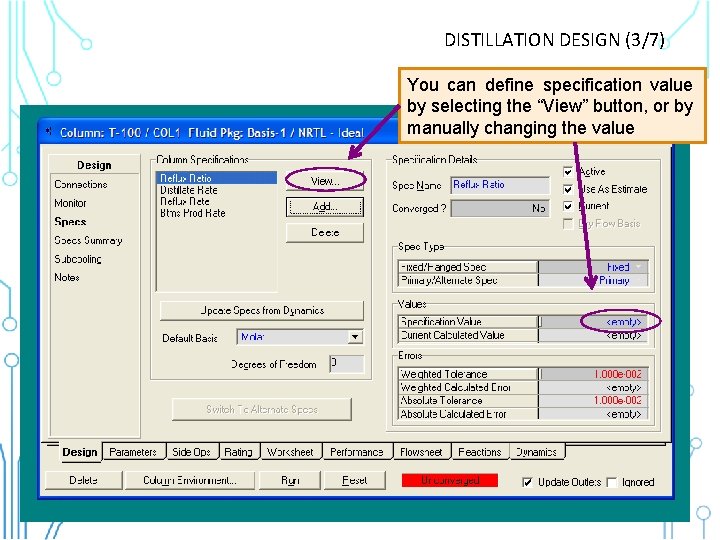
DISTILLATION DESIGN (3/7) You can define specification value by selecting the “View” button, or by manually changing the value
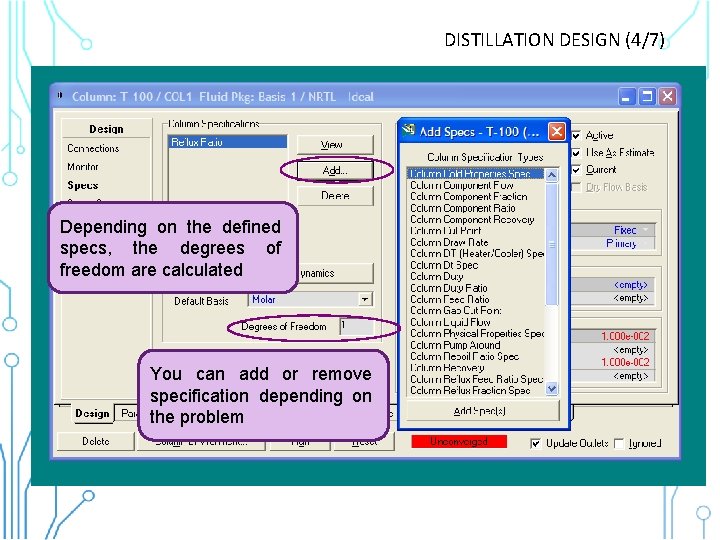
DISTILLATION DESIGN (4/7) Depending on the defined specs, the degrees of freedom are calculated You can add or remove specification depending on the problem
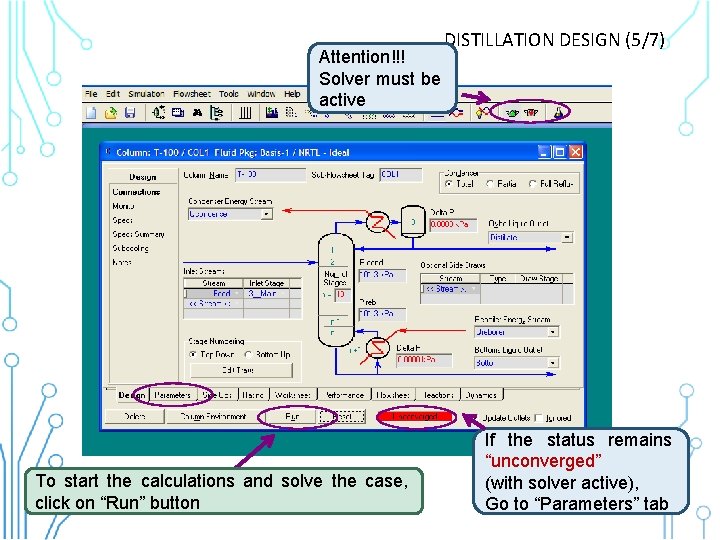
Attention!!! Solver must be active To start the calculations and solve the case, click on “Run” button DISTILLATION DESIGN (5/7) If the status remains “unconverged” (with solver active), Go to “Parameters” tab
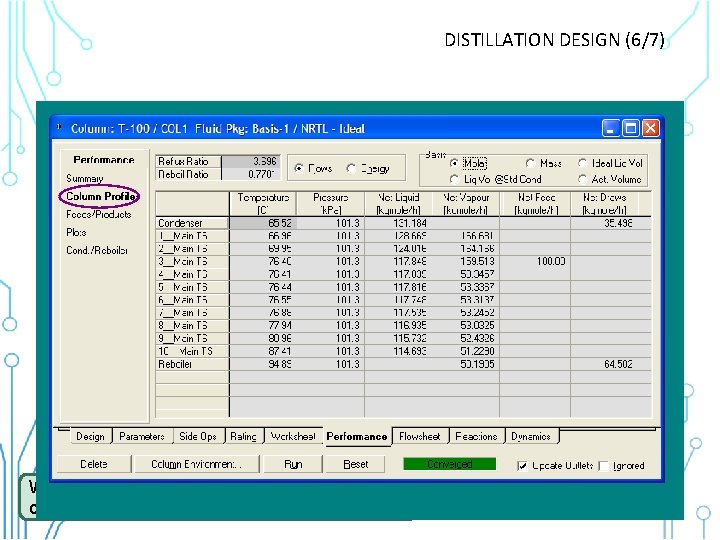
DISTILLATION DESIGN (6/7) Depending on the problem, you can change the solving method, tolerance, number of iterations, to obtain convergence. When the status gets to “Converged” you can check the calculation results
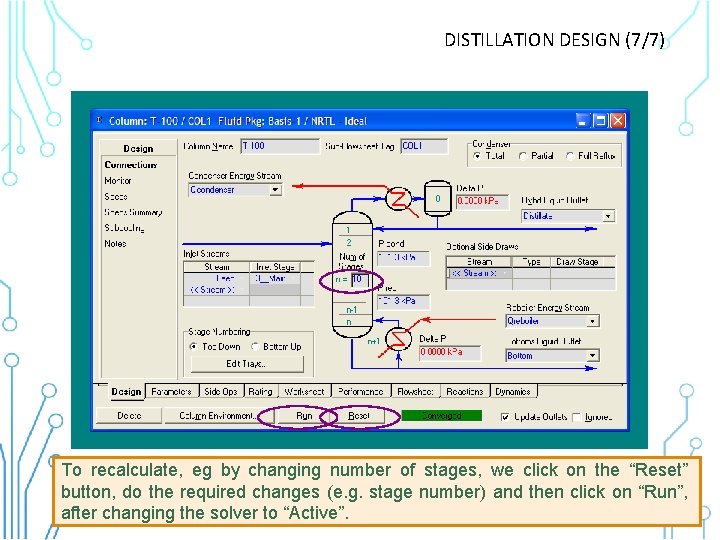
DISTILLATION DESIGN (7/7) To recalculate, eg by changing number of stages, we click on the “Reset” button, do the required changes (e. g. stage number) and then click on “Run”, after changing the solver to “Active”.
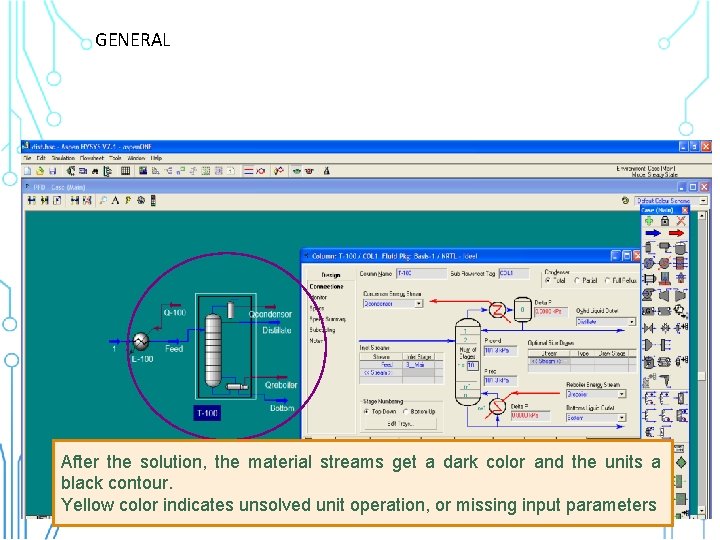
GENERAL After the solution, the material streams get a dark color and the units a black contour. Yellow color indicates unsolved unit operation, or missing input parameters
GOOD LUCK!
- Slides: 23