
Automatic Extra Axial Cerebro Spinal Fluid Auto EACSF
Automatic Extra Axial Cerebro. Spinal Fluid (Auto EACSF) Tutorial on how to use the tool Author : Arthur Le Maout Contact : alemaout@mail. unc. edu
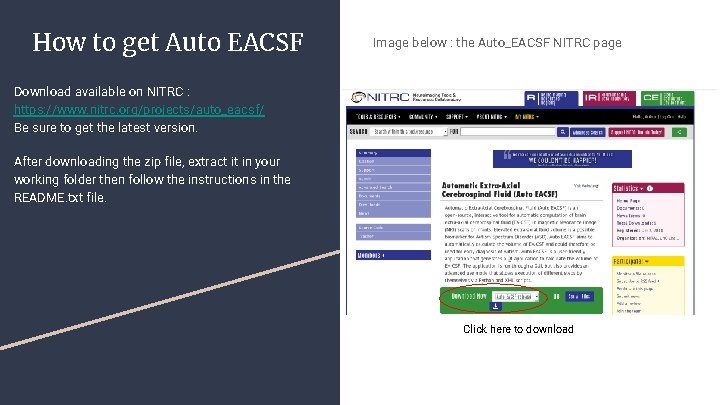
How to get Auto EACSF Image below : the Auto_EACSF NITRC page Download available on NITRC : https: //www. nitrc. org/projects/auto_eacsf/ Be sure to get the latest version. After downloading the zip file, extract it in your working folder then follow the instructions in the README. txt file. Click here to download
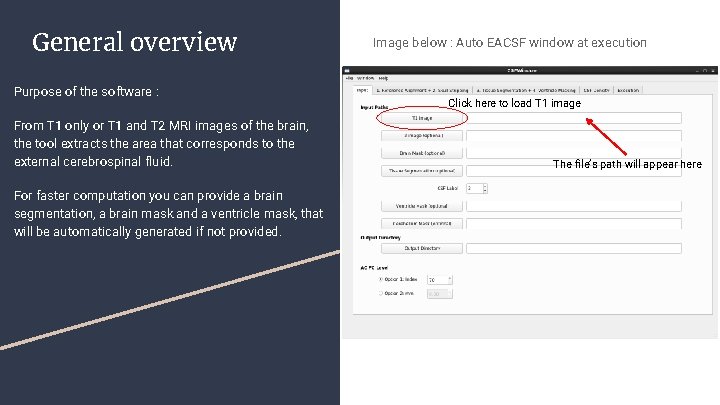
General overview Purpose of the software : From T 1 only or T 1 and T 2 MRI images of the brain, the tool extracts the area that corresponds to the external cerebrospinal fluid. For faster computation you can provide a brain segmentation, a brain mask and a ventricle mask, that will be automatically generated if not provided. Image below : Auto EACSF window at execution Click here to load T 1 image The file’s path will appear here
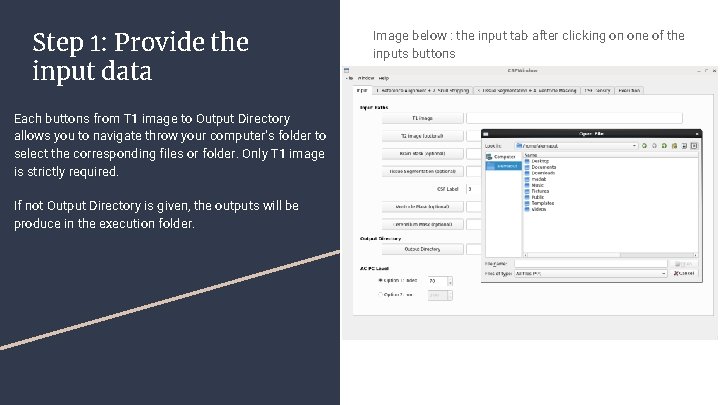
Step 1: Provide the input data Each buttons from T 1 image to Output Directory allows you to navigate throw your computer’s folder to select the corresponding files or folder. Only T 1 image is strictly required. If not Output Directory is given, the outputs will be produce in the execution folder. Image below : the input tab after clicking on one of the inputs buttons
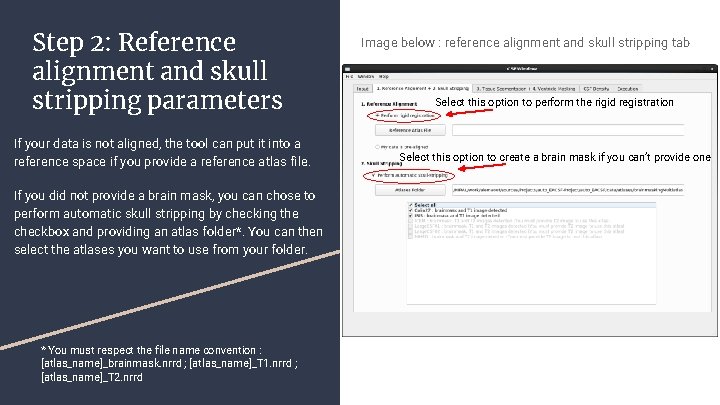
Step 2: Reference alignment and skull stripping parameters If your data is not aligned, the tool can put it into a reference space if you provide a reference atlas file. If you did not provide a brain mask, you can chose to perform automatic skull stripping by checking the checkbox and providing an atlas folder*. You can then select the atlases you want to use from your folder. * You must respect the file name convention : [atlas_name]_brainmask. nrrd ; [atlas_name]_T 1. nrrd ; [atlas_name]_T 2. nrrd Image below : reference alignment and skull stripping tab Select this option to perform the rigid registration Select this option to create a brain mask if you can’t provide one
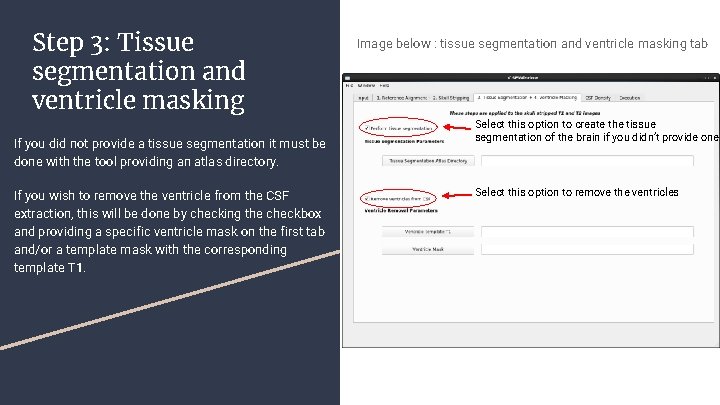
Step 3: Tissue segmentation and ventricle masking If you did not provide a tissue segmentation it must be done with the tool providing an atlas directory. If you wish to remove the ventricle from the CSF extraction, this will be done by checking the checkbox and providing a specific ventricle mask on the first tab and/or a template mask with the corresponding template T 1. Image below : tissue segmentation and ventricle masking tab Select this option to create the tissue segmentation of the brain if you didn’t provide one Select this option to remove the ventricles
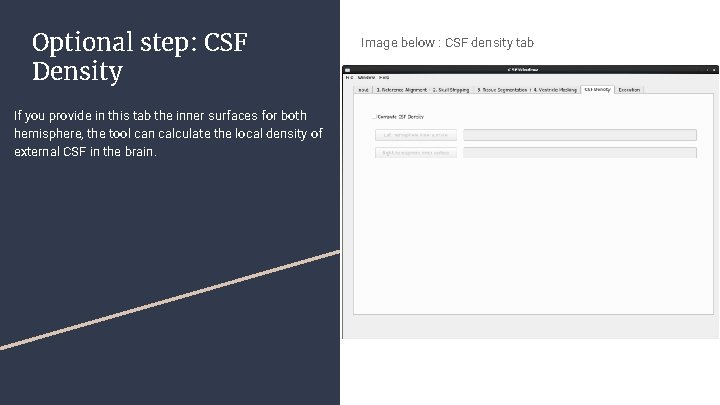
Optional step: CSF Density If you provide in this tab the inner surfaces for both hemisphere, the tool can calculate the local density of external CSF in the brain. Image below : CSF density tab
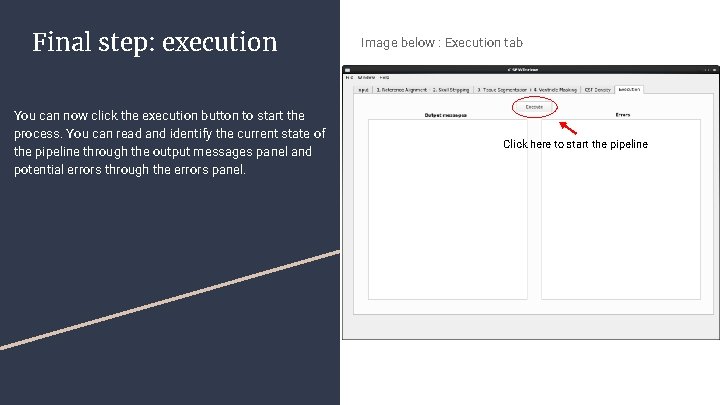
Final step: execution You can now click the execution button to start the process. You can read and identify the current state of the pipeline through the output messages panel and potential errors through the errors panel. Image below : Execution tab Click here to start the pipeline
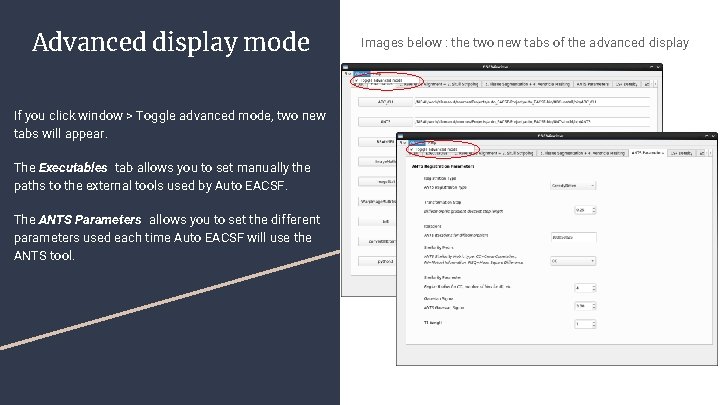
Advanced display mode If you click window > Toggle advanced mode, two new tabs will appear. The Executables tab allows you to set manually the paths to the external tools used by Auto EACSF. The ANTS Parameters allows you to set the different parameters used each time Auto EACSF will use the ANTS tool. Images below : the two new tabs of the advanced display
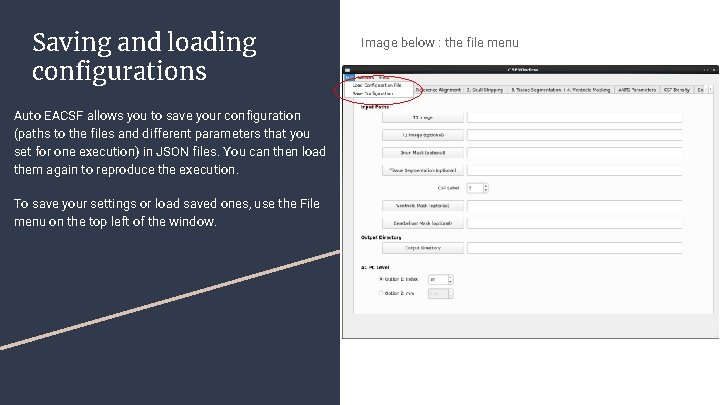
Saving and loading configurations Auto EACSF allows you to save your configuration (paths to the files and different parameters that you set for one execution) in JSON files. You can then load them again to reproduce the execution. To save your settings or load saved ones, use the File menu on the top left of the window. Image below : the file menu
- Slides: 10