
Autodesk Moldflow Communicator 2019 User Manual Result file
- Slides: 10
Autodesk Moldflow Communicator 2019 User Manual
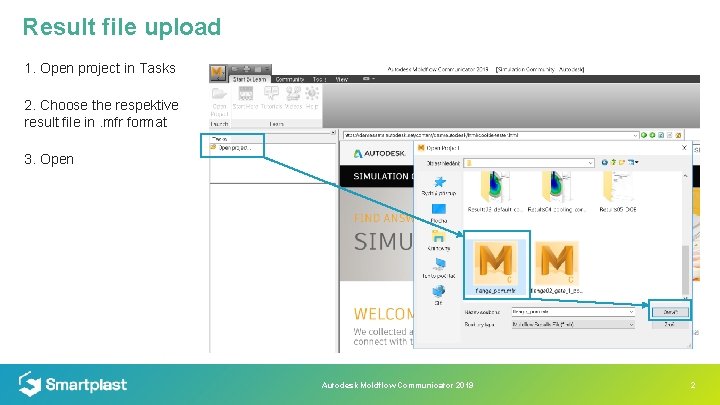
Result file upload 1. Open project in Tasks 2. Choose the respektive result file in. mfr format 3. Open Autodesk Moldflow Communicator 2019 2
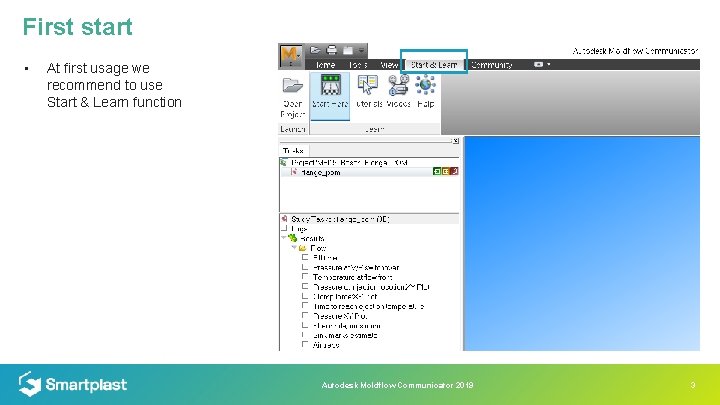
First start • At first usage we recommend to use Start & Learn function Autodesk Moldflow Communicator 2019 3
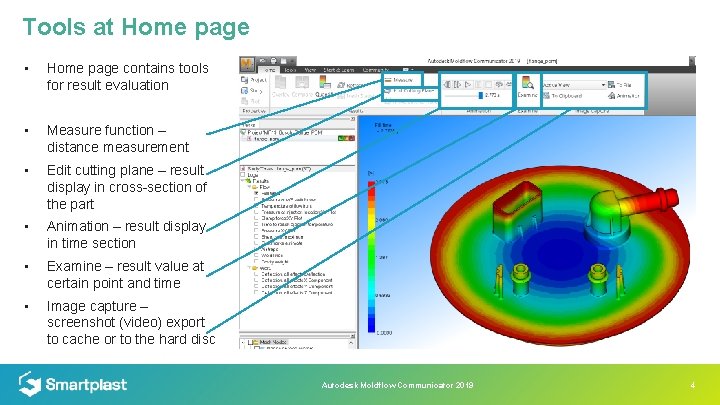
Tools at Home page • Home page contains tools for result evaluation • Measure function – distance measurement • Edit cutting plane – result display in cross-section of the part • Animation – result display in time section • Examine – result value at certain point and time • Image capture – screenshot (video) export to cache or to the hard disc Autodesk Moldflow Communicator 2019 4
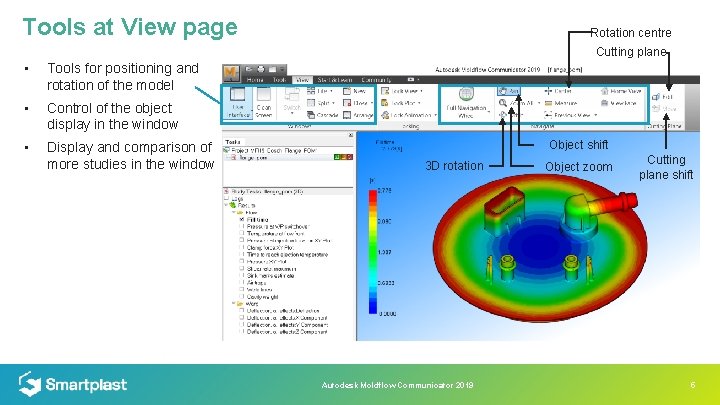
Tools at View page Rotation centre Cutting plane • Tools for positioning and rotation of the model • Control of the object display in the window • Display and comparison of more studies in the window Object shift 3 D rotation Autodesk Moldflow Communicator 2019 Object zoom Cutting plane shift 5
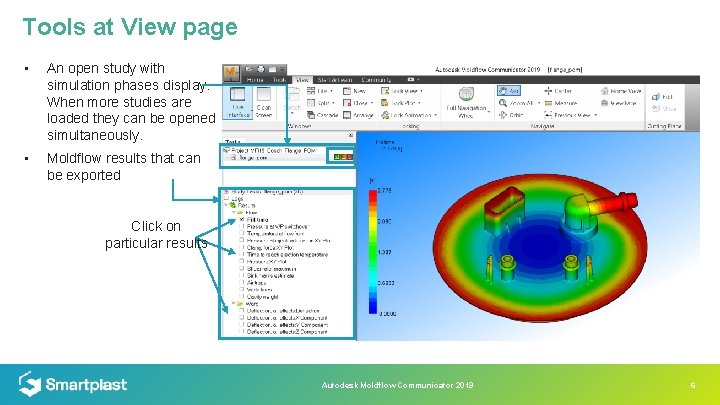
Tools at View page • An open study with simulation phases display. When more studies are loaded they can be opened simultaneously. • Moldflow results that can be exported Click on particular results Autodesk Moldflow Communicator 2019 6
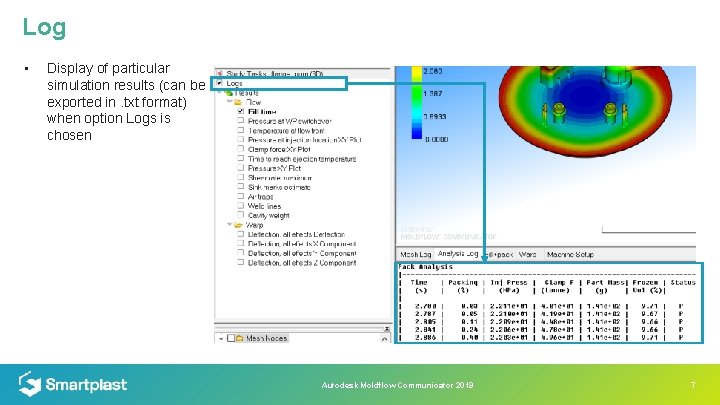
Log • Display of particular simulation results (can be exported in. txt format) when option Logs is chosen Autodesk Moldflow Communicator 2019 7
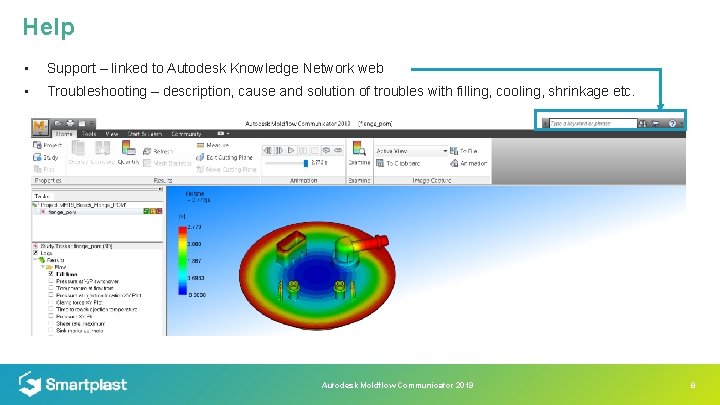
Help • Support – linked to Autodesk Knowledge Network web • Troubleshooting – description, cause and solution of troubles with filling, cooling, shrinkage etc. Autodesk Moldflow Communicator 2019 8
Download Autodesk Moldflow Communicator 2019 free download: https: //www. autodesk. com/products/moldflow/communicator-viewer Autodesk Moldflow Communicator 2019 9
Ing. Petr Halaška halaska@smartplast. cz +420 602 511 309 www. smartplast. cz