
Autodesk Inventor Essentials CHAPTER 7 Advanced Modeling Features
- Slides: 8
Autodesk Inventor Essentials CHAPTER 7: Advanced Modeling Features
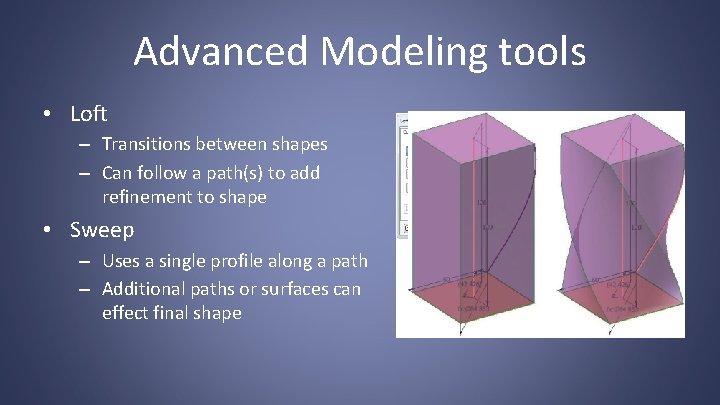
Advanced Modeling tools • Loft – Transitions between shapes – Can follow a path(s) to add refinement to shape • Sweep – Uses a single profile along a path – Additional paths or surfaces can effect final shape
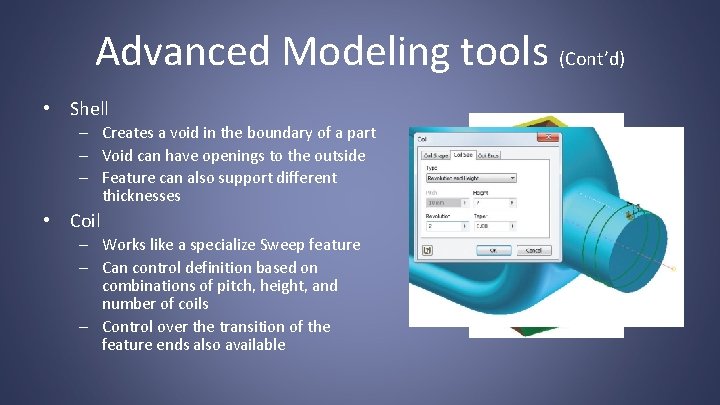
Advanced Modeling tools (Cont’d) • Shell – Creates a void in the boundary of a part – Void can have openings to the outside – Feature can also support different thicknesses • Coil – Works like a specialize Sweep feature – Can control definition based on combinations of pitch, height, and number of coils – Control over the transition of the feature ends also available
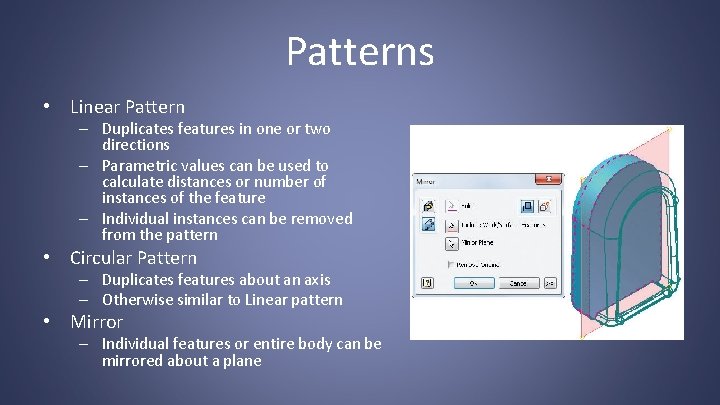
Patterns • Linear Pattern – Duplicates features in one or two directions – Parametric values can be used to calculate distances or number of instances of the feature – Individual instances can be removed from the pattern • Circular Pattern – Duplicates features about an axis – Otherwise similar to Linear pattern • Mirror – Individual features or entire body can be mirrored about a plane
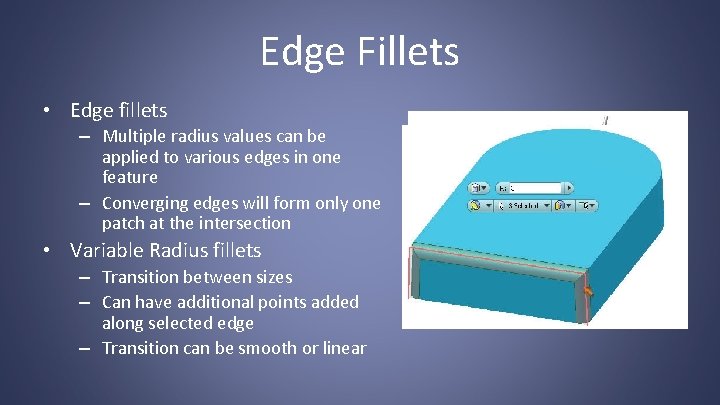
Edge Fillets • Edge fillets – Multiple radius values can be applied to various edges in one feature – Converging edges will form only one patch at the intersection • Variable Radius fillets – Transition between sizes – Can have additional points added along selected edge – Transition can be smooth or linear
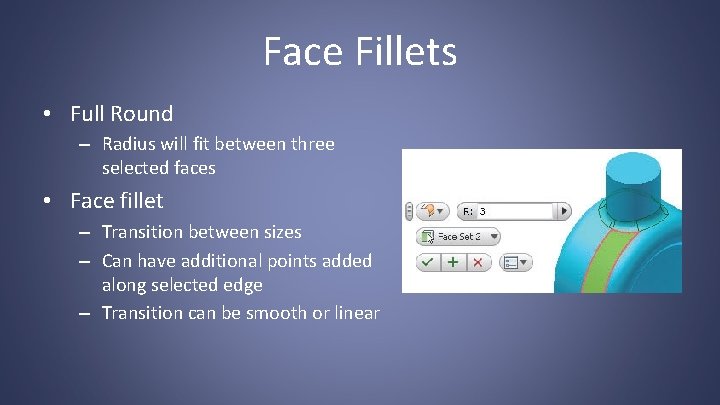
Face Fillets • Full Round – Radius will fit between three selected faces • Face fillet – Transition between sizes – Can have additional points added along selected edge – Transition can be smooth or linear
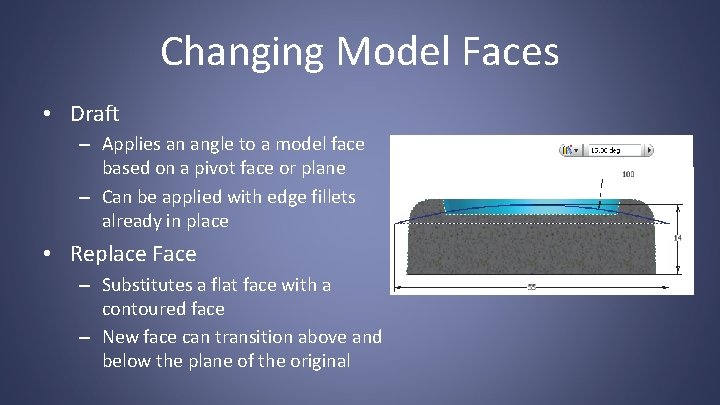
Changing Model Faces • Draft – Applies an angle to a model face based on a pivot face or plane – Can be applied with edge fillets already in place • Replace Face – Substitutes a flat face with a contoured face – New face can transition above and below the plane of the original
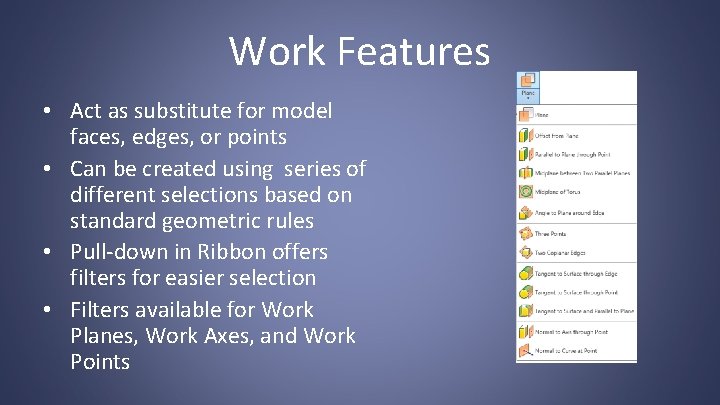
Work Features • Act as substitute for model faces, edges, or points • Can be created using series of different selections based on standard geometric rules • Pull-down in Ribbon offers filters for easier selection • Filters available for Work Planes, Work Axes, and Work Points