
Autodesk Ecotect Analysis The Desktop Component Interface TM

- Slides: 16
Autodesk Ecotect Analysis: The Desktop Component Interface ® TM Dr. Andrew Marsh Principal Software Engineer, AEC-Simulation © 2009 Autodesk
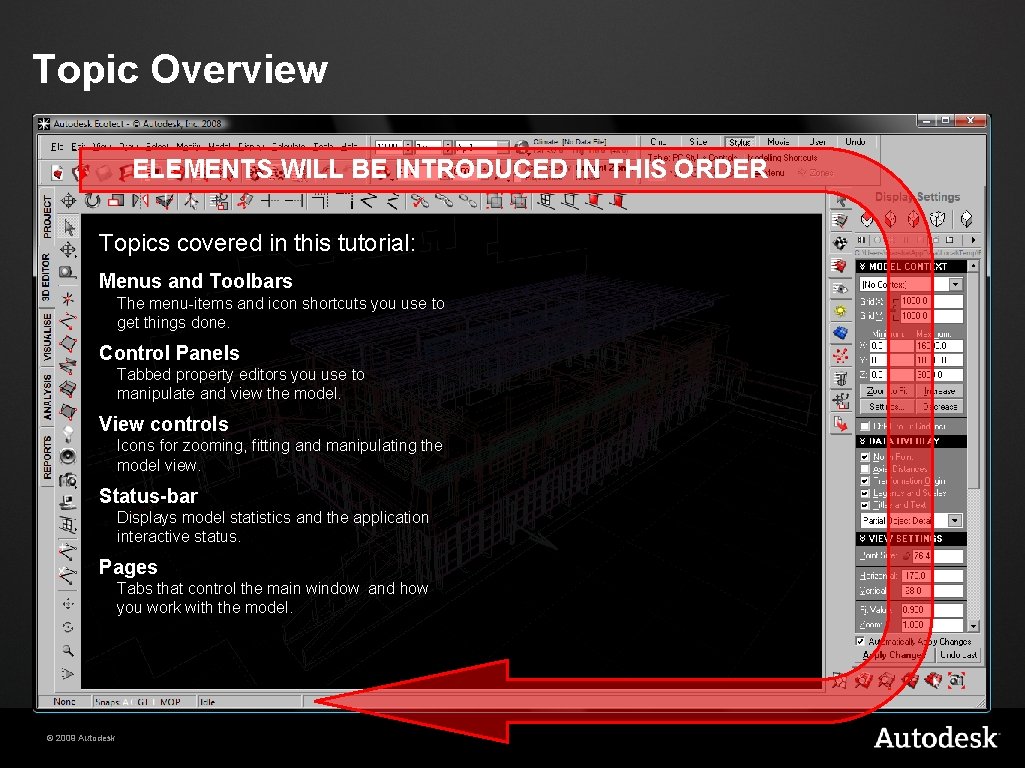
Topic Overview ELEMENTS WILL BE INTRODUCED IN THIS ORDER Topics covered in this tutorial: Menus and Toolbars The menu-items and icon shortcuts you use to get things done. Control Panels Tabbed property editors you use to manipulate and view the model. View controls Icons for zooming, fitting and manipulating the model view. Status-bar Displays model statistics and the application interactive status. Pages Tabs that control the main window and how you work with the model. © 2009 Autodesk
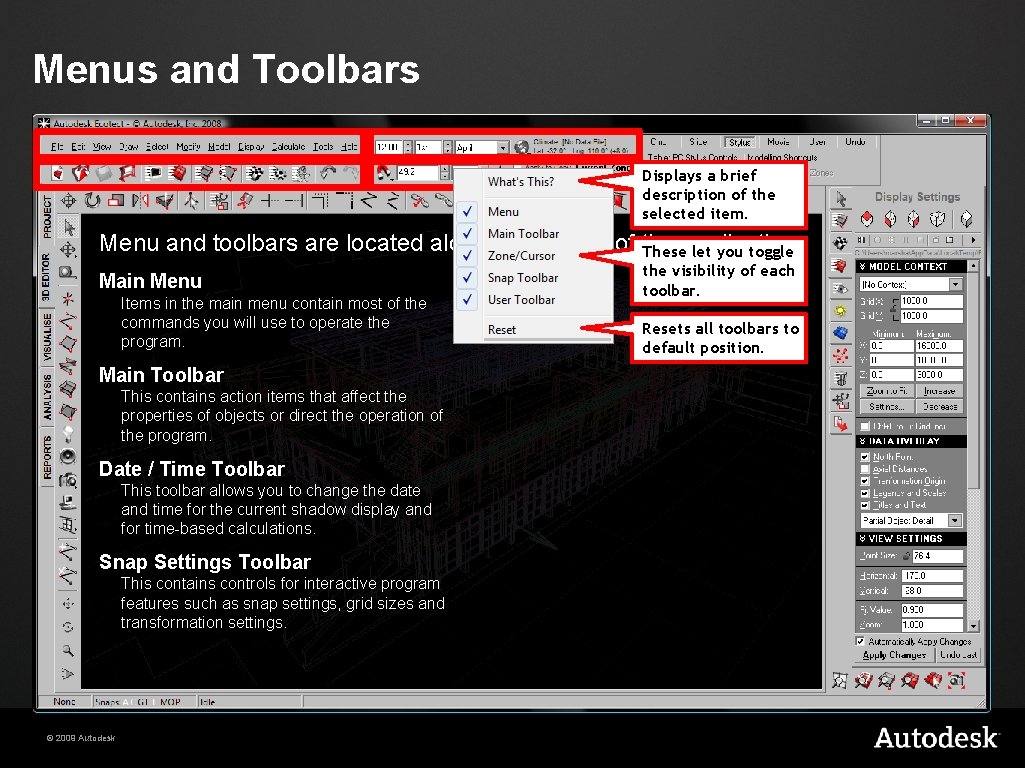
Menus and Toolbars Displays a brief description of the selected item. Menu and toolbars are located along the top-left of the Theseapplication. let you toggle Main Menu Items in the main menu contain most of the commands you will use to operate the program. Main Toolbar This contains action items that affect the properties of objects or direct the operation of the program. Date / Time Toolbar This toolbar allows you to change the date and time for the current shadow display and for time-based calculations. Snap Settings Toolbar This contains controls for interactive program features such as snap settings, grid sizes and transformation settings. © 2009 Autodesk the visibility of each toolbar. Resets all toolbars to default position.
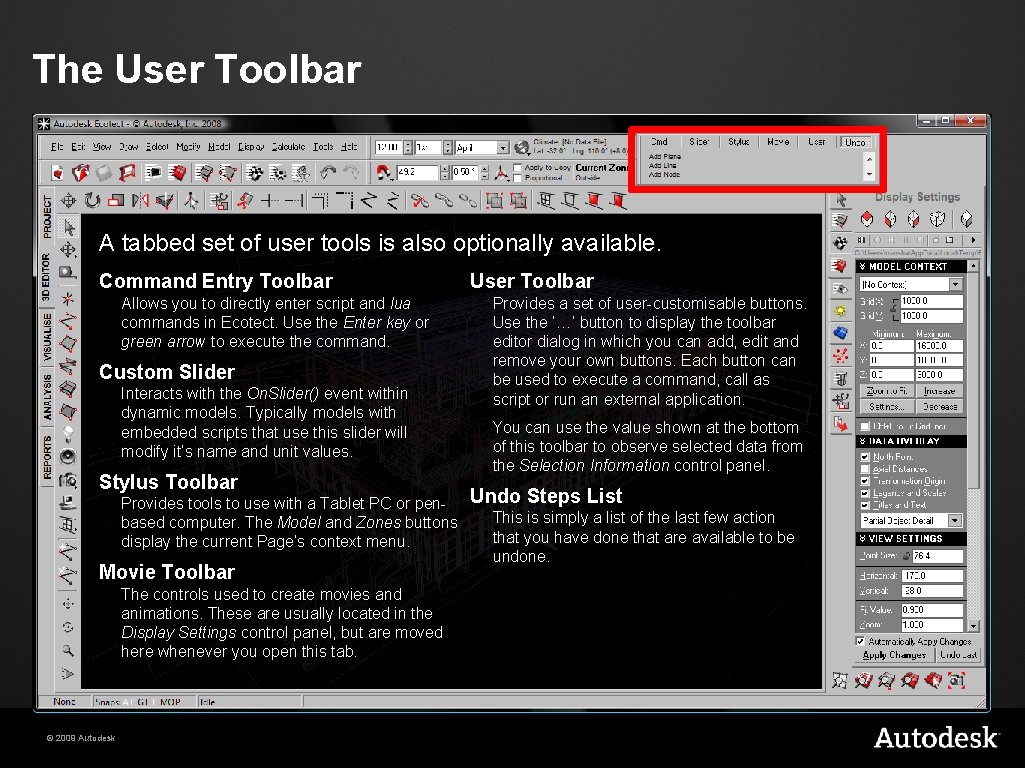
The User Toolbar A tabbed set of user tools is also optionally available. Command Entry Toolbar Allows you to directly enter script and lua commands in Ecotect. Use the Enter key or green arrow to execute the command. Custom Slider Interacts with the On. Slider() event within dynamic models. Typically models with embedded scripts that use this slider will modify it’s name and unit values. Stylus Toolbar Provides tools to use with a Tablet PC or penbased computer. The Model and Zones buttons display the current Page’s context menu. Movie Toolbar The controls used to create movies and animations. These are usually located in the Display Settings control panel, but are moved here whenever you open this tab. © 2009 Autodesk User Toolbar Provides a set of user-customisable buttons. Use the ‘…’ button to display the toolbar editor dialog in which you can add, edit and remove your own buttons. Each button can be used to execute a command, call as script or run an external application. You can use the value shown at the bottom of this toolbar to observe selected data from the Selection Information control panel. Undo Steps List This is simply a list of the last few action that you have done that are available to be undone.
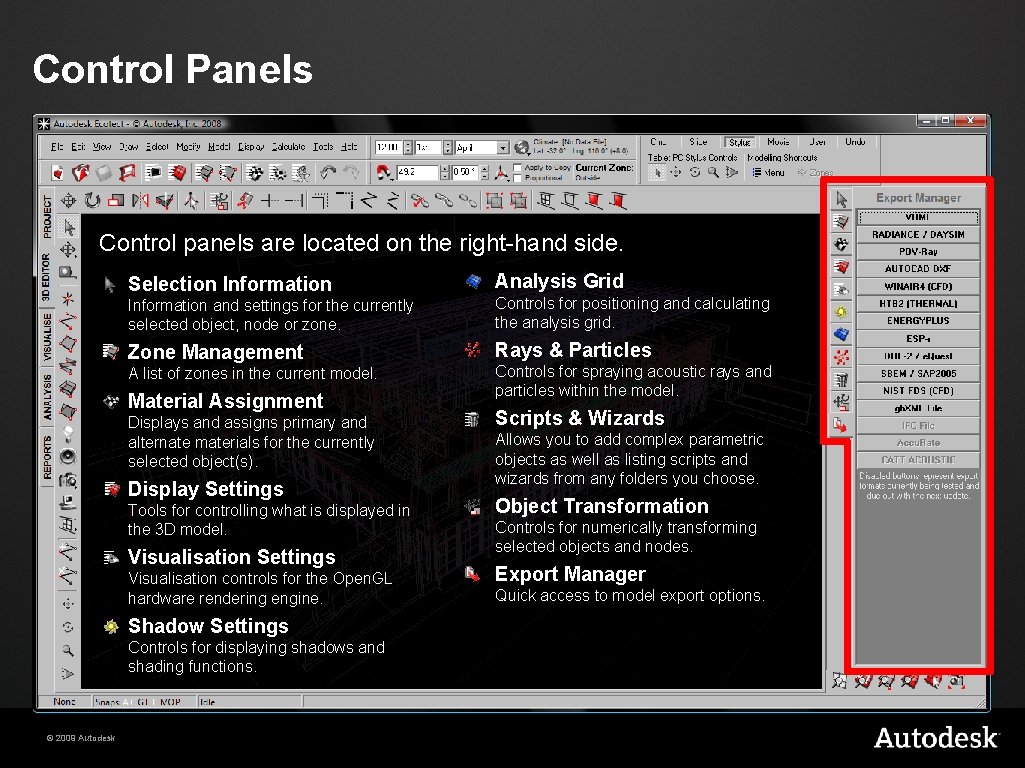
Control Panels Control panels are located on the right-hand side. Selection Information and settings for the currently selected object, node or zone. Controls for positioning and calculating the analysis grid. Zone Management Rays & Particles A list of zones in the current model. Material Assignment Displays and assigns primary and alternate materials for the currently selected object(s). Display Settings Tools for controlling what is displayed in the 3 D model. Visualisation Settings Visualisation controls for the Open. GL hardware rendering engine. Shadow Settings Controls for displaying shadows and shading functions. © 2009 Autodesk Analysis Grid Controls for spraying acoustic rays and particles within the model. Scripts & Wizards Allows you to add complex parametric objects as well as listing scripts and wizards from any folders you choose. Object Transformation Controls for numerically transforming selected objects and nodes. Export Manager Quick access to model export options.
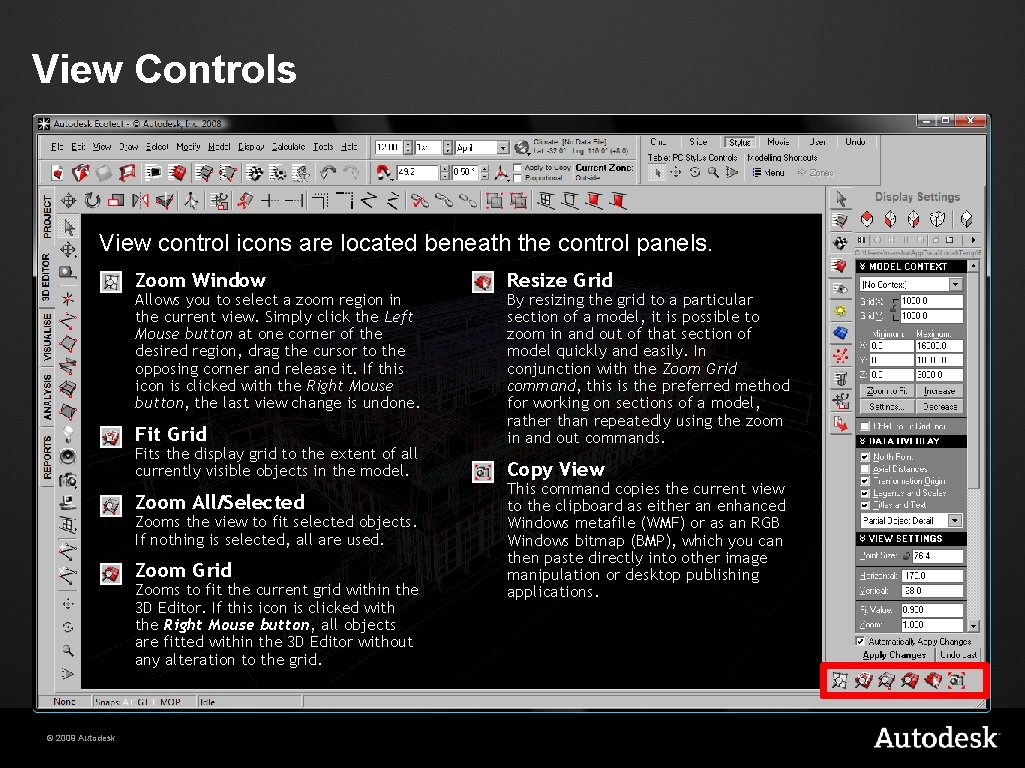
View Controls View control icons are located beneath the control panels. Zoom Window Allows you to select a zoom region in the current view. Simply click the Left Mouse button at one corner of the desired region, drag the cursor to the opposing corner and release it. If this icon is clicked with the Right Mouse button, the last view change is undone. Fit Grid Fits the display grid to the extent of all currently visible objects in the model. Zoom All/Selected Zooms the view to fit selected objects. If nothing is selected, all are used. Zoom Grid Zooms to fit the current grid within the 3 D Editor. If this icon is clicked with the Right Mouse button, all objects are fitted within the 3 D Editor without any alteration to the grid. © 2009 Autodesk Resize Grid By resizing the grid to a particular section of a model, it is possible to zoom in and out of that section of model quickly and easily. In conjunction with the Zoom Grid command, this is the preferred method for working on sections of a model, rather than repeatedly using the zoom in and out commands. Copy View This command copies the current view to the clipboard as either an enhanced Windows metafile (WMF) or as an RGB Windows bitmap (BMP), which you can then paste directly into other image manipulation or desktop publishing applications.
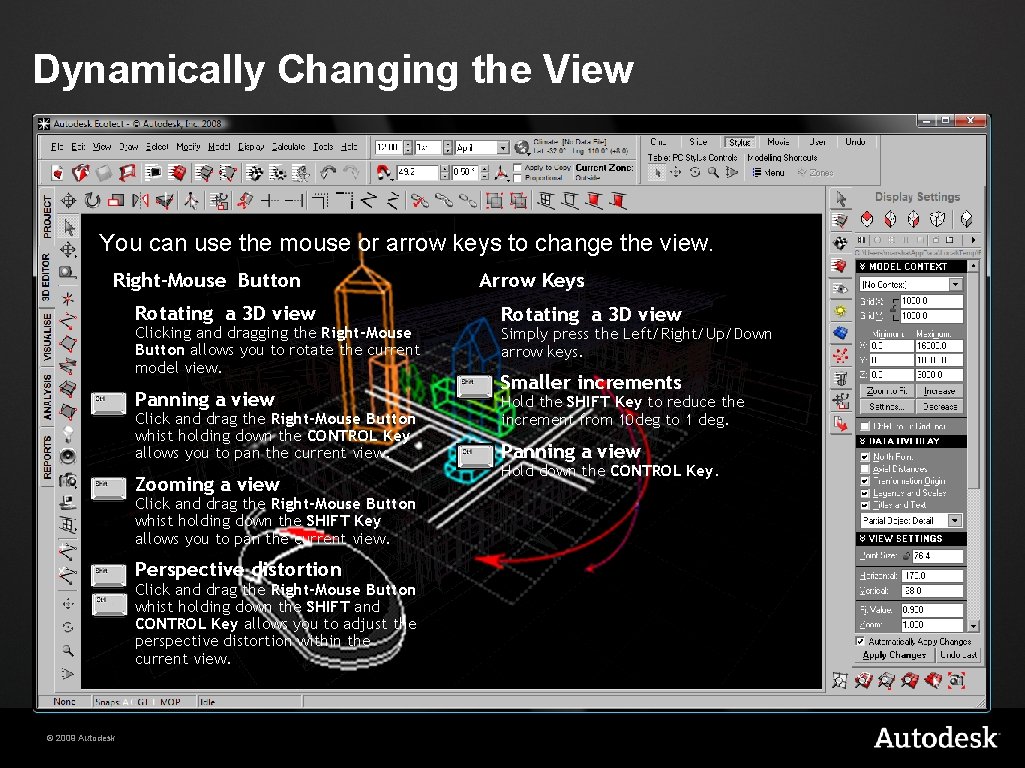
Dynamically Changing the View You can use the mouse or arrow keys to change the view. Right-Mouse Button Rotating a 3 D view Clicking and dragging the Right-Mouse Button allows you to rotate the current model view. Panning a view Click and drag the Right-Mouse Button whist holding down the CONTROL Key allows you to pan the current view. Zooming a view Click and drag the Right-Mouse Button whist holding down the SHIFT Key allows you to pan the current view. Perspective distortion Click and drag the Right-Mouse Button whist holding down the SHIFT and CONTROL Key allows you to adjust the perspective distortion within the current view. © 2009 Autodesk Arrow Keys Rotating a 3 D view Simply press the Left/Right/Up/Down arrow keys. Smaller increments Hold the SHIFT Key to reduce the increment from 10 deg to 1 deg. Panning a view Hold down the CONTROL Key.
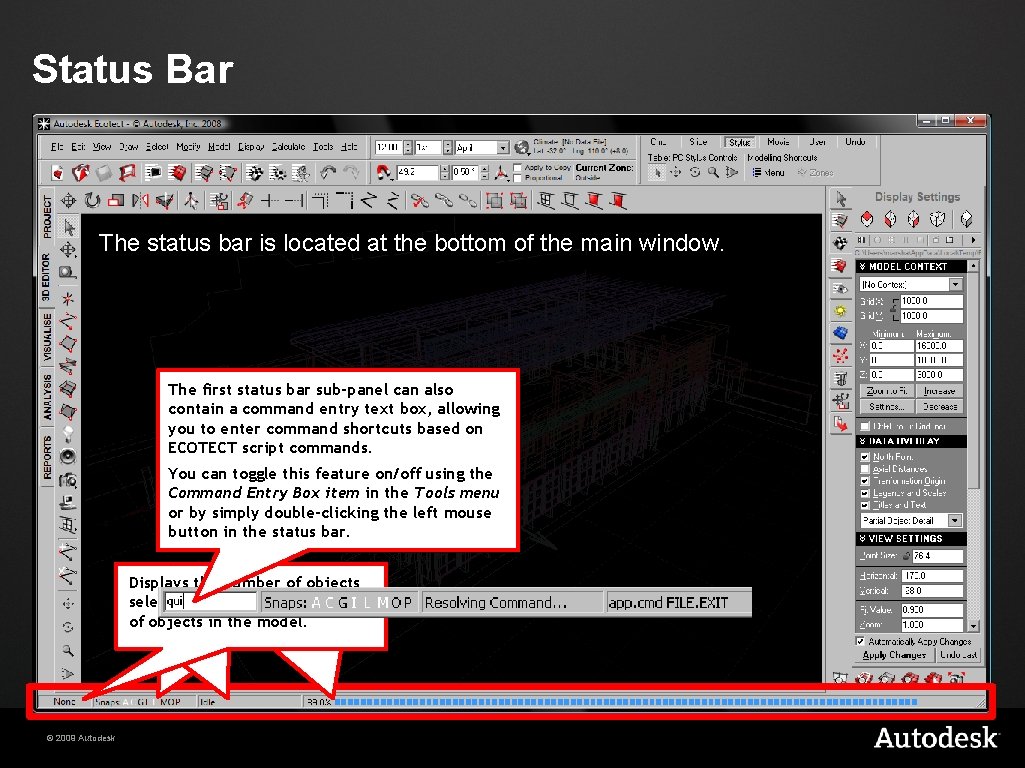
Status Bar The status bar is located at the bottom of the main window. The first status bar sub-panel can also contain a command entry text box, allowing you to enter command shortcuts based on ECOTECT script commands. You can toggle this feature on/off using the Command Entry Box item in the Tools menu or by simply double-clicking the left mouse button in the status bar. If the application Current Displays cursor the number status snap isof busy, settings of the objects thisareacan you application selected displays toggle and- whether the either any total ofa these progress itnumber is Idle by barobjects left-clicking or of busy or an calculating action inwith the description. model. the something. mouse. © 2009 Autodesk
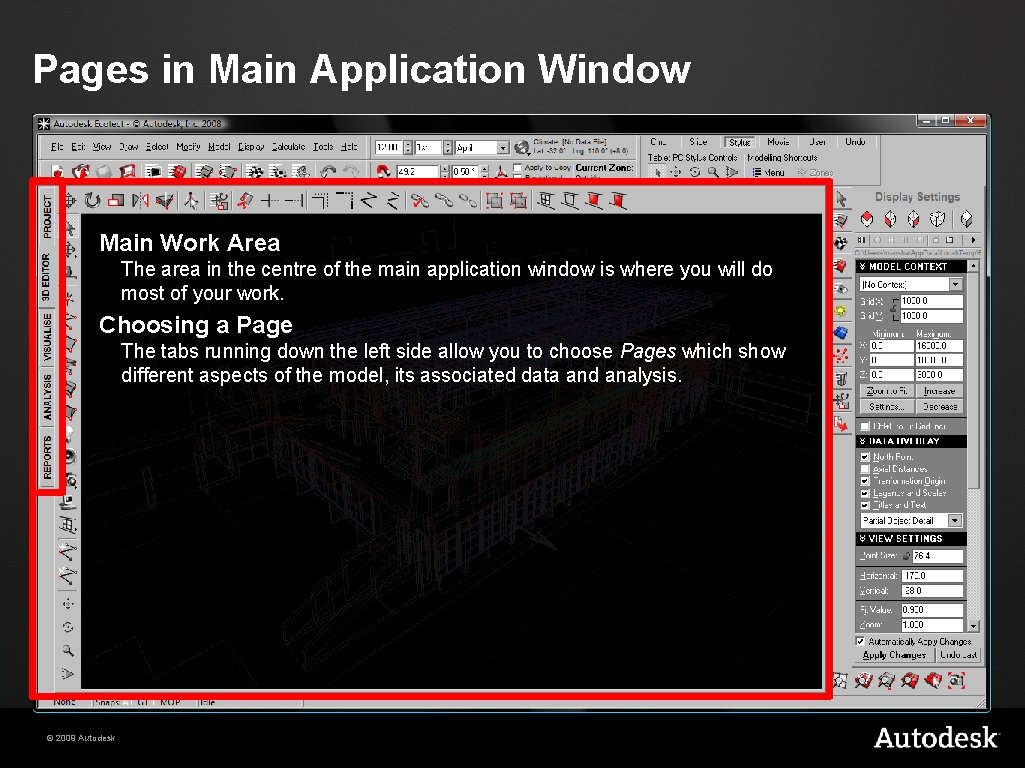
Pages in Main Application Window Main Work Area The area in the centre of the main application window is where you will do most of your work. Choosing a Page The tabs running down the left side allow you to choose Pages which show different aspects of the model, its associated data and analysis. © 2009 Autodesk
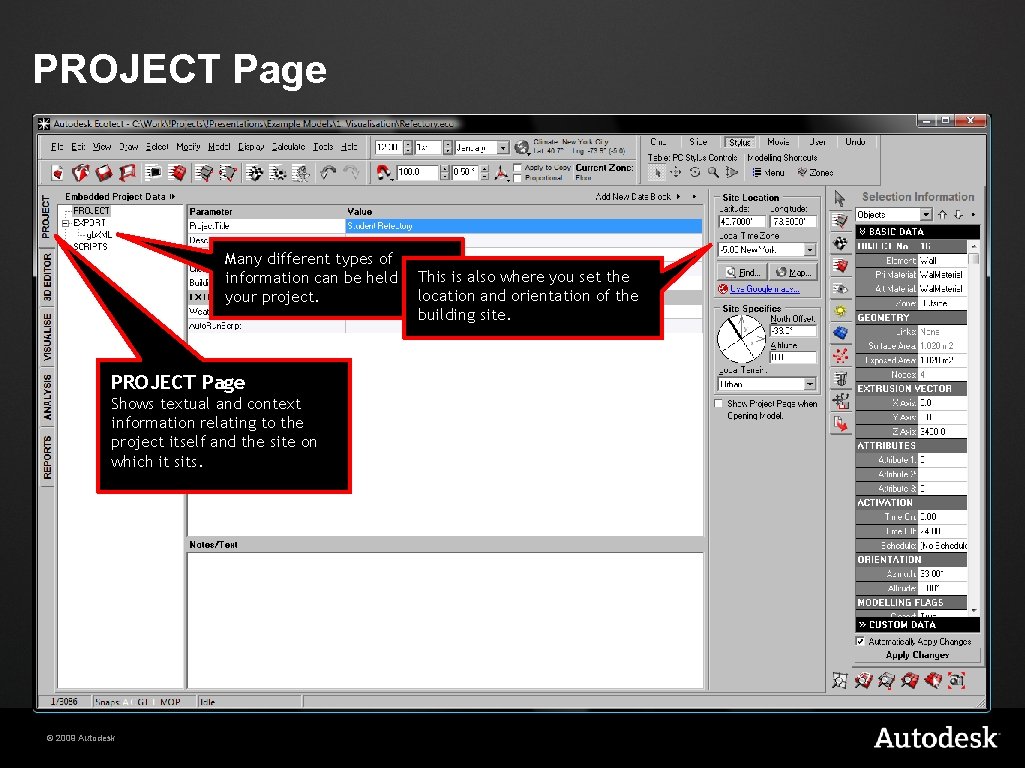
PROJECT Page Many different types of This is also where you set the information can be held within location and orientation of the your project. building site. PROJECT Page Shows textual and context information relating to the project itself and the site on which it sits. © 2009 Autodesk
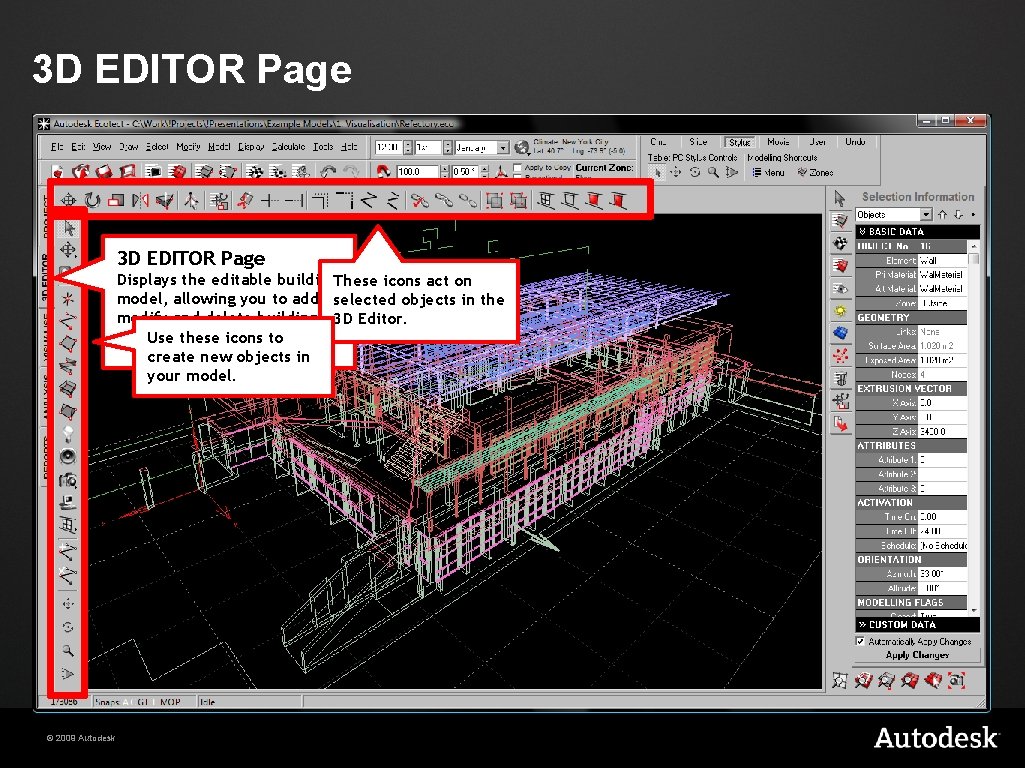
3 D EDITOR Page Displays the editable building. These icons act on model, allowing you to add, selected objects in the modify and delete building 3 D Editor. Use these icons to elements. create new objects in your model. © 2009 Autodesk
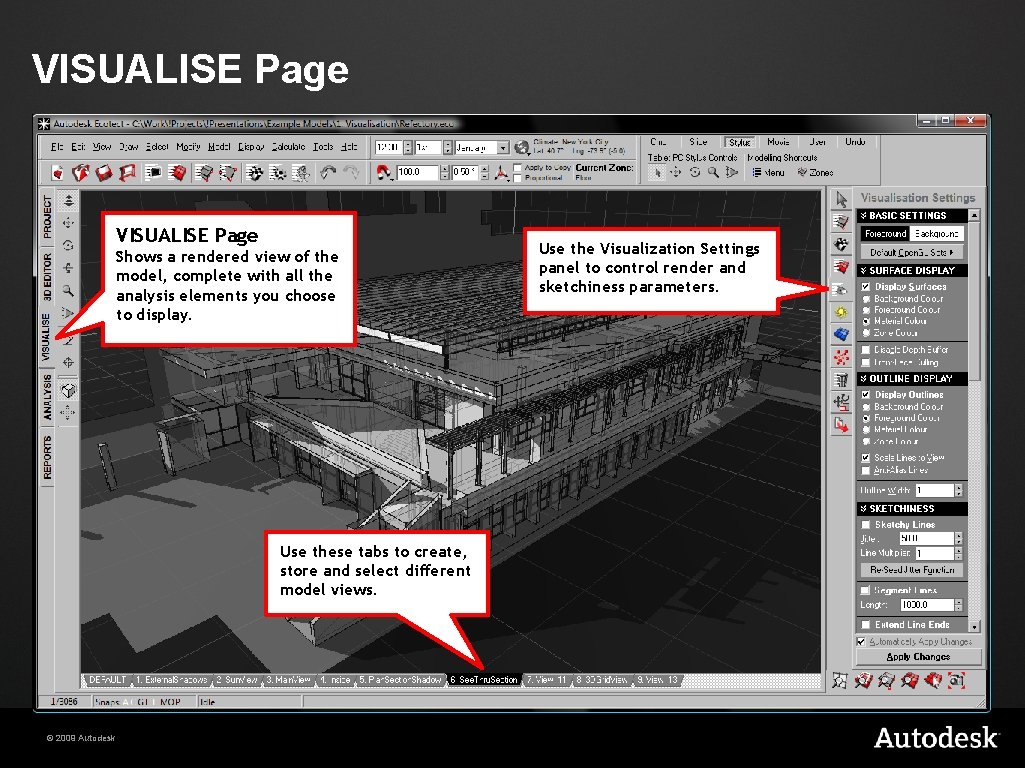
VISUALISE Page Shows a rendered view of the model, complete with all the analysis elements you choose to display. Use these tabs to create, store and select different model views. © 2009 Autodesk Use the Visualization Settings panel to control render and sketchiness parameters.
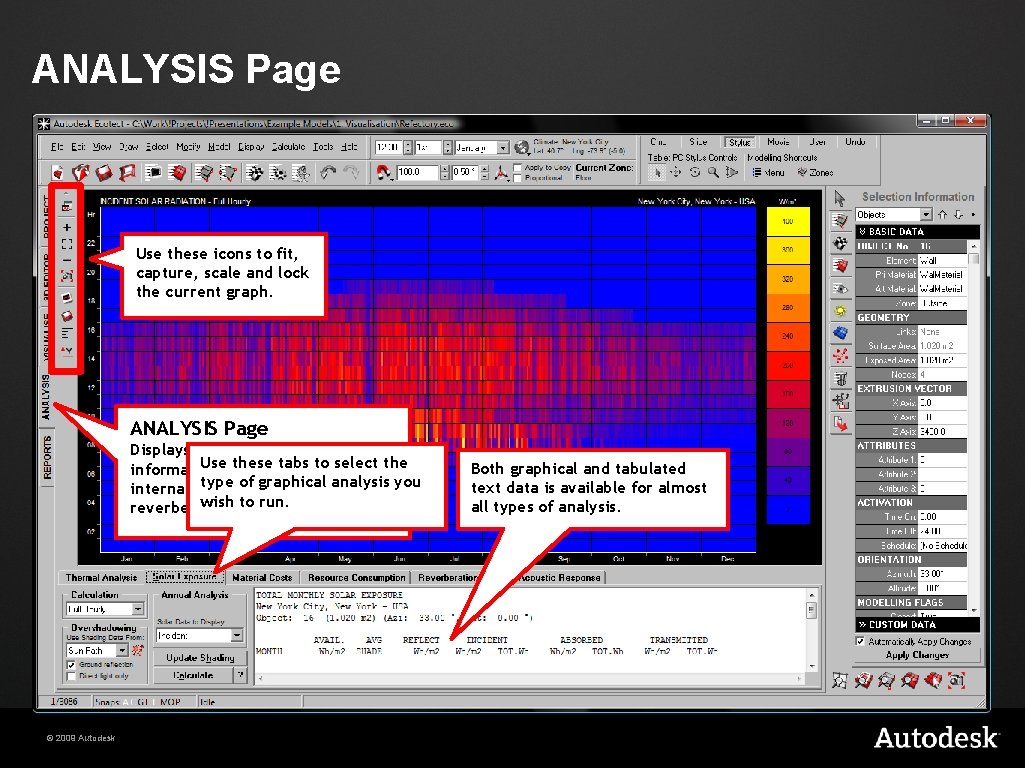
ANALYSIS Page Use these icons to fit, capture, scale and lock the current graph. ANALYSIS Page Displays graphical analysis Usesuch these select the information as tabs solartoradiation, type of graphical internal temperatures or analysis you wish to run. reverberation times. © 2009 Autodesk Both graphical and tabulated text data is available for almost all types of analysis.
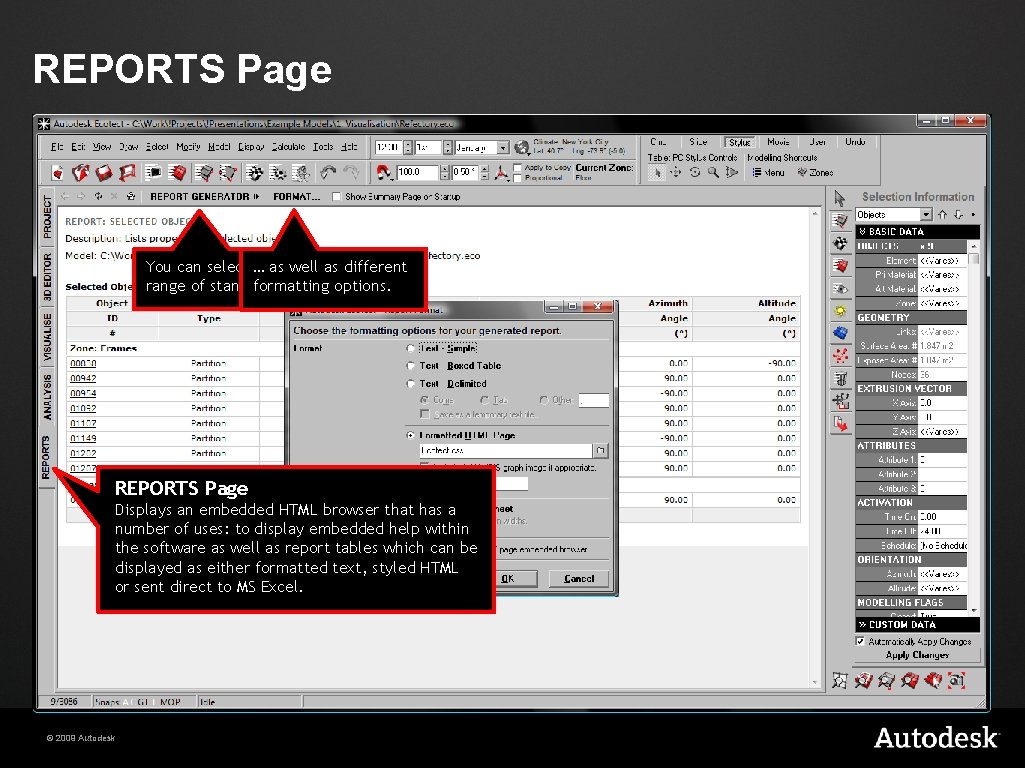
REPORTS Page You can select … from a wide as well as different range of standard reports…options. formatting REPORTS Page Displays an embedded HTML browser that has a number of uses: to display embedded help within the software as well as report tables which can be displayed as either formatted text, styled HTML or sent direct to MS Excel. © 2009 Autodesk
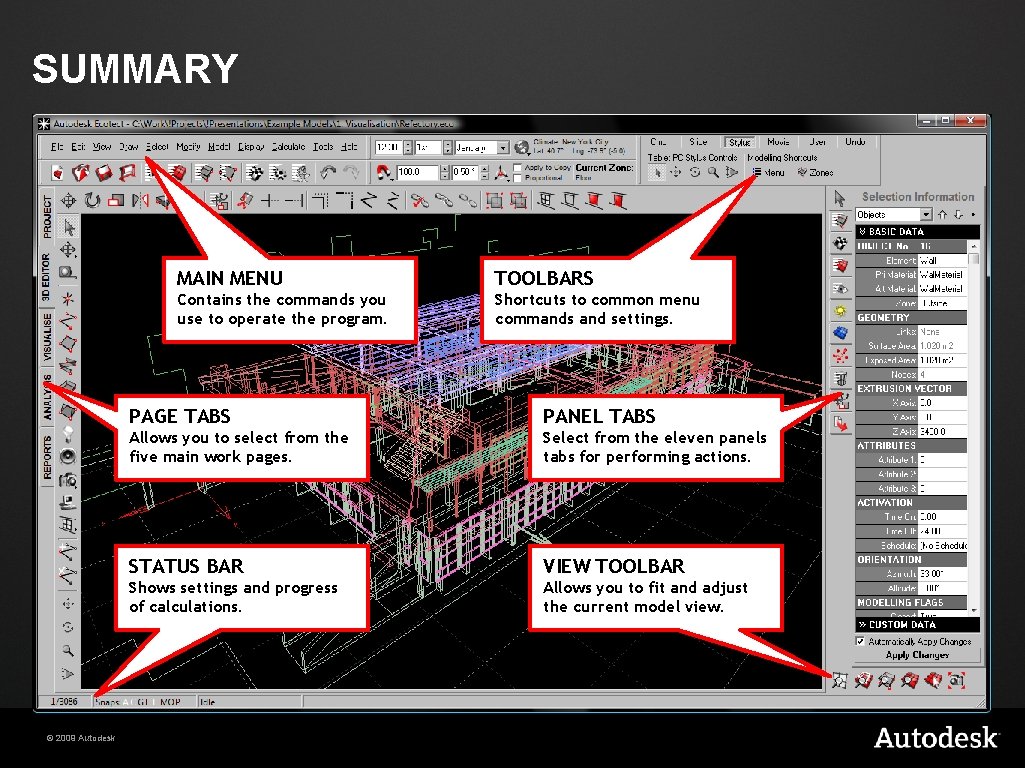
SUMMARY © 2009 Autodesk MAIN MENU TOOLBARS Contains the commands you use to operate the program. Shortcuts to common menu commands and settings. PAGE TABS PANEL TABS Allows you to select from the five main work pages. Select from the eleven panels tabs for performing actions. STATUS BAR VIEW TOOLBAR Shows settings and progress of calculations. Allows you to fit and adjust the current model view.
© 2009 Autodesk