
AUTOCAD Ihr Logo AUTOCAD WINDOW Drawing Name Standard
- Slides: 12
AUTOCAD Ihr Logo
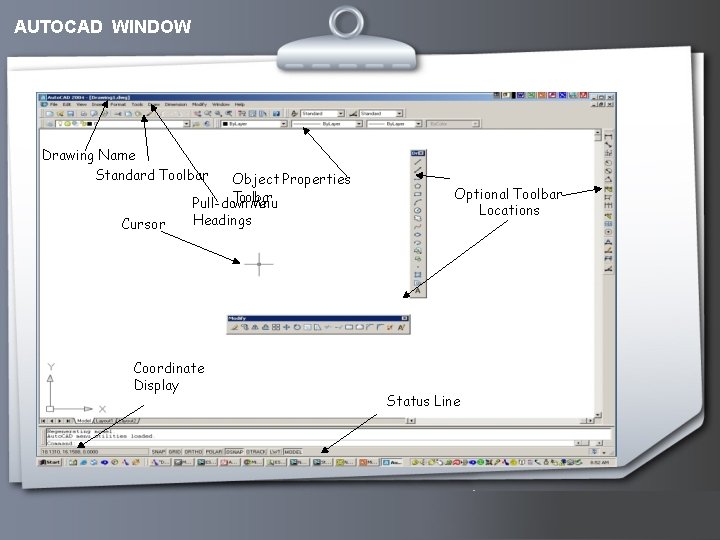
AUTOCAD WINDOW Drawing Name Standard Toolbar Object Properties ba r Pull-do. T wonol. M enu Cursor Headings Coordinate Display Optional Toolbar Locations Status Line Your Logo
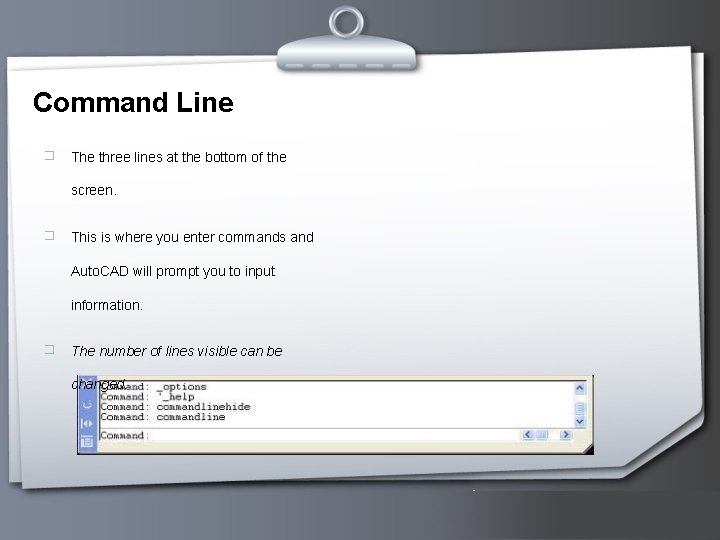
Command Line � The three lines at the bottom of the screen. � This is where you enter commands and Auto. CAD will prompt you to input information. � The number of lines visible can be changed. Your Logo
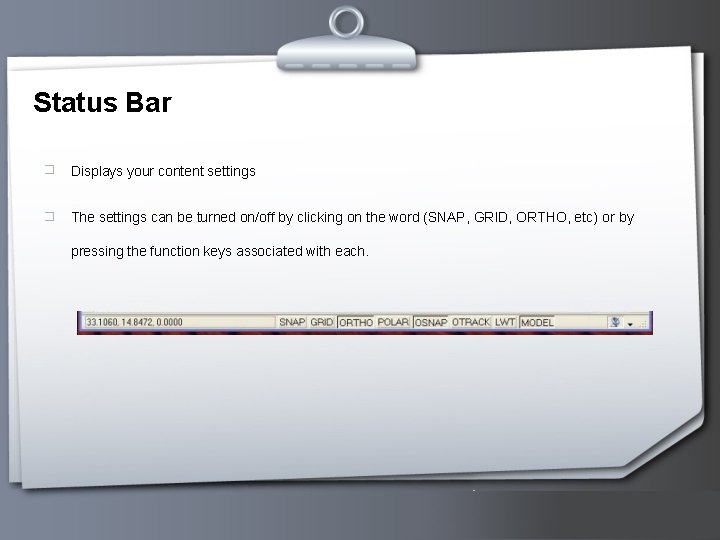
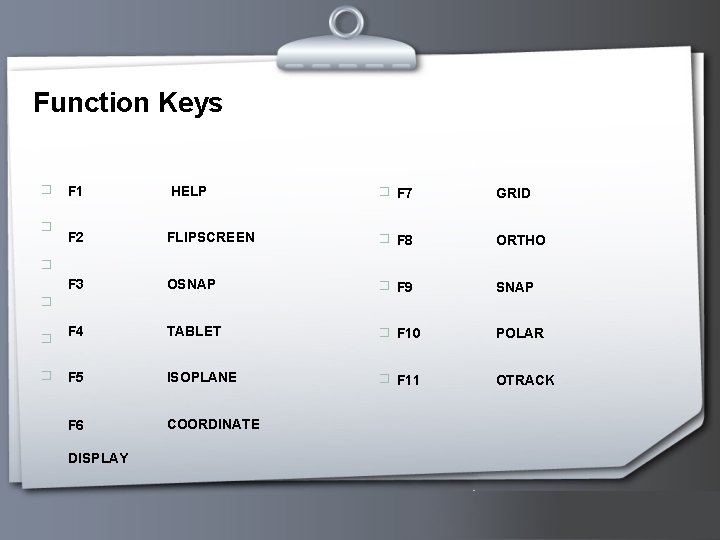
Status Bar � Displays your content settings � The settings can be turned on/off by clicking on the word (SNAP, GRID, ORTHO, etc) or by pressing the function keys associated with each. Your Logo
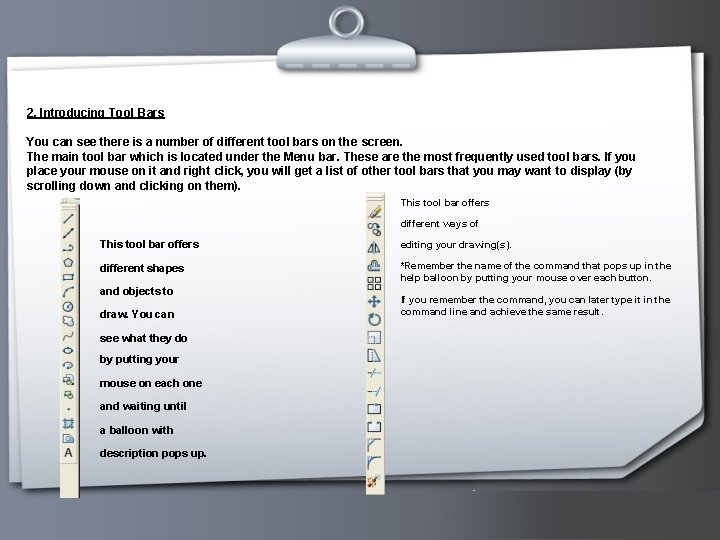
2. Introducing Tool Bars You can see there is a number of different tool bars on the screen. The main tool bar which is located under the Menu bar. These are the most frequently used tool bars. If you place your mouse on it and right click, you will get a list of other tool bars that you may want to display (by scrolling down and clicking on them). This tool bar offers different ways of This tool bar offers editing your drawing(s). different shapes *Remember the name of the command that pops up in the help balloon by putting your mouse over each button. and objects to draw. You can If you remember the command, you can later type it in the command line and achieve the same result. see what they do by putting your mouse on each one and waiting until a balloon with description pops up. Your Logo
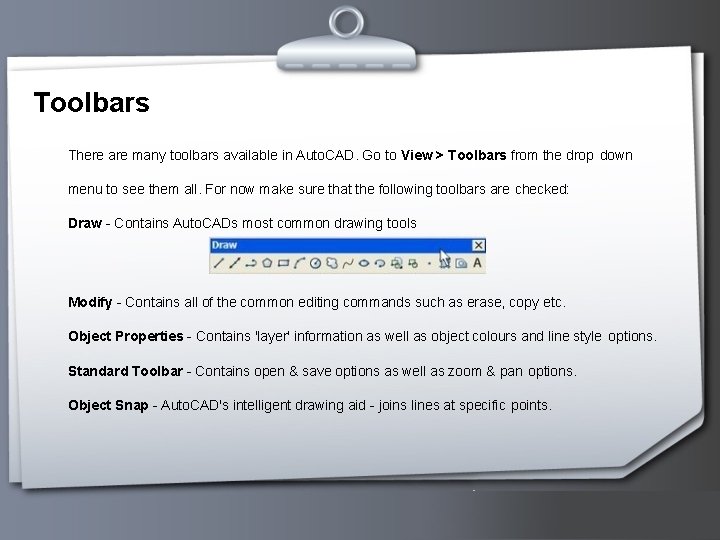
Toolbars There are many toolbars available in Auto. CAD. Go to View > Toolbars from the drop down menu to see them all. For now make sure that the following toolbars are checked: Draw - Contains Auto. CADs most common drawing tools Modify - Contains all of the common editing commands such as erase, copy etc. Object Properties - Contains 'layer' information as well as object colours and line style options. Standard Toolbar - Contains open & save options as well as zoom & pan options. Object Snap - Auto. CAD's intelligent drawing aid - joins lines at specific points. Your Logo
Function Keys � F 1 HELP F 2 � F 7 GRID FLIPSCREEN � F 8 ORTHO F 3 OSNAP � F 9 SNAP � F 4 TABLET � F 10 POLAR � F 5 ISOPLANE � F 11 OTRACK F 6 COORDINATE � � � DISPLAY Your Logo
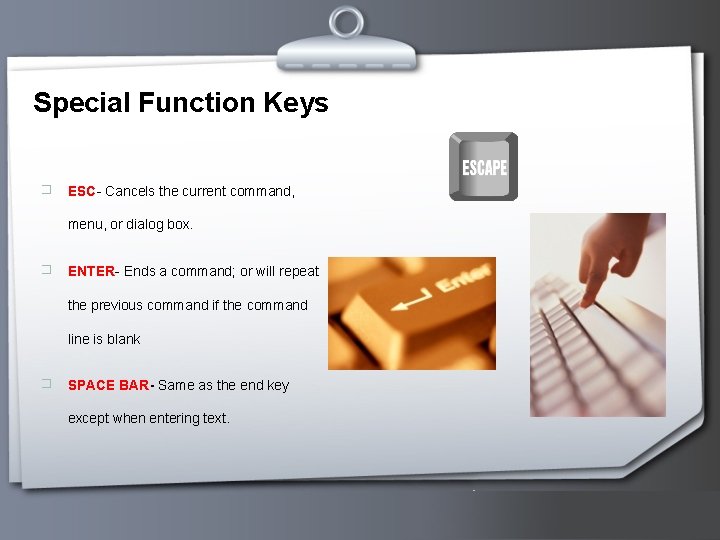
Special Function Keys � ESC- Cancels the current command, menu, or dialog box. � ENTER- Ends a command; or will repeat the previous command if the command line is blank � SPACE BAR- Same as the end key except when entering text. Your Logo
Coordinate Display (F 6) � In the ABSOLUTE mode: Displays the location of the crosshairs/ cursor in reference to the origin. The first number represents the horizontal (x axis) and the second number represents the vertical (y axis). � In RELATIVE POLAR mode: displays the distance and angle of the cursor from the last point entered. Your Logo
SNAP (F 9) � Increment Snap controls the movement of the cursor. If it is off the cursor will move smoothly. If it is ON, the cursor will jump in an incremental movement. The increment spacing can be changed, at any time using TOOLS/DRAFTING SETTINGS. The default spacing is. 250 Your Logo
GRID (F 7) � The grid is merely a visual “drawing aid”. The default spacing is 1 unit. You may change the grid spacing at any time using: TOOLS/DRAFTING SETTINGS. ORTHO (F 8) � When ORTHO is ON, the cursor movement is restricted to horizontal or vertical. When ORTHO is OFF, the cursor is free to move. Your Logo
POLAR (F 10) � POLAR TRACKING creates “alignment paths” at specified angles. OSNAP (F 3) � RUNNING OBJECT SNAP- specific object snaps can be set to stay active until you turn them off. OTRACK (F 11) � OBJECT SNAP TRACKING creates “alignment paths” at precise positions using object snap locations. Your Logo