
Audio Test Setup using Coursesites com This Powerpoint

- Slides: 65
Audio Test Setup using Coursesites. com
This Powerpoint • • Will be available at edmodo. com Join as a teacher Join group: 3 nqqrw Look in folder “audio testing”
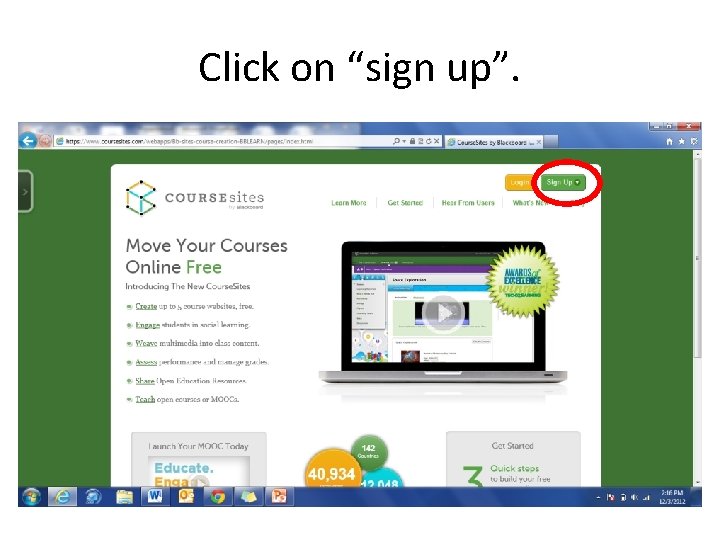
www. Coursesites. com
Click on “sign up”.
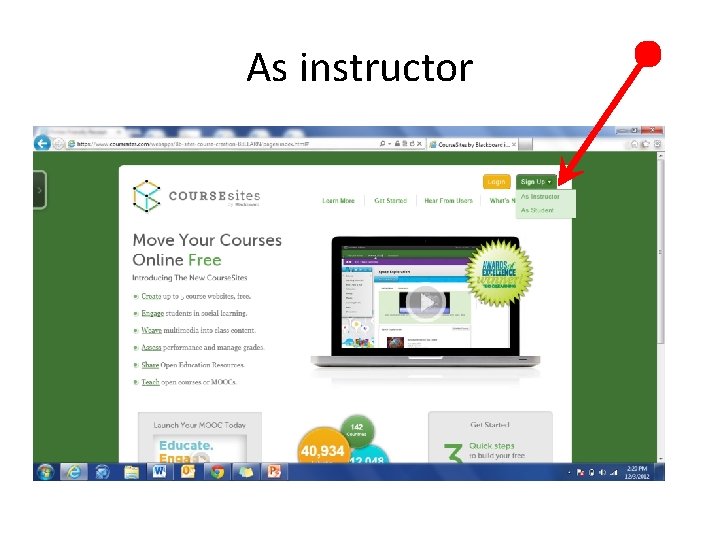
As instructor
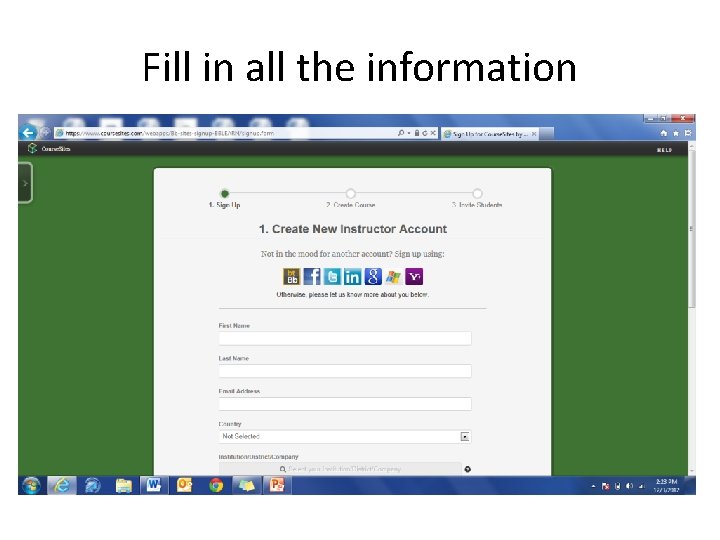
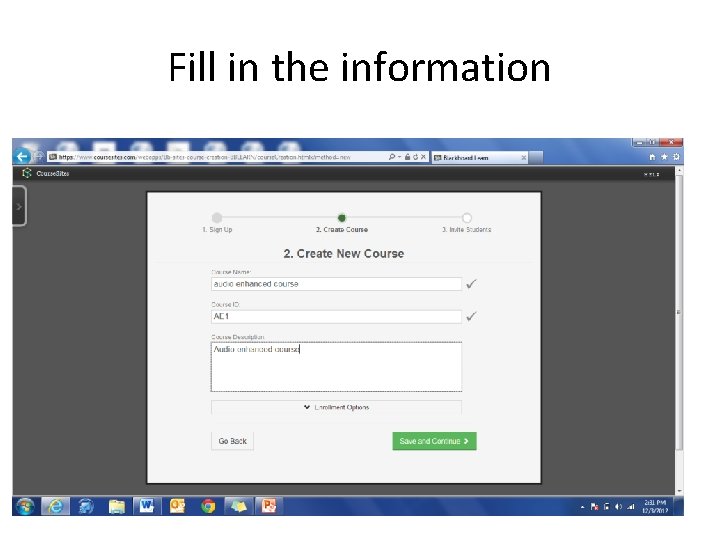
Fill in all the information
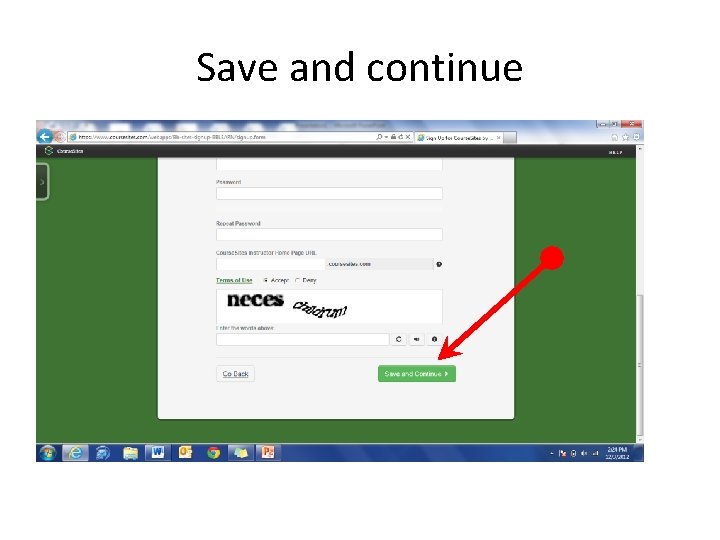
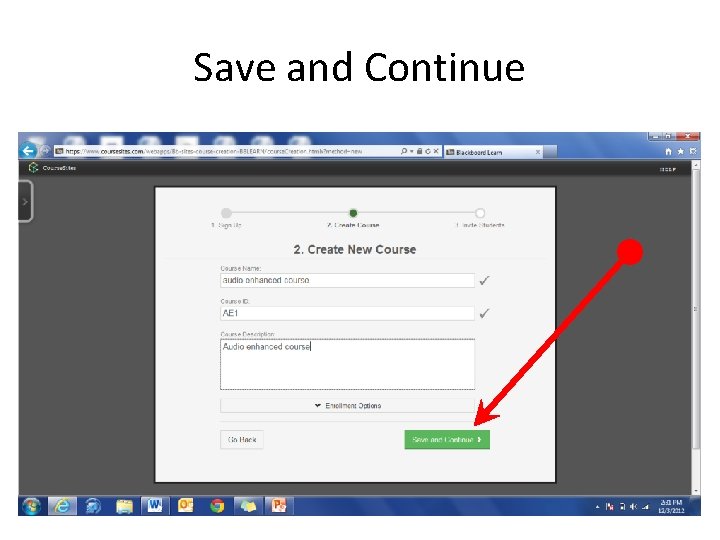
Save and continue
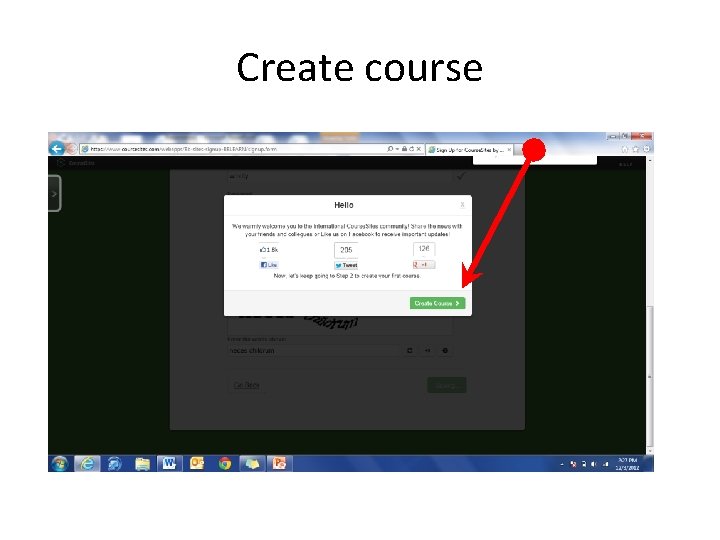
Create course
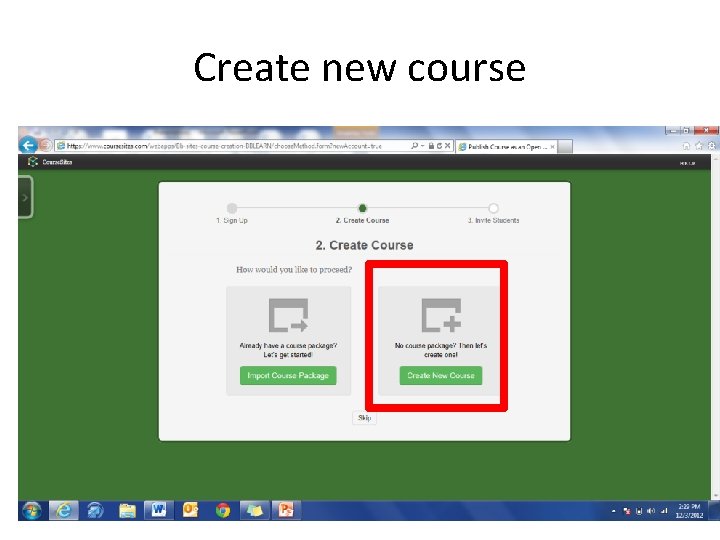
Create new course
Fill in the information
Save and Continue
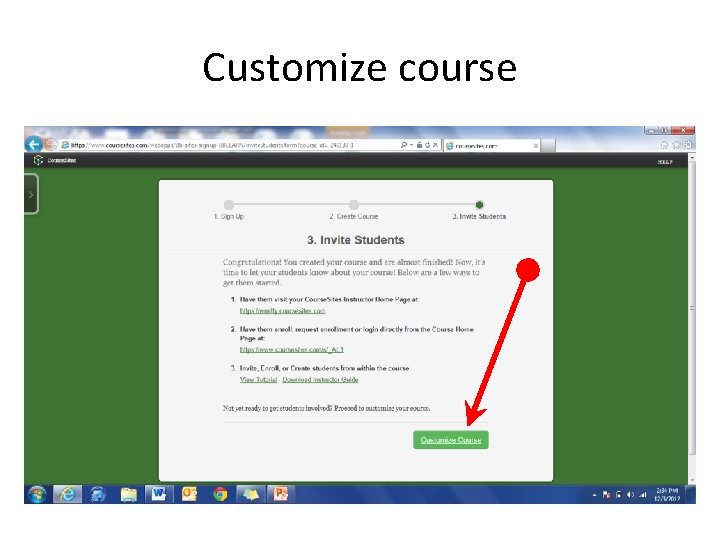
Customize course
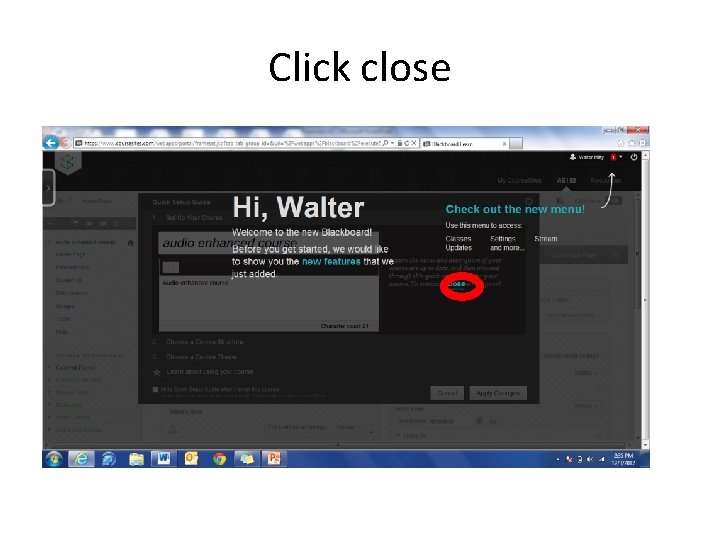
Click close
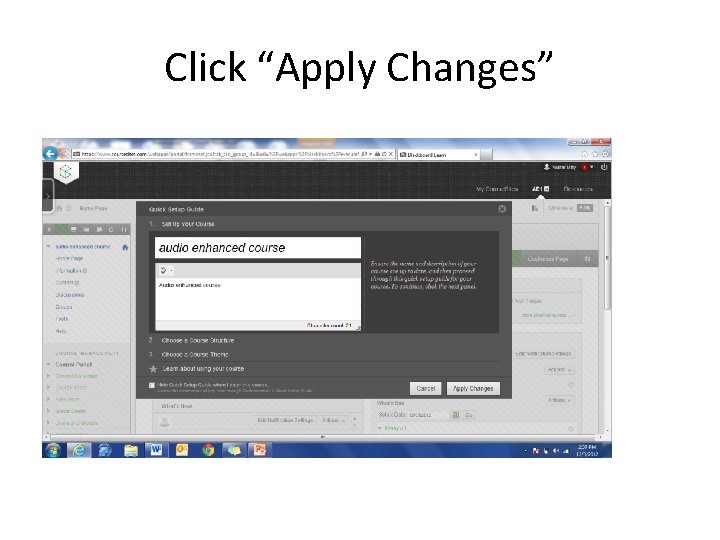
Click “Apply Changes”
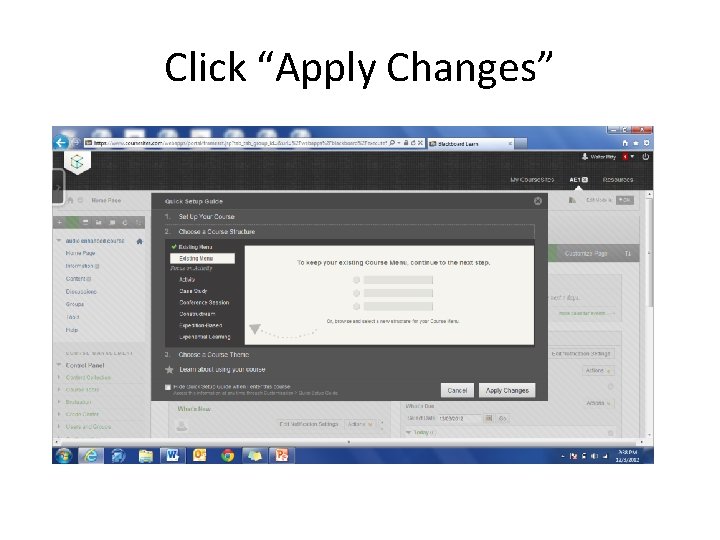
Click “Apply Changes”
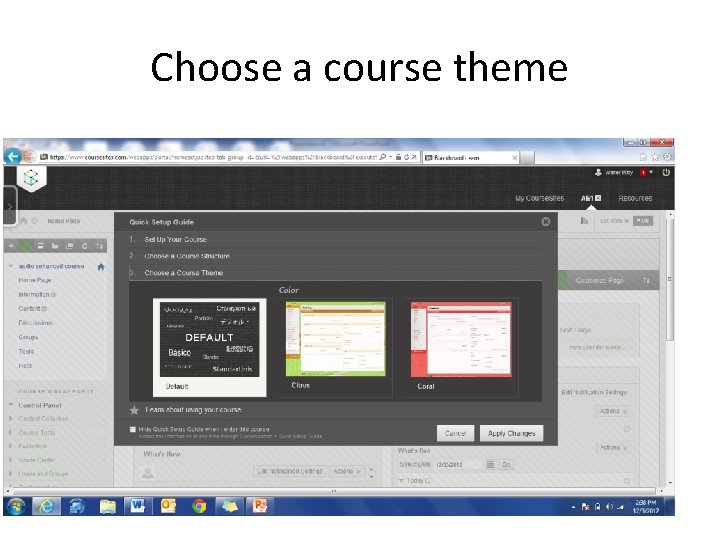
Choose a course theme
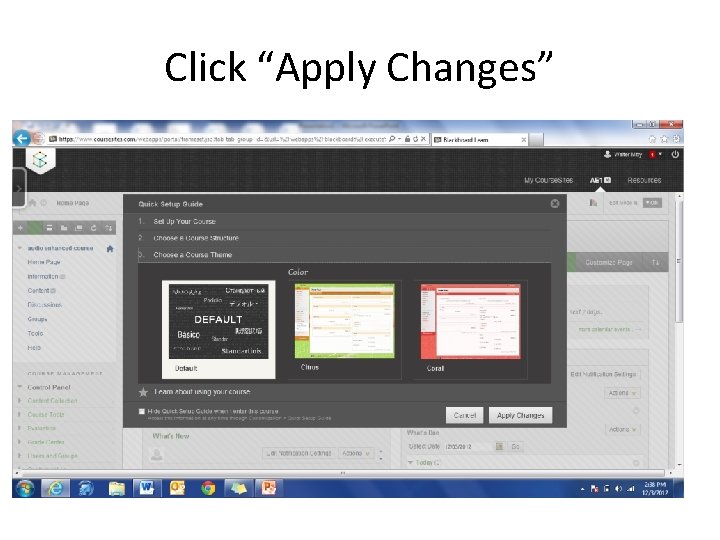
Click “Apply Changes”
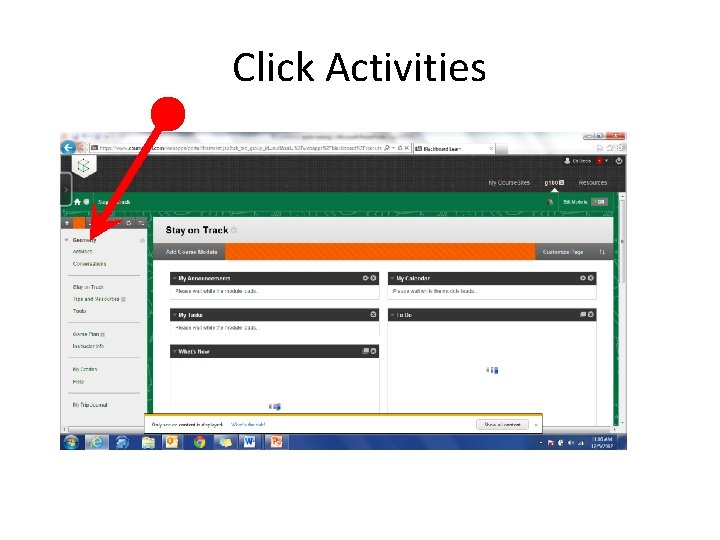
Click Activities
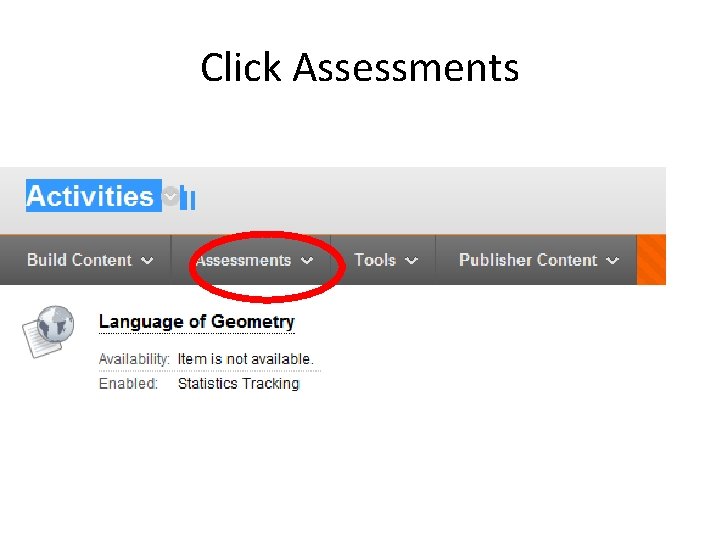
Click Assessments
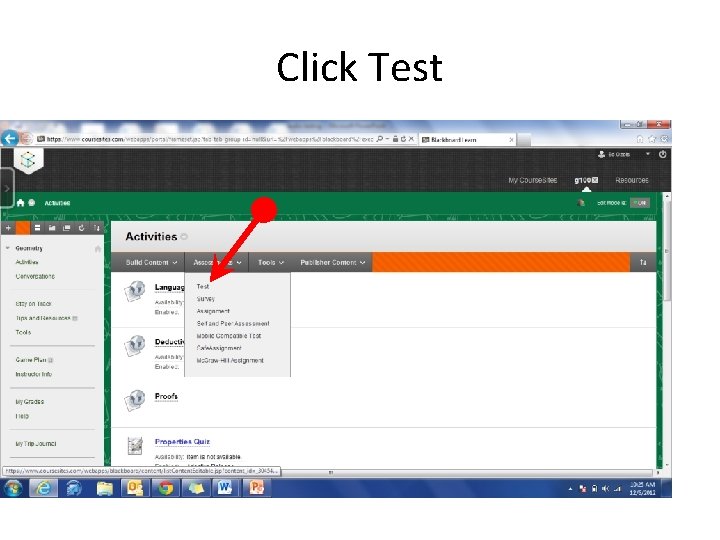
Click Test
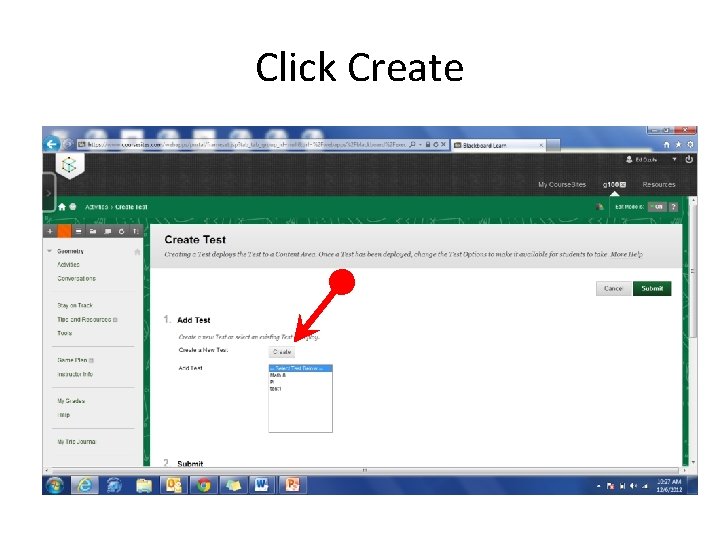
Click Create
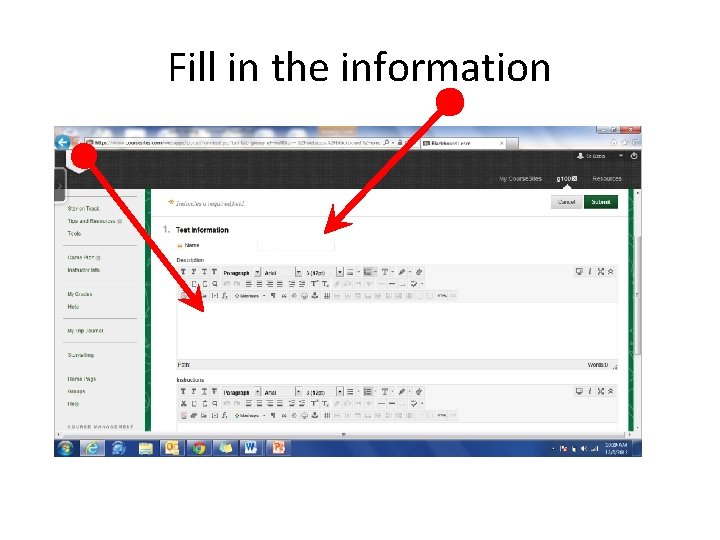
Fill in the information
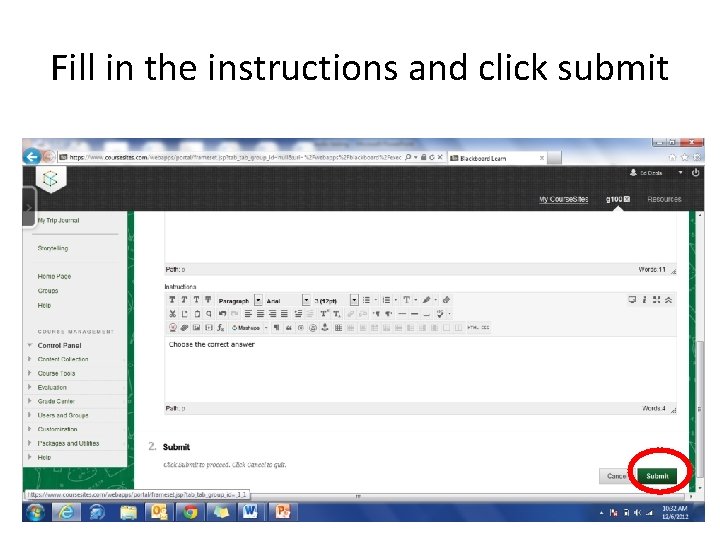
Fill in the instructions and click submit
Notice Your computer may look different from mine for the next few steps. That is okay, we will walk through the next steps and everything will be okay.
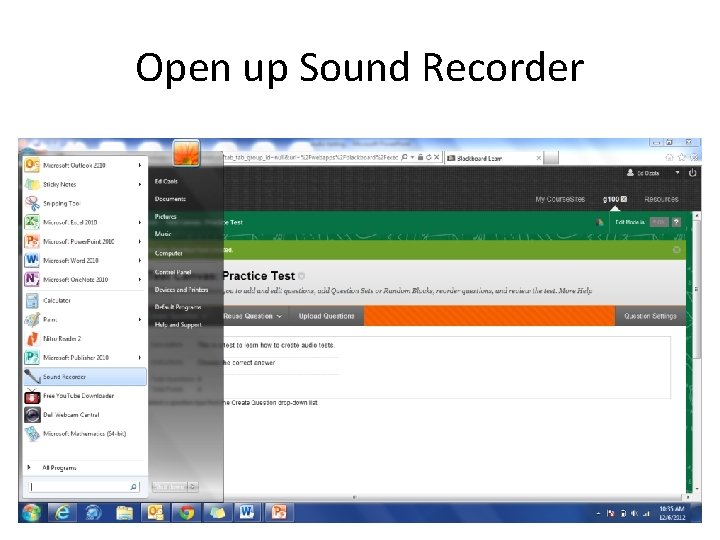
Open up Sound Recorder
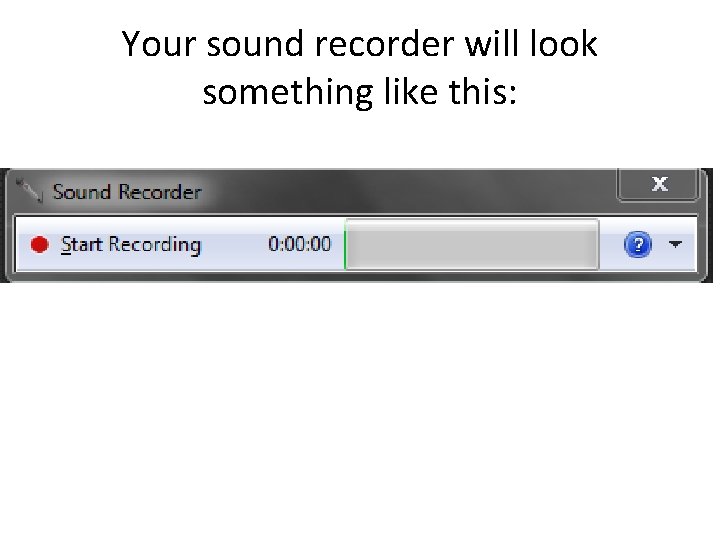
Your sound recorder will look something like this:
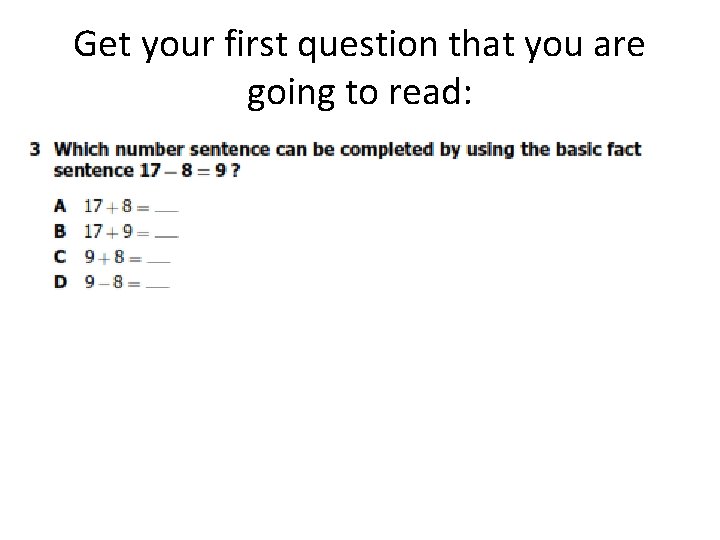
Get your first question that you are going to read:
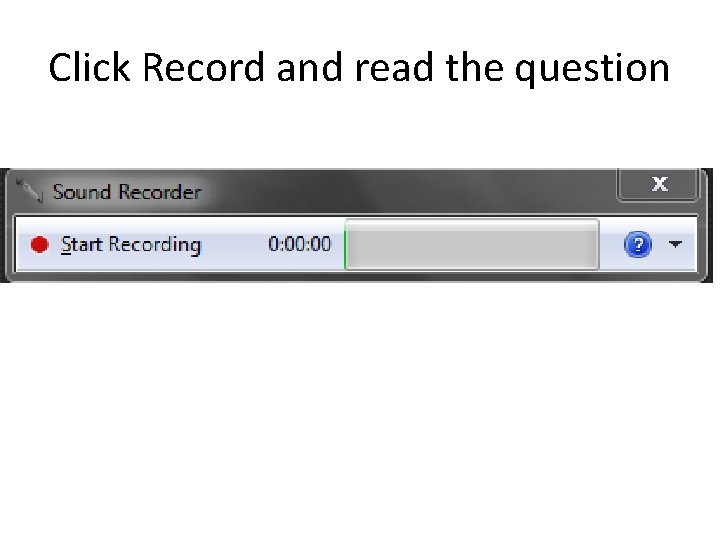
Click Record and read the question
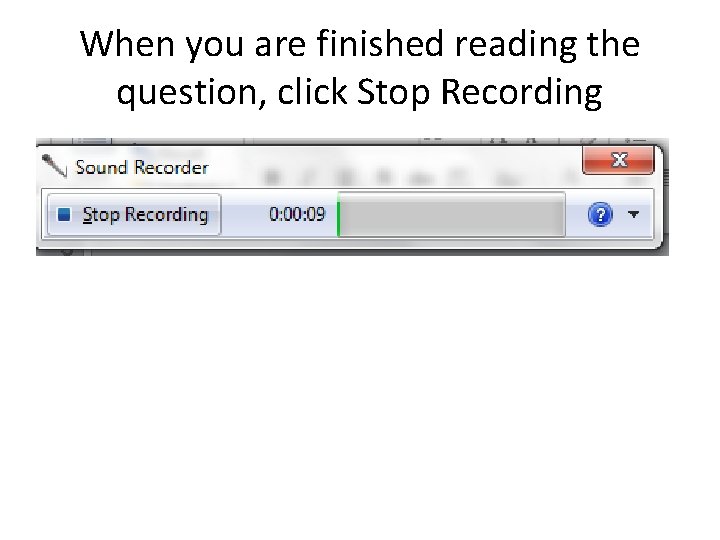
When you are finished reading the question, click Stop Recording
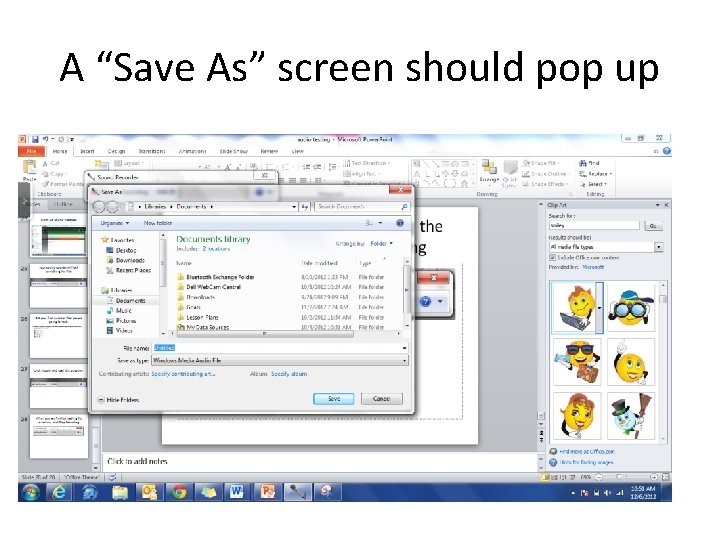
A “Save As” screen should pop up
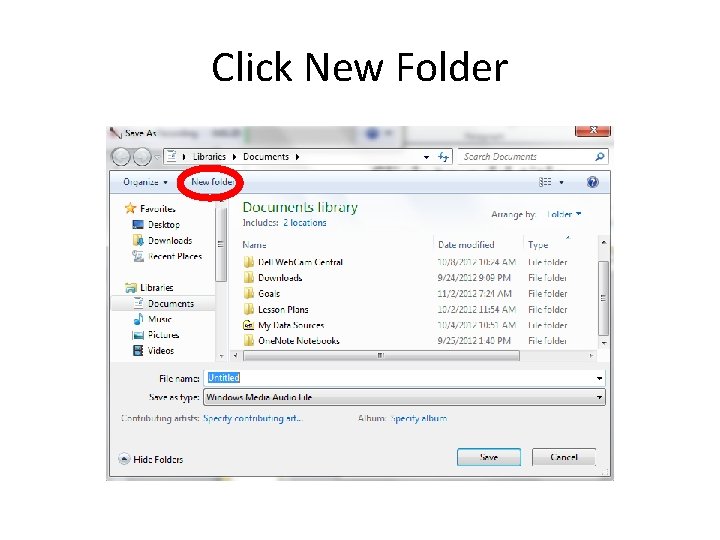
Click New Folder
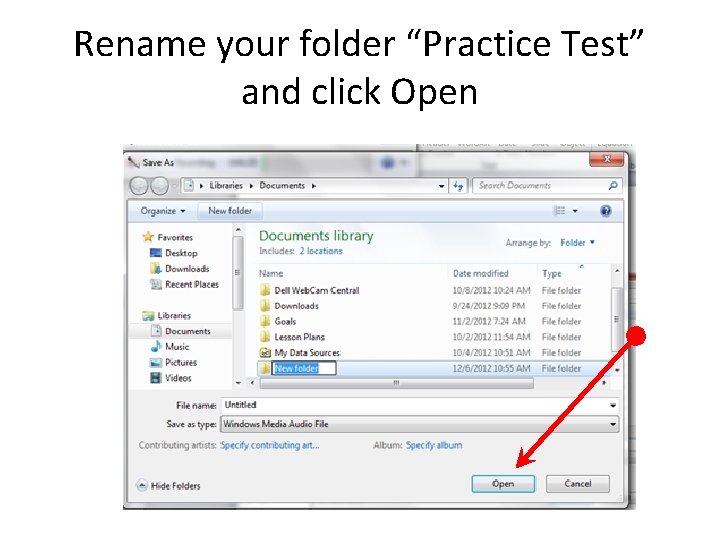
Rename your folder “Practice Test” and click Open
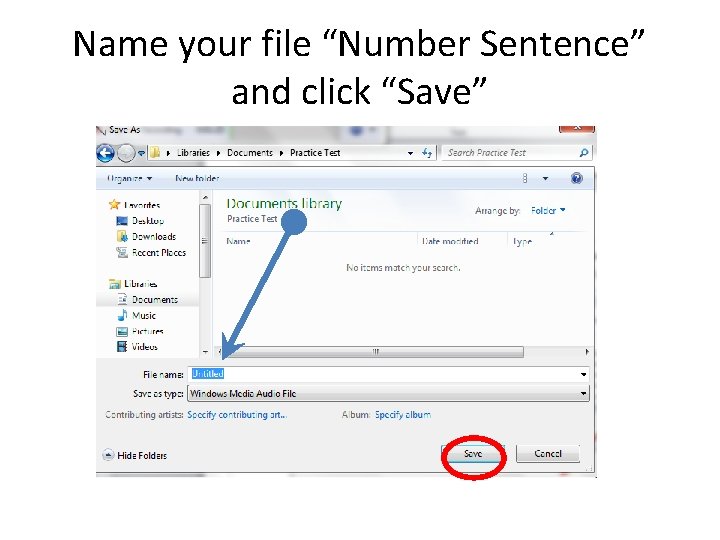
Name your file “Number Sentence” and click “Save”
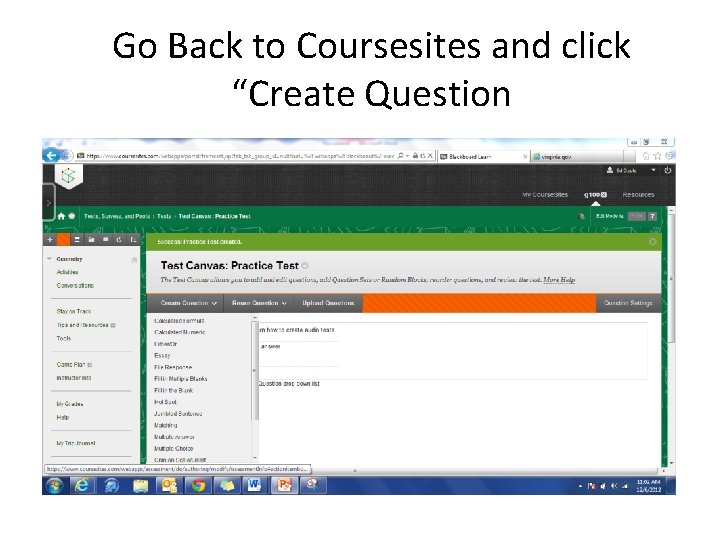
Go Back to Coursesites and click “Create Question
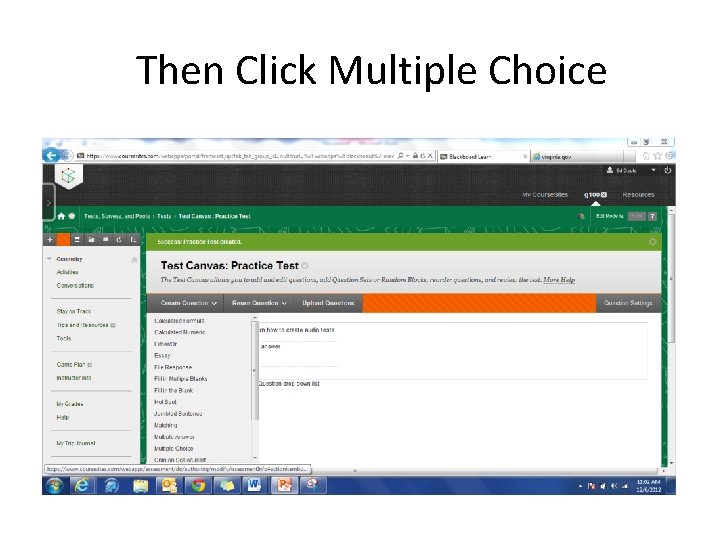
Then Click Multiple Choice
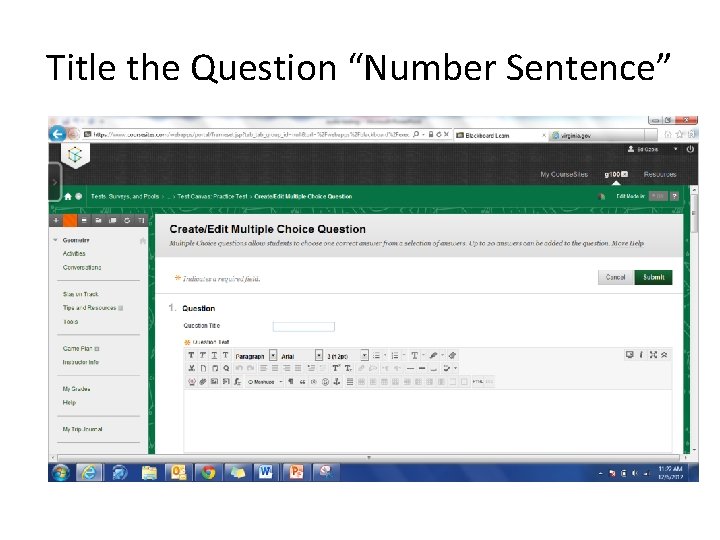
Title the Question “Number Sentence”
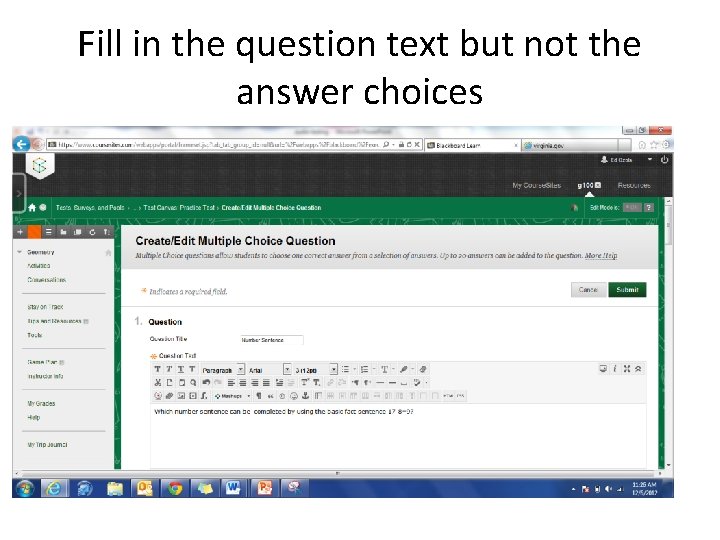
Fill in the question text but not the answer choices
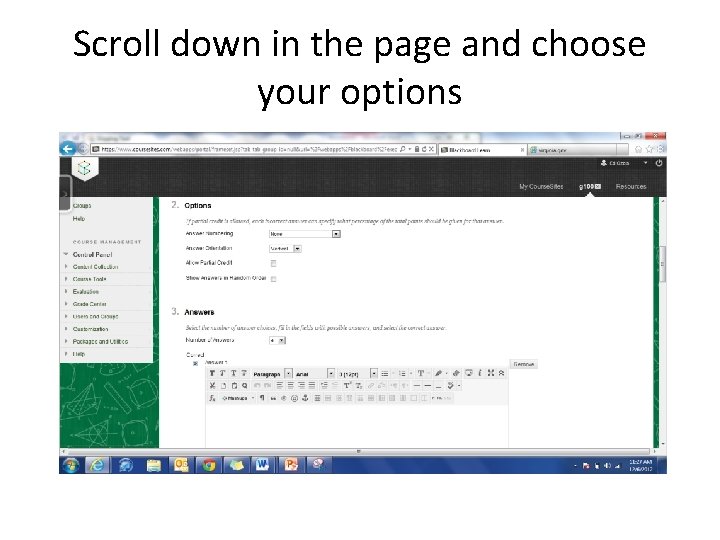
Scroll down in the page and choose your options
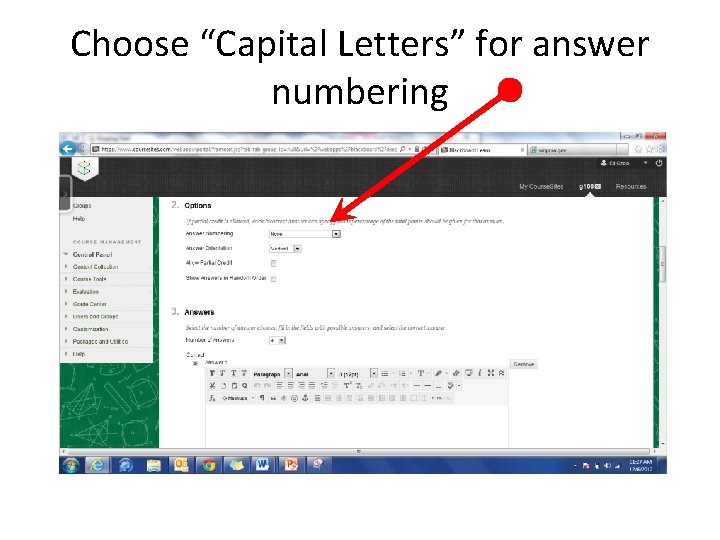
Choose “Capital Letters” for answer numbering
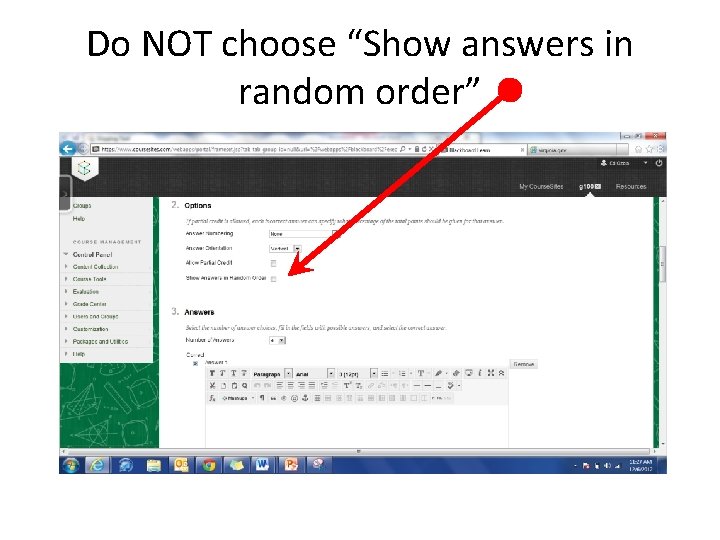
Do NOT choose “Show answers in random order”
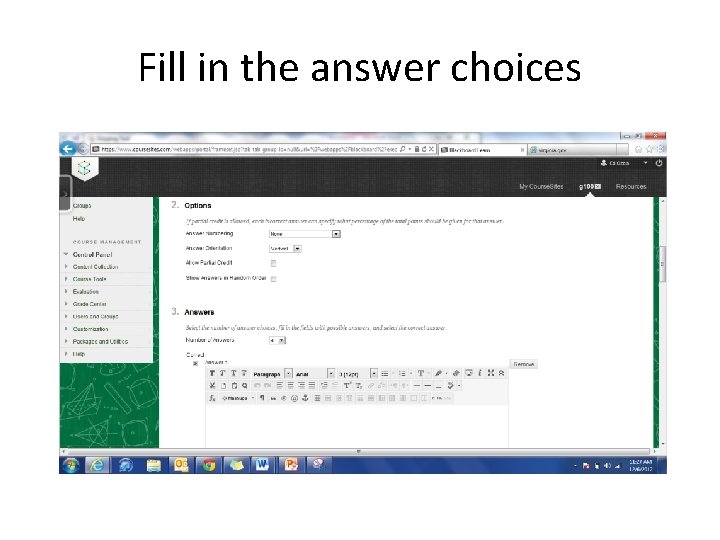
Fill in the answer choices
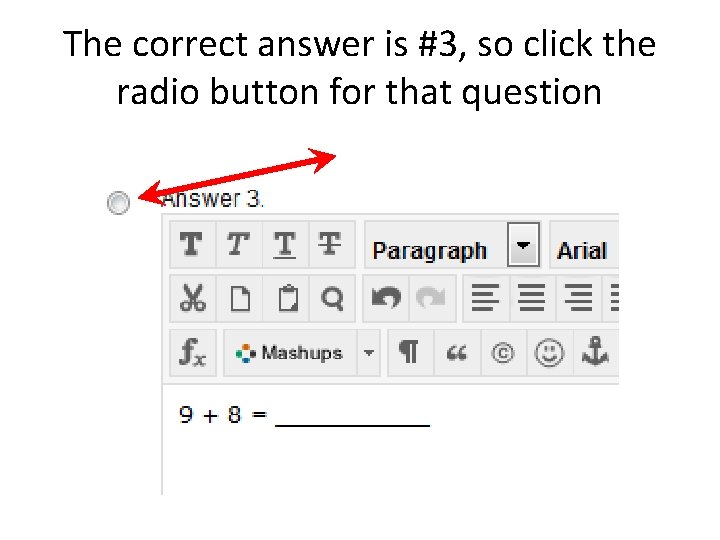
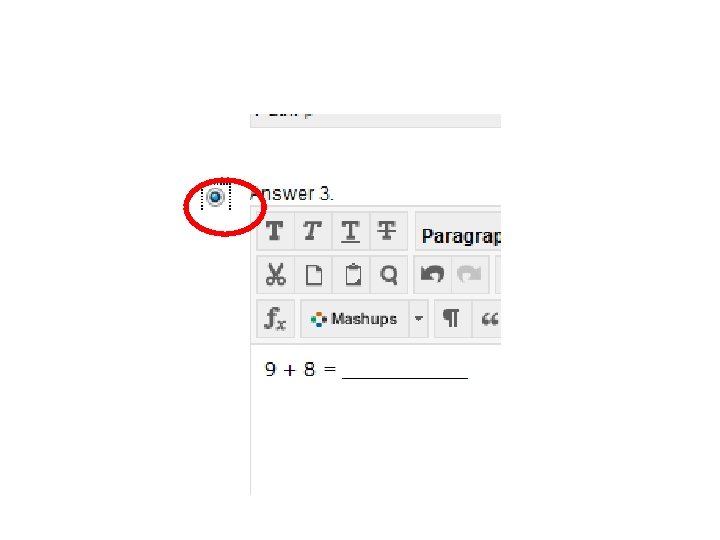
The correct answer is #3, so click the radio button for that question
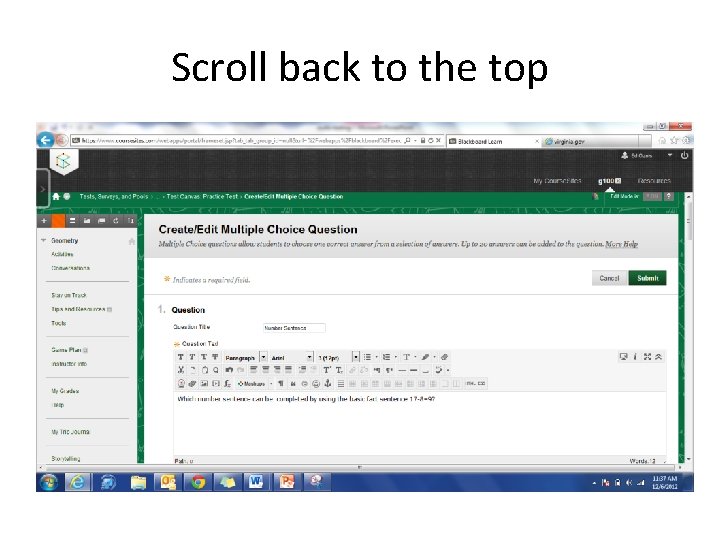
Scroll back to the top
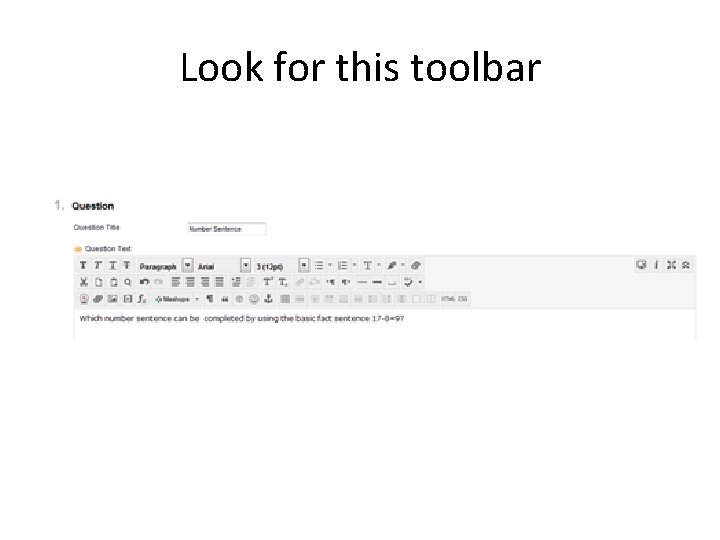
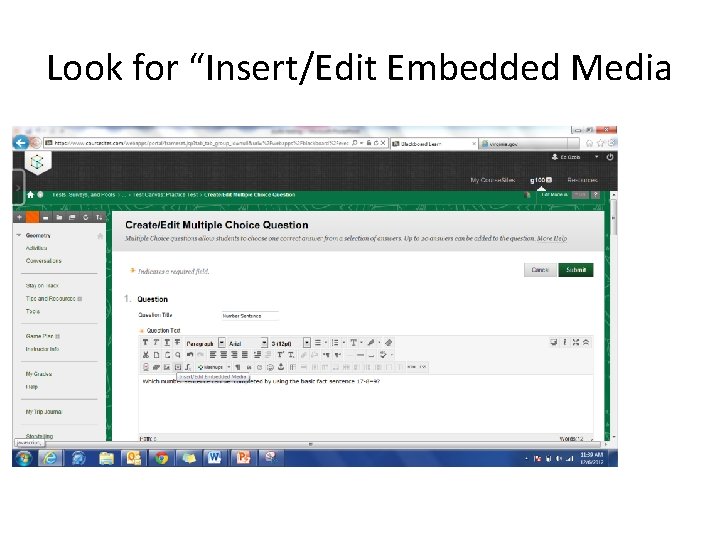
Look for this toolbar
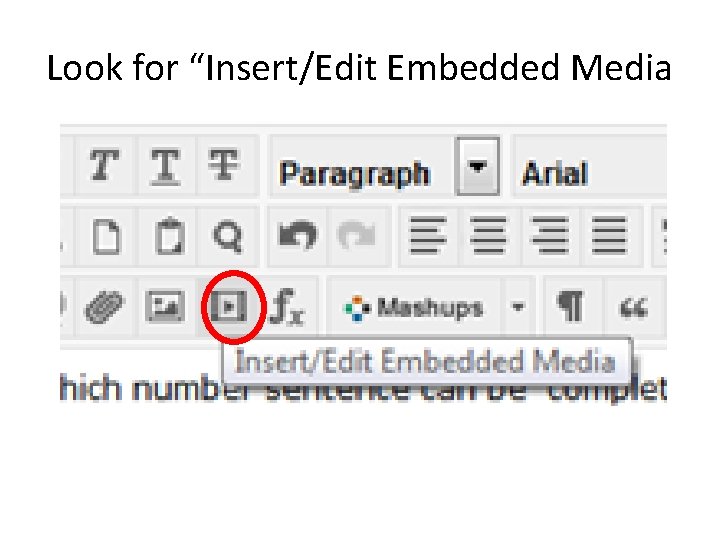
Look for “Insert/Edit Embedded Media
Look for “Insert/Edit Embedded Media
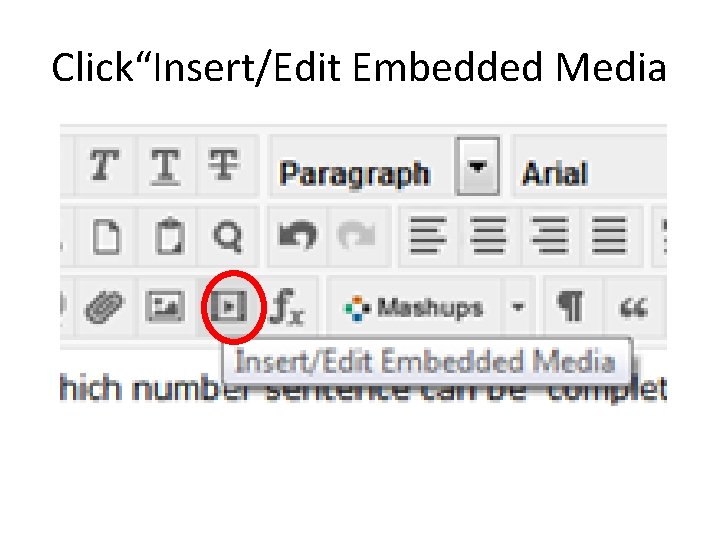
Click“Insert/Edit Embedded Media
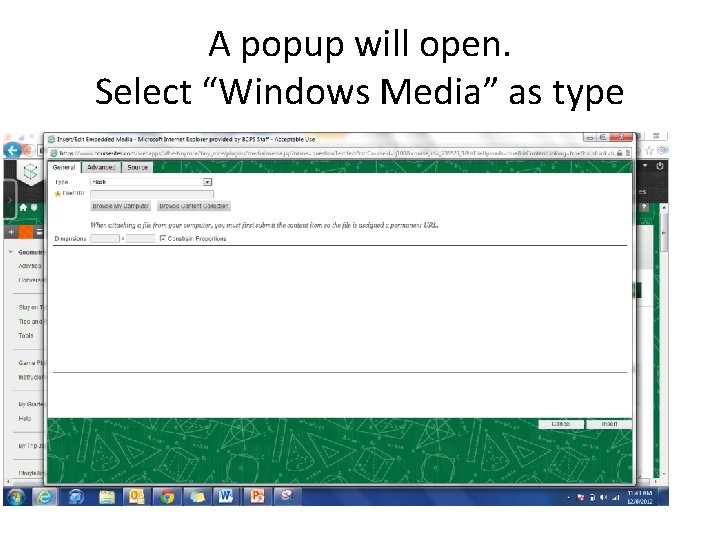
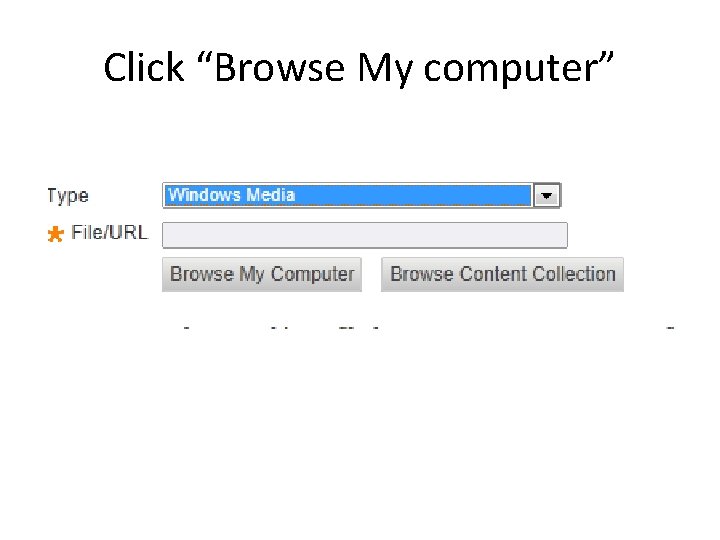
A popup will open. Select “Windows Media” as type
Click “Browse My computer”
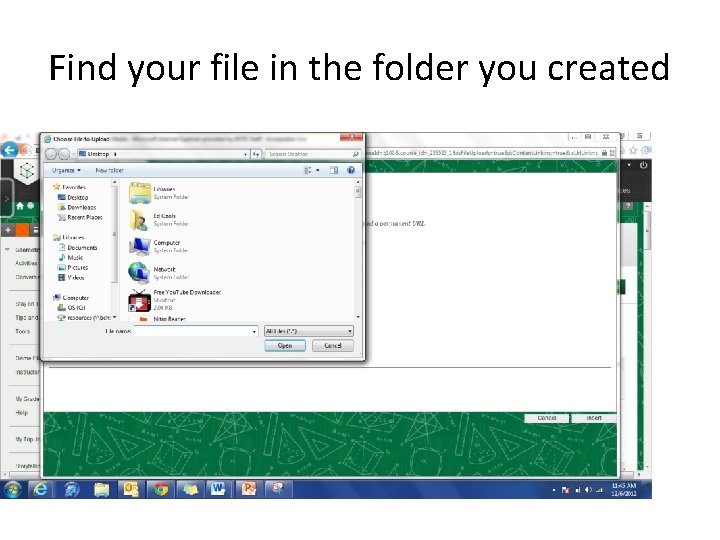
Find your file in the folder you created
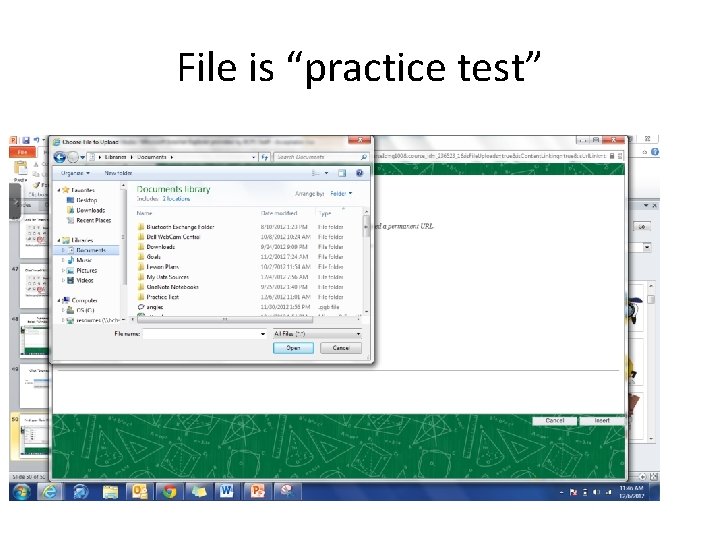
File is “practice test”
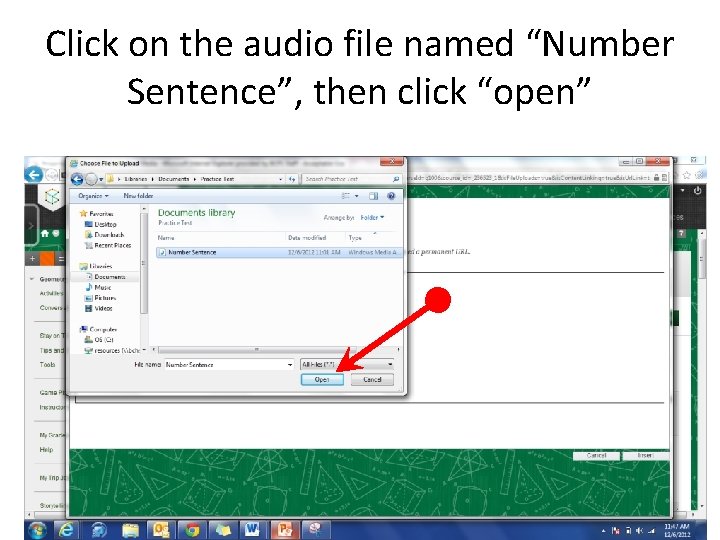
Click on the audio file named “Number Sentence”, then click “open”
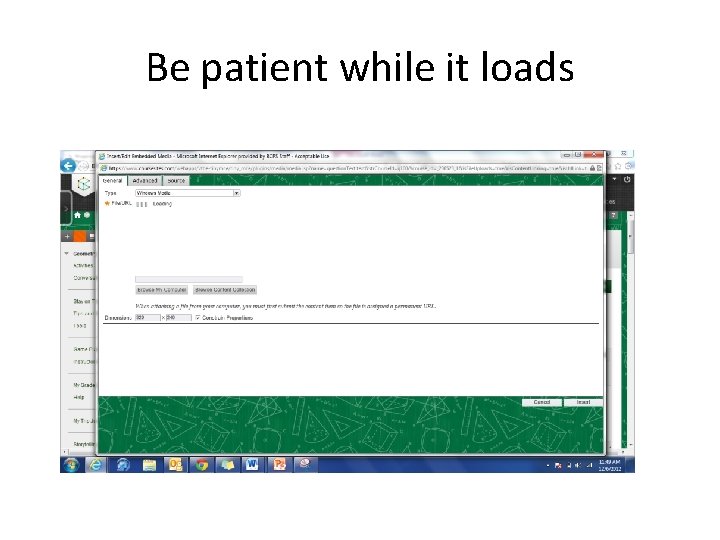
Be patient while it loads
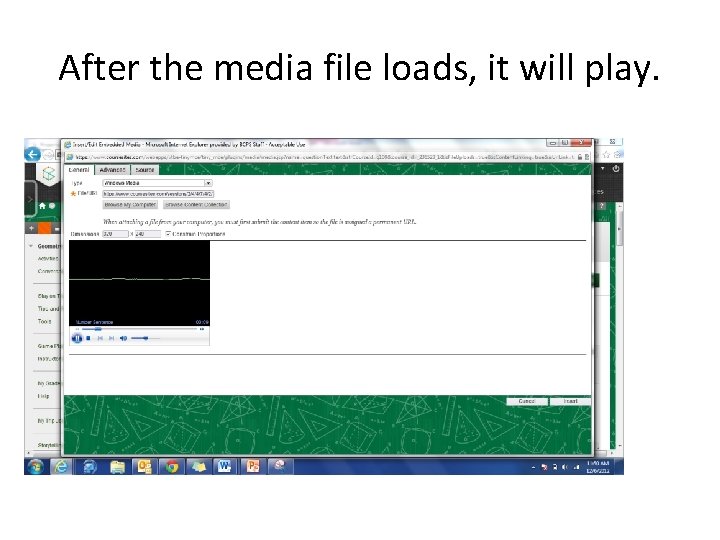
After the media file loads, it will play.
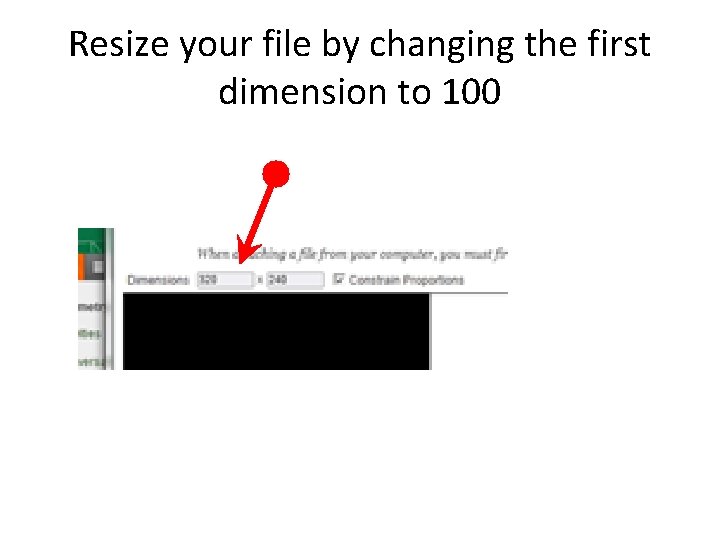
Resize your file by changing the first dimension to 100
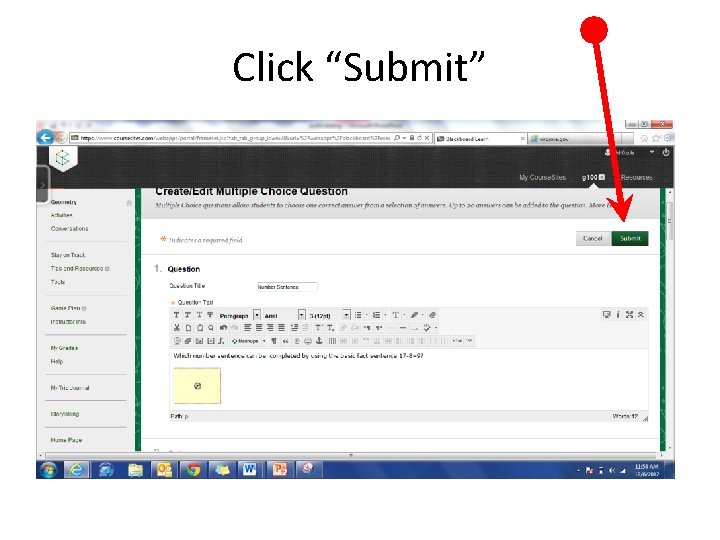
Click “Submit”
• Your question will now appear in the test. Repeat adding questions until finished.
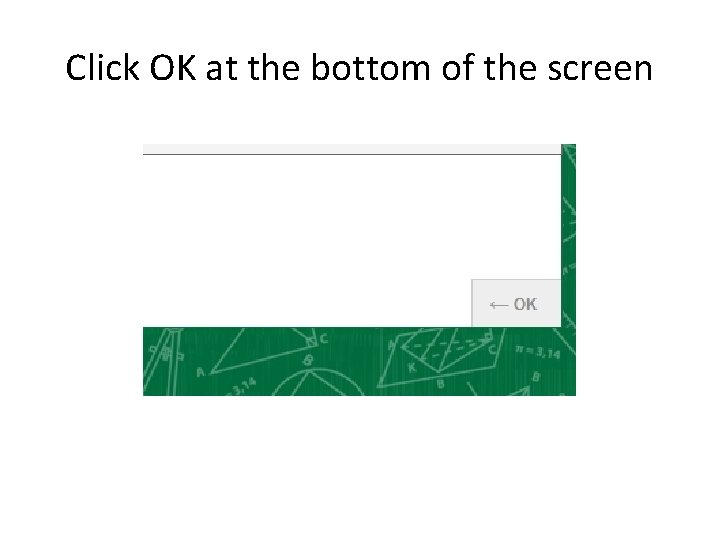
Click OK at the bottom of the screen
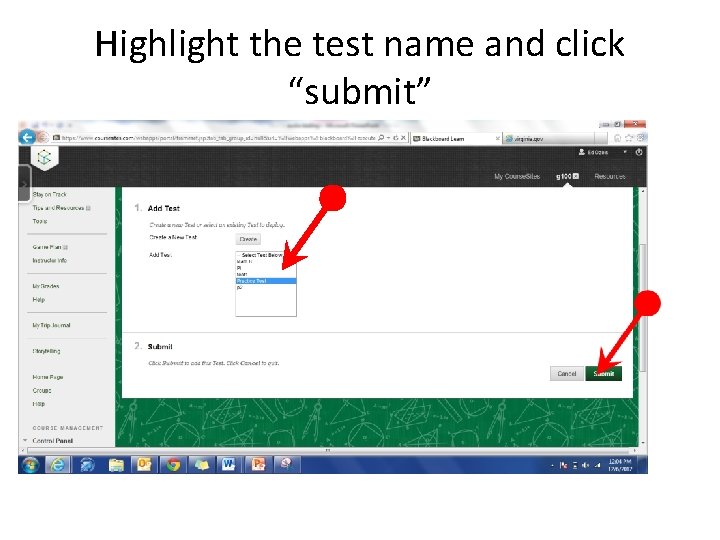
Highlight the test name and click “submit”
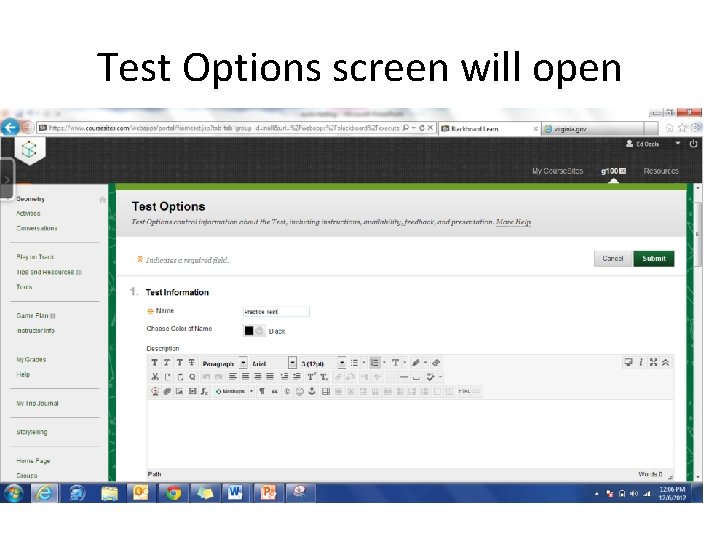
Test Options screen will open
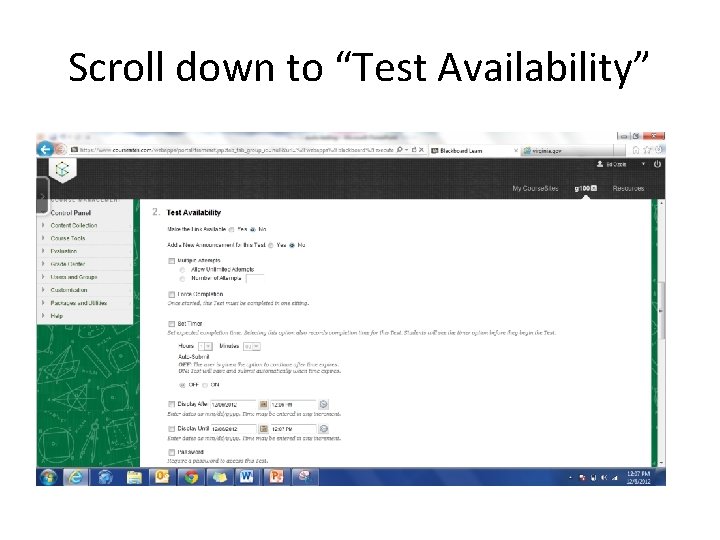
Scroll down to “Test Availability”
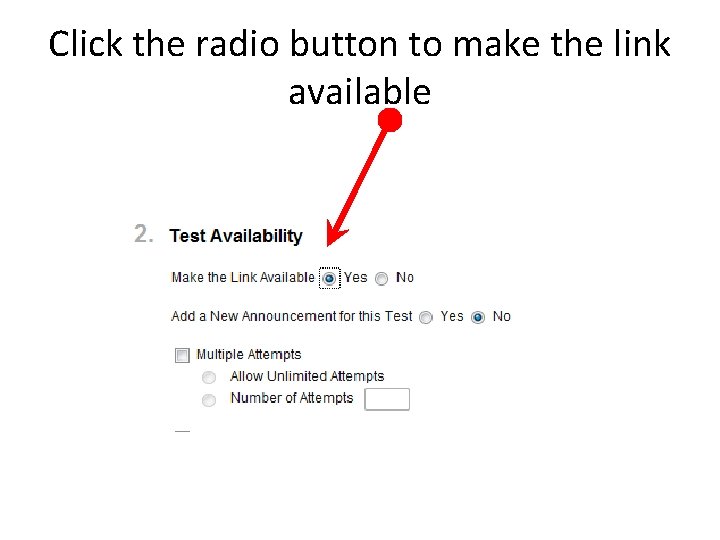
Click the radio button to make the link available
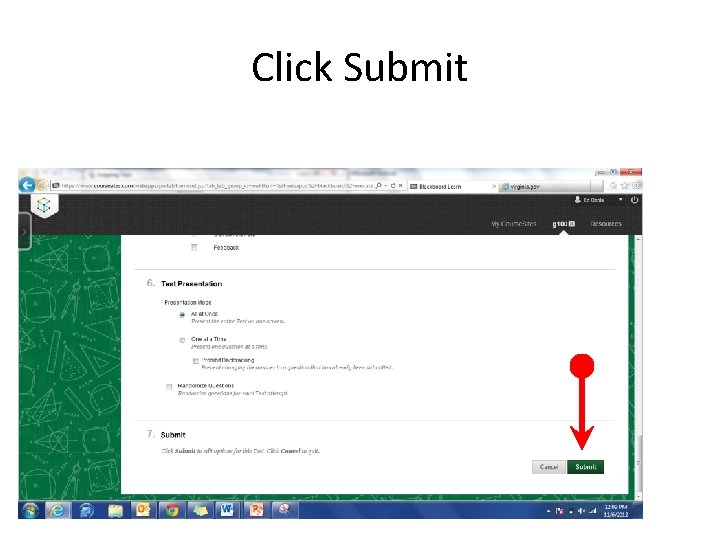
Click Submit
The test is now ready to take. • I will email directions to add students to your classes next Monday. Call/email me if you have difficulty • 540 -577 -8088