
ATtiny Programming Shield for Arduino TYWu Reference http

- Slides: 27
ATtiny Programming Shield for Arduino TYWu
Reference • http: //www. instructables. com/id/ATtiny. Programming-Shield-for-Arduino-1/ • http: //highlowtech. org/? p=1695
Introduction • This little circuit sits nicely ontop of an Arduino board • Let you quickly plug in an ATtiny chip for programming using the Arduino "language" and IDE to write the code • The Arduino board as an ISP programmer to upload the code to the tiny chip.
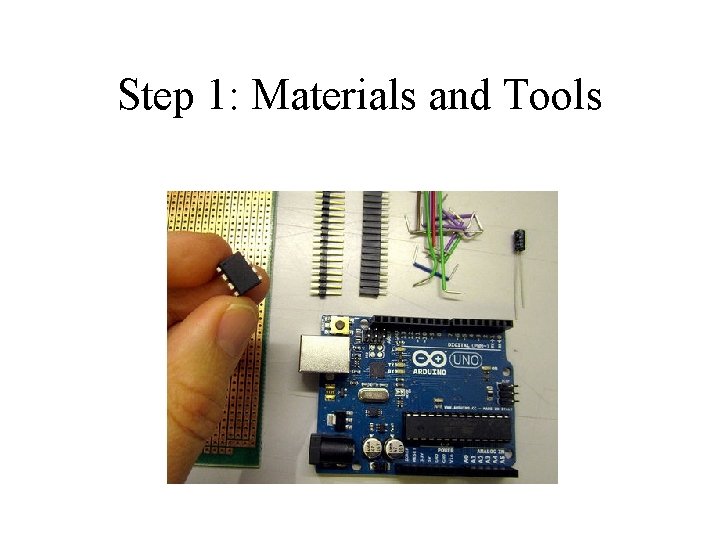
Step 1: Materials and Tools
Step 1: Materials and Tools • Materials - Perforated circuit board - Male and female headers - Wire - 10 u. F capacitor - Arduino Uno - ATtiny 85
Step: Materials and Tools • Tools - Cutter knife - Cutting mat - File - Wire cutters and stripper - Soldering iron - Helping hand
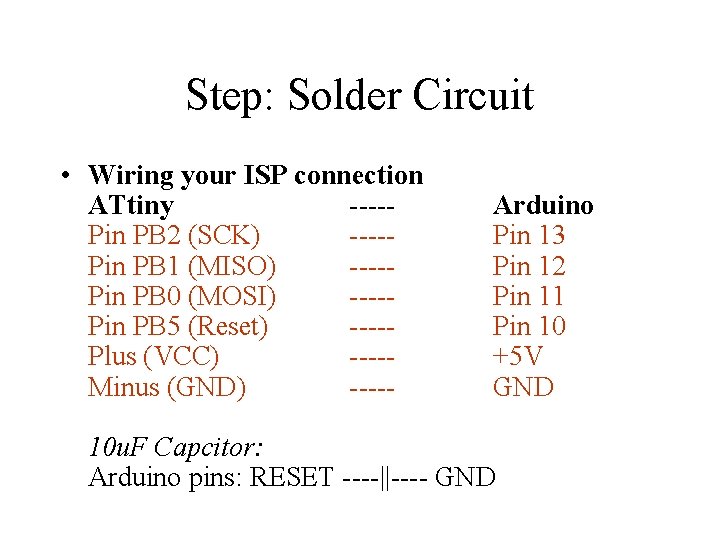
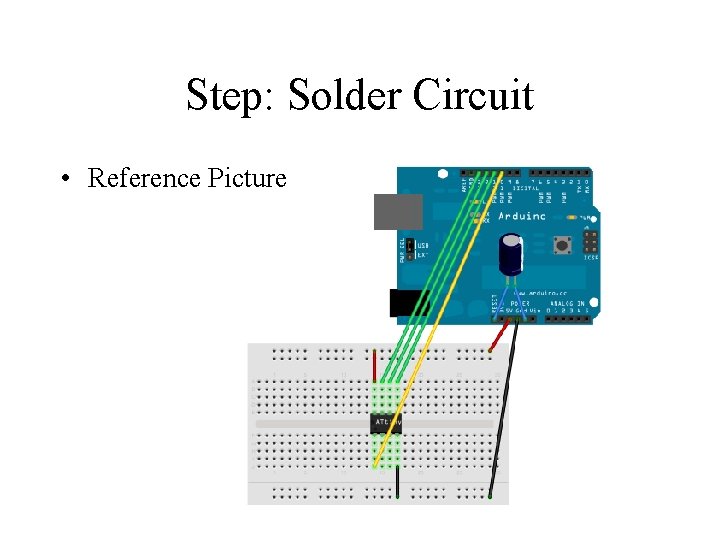
Step: Solder Circuit • Wiring your ISP connection ATtiny ----Pin PB 2 (SCK) ----Pin PB 1 (MISO) ----Pin PB 0 (MOSI) ----Pin PB 5 (Reset) ----Plus (VCC) ----Minus (GND) ----- Arduino Pin 13 Pin 12 Pin 11 Pin 10 +5 V GND 10 u. F Capcitor: Arduino pins: RESET ----||---- GND
Step: Solder Circuit • Picture
Step: Solder Circuit • Reference Picture
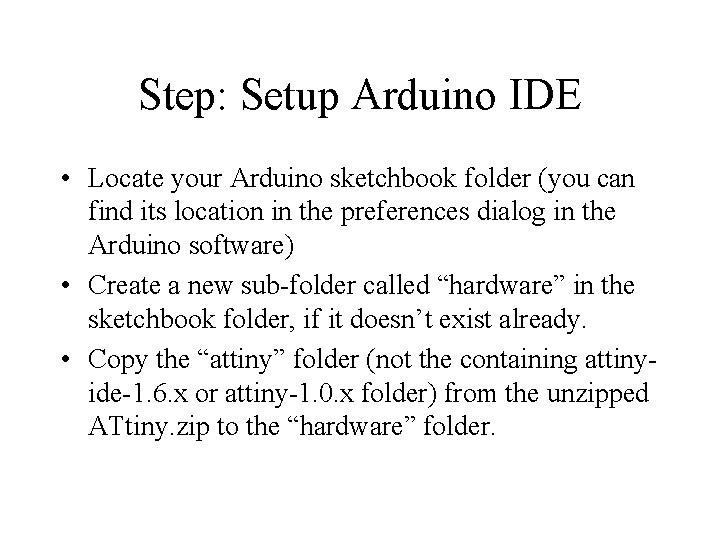
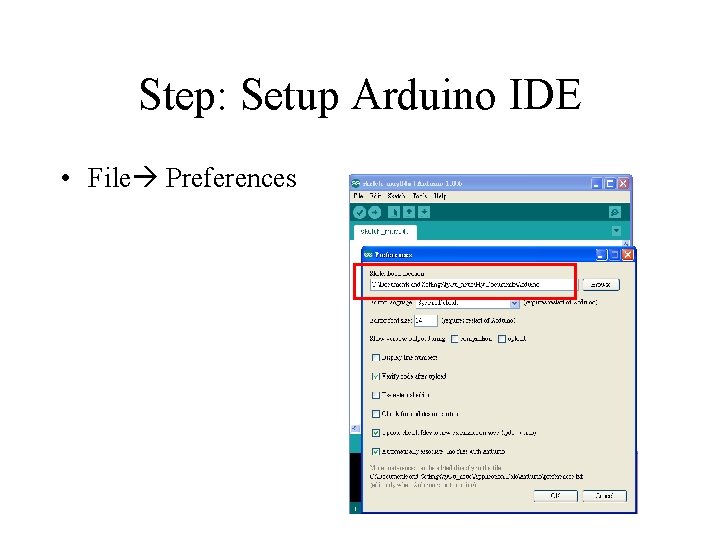
Step: Setup Arduino IDE • Locate your Arduino sketchbook folder (you can find its location in the preferences dialog in the Arduino software) • Create a new sub-folder called “hardware” in the sketchbook folder, if it doesn’t exist already. • Copy the “attiny” folder (not the containing attinyide-1. 6. x or attiny-1. 0. x folder) from the unzipped ATtiny. zip to the “hardware” folder.
Step: Setup Arduino IDE • File Preferences
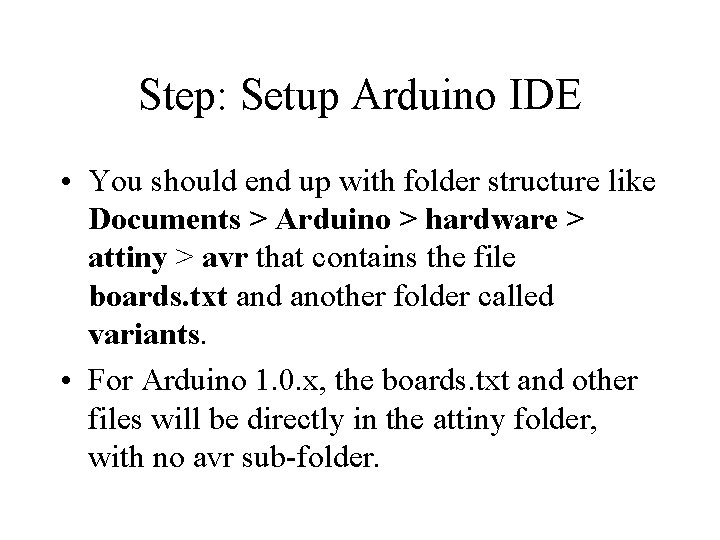
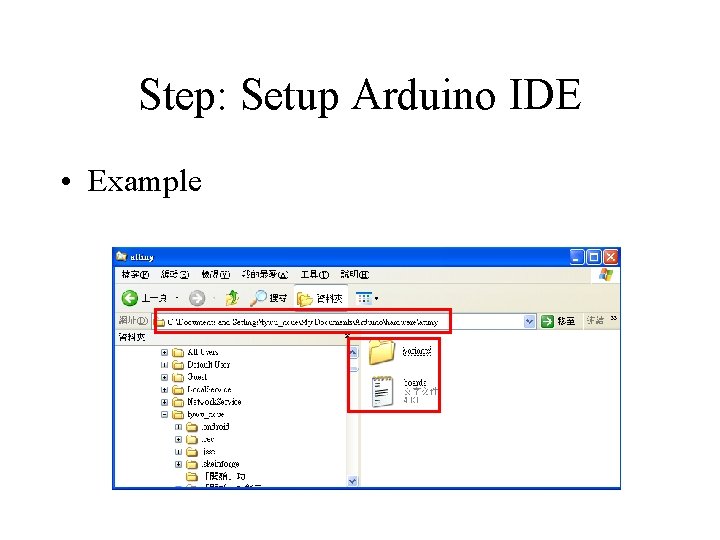
Step: Setup Arduino IDE • You should end up with folder structure like Documents > Arduino > hardware > attiny > avr that contains the file boards. txt and another folder called variants. • For Arduino 1. 0. x, the boards. txt and other files will be directly in the attiny folder, with no avr sub-folder.
Step: Setup Arduino IDE • Example
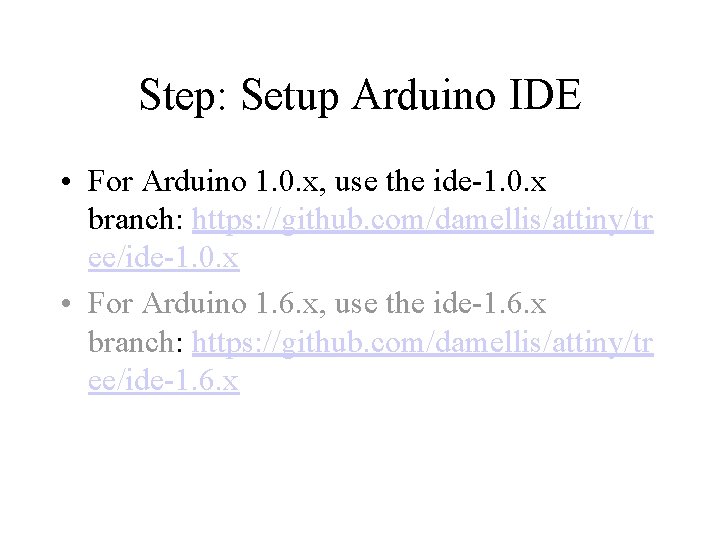
Step: Setup Arduino IDE • For Arduino 1. 0. x, use the ide-1. 0. x branch: https: //github. com/damellis/attiny/tr ee/ide-1. 0. x • For Arduino 1. 6. x, use the ide-1. 6. x branch: https: //github. com/damellis/attiny/tr ee/ide-1. 6. x
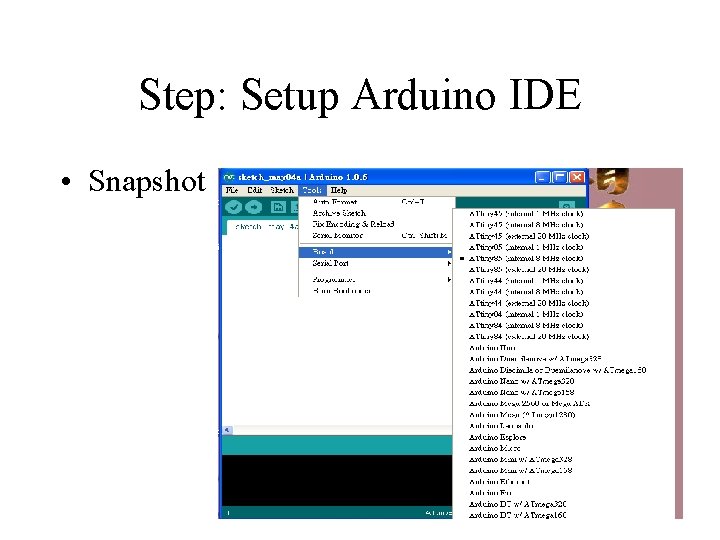
Step: Setup Arduino IDE • Snapshot
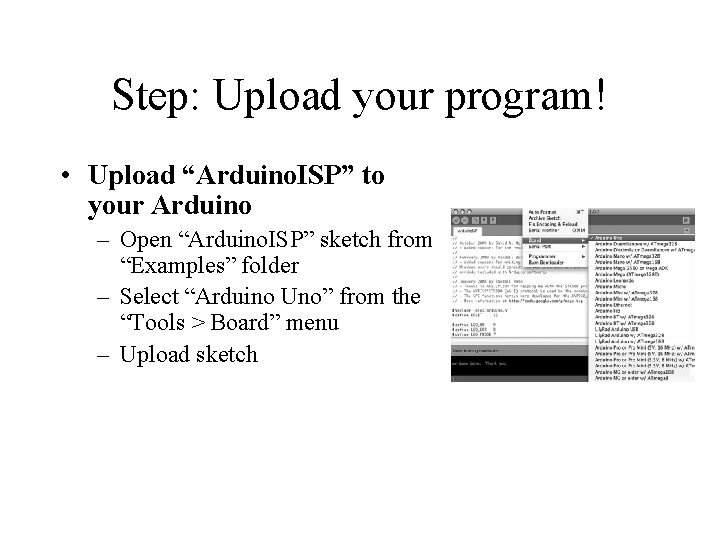
Step: Upload your program! • Upload “Arduino. ISP” to your Arduino – Open “Arduino. ISP” sketch from “Examples” folder – Select “Arduino Uno” from the “Tools > Board” menu – Upload sketch
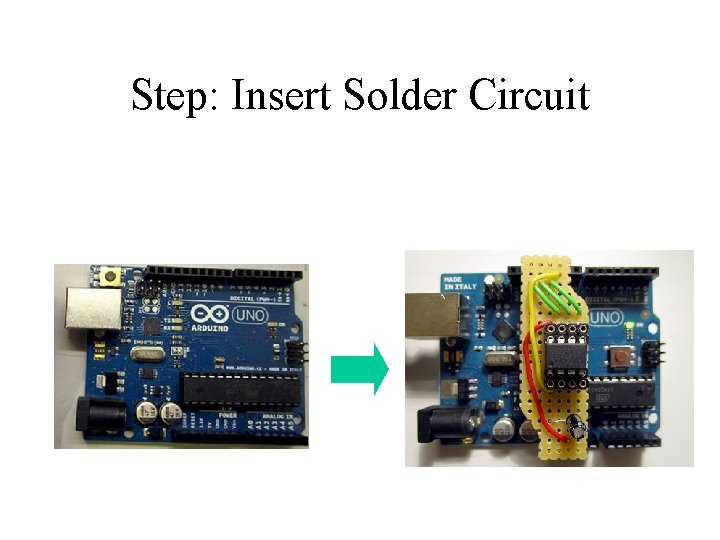
Step: Insert Solder Circuit
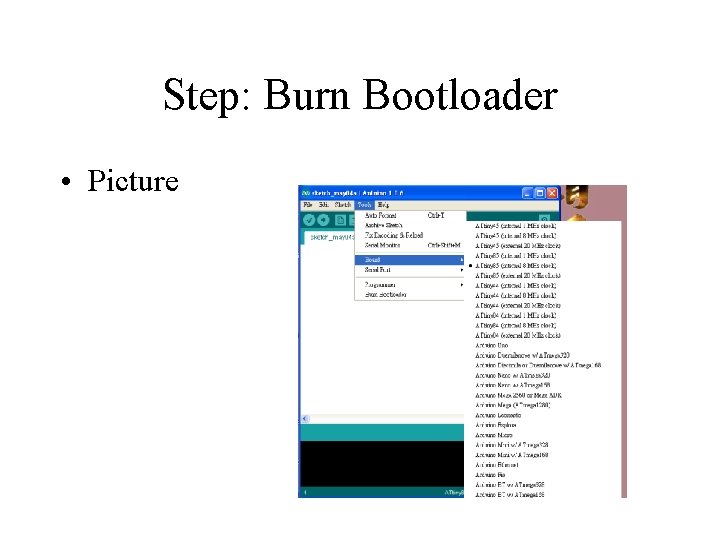
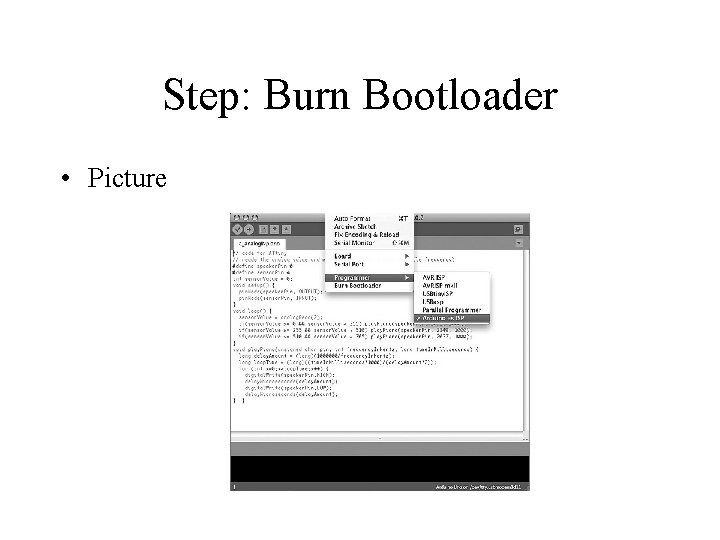
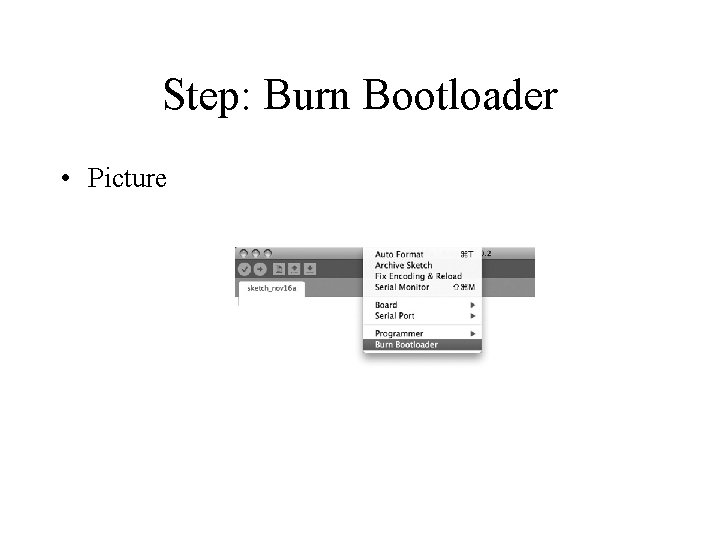
Step: Burn Bootloader • Burn Bootloader – To set the clock speed of your ATtiny to be faster (8 Mhz) than the default 1 MHz. - Select “ATtiny 85 (8 MHz)” from the “Tools > Board” menu - Select “Arduino as ISP“ from the “Tools > Programmer” menu - Select “Burn Bootloader” from the “Tools” menu
Step: Burn Bootloader • Picture
Step: Burn Bootloader • Picture
Step: Burn Bootloader • Picture
Step: Upload your program • Writing a Sketch for the ATtiny • Uploading a Sketch to the ATtiny – Open the sketch you want to upload to ATtiny – Select “ATtiny 85 (8 MHz)” from the “Tools > Board” menu” – Select “Arduino as ISP“ from the “Tools > Programmer” menu – Upload sketch
Quick Reference • https: //cdn. sparkfun. com/assets/a/f/1/8/0/Ti ny_Quick. Ref. pdf
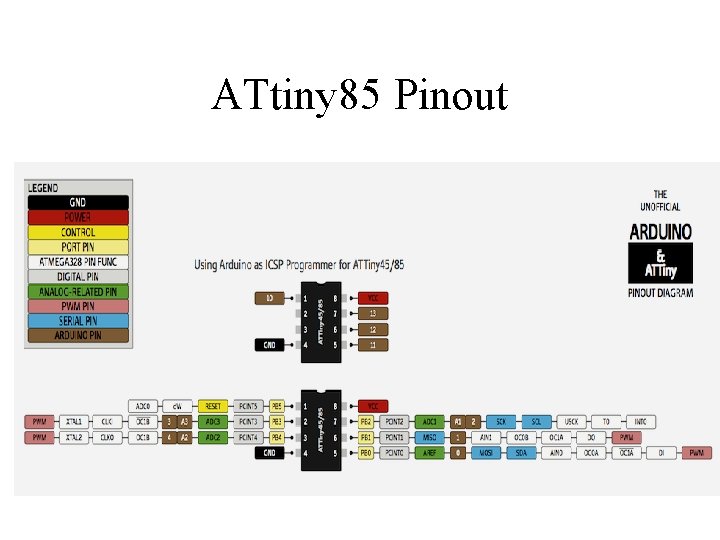
ATtiny 85 Pinout
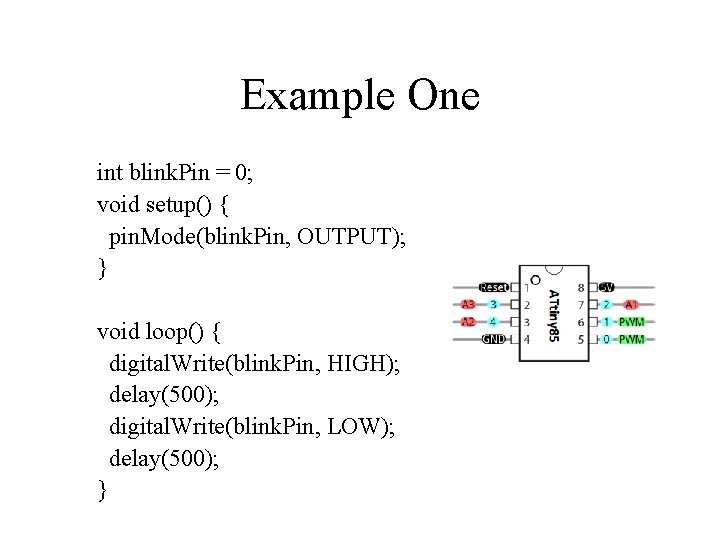
Example One int blink. Pin = 0; void setup() { pin. Mode(blink. Pin, OUTPUT); } void loop() { digital. Write(blink. Pin, HIGH); delay(500); digital. Write(blink. Pin, LOW); delay(500); }
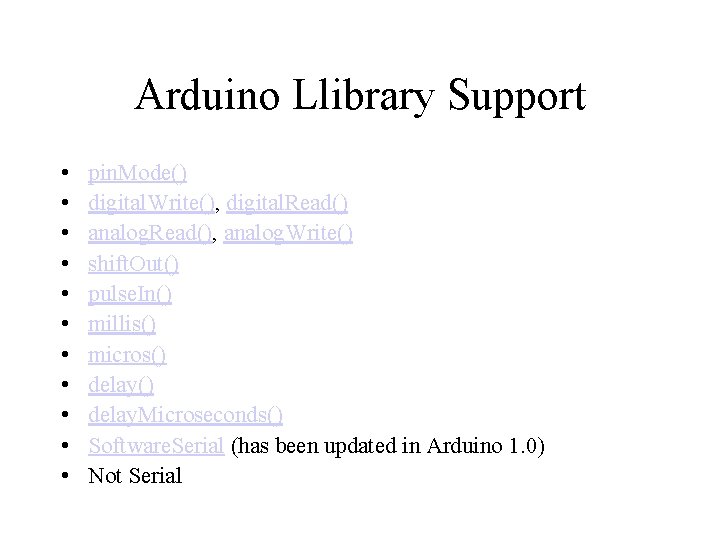
Arduino Llibrary Support • • • pin. Mode() digital. Write(), digital. Read() analog. Read(), analog. Write() shift. Out() pulse. In() millis() micros() delay. Microseconds() Software. Serial (has been updated in Arduino 1. 0) Not Serial
Reference • http: //hlt. media. mit. edu/? p=1706