
ATTENTION Please review slides before local use Update
ATTENTION Please review slides before local use. Update information in red font with local assessment administration policies. 1
Colorado Measures of Academic Success Test Administrator Training for Computer-based Testing Spring 2019 2
Topics • • 3 CMAS Administration Overview Testing Schedule Administration Policies and Testing Security Tasks to Complete Before Testing Tasks to Complete During Testing Tasks to Complete After Testing Resources and Support
CMAS Administration Overview 4
Annual Training Requirement Everyone involved in CMAS math, ELA, science, and social studies administration must be trained each year 5 • Includes Assessment Coordinators, Test Administrators, Test Examiners, technology personnel, and any other school or district staff involved in administration • Assessment Coordinators are responsible for ensuring that all individuals involved in test administration and/or handling secure materials receive training and sign the CMAS and Co. Alt Security Agreement

Acronyms CBT – Computer-Based Testing PAnext - Pearson. Accessnext CDE – Colorado Department of Education - Assessment Unit PBT – Paper-Based Testing CMAS – Colorado Measures of Academic Success S/SS – Science and Social Studies Co. Alt – Colorado Alternate CSLA – Colorado Spanish Language Arts TA – Test Administrator TAM – Test Administrator Manual TTS – Text-to-Speech DAC – District Assessment Coordinator UAR – Unique Accommodation Request EL – English Learner UI – User Interface (in PAnext) ELA – English Language Arts 6 SAC – School Assessment Coordinator
Test Administrator Manual (TAM) Information in this presentation is found in the Spring 2019 CMAS Computer-based Testing Test Administrator Manual • Security measures, administration policies, and procedures identified in the TAM must be maintained • Refer to checklists in TAM for before, during, and after testing tasks 7
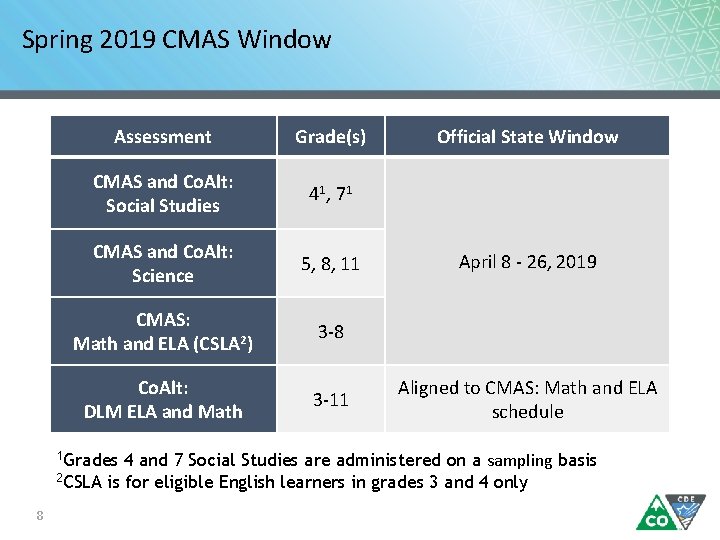
Spring 2019 CMAS Window Assessment Grade(s) CMAS and Co. Alt: Social Studies 41 , 7 1 CMAS and Co. Alt: Science 5, 8, 11 CMAS: Math and ELA (CSLA 2) 3 -8 Co. Alt: DLM ELA and Math 3 -11 Official State Window April 8 - 26, 2019 Aligned to CMAS: Math and ELA schedule 4 and 7 Social Studies are administered on a sampling basis 2 CSLA is for eligible English learners in grades 3 and 4 only 1 Grades 8
Social Studies Individual schools are sampled once in three years • 2018 -19 is Year 1 of the second social studies assessment cycle Sampling plan priorities: • Reduce testing burden • Avoid creating cohorts of social studies students • Minimize the number of students who will test as 4 th and 7 th graders • Provide state level results that can be compared from administration to administration See notification in Syncplicity for list of selected schools and grades 9
Overview of What’s New this Year CMAS • In Pearson. Accessnext, all content area assessments (i. e. , math, ELA, science, and social studies) are listed under CMAS Spring 2019 Math • No advanced math options (Algebra I, Geometry, Integrated Math I or Integrated Math II) • All 7 th grade students take CMAS Grade 7 Math • All 8 th grade students take CMAS Grade 8 Math 10
Testing Schedule 11
Spring 2019 CMAS Window Insert the selected district testing window information All testing in all districts must end on or before April 26, 2019 Returning materials • All secure computer-based testing materials (nonscorable) must be shipped back to Pearson with a pick up by May 3, 2019 • Districts need to create an internal return schedule to meet the May 3, 2019 deadline 12
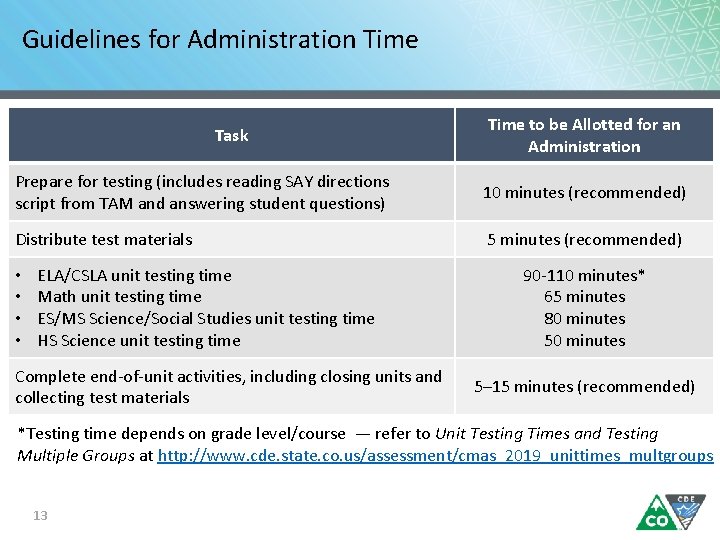
Guidelines for Administration Time Task Time to be Allotted for an Administration Prepare for testing (includes reading SAY directions script from TAM and answering student questions) 10 minutes (recommended) Distribute test materials 5 minutes (recommended) • • ELA/CSLA unit testing time Math unit testing time ES/MS Science/Social Studies unit testing time HS Science unit testing time Complete end-of-unit activities, including closing units and collecting test materials 90 -110 minutes* 65 minutes 80 minutes 5– 15 minutes (recommended) *Testing time depends on grade level/course — refer to Unit Testing Times and Testing Multiple Groups at http: //www. cde. state. co. us/assessment/cmas_2019_unittimes_multgroups 13
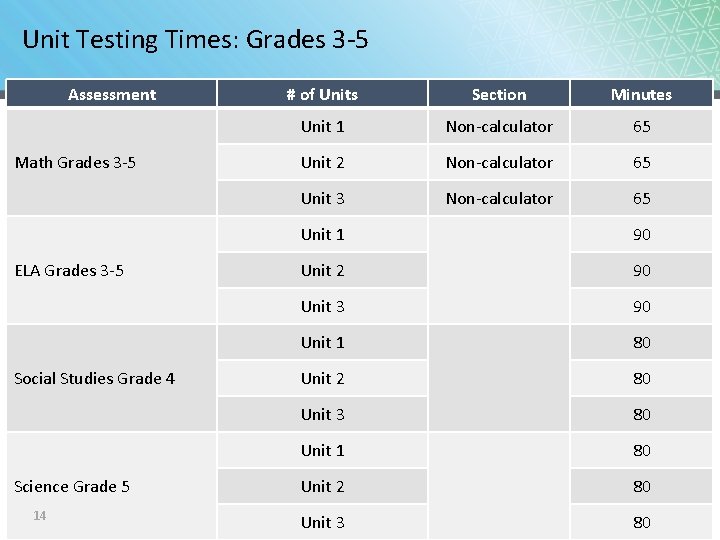
Unit Testing Times: Grades 3 -5 Assessment Math Grades 3 -5 ELA Grades 3 -5 Social Studies Grade 4 Science Grade 5 14 # of Units Section Minutes Unit 1 Non-calculator 65 Unit 2 Non-calculator 65 Unit 3 Non-calculator 65 Unit 1 90 Unit 2 90 Unit 3 90 Unit 1 80 Unit 2 80 Unit 3 80
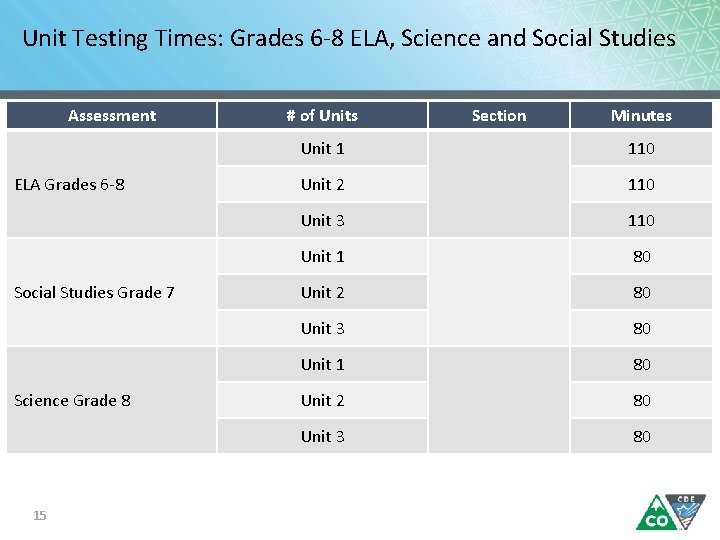
Unit Testing Times: Grades 6 -8 ELA, Science and Social Studies Assessment ELA Grades 6 -8 Social Studies Grade 7 Science Grade 8 15 # of Units Section Minutes Unit 1 110 Unit 2 110 Unit 3 110 Unit 1 80 Unit 2 80 Unit 3 80
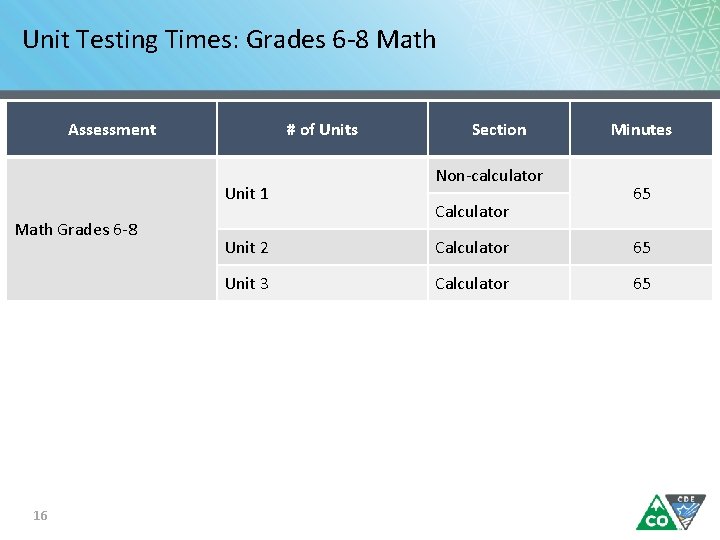
Unit Testing Times: Grades 6 -8 Math Assessment # of Units Unit 1 Math Grades 6 -8 16 Section Non-calculator Calculator Minutes 65 Unit 2 Calculator 65 Unit 3 Calculator 65
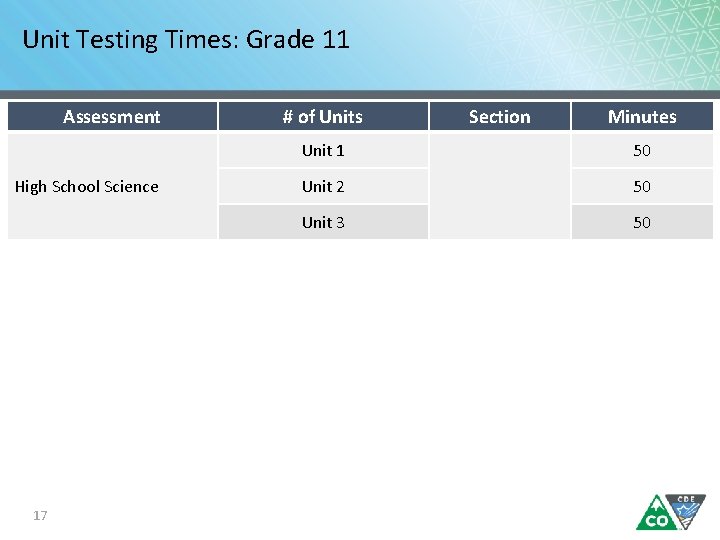
Unit Testing Times: Grade 11 Assessment High School Science 17 # of Units Section Minutes Unit 1 50 Unit 2 50 Unit 3 50
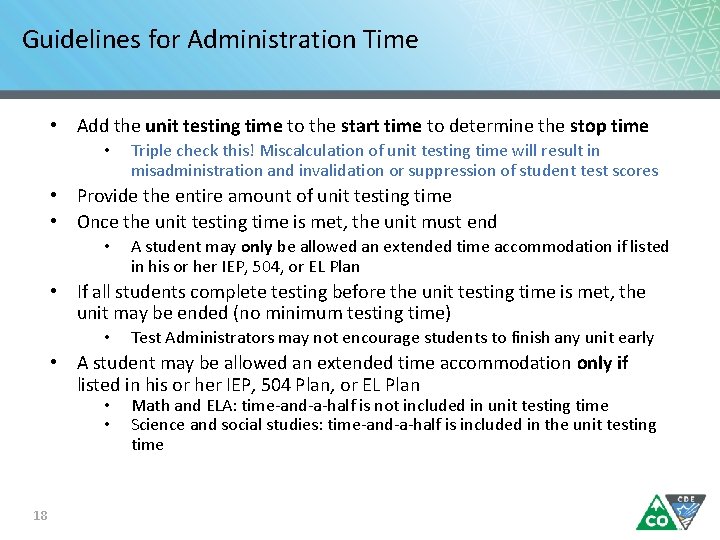
Guidelines for Administration Time • Add the unit testing time to the start time to determine the stop time • Triple check this! Miscalculation of unit testing time will result in misadministration and invalidation or suppression of student test scores • Provide the entire amount of unit testing time • Once the unit testing time is met, the unit must end • A student may only be allowed an extended time accommodation if listed in his or her IEP, 504, or EL Plan • If all students complete testing before the unit testing time is met, the unit may be ended (no minimum testing time) • Test Administrators may not encourage students to finish any unit early • A student may be allowed an extended time accommodation only if listed in his or her IEP, 504 Plan, or EL Plan • • 18 Math and ELA: time-and-a-half is not included in unit testing time Science and social studies: time-and-a-half is included in the unit testing time
Administration Policies and Test Security 19
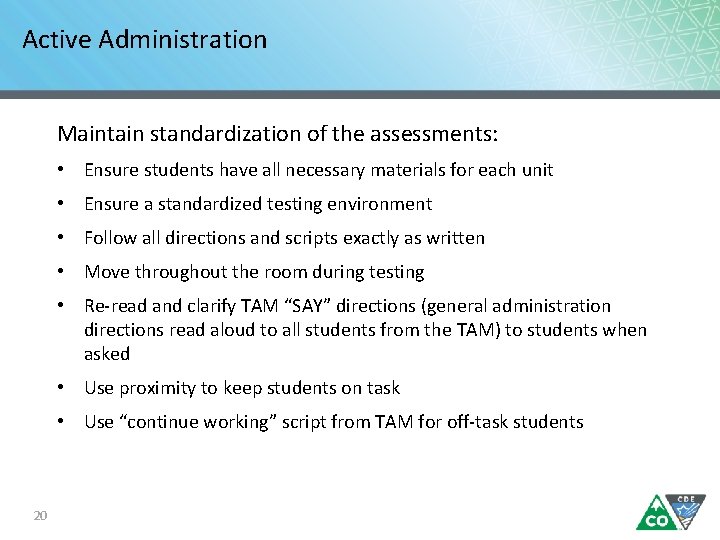
Active Administration Maintain standardization of the assessments: • Ensure students have all necessary materials for each unit • Ensure a standardized testing environment • Follow all directions and scripts exactly as written • Move throughout the room during testing • Re-read and clarify TAM “SAY” directions (general administration directions read aloud to all students from the TAM) to students when asked • Use proximity to keep students on task • Use “continue working” script from TAM for off-task students 20
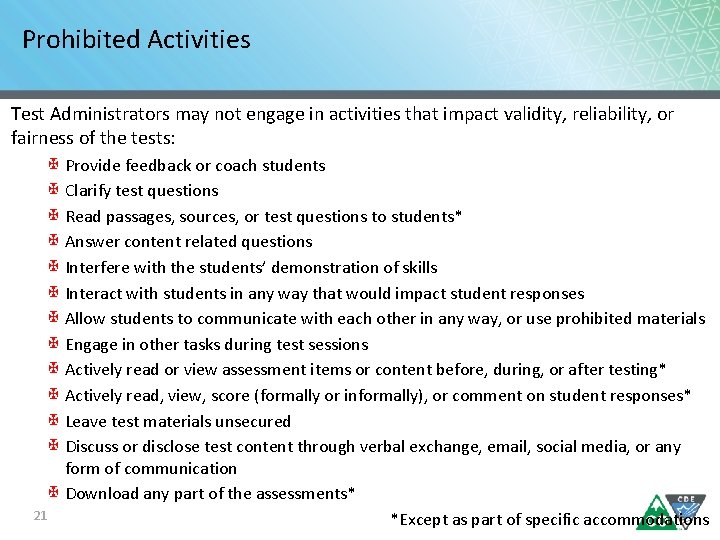
Prohibited Activities Test Administrators may not engage in activities that impact validity, reliability, or fairness of the tests: Provide feedback or coach students Clarify test questions Read passages, sources, or test questions to students* Answer content related questions Interfere with the students’ demonstration of skills Interact with students in any way that would impact student responses Allow students to communicate with each other in any way, or use prohibited materials Engage in other tasks during test sessions Actively read or view assessment items or content before, during, or after testing* Actively read, view, score (formally or informally), or comment on student responses* Leave test materials unsecured Discuss or disclose test content through verbal exchange, email, social media, or any form of communication Download any part of the assessments* 21 *Except as part of specific accommodations
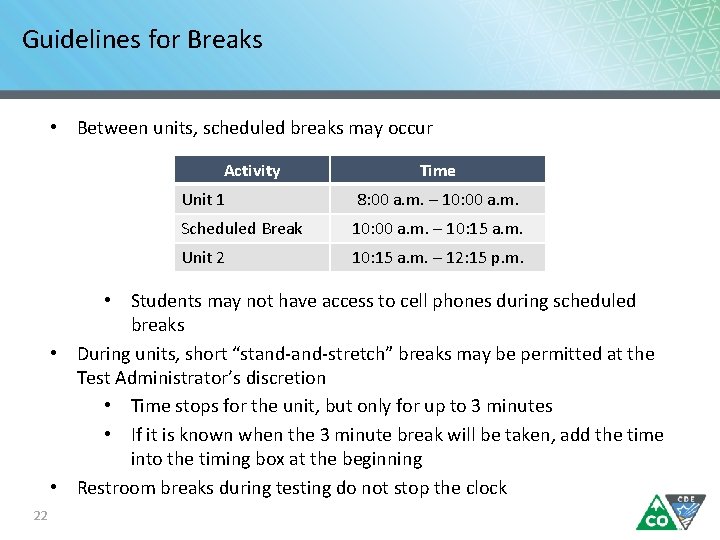
Guidelines for Breaks • Between units, scheduled breaks may occur Activity Time Unit 1 8: 00 a. m. – 10: 00 a. m. Scheduled Break 10: 00 a. m. – 10: 15 a. m. Unit 2 10: 15 a. m. – 12: 15 p. m. • Students may not have access to cell phones during scheduled breaks • During units, short “stand-stretch” breaks may be permitted at the Test Administrator’s discretion • Time stops for the unit, but only for up to 3 minutes • If it is known when the 3 minute break will be taken, add the time into the timing box at the beginning • Restroom breaks during testing do not stop the clock 22
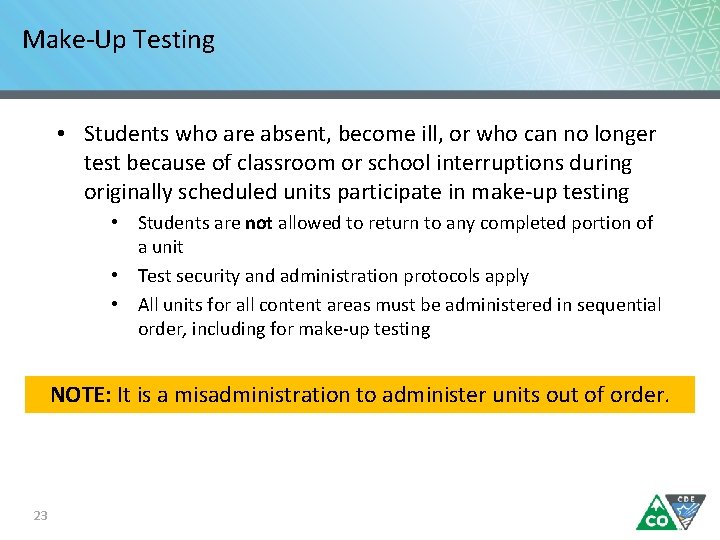
Make-Up Testing • Students who are absent, become ill, or who can no longer test because of classroom or school interruptions during originally scheduled units participate in make-up testing • Students are not allowed to return to any completed portion of a unit • Test security and administration protocols apply • All units for all content areas must be administered in sequential order, including for make-up testing NOTE: It is a misadministration to administer units out of order. 23
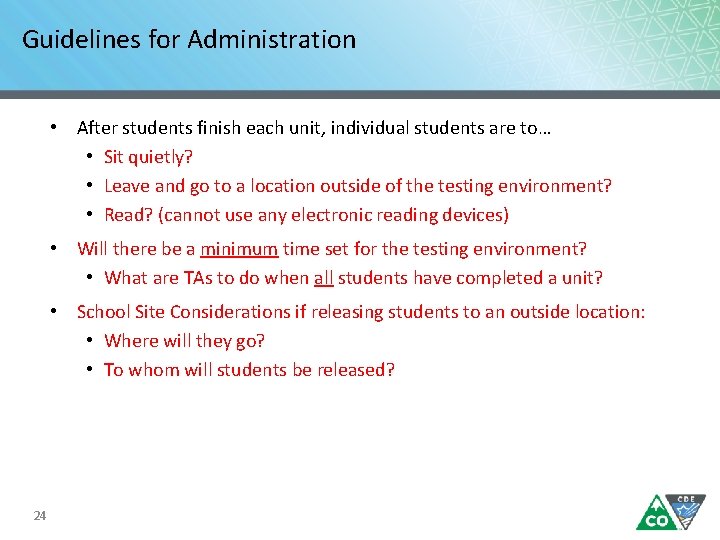
Guidelines for Administration • After students finish each unit, individual students are to… • Sit quietly? • Leave and go to a location outside of the testing environment? • Read? (cannot use any electronic reading devices) • Will there be a minimum time set for the testing environment? • What are TAs to do when all students have completed a unit? • School Site Considerations if releasing students to an outside location: • Where will they go? • To whom will students be released? 24
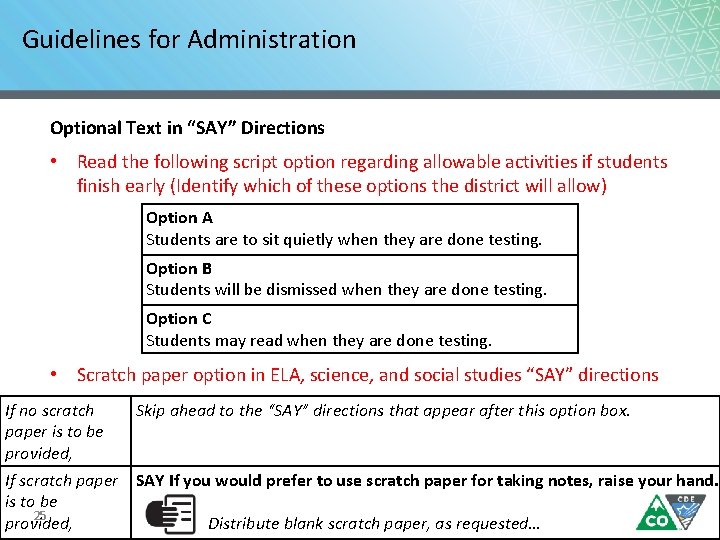
Guidelines for Administration Optional Text in “SAY” Directions • Read the following script option regarding allowable activities if students finish early (Identify which of these options the district will allow) Option A Students are to sit quietly when they are done testing. Option B Students will be dismissed when they are done testing. Option C Students may read when they are done testing. • Scratch paper option in ELA, science, and social studies “SAY” directions If no scratch Skip ahead to the “SAY” directions that appear after this option box. paper is to be provided, If scratch paper SAY If you would prefer to use scratch paper for taking notes, raise your hand. is to be 25 provided, Distribute blank scratch paper, as requested…
Administrative Considerations • Changes to the conditions of testing that may benefit a student • Available to any student as long as test security is not compromised and test environment requirements are met • Available Administrative Considerations: • Adaptive and specialized equipment or furniture • Frequent breaks (do not stop the clock) • Noise buffers/headphones • Small group testing • Specified, separate, or alternate area or seating • Time of day 26
Emergency Accommodation • A case where a student needs a new accommodation immediately due to unforeseen circumstances • Cases could include students who have a recently-fractured limb (e. g. , arm, wrist, or shoulder); whose only pair of eyeglasses have broken; or a student returning from a serious or prolonged illness or injury • Contact the SAC so the Emergency Accommodation form can be completed and the appropriate steps can be taken to provide the accommodation 27
CSLA Accommodated Form • Colorado Spanish Language Arts (CSLA) is a paper/pencil language arts accommodated form • Available for eligible 3 rd and 4 th grade students who are English learners • Administered in place of ELA • These students take the math assessment in Spanish • 28 4 th graders at schools selected for social studies take the social studies assessment in Spanish
Accommodations and Accessibility Features If administering the following accessibility features or accommodations, ensure training is received this school year: 29 • Auditory Presentation (Oral Script and Text-to-Speech) • ELA - unique accommodation requiring a CDE-approved UAR • Oral script for signed presentation only • English Text-to-Speech • Math, science, and social studies • English Text-to-Speech • Spanish Text-to-Speech • Oral script only for translation into a language other than English or Spanish, including signed presentation • Scribe • ELA constructed response – unique accommodation requiring a CDEapproved UAR • ELA selected response - accommodation • Math, science, and social studies – accommodation
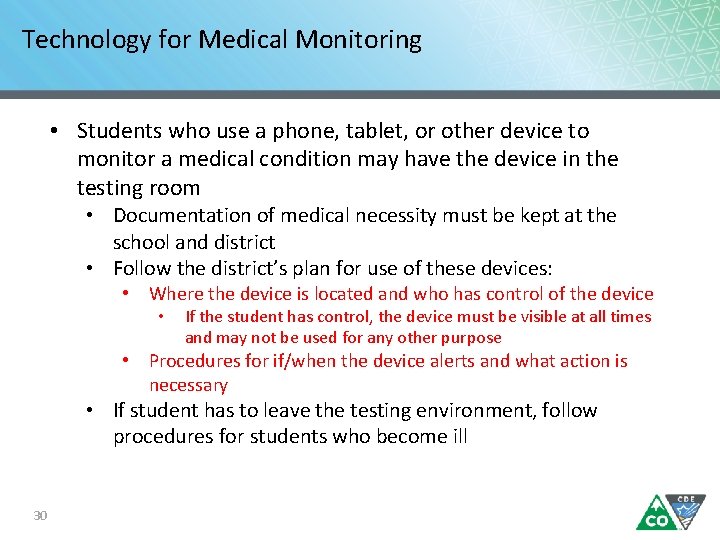
Technology for Medical Monitoring • Students who use a phone, tablet, or other device to monitor a medical condition may have the device in the testing room • Documentation of medical necessity must be kept at the school and district • Follow the district’s plan for use of these devices: • Where the device is located and who has control of the device • If the student has control, the device must be visible at all times and may not be used for any other purpose • Procedures for if/when the device alerts and what action is necessary • If student has to leave the testing environment, follow procedures for students who become ill 30
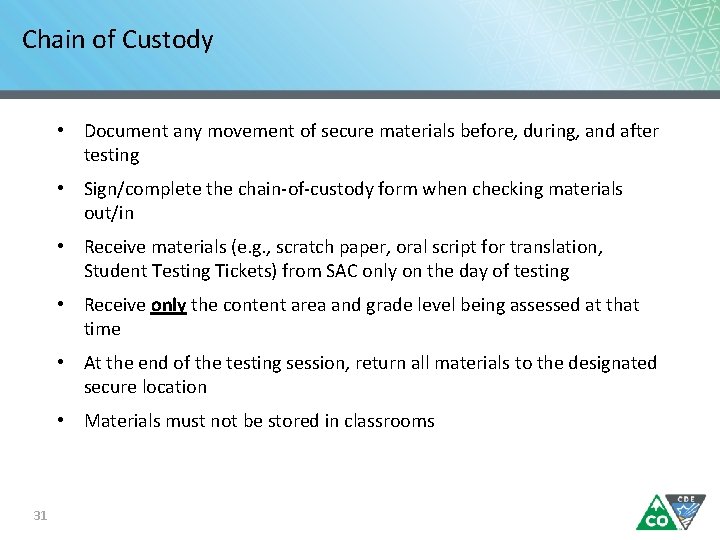
Chain of Custody • Document any movement of secure materials before, during, and after testing • Sign/complete the chain-of-custody form when checking materials out/in • Receive materials (e. g. , scratch paper, oral script for translation, Student Testing Tickets) from SAC only on the day of testing • Receive only the content area and grade level being assessed at that time • At the end of the testing session, return all materials to the designated secure location • Materials must not be stored in classrooms 31
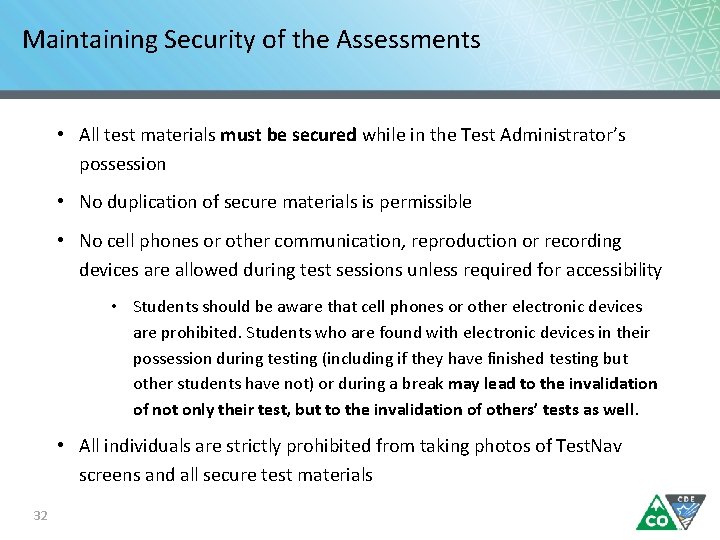
Maintaining Security of the Assessments • All test materials must be secured while in the Test Administrator’s possession • No duplication of secure materials is permissible • No cell phones or other communication, reproduction or recording devices are allowed during test sessions unless required for accessibility • Students should be aware that cell phones or other electronic devices are prohibited. Students who are found with electronic devices in their possession during testing (including if they have finished testing but other students have not) or during a break may lead to the invalidation of not only their test, but to the invalidation of others’ tests as well. • All individuals are strictly prohibited from taking photos of Test. Nav screens and all secure test materials 32
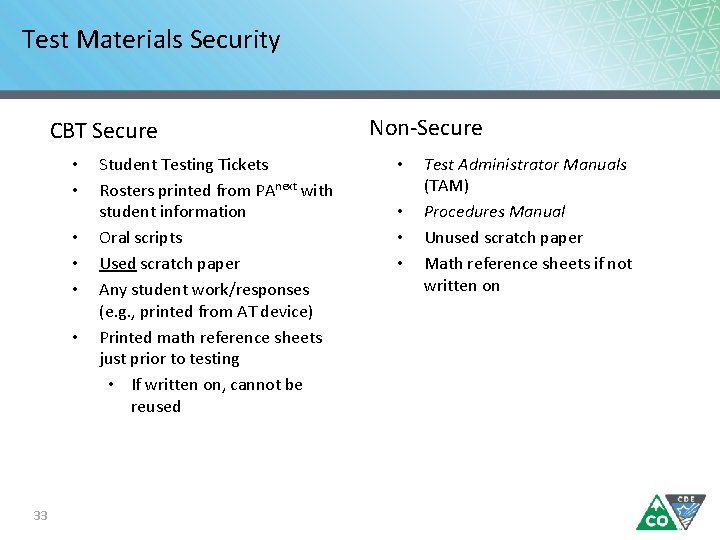
Test Materials Security CBT Secure • • • 33 Student Testing Tickets Rosters printed from PAnext with student information Oral scripts Used scratch paper Any student work/responses (e. g. , printed from AT device) Printed math reference sheets just prior to testing • If written on, cannot be reused Non-Secure • • Test Administrator Manuals (TAM) Procedures Manual Unused scratch paper Math reference sheets if not written on
Headphones • Required for use with text-to-speech forms • • To be in a testing room with other students, headphones must be worn Students must be tested separately if they are unable to wear headphones • Available for use as noise buffers Note: CMAS assessments do not contain audio unless TTS is used 34
Testing Different Grades Together If the unit testing time and directions are the same, different grades can be administered in the same room A separate testing environment is needed for: • PBT and CBT (administration SAY directions and materials are different) • ELA and math (unit testing times and SAY directions are different) • Directions read aloud in a language other than English • English tests and Spanish accommodated forms • Science/social studies and ELA/math (testing times and SAY directions are different) • PBT science and social studies (materials and SAY directions are different) • High school science/social studies and elementary/middle school science/social studies (different unit times) • Math grades 3 -5 and math grades 6 -8 (different SAY directions) • Math grades 6 -8 unit 1 and math grades 6 -8 units 2 and 3 (different SAY directions) http: //www. cde. state. co. us/assessment/cmas_2019_unittimes_multgroups 35
Room Configuration Students should not be able to see each other’s work from a normal testing position Consider the following seating configurations to maintain test security: • • • Seat students in every other seat (useful in a computer lab setup) Arrange monitors back-to-back Seat students in a semicircle (useful for schools using laptops) Seat students in widely spaced rows or in every other row (appropriate for a classroom setup) Dividing screens or other privacy materials may be used if students cannot be placed far enough away from each other 36
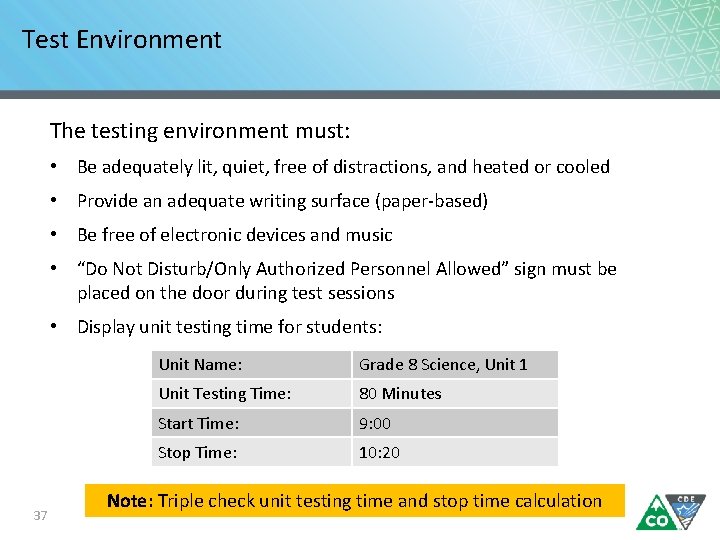
Test Environment The testing environment must: • Be adequately lit, quiet, free of distractions, and heated or cooled • Provide an adequate writing surface (paper-based) • Be free of electronic devices and music • “Do Not Disturb/Only Authorized Personnel Allowed” sign must be placed on the door during test sessions • Display unit testing time for students: 37 Unit Name: Grade 8 Science, Unit 1 Unit Testing Time: 80 Minutes Start Time: 9: 00 Stop Time: 10: 20 Note: Triple check unit testing time and stop time calculation
Test Environment Prohibited Materials • All cell phones • Exception: TA may have a cell phone for emergency use ONLY, but the ringer must be turned off • Exception: Student medical monitoring devices • Electronic devices including, but not limited to: E-readers Personal document scanners Electronic pens Smartwatches i. Pods, MP 3 players, or other music players Instructional aids relevant to content being assessed Reference books (exception: word-to-word dictionaries for EL) • No food or drinks are allowed on desks or near test materials 38
Test Environment • The testing environment must be free of any content related posters or aids that may suggest possible answers to students • Posters that do not include content specific definitions, content related processes, or solutions may remain on the wall • Prohibited visual aids in the test environment must be removed or covered 39 Number lines Word walls Steps for solving math equations Maps Charts Models Any content related materials Any resource that defines, explains, or illustrates terminology or concepts General Rule: When in doubt, cover it.
Student-to-Test Administrator Ratio Student-to-Test Administrator ratio must not exceed 30 to 1 • Test Administrator must be able to actively monitor the space within the physical testing environment Consider room configuration • Make special considerations for large testing environments or environments with complicated configurations Test Administrators must: • Actively proctor • Remain attentive and in the room during the entire testing unit • Circulate throughout the room during the test • Should be able to see students working, not student work 40
Unauthorized Visitors and the Media 41 • Only students, Test Administrators/Examiners, and authorized school, district, state personnel, or state-sanctioned test monitors may be in testing areas during administration • Media are not allowed to have access to the tests before, during, or after test administration, or take pictures or video of testing materials or testing students • Parents are not allowed in the testing room with their child
Security Breaches Reporting Testing Irregularities and Security Breaches: 1. 2. 42 All instances of testing irregularities and security breaches must be immediately reported to the SAC, and subsequently, the DAC Should a testing irregularity or security breach occur, be prepared to provide a written statement of the incident to the SAC
Safety Threats and Severe Weather Know the Plan for Safety Threats and Severe Weather: 1. Note the time of the disruption and time remaining in unit 2. Secure test materials as specified in the School Security Plan 3. Upon return, prepare students for the continuation of the unit and resume tests 4. Document the situation in writing (report a testing irregularity or security breach to the SAC) 43
Before Testing 44
Student Readiness • Student practice resources are available • e. PATs for computer-based testing • Walk through all item types • e. PAT Guides include script for adult as well as scoring information such as rubrics and sample student responses • During testing, Test Administrators cannot help students with Test. Nav navigation May not help with how to answer a question May not show to go to the next question or use the review screen May not assist with drag and drop or other technology enhanced items • Strongly recommend students are provided with access to practice resources prior to testing • Includes forms with accessibility features and accommodations 45
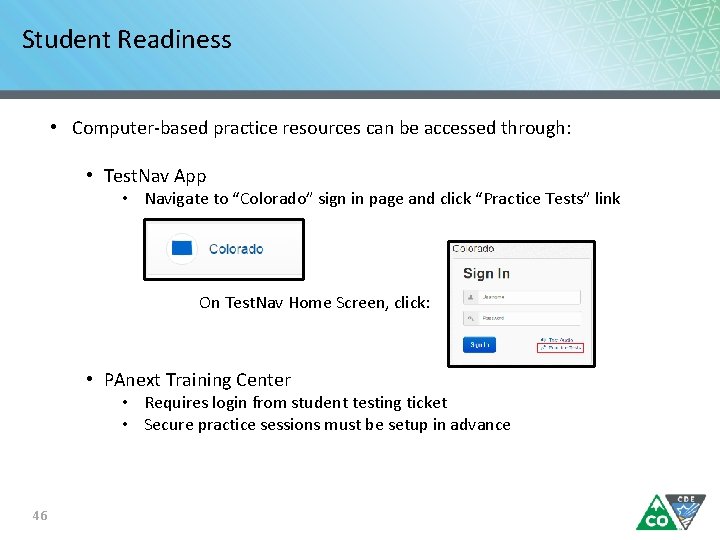
Student Readiness • Computer-based practice resources can be accessed through: • Test. Nav App • Navigate to “Colorado” sign in page and click “Practice Tests” link On Test. Nav Home Screen, click: • PAnext Training Center • Requires login from student testing ticket • Secure practice sessions must be setup in advance 46
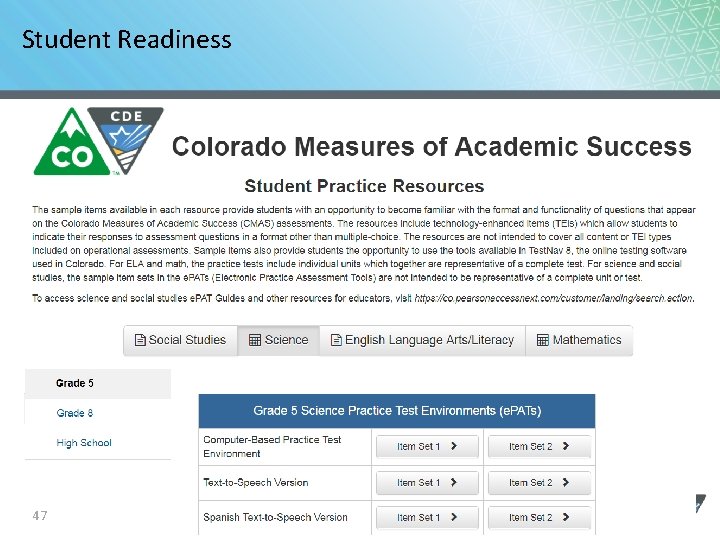
Student Readiness 47
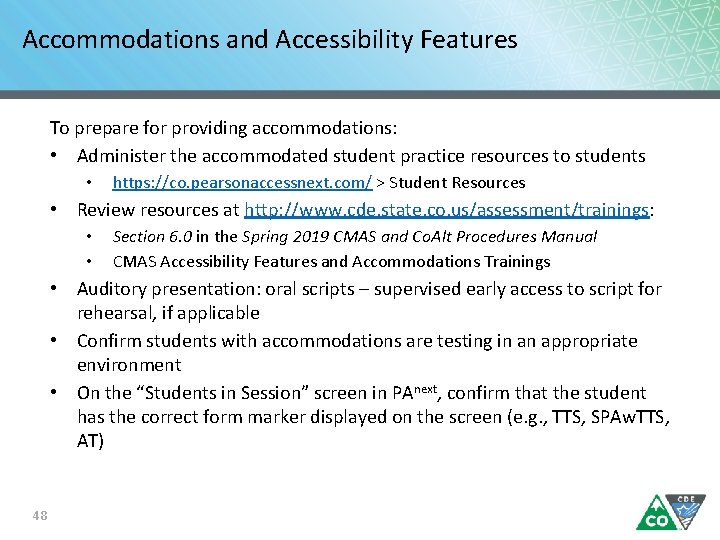
Accommodations and Accessibility Features To prepare for providing accommodations: • Administer the accommodated student practice resources to students • https: //co. pearsonaccessnext. com/ > Student Resources • Review resources at http: //www. cde. state. co. us/assessment/trainings: • • Section 6. 0 in the Spring 2019 CMAS and Co. Alt Procedures Manual CMAS Accessibility Features and Accommodations Trainings • Auditory presentation: oral scripts – supervised early access to script for rehearsal, if applicable • Confirm students with accommodations are testing in an appropriate environment • On the “Students in Session” screen in PAnext, confirm that the student has the correct form marker displayed on the screen (e. g. , TTS, SPAw. TTS, AT) 48
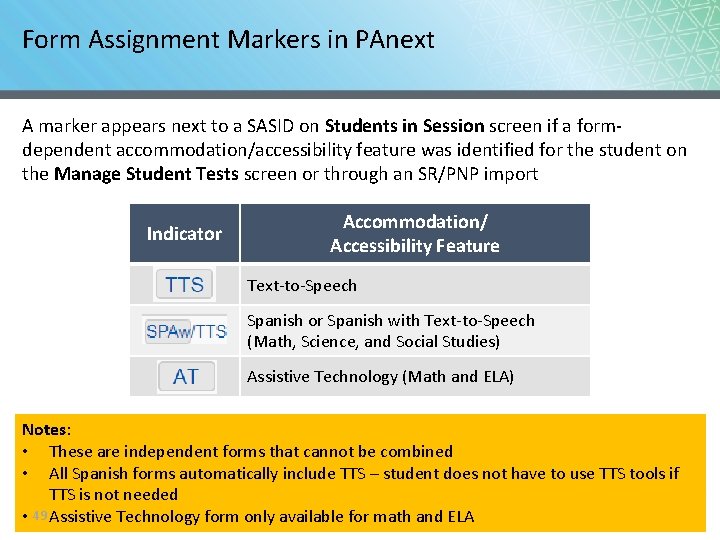
Form Assignment Markers in PAnext A marker appears next to a SASID on Students in Session screen if a formdependent accommodation/accessibility feature was identified for the student on the Manage Student Tests screen or through an SR/PNP import Indicator Accommodation/ Accessibility Feature Text-to-Speech Spanish or Spanish with Text-to-Speech (Math, Science, and Social Studies) Assistive Technology (Math and ELA) Notes: • These are independent forms that cannot be combined • All Spanish forms automatically include TTS – student does not have to use TTS tools if TTS is not needed • 49 Assistive Technology form only available for math and ELA
Test Administrator Access to Materials TA access to test materials is only available on the day of testing 1. Check materials out using school chain-of-custody form 2. Administer assessment 3. Check materials in using school chain-of-custody form There are early access exceptions for some accommodations • See accommodations training information Secure test materials must: • Not be removed from the school’s campus • Never be left unattended • Be secure while in the TA’s possession 50
Tasks to Complete Before Testing At least one week before testing: • • • 51 Review the Test Administrator Manual and attend training to understand policies and instructions for the spring 2019 test administration Sign the CMAS and Co. Alt Security Agreement form Prepare to administer accommodated tests, if necessary Ensure PAnext can be accessed Optional: Administer the computer-based testing student resources (e. PATs)
Tasks to Complete Before Testing One day before testing: • • 52 Prepare the testing environment Ensure the spring 2019 administration instructions (TAM) are available Know what, when, and where testing will take place Arrange for school-supplied materials (e. g. , scratch paper, calculators)
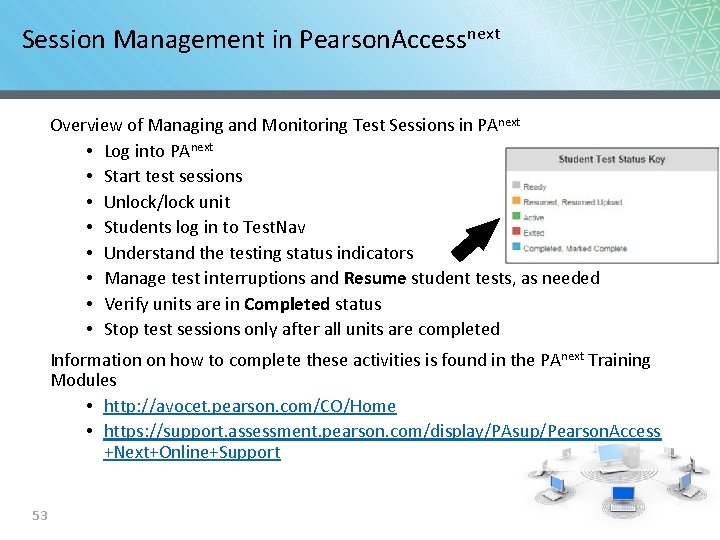
Session Management in Pearson. Accessnext Overview of Managing and Monitoring Test Sessions in PAnext • Log into PAnext • Start test sessions • Unlock/lock unit • Students log in to Test. Nav • Understand the testing status indicators • Manage test interruptions and Resume student tests, as needed • Verify units are in Completed status • Stop test sessions only after all units are completed Information on how to complete these activities is found in the PAnext Training Modules • http: //avocet. pearson. com/CO/Home • https: //support. assessment. pearson. com/display/PAsup/Pearson. Access +Next+Online+Support 53
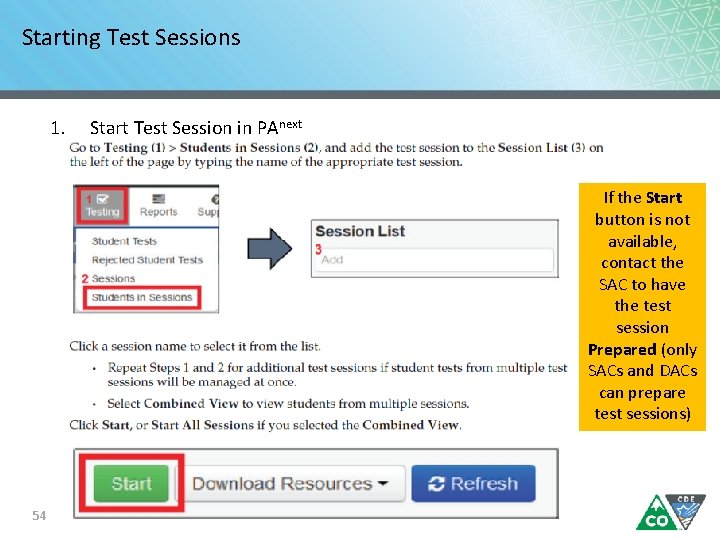
Starting Test Sessions 1. Start Test Session in PAnext If the Start button is not available, contact the SAC to have the test session Prepared (only SACs and DACs can prepare test sessions) 54
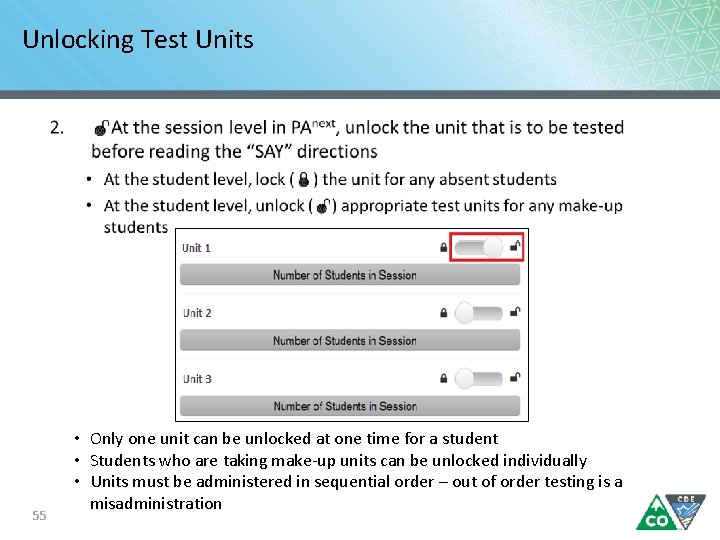
Unlocking Test Units 55 • Only one unit can be unlocked at one time for a student • Students who are taking make-up units can be unlocked individually • Units must be administered in sequential order – out of order testing is a misadministration
During Testing 56
Maintain Test Security 1. 2. 3. 4. 5. 6. 57 Administer test sessions properly and securely according to protocol • Refer to training and TAM Administer all tests Focus full attention on the testing environment at all times during testing • Ensure students do not participate in any form of cheating Do not provide students with assistance that could impact answers Follow proper test security procedures for providing accessibility features or accommodations Follow chain-of-custody requirements to return all test materials after testing
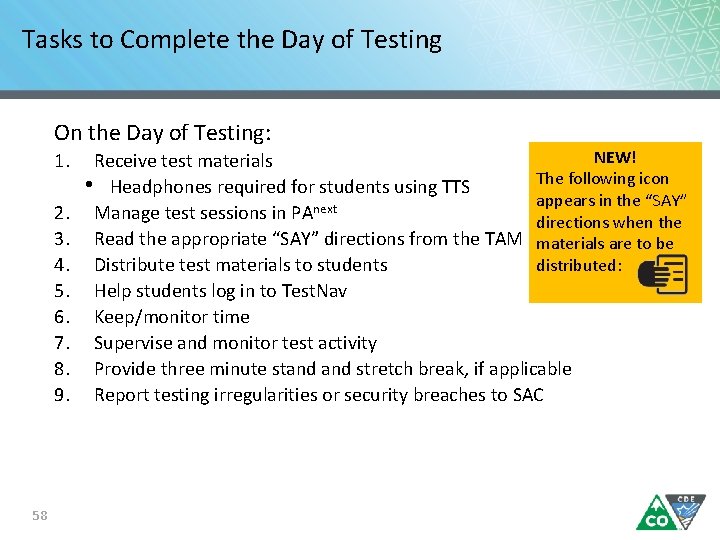
Tasks to Complete the Day of Testing On the Day of Testing: 1. 2. 3. 4. 5. 6. 7. 8. 9. 58 NEW! Receive test materials The following icon • Headphones required for students using TTS appears in the “SAY” Manage test sessions in PAnext directions when the Read the appropriate “SAY” directions from the TAM materials are to be distributed: Distribute test materials to students Help students log in to Test. Nav Keep/monitor time Supervise and monitor test activity Provide three minute stand stretch break, if applicable Report testing irregularities or security breaches to SAC
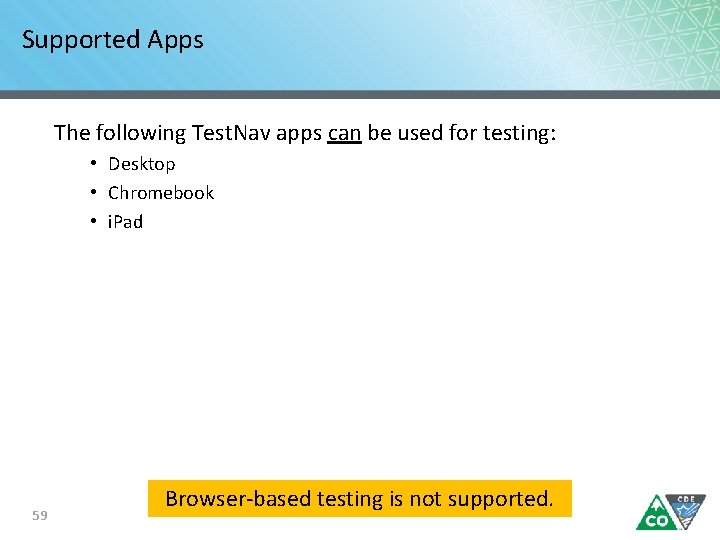
Supported Apps The following Test. Nav apps can be used for testing: • Desktop • Chromebook • i. Pad 59 Browser-based testing is not supported.
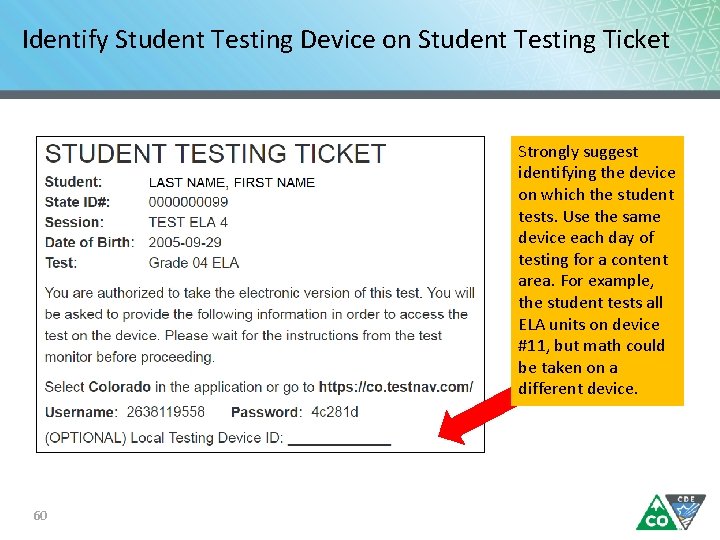
Identify Student Testing Device on Student Testing Ticket Strongly suggest identifying the device on which the student tests. Use the same device each day of testing for a content area. For example, the student tests all ELA units on device #11, but math could be taken on a different device. 60

New! Form Assignment Markers on Testing Ticket A marker appears next to a SASID on a student’s testing ticket if they have been assigned a TTS or Oral Script form. Indicator Accommodation/ Accessibility Feature Text-to-Speech Oral Script This student has a text-to-speech form and needs headphones. 61
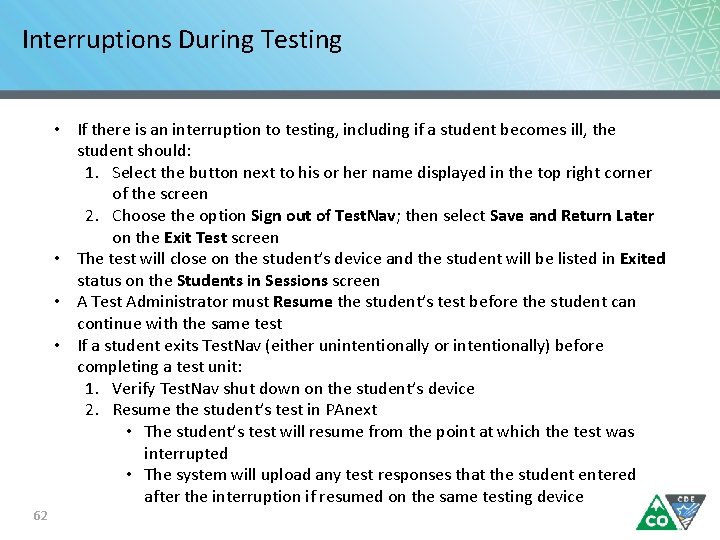
Interruptions During Testing 62 • If there is an interruption to testing, including if a student becomes ill, the student should: 1. Select the button next to his or her name displayed in the top right corner of the screen 2. Choose the option Sign out of Test. Nav; then select Save and Return Later on the Exit Test screen • The test will close on the student’s device and the student will be listed in Exited status on the Students in Sessions screen • A Test Administrator must Resume the student’s test before the student can continue with the same test • If a student exits Test. Nav (either unintentionally or intentionally) before completing a test unit: 1. Verify Test. Nav shut down on the student’s device 2. Resume the student’s test in PAnext • The student’s test will resume from the point at which the test was interrupted • The system will upload any test responses that the student entered after the interruption if resumed on the same testing device
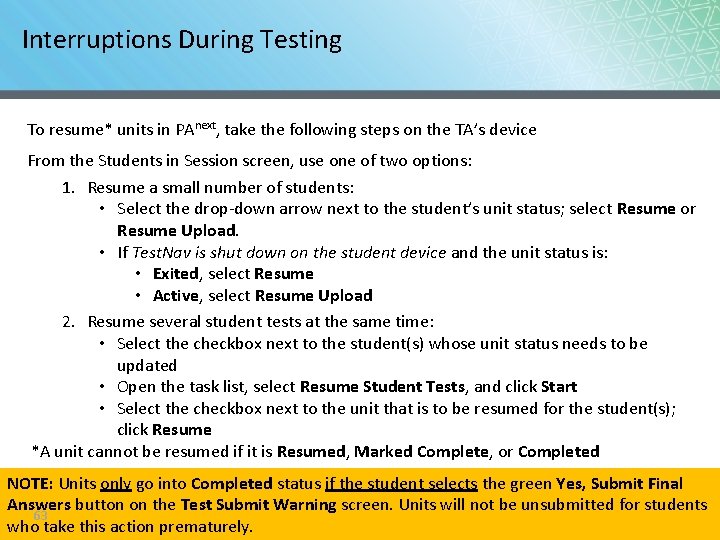
Interruptions During Testing To resume* units in PAnext, take the following steps on the TA’s device From the Students in Session screen, use one of two options: 1. Resume a small number of students: • Select the drop-down arrow next to the student’s unit status; select Resume or Resume Upload. • If Test. Nav is shut down on the student device and the unit status is: • Exited, select Resume • Active, select Resume Upload 2. Resume several student tests at the same time: • Select the checkbox next to the student(s) whose unit status needs to be updated • Open the task list, select Resume Student Tests, and click Start • Select the checkbox next to the unit that is to be resumed for the student(s); click Resume *A unit cannot be resumed if it is Resumed, Marked Complete, or Completed NOTE: Units only go into Completed status if the student selects the green Yes, Submit Final Answers button on the Test Submit Warning screen. Units will not be unsubmitted for students 63 who take this action prematurely.
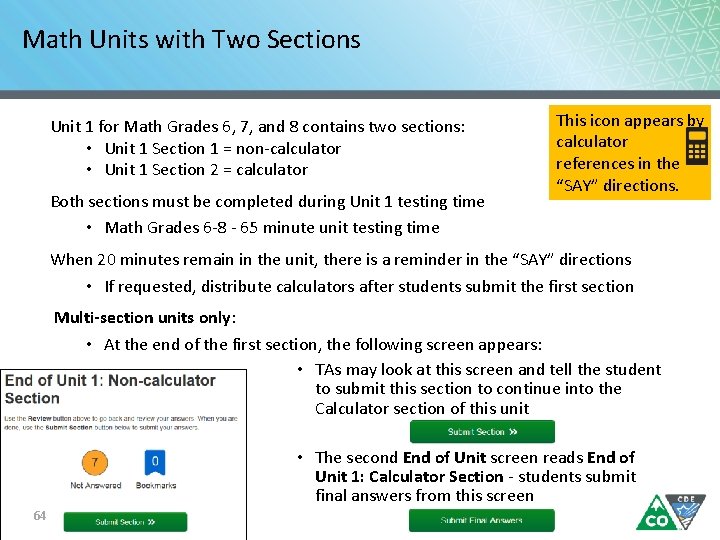
Math Units with Two Sections Unit 1 for Math Grades 6, 7, and 8 contains two sections: • Unit 1 Section 1 = non-calculator • Unit 1 Section 2 = calculator Both sections must be completed during Unit 1 testing time • Math Grades 6 -8 - 65 minute unit testing time This icon appears by calculator references in the “SAY” directions. When 20 minutes remain in the unit, there is a reminder in the “SAY” directions • If requested, distribute calculators after students submit the first section Multi-section units only: • At the end of the first section, the following screen appears: • TAs may look at this screen and tell the student to submit this section to continue into the Calculator section of this unit • The second End of Unit screen reads End of Unit 1: Calculator Section - students submit final answers from this screen 64
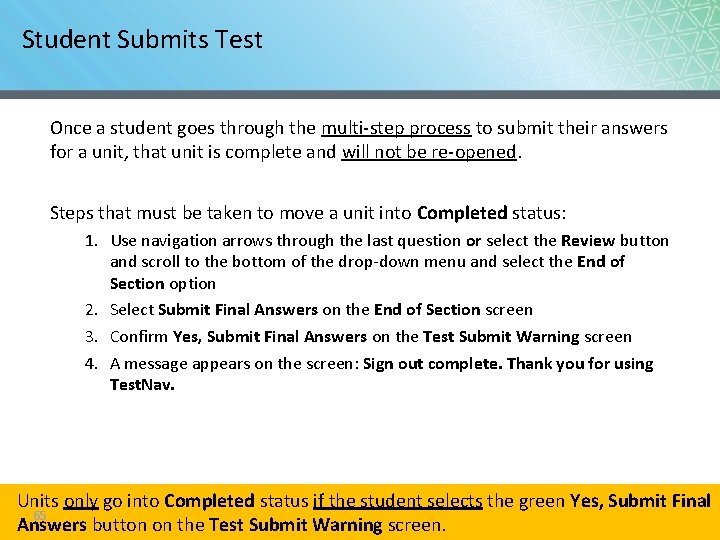
Student Submits Test Once a student goes through the multi-step process to submit their answers for a unit, that unit is complete and will not be re-opened. Steps that must be taken to move a unit into Completed status: 1. Use navigation arrows through the last question or select the Review button and scroll to the bottom of the drop-down menu and select the End of Section option 2. Select Submit Final Answers on the End of Section screen 3. Confirm Yes, Submit Final Answers on the Test Submit Warning screen 4. A message appears on the screen: Sign out complete. Thank you for using Test. Nav. Units only go into Completed status if the student selects the green Yes, Submit Final 65 Answers button on the Test Submit Warning screen.
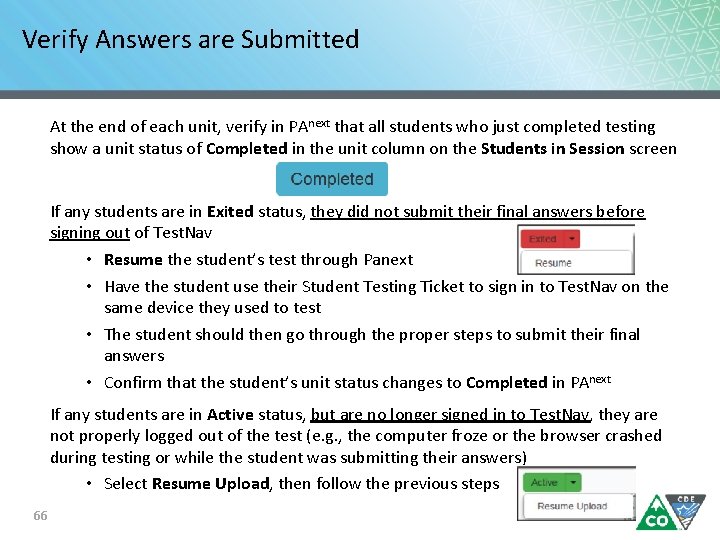
Verify Answers are Submitted At the end of each unit, verify in PAnext that all students who just completed testing show a unit status of Completed in the unit column on the Students in Session screen If any students are in Exited status, they did not submit their final answers before signing out of Test. Nav • Resume the student’s test through Panext • Have the student use their Student Testing Ticket to sign in to Test. Nav on the same device they used to test • The student should then go through the proper steps to submit their final answers • Confirm that the student’s unit status changes to Completed in PAnext If any students are in Active status, but are no longer signed in to Test. Nav, they are not properly logged out of the test (e. g. , the computer froze or the browser crashed during testing or while the student was submitting their answers) • Select Resume Upload, then follow the previous steps 66
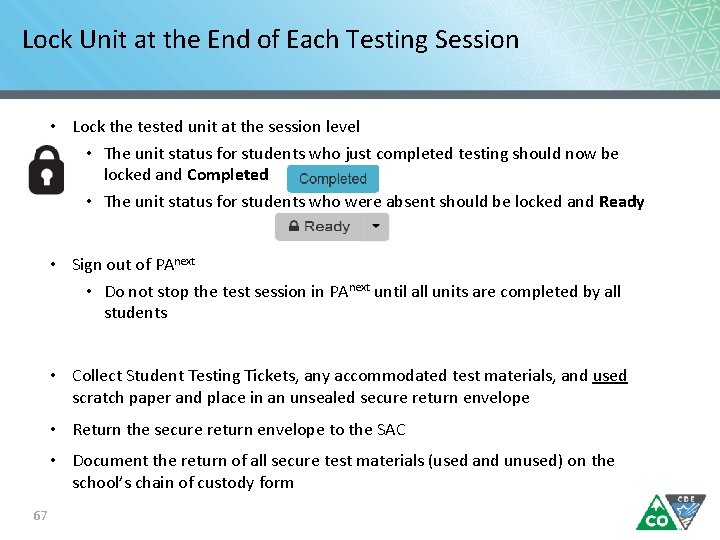
Lock Unit at the End of Each Testing Session • Lock the tested unit at the session level • The unit status for students who just completed testing should now be locked and Completed • The unit status for students who were absent should be locked and Ready • Sign out of PAnext • Do not stop the test session in PAnext until all units are completed by all students • Collect Student Testing Tickets, any accommodated test materials, and used scratch paper and place in an unsealed secure return envelope • Return the secure return envelope to the SAC • Document the return of all secure test materials (used and unused) on the school’s chain of custody form 67
Troubleshooting Guidance When a technology disruption affecting a single student occurs, Test Administrators take the following steps: • Note the time of the disruption • Follow procedures for troubleshooting and support • If the issue persists, move the student to another testing device • Document the situation in writing When a technology disruption affecting multiple students occurs, Test Administrators take the following steps: • Pause testing • Note the time of the disruption • Follow procedures for troubleshooting and support • Resume testing • Document the situation in writing 68
Troubleshooting Resources Test Administrator Manual • • 2. 4. 2 Stops in Testing Appendix D: Test. Nav 8 Error Codes and Resolutions Test. Nav 8 Online Support Guide • • 69 Troubleshooting - https: //support. assessment. pearson. com/x/UQUq. AQ Error Codes https: //support. assessment. pearson. com/display/TN/Error+Codes
Issues with Individual Items If a student reports that an item is not functioning or does not have an answer: • DO NOT read the item • For items not displaying properly, instruct the student to go to the next item and then return to the item • Note: • • • Content area Grade level Form number Unit number Item number Test format • Provide information to the SAC • Wording from the test must NEVER be included verbally or in writing • The SAC will contact the DAC and Pearson 70
After Testing 71
Tasks to Complete after Testing After each unit has been administered: 1. Ensure all materials are returned to the SAC • • • 2. 3. 72 Test Administrator Manual Student Testing Tickets School-supplied mathematics reference sheets Calculators (if applicable) Used and unused scratch paper Headphones Report any testing irregularities or security breaches to SAC, including missing materials After all units are completed, stop test sessions in PAnext
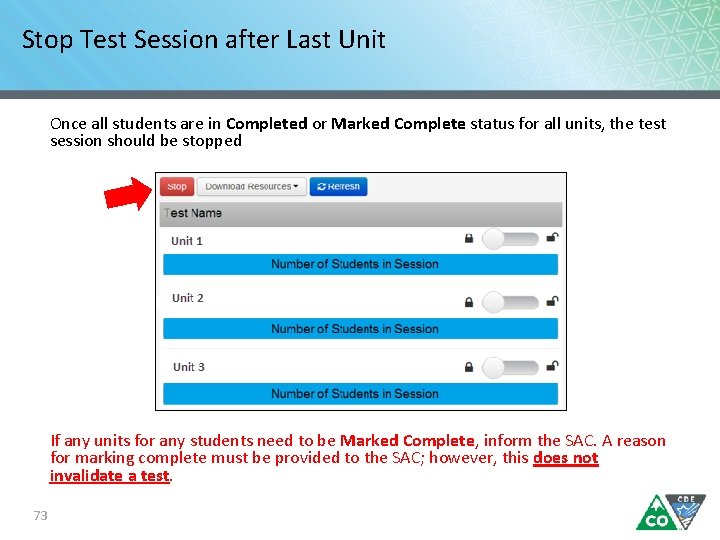
Stop Test Session after Last Unit Once all students are in Completed or Marked Complete status for all units, the test session should be stopped If any units for any students need to be Marked Complete, inform the SAC. A reason for marking complete must be provided to the SAC; however, this does not invalidate a test. 73
Resources and Support 74
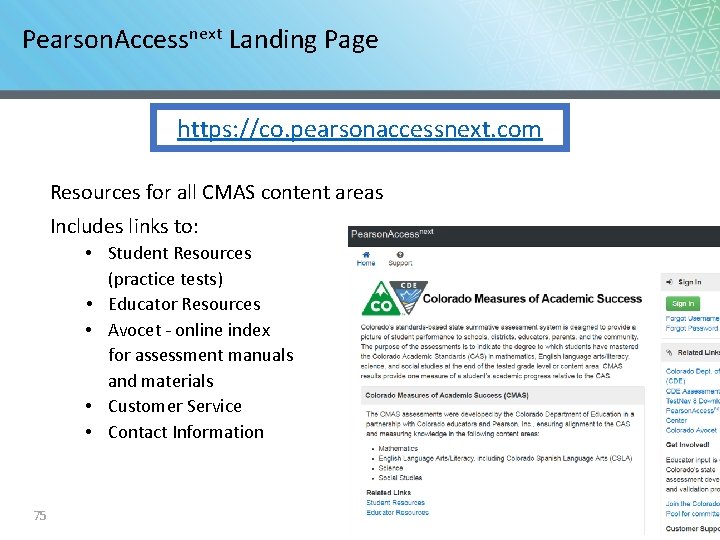
Pearson. Accessnext Landing Page https: //co. pearsonaccessnext. com Resources for all CMAS content areas Includes links to: • Student Resources (practice tests) • Educator Resources • Avocet - online index for assessment manuals and materials • Customer Service • Contact Information 75
Customer Support Contact Support for assistance with: • Navigating Pearson. Accessnext • Troubleshooting error codes • Navigating the Training Center • Accessing resources • Setting up test sessions • Managing user IDs and passwords • Managing test sessions CMAS Support Call Toll Free: 1 -888 -687 -4759 Monday – Friday 7: 00 am - 6: 00 pm (MST) https: //co. pearsonaccessnext. com > Contact COLORADO Support Chat is available 76
Communication If an issue is experienced and guidance and support are needed, go through the proper channels (including when students submit final answers prematurely) • Test Administrator contacts School Assessment Coordinator (SAC) • SAC contacts District Assessment Coordinator (DAC) • DAC contacts CDE NOTE: Submitted units will not be re-opened as students have to go through multiple 77 and confirmations before their status changes to Completed. steps
Security Agreement Form Sign the Security Agreement form for Spring 2019 CMAS and Co. Alt: Math, ELA, Science and Social Studies http: //www. cde. state. co. us/assessment/cmas_coalt_2019_secagree Return the signed form to the SAC. 78
Get Involved! Educator input is critical to Colorado's state assessment development and validation process • Educators may participate in committees related to the following state assessments: • CMAS: Science, Social Studies, Mathematics and English Language Arts/Literacy (ELA) • Colorado Spanish Language Arts (CSLA) • Co. Alt: Science and Social Studies • Join the Colorado Educator Pool for assessment development committee selection at https: //pearson. cvent. com/COEducator. Database 79
Thank you! 80
- Slides: 80