
ASUS DEMO SOP for ME 173 X Confidential

![CHAPTERS 1. [Online SOP] ASUS Live Demo Internet installation 2. [Offline SOP] ASUS Regular](https://slidetodoc.com/presentation_image_h/93fcddcc5c3d0cfbcc676b4624f53edc/image-2.jpg "CHAPTERS 1. [Online SOP] ASUS Live Demo Internet installation 2. [Offline SOP] ASUS Regular")
![Chapter 1 [Online SOP] ASUS Live Demo Internet installation Confidential](https://slidetodoc.com/presentation_image_h/93fcddcc5c3d0cfbcc676b4624f53edc/image-3.jpg "Chapter 1 [Online SOP] ASUS Live Demo Internet installation Confidential")
![STEP 2 - Collect Serial number & Mac address • Tap [settings] [About tablet]](https://slidetodoc.com/presentation_image_h/93fcddcc5c3d0cfbcc676b4624f53edc/image-7.jpg "STEP 2 - Collect Serial number & Mac address • Tap [settings] [About tablet]")
![Chapter 2 [Offline SOP] ASUS Regular Demo SD card installation Confidential](https://slidetodoc.com/presentation_image_h/93fcddcc5c3d0cfbcc676b4624f53edc/image-19.jpg "Chapter 2 [Offline SOP] ASUS Regular Demo SD card installation Confidential")
![1. Store Staff Deactivation 2/2 4. 5. 4. Click [Factory data reset] 5. Click](https://slidetodoc.com/presentation_image_h/93fcddcc5c3d0cfbcc676b4624f53edc/image-46.jpg "1. Store Staff Deactivation 2/2 4. 5. 4. Click [Factory data reset] 5. Click")
![2. Channel Sales Deactivation 1. Select [Approved dealer] 4900090678 2. Select your country Key](https://slidetodoc.com/presentation_image_h/93fcddcc5c3d0cfbcc676b4624f53edc/image-48.jpg "2. Channel Sales Deactivation 1. Select [Approved dealer] 4900090678 2. Select your country Key")

- Slides: 54
ASUS DEMO SOP for ME 173 X Confidential
CHAPTERS 1. [Online SOP] ASUS Live Demo Internet installation 2. [Offline SOP] ASUS Regular Demo SD card Installation 3. ASUS Demo Online deactivation 4. Security alarm Confidential
Chapter 1 [Online SOP] ASUS Live Demo Internet installation Confidential
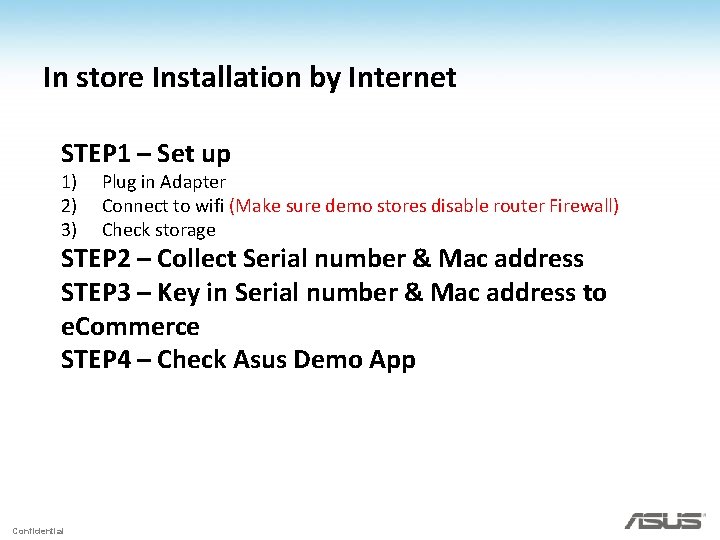
In store Installation by Internet STEP 1 – Set up 1) 2) 3) Plug in Adapter Connect to wifi (Make sure demo stores disable router Firewall) Check storage STEP 2 – Collect Serial number & Mac address STEP 3 – Key in Serial number & Mac address to e. Commerce STEP 4 – Check Asus Demo App Confidential
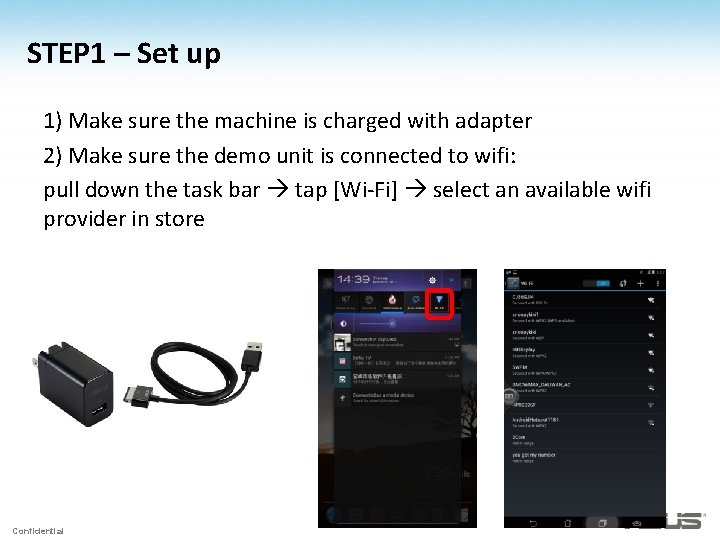
STEP 1 – Set up 1) Make sure the machine is charged with adapter 2) Make sure the demo unit is connected to wifi: pull down the task bar tap [Wi-Fi] select an available wifi provider in store Confidential
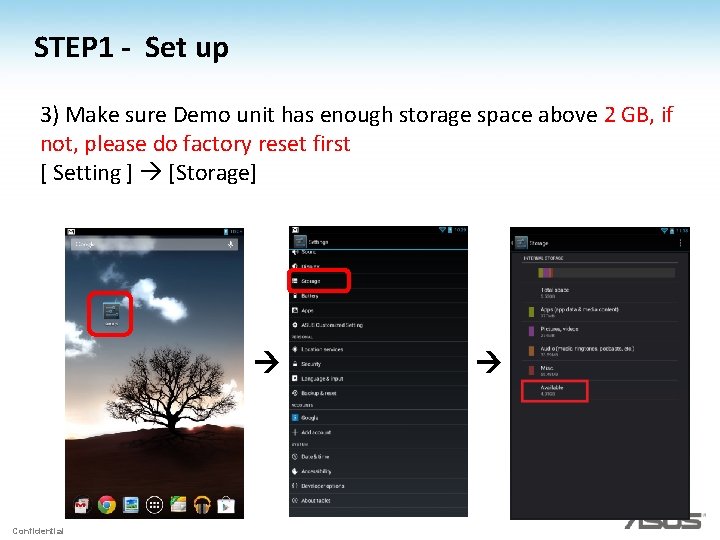
STEP 1 - Set up 3) Make sure Demo unit has enough storage space above 2 GB, if not, please do factory reset first [ Setting ] [Storage] Confidential
STEP 2 - Collect Serial number & Mac address • Tap [settings] [About tablet] [Status] check [Wi-fi MAC address] & [Serial number] Confidential
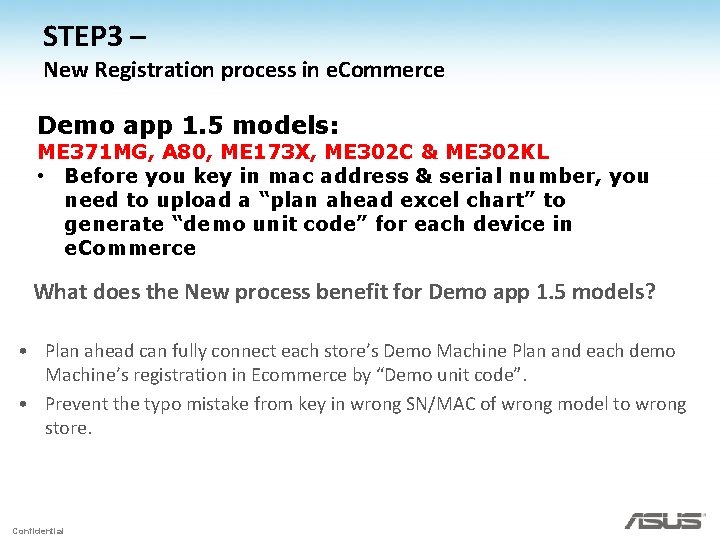
STEP 3 – New Registration process in e. Commerce Demo app 1. 5 models: ME 371 MG, A 80, ME 173 X, ME 302 C & ME 302 KL • Before you key in mac address & serial number, you need to upload a “plan ahead excel chart” to generate “demo unit code” for each device in e. Commerce What does the New process benefit for Demo app 1. 5 models? • Plan ahead can fully connect each store’s Demo Machine Plan and each demo Machine’s registration in Ecommerce by “Demo unit code”. • Prevent the typo mistake from key in wrong SN/MAC of wrong model to wrong store. Confidential
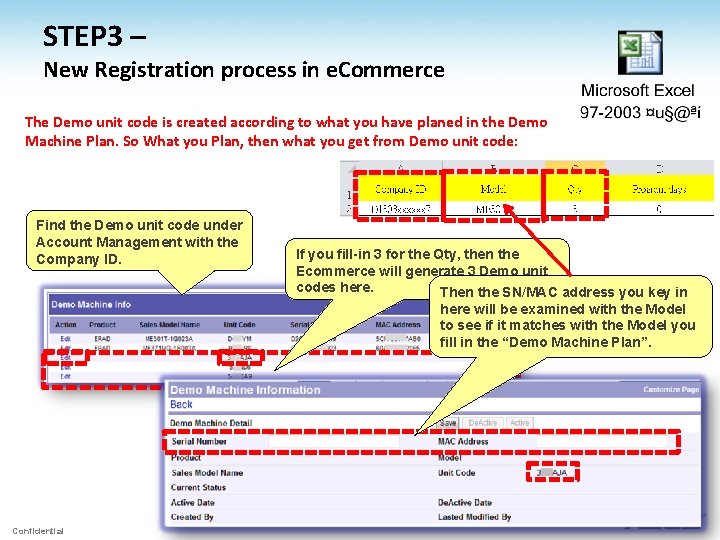
STEP 3 – New Registration process in e. Commerce The Demo unit code is created according to what you have planed in the Demo Machine Plan. So What you Plan, then what you get from Demo unit code: Find the Demo unit code under Account Management with the Company ID. If you fill-in 3 for the Qty, then the Ecommerce will generate 3 Demo unit codes here. Then the SN/MAC address you key in here will be examined with the Model to see if it matches with the Model you fill in the “Demo Machine Plan”. Confidential
STEP 3 – New Registration process in e. Commerce Agenda 1. How to fill in a “Demo Machine Plan”? 2. How to upload a “Demo Machine Plan”? 3. How to Query the result? 4. How to register SN/MAC into Ecommerce? Confidential
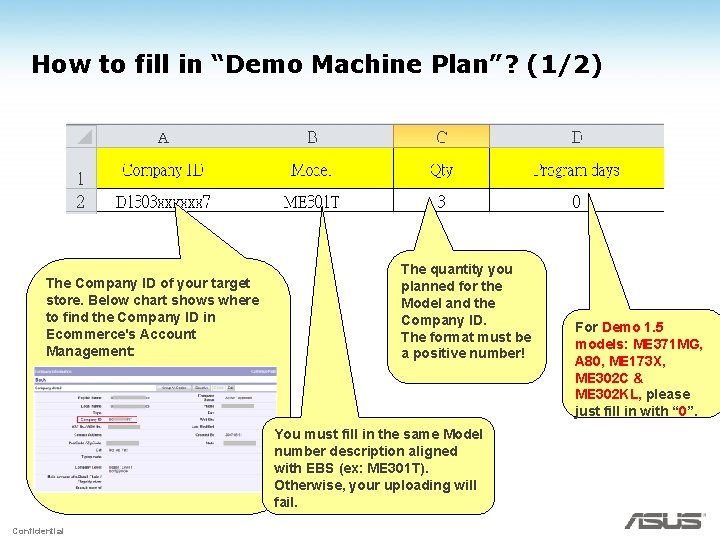
How to fill in “Demo Machine Plan”? (1/2) The Company ID of your target store. Below chart shows where to find the Company ID in Ecommerce's Account Management: The quantity you planned for the Model and the Company ID. The format must be a positive number! You must fill in the same Model number description aligned with EBS (ex: ME 301 T). Otherwise, your uploading will fail. Confidential For Demo 1. 5 models: ME 371 MG, A 80, ME 173 X, ME 302 C & ME 302 KL, please just fill in with “ 0”.
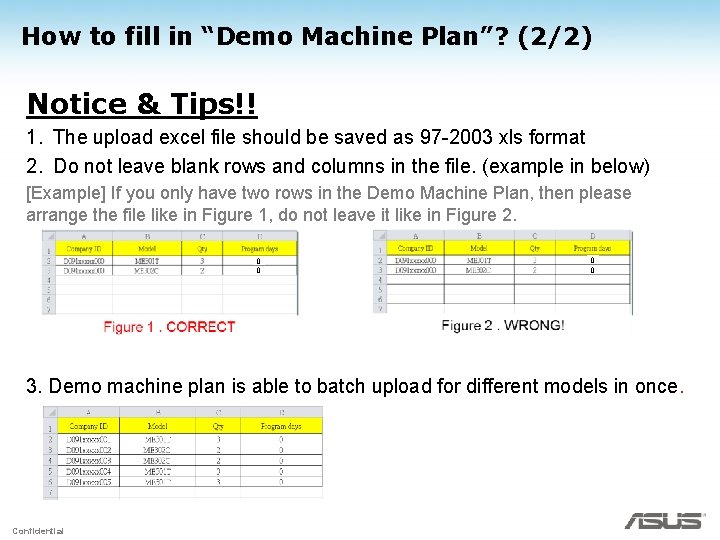
How to fill in “Demo Machine Plan”? (2/2) Notice & Tips!! 1. The upload excel file should be saved as 97 -2003 xls format 2. Do not leave blank rows and columns in the file. (example in below) [Example] If you only have two rows in the Demo Machine Plan, then please arrange the file like in Figure 1, do not leave it like in Figure 2. 0 0 3. Demo machine plan is able to batch upload for different models in once. Confidential
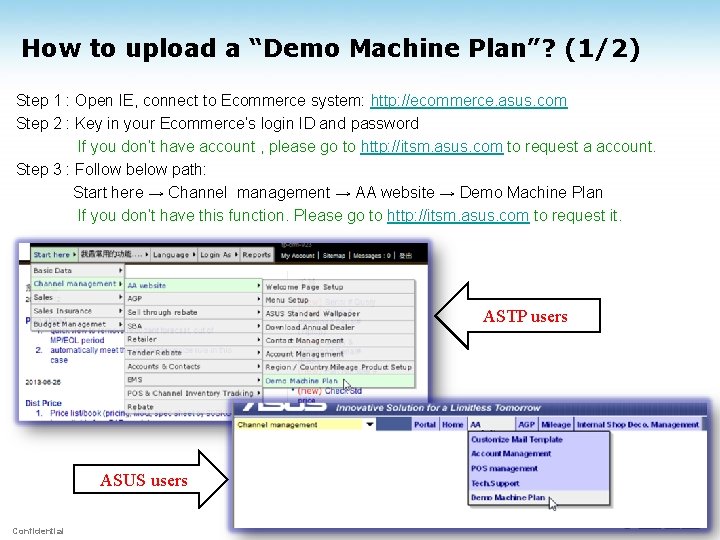
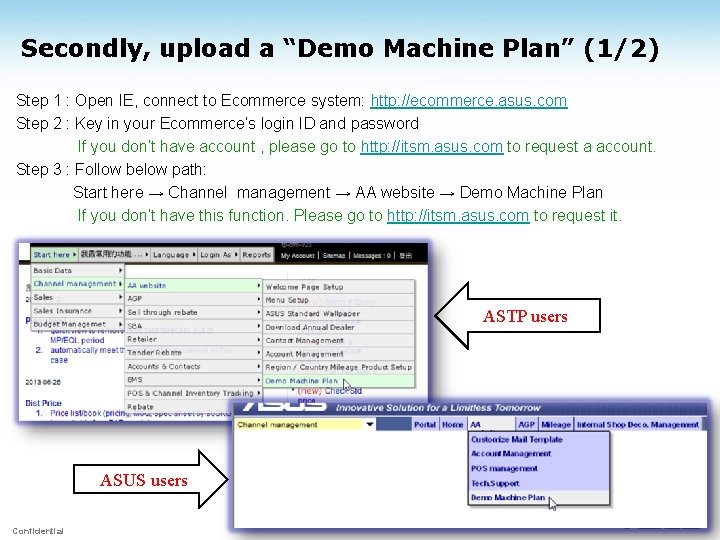
How to upload a “Demo Machine Plan”? (1/2) Step 1 : Open IE, connect to Ecommerce system: http: //ecommerce. asus. com Step 2 : Key in your Ecommerce’s login ID and password If you don’t have account , please go to http: //itsm. asus. com to request a account. Step 3 : Follow below path: Start here → Channel management → AA website → Demo Machine Plan If you don’t have this function. Please go to http: //itsm. asus. com to request it. ASTP users ASUS users Confidential
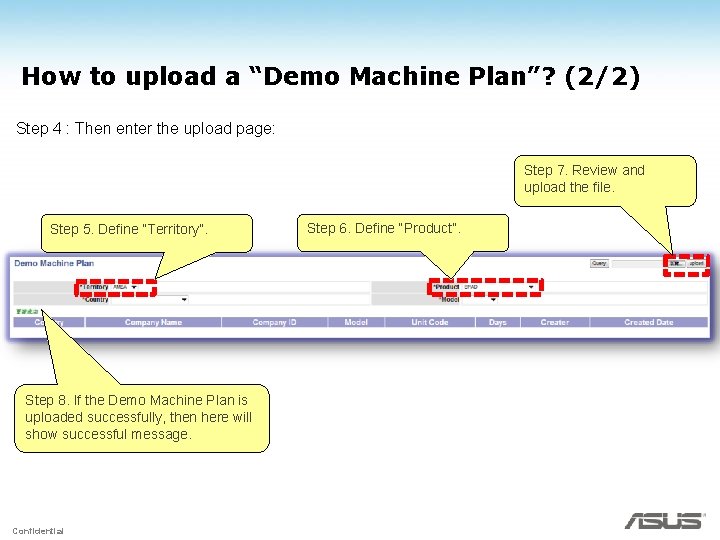
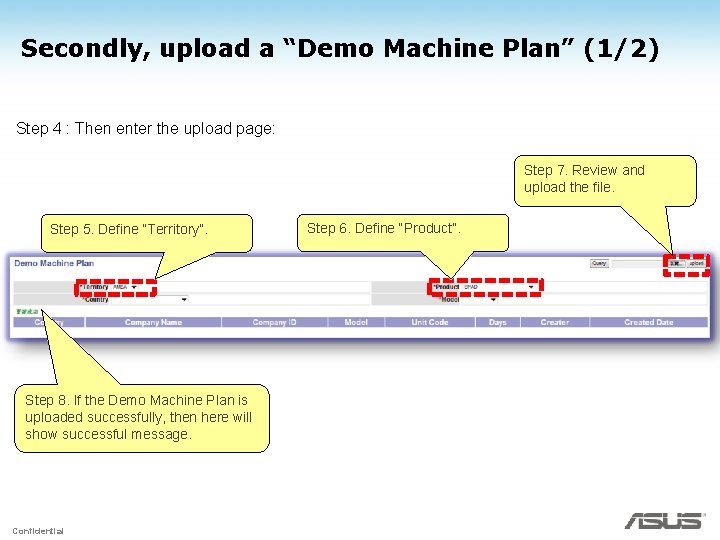
How to upload a “Demo Machine Plan”? (2/2) Step 4 : Then enter the upload page: Step 7. Review and upload the file. Step 5. Define “Territory”. Step 8. If the Demo Machine Plan is uploaded successfully, then here will show successful message. Confidential Step 6. Define “Product”.
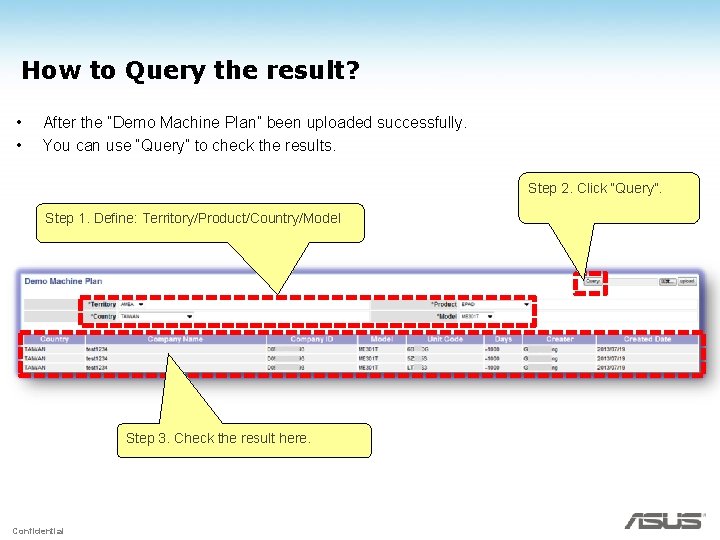
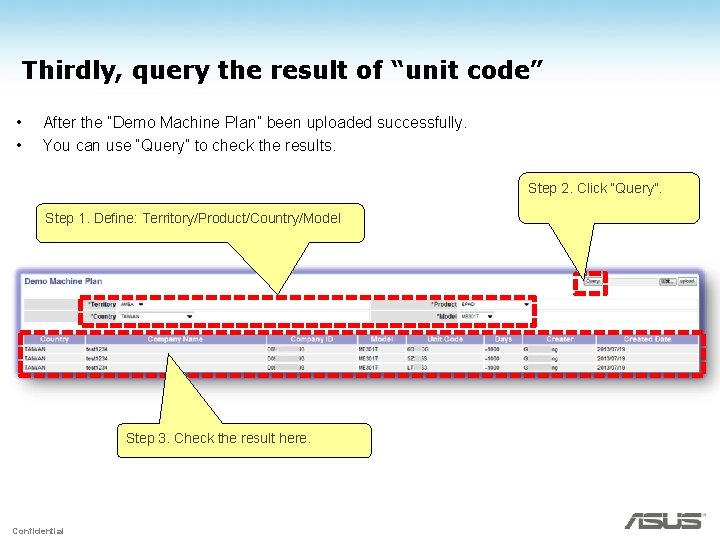
How to Query the result? • • After the “Demo Machine Plan” been uploaded successfully. You can use “Query” to check the results. Step 2. Click “Query”. Step 1. Define: Territory/Product/Country/Model Step 3. Check the result here. Confidential
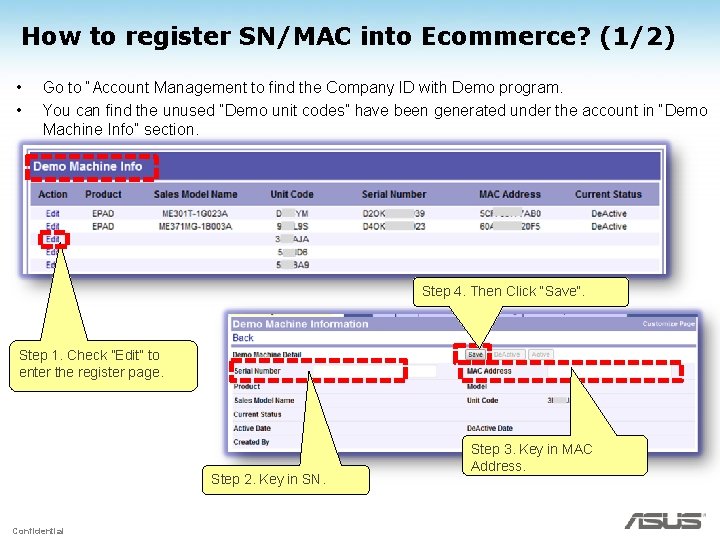
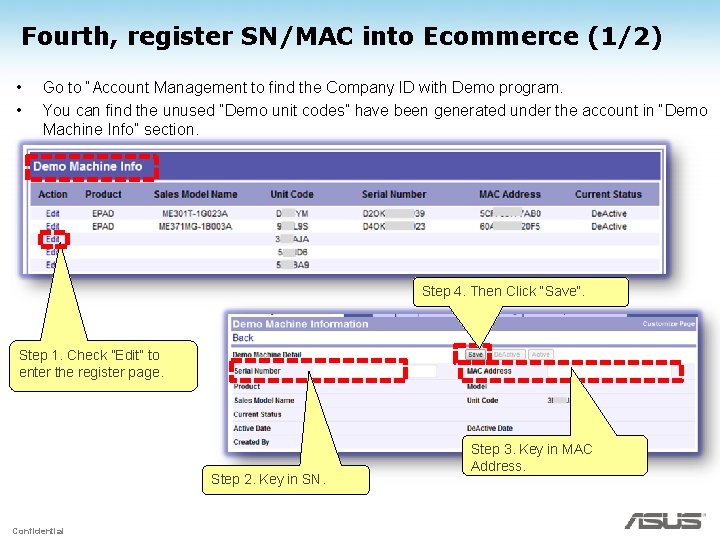
How to register SN/MAC into Ecommerce? (1/2) • • Go to “Account Management to find the Company ID with Demo program. You can find the unused “Demo unit codes” have been generated under the account in “Demo Machine Info” section. Step 4. Then Click “Save”. Step 1. Check ”Edit” to enter the register page. Step 2. Key in SN. Confidential Step 3. Key in MAC Address.
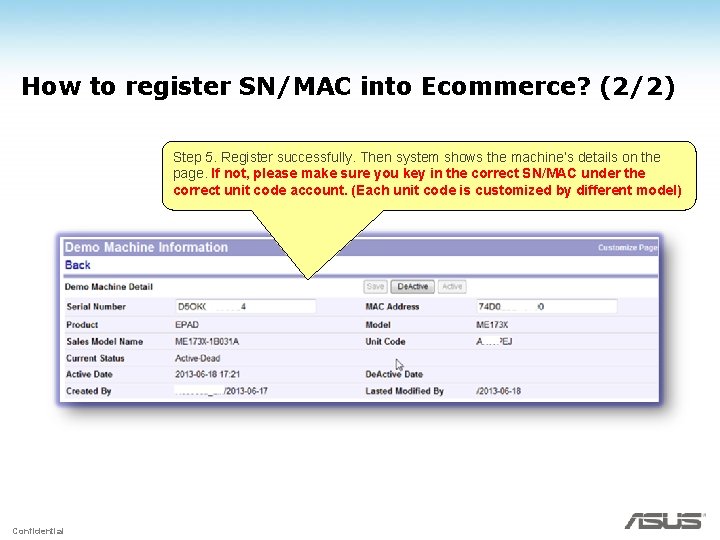
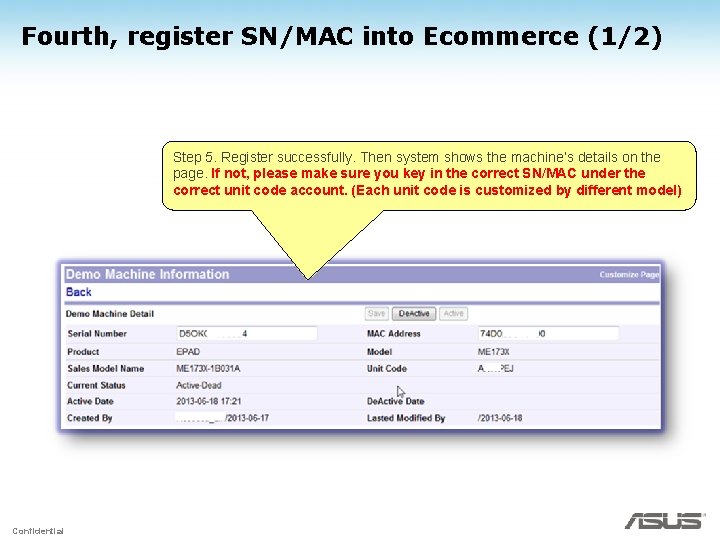
How to register SN/MAC into Ecommerce? (2/2) Step 5. Register successfully. Then system shows the machine’s details on the page. If not, please make sure you key in the correct SN/MAC under the correct unit code account. (Each unit code is customized by different model) Confidential
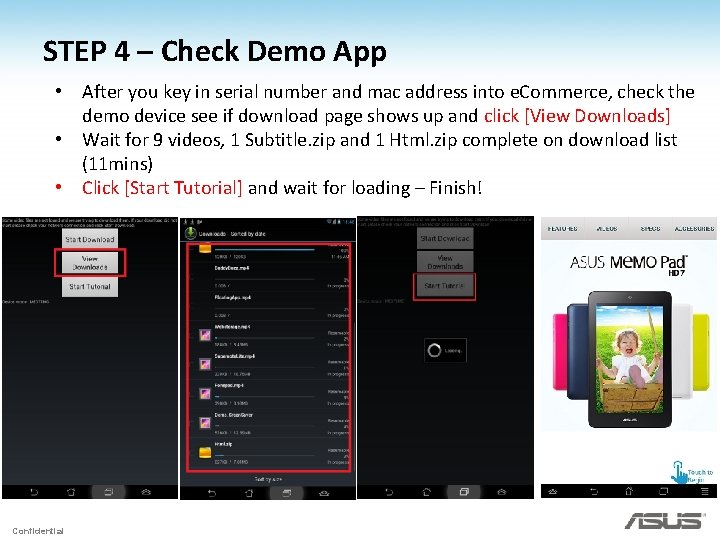
STEP 4 – Check Demo App • After you key in serial number and mac address into e. Commerce, check the demo device see if download page shows up and click [View Downloads] • Wait for 9 videos, 1 Subtitle. zip and 1 Html. zip complete on download list (11 mins) • Click [Start Tutorial] and wait for loading – Finish! Confidential
Chapter 2 [Offline SOP] ASUS Regular Demo SD card installation Confidential
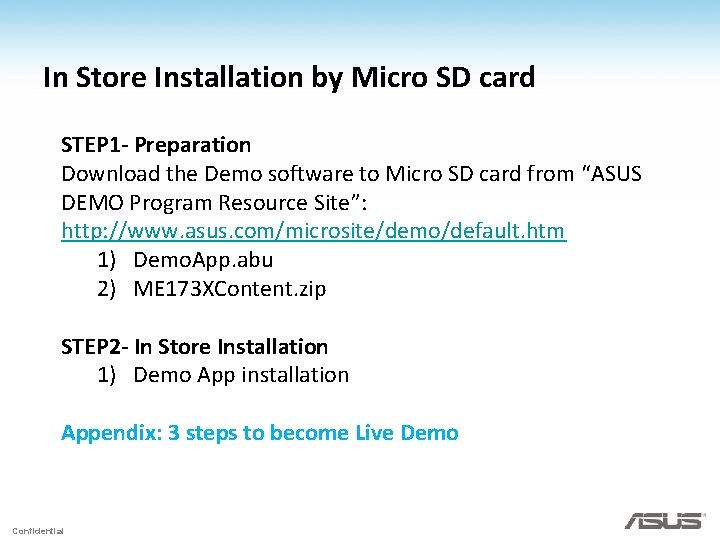
In Store Installation by Micro SD card STEP 1 - Preparation Download the Demo software to Micro SD card from “ASUS DEMO Program Resource Site”: http: //www. asus. com/microsite/demo/default. htm 1) Demo. App. abu 2) ME 173 XContent. zip STEP 2 - In Store Installation 1) Demo App installation Appendix: 3 steps to become Live Demo Confidential
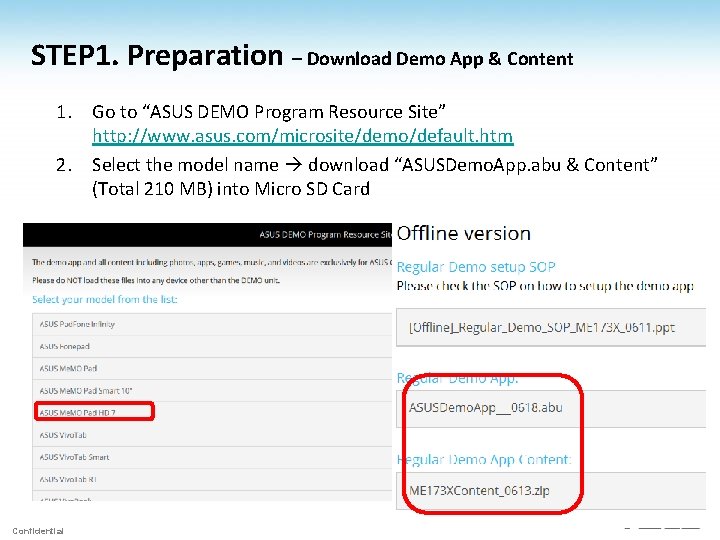
STEP 1. Preparation – Download Demo App & Content 1. Go to “ASUS DEMO Program Resource Site” http: //www. asus. com/microsite/demo/default. htm 2. Select the model name download “ASUSDemo. App. abu & Content” (Total 210 MB) into Micro SD Card 2. Confidential
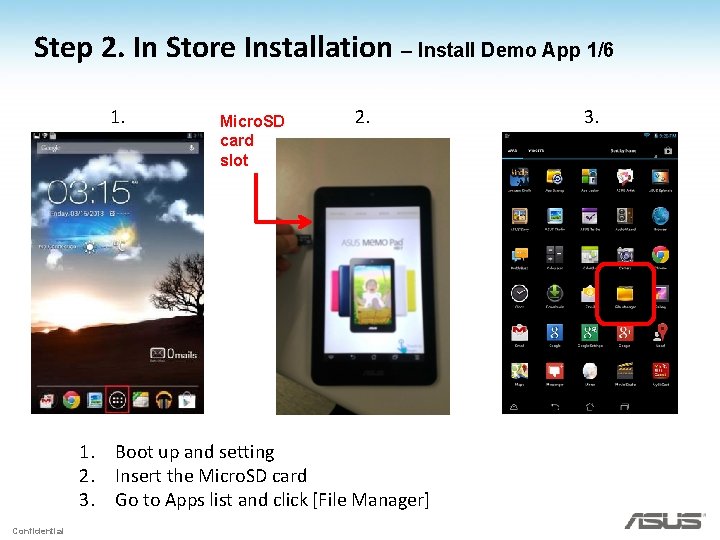
Step 2. In Store Installation – Install Demo App 1/6 1. Micro. SD card slot 2. 1. Boot up and setting 2. Insert the Micro. SD card 3. Go to Apps list and click [File Manager] Confidential 3.
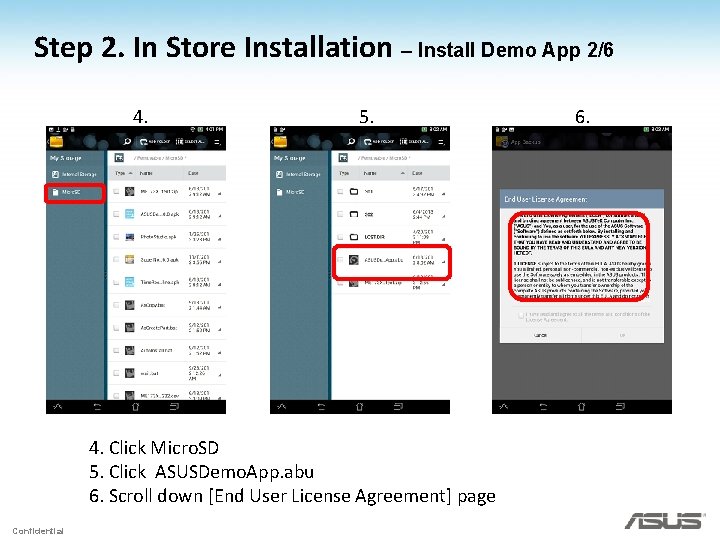
Step 2. In Store Installation – Install Demo App 2/6 4. 5. 4. Click Micro. SD 5. Click ASUSDemo. App. abu 6. Scroll down [End User License Agreement] page Confidential 6.
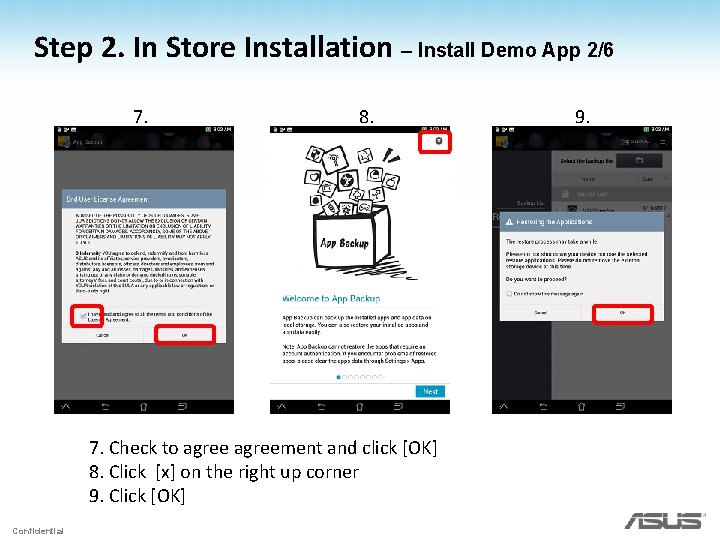
Step 2. In Store Installation – Install Demo App 2/6 7. 8. 7. Check to agreement and click [OK] 8. Click [x] on the right up corner 9. Click [OK] Confidential 9.
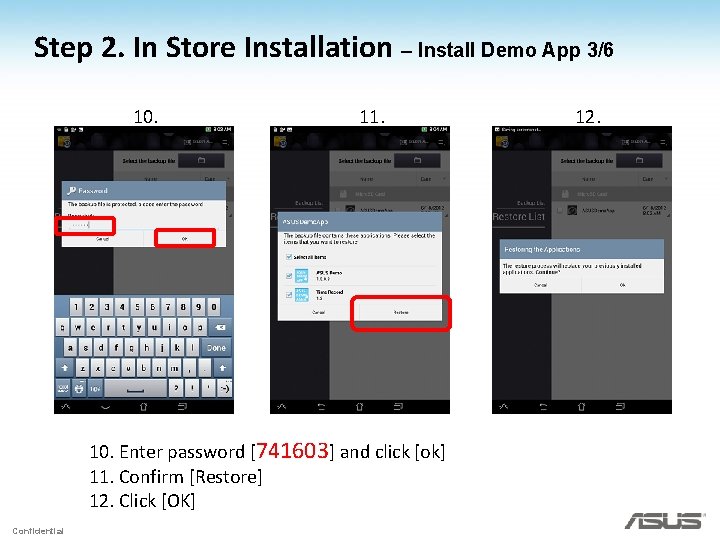
Step 2. In Store Installation – Install Demo App 3/6 10. 11. 10. Enter password [741603] and click [ok] 11. Confirm [Restore] 12. Click [OK] Confidential 12.
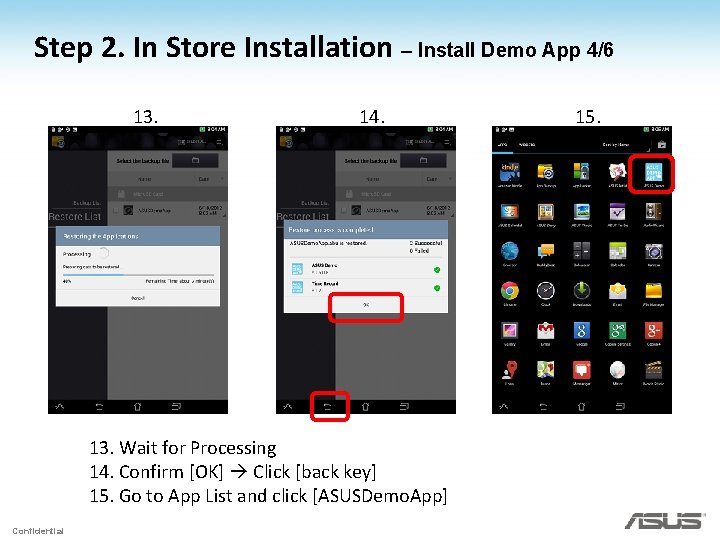
Step 2. In Store Installation – Install Demo App 4/6 13. 14. 13. Wait for Processing 14. Confirm [OK] Click [back key] 15. Go to App List and click [ASUSDemo. App] Confidential 15.
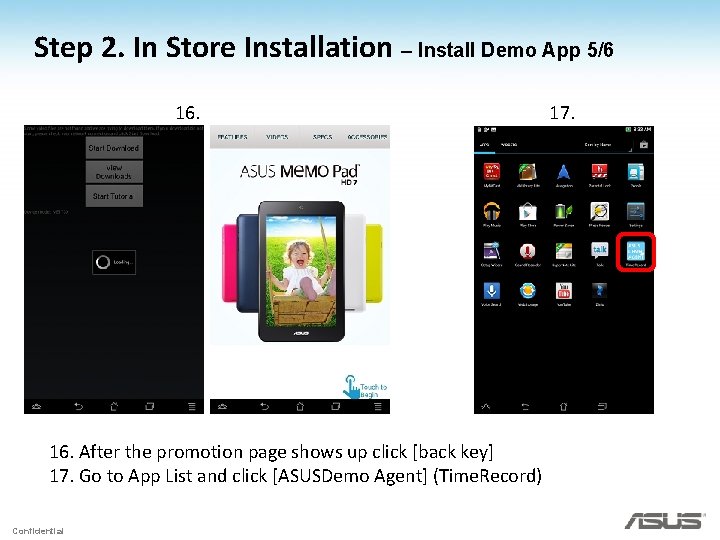
Step 2. In Store Installation – Install Demo App 5/6 16. After the promotion page shows up click [back key] 17. Go to App List and click [ASUSDemo Agent] (Time. Record) Confidential 17.
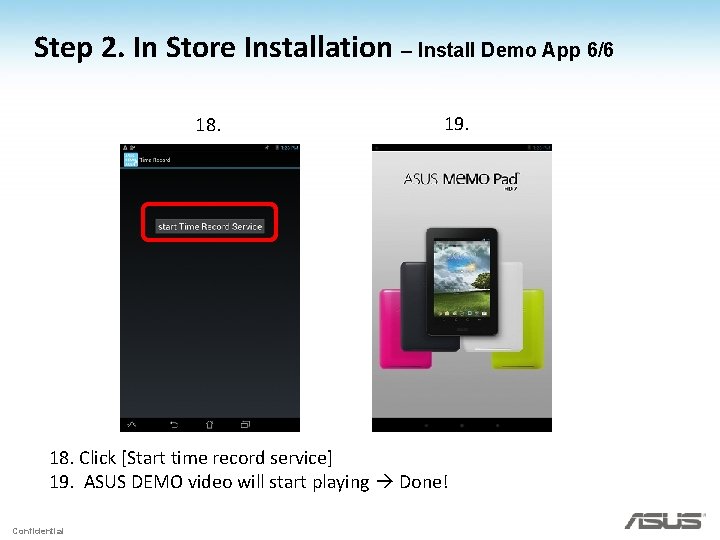
Step 2. In Store Installation – Install Demo App 6/6 18. 19. 18. Click [Start time record service] 19. ASUS DEMO video will start playing Done! Confidential
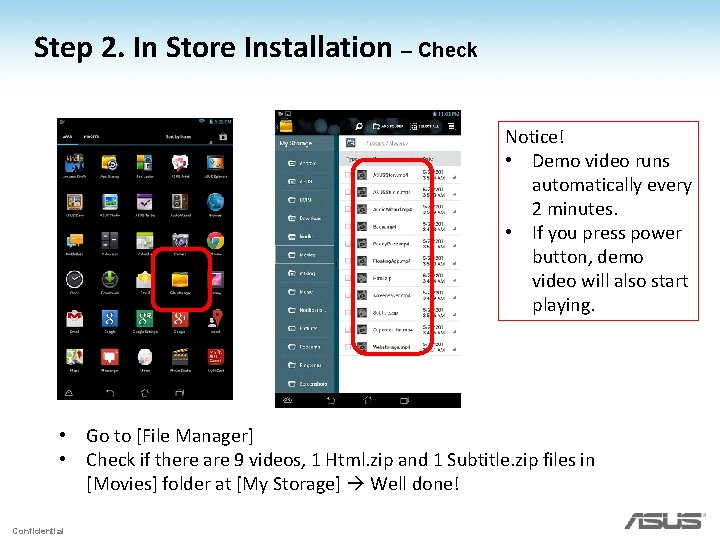
Step 2. In Store Installation – Check Notice! • Demo video runs automatically every 2 minutes. • If you press power button, demo video will also start playing. • Go to [File Manager] • Check if there are 9 videos, 1 Html. zip and 1 Subtitle. zip files in [Movies] folder at [My Storage] Well done! Confidential
Appendix: 3 steps to become Live Demo Confidential
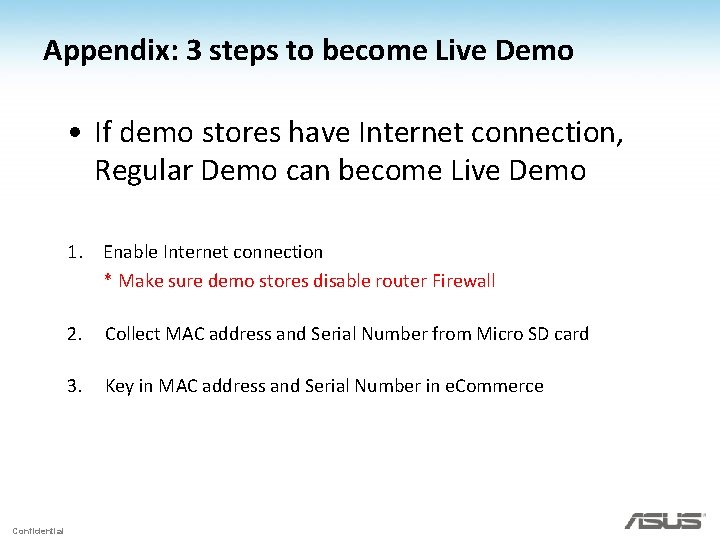
Appendix: 3 steps to become Live Demo • If demo stores have Internet connection, Regular Demo can become Live Demo 1. Enable Internet connection * Make sure demo stores disable router Firewall Confidential 2. Collect MAC address and Serial Number from Micro SD card 3. Key in MAC address and Serial Number in e. Commerce
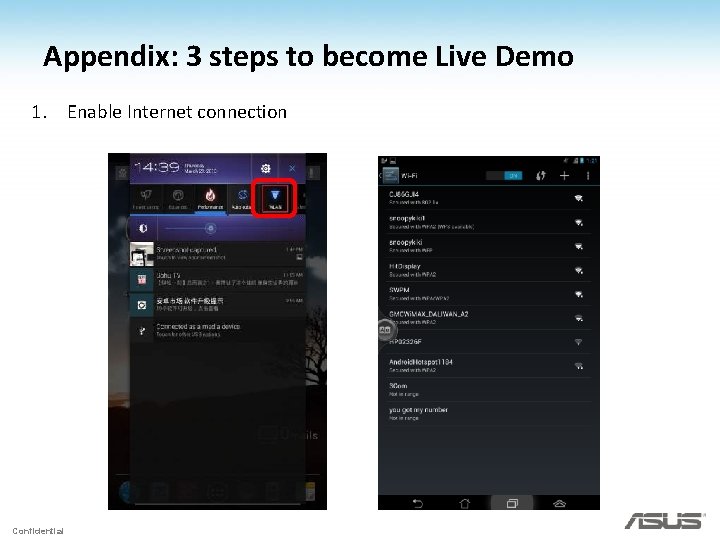
Appendix: 3 steps to become Live Demo 1. Enable Internet connection Confidential
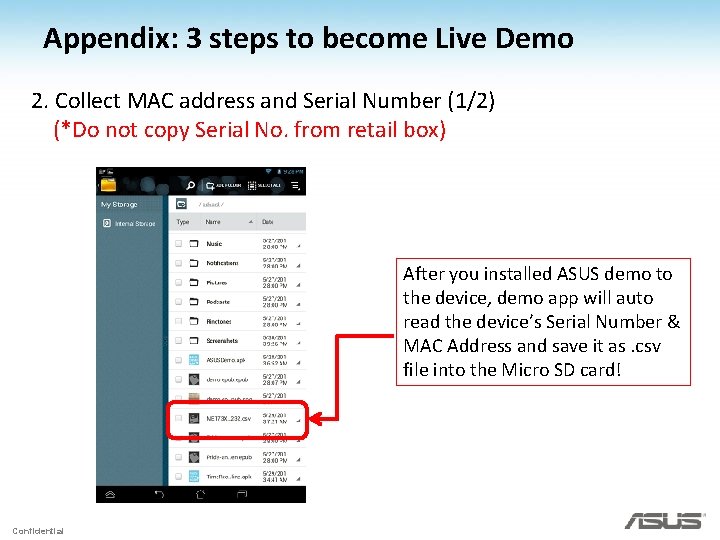
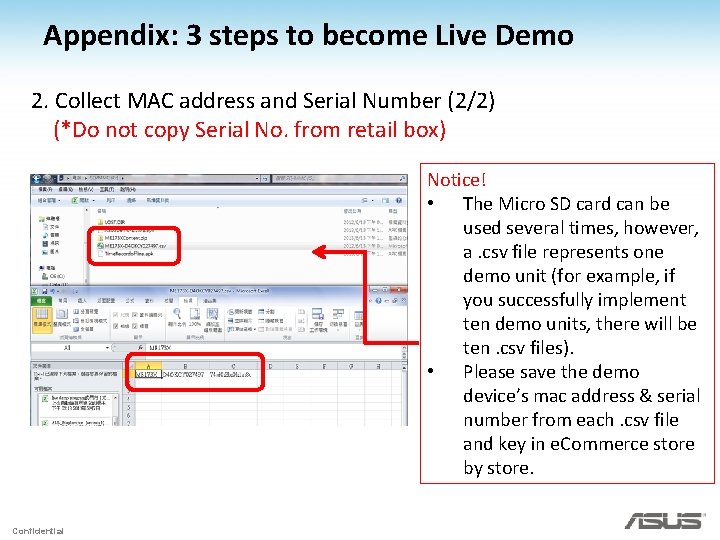
Appendix: 3 steps to become Live Demo 2. Collect MAC address and Serial Number (1/2) (*Do not copy Serial No. from retail box) After you installed ASUS demo to the device, demo app will auto read the device’s Serial Number & MAC Address and save it as. csv file into the Micro SD card! Confidential
Appendix: 3 steps to become Live Demo 2. Collect MAC address and Serial Number (2/2) (*Do not copy Serial No. from retail box) Notice! • The Micro SD card can be used several times, however, a. csv file represents one demo unit (for example, if you successfully implement ten demo units, there will be ten. csv files). • Please save the demo device’s mac address & serial number from each. csv file and key in e. Commerce store by store. Confidential
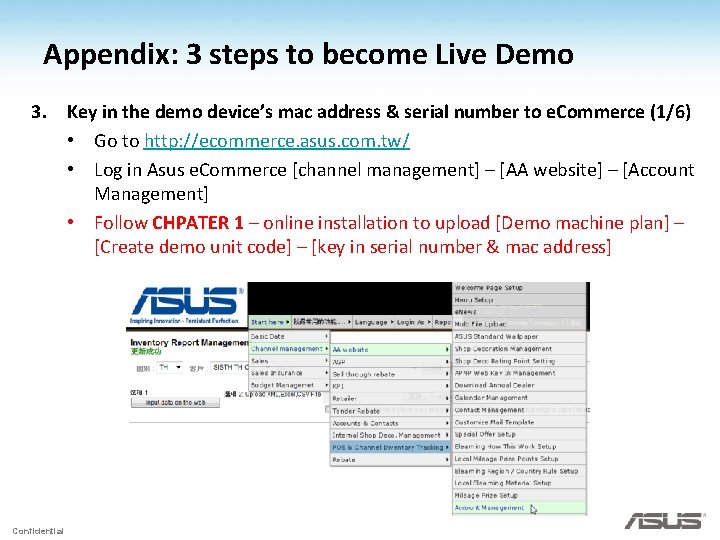
Appendix: 3 steps to become Live Demo 3. Key in the demo device’s mac address & serial number to e. Commerce (1/6) • Go to http: //ecommerce. asus. com. tw/ • Log in Asus e. Commerce [channel management] – [AA website] – [Account Management] • Follow CHPATER 1 – online installation to upload [Demo machine plan] – [Create demo unit code] – [key in serial number & mac address] Confidential
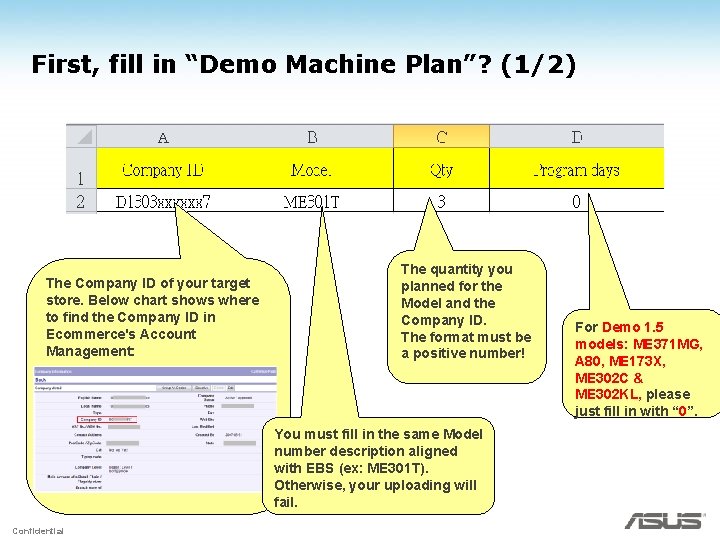
First, fill in “Demo Machine Plan”? (1/2) The Company ID of your target store. Below chart shows where to find the Company ID in Ecommerce's Account Management: The quantity you planned for the Model and the Company ID. The format must be a positive number! You must fill in the same Model number description aligned with EBS (ex: ME 301 T). Otherwise, your uploading will fail. Confidential For Demo 1. 5 models: ME 371 MG, A 80, ME 173 X, ME 302 C & ME 302 KL, please just fill in with “ 0”.
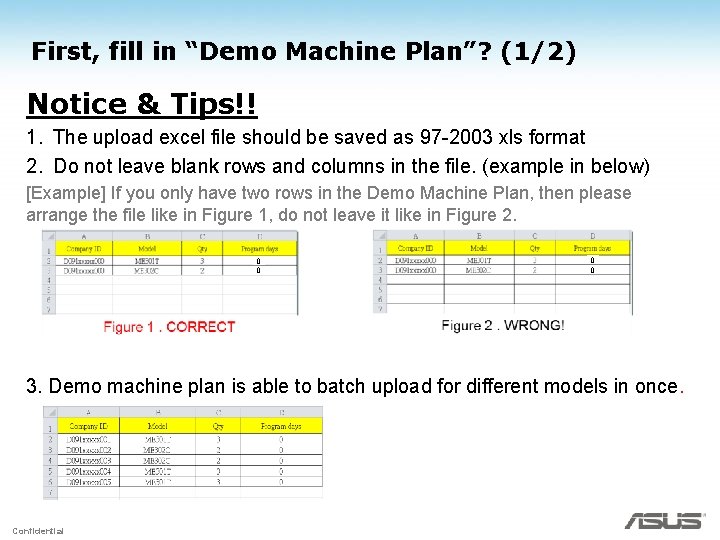
First, fill in “Demo Machine Plan”? (1/2) Notice & Tips!! 1. The upload excel file should be saved as 97 -2003 xls format 2. Do not leave blank rows and columns in the file. (example in below) [Example] If you only have two rows in the Demo Machine Plan, then please arrange the file like in Figure 1, do not leave it like in Figure 2. 0 0 3. Demo machine plan is able to batch upload for different models in once. Confidential
Secondly, upload a “Demo Machine Plan” (1/2) Step 1 : Open IE, connect to Ecommerce system: http: //ecommerce. asus. com Step 2 : Key in your Ecommerce’s login ID and password If you don’t have account , please go to http: //itsm. asus. com to request a account. Step 3 : Follow below path: Start here → Channel management → AA website → Demo Machine Plan If you don’t have this function. Please go to http: //itsm. asus. com to request it. ASTP users ASUS users Confidential
Secondly, upload a “Demo Machine Plan” (1/2) Step 4 : Then enter the upload page: Step 7. Review and upload the file. Step 5. Define “Territory”. Step 8. If the Demo Machine Plan is uploaded successfully, then here will show successful message. Confidential Step 6. Define “Product”.
Thirdly, query the result of “unit code” • • After the “Demo Machine Plan” been uploaded successfully. You can use “Query” to check the results. Step 2. Click “Query”. Step 1. Define: Territory/Product/Country/Model Step 3. Check the result here. Confidential
Fourth, register SN/MAC into Ecommerce (1/2) • • Go to “Account Management to find the Company ID with Demo program. You can find the unused “Demo unit codes” have been generated under the account in “Demo Machine Info” section. Step 4. Then Click “Save”. Step 1. Check ”Edit” to enter the register page. Step 2. Key in SN. Confidential Step 3. Key in MAC Address.
Fourth, register SN/MAC into Ecommerce (1/2) Step 5. Register successfully. Then system shows the machine’s details on the page. If not, please make sure you key in the correct SN/MAC under the correct unit code account. (Each unit code is customized by different model) Confidential
Chapter 3 Asus Demo Online Deactivation SOP Confidential
Two ways to deactivate Asus Demo App through Wi-Fi 1. Store Staff Deactivation 2. Channel Sales Deactivation Confidential
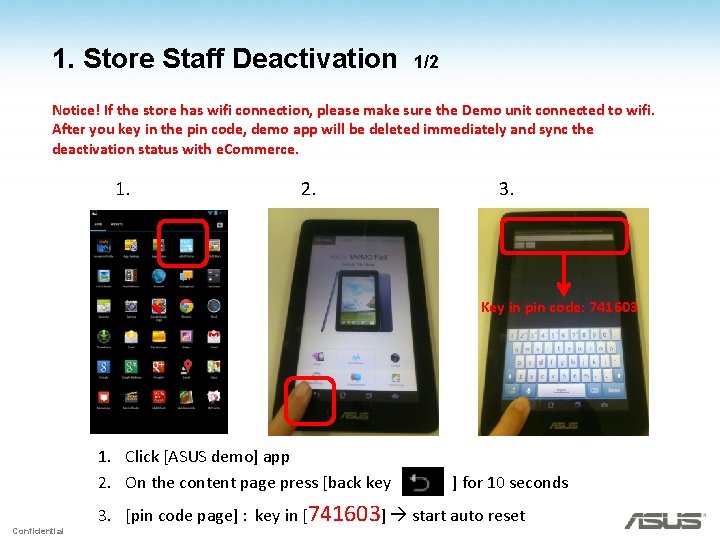
1. Store Staff Deactivation 1/2 Notice! If the store has wifi connection, please make sure the Demo unit connected to wifi. After you key in the pin code, demo app will be deleted immediately and sync the deactivation status with e. Commerce. 1. 2. 3. Key in pin code: 741603 1. Click [ASUS demo] app 2. On the content page press [back key Confidential ] for 10 seconds 3. [pin code page] : key in [741603] start auto reset
1. Store Staff Deactivation 2/2 4. 5. 4. Click [Factory data reset] 5. Click [Reset tablet] 6. Click [Erase everything] Confidential 6.
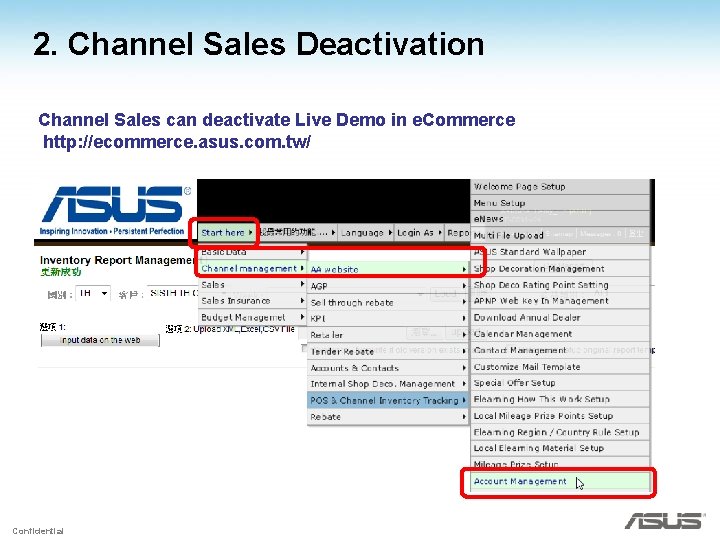
2. Channel Sales Deactivation Channel Sales can deactivate Live Demo in e. Commerce http: //ecommerce. asus. com. tw/ Confidential
2. Channel Sales Deactivation 1. Select [Approved dealer] 4900090678 2. Select your country Key in the store’s “Company ID/Name” or “Login ID” to search Confidential
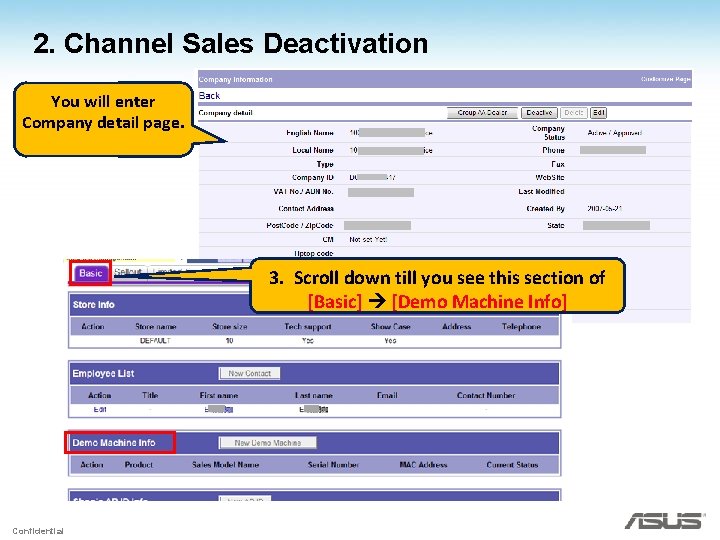
2. Channel Sales Deactivation You will enter Company detail page. 3. Scroll down till you see this section of [Basic] [Demo Machine Info] Confidential
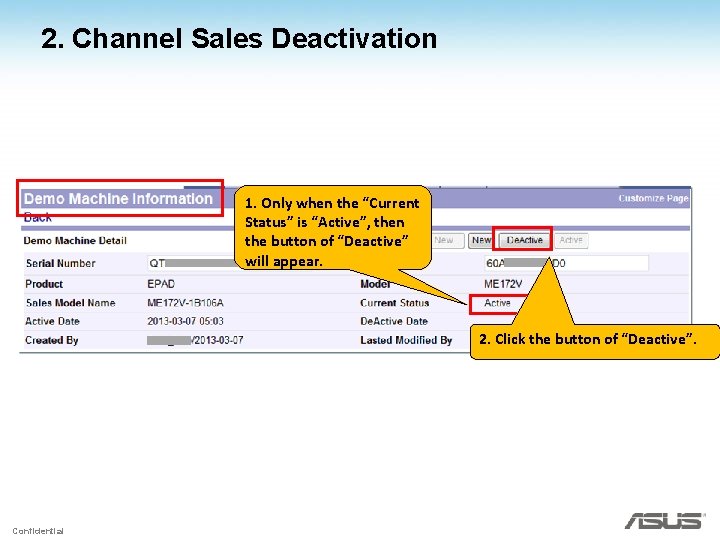
2. Channel Sales Deactivation 1. Only when the “Current Status” is “Active”, then the button of “Deactive” will appear. 2. Click the button of “Deactive”. Confidential
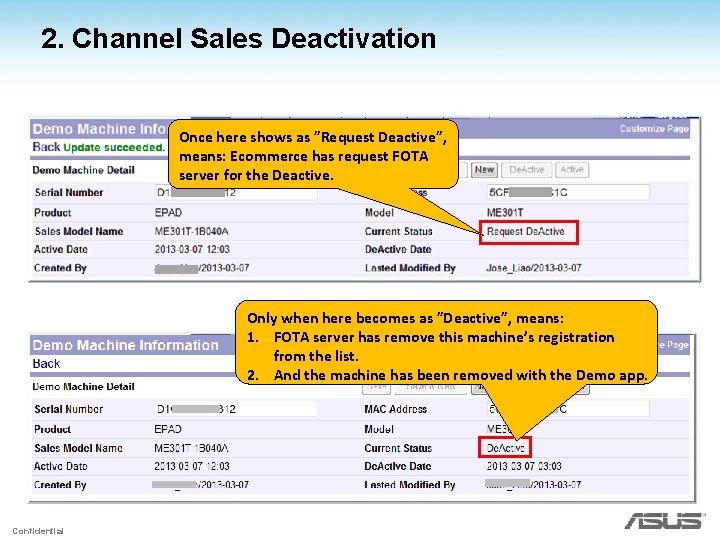
2. Channel Sales Deactivation Once here shows as ”Request Deactive”, means: Ecommerce has request FOTA server for the Deactive. Only when here becomes as ”Deactive”, means: 1. FOTA server has remove this machine’s registration from the list. 2. And the machine has been removed with the Demo app. Confidential
Chapter 4 Install and test Security Alarm Confidential
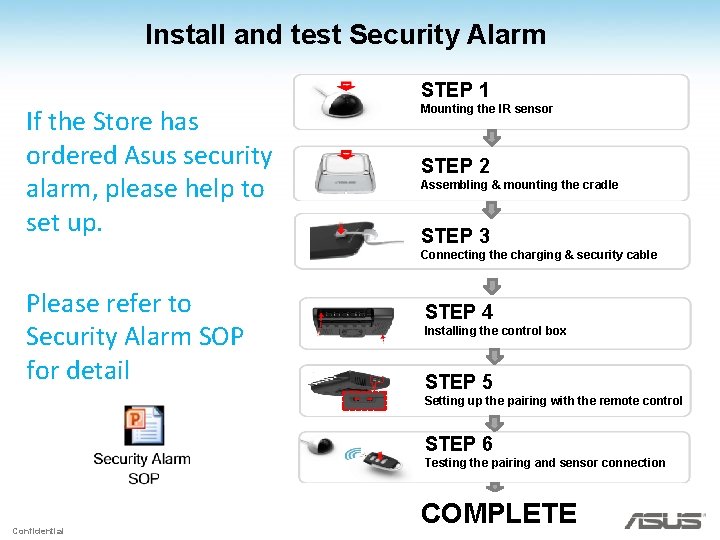
Install and test Security Alarm STEP 1 If the Store has ordered Asus security alarm, please help to set up. Mounting the IR sensor STEP 2 Assembling & mounting the cradle STEP 3 Connecting the charging & security cable Please refer to Security Alarm SOP for detail STEP 4 Installing the control box STEP 5 Setting up the pairing with the remote control STEP 6 Testing the pairing and sensor connection Confidential COMPLETE
Welcome to join ASUS DEMO! Confidential