
ASSET VERIFICATION SYSTEM AVS TRAINING PRESENTATION 1 Policy









- Slides: 68
ASSET VERIFICATION SYSTEM (AVS) TRAINING PRESENTATION 1
Policy Principles Continuation AVS should only be used for Aged, Blind and Disabled Medicaid program applicants at initial application, redetermination, and for some limited changes. AVS will be used to verify liquid assets and real property, discover potentially undisclosed assets, and review asset history for potential disqualifying transfers. AVS requests will be submitted even when an applicant reports having no assets or reports total assets under $400 to determine if there any undisclosed assets. 2
Policy Principles Continuation AVS is not used to verify income, only resources. AVS requests are only submitted for applicants and their spouses applying for or receiving OSIPM and/or LTC benefits. • For example, you should NOT request AVS for a client with SNAP benefits only. For Aged, Blind, or Disabled SNAP households that are subject to an asset limit, staff should consider AVS data as information known to the agency. 3
Policy Principles Continuation Request AVS for the following programs at application, renewal and limited changes: • OSIPM (not including Assumed Eligible individuals unless applying for or receiving LTC Services). • Long-Term Care Services (including MAGI and Assumed Eligible individuals). • For MAGI and Assumed Eligible individuals requesting LTC services - You must submit a manual (Ad-Hoc) request at initial application. • MAGI and Assumed Eligible individuals will not be included in the AVS redetermination batch file. • For MAGI/LTC Individuals, run AVS for limited changes, only when applicable (e. g. run AVS for report of possible DQ, but don’t run for Add a Spouse). 4
Policy Principles Continuation Consent to access AVS is required, and is a condition of eligibility for an applicant whose assets are considered in the eligibility determination for AVS applicable Medicaid programs. An applicant provides consent by submitting a signed 539 A application. The 539 A, Rights and Responsibilities, has included language about AVS since 2009. Applications in the case file received after 2009 meet the requirement above. AVS must be attempted prior to requiring an applicant to provide paper verification. • If an applicant reports an asset that’s not available to AVS, we can request the verification from the applicant right away (e. g. stocks, bonds, life insurance policies, annuities). 5
Policy Principles Continuation An AVS requests should only be sent for people who meet all the following criteria: • • The applicant submitted a signed 539 A application. The applicant is the primary person or primary person’s spouse. The applicant is 18 years old or older. The applicant has a verified Social Security number. 6
Policy Principles Continuation The AVS is an eligibility verification tool. • AVS is not always the end of the verification process. • Depending on the results, more information may be required from the applicant. • If assets reported by AVS make the applicant potentially ineligible or information is inconsistent, you must request documentation from the applicant for review before issuing an approval, denial, reduction, or closure of benefits. • If the applicant is receiving Medicare, consider MSP before denying or ending benefits. 7
Policy Principles Continuation AVS must be cleared prior to opening the case. • Even if an applicant reports less than $400 in liquid resources, or provides bank statements during the initial interview, AVS should still be submitted, results reviewed, and resource eligibility cleared prior to opening any OSIPM and/or LTC case that requires a financial review. This includes reviewing for any possible disqualifying transfers within the look-back period for long-term care service requests. • You may have to request paper documentation from the applicant prior to opening the case if the AVS results show any undisclosed or discrepant information that makes the applicant potentially ineligible. 8
Policy Principles Continuation Paper documentation will be required in the following circumstances: • When AVS does not return a response for a known bank account that was reported by the applicant. This is after not receiving a response from AVS. Confirm the bank was searched in AVS before requesting. • To further review transactions in months in which AVS identifies a potential disqualifying transfer of assets. • For assets that cannot be verified through AVS. • In certain circumstances, when there is a discrepancy between information provided by the applicant and AVS that could result in ineligibility. 9
Policy Principles Continuation AVS results will provide the account balance as of the first minute of each month in the look-back period. You will have to determine if income should be deducted from the account balance. • In most cases, income will deposit after AVS has been ran for that month. Because of this, staff will not have to subtract any income that was received during the month to determine the correct asset balance for that month. • In some instances, the payment date may change due to a weekend or holiday. Staff may have to deduct the income to determine the correct asset balance for that month. This may require additional follow-up with the applicant. 10
Policy Principles Continuation AVS and DQs • Use information returned by AVS to identify potential disqualifying transfers by long-term care applicants/recipients and spouses. • AVS will flag any result that may have a potential disqualifying transfer, this does not definitively mean that a disqualifying transfer occurred. • Review the historical balance history to determine whether assets have been transferred. 11
Policy Principles Continuation • Using prudent judgment, determine whether the fluctuation in assets is normal or there appears to be a significant discrepancy in the balance history indicating a potential transfer of assets. • If information from AVS suggests that a disqualifying transfer has occurred, staff should follow the current process for requesting verification from the applicant or spouse and determining if a disqualifying transfer penalty is appropriate. • Staff should not use AVS data to establish definitively that a disqualifying transfer has been made without contacting the applicant or spouse and requesting any necessary verification. 12
Policy Principles Continuation The AVS Result column will indicate the applicant is either Over Resources, Under Resources or No Accounts Found. This is not the Medicaid eligibility determination. Eligibility is not tracked in AVS. Review the results and apply the appropriate rules/policy to make an eligibility determination. This may require the client to provide additional verification. Don’t scan AVS documents into EDMS (Electronic Data Management System) as this information will be saved on the AVS web portal. However, any paper documentation received must be scanned into EDMS. 13
Oregon Access Narration
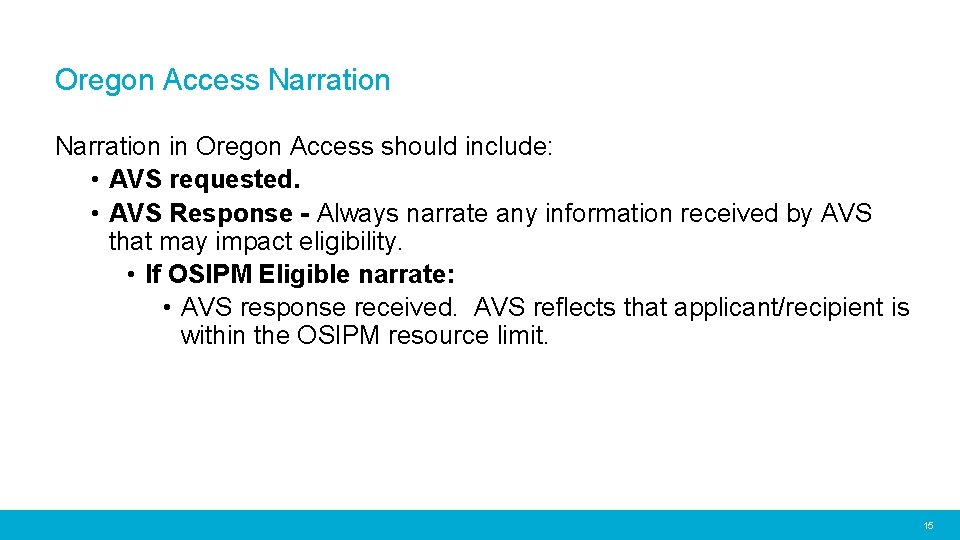
Oregon Access Narration in Oregon Access should include: • AVS requested. • AVS Response - Always narrate any information received by AVS that may impact eligibility. • If OSIPM Eligible narrate: • AVS response received. AVS reflects that applicant/recipient is within the OSIPM resource limit. 15
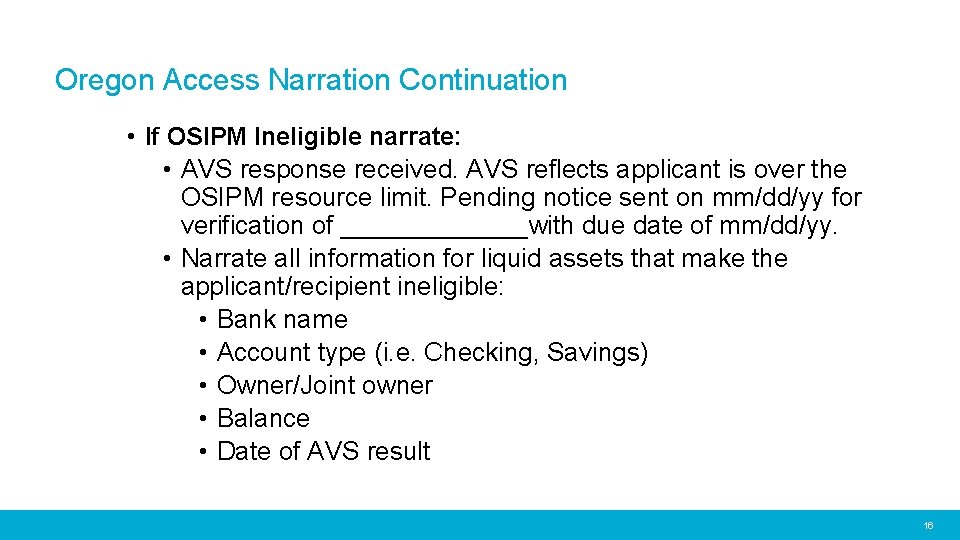
Oregon Access Narration Continuation • If OSIPM Ineligible narrate: • AVS response received. AVS reflects applicant is over the OSIPM resource limit. Pending notice sent on mm/dd/yy for verification of _______with due date of mm/dd/yy. • Narrate all information for liquid assets that make the applicant/recipient ineligible: • Bank name • Account type (i. e. Checking, Savings) • Owner/Joint owner • Balance • Date of AVS result 16
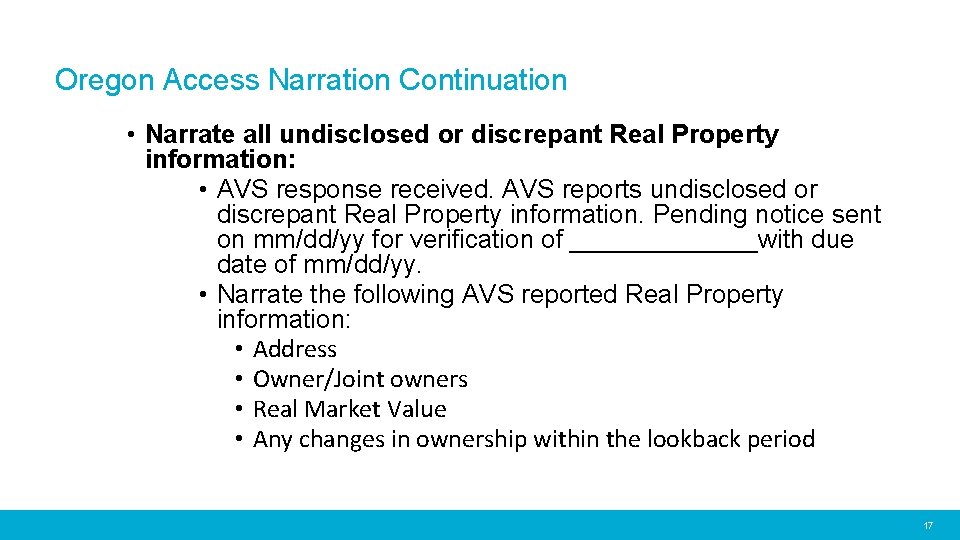
Oregon Access Narration Continuation • Narrate all undisclosed or discrepant Real Property information: • AVS response received. AVS reports undisclosed or discrepant Real Property information. Pending notice sent on mm/dd/yy for verification of _______with due date of mm/dd/yy. • Narrate the following AVS reported Real Property information: • Address • Owner/Joint owners • Real Market Value • Any changes in ownership within the lookback period 17
Using AVS at Application
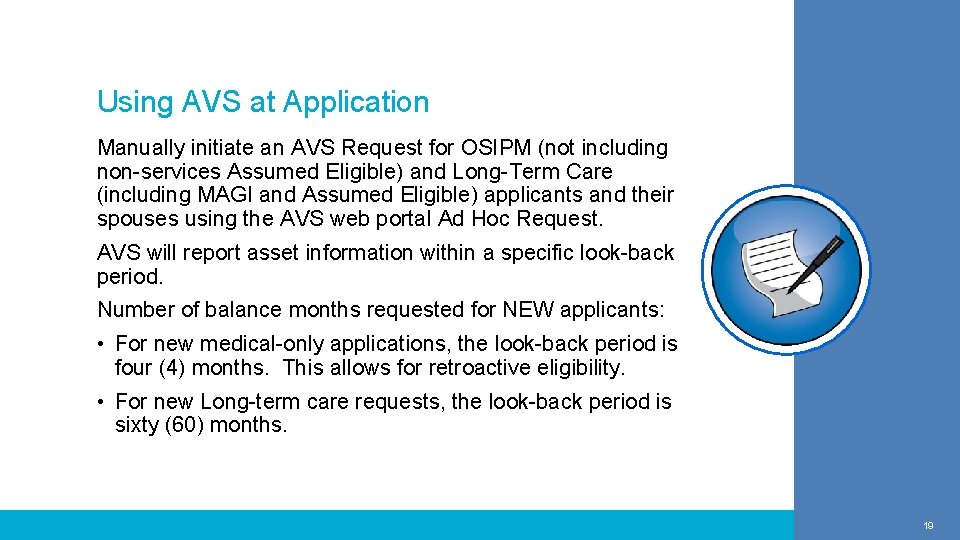
Using AVS at Application Manually initiate an AVS Request for OSIPM (not including non-services Assumed Eligible) and Long-Term Care (including MAGI and Assumed Eligible) applicants and their spouses using the AVS web portal Ad Hoc Request. AVS will report asset information within a specific look-back period. Number of balance months requested for NEW applicants: • For new medical-only applications, the look-back period is four (4) months. This allows for retroactive eligibility. • For new Long-term care requests, the look-back period is sixty (60) months. 19
Using AVS at Application Continuation After an AVS request is submitted, set up a tickler in Oregon ACCESS for 10 days. Most of the financial institutions will have responded by this point. After 10 days, if the AVS response has not been received set up another tickler for the 15 th day (this is not an additional 15 days). If there is still no response after the 15 th day: • If the A/R reported not having any accounts, narrate that AVS shows “No accounts found” and that the A/R remains OSIPM eligible. • If the A/R reported an account, you must manually request paper verification (if verification is required). 20
Using AVS at Application Continuation Consideration of AVS Results When AVS results are consistent with the applicant’s attested information: • Complete the eligibility determination. When AVS results show an undisclosed account or inconsistent information, but does not affect eligibility: • Do not pend for verification. • If inconsistent information, leave the applicant’s reported or verified information in Oregon Access. • For undisclosed accounts, enter the new AVS information in Oregon Access. • Complete the eligibility determination. 21
Using AVS at Application Continuation When the AVS results show an undisclosed account or inconsistent information and the applicant is potentially ineligible: • Pend the case and request verification from the applicant before completing the eligibility determination. • If the applicant fails to provide verification of the undisclosed account or inconsistent information, enter the AVS information in the Oregon Access case and deny or close the case for failure to provide the requested verification and for being over resources. If the applicant is receiving Medicare, consider MSP before denying or ending benefits. 22
Using AVS at Application Continuation If the AVS returns undisclosed or discrepant Real Property information: • Pend the case and request the appropriate verification. • AVS doesn’t return the equity value, therefore we can’t know if the property makes the applicant ineligible for benefits. 23
Using AVS at Redetermination
Using AVS at Redetermination Requests will be sent automatically from Central Office at the beginning of the 11 th month so that responses from AVS will be available for determining eligibility for the next determination period. At each redetermination, you should review AVS data from the previous 12 months to consider whether the recipient had changes in assets that should have been reported. 25
Using AVS at Redetermination For redeterminations, the look-back period is twelve (12) months. • For example, if the new determination period is January – December 2019, Central Office will submit an AVS request in November 2018. AVS will return monthly balances for December 2017 - November 2018. 26
Using AVS at Redetermination Continuation Consideration of AVS Results • Follow the same Consideration of AVS Results procedures as described above under “Using AVS at application”. 27
Using AVS for Changes
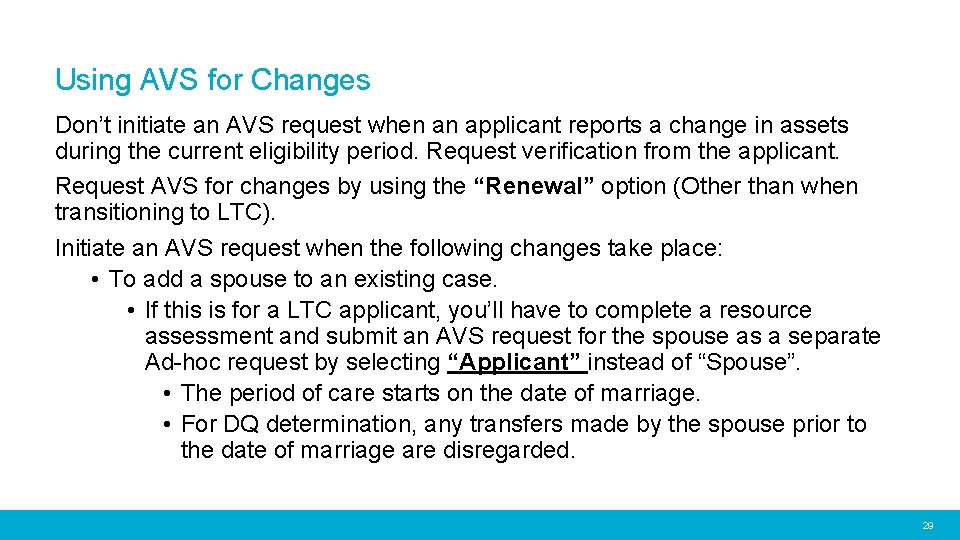
Using AVS for Changes Don’t initiate an AVS request when an applicant reports a change in assets during the current eligibility period. Request verification from the applicant. Request AVS for changes by using the “Renewal” option (Other than when transitioning to LTC). Initiate an AVS request when the following changes take place: • To add a spouse to an existing case. • If this is for a LTC applicant, you’ll have to complete a resource assessment and submit an AVS request for the spouse as a separate Ad-hoc request by selecting “Applicant” instead of “Spouse”. • The period of care starts on the date of marriage. • For DQ determination, any transfers made by the spouse prior to the date of marriage are disregarded. 29
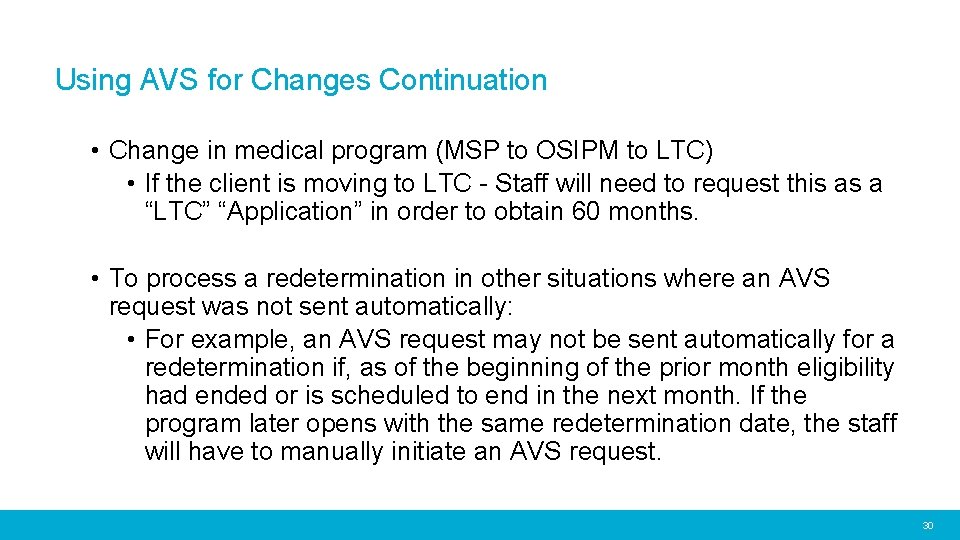
Using AVS for Changes Continuation • Change in medical program (MSP to OSIPM to LTC) • If the client is moving to LTC - Staff will need to request this as a “LTC” “Application” in order to obtain 60 months. • To process a redetermination in other situations where an AVS request was not sent automatically: • For example, an AVS request may not be sent automatically for a redetermination if, as of the beginning of the prior month eligibility had ended or is scheduled to end in the next month. If the program later opens with the same redetermination date, the staff will have to manually initiate an AVS request. 30
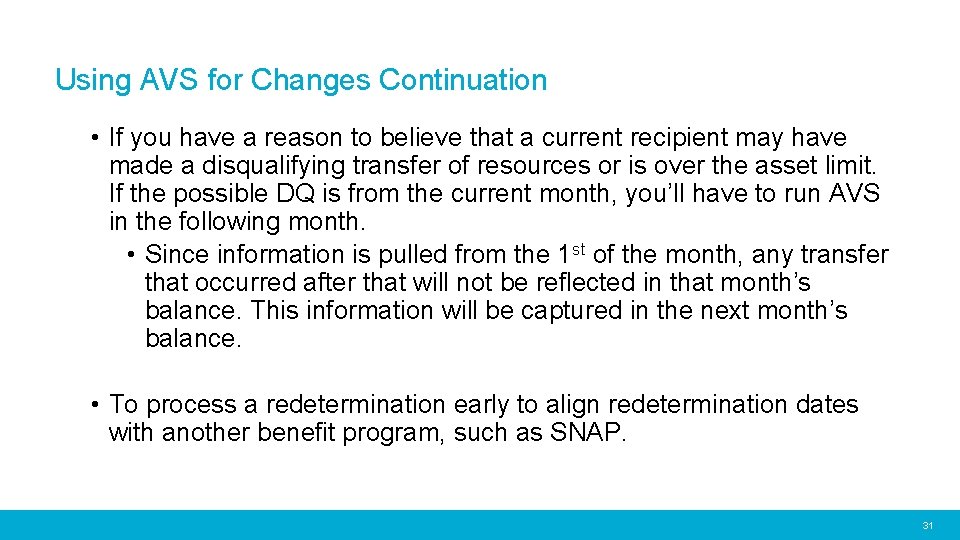
Using AVS for Changes Continuation • If you have a reason to believe that a current recipient may have made a disqualifying transfer of resources or is over the asset limit. If the possible DQ is from the current month, you’ll have to run AVS in the following month. • Since information is pulled from the 1 st of the month, any transfer that occurred after that will not be reflected in that month’s balance. This information will be captured in the next month’s balance. • To process a redetermination early to align redetermination dates with another benefit program, such as SNAP. 31
Closing the AVS Case
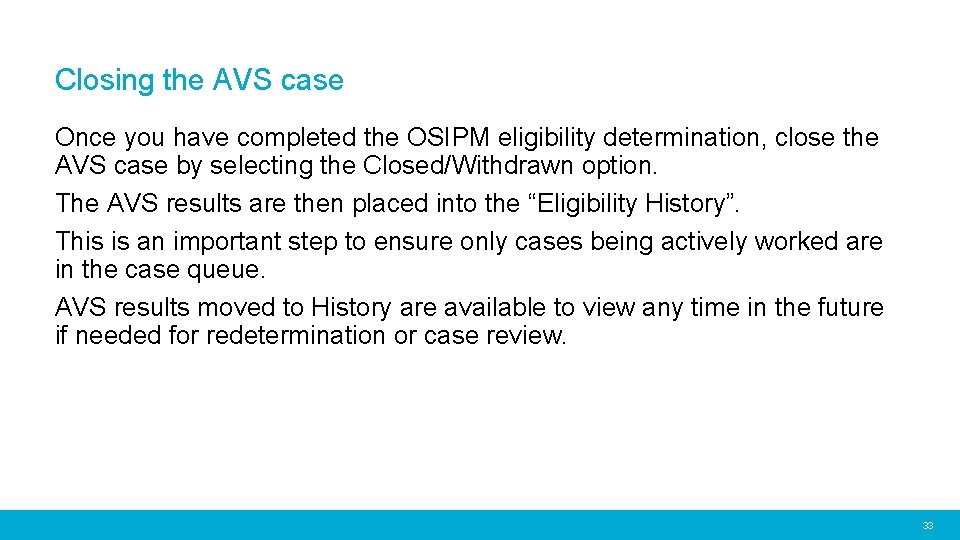
Closing the AVS case Once you have completed the OSIPM eligibility determination, close the AVS case by selecting the Closed/Withdrawn option. The AVS results are then placed into the “Eligibility History”. This is an important step to ensure only cases being actively worked are in the case queue. AVS results moved to History are available to view any time in the future if needed for redetermination or case review. 33
Results After Decision
Results After Decision: • Rarely, after an AVS request has been closed within the web portal, additional information may be received. • This is due to a late response from the bank being queried. • Local management will need to monitor this Results After Decision queue and create a process within their branch to have staff work these cases. • Process these Result After Decision responses as part of the application or as a reported change. 35
Examples
Example #1 • Trevor and Emily, a married couple, are applying for OSIPM. • They completed a paper application for OSIPM. • They reported Emily has a checking and a savings account at Summit Credit Union and listed balances for each of these accounts on the application. • The total amount of liquid resources reported was $1800. • Staff submitted Ad-hoc request to AVS for Trevor and Emily. 37
Example #1 Continuation • AVS results showed asset information for a checking and savings account at Summit Credit Union for both Trevor and Emily. • Staff reviewed the information from AVS and determined they were potentially ineligible for benefits based on the AVS total account balances of $4500. • Staff pended the application and requested verification of the account balances from the applicants. 38
Example #1 Continuation • Applicants returned the requested verification for the checking and savings accounts showing a total balance of $3800. • Staff determined that applicants are Over Resources for OSIPM. • Staff reviewed for MSP eligibility and found Trevor and Emily eligible for Qualified Medicare Beneficiary (QMB) benefits. 39
Example #2 • Steve completed a paper application for OSIPM. • He reported he held a checking and a savings accounts at BMO Harris Bank with balances of $750 and $320. • Staff submitted an Ad-hoc request to AVS for Steve. • AVS results showed higher balances than reported but still under the resource limit. • Staff completed the eligibility determination and approved OSIPM benefits for Steve. 40
Ad-hoc Request
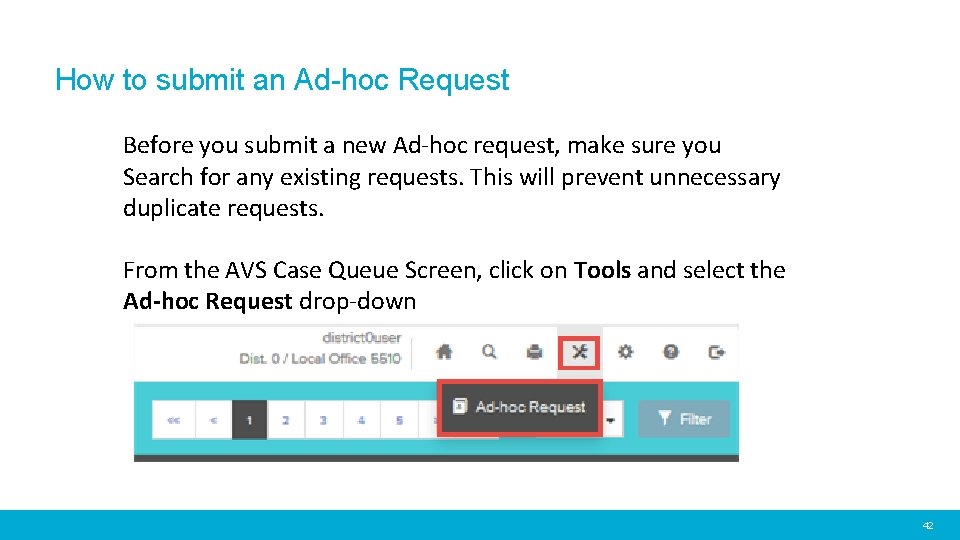
How to submit an Ad-hoc Request Before you submit a new Ad-hoc request, make sure you Search for any existing requests. This will prevent unnecessary duplicate requests. From the AVS Case Queue Screen, click on Tools and select the Ad-hoc Request drop-down 42
How to submit an Ad-hoc Request Continuation On the Ad-hoc Request screen enter all mandatory fields before selecting ‘Run Request’. If a mandatory field is omitted the user will be blocked from submitting the request. Applicant Type: Applicant or Spouse The applicant type field defaults to “Applicant”. Application or Renewal: Select Application or Renewal from drop-down list. Use Application for New applications Use Renewal for redeterminations and changes 43
How to submit an Ad-hoc Request Continuation Program Information Section Request Type: Select the appropriate Request Type: • EPD-LTC • EPD-Medical • LTC • OSIPM • This is for medical ONLY cases. 44
How to submit an Ad-hoc Request Continuation Household Type Select the appropriate Household (HH) size of 1 or 2: • ONLY the OSIPM request type should have a HH of 2. • The system will allow you to select a HH of 2 for any of the other Request Types. • You will get an error if you select a HH of 2 for the EPD-LTC, EPDMedical or LTC Request Types. 45
How to submit an Ad-hoc Request Continuation • To fix this error, go to the Case Queue screen to find the case. • You will see Error display under the Case Status. • Click the Case Correction pencil to open the Case Correction Screen. • Make the necessary changes there and Select Update to save your changes. 46
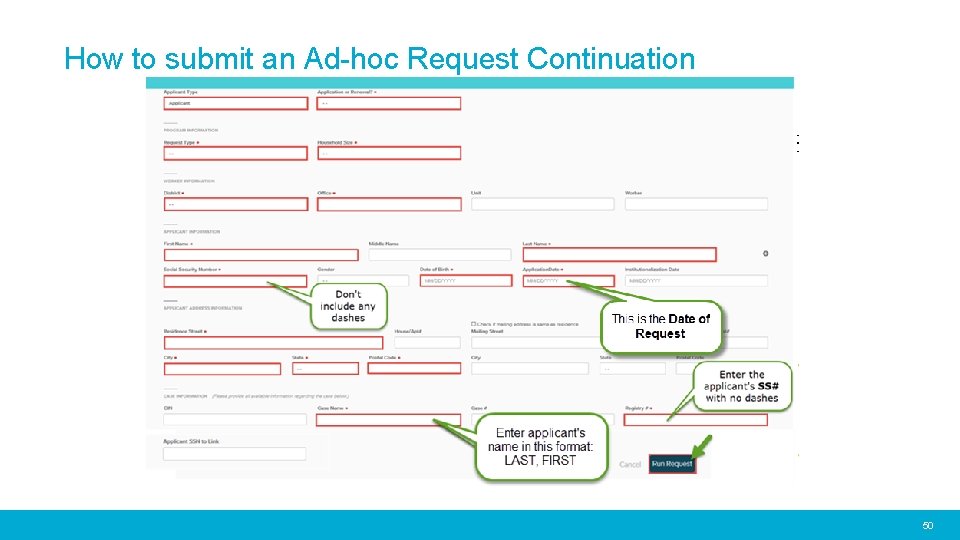
How to submit an Ad-hoc Request Continuation Worker Information Select your District and Office (branch) from the drop-down. Applicant Information • First Name • Last Name • Social Security Number • Date of Birth • Application Date: • Use the date of request under the “application date” field on the AVS web portal. 47
How to submit an Ad-hoc Request Continuation Applicant Address Information: • Residence Street • City • State • Postal Code Case Information: CIN field: This is not a mandatory field. Any case that’s submitted from the batch request from Central Office will have the applicant’s Prime Number populated into this field. 48
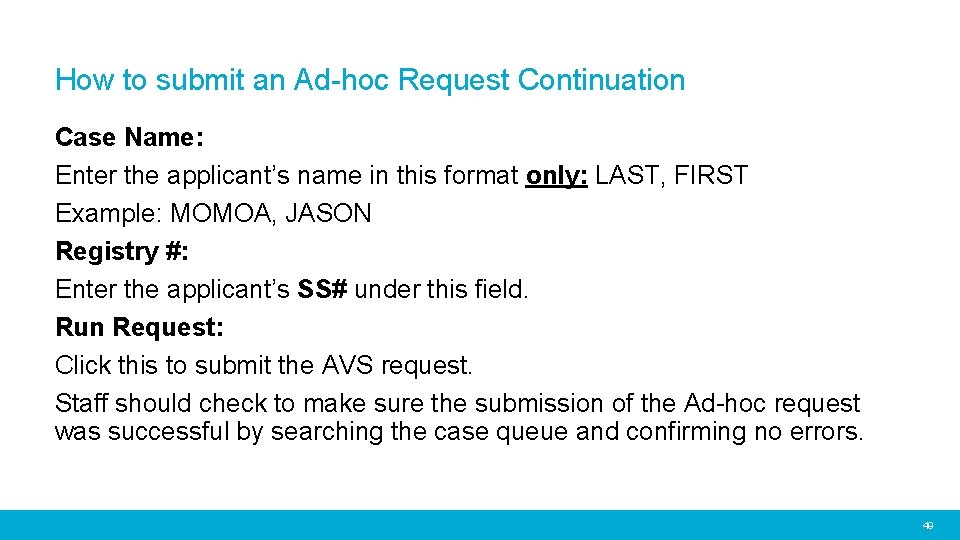
How to submit an Ad-hoc Request Continuation Case Name: Enter the applicant’s name in this format only: LAST, FIRST Example: MOMOA, JASON Registry #: Enter the applicant’s SS# under this field. Run Request: Click this to submit the AVS request. Staff should check to make sure the submission of the Ad-hoc request was successful by searching the case queue and confirming no errors. 49
How to submit an Ad-hoc Request Continuation 50
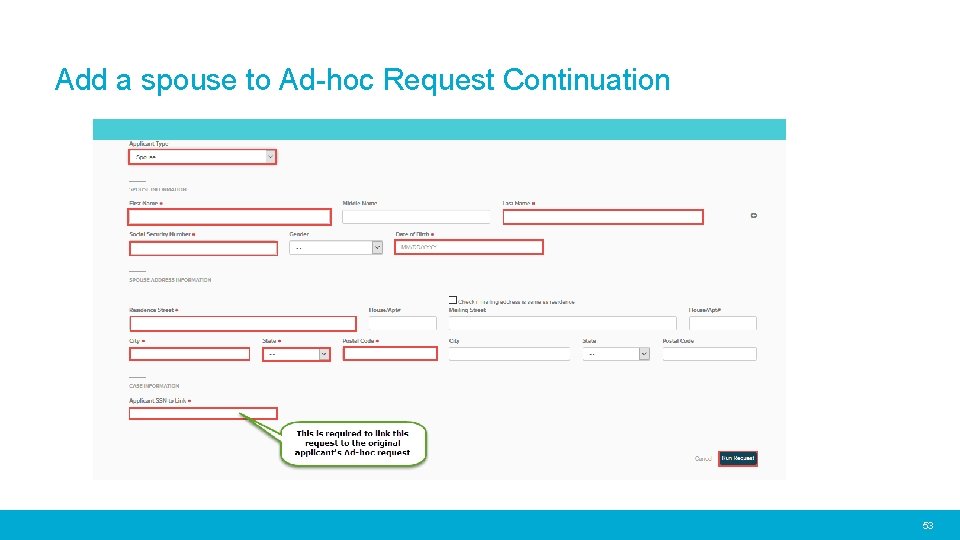
Add a Spouse to Ad-Hoc Request After you click Run Request for the applicant, a green box will appear at the top indicating that your request was submitted. You can now add a spouse. Applicant Type: • Select Spouse Information: • First Name • Last Name • Social Security Number • Date of Birth 51
Add a Spouse to Ad-Hoc Request Continuation Spouse Address Information: • Residence Street • City • State • Postal Code Applicant SSN to link: • This field is mandatory because you MUST enter the applicant’s SS# to link this request to the original Ad-hoc request. Run Request: • Click this to submit the request and to link the spouse to the applicant’s AVS record. To return to the AVS Case Queue click on the Home icon in the top right tool bar 52
Add a spouse to Ad-hoc Request Continuation 53
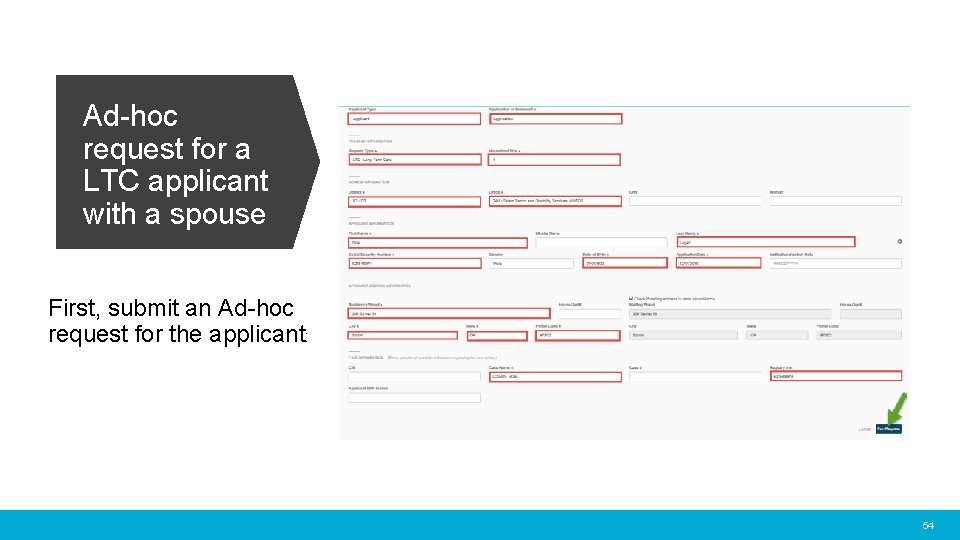
Ad-hoc request for a LTC applicant with a spouse First, submit an Ad-hoc request for the applicant: 54
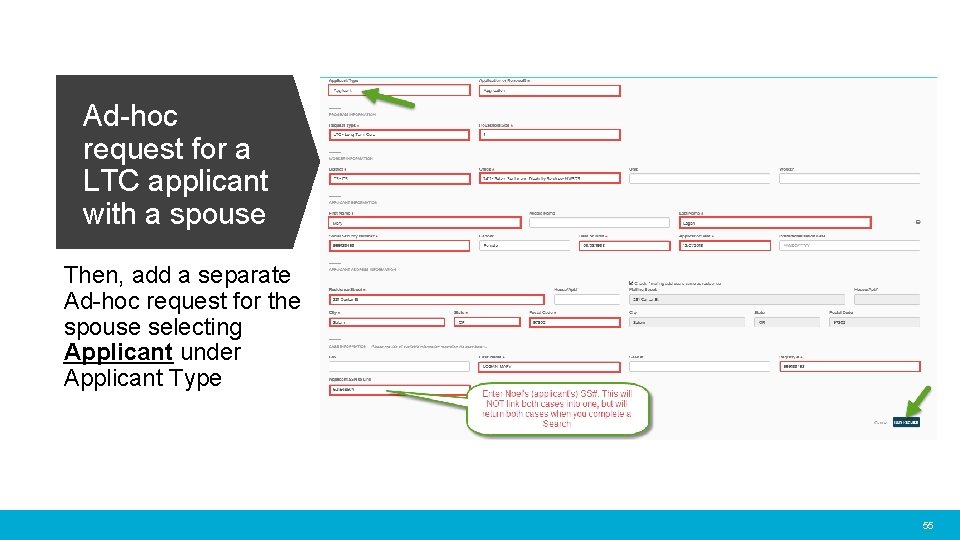
Ad-hoc request for a LTC applicant with a spouse Then, add a separate Ad-hoc request for the spouse selecting Applicant under Applicant Type 55
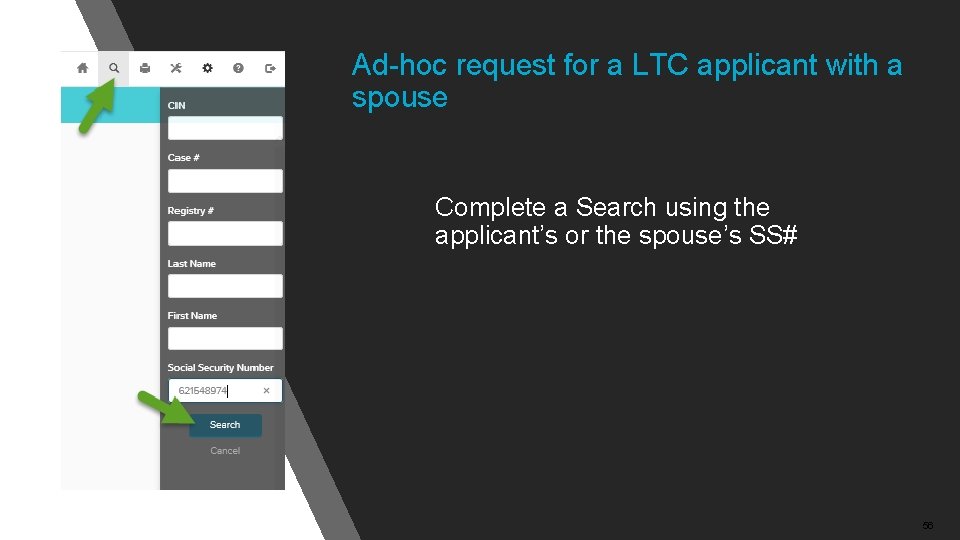
Ad-hoc request for a LTC applicant with a spouse Complete a Search using the applicant’s or the spouse’s SS# 56
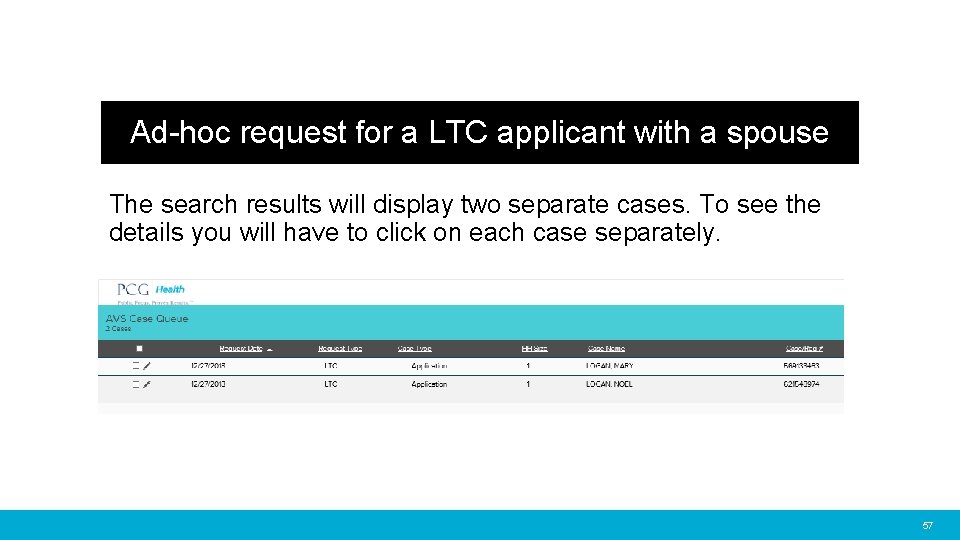
Ad-hoc request for a LTC applicant with a spouse The search results will display two separate cases. To see the details you will have to click on each case separately. 57
Add Additional Bank(s) for Verification Directed Account Search Option
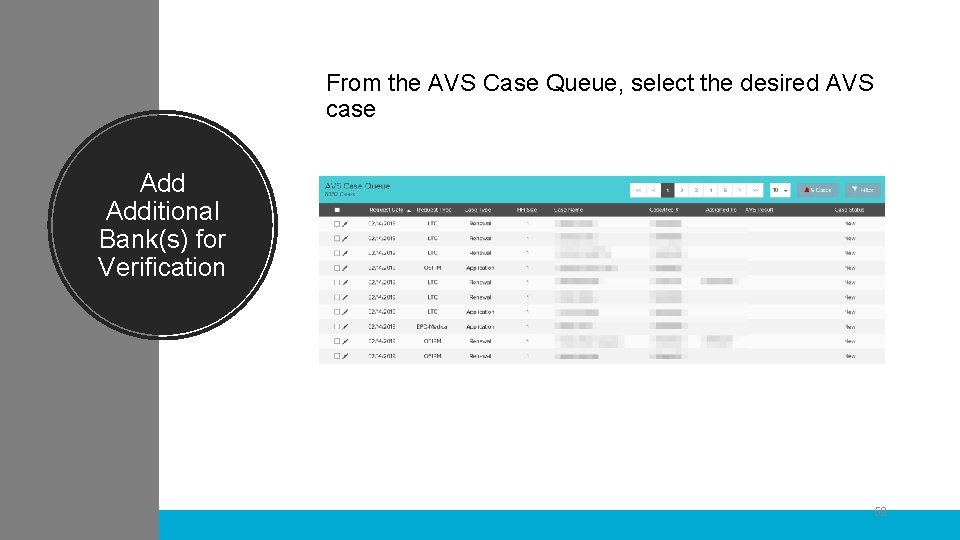
From the AVS Case Queue, select the desired AVS case Additional Bank(s) for Verification 59
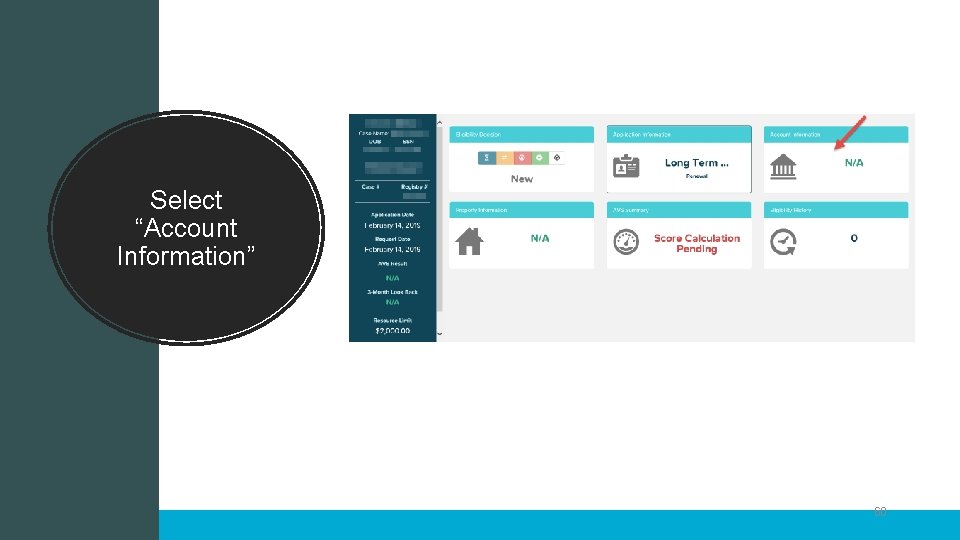
Select “Account Information” 60
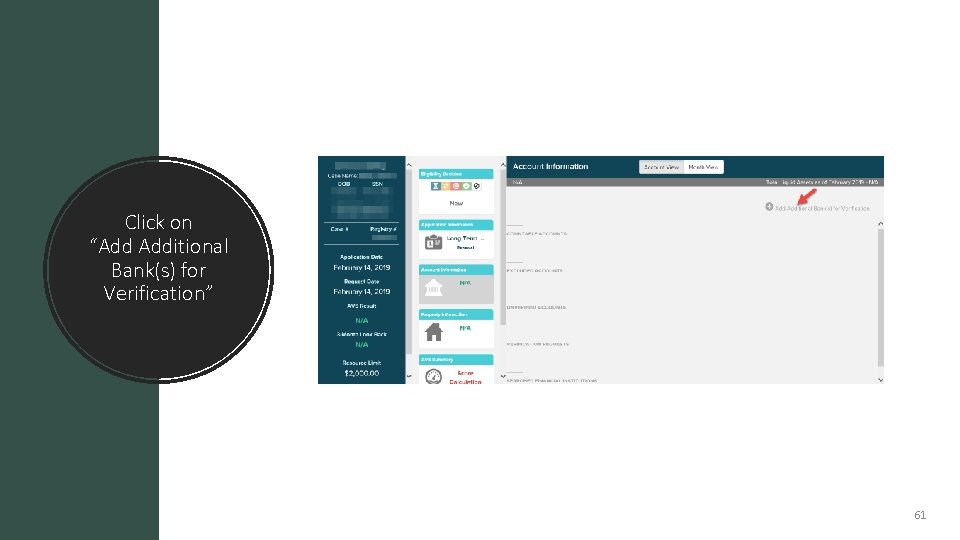
Click on “Add Additional Bank(s) for Verification” 61
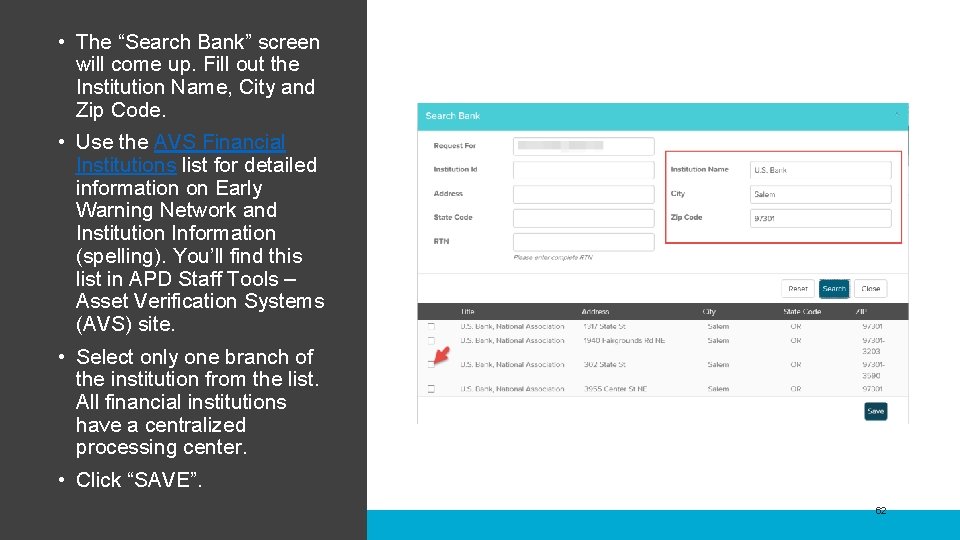
• The “Search Bank” screen will come up. Fill out the Institution Name, City and Zip Code. • Use the AVS Financial Institutions list for detailed information on Early Warning Network and Institution Information (spelling). You’ll find this list in APD Staff Tools – Asset Verification Systems (AVS) site. • Select only one branch of the institution from the list. All financial institutions have a centralized processing center. • Click “SAVE”. 62
AVS Case Structure and User Roles
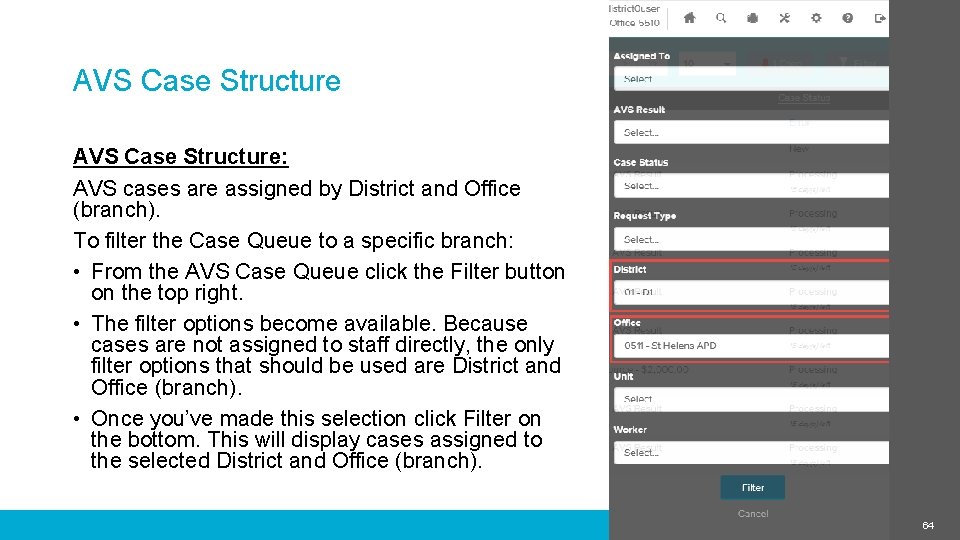
AVS Case Structure: AVS cases are assigned by District and Office (branch). To filter the Case Queue to a specific branch: • From the AVS Case Queue click the Filter button on the top right. • The filter options become available. Because cases are not assigned to staff directly, the only filter options that should be used are District and Office (branch). • Once you’ve made this selection click Filter on the bottom. This will display cases assigned to the selected District and Office (branch). 64
User Roles • Case Transfer Support Staff: • Assigned at the district level. Has access to transfer cases statewide. • Eligibility Worker: • Assigned at the district level. Has access to work cases statewide. • Supervisor and Lead: • Assigned at the district level. Has access to work and transfer cases statewide. Has access to pull reports. • District Manager (Read Only): • Assigned at the district level. Has read only statewide access. Has access to pull reports. • Sub Admin: • Assigned at the district level. Primary contact for password resets, new user set-up and existing user changes. • Chief Data Steward: • Manages access to the system statewide. 65
Resources and Contacts
Resources Asset Verification System (AVS) • AVS Manual • AVS FAQ • AVS Flyer • AVS User Guide • AVS Security User Guide • AVS Training Power. Point Presentation 67
Contacts • For any questions on AVS results: • Contact APD Medicaid Policy and put “AVS” in the Subject Line: • APD. Medicaid. Policy@dhsoha. state. or. us • For technical support contact: • AVS. Support@state. or. us 68