
ARSP Operation Instruction n Step 1 Connect into
- Slides: 12
ARSP Operation Instruction n Step 1, Connect into internet n Step 2, LAN n Step 3, Port forward n Step 4, ARSP setup
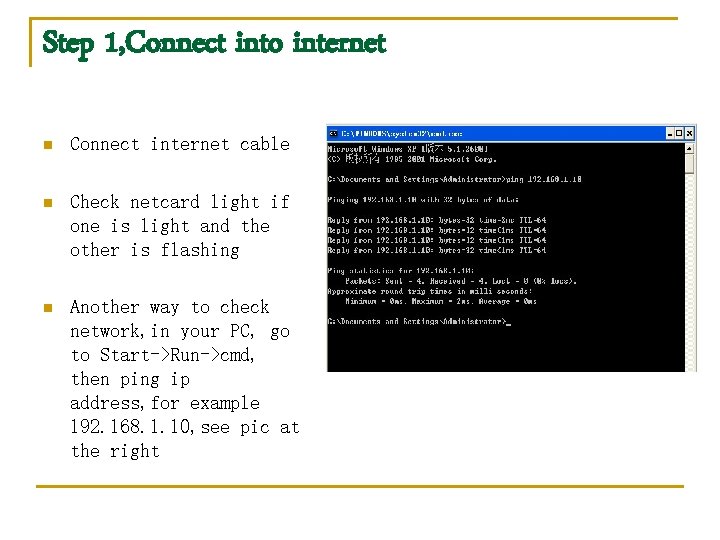
Step 1, Connect into internet n Connect internet cable n Check netcard light if one is light and the other is flashing n Another way to check network, in your PC, go to Start->Run->cmd, then ping ip address, for example 192. 168. 1. 10, see pic at the right
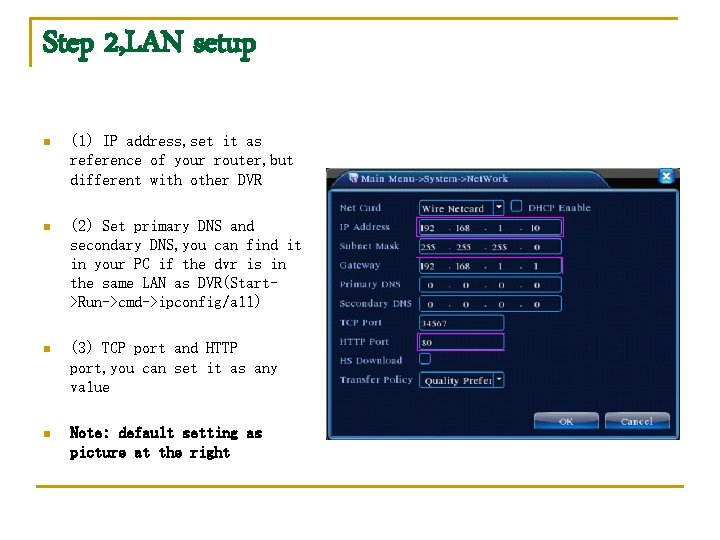
Step 2, LAN setup n (1) IP address, set it as reference of your router, but different with other DVR n (2) Set primary DNS and secondary DNS, you can find it in your PC if the dvr is in the same LAN as DVR(Start>Run->cmd->ipconfig/all) n (3) TCP port and HTTP port, you can set it as any value n Note: default setting as picture at the right
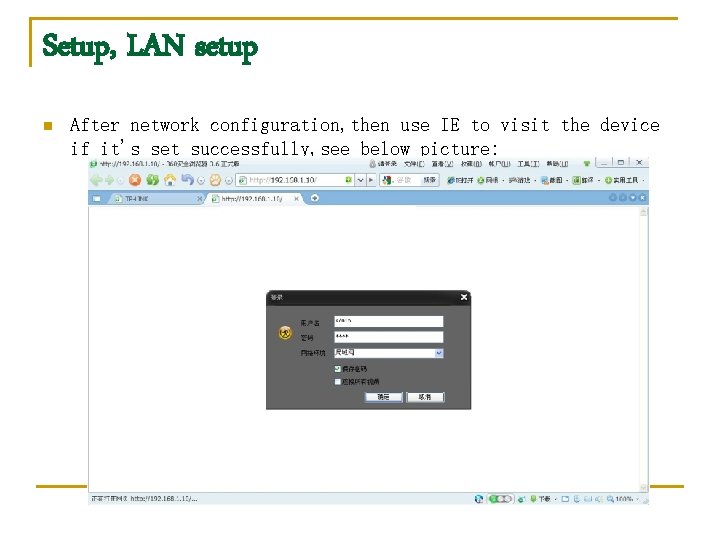
Setup, LAN setup n After network configuration, then use IE to visit the device if it's set successfully, see below picture:
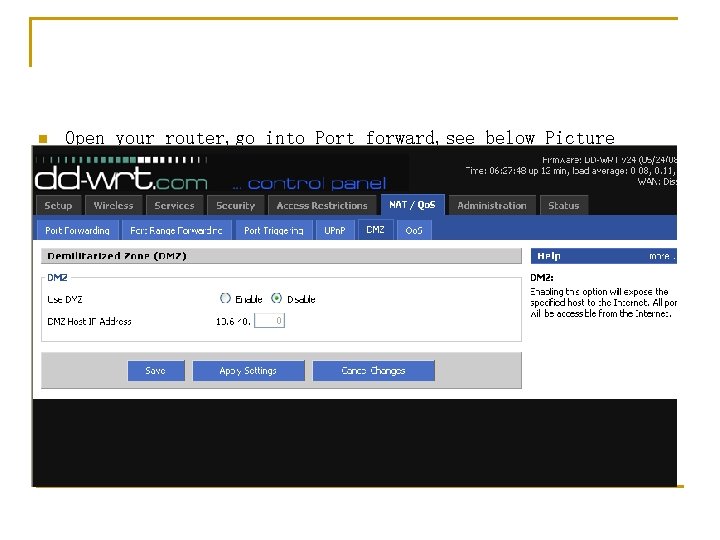
n Open your router, go into Port forward, see below Picture
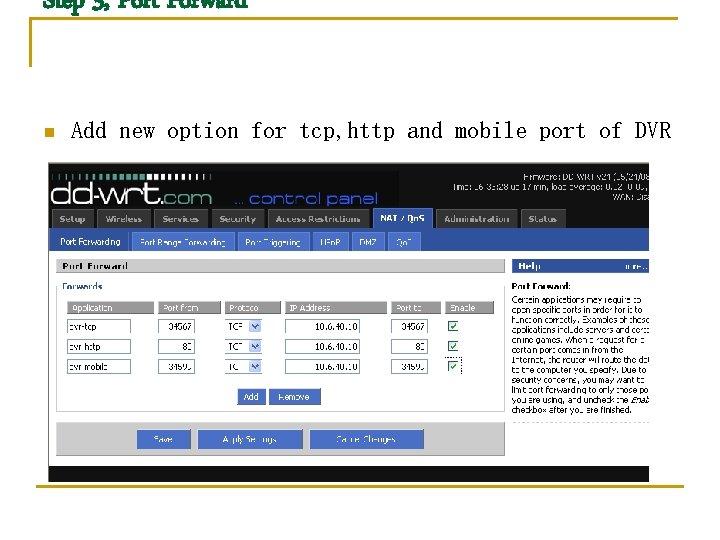
Step 3, Port Forward n Add new option for tcp, http and mobile port of DVR
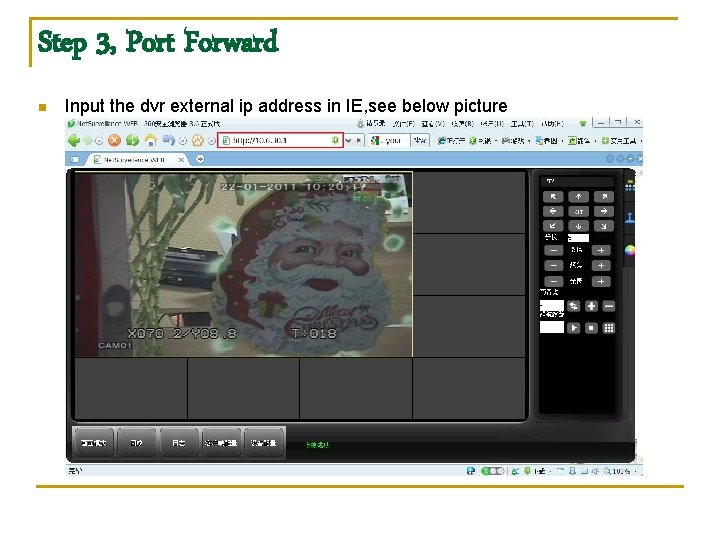
Step 3, Port Forward n Input the dvr external ip address in IE, see below picture
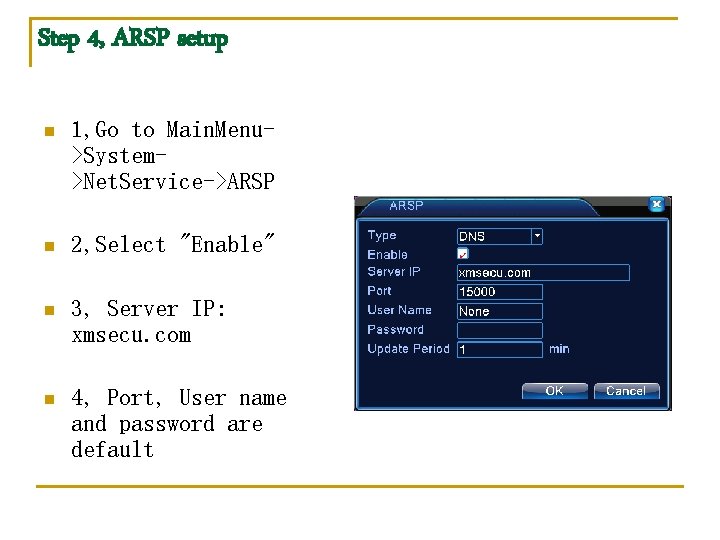
Step 4, ARSP setup n 1, Go to Main. Menu>System>Net. Service->ARSP n 2, Select "Enable" n 3, Server IP: xmsecu. com n 4, Port, User name and password are default
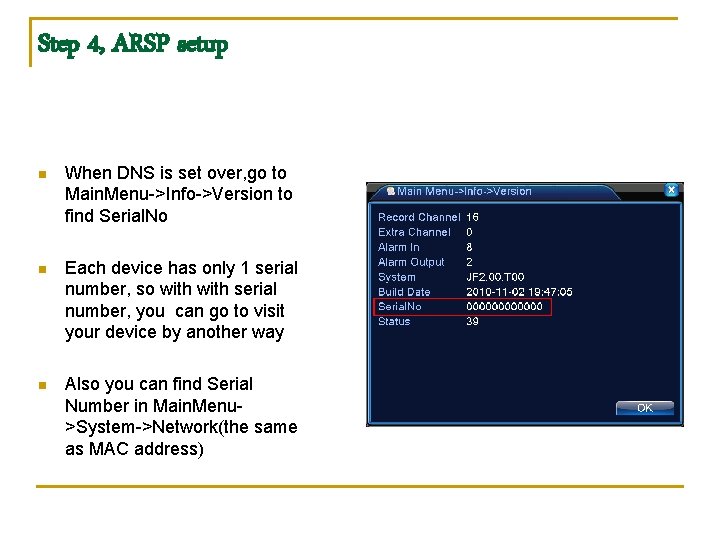
Step 4, ARSP setup n When DNS is set over, go to Main. Menu->Info->Version to find Serial. No n Each device has only 1 serial number, so with serial number, you can go to visit your device by another way n Also you can find Serial Number in Main. Menu>System->Network(the same as MAC address)
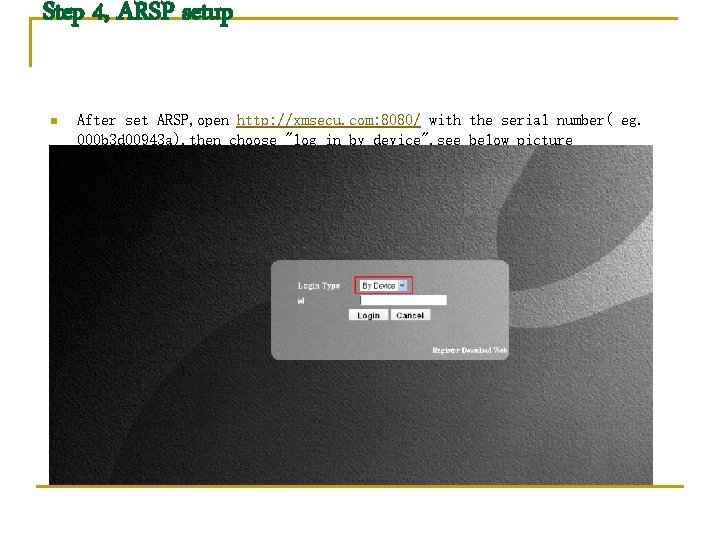
Step 4, ARSP setup n After set ARSP, open http: //xmsecu. com: 8080/ with the serial number( eg. 000 b 3 d 00943 a), then choose "log in by device", see below picture
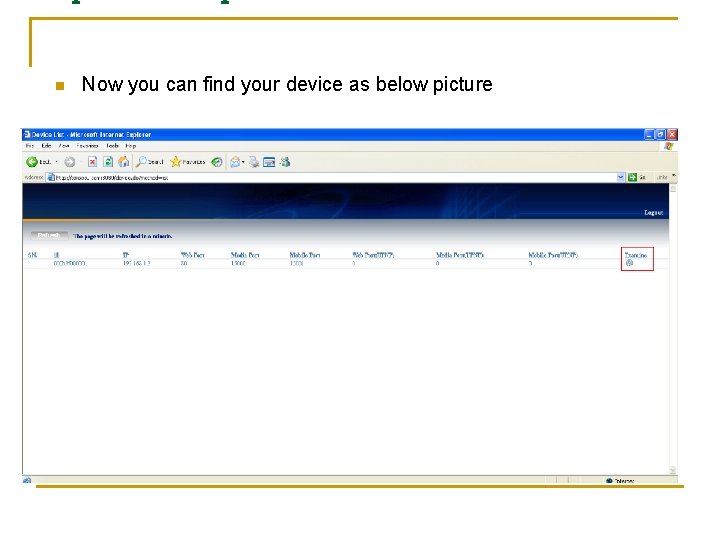
n Now you can find your device as below picture
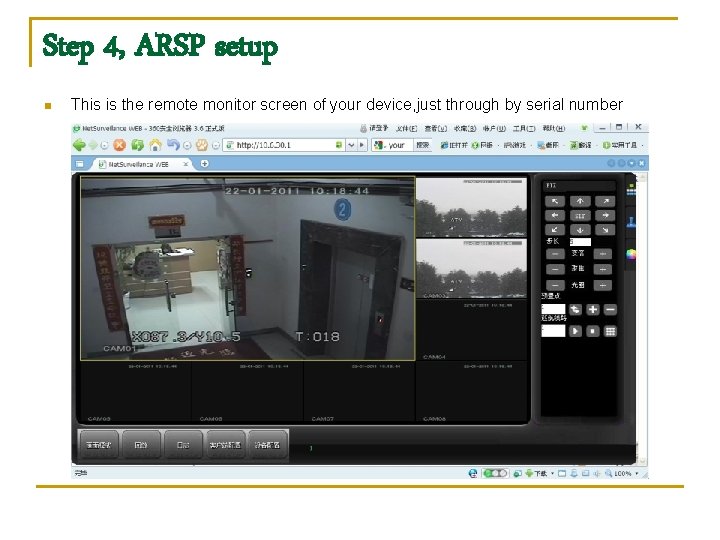
Step 4, ARSP setup n This is the remote monitor screen of your device, just through by serial number