
Ariba Network Cargill Standard Master Guide Cargill Ariba
Ariba® Network Cargill Standard Master Guide Cargill Ariba Light Account Enablement Get Started © 2014 Cargill, Incorporated. All rights reserved.
Session Overview Review transacting expectations/requirements § Answers your question on HOW to use the Ariba Network § o Navigating your account o Setting up users o Configuring settings § Train you on HOW to transact documents electronically o Orders o Order Confirmations *Note: Questions regarding your specific relationship with Cargill will not be covered § Any business-related questions can be directed to: CSSP_Apacsupplierenablement@Cargill. com APPENDIX 2 Cargill Ariba Light Account Enablement © 2014 Cargill, Incorporated. All rights reserved.
SECTION 1: Ariba Network Overview What is Ariba Network? Cargill Message Supplier Value Cargill Message Supported Documents Not Supported Documents 3 Cargill Ariba Light Account Enablement © 2014 Cargill, Incorporated. All rights reserved.
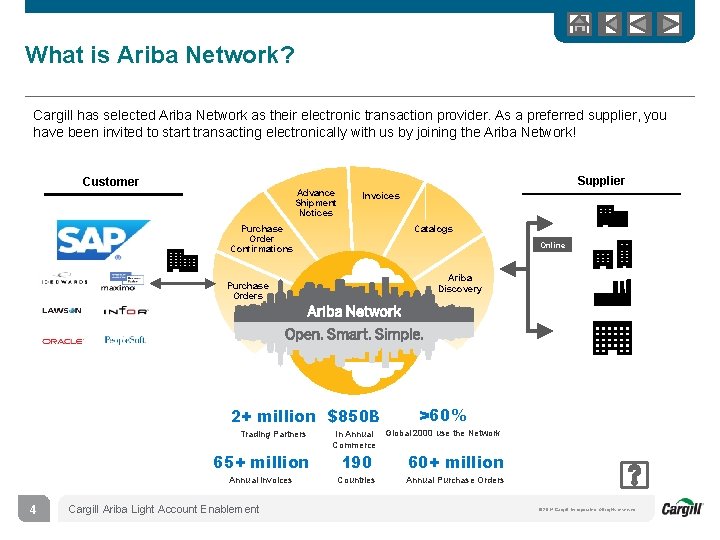
What is Ariba Network? Cargill has selected Ariba Network as their electronic transaction provider. As a preferred supplier, you have been invited to start transacting electronically with us by joining the Ariba Network! Customer Advance Shipment Notices Supplier Invoices Purchase Order Confirmations Catalogs Online Ariba Discovery Purchase Orders 2+ million $850 B Trading Partners 4 >60% In Annual Global 2000 use the Network Commerce 65+ million 190 60+ million Annual Invoices Countries Annual Purchase Orders Cargill Ariba Light Account Enablement © 2014 Cargill, Incorporated. All rights reserved.
Cargill Message Cargill is transforming how we purchase goods and services by establishing a Global Process enabled by World-Class Technology built on a common data foundation Efficiency by leveraging automation to reduce errors with fewer manual and paper-based activities. Compliance by giving our Sourcing, Procurement Teams tools to effectively manage indirect spend. Best in Class by simplifying processes and decrease the time and money requires to buy goods and services. Standardization by establishing a common source-to-pay process using fewer systems. AND FINALLY, Value by driving quality for our Suppliers and our internal Cargill Stakeholders Cargill Ariba Light Account Enablement © 2014 Cargill, Incorporated. All rights reserved.
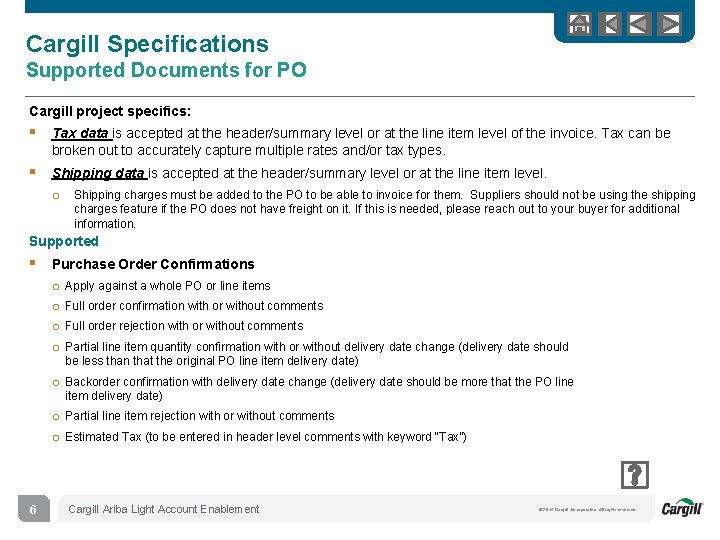
Cargill Specifications Supported Documents for PO Cargill project specifics: § Tax data is accepted at the header/summary level or at the line item level of the invoice. Tax can be broken out to accurately capture multiple rates and/or tax types. § Shipping data is accepted at the header/summary level or at the line item level. o Shipping charges must be added to the PO to be able to invoice for them. Suppliers should not be using the shipping charges feature if the PO does not have freight on it. If this is needed, please reach out to your buyer for additional information. Supported § Purchase Order Confirmations o o Apply against a whole PO or line items Full order confirmation with or without comments Full order rejection with or without comments Partial line item quantity confirmation with or without delivery date change (delivery date should be less than that the original PO line item delivery date) o Backorder confirmation with delivery date change (delivery date should be more that the PO line item delivery date) o Partial line item rejection with or without comments o Estimated Tax (to be entered in header level comments with keyword “Tax”) 6 Cargill Ariba Light Account Enablement © 2014 Cargill, Incorporated. All rights reserved.
Review Cargill Specifications Not Supported Documents Not Supported: § Advance Ship Notice - Advance ship notice is not supported by Cargill. § Invoices - Submission and transmission of invoices electronically is not a supported feature by Cargill currently. § Credit Memo - The Header or Line Level Credit Memo against PO or Invoice feature is not supported by Cargill. § Line item quantity or Unit price – Modifying line item quantity and unit price is not supported while creating Order Confirmation 7 Cargill Ariba Light Account Enablement © 2014 Cargill, Incorporated. All rights reserved.
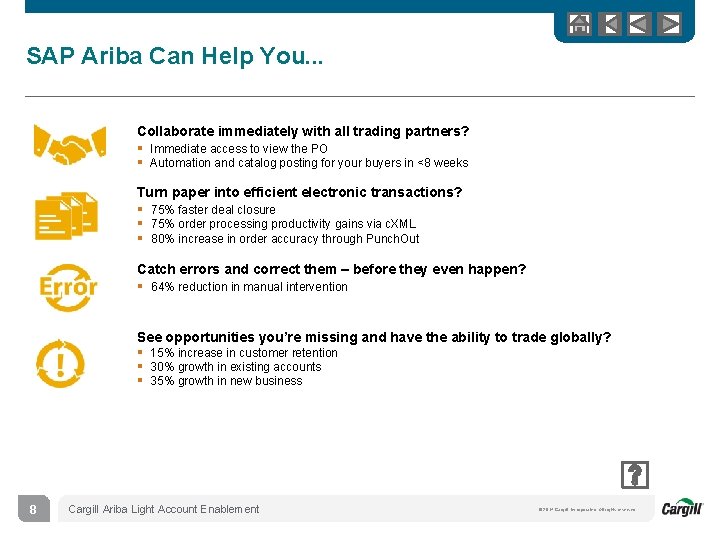
SAP Ariba Can Help You. . . Collaborate immediately with all trading partners? § Immediate access to view the PO § Automation and catalog posting for your buyers in <8 weeks Turn paper into efficient electronic transactions? § 75% faster deal closure § 75% order processing productivity gains via c. XML § 80% increase in order accuracy through Punch. Out Catch errors and correct them – before they even happen? § 64% reduction in manual intervention See opportunities you’re missing and have the ability to trade globally? § 15% increase in customer retention § 30% growth in existing accounts § 35% growth in new business 8 Cargill Ariba Light Account Enablement © 2014 Cargill, Incorporated. All rights reserved.
SECTION 2: Set Up Your Account Registration and Basic Account Configuration Recommendations Profile Completion 9 Cargill Ariba Light Account Enablement © 2014 Cargill, Incorporated. All rights reserved.
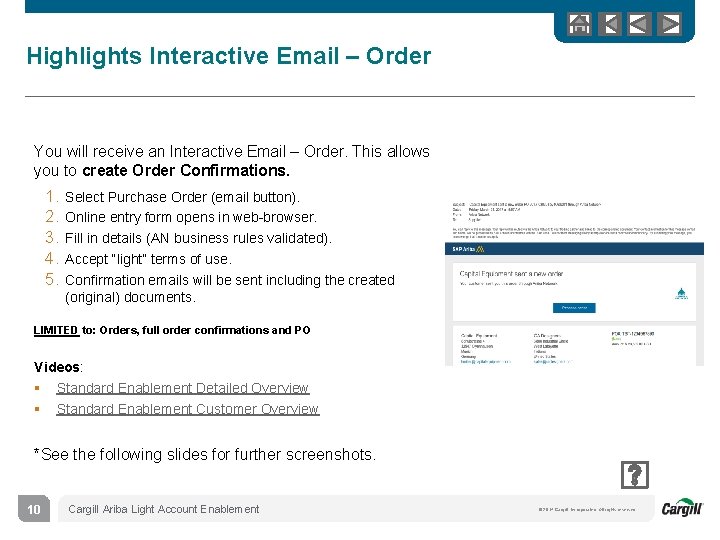
Highlights Interactive Email – Order You will receive an Interactive Email – Order. This allows you to create Order Confirmations. 1. 2. 3. 4. 5. Select Purchase Order (email button). Online entry form opens in web-browser. Fill in details (AN business rules validated). Accept “light” terms of use. Confirmation emails will be sent including the created (original) documents. LIMITED to: Orders, full order confirmations and PO Videos: § Standard Enablement Detailed Overview § Standard Enablement Customer Overview *See the following slides for further screenshots. 10 Cargill Ariba Light Account Enablement © 2014 Cargill, Incorporated. All rights reserved.
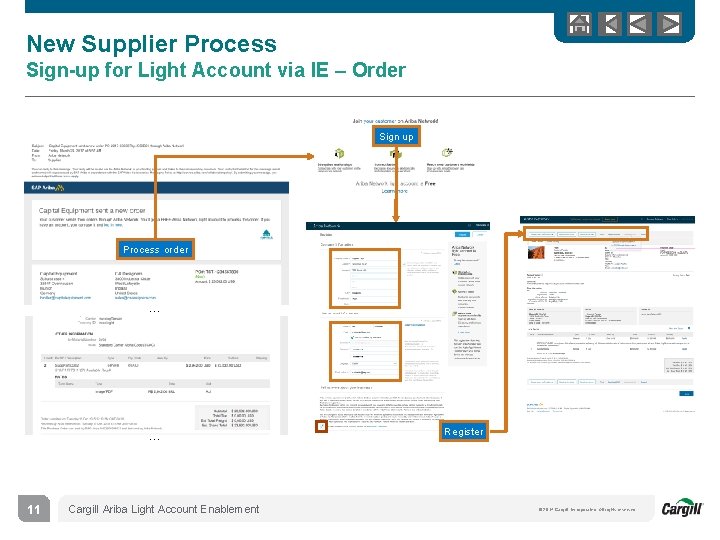
New Supplier Process Sign-up for Light Account via IE – Order Sign up Process order … … 11 Cargill Ariba Light Account Enablement Register © 2014 Cargill, Incorporated. All rights reserved.
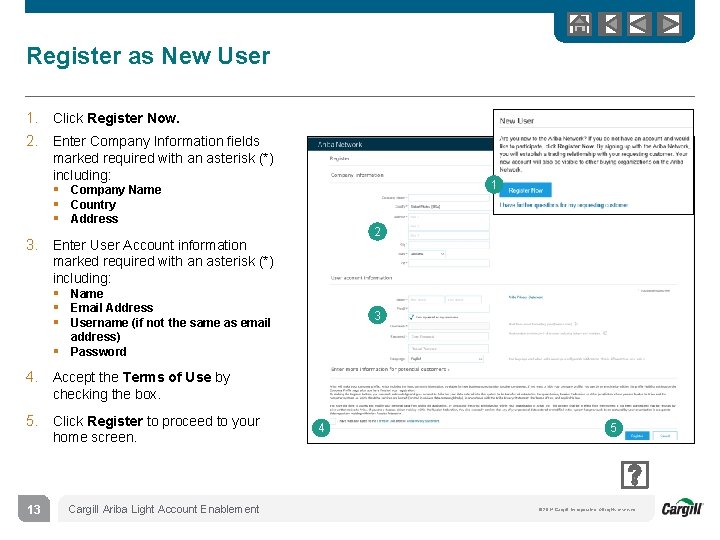
Register as New User 1. Click Register Now. 2. Enter Company Information fields marked required with an asterisk (*) including: 1 § Company Name § Country § Address 2 3. Enter User Account information marked required with an asterisk (*) including: § Name § Email Address § Username (if not the same as email 3 address) § Password 4. Accept the Terms of Use by checking the box. 5. Click Register to proceed to your home screen. 13 Cargill Ariba Light Account Enablement 4 5 © 2014 Cargill, Incorporated. All rights reserved.
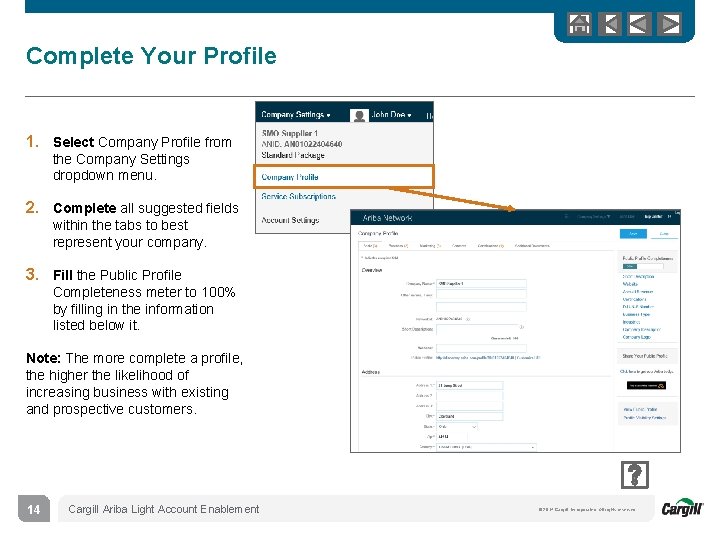
Complete Your Profile 1. Select Company Profile from the Company Settings dropdown menu. 2. Complete all suggested fields within the tabs to best represent your company. 3. Fill the Public Profile Completeness meter to 100% by filling in the information listed below it. Note: The more complete a profile, the higher the likelihood of increasing business with existing and prospective customers. 14 Cargill Ariba Light Account Enablement © 2014 Cargill, Incorporated. All rights reserved.
Cargill Specific Account Configuration § VAT ID / TAX ID – select Company Settings in the top right corner, go to Company Profile and select tab Business. In the section Financial Information enter your Vat ID / Tax ID. § Payment Methods – select Company Settings in the top right corner and go to Remittances. In the EFT/Check Remittances section select Create/Edit. In the Payment methods section choose one of the following options: ACH, Check, Credit card or Wire. Complete the details. Remittance Location on the PO will be honored always. If Remittance Location is to be changed on PO, supplier needs to contact buyer § Test Account Creation – To create a test account, select your name in top right corner and choose “Switch to Test ID. ” § Currency – The currency that Ariba Network uses in the service subscription area of your account is controlled by your organization’s location, which you specify in User Account Navigator > My Account > Preferences. 15 Cargill Ariba Light Account Enablement © 2014 Cargill, Incorporated. All rights reserved.
SECTION 3: Purchase Orders View Purchase Order Detail Create PDF of PO View Cargill POs 16 Cargill Ariba Light Account Enablement © 2014 Cargill, Incorporated. All rights reserved.
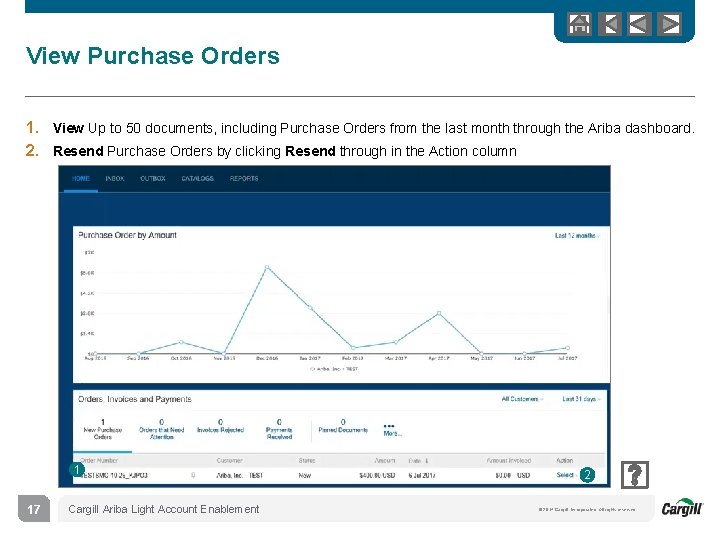
View Purchase Orders 1. View Up to 50 documents, including Purchase Orders from the last month through the Ariba dashboard. 2. Resend Purchase Orders by clicking Resend through in the Action column 1 17 Cargill Ariba Light Account Enablement 2 © 2014 Cargill, Incorporated. All rights reserved.
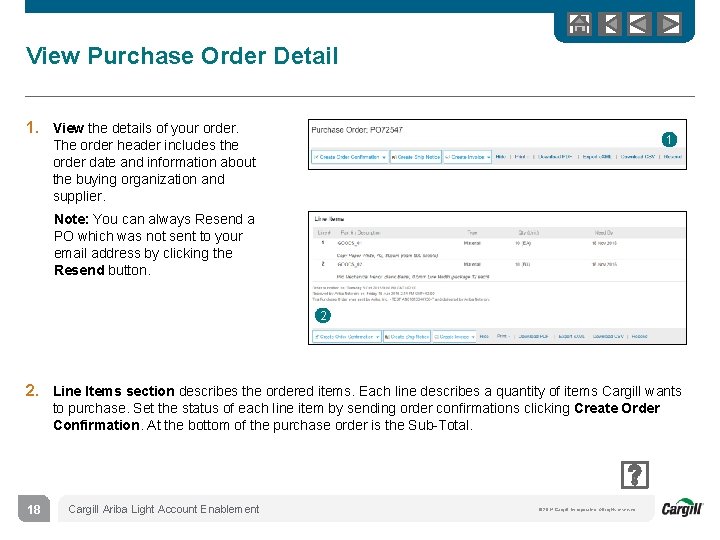
View Purchase Order Detail 1. View the details of your order. 1 The order header includes the order date and information about the buying organization and supplier. Note: You can always Resend a PO which was not sent to your email address by clicking the Resend button. 2 2. Line Items section describes the ordered items. Each line describes a quantity of items Cargill wants to purchase. Set the status of each line item by sending order confirmations clicking Create Order Confirmation. At the bottom of the purchase order is the Sub-Total. 18 Cargill Ariba Light Account Enablement © 2014 Cargill, Incorporated. All rights reserved.
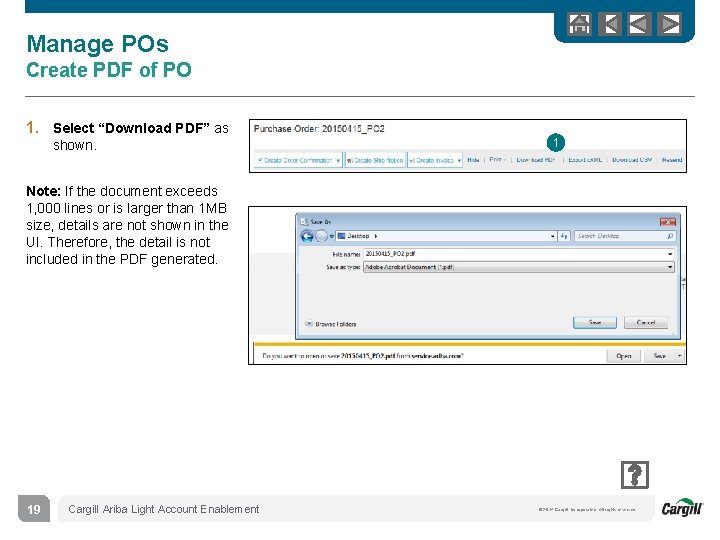
Manage POs Create PDF of PO 1. Select “Download PDF” as shown. 1 Note: If the document exceeds 1, 000 lines or is larger than 1 MB size, details are not shown in the UI. Therefore, the detail is not included in the PDF generated. 19 Cargill Ariba Light Account Enablement © 2014 Cargill, Incorporated. All rights reserved.
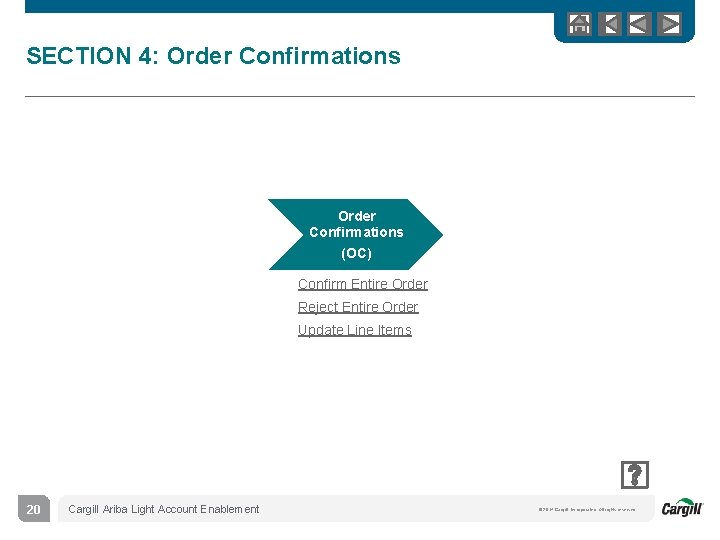
SECTION 4: Order Confirmations (OC) Confirm Entire Order Reject Entire Order Update Line Items 20 Cargill Ariba Light Account Enablement © 2014 Cargill, Incorporated. All rights reserved.
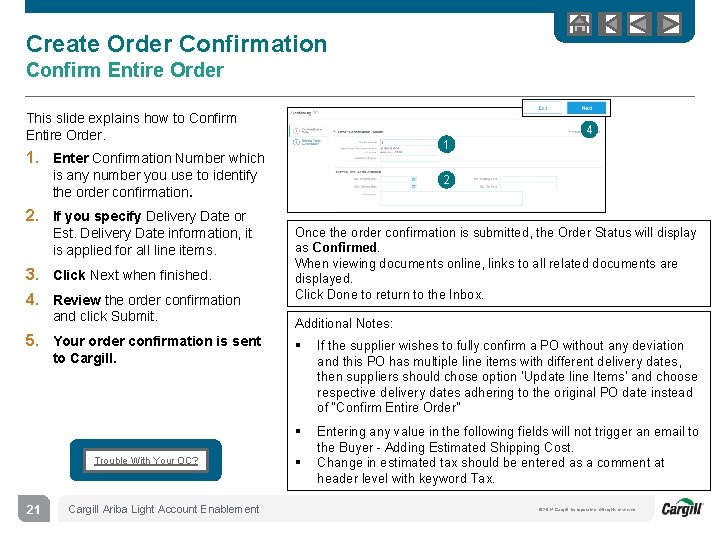
Create Order Confirmation Confirm Entire Order This slide explains how to Confirm Entire Order. 4 1 1. Enter Confirmation Number which is any number you use to identify the order confirmation. 2. If you specify Delivery Date or Est. Delivery Date information, it is applied for all line items. 3. Click Next when finished. 4. Review the order confirmation and click Submit. 5. Your order confirmation is sent to Cargill. Trouble With Your OC? 21 Cargill Ariba Light Account Enablement 2 Once the order confirmation is submitted, the Order Status will display as Confirmed. When viewing documents online, links to all related documents are displayed. Click Done to return to the Inbox. Additional Notes: § If the supplier wishes to fully confirm a PO without any deviation and this PO has multiple line items with different delivery dates, then suppliers should chose option 'Update line Items' and choose respective delivery dates adhering to the original PO date instead of “Confirm Entire Order” § Entering any value in the following fields will not trigger an email to the Buyer - Adding Estimated Shipping Cost. Change in estimated tax should be entered as a comment at header level with keyword Tax. § © 2014 Cargill, Incorporated. All rights reserved.
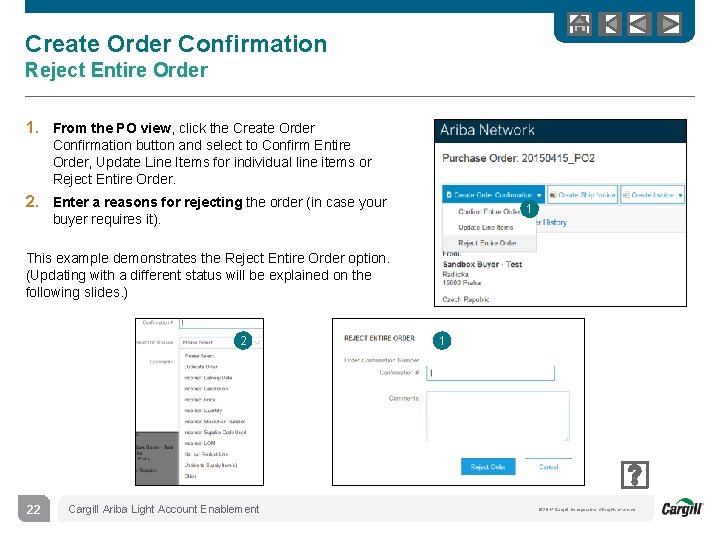
Create Order Confirmation Reject Entire Order 1. From the PO view, click the Create Order Confirmation button and select to Confirm Entire Order, Update Line Items for individual line items or Reject Entire Order. 2. Enter a reasons for rejecting the order (in case your 1 buyer requires it). This example demonstrates the Reject Entire Order option. (Updating with a different status will be explained on the following slides. ) 2 22 Cargill Ariba Light Account Enablement 1 © 2014 Cargill, Incorporated. All rights reserved.
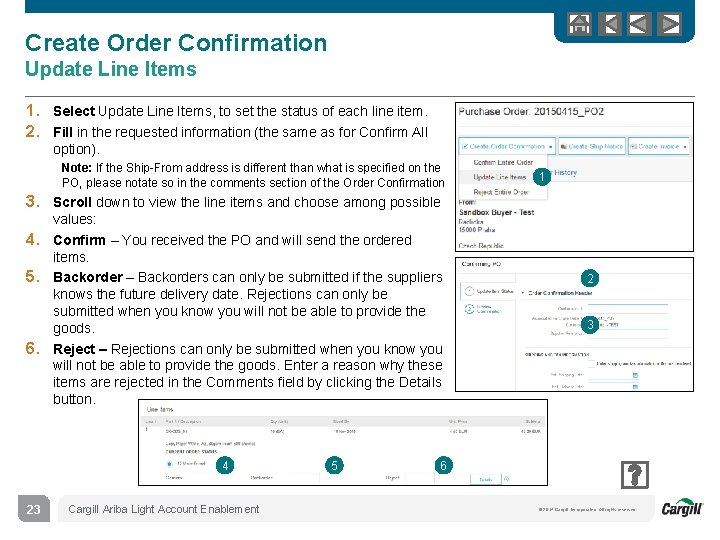
Create Order Confirmation Update Line Items 1. Select Update Line Items, to set the status of each line item. 2. Fill in the requested information (the same as for Confirm All option). Note: If the Ship-From address is different than what is specified on the PO, please notate so in the comments section of the Order Confirmation 1 3. Scroll down to view the line items and choose among possible 4. 5. 6. values: Confirm – You received the PO and will send the ordered items. Backorder – Backorders can only be submitted if the suppliers knows the future delivery date. Rejections can only be submitted when you know you will not be able to provide the goods. Reject – Rejections can only be submitted when you know you will not be able to provide the goods. Enter a reason why these items are rejected in the Comments field by clicking the Details button. 4 23 Cargill Ariba Light Account Enablement 5 2 3 6 © 2014 Cargill, Incorporated. All rights reserved.
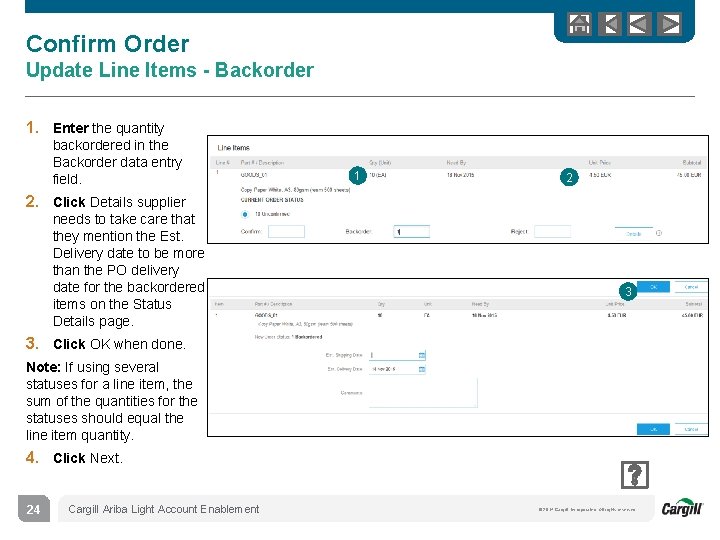
Confirm Order Update Line Items - Backorder 1. Enter the quantity backordered in the Backorder data entry field. 1 2 2. Click Details supplier needs to take care that they mention the Est. Delivery date to be more than the PO delivery date for the backordered items on the Status Details page. 3 3. Click OK when done. Note: If using several statuses for a line item, the sum of the quantities for the statuses should equal the line item quantity. 4. Click Next. 24 Cargill Ariba Light Account Enablement © 2014 Cargill, Incorporated. All rights reserved.
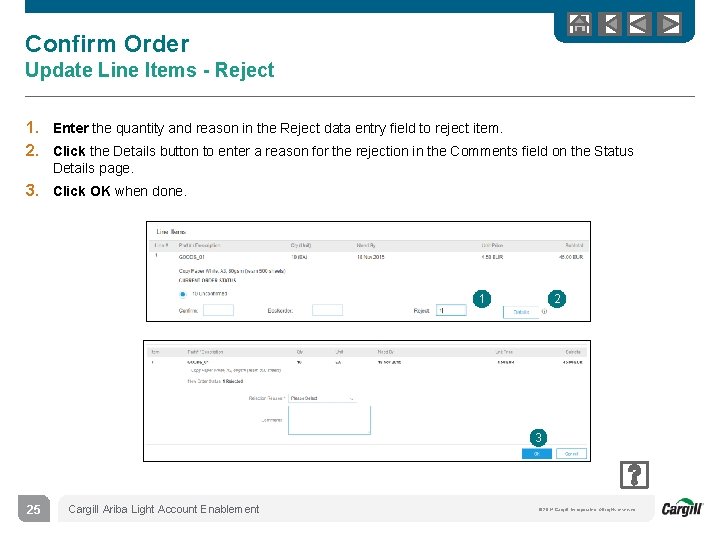
Confirm Order Update Line Items - Reject 1. Enter the quantity and reason in the Reject data entry field to reject item. 2. Click the Details button to enter a reason for the rejection in the Comments field on the Status Details page. 3. Click OK when done. 1 2 3 25 Cargill Ariba Light Account Enablement © 2014 Cargill, Incorporated. All rights reserved.
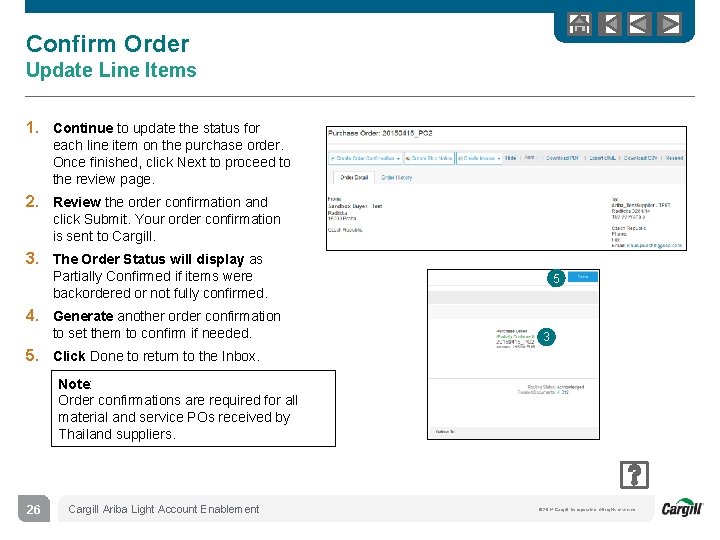
Confirm Order Update Line Items 1. Continue to update the status for each line item on the purchase order. Once finished, click Next to proceed to the review page. 2. Review the order confirmation and click Submit. Your order confirmation is sent to Cargill. 3. The Order Status will display as Partially Confirmed if items were backordered or not fully confirmed. 5 4. Generate another order confirmation to set them to confirm if needed. 3 5. Click Done to return to the Inbox. Note: Order confirmations are required for all material and service POs received by Thailand suppliers. 26 Cargill Ariba Light Account Enablement © 2014 Cargill, Incorporated. All rights reserved.
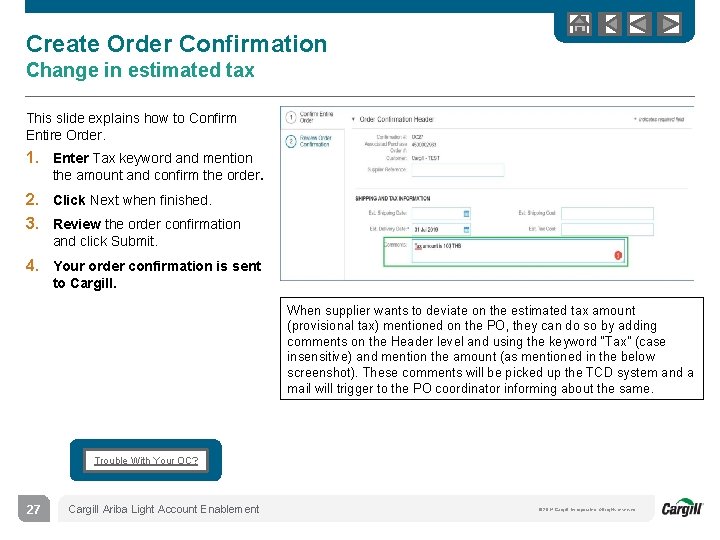
Create Order Confirmation Change in estimated tax This slide explains how to Confirm Entire Order. 1. Enter Tax keyword and mention the amount and confirm the order. 2. Click Next when finished. 3. Review the order confirmation and click Submit. 4. Your order confirmation is sent to Cargill. When supplier wants to deviate on the estimated tax amount (provisional tax) mentioned on the PO, they can do so by adding comments on the Header level and using the keyword “Tax” (case insensitive) and mention the amount (as mentioned in the below screenshot). These comments will be picked up the TCD system and a mail will trigger to the PO coordinator informing about the same. Trouble With Your OC? 27 Cargill Ariba Light Account Enablement © 2014 Cargill, Incorporated. All rights reserved.
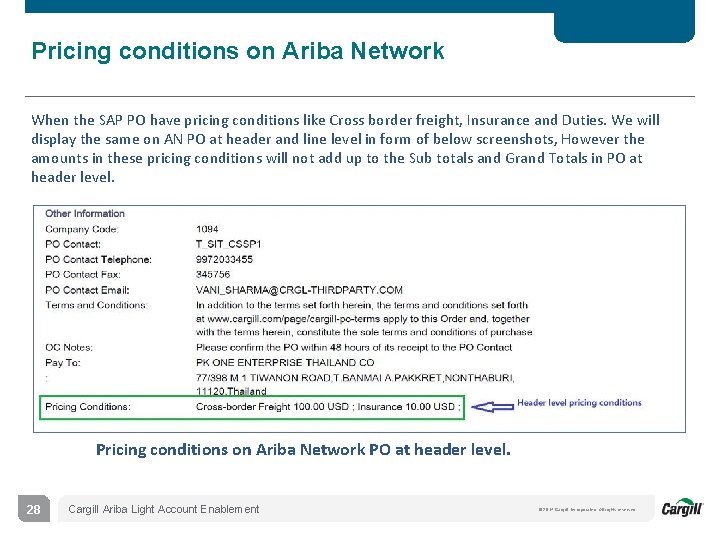
Pricing conditions on Ariba Network When the SAP PO have pricing conditions like Cross border freight, Insurance and Duties. We will display the same on AN PO at header and line level in form of below screenshots, However the amounts in these pricing conditions will not add up to the Sub totals and Grand Totals in PO at header level. Pricing conditions on Ariba Network PO at header level. 28 Cargill Ariba Light Account Enablement © 2014 Cargill, Incorporated. All rights reserved.
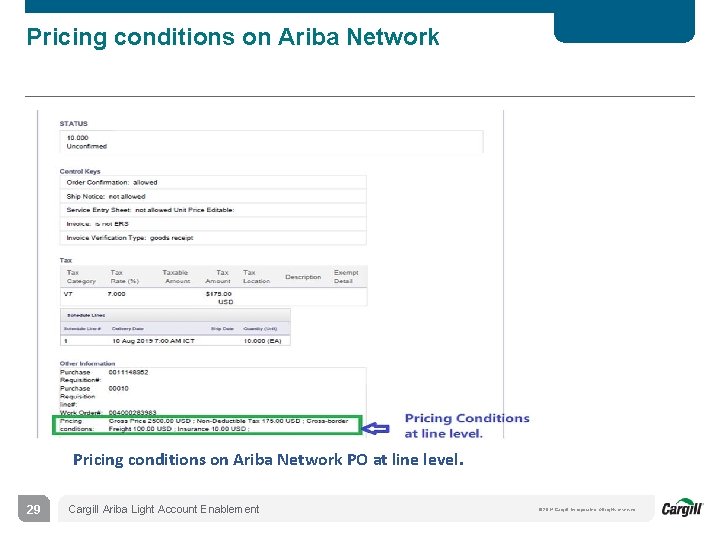
Pricing conditions on Ariba Network PO at line level. 29 Cargill Ariba Light Account Enablement © 2014 Cargill, Incorporated. All rights reserved.
Ariba Network Help Resources Customer Support Supplier Information Portal Additional Resources Ariba. com Links Troubleshoot Your Invoices 30 Cargill Ariba Light Account Enablement © 2014 Cargill, Incorporated. All rights reserved.
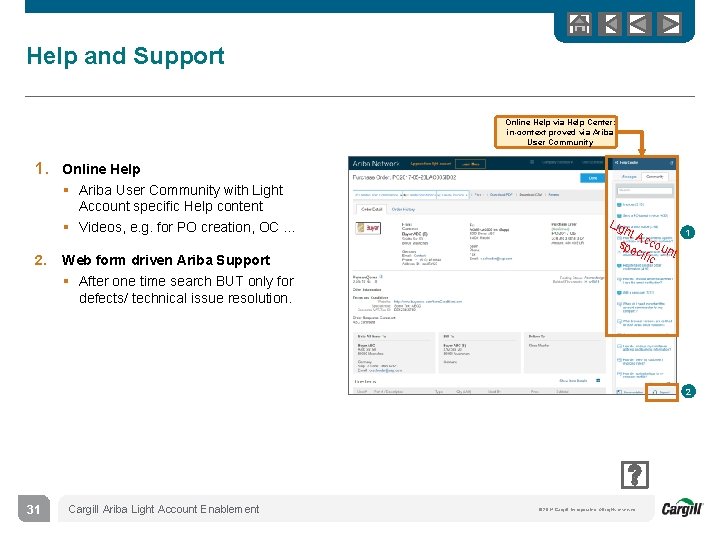
Help and Support Online Help via Help Center: in-context proved via Ariba User Community 1. Online Help § Ariba User Community with Light Account specific Help content § Videos, e. g. for PO creation, OC … 2. Web form driven Ariba Support § After one time search BUT only for defects/ technical issue resolution. Lig ht A spe ccou cifi nt c 1 2 31 Cargill Ariba Light Account Enablement © 2014 Cargill, Incorporated. All rights reserved.
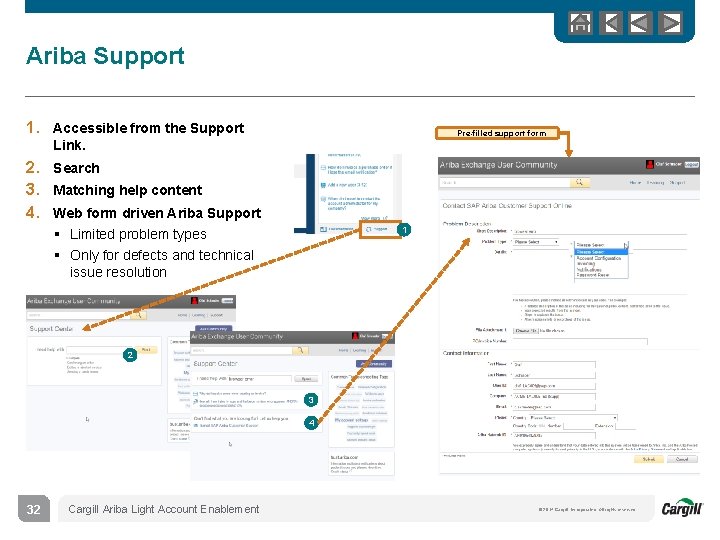
Ariba Support 1. Accessible from the Support Pre-filled support form Link. 2. Search 3. Matching help content 4. Web form driven Ariba Support 1 § Limited problem types § Only for defects and technical issue resolution 2 3 4 32 Cargill Ariba Light Account Enablement © 2014 Cargill, Incorporated. All rights reserved.
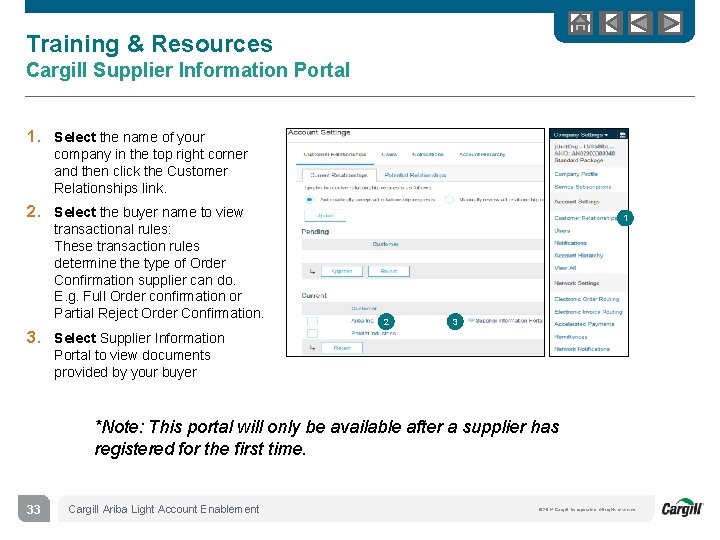
Training & Resources Cargill Supplier Information Portal 1. Select the name of your company in the top right corner and then click the Customer Relationships link. 2. Select the buyer name to view transactional rules: These transaction rules determine the type of Order Confirmation supplier can do. E. g. Full Order confirmation or Partial Reject Order Confirmation. 1 2 3 3. Select Supplier Information Portal to view documents provided by your buyer *Note: This portal will only be available after a supplier has registered for the first time. 33 Cargill Ariba Light Account Enablement © 2014 Cargill, Incorporated. All rights reserved.
Useful Links § § Supplier Light Account Marketing Page - http: //www. ariba. com/go/ariba-network-light-account Ariba User Exchange Community - https: //uex. ariba. com Ariba Network Hot Issues and FAQs - https: //connect. ariba. com/anfaq. htm Ariba Cloud Statistics and Network Notifications– http: //trust. ariba. com o Detailed information and latest notifications about product issues and planned downtime - if any - during a given day § SAP Ariba Discovery - https: //www. ariba. com/ariba-network-for-suppliers/selling-onariba-network/sap-ariba-discovery § Ariba Network Overview - https: //www. ariba. com/ariba-network-for-suppliers/fulfillmenton-ariba-network 34 Cargill Ariba Light Account Enablement © 2014 Cargill, Incorporated. All rights reserved.
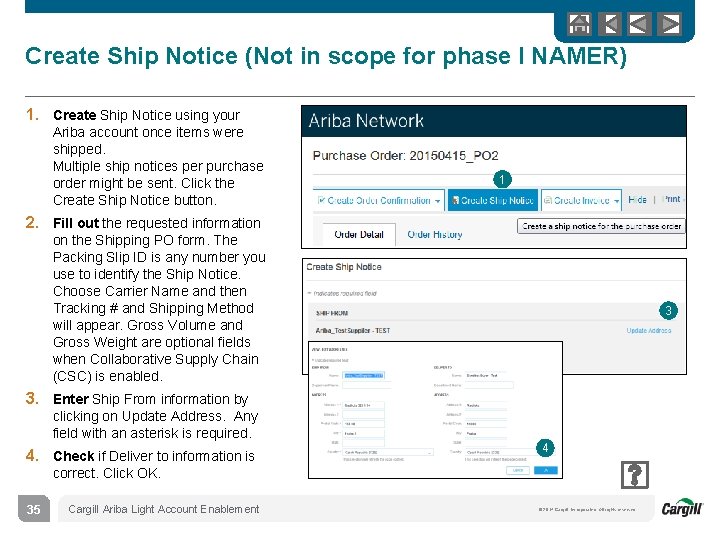
Create Ship Notice (Not in scope for phase I NAMER) 1. Create Ship Notice using your Ariba account once items were shipped. Multiple ship notices per purchase order might be sent. Click the Create Ship Notice button. 1 2. Fill out the requested information on the Shipping PO form. The Packing Slip ID is any number you use to identify the Ship Notice. Choose Carrier Name and then Tracking # and Shipping Method will appear. Gross Volume and Gross Weight are optional fields when Collaborative Supply Chain (CSC) is enabled. 3 3. Enter Ship From information by clicking on Update Address. Any field with an asterisk is required. 4. Check if Deliver to information is 4 correct. Click OK. 35 Cargill Ariba Light Account Enablement © 2014 Cargill, Incorporated. All rights reserved.
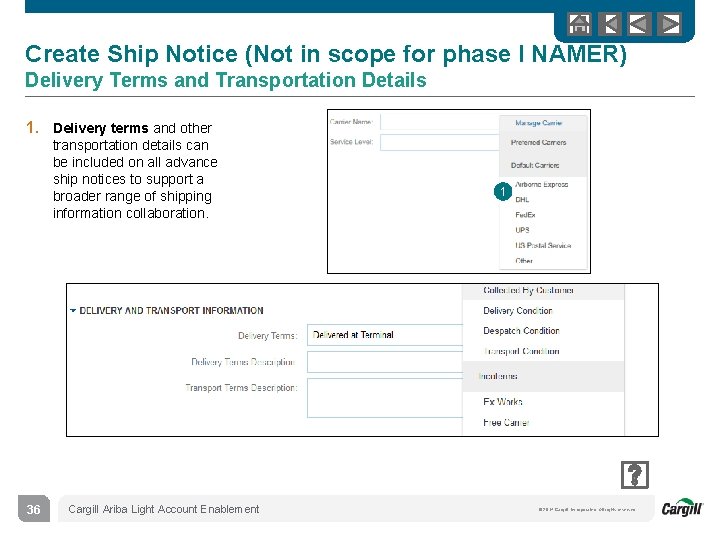
Create Ship Notice (Not in scope for phase I NAMER) Delivery Terms and Transportation Details 1. Delivery terms and other transportation details can be included on all advance ship notices to support a broader range of shipping information collaboration. 36 Cargill Ariba Light Account Enablement 1 © 2014 Cargill, Incorporated. All rights reserved.
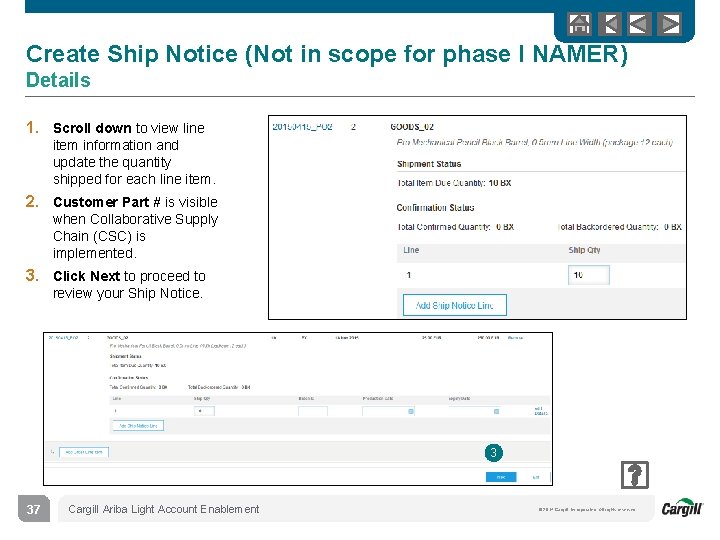
Create Ship Notice (Not in scope for phase I NAMER) Details 1. Scroll down to view line item information and update the quantity shipped for each line item. 2. Customer Part # is visible when Collaborative Supply Chain (CSC) is implemented. 3. Click Next to proceed to review your Ship Notice. 3 37 Cargill Ariba Light Account Enablement © 2014 Cargill, Incorporated. All rights reserved.
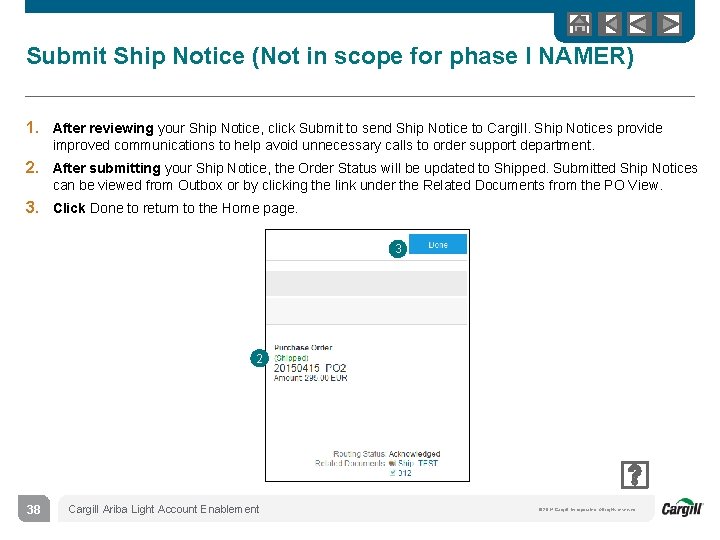
Submit Ship Notice (Not in scope for phase I NAMER) 1. After reviewing your Ship Notice, click Submit to send Ship Notice to Cargill. Ship Notices provide improved communications to help avoid unnecessary calls to order support department. 2. After submitting your Ship Notice, the Order Status will be updated to Shipped. Submitted Ship Notices can be viewed from Outbox or by clicking the link under the Related Documents from the PO View. 3. Click Done to return to the Home page. 3 2 38 Cargill Ariba Light Account Enablement © 2014 Cargill, Incorporated. All rights reserved.
Thank you for joining the Ariba Network! 39 Cargill Ariba Light Account Enablement © 2014 Cargill, Incorporated. All rights reserved.
- Slides: 38