
Arduino Programming Part II ME 120 Mechanical and
- Slides: 31
Arduino Programming Part II ME 120 Mechanical and Materials Engineering Portland State University http: //web. cecs. pdx. edu/~me 120 ME 120: Arduino Programming Fall 2013
Overview Review of Blink Variable Declarations Variable Assignments Built-in I/O functions See on-line reference: http: //arduino. cc/en/Reference/Home. Page ME 120: Arduino Programming 2
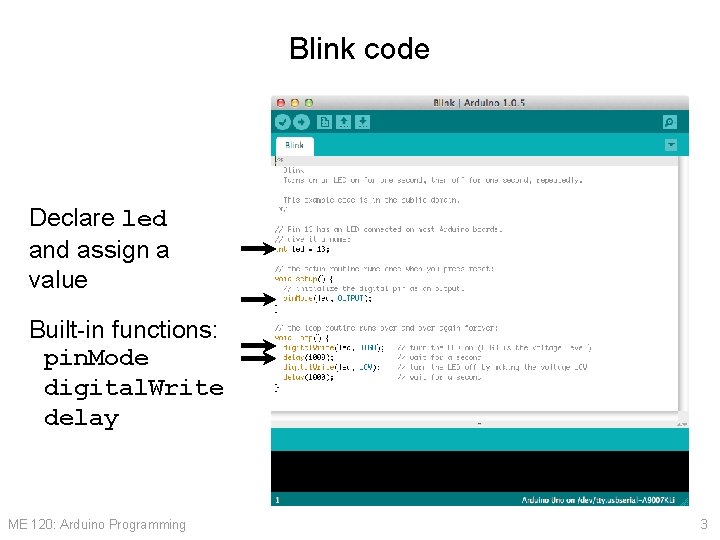
Blink code Declare led and assign a value Built-in functions: pin. Mode digital. Write delay ME 120: Arduino Programming 3
Variables in Arduino programs ME 120: Arduino Programming 4
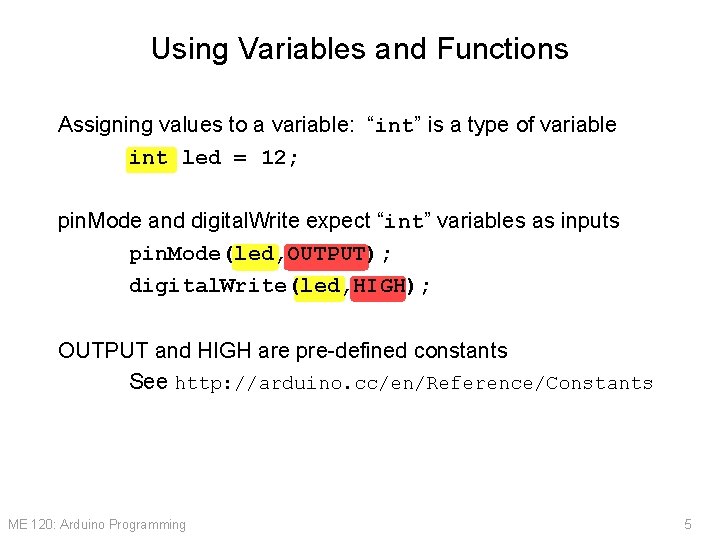
Using Variables and Functions Assigning values to a variable: “int” is a type of variable int led = 12; pin. Mode and digital. Write expect “int” variables as inputs pin. Mode(led, OUTPUT); digital. Write(led, HIGH); OUTPUT and HIGH are pre-defined constants See http: //arduino. cc/en/Reference/Constants ME 120: Arduino Programming 5
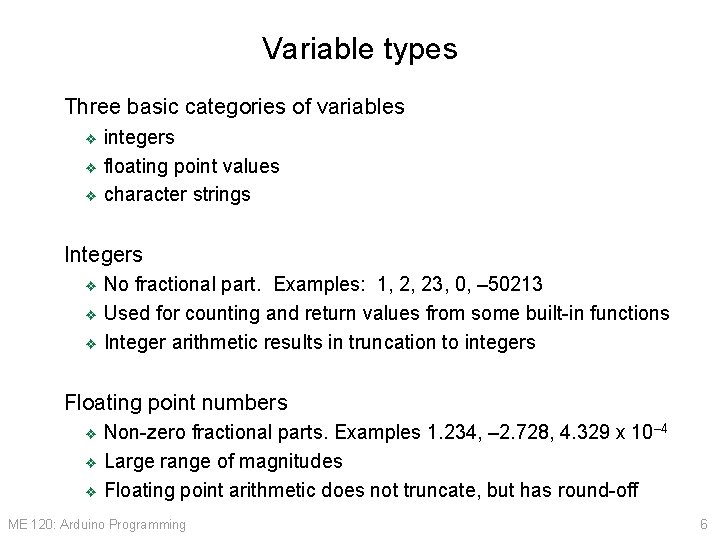
Variable types Three basic categories of variables integers ❖ floating point values ❖ character strings ❖ Integers No fractional part. Examples: 1, 2, 23, 0, – 50213 ❖ Used for counting and return values from some built-in functions ❖ Integer arithmetic results in truncation to integers ❖ Floating point numbers Non-zero fractional parts. Examples 1. 234, – 2. 728, 4. 329 x 10– 4 ❖ Large range of magnitudes ❖ Floating point arithmetic does not truncate, but has round-off ❖ ME 120: Arduino Programming 6
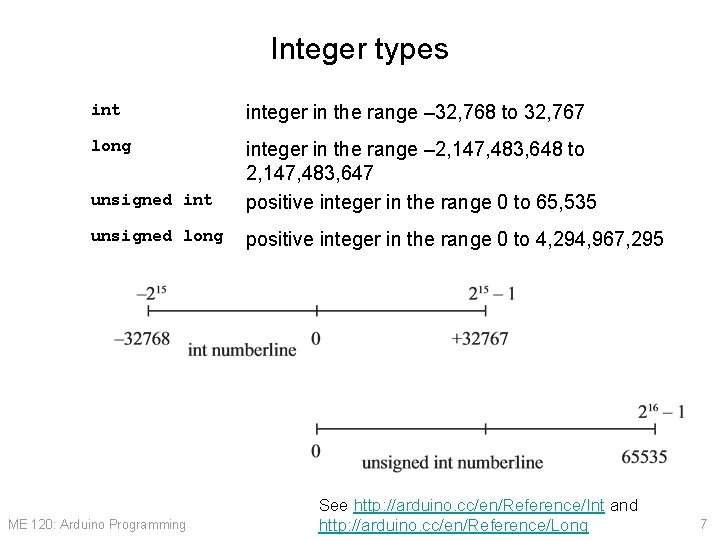
Integer types integer in the range – 32, 768 to 32, 767 long unsigned integer in the range – 2, 147, 483, 648 to 2, 147, 483, 647 positive integer in the range 0 to 65, 535 unsigned long positive integer in the range 0 to 4, 294, 967, 295 ME 120: Arduino Programming See http: //arduino. cc/en/Reference/Int and http: //arduino. cc/en/Reference/Long 7
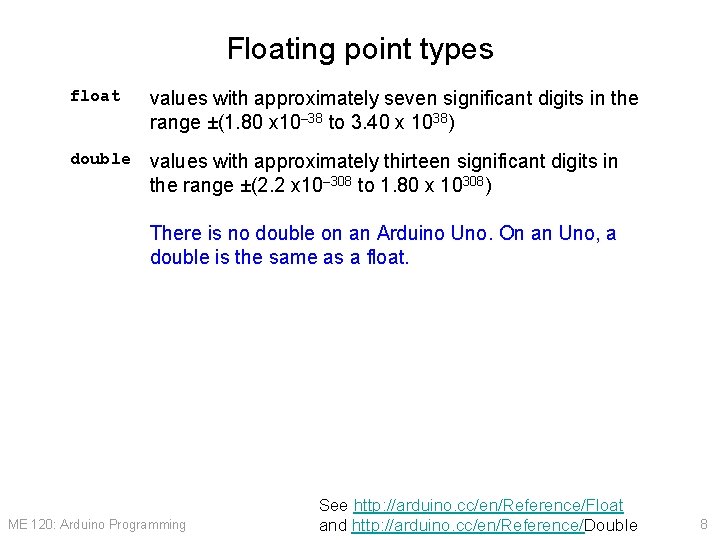
Floating point types float values with approximately seven significant digits in the range ±(1. 80 x 10– 38 to 3. 40 x 1038) double values with approximately thirteen significant digits in the range ±(2. 2 x 10– 308 to 1. 80 x 10308) There is no double on an Arduino Uno. On an Uno, a double is the same as a float. ME 120: Arduino Programming See http: //arduino. cc/en/Reference/Float and http: //arduino. cc/en/Reference/Double 8
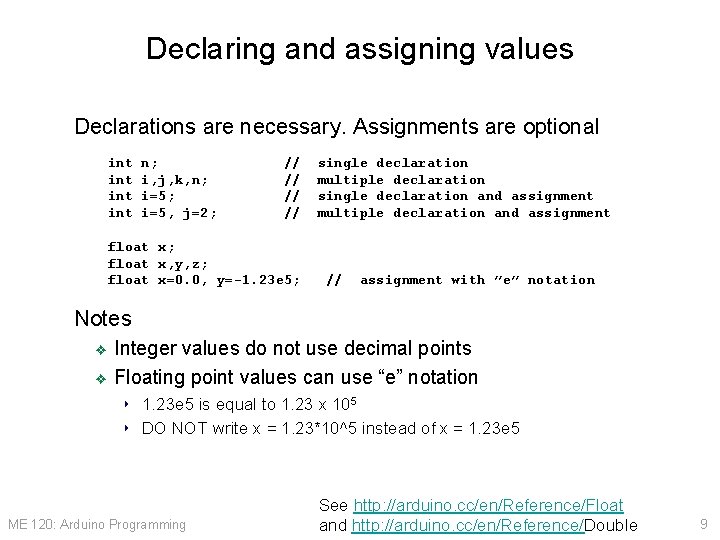
Declaring and assigning values Declarations are necessary. Assignments are optional int int n; i, j, k, n; i=5, j=2; // // float x; float x, y, z; float x=0. 0, y=-1. 23 e 5; single declaration multiple declaration single declaration and assignment multiple declaration and assignment // assignment with ”e” notation Notes Integer values do not use decimal points ❖ Floating point values can use “e” notation ❖ ‣ 1. 23 e 5 is equal to 1. 23 x 105 ‣ DO NOT write x = 1. 23*10^5 instead of x = 1. 23 e 5 ME 120: Arduino Programming See http: //arduino. cc/en/Reference/Float and http: //arduino. cc/en/Reference/Double 9
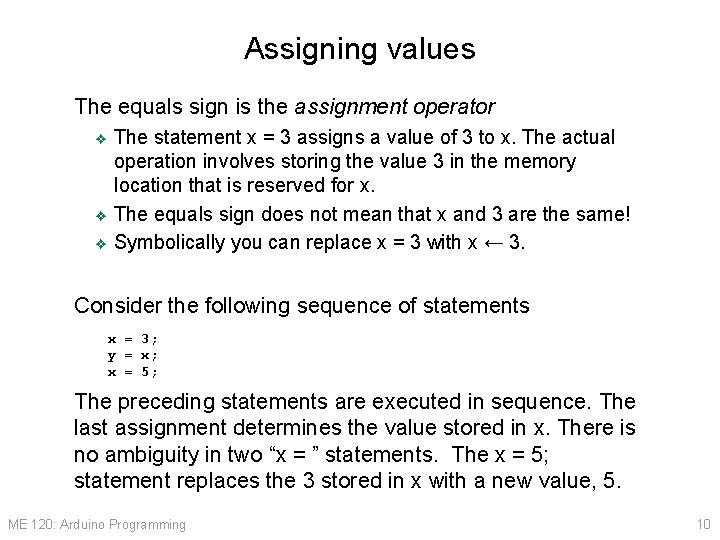
Assigning values The equals sign is the assignment operator The statement x = 3 assigns a value of 3 to x. The actual operation involves storing the value 3 in the memory location that is reserved for x. ❖ The equals sign does not mean that x and 3 are the same! ❖ Symbolically you can replace x = 3 with x ← 3. ❖ Consider the following sequence of statements x = 3; y = x; x = 5; The preceding statements are executed in sequence. The last assignment determines the value stored in x. There is no ambiguity in two “x = ” statements. The x = 5; statement replaces the 3 stored in x with a new value, 5. ME 120: Arduino Programming 10
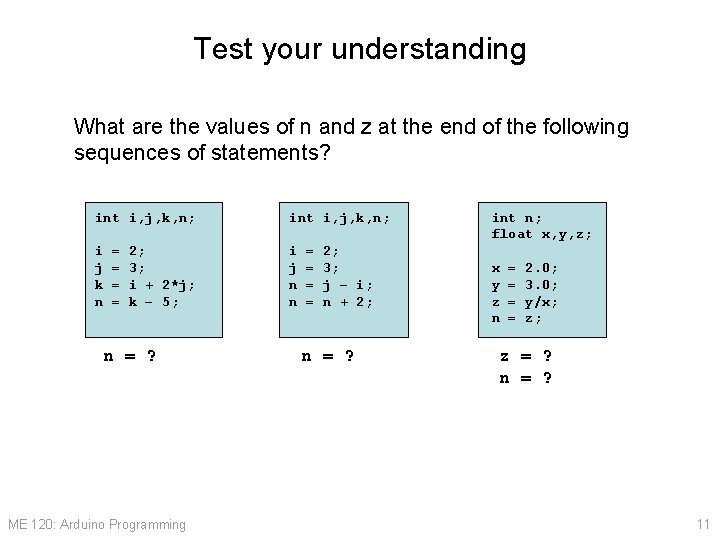
Test your understanding What are the values of n and z at the end of the following sequences of statements? int i, j, k, n; i j k n i j n n = = 2; 3; i + 2*j; k – 5; n = ? ME 120: Arduino Programming = = 2; 3; j – i; n + 2; n = ? int n; float x, y, z; x y z n = = 2. 0; 3. 0; y/x; z; z = ? n = ? 11
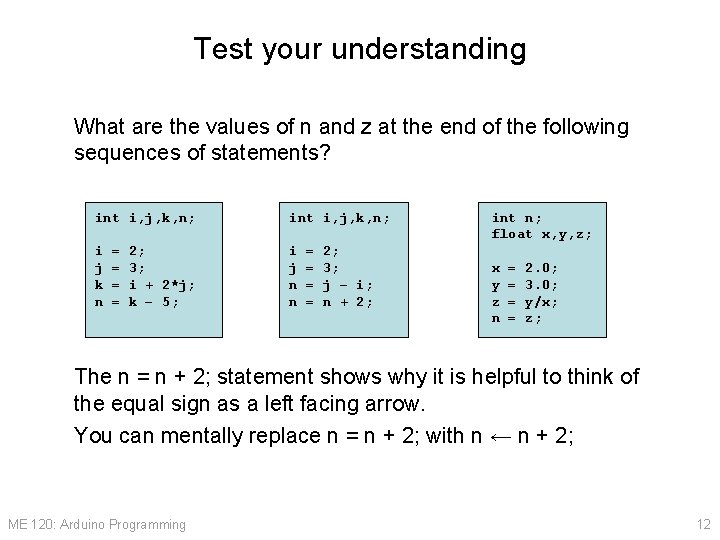
Test your understanding What are the values of n and z at the end of the following sequences of statements? int i, j, k, n; i j k n i j n n = = 2; 3; i + 2*j; k – 5; = = 2; 3; j – i; n + 2; int n; float x, y, z; x y z n = = 2. 0; 3. 0; y/x; z; The n = n + 2; statement shows why it is helpful to think of the equal sign as a left facing arrow. You can mentally replace n = n + 2; with n ← n + 2; ME 120: Arduino Programming 12
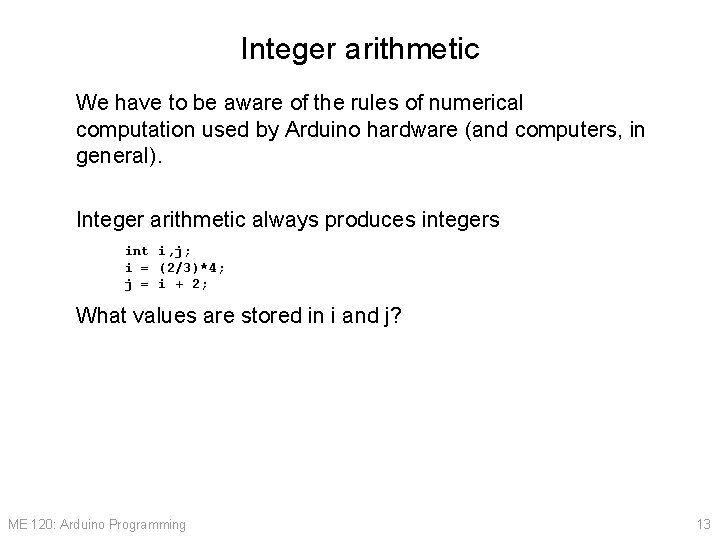
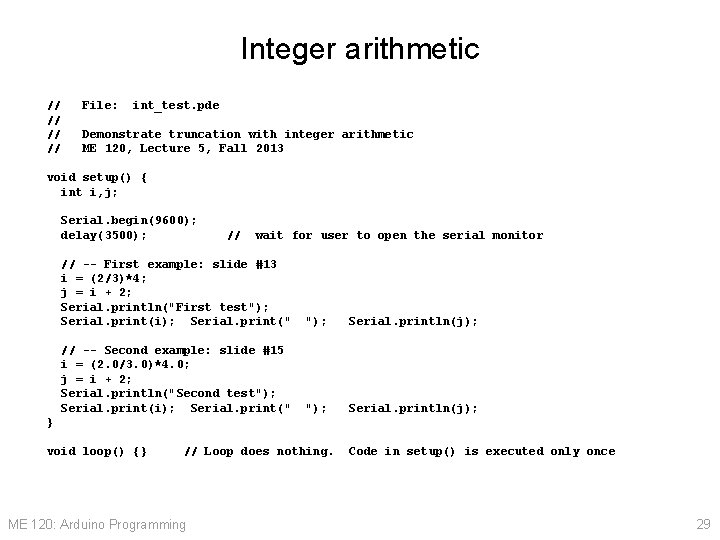
Integer arithmetic We have to be aware of the rules of numerical computation used by Arduino hardware (and computers, in general). Integer arithmetic always produces integers int i, j; i = (2/3)*4; j = i + 2; What values are stored in i and j? ME 120: Arduino Programming 13
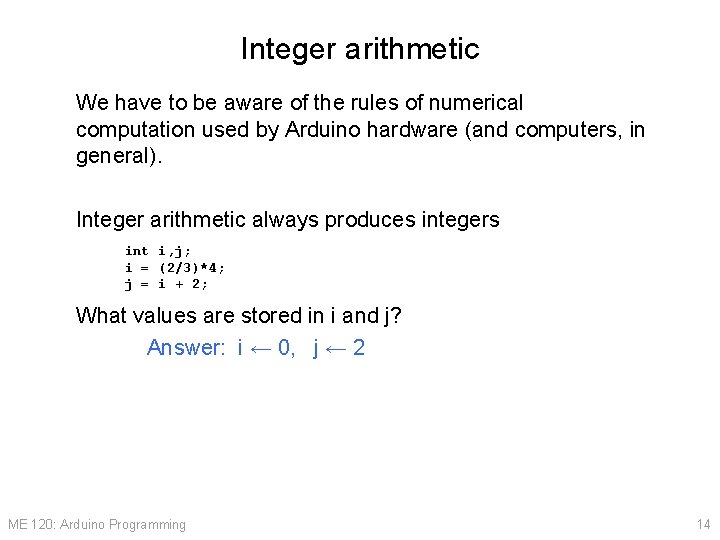
Integer arithmetic We have to be aware of the rules of numerical computation used by Arduino hardware (and computers, in general). Integer arithmetic always produces integers int i, j; i = (2/3)*4; j = i + 2; What values are stored in i and j? Answer: i ← 0, j ← 2 ME 120: Arduino Programming 14
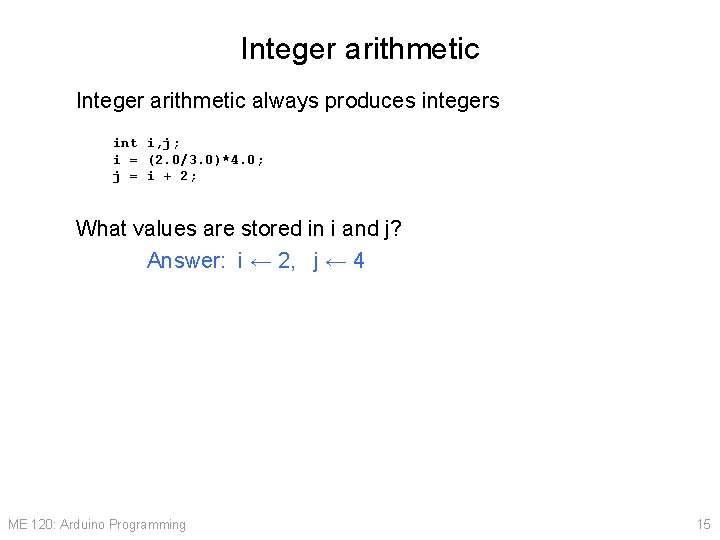
Integer arithmetic always produces integers int i, j; i = (2. 0/3. 0)*4. 0; j = i + 2; What values are stored in i and j? Answer: i ← 2, j ← 4 ME 120: Arduino Programming 15
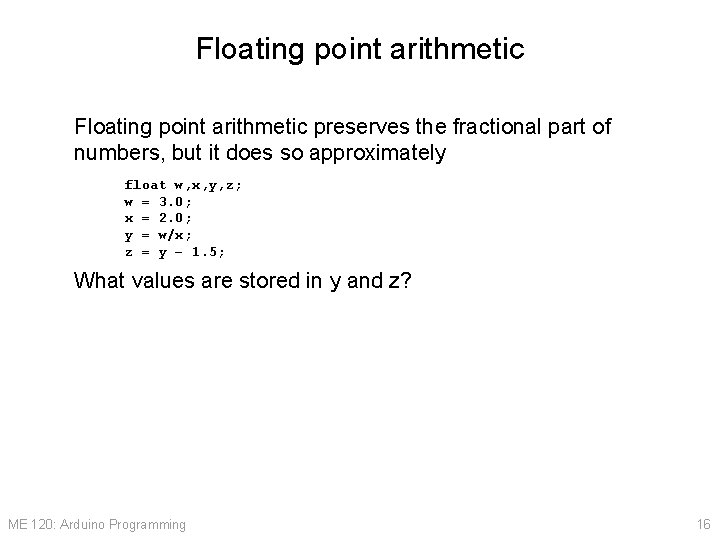
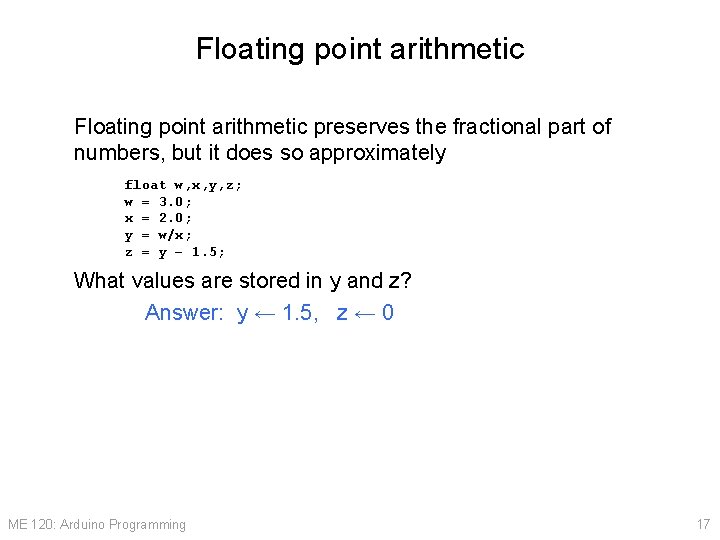
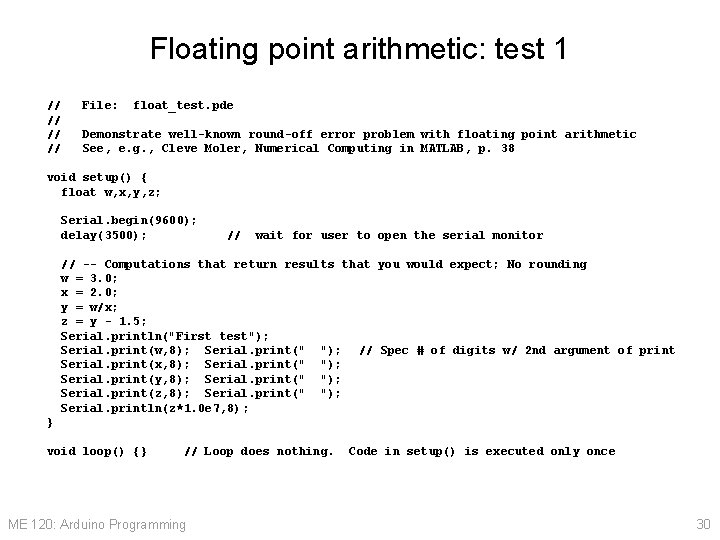
Floating point arithmetic preserves the fractional part of numbers, but it does so approximately float w, x, y, z; w = 3. 0; x = 2. 0; y = w/x; z = y – 1. 5; What values are stored in y and z? ME 120: Arduino Programming 16
Floating point arithmetic preserves the fractional part of numbers, but it does so approximately float w, x, y, z; w = 3. 0; x = 2. 0; y = w/x; z = y – 1. 5; What values are stored in y and z? Answer: y ← 1. 5, z ← 0 ME 120: Arduino Programming 17
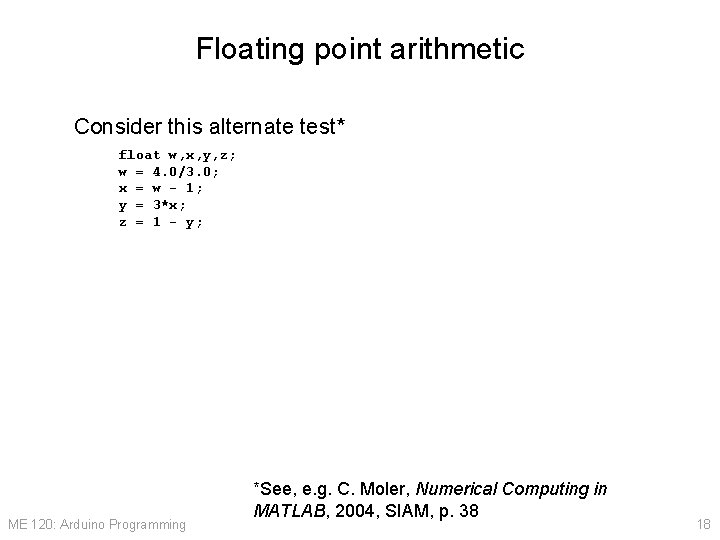
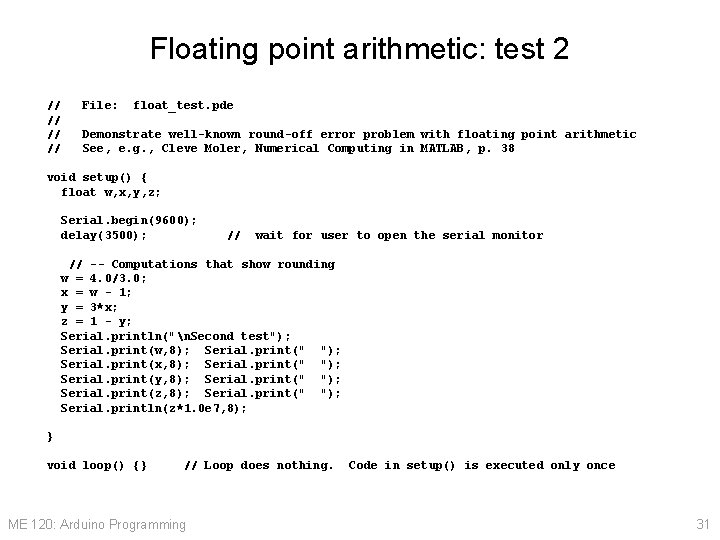
Floating point arithmetic Consider this alternate test* float w, x, y, z; w = 4. 0/3. 0; x = w - 1; y = 3*x; z = 1 - y; ME 120: Arduino Programming *See, e. g. C. Moler, Numerical Computing in MATLAB, 2004, SIAM, p. 38 18
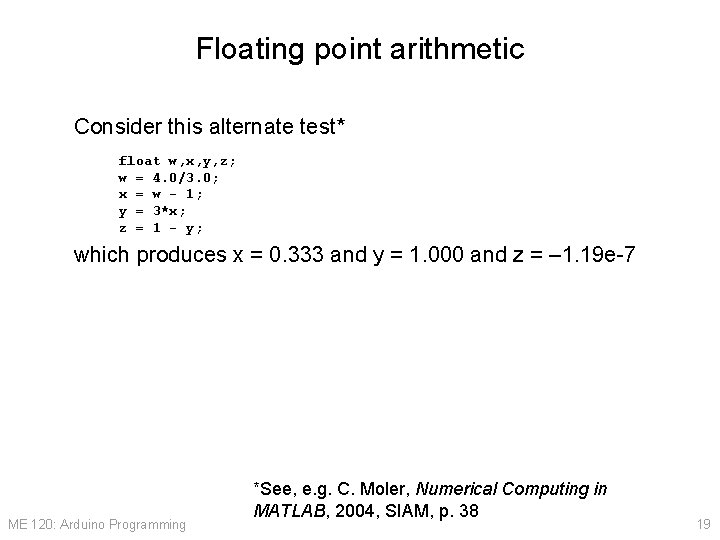
Floating point arithmetic Consider this alternate test* float w, x, y, z; w = 4. 0/3. 0; x = w - 1; y = 3*x; z = 1 - y; which produces x = 0. 333 and y = 1. 000 and z = – 1. 19 e-7 ME 120: Arduino Programming *See, e. g. C. Moler, Numerical Computing in MATLAB, 2004, SIAM, p. 38 19
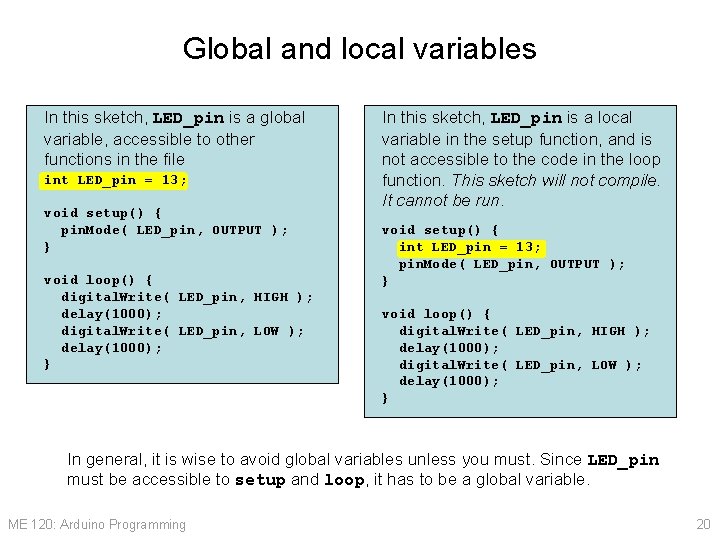
Global and local variables In this sketch, LED_pin is a global variable, accessible to other functions in the file int LED_pin = 13; void setup() { pin. Mode( LED_pin, OUTPUT ); } void loop() { digital. Write( LED_pin, HIGH ); delay(1000); digital. Write( LED_pin, LOW ); delay(1000); } In this sketch, LED_pin is a local variable in the setup function, and is not accessible to the code in the loop function. This sketch will not compile. It cannot be run. void setup() { int LED_pin = 13; pin. Mode( LED_pin, OUTPUT ); } void loop() { digital. Write( LED_pin, HIGH ); delay(1000); digital. Write( LED_pin, LOW ); delay(1000); } In general, it is wise to avoid global variables unless you must. Since LED_pin must be accessible to setup and loop, it has to be a global variable. ME 120: Arduino Programming 20
Built-in Arduino functions ME 120: Arduino Programming 21
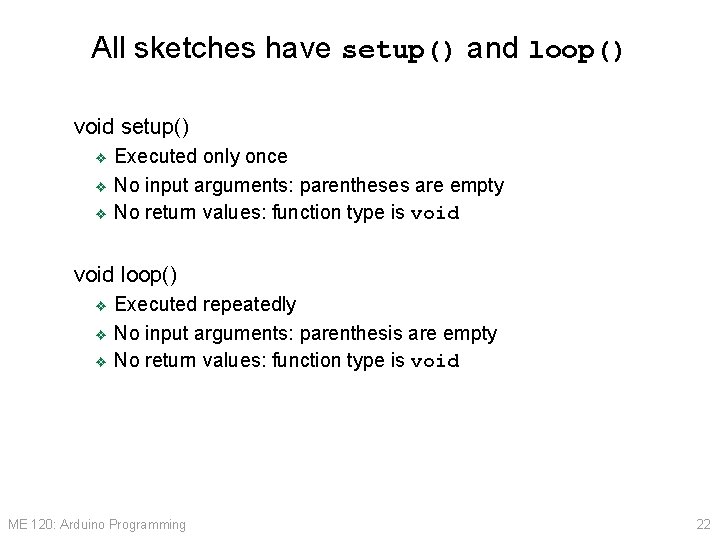
All sketches have setup() and loop() void setup() Executed only once ❖ No input arguments: parentheses are empty ❖ No return values: function type is void ❖ void loop() Executed repeatedly ❖ No input arguments: parenthesis are empty ❖ No return values: function type is void ❖ ME 120: Arduino Programming 22
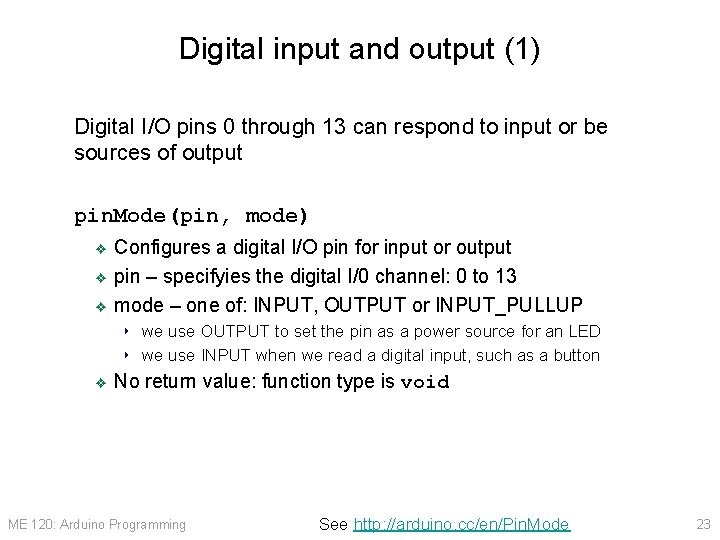
Digital input and output (1) Digital I/O pins 0 through 13 can respond to input or be sources of output pin. Mode(pin, mode) Configures a digital I/O pin for input or output ❖ pin – specifyies the digital I/0 channel: 0 to 13 ❖ mode – one of: INPUT, OUTPUT or INPUT_PULLUP ❖ ‣ we use OUTPUT to set the pin as a power source for an LED ‣ we use INPUT when we read a digital input, such as a button ❖ No return value: function type is void ME 120: Arduino Programming See http: //arduino. cc/en/Pin. Mode 23
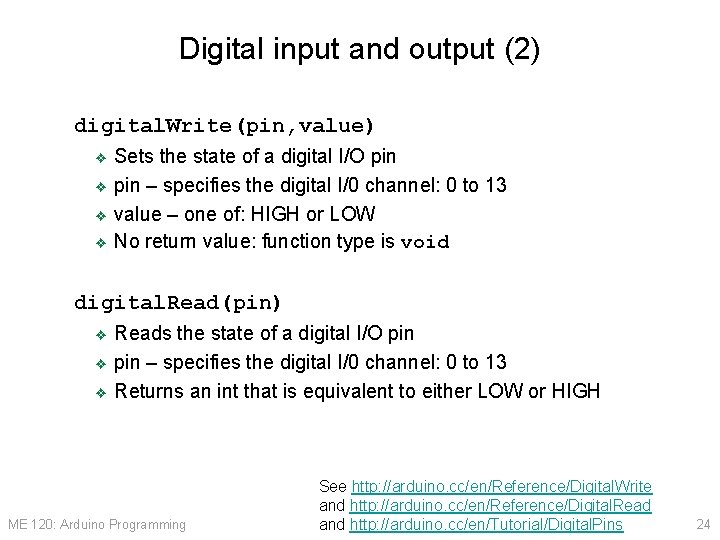
Digital input and output (2) digital. Write(pin, value) Sets the state of a digital I/O pin ❖ pin – specifies the digital I/0 channel: 0 to 13 ❖ value – one of: HIGH or LOW ❖ No return value: function type is void ❖ digital. Read(pin) Reads the state of a digital I/O pin ❖ pin – specifies the digital I/0 channel: 0 to 13 ❖ Returns an int that is equivalent to either LOW or HIGH ❖ ME 120: Arduino Programming See http: //arduino. cc/en/Reference/Digital. Write and http: //arduino. cc/en/Reference/Digital. Read and http: //arduino. cc/en/Tutorial/Digital. Pins 24
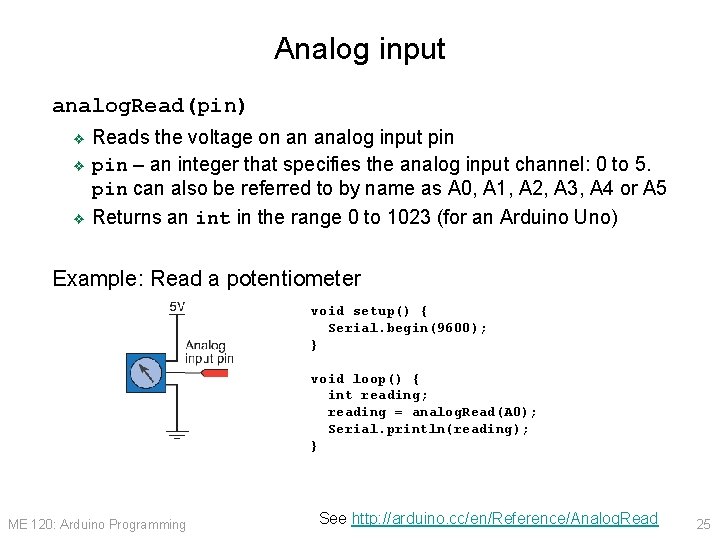
Analog input analog. Read(pin) Reads the voltage on an analog input pin ❖ pin – an integer that specifies the analog input channel: 0 to 5. pin can also be referred to by name as A 0, A 1, A 2, A 3, A 4 or A 5 ❖ Returns an int in the range 0 to 1023 (for an Arduino Uno) ❖ Example: Read a potentiometer void setup() { Serial. begin(9600); } void loop() { int reading; reading = analog. Read(A 0); Serial. println(reading); } ME 120: Arduino Programming See http: //arduino. cc/en/Reference/Analog. Read 25
Serial communication with host computer (1) Serial. begin(speed) ❖ Initializes the Serial port at speed. Typical speed is 9600 Serial. print(value) Sends value to the serial port ❖ value can be a single number or a character string ❖ No newline after value is sent ❖ Serial. println(value) Sends value to the serial port ❖ value can be a single number or a character string ❖ Add a newline after value is sent ❖ ME 120: Arduino Programming See http: //arduino. cc/en/Reference/Analog. Read 26
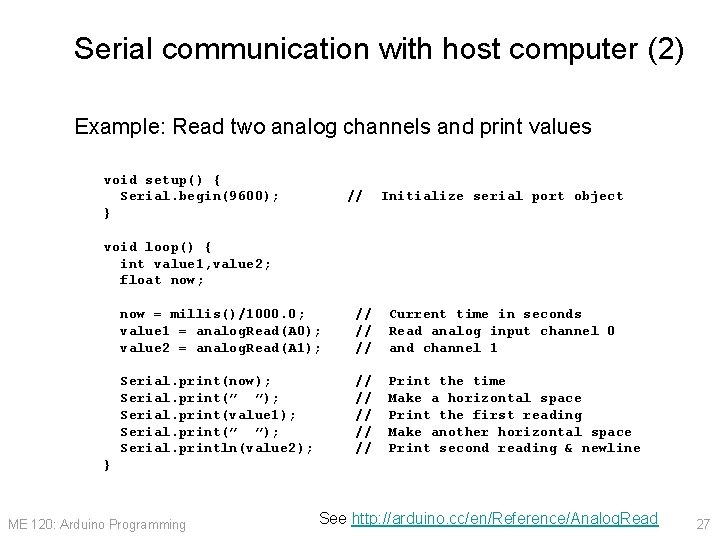
Serial communication with host computer (2) Example: Read two analog channels and print values void setup() { Serial. begin(9600); } // Initialize serial port object void loop() { int value 1, value 2; float now; now = millis()/1000. 0; value 1 = analog. Read(A 0); value 2 = analog. Read(A 1); // // // Current time in seconds Read analog input channel 0 and channel 1 Serial. print(now); Serial. print(” ”); Serial. print(value 1); Serial. print(” ”); Serial. println(value 2); // // // Print the time Make a horizontal space Print the first reading Make another horizontal space Print second reading & newline } ME 120: Arduino Programming See http: //arduino. cc/en/Reference/Analog. Read 27
Codes to demonstrate integer and floating point arithmetic ME 120: Arduino Programming 28
Integer arithmetic // // File: int_test. pde Demonstrate truncation with integer arithmetic ME 120, Lecture 5, Fall 2013 void setup() { int i, j; Serial. begin(9600); delay(3500); // wait for user to open the serial monitor // -- First example: slide #13 i = (2/3)*4; j = i + 2; Serial. println("First test"); Serial. print(i); Serial. print(" "); Serial. println(j); // -- Second example: slide #15 i = (2. 0/3. 0)*4. 0; j = i + 2; Serial. println("Second test"); Serial. print(i); Serial. print(" "); Serial. println(j); } void loop() {} // Loop does nothing. ME 120: Arduino Programming Code in setup() is executed only once 29
Floating point arithmetic: test 1 // // File: float_test. pde Demonstrate well-known round-off error problem with floating point arithmetic See, e. g. , Cleve Moler, Numerical Computing in MATLAB, p. 38 void setup() { float w, x, y, z; Serial. begin(9600); delay(3500); // wait for user to open the serial monitor // -- Computations that return results that you would expect; No rounding w = 3. 0; x = 2. 0; y = w/x; z = y - 1. 5; Serial. println("First test"); Serial. print(w, 8); Serial. print(" "); // Spec # of digits w/ 2 nd argument of print Serial. print(x, 8); Serial. print(" "); Serial. print(y, 8); Serial. print(" "); Serial. print(z, 8); Serial. print(" "); Serial. println(z*1. 0 e 7, 8) ; } void loop() {} // Loop does nothing. ME 120: Arduino Programming Code in setup() is executed only once 30
Floating point arithmetic: test 2 // // File: float_test. pde Demonstrate well-known round-off error problem with floating point arithmetic See, e. g. , Cleve Moler, Numerical Computing in MATLAB, p. 38 void setup() { float w, x, y, z; Serial. begin(9600); delay(3500); // wait for user to open the serial monitor // -- Computations that show rounding w = 4. 0/3. 0; x = w - 1; y = 3*x; z = 1 - y; Serial. println("n. Second test"); Serial. print(w, 8); Serial. print(" "); Serial. print(x, 8); Serial. print(" "); Serial. print(y, 8); Serial. print(" "); Serial. print(z, 8); Serial. print(" "); Serial. println(z*1. 0 e 7, 8); } void loop() {} // Loop does nothing. ME 120: Arduino Programming Code in setup() is executed only once 31