
APXTM TWOWAY RADIOS APX 6500 O 5 CONTROL
- Slides: 56
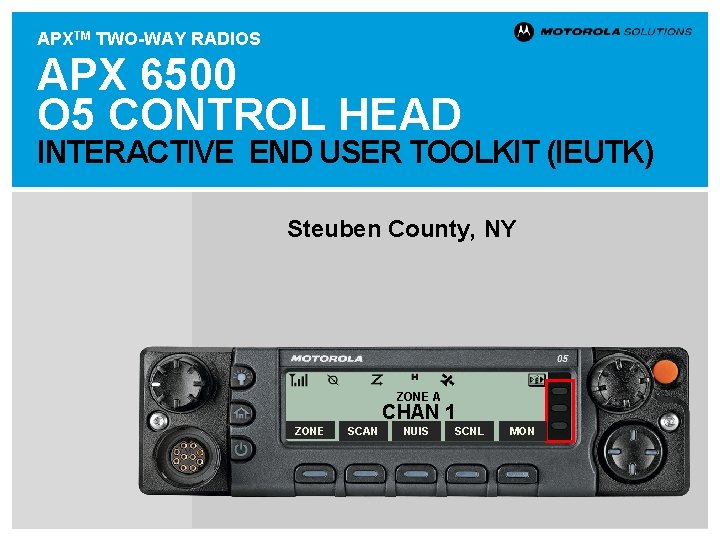
APXTM TWO-WAY RADIOS APX 6500 O 5 CONTROL HEAD INTERACTIVE END USER TOOLKIT (IEUTK) Steuben County, NY ZONE A CHAN 1 ZONE SCAN NUIS SCNL MON
APX 6500 O 5 CH DECLARATION OF CONFORMITY This declaration is applicable to your radio only if your radio is labeled with the FCC logo shown below. DECLARATION OF CONFORMITY Per FCC CFR 47 Part 2 Section 2. 1077(a) Responsible Party Name: Motorola Solutions, Inc. Address: Motorola Solutions, Inc. , 1303 East Algonquin Road Schaumburg, IL 60196, U. S. A. Phone Number: 1 -800 -927 -2744 Hereby declares that the product: Model Name: APX 6500 conforms to the following regulations: FCC Part 15, subpart B, section 15. 107(a), 15. 107(d) and section 15. 109(a) Class B Digital Device As a personal computer peripheral, this device complies with Part 15 of the FCC Rules. This device complies with Industry Canada license-exempt RSS standard(s). Operation is subject to the following two conditions: 1. This device may not cause harmful interference, and 2. This device must accept any interference received, including interference that may cause undesired operation. 2 CONTENTS < PREV NEXT >
APX 6500 O 5 CH DECLARATION OF CONFORMITY Note: This equipment has been tested and found to comply with the limits for a Class B digital device, pursuant to part 15 of the FCC Rules. These limits are designed to provide reasonable protection against harmful interference in a residential installation. This equipment generates, uses and can radiate radio frequency energy and, if not installed and used in accordance with the instructions, may cause harmful interference to radio communications. However, there is no guarantee that interference will not occur in a particular installation. If this equipment does cause harmful interference to radio or television reception, which can be determined by turning the equipment off and on, the user is encouraged to try to correct the interference by one or more of the following measures: • Reorient or relocate the receiving antenna. • Increase the separation between the equipment and receiver. • Connect the equipment into an outlet on a circuit different from that to which the receiver is connected. • Consult the dealer or an experienced radio/TV technician for help. 3 CONTENTS < PREV NEXT >
APX 6500 O 5 CH RF ENERGY EXPOSURE TRAINING AND PRODUCT SAFETY INFORMATION Compliance with RF Exposure Standards National and international regulations require manufacturers to comply with the RF energy exposure limits for portable two-way radios before they can be marketed. Your Motorola Solutions two-way radio is designed, manufactured, and tested to comply with all applicable national and international regulations for human exposure to radio frequency electromagnetic energy. When two-way radios are used as a consequence of employment, applicable regulations may require users to be fully aware of and able to control their exposure to meet occupational requirements. RF Energy Exposure Awareness and Control Information and Operational Instructions for Occupational Use Note: This radio is intended for use in occupational/controlled conditions where users are aware of their exposure and can exercise control over their exposure to meet the requirements in national and international regulations. This radio device is not authorized for general population, consumer use. For more information on what RF energy exposure is, and how to control your exposure to ensure compliance with established RF exposure limits, consult the following websites: • https: //www. fcc. gov/ • https: //www. osha. gov/ • https: //osha. europa. eu/en • http: //www. who. int/peh-emf/project/en/ For additional user training information on exposure requirements, consult the following websites: • https: //www. motorolasolutions. com/en_us/about/company-overview/corporateresponsibility/governance-and-policies/wirelesscommunication-and-healthfaqs. html • http: //learning. motorolasolutions. com/ 4 CONTENTS < PREV NEXT >
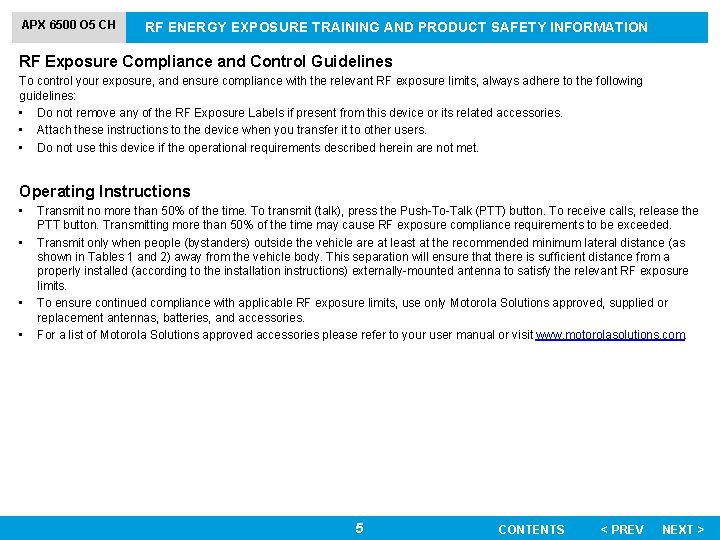
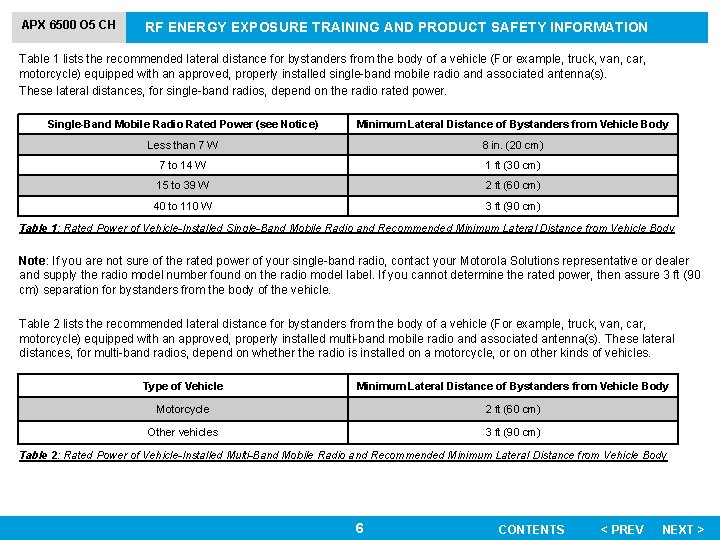
APX 6500 O 5 CH RF ENERGY EXPOSURE TRAINING AND PRODUCT SAFETY INFORMATION RF Exposure Compliance and Control Guidelines To control your exposure, and ensure compliance with the relevant RF exposure limits, always adhere to the following guidelines: • Do not remove any of the RF Exposure Labels if present from this device or its related accessories. • Attach these instructions to the device when you transfer it to other users. • Do not use this device if the operational requirements described herein are not met. Operating Instructions • • Transmit no more than 50% of the time. To transmit (talk), press the Push-To-Talk (PTT) button. To receive calls, release the PTT button. Transmitting more than 50% of the time may cause RF exposure compliance requirements to be exceeded. Transmit only when people (bystanders) outside the vehicle are at least at the recommended minimum lateral distance (as shown in Tables 1 and 2) away from the vehicle body. This separation will ensure that there is sufficient distance from a properly installed (according to the installation instructions) externally-mounted antenna to satisfy the relevant RF exposure limits. To ensure continued compliance with applicable RF exposure limits, use only Motorola Solutions approved, supplied or replacement antennas, batteries, and accessories. For a list of Motorola Solutions approved accessories please refer to your user manual or visit www. motorolasolutions. com. 5 CONTENTS < PREV NEXT >
APX 6500 O 5 CH RF ENERGY EXPOSURE TRAINING AND PRODUCT SAFETY INFORMATION Table 1 lists the recommended lateral distance for bystanders from the body of a vehicle (For example, truck, van, car, motorcycle) equipped with an approved, properly installed single-band mobile radio and associated antenna(s). These lateral distances, for single-band radios, depend on the radio rated power. Single-Band Mobile Radio Rated Power (see Notice) Minimum Lateral Distance of Bystanders from Vehicle Body Less than 7 W 8 in. (20 cm) 7 to 14 W 1 ft (30 cm) 15 to 39 W 2 ft (60 cm) 40 to 110 W 3 ft (90 cm) Table 1: Rated Power of Vehicle-Installed Single-Band Mobile Radio and Recommended Minimum Lateral Distance from Vehicle Body Note: If you are not sure of the rated power of your single-band radio, contact your Motorola Solutions representative or dealer and supply the radio model number found on the radio model label. If you cannot determine the rated power, then assure 3 ft (90 cm) separation for bystanders from the body of the vehicle. Table 2 lists the recommended lateral distance for bystanders from the body of a vehicle (For example, truck, van, car, motorcycle) equipped with an approved, properly installed multi-band mobile radio and associated antenna(s). These lateral distances, for multi-band radios, depend on whether the radio is installed on a motorcycle, or on other kinds of vehicles. Type of Vehicle Minimum Lateral Distance of Bystanders from Vehicle Body Motorcycle 2 ft (60 cm) Other vehicles 3 ft (90 cm) Table 2: Rated Power of Vehicle-Installed Multi-Band Mobile Radio and Recommended Minimum Lateral Distance from Vehicle Body 6 CONTENTS < PREV NEXT >
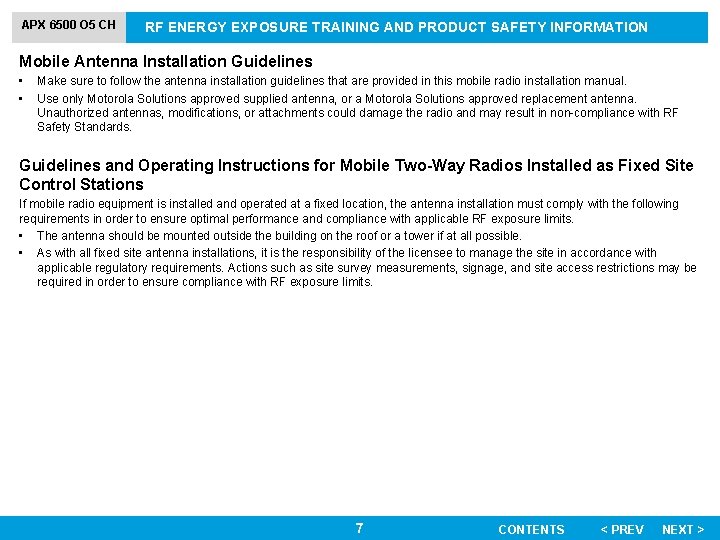
APX 6500 O 5 CH RF ENERGY EXPOSURE TRAINING AND PRODUCT SAFETY INFORMATION Mobile Antenna Installation Guidelines • • Make sure to follow the antenna installation guidelines that are provided in this mobile radio installation manual. Use only Motorola Solutions approved supplied antenna, or a Motorola Solutions approved replacement antenna. Unauthorized antennas, modifications, or attachments could damage the radio and may result in non-compliance with RF Safety Standards. Guidelines and Operating Instructions for Mobile Two-Way Radios Installed as Fixed Site Control Stations If mobile radio equipment is installed and operated at a fixed location, the antenna installation must comply with the following requirements in order to ensure optimal performance and compliance with applicable RF exposure limits. • The antenna should be mounted outside the building on the roof or a tower if at all possible. • As with all fixed site antenna installations, it is the responsibility of the licensee to manage the site in accordance with applicable regulatory requirements. Actions such as site survey measurements, signage, and site access restrictions may be required in order to ensure compliance with RF exposure limits. 7 CONTENTS < PREV NEXT >
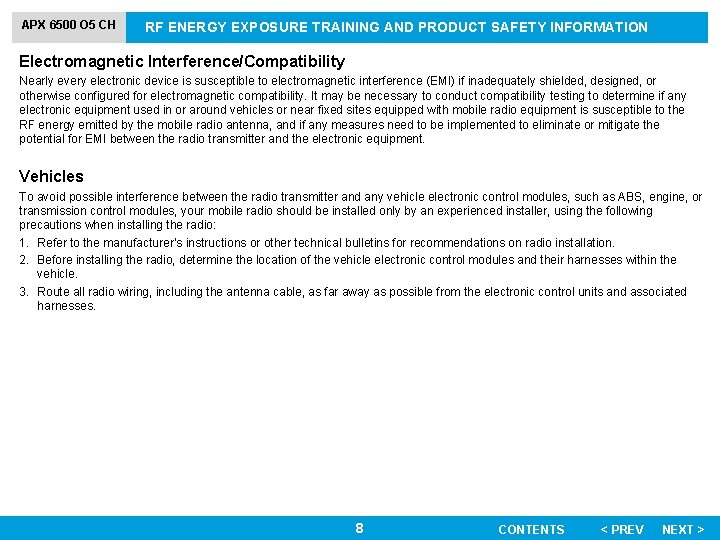
APX 6500 O 5 CH RF ENERGY EXPOSURE TRAINING AND PRODUCT SAFETY INFORMATION Electromagnetic Interference/Compatibility Nearly every electronic device is susceptible to electromagnetic interference (EMI) if inadequately shielded, designed, or otherwise configured for electromagnetic compatibility. It may be necessary to conduct compatibility testing to determine if any electronic equipment used in or around vehicles or near fixed sites equipped with mobile radio equipment is susceptible to the RF energy emitted by the mobile radio antenna, and if any measures need to be implemented to eliminate or mitigate the potential for EMI between the radio transmitter and the electronic equipment. Vehicles To avoid possible interference between the radio transmitter and any vehicle electronic control modules, such as ABS, engine, or transmission control modules, your mobile radio should be installed only by an experienced installer, using the following precautions when installing the radio: 1. Refer to the manufacturer’s instructions or other technical bulletins for recommendations on radio installation. 2. Before installing the radio, determine the location of the vehicle electronic control modules and their harnesses within the vehicle. 3. Route all radio wiring, including the antenna cable, as far away as possible from the electronic control units and associated harnesses. 8 CONTENTS < PREV NEXT >
APX 6500 O 5 CH RF ENERGY EXPOSURE TRAINING AND PRODUCT SAFETY INFORMATION Operational Warnings The following explains the operational warnings: • For Vehicle With Air Bags – Refer to vehicle manufacturer's manual prior to installation of electronic equipment to avoid interference with air bag wiring. – DO NOT place a portable radio in the area over an air bag or in the air bag deployment area. Air bags inflate with great force. If a portable radio is placed in the air bag deployment area and the air bag inflates, the radio may be propelled with great force and cause serious injury to occupants of the vehicle. • Potentially Explosive Atmospheres – Use of a radio that is not intrinsically safe in a potentially explosive atmosphere could result in a serious injury or death. You should only use a certified Intrinsically Safe radio in potentially explosive atmospheres. – Explosive atmospheres refer to hazard classified locations that may contain hazardous gas, vapors, dusts, such as fueling areas below decks on boats, fuel or chemical transferor storage facilities, and areas where the air contains chemicals or particles such as grain, dust or metal powders. Areas with potentially explosive atmospheres are often, but not always, posted. – Turn off your radio prior to entering any area with a potentially explosive atmosphere unless it is a radio type specifically certified for use in hazardous location areas. – DO NOT remove, install, or charge batteries in such areas, or remove or install antennas. Sparks in a potentially explosive atmosphere can cause an explosion or fire resulting in bodily injury or even death. • Blasting Caps and Blasting Areas To avoid possible interference with blasting operations, turn off your radio when you are near electrical blasting caps, in a blasting area, or in areas posted: “Turn off two-way radio. ” Obey all signs and instructions. 9 CONTENTS < PREV NEXT >
APX 6500 O 5 CH RF ENERGY EXPOSURE TRAINING AND PRODUCT SAFETY INFORMATION Batteries If your mobile radio is equipped with a primary or backup battery, you must follow these instructions: • Charge your battery using the approved Motorola Solutions charger. • Use the battery in accordance with its water and/or dust Ingress Protection (IP) rating. • Do not discard your battery into a fire. • Do not replace the battery in any area labeled "Hazardous Atmosphere". • Do not disassemble, crush, puncture, shred, or otherwise attempt to change the form of your battery. • Do not dry a wet or damp battery with an appliance or heat source, such as a hair dryer or microwave oven. • Do not allow conductive material such as jewelry, keys, or beaded chains to touch exposed battery terminals. European Union(EU) Waste of Electrical and Electronic Equipment (WEEE) Directive The European Union's WEEE directive requires that products sold into EU countries must have the crossed out trash bin label on the product (or the package in some cases). As defined by the WEEE directive, this cross-out trash bin label means that customers and end-users in EU countries should not dispose of electronic and electrical equipment or accessories in household waste. Customers or end-users in EU countries should contact their local equipment supplier representative or service centre for information about the waste collection system in their country. 10 CONTENTS < PREV NEXT >
APX 6500 O 5 CH SOFTWARE VERSION All the features described in the following sections are supported by the radio's software version R 15. 00 or later. See Accessing Radio Information to determine your radio's software version. Check with your dealer or system administrator for more details of all the features supported. Notice to Users (FCC and Industry Canada) This device complies with Part 15 of the FCC rules and RSS 247 of the Industry Canada rules per the following conditions: 1. This device may not cause harmful interference. 2. This device must accept any interference received, including interference that may cause undesired operation. 3. Changes or modifications made to this device, not expressly approved by Motorola Solutions, could void the user's authority to operate this equipment. 11 CONTENTS < PREV NEXT >
APX 6500 O 5 CH COPYRIGHTS AND DISCLAIMER Computer Software Copyrights The Motorola products described in this manual may include copyrighted Motorola computer programs stored in semiconductor memories or other media. Laws in the United States and other countries preserve for Motorola certain exclusive rights for copyrighted computer programs including, but not limited to, the exclusive right to copy or reproduce in any form the copyrighted computer program. Accordingly, any copyrighted Motorola computer programs contained in the Motorola products described in this manual may not be copied, reproduced, modified, reverse-engineered, or distributed in any manner without the express written permission of Motorola. Furthermore, the purchase of Motorola products shall not be deemed to grant either directly or by implication, estoppels, or otherwise, any license under the copyrights, patents or patent applications of Motorola, except for the normal non-exclusive license to use that arises by operation of law in the sale of a product. Documentation Copyrights No duplication or distribution of this document or any portion thereof shall take place without the express written permission of Motorola. No part of this manual may be reproduced, distributed, or transmitted in any form or by any means, electronic or mechanical, for any purpose without the express written permission of Motorola. Disclaimer The information in this document is carefully examined, and is believed to be entirely reliable. However, no responsibility is assumed for inaccuracies. Furthermore, Motorola reserves the right to make changes to any products herein to improve readability, function, or design. Motorola does not assume any liability arising out of the applications or use of any product or circuit described herein; nor does it cover any license under its patent rights, nor the rights of others. 12 CONTENTS < PREV NEXT >
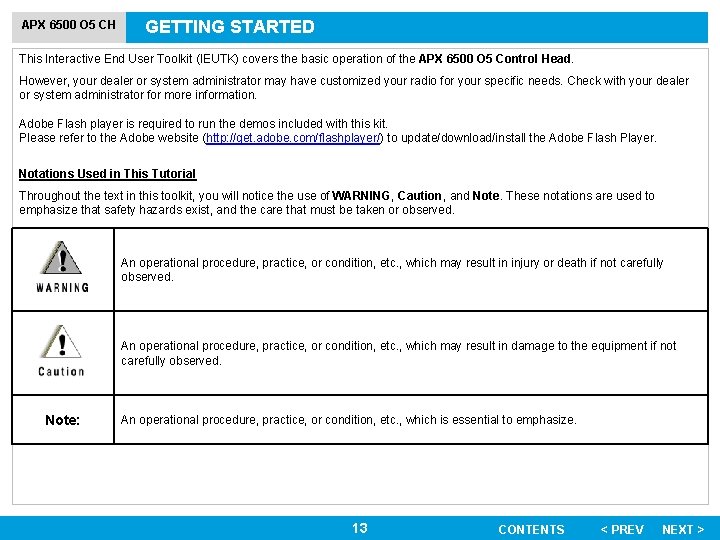
APX 6500 O 5 CH GETTING STARTED This Interactive End User Toolkit (IEUTK) covers the basic operation of the APX 6500 O 5 Control Head. However, your dealer or system administrator may have customized your radio for your specific needs. Check with your dealer or system administrator for more information. Adobe Flash player is required to run the demos included with this kit. Please refer to the Adobe website (http: //get. adobe. com/flashplayer/) to update/download/install the Adobe Flash Player. Notations Used in This Tutorial Throughout the text in this toolkit, you will notice the use of WARNING, Caution, and Note. These notations are used to emphasize that safety hazards exist, and the care that must be taken or observed. An operational procedure, practice, or condition, etc. , which may result in injury or death if not carefully observed. An operational procedure, practice, or condition, etc. , which may result in damage to the equipment if not carefully observed. Note: An operational procedure, practice, or condition, etc. , which is essential to emphasize. 13 CONTENTS < PREV NEXT >
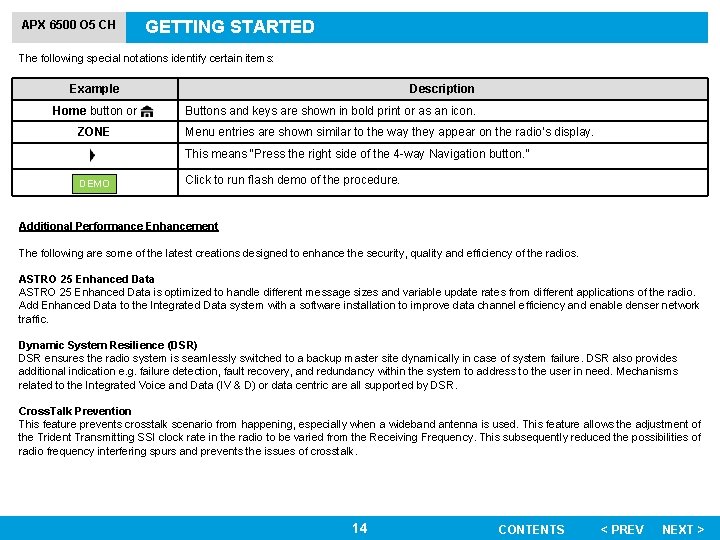
APX 6500 O 5 CH GETTING STARTED The following special notations identify certain items: Example Home button or ZONE Description Buttons and keys are shown in bold print or as an icon. Menu entries are shown similar to the way they appear on the radio’s display. This means “Press the right side of the 4 -way Navigation button. ” DEMO Click to run flash demo of the procedure. Additional Performance Enhancement The following are some of the latest creations designed to enhance the security, quality and efficiency of the radios. ASTRO 25 Enhanced Data is optimized to handle different message sizes and variable update rates from different applications of the radio. Add Enhanced Data to the Integrated Data system with a software installation to improve data channel efficiency and enable denser network traffic. Dynamic System Resilience (DSR) DSR ensures the radio system is seamlessly switched to a backup master site dynamically in case of system failure. DSR also provides additional indication e. g. failure detection, fault recovery, and redundancy within the system to address to the user in need. Mechanisms related to the Integrated Voice and Data (IV & D) or data centric are all supported by DSR. Cross. Talk Prevention This feature prevents crosstalk scenario from happening, especially when a wideband antenna is used. This feature allows the adjustment of the Trident Transmitting SSI clock rate in the radio to be varied from the Receiving Frequency. This subsequently reduced the possibilities of radio frequency interfering spurs and prevents the issues of crosstalk. 14 CONTENTS < PREV NEXT >
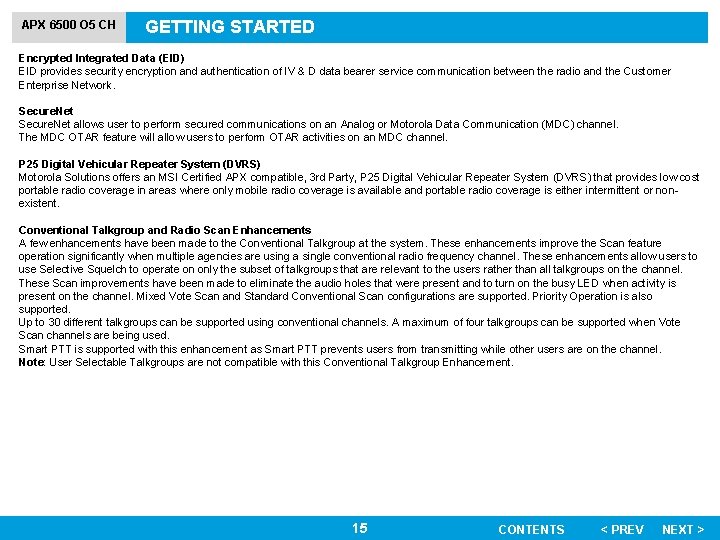
APX 6500 O 5 CH GETTING STARTED Encrypted Integrated Data (EID) EID provides security encryption and authentication of IV & D data bearer service communication between the radio and the Customer Enterprise Network. Secure. Net allows user to perform secured communications on an Analog or Motorola Data Communication (MDC) channel. The MDC OTAR feature will allow users to perform OTAR activities on an MDC channel. P 25 Digital Vehicular Repeater System (DVRS) Motorola Solutions offers an MSI Certified APX compatible, 3 rd Party, P 25 Digital Vehicular Repeater System (DVRS) that provides low cost portable radio coverage in areas where only mobile radio coverage is available and portable radio coverage is either intermittent or nonexistent. Conventional Talkgroup and Radio Scan Enhancements A few enhancements have been made to the Conventional Talkgroup at the system. These enhancements improve the Scan feature operation significantly when multiple agencies are using a single conventional radio frequency channel. These enhancements allow users to use Selective Squelch to operate on only the subset of talkgroups that are relevant to the users rather than all talkgroups on the channel. These Scan improvements have been made to eliminate the audio holes that were present and to turn on the busy LED when activity is present on the channel. Mixed Vote Scan and Standard Conventional Scan configurations are supported. Priority Operation is also supported. Up to 30 different talkgroups can be supported using conventional channels. A maximum of four talkgroups can be supported when Vote Scan channels are being used. Smart PTT is supported with this enhancement as Smart PTT prevents users from transmitting while other users are on the channel. Note: User Selectable Talkgroups are not compatible with this Conventional Talkgroup Enhancement. 15 CONTENTS < PREV NEXT >
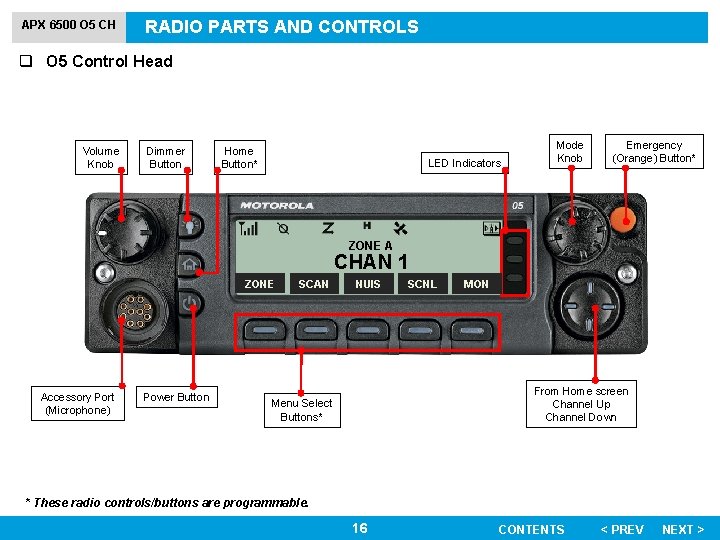
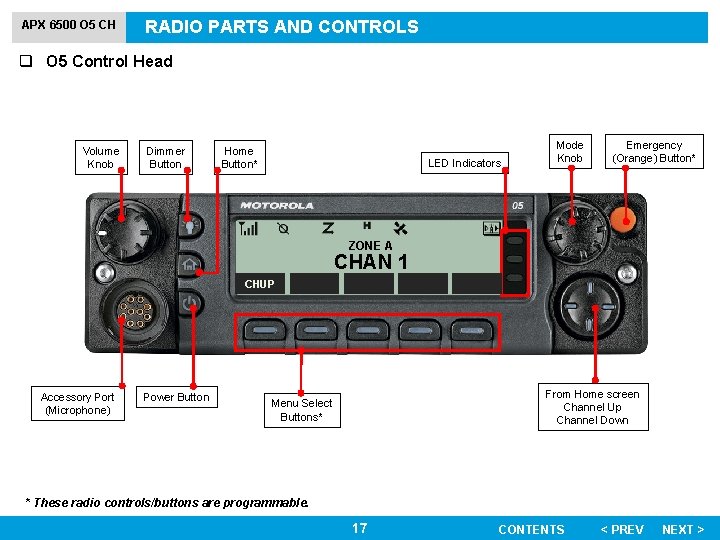
APX 6500 O 5 CH RADIO PARTS AND CONTROLS q O 5 Control Head Volume Knob Dimmer Button Home Button* LED Indicators Mode Knob Emergency (Orange) Button* ZONE A CHAN 1 ZONE Accessory Port (Microphone) Power Button SCAN NUIS SCNL MON From Home screen Channel Up Channel Down Menu Select Buttons* * These radio controls/buttons are programmable. 16 CONTENTS < PREV NEXT >
APX 6500 O 5 CH RADIO PARTS AND CONTROLS q O 5 Control Head Volume Knob Dimmer Button Home Button* LED Indicators Mode Knob Emergency (Orange) Button* ZONE A CHAN 1 CHUP Accessory Port (Microphone) Power Button From Home screen Channel Up Channel Down Menu Select Buttons* * These radio controls/buttons are programmable. 17 CONTENTS < PREV NEXT >
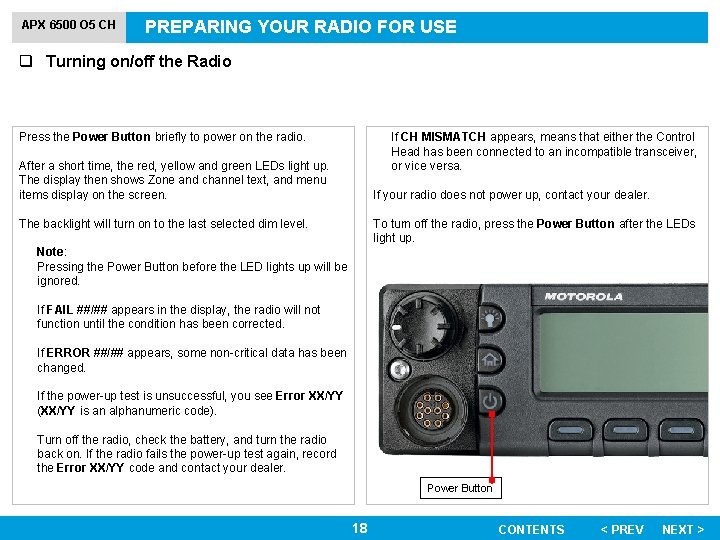
APX 6500 O 5 CH PREPARING YOUR RADIO FOR USE q Turning on/off the Radio Press the Power Button briefly to power on the radio. If CH MISMATCH appears, means that either the Control Head has been connected to an incompatible transceiver, or vice versa. After a short time, the red, yellow and green LEDs light up. The display then shows Zone and channel text, and menu items display on the screen. If your radio does not power up, contact your dealer. The backlight will turn on to the last selected dim level. To turn off the radio, press the Power Button after the LEDs light up. Note: Pressing the Power Button before the LED lights up will be ignored. If FAIL ##/## appears in the display, the radio will not function until the condition has been corrected. If ERROR ##/## appears, some non-critical data has been changed. If the power-up test is unsuccessful, you see Error XX/YY (XX/YY is an alphanumeric code). Turn off the radio, check the battery, and turn the radio back on. If the radio fails the power-up test again, record the Error XX/YY code and contact your dealer. Power Button 18 CONTENTS < PREV NEXT >
APX 6500 O 5 CH PREPARING YOUR RADIO FOR USE q Validating Compatibility During Power Up The radio validates and updates the software and hardware of your control head(s) during power up. Follow the procedure below when your radio runs this task. Procedure: 1 The display shows MAINTENANCE MODE REMOTE DEVICE; promptly followed by other maintenance statuses. 2 The display shows UPDATE DONE PLEASE RESET upon completion. OR The display shows UPDATE FAILED PLEASE RESET when it fails to update. 3 Press the Power Button to reset. The radio runs the usual power up operation if the software updates are complete. OR The radio runs the Maintenance Mode if the updates are not complete and repeat step 1. 19 CONTENTS < PREV NEXT >
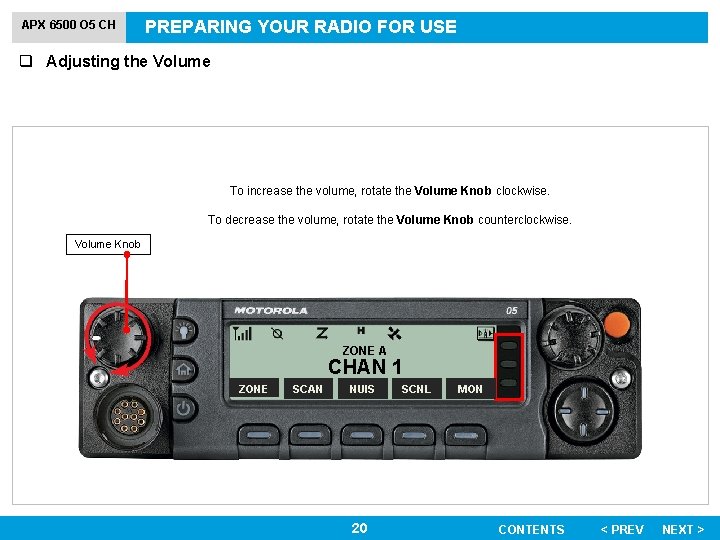
APX 6500 O 5 CH PREPARING YOUR RADIO FOR USE q Adjusting the Volume To increase the volume, rotate the Volume Knob clockwise. To decrease the volume, rotate the Volume Knob counterclockwise. Volume Knob ZONE A CHAN 1 ZONE SCAN NUIS 20 SCNL MON CONTENTS < PREV NEXT >
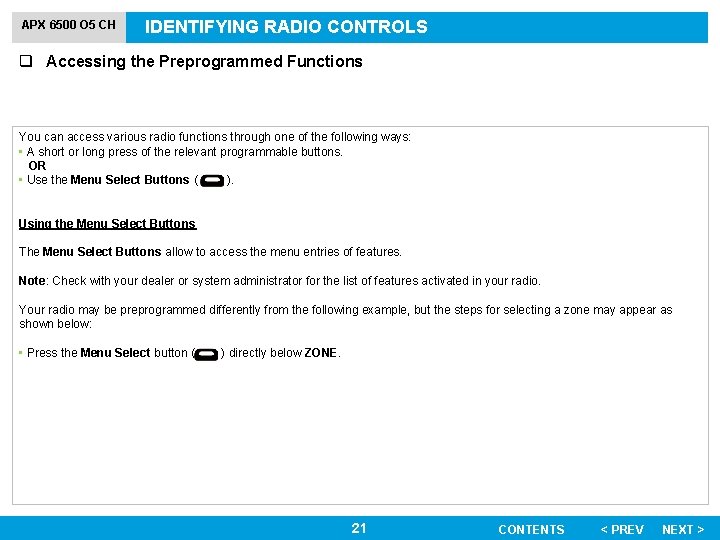
APX 6500 O 5 CH IDENTIFYING RADIO CONTROLS q Accessing the Preprogrammed Functions You can access various radio functions through one of the following ways: • A short or long press of the relevant programmable buttons. OR • Use the Menu Select Buttons ( ). Using the Menu Select Buttons The Menu Select Buttons allow to access the menu entries of features. Note: Check with your dealer or system administrator for the list of features activated in your radio. Your radio may be preprogrammed differently from the following example, but the steps for selecting a zone may appear as shown below: • Press the Menu Select button ( ) directly below ZONE. 21 CONTENTS < PREV NEXT >
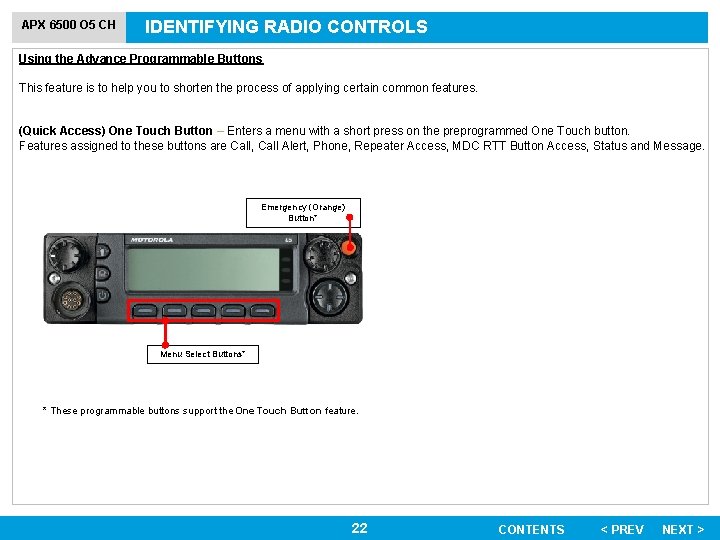
APX 6500 O 5 CH IDENTIFYING RADIO CONTROLS Using the Advance Programmable Buttons This feature is to help you to shorten the process of applying certain common features. (Quick Access) One Touch Button – Enters a menu with a short press on the preprogrammed One Touch button. Features assigned to these buttons are Call, Call Alert, Phone, Repeater Access, MDC RTT Button Access, Status and Message. Emergency (Orange) Button* Menu Select Buttons* * These programmable buttons support the One Touch Button feature. 22 CONTENTS < PREV NEXT >
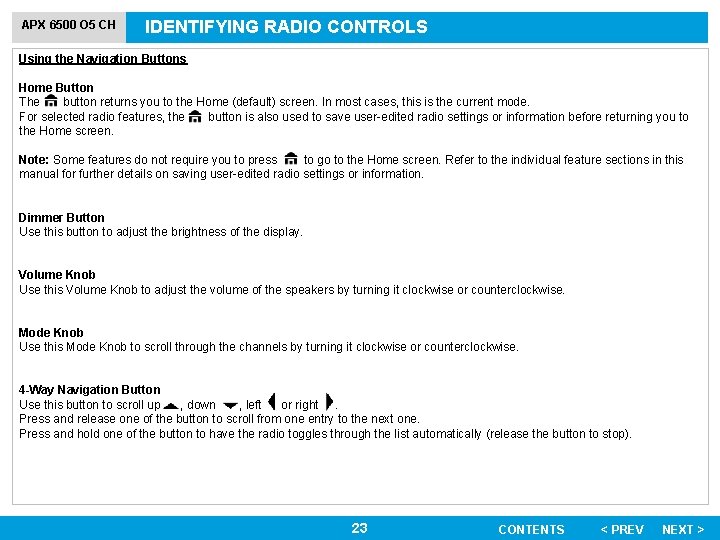
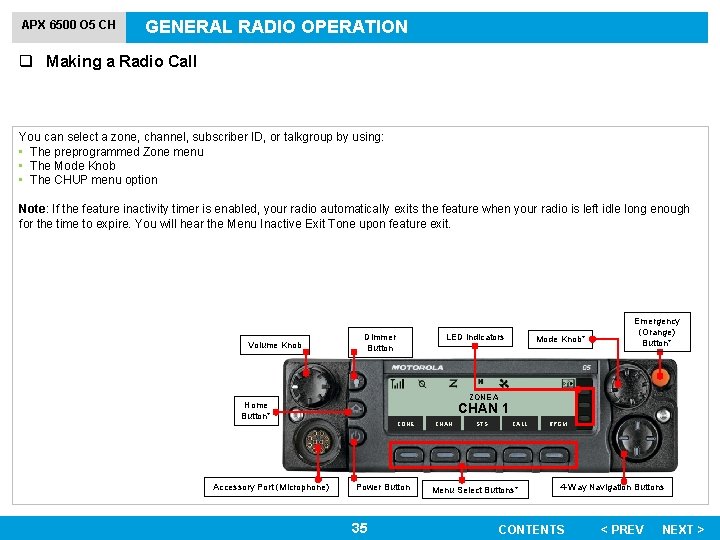
APX 6500 O 5 CH IDENTIFYING RADIO CONTROLS Using the Navigation Buttons Home Button The button returns you to the Home (default) screen. In most cases, this is the current mode. For selected radio features, the button is also used to save user-edited radio settings or information before returning you to the Home screen. Note: Some features do not require you to press to go to the Home screen. Refer to the individual feature sections in this manual for further details on saving user-edited radio settings or information. Dimmer Button Use this button to adjust the brightness of the display. Volume Knob Use this Volume Knob to adjust the volume of the speakers by turning it clockwise or counterclockwise. Mode Knob Use this Mode Knob to scroll through the channels by turning it clockwise or counterclockwise. 4 -Way Navigation Button Use this button to scroll up , down , left or right. Press and release one of the button to scroll from one entry to the next one. Press and hold one of the button to have the radio toggles through the list automatically (release the button to stop). 23 CONTENTS < PREV NEXT >
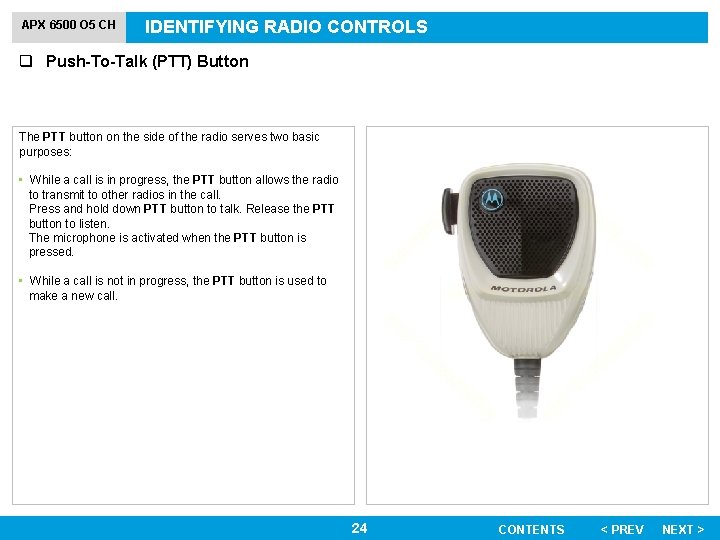
APX 6500 O 5 CH IDENTIFYING RADIO CONTROLS q Push-To-Talk (PTT) Button The PTT button on the side of the radio serves two basic purposes: • While a call is in progress, the PTT button allows the radio to transmit to other radios in the call. Press and hold down PTT button to talk. Release the PTT button to listen. The microphone is activated when the PTT button is pressed. • While a call is not in progress, the PTT button is used to make a new call. 24 CONTENTS < PREV NEXT >
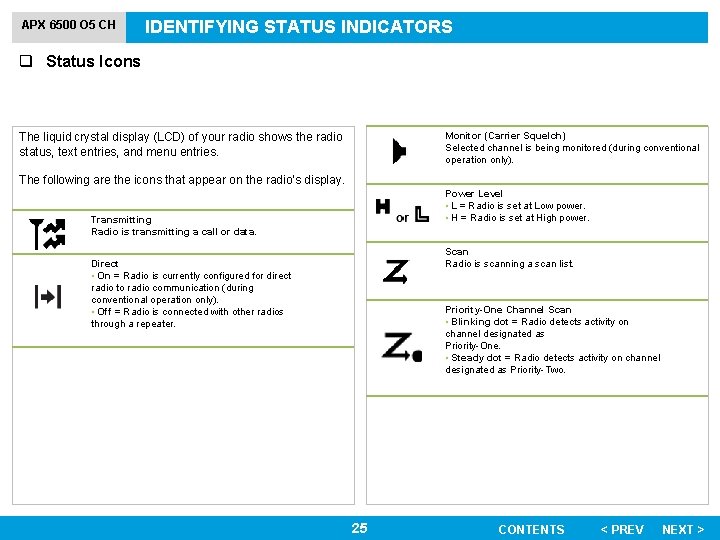
APX 6500 O 5 CH IDENTIFYING STATUS INDICATORS q Status Icons Monitor (Carrier Squelch) Selected channel is being monitored (during conventional operation only). The liquid crystal display (LCD) of your radio shows the radio status, text entries, and menu entries. The following are the icons that appear on the radio’s display. Power Level • L = Radio is set at Low power. • H = Radio is set at High power. Transmitting Radio is transmitting a call or data. Scan Radio is scanning a scan list. Direct • On = Radio is currently configured for direct radio to radio communication (during conventional operation only). • Off = Radio is connected with other radios through a repeater. Priority-One Channel Scan • Blinking dot = Radio detects activity on channel designated as Priority-One. • Steady dot = Radio detects activity on channel designated as Priority-Two. 25 CONTENTS < PREV NEXT >
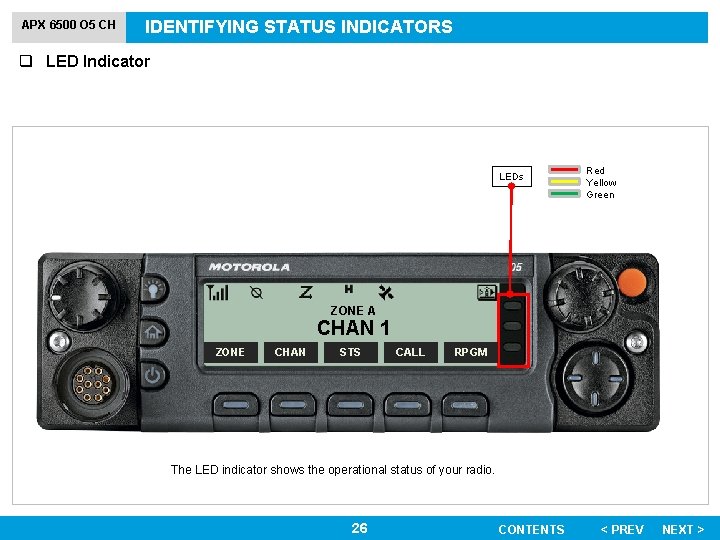
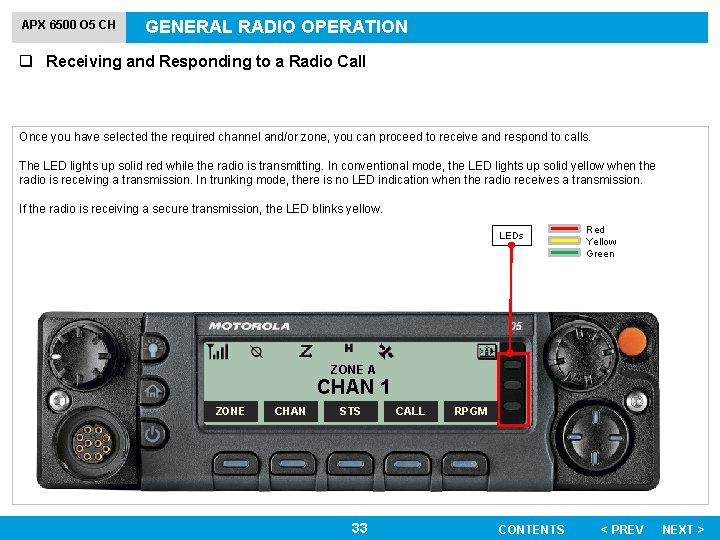
APX 6500 O 5 CH IDENTIFYING STATUS INDICATORS q LED Indicator LEDs Red Yellow Green ZONE A CHAN 1 ZONE CHAN STS CALL RPGM The LED indicator shows the operational status of your radio. 26 CONTENTS < PREV NEXT >
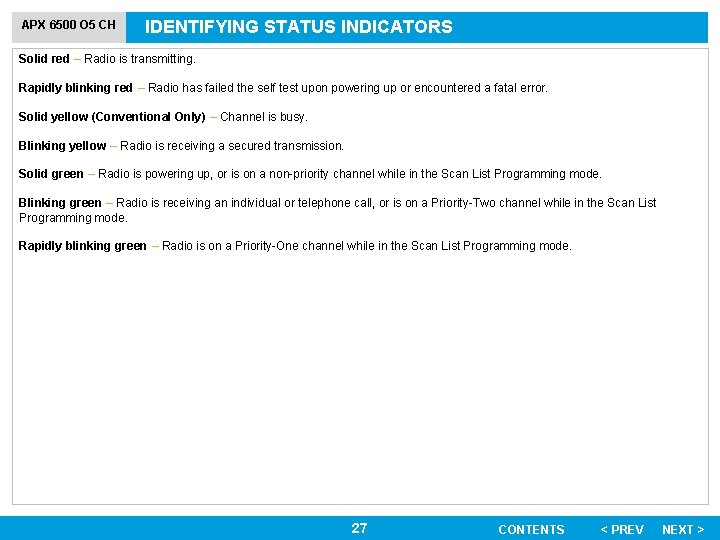
APX 6500 O 5 CH IDENTIFYING STATUS INDICATORS Solid red – Radio is transmitting. Rapidly blinking red – Radio has failed the self test upon powering up or encountered a fatal error. Solid yellow (Conventional Only) – Channel is busy. Blinking yellow – Radio is receiving a secured transmission. Solid green – Radio is powering up, or is on a non-priority channel while in the Scan List Programming mode. Blinking green – Radio is receiving an individual or telephone call, or is on a Priority-Two channel while in the Scan List Programming mode. Rapidly blinking green – Radio is on a Priority-One channel while in the Scan List Programming mode. 27 CONTENTS < PREV NEXT >
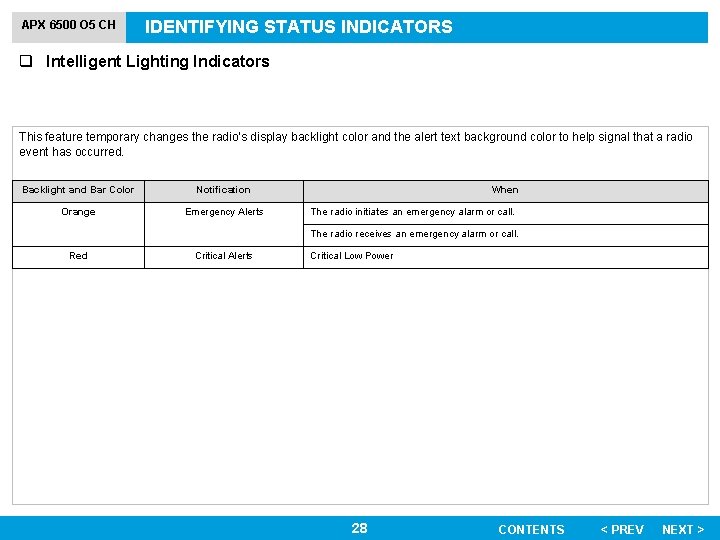
APX 6500 O 5 CH IDENTIFYING STATUS INDICATORS q Intelligent Lighting Indicators This feature temporary changes the radio’s display backlight color and the alert text background color to help signal that a radio event has occurred. Backlight and Bar Color Notification Orange Emergency Alerts When The radio initiates an emergency alarm or call. The radio receives an emergency alarm or call. Red Critical Alerts Critical Low Power 28 CONTENTS < PREV NEXT >
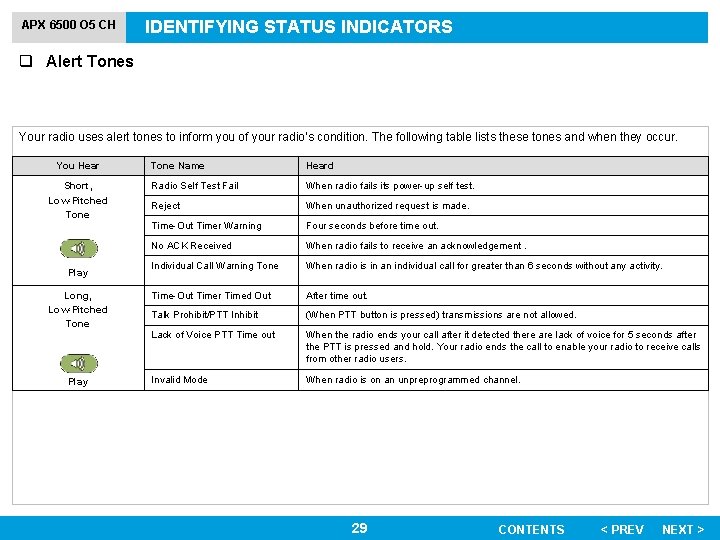
APX 6500 O 5 CH IDENTIFYING STATUS INDICATORS q Alert Tones Your radio uses alert tones to inform you of your radio’s condition. The following table lists these tones and when they occur. You Hear Short, Low-Pitched Tone Play Long, Low-Pitched Tone Play Tone Name Heard Radio Self Test Fail When radio fails its power-up self test. Reject When unauthorized request is made. Time-Out Timer Warning Four seconds before time out. No ACK Received When radio fails to receive an acknowledgement. Individual Call Warning Tone When radio is in an individual call for greater than 6 seconds without any activity. Time-Out Timer Timed Out After time out. Talk Prohibit/PTT Inhibit (When PTT button is pressed) transmissions are not allowed. Lack of Voice PTT Time out When the radio ends your call after it detected there are lack of voice for 5 seconds after the PTT is pressed and hold. Your radio ends the call to enable your radio to receive calls from other radio users. Invalid Mode When radio is on an unpreprogrammed channel. 29 CONTENTS < PREV NEXT >
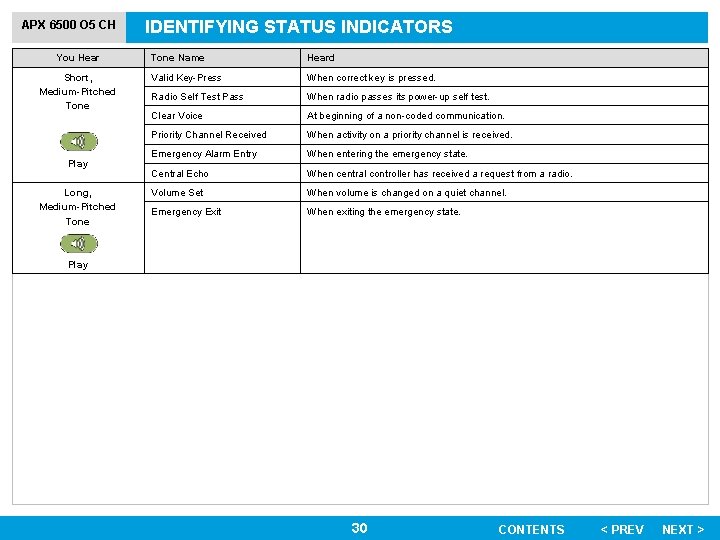
APX 6500 O 5 CH You Hear Short, Medium-Pitched Tone Play Long, Medium-Pitched Tone IDENTIFYING STATUS INDICATORS Tone Name Heard Valid Key-Press When correct key is pressed. Radio Self Test Pass When radio passes its power-up self test. Clear Voice At beginning of a non-coded communication. Priority Channel Received When activity on a priority channel is received. Emergency Alarm Entry When entering the emergency state. Central Echo When central controller has received a request from a radio. Volume Set When volume is changed on a quiet channel. Emergency Exit When exiting the emergency state. Play 30 CONTENTS < PREV NEXT >
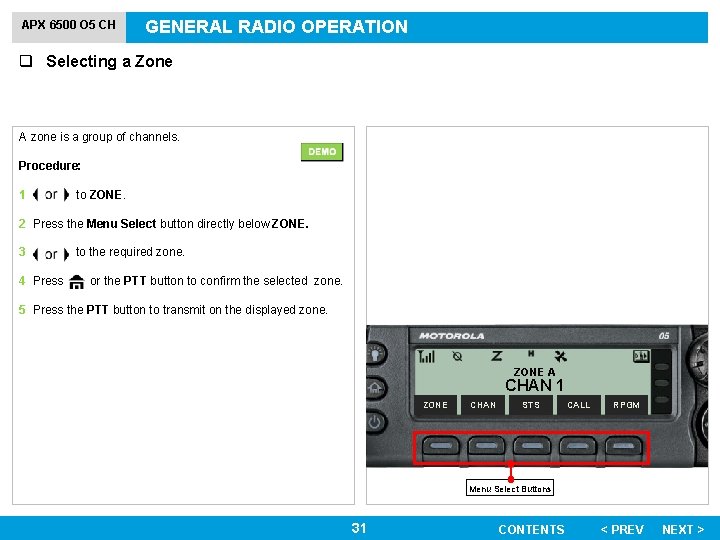
APX 6500 O 5 CH GENERAL RADIO OPERATION q Selecting a Zone A zone is a group of channels. Procedure: 1 to ZONE. 2 Press the Menu Select button directly below ZONE. 3 4 Press to the required zone. or the PTT button to confirm the selected zone. 5 Press the PTT button to transmit on the displayed zone. ZONE A CHAN 1 ZONE CHAN STS CALL RPGM Menu Select Buttons 31 CONTENTS < PREV NEXT >
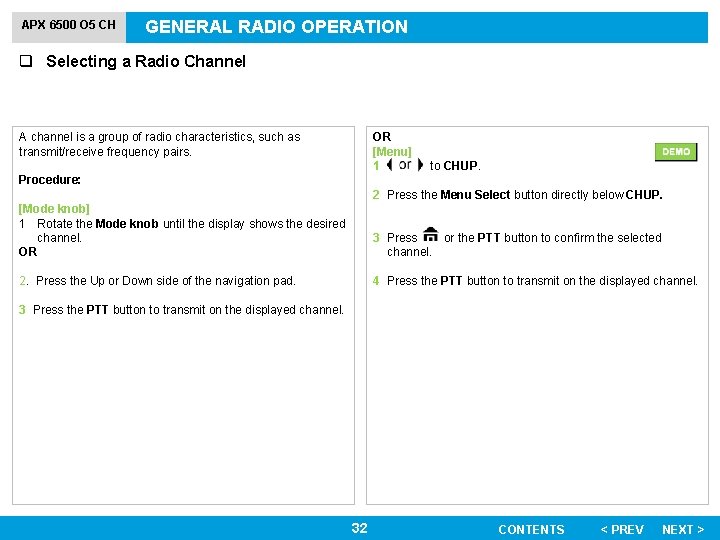
APX 6500 O 5 CH GENERAL RADIO OPERATION q Selecting a Radio Channel A channel is a group of radio characteristics, such as transmit/receive frequency pairs. OR [Menu] 1 to CHUP. Procedure: 2 Press the Menu Select button directly below CHUP. [Mode knob] 1 Rotate the Mode knob until the display shows the desired channel. OR 3 Press or the PTT button to confirm the selected channel. 2. Press the Up or Down side of the navigation pad. 4 Press the PTT button to transmit on the displayed channel. 32 CONTENTS < PREV NEXT >
APX 6500 O 5 CH GENERAL RADIO OPERATION q Receiving and Responding to a Radio Call Once you have selected the required channel and/or zone, you can proceed to receive and respond to calls. The LED lights up solid red while the radio is transmitting. In conventional mode, the LED lights up solid yellow when the radio is receiving a transmission. In trunking mode, there is no LED indication when the radio receives a transmission. If the radio is receiving a secure transmission, the LED blinks yellow. LEDs Red Yellow Green ZONE A CHAN 1 ZONE CHAN STS 33 CALL RPGM CONTENTS < PREV NEXT >
APX 6500 O 5 CH GENERAL RADIO OPERATION q Receiving and Responding to a Radio Call Receiving and Responding to a Call To receive a call from a group of users, your radio must be configured as part of that talkgroup. Procedure: When you receive a talkgroup call (while on the Home screen), depending on how your radio is preprogrammed: 1 ASTRO Conventional Only: The LED lights up solid yellow. The display shows the talkgroup alias or ID, and the caller alias or ID. 2 Press the PTT button to respond to the call. The LED lights up solid red. Release the PTT button to listen. 34 CONTENTS < PREV NEXT >
APX 6500 O 5 CH GENERAL RADIO OPERATION q Making a Radio Call You can select a zone, channel, subscriber ID, or talkgroup by using: • The preprogrammed Zone menu • The Mode Knob • The CHUP menu option Note: If the feature inactivity timer is enabled, your radio automatically exits the feature when your radio is left idle long enough for the time to expire. You will hear the Menu Inactive Exit Tone upon feature exit. Volume Knob Dimmer Button Mode Knob* ZONE A Home Button* Accessory Port (Microphone) LED Indicators Emergency (Orange) Button* CHAN 1 ZONE Power Button 35 CHAN STS CALL Menu Select Buttons* RPGM 4 -Way Navigation Buttons CONTENTS < PREV NEXT >
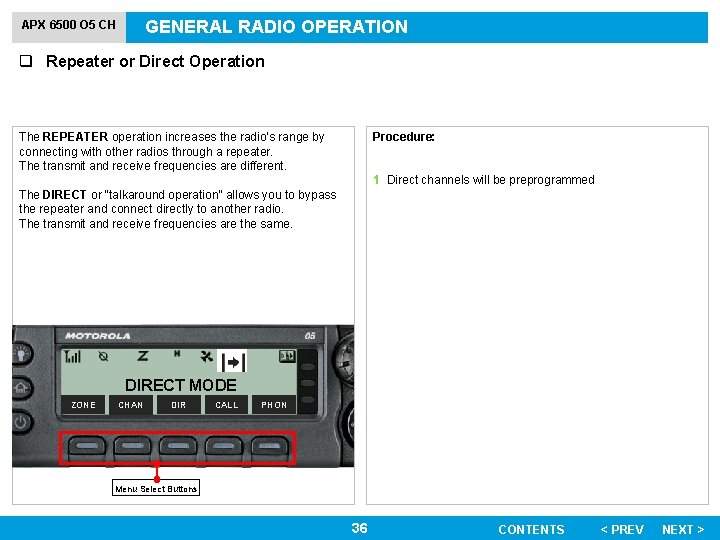
GENERAL RADIO OPERATION APX 6500 O 5 CH q Repeater or Direct Operation Procedure: The REPEATER operation increases the radio’s range by connecting with other radios through a repeater. The transmit and receive frequencies are different. 1 Direct channels will be preprogrammed The DIRECT or “talkaround operation” allows you to bypass the repeater and connect directly to another radio. The transmit and receive frequencies are the same. DIRECT MODE ZONE CHAN DIR CALL PHON Menu Select Buttons 36 CONTENTS < PREV NEXT >
APX 6500 O 5 CH GENERAL RADIO OPERATION q Monitor Features Radio users who switch from analog to digital radios often assume that the lack of static on a digital channel is an indication that the radio is not working properly. This is not the case. Digital technology quiets the transmission by removing the “noise” from the signal and allowing only the clear voice or data information to be heard. Monitor a channel to ensure the channel is clear before transmitting. 37 CONTENTS < PREV NEXT >
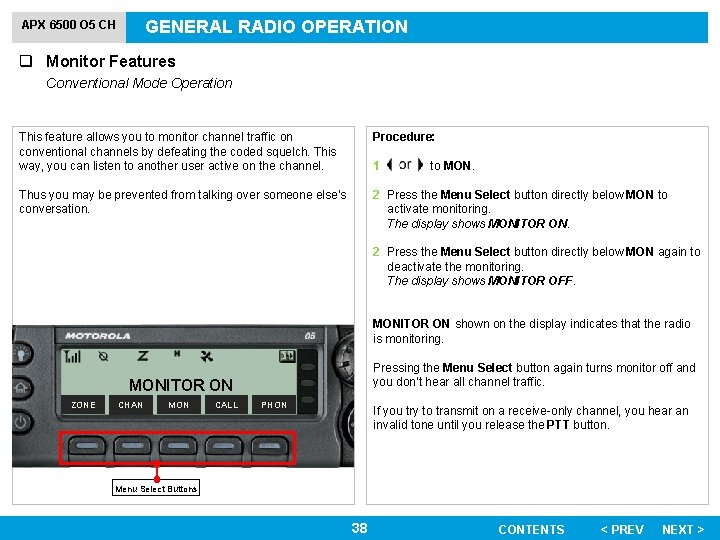
GENERAL RADIO OPERATION APX 6500 O 5 CH q Monitor Features Conventional Mode Operation This feature allows you to monitor channel traffic on conventional channels by defeating the coded squelch. This way, you can listen to another user active on the channel. Procedure: Thus you may be prevented from talking over someone else’s conversation. 2 Press the Menu Select button directly below MON to activate monitoring. The display shows MONITOR ON. 1 to MON. 2 Press the Menu Select button directly below MON again to deactivate the monitoring. The display shows MONITOR OFF. MONITOR ON shown on the display indicates that the radio is monitoring. Pressing the Menu Select button again turns monitor off and you don’t hear all channel traffic. MONITOR ON ZONE CHAN MON CALL PHON If you try to transmit on a receive-only channel, you hear an invalid tone until you release the PTT button. Menu Select Buttons 38 CONTENTS < PREV NEXT >
APX 6500 O 5 CH ADVANCED FEATURES q Multiple Control Head Features This feature allows your transceiver to control a combination of up to four O 5 control heads on APX Mobile (depending on the model). You can use the CAN cables to connect in any configuration that does not exceed 131 feet (40 meters) in combined length. Refer the Control Head Installation Manual (6878215 A 01) for further information. The Multiple Control Head (MCH) feature consists of 2 modes that can be programmed via Customer Programming Software (CPS): • All Active mode • One Active mode Note: If two or more control heads are connected to the system before enabling the MCH feature in the CPS, the radio will display EXTRA CH or CH ID # ERR. Both errors are FATAL. 39 CONTENTS < PREV NEXT >
APX 6500 O 5 CH ADVANCED FEATURES q Multiple Control Head Features All Active Mode The All Active mode enables all connected control heads attached to the radio to operate concurrently with each other. When you activate a feature on one control head, the rest of the control heads will have the same activated features and indicators on their respective display. Note: The multiple control head feature allows only control heads of the same type to be connected. Upon power up, if a control head of a different type is connected to the radio, the radio reports the FATAL error CH mismatch on the display of all attached control heads. When you change the volume on one control head, the rest of the active control heads will display the volume bar. The alias/ID number of the control head changing the volume will be displayed on all active control heads. 40 CONTENTS < PREV NEXT >
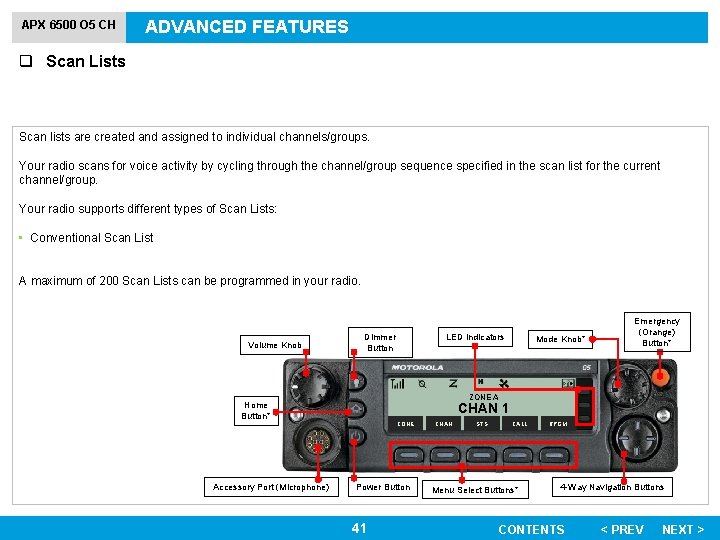
APX 6500 O 5 CH ADVANCED FEATURES q Scan Lists Scan lists are created and assigned to individual channels/groups. Your radio scans for voice activity by cycling through the channel/group sequence specified in the scan list for the current channel/group. Your radio supports different types of Scan Lists: • Conventional Scan List A maximum of 200 Scan Lists can be programmed in your radio. Volume Knob Dimmer Button Mode Knob* ZONE A Home Button* Accessory Port (Microphone) LED Indicators Emergency (Orange) Button* CHAN 1 ZONE Power Button 41 CHAN STS CALL Menu Select Buttons* RPGM 4 -Way Navigation Buttons CONTENTS < PREV NEXT >
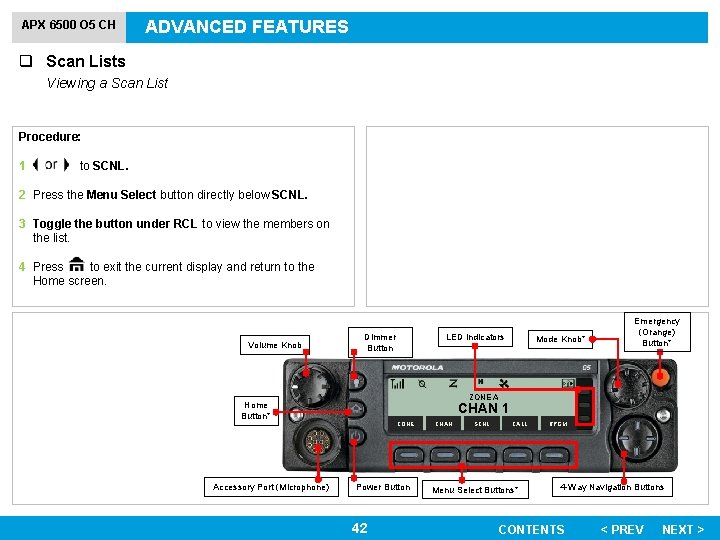
APX 6500 O 5 CH ADVANCED FEATURES q Scan Lists Viewing a Scan List Procedure: 1 to SCNL. 2 Press the Menu Select button directly below SCNL. 3 Toggle the button under RCL to view the members on the list. 4 Press to exit the current display and return to the Home screen. Volume Knob Dimmer Button Mode Knob* ZONE A Home Button* Accessory Port (Microphone) LED Indicators Emergency (Orange) Button* CHAN 1 ZONE Power Button 42 CHAN SCNL CALL Menu Select Buttons* RPGM 4 -Way Navigation Buttons CONTENTS < PREV NEXT >
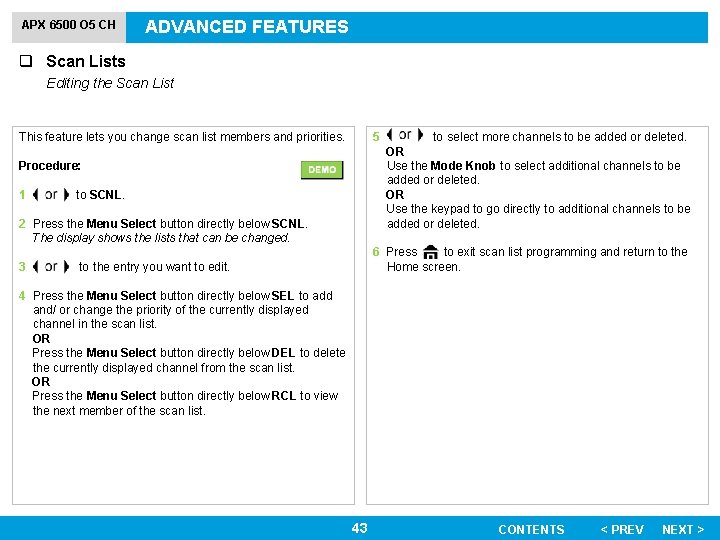
APX 6500 O 5 CH ADVANCED FEATURES q Scan Lists Editing the Scan List This feature lets you change scan list members and priorities. 5 Procedure: 1 to SCNL. 2 Press the Menu Select button directly below SCNL. The display shows the lists that can be changed. 3 to select more channels to be added or deleted. OR Use the Mode Knob to select additional channels to be added or deleted. OR Use the keypad to go directly to additional channels to be added or deleted. 6 Press to exit scan list programming and return to the Home screen. to the entry you want to edit. 4 Press the Menu Select button directly below SEL to add and/ or change the priority of the currently displayed channel in the scan list. OR Press the Menu Select button directly below DEL to delete the currently displayed channel from the scan list. OR Press the Menu Select button directly below RCL to view the next member of the scan list. 43 CONTENTS < PREV NEXT >
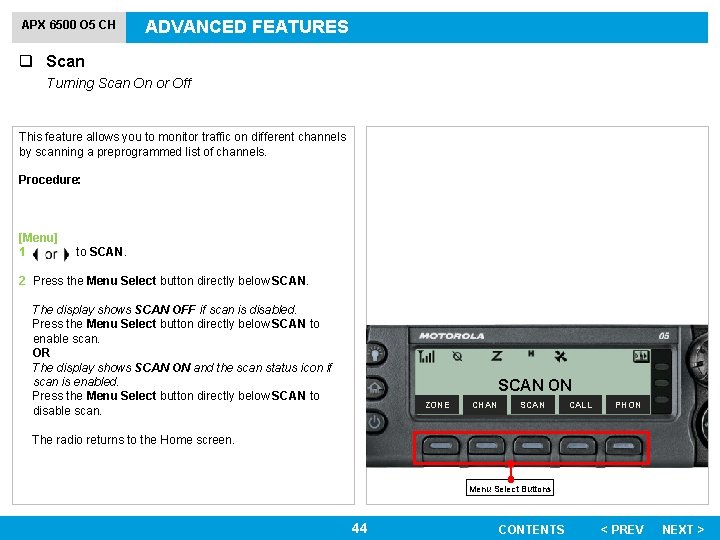
APX 6500 O 5 CH ADVANCED FEATURES q Scan Turning Scan On or Off This feature allows you to monitor traffic on different channels by scanning a preprogrammed list of channels. Procedure: [Menu] 1 to SCAN. 2 Press the Menu Select button directly below SCAN. The display shows SCAN OFF if scan is disabled. Press the Menu Select button directly below SCAN to enable scan. OR The display shows SCAN ON and the scan status icon if scan is enabled. Press the Menu Select button directly below SCAN to disable scan. SCAN ON ZONE CHAN SCAN CALL PHON The radio returns to the Home screen. Menu Select Buttons 44 CONTENTS < PREV NEXT >
APX 6500 O 5 CH ADVANCED FEATURES q Scan Transmitting While the Scan is On Radio Programmed for Non-Talkback Scan Procedure: 1 Press the PTT button at any time to transmit on the selected channel or fixed channel. 45 CONTENTS < PREV NEXT >
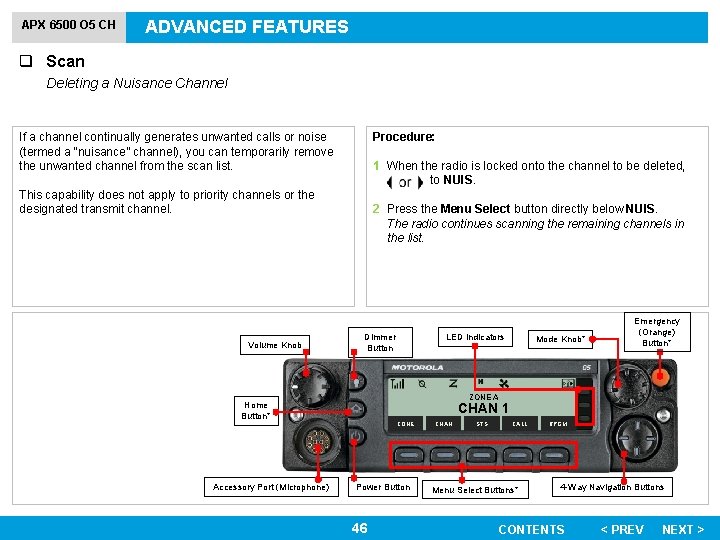
APX 6500 O 5 CH ADVANCED FEATURES q Scan Deleting a Nuisance Channel If a channel continually generates unwanted calls or noise (termed a “nuisance” channel), you can temporarily remove the unwanted channel from the scan list. Procedure: 1 When the radio is locked onto the channel to be deleted, to NUIS. This capability does not apply to priority channels or the designated transmit channel. Volume Knob 2 Press the Menu Select button directly below NUIS. The radio continues scanning the remaining channels in the list. Dimmer Button Mode Knob* ZONE A Home Button* Accessory Port (Microphone) LED Indicators Emergency (Orange) Button* CHAN 1 ZONE Power Button 46 CHAN STS CALL Menu Select Buttons* RPGM 4 -Way Navigation Buttons CONTENTS < PREV NEXT >
APX 6500 O 5 CH ADVANCED FEATURES q Scan Restoring a Nuisance Channel Procedure: To restore the deleted nuisance channel, do one of the following: • Turn scan off, then on. OR • Change channel. OR • Turn off the radio, and then turn it back on. Nuisance mode delete can be disabled by the system administrator. 47 CONTENTS < PREV NEXT >
APX 6500 O 5 CH ADVANCED FEATURES q Emergency Operation The Emergency feature is used to indicate a critical situation. If the Orange button is preprogrammed to send an emergency signal, this signal overrides any other communication over the selected channel. Your radio supports the following Emergency mode: • Emergency Alarm with Emergency Call Only one of the Emergency modes above can be assigned to the preprogrammed Emergency button Note: To exit emergency at any time, press and hold the preprogrammed Emergency button for about a second. 48 CONTENTS < PREV NEXT >
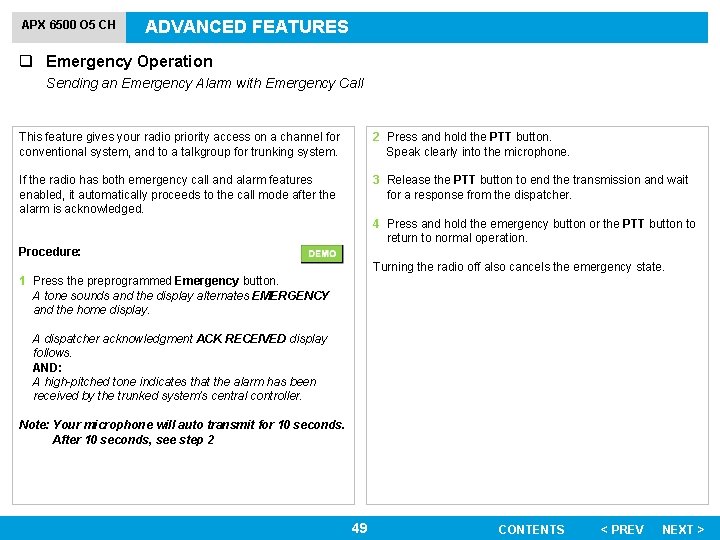
APX 6500 O 5 CH ADVANCED FEATURES q Emergency Operation Sending an Emergency Alarm with Emergency Call This feature gives your radio priority access on a channel for conventional system, and to a talkgroup for trunking system. 2 Press and hold the PTT button. Speak clearly into the microphone. If the radio has both emergency call and alarm features enabled, it automatically proceeds to the call mode after the alarm is acknowledged. 3 Release the PTT button to end the transmission and wait for a response from the dispatcher. 4 Press and hold the emergency button or the PTT button to return to normal operation. Procedure: Turning the radio off also cancels the emergency state. 1 Press the preprogrammed Emergency button. A tone sounds and the display alternates EMERGENCY and the home display. A dispatcher acknowledgment ACK RECEIVED display follows. AND: A high-pitched tone indicates that the alarm has been received by the trunked system’s central controller. Note: Your microphone will auto transmit for 10 seconds. After 10 seconds, see step 2 49 CONTENTS < PREV NEXT >
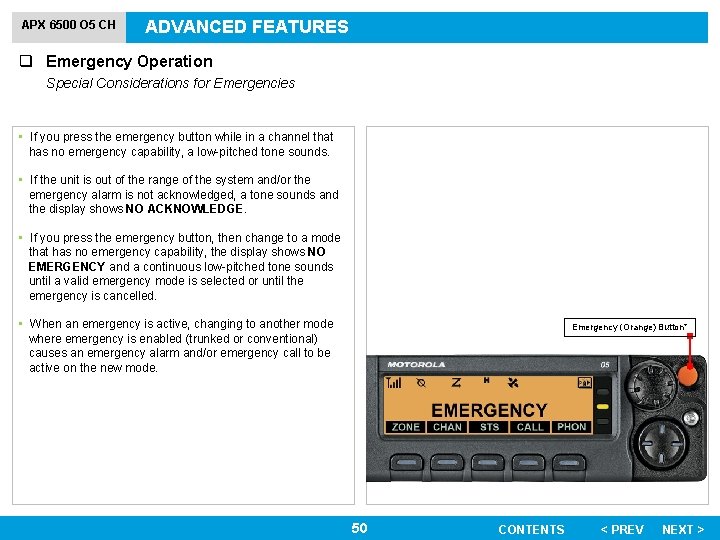
APX 6500 O 5 CH ADVANCED FEATURES q Emergency Operation Special Considerations for Emergencies • If you press the emergency button while in a channel that has no emergency capability, a low-pitched tone sounds. • If the unit is out of the range of the system and/or the emergency alarm is not acknowledged, a tone sounds and the display shows NO ACKNOWLEDGE. • If you press the emergency button, then change to a mode that has no emergency capability, the display shows NO EMERGENCY and a continuous low-pitched tone sounds until a valid emergency mode is selected or until the emergency is cancelled. • When an emergency is active, changing to another mode where emergency is enabled (trunked or conventional) causes an emergency alarm and/or emergency call to be active on the new mode. Emergency (Orange) Button* 50 CONTENTS < PREV NEXT >
APX 6500 O 5 CH ADVANCED FEATURES q Ignition Switch Options This feature allows the user to select the radio’s functionality based on the Ignition State of the radio user’s vehicle. The available options are as follows. Soft Power Off This option allows the user to power on the radio either through Power button presses or when the Ignition is detected. Meanwhile, if the Power button was pressed or the Ignition was removed, the radio will be turned off. This option allows the radio to power off when Inactivity Auto Power Off Timer expires, or, when Ignition Auto Power Off Timer expires. 51 CONTENTS < PREV NEXT >
APX 6500 O 5 CH ADVANCED FEATURES q Voice Announcement This feature enables the radio to audibly indicate the current feature mode, Zone or Channel the user has just assigned. Note: Voice announcements support certain number of zonechannel, but not all. This audio indicator can be customized per customer requirements. The two options of priority for the Voice Announcement available are: • High – enables the voice of the feature to announce even when the radio is receiving calls. • Low – disables the voice of the feature from announcing when the radio is receiving calls. This is typically useful when the user is in a difficult condition to read the content shown on the display. Each voice announcement is within a limit of three seconds maximum. The sum total duration for all voice announcements in a radio shall be no more than 1000 seconds. Note: Your radio is programmed for low priority The features which Voice Announcement supports are: • Zone 52 CONTENTS < PREV NEXT >
APX 6500 O 5 CH ADVANCED FEATURES q Low Voltage Threshold Warning This feature is created for APX mobile radio to provide warning for low voltage threshold. A specific external device is attached to the radio to monitor the automobile voltage. When the car battery went lower than a predefined threshold, the external device asserts the Vehicular Interface Port (VIP) input to the radio. When the voltage of the battery becomes normal, the external device de-asserts the VIP input to the radio. The voltage threshold is customized in the external device settings. When the VIP switch turns on, the VIP asserts input to the radio. The radio immediately initiates a 15 seconds of low Voltage Pre -alert Timer. If the status of the VIP changed before this time-out timer ends, the radio returns to normal operation. If the status from the VIP unchanged when the timeout timer ends, the radio shows Low battery on the display and also sounds low battery/voltage alert tone. The radio sounds a short, high-pitched tone immediately after the PTT button is released. Note: If the mobile radio does not have a control head connected, the bricks can only alert the user with battery alert tone and the transmit chirp. 53 CONTENTS < PREV NEXT >
APX 6500 O 5 CH UTILITIES q Controlling the Display Backlight You can enable or disable the radio’s display backlight as needed, if poor light conditions make the display difficult to read. Procedure: 1 Press the Dimmer button to adjust the brightness of the display. OR Press any key of the keypad, the Menu Select or Menu Navigation buttons, or any programmable radio controls or buttons to turn the backlight on. Depending on how your radio is preprogrammed, you can also maintain a minimum backlight level on the radio’s display. 54 CONTENTS < PREV NEXT >
APX 6500 O 5 CH UTILITIES q Time-Out Timer This feature turns off your radio’s transmitter. You cannot transmit longer than the preset timer setting. Procedure: The timer is set at 60 seconds. 1 Hold down the PTT button longer than the preprogrammed time. You hear a short, low-pitched warning tone, the transmission is cut-off, and the LED goes out until you release the PTT button. Note: You will hear a brief, low-pitched, warning tone four seconds before the transmission times out. 2 Release the PTT button. The LEDs relight and the timer resets. If you attempt to do so, the radio automatically stops your transmission, and you hear a talk-prohibit tone. 3 Press the PTT button to re-transmit. The time-out timer restarts and the LED lights up solid red. 55 CONTENTS < PREV NEXT >
APX 6500 O 5 CH UTILITIES q Digital PTT ID Feature This feature allows you to see the radio ID (number) of the radio from whom you are currently receiving a transmission. This ID, consisting up to a maximum of eight characters, can be viewed by both the receiving radio and the dispatcher. Your radio’s ID number is also automatically sent every time the PTT button is pressed. This is a per-channel feature. For digital voice transmissions, your radio’s ID is sent continuously during the voice message. 56 CONTENTS < PREV NEXT >