
Approving or Denying Requisition Chart Fields Concept Approving
- Slides: 27
Approving or Denying Requisition Chart. Fields Concept
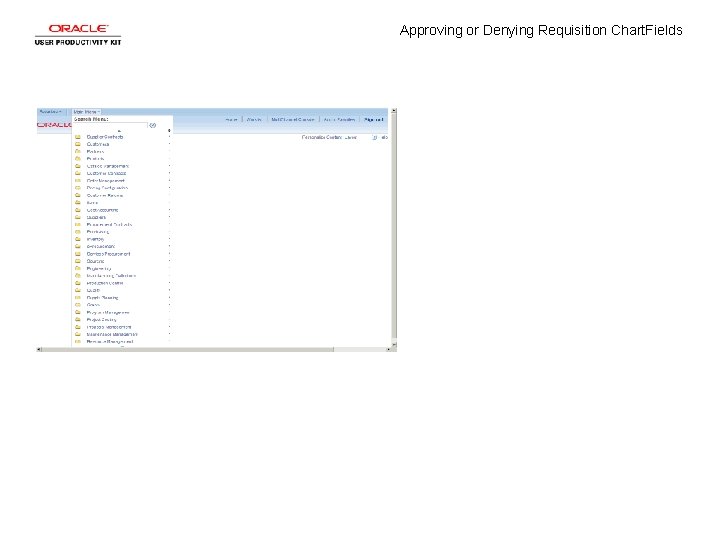
Approving or Denying Requisition Chart. Fields
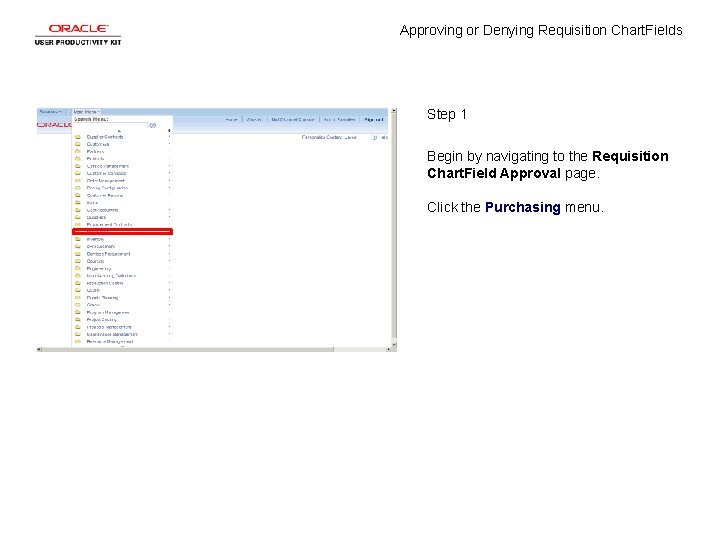
Approving or Denying Requisition Chart. Fields Step 1 Begin by navigating to the Requisition Chart. Field Approval page. Click the Purchasing menu.
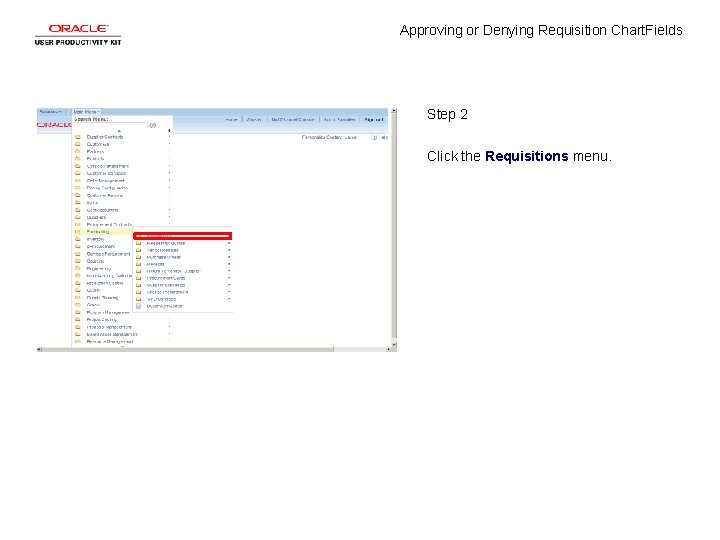
Approving or Denying Requisition Chart. Fields Step 2 Click the Requisitions menu.
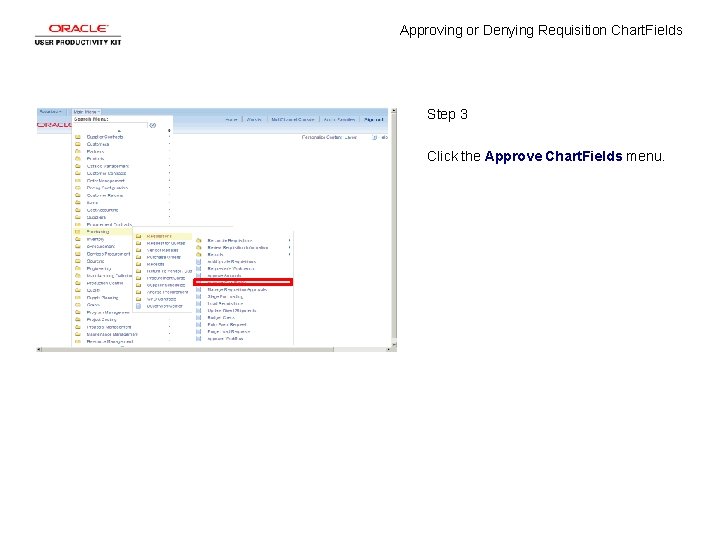
Approving or Denying Requisition Chart. Fields Step 3 Click the Approve Chart. Fields menu.
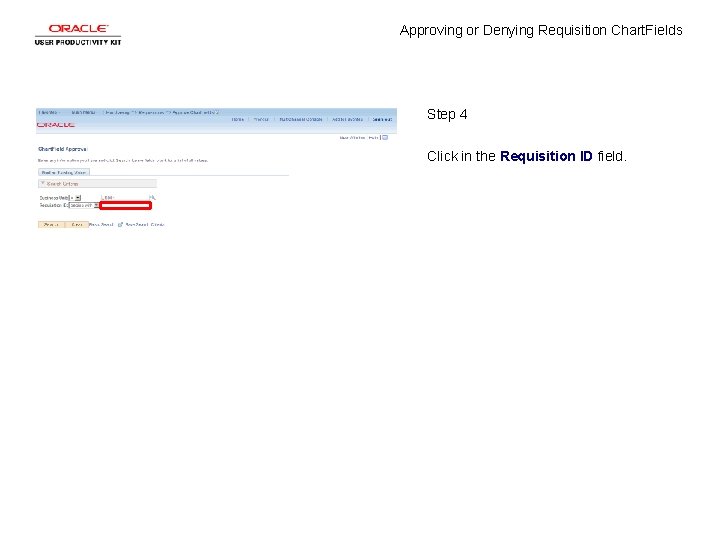
Approving or Denying Requisition Chart. Fields Step 4 Click in the Requisition ID field.
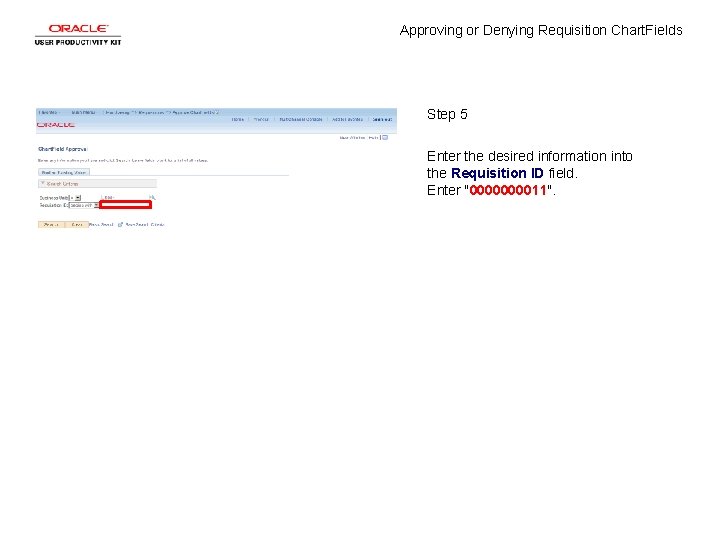
Approving or Denying Requisition Chart. Fields Step 5 Enter the desired information into the Requisition ID field. Enter "000011".
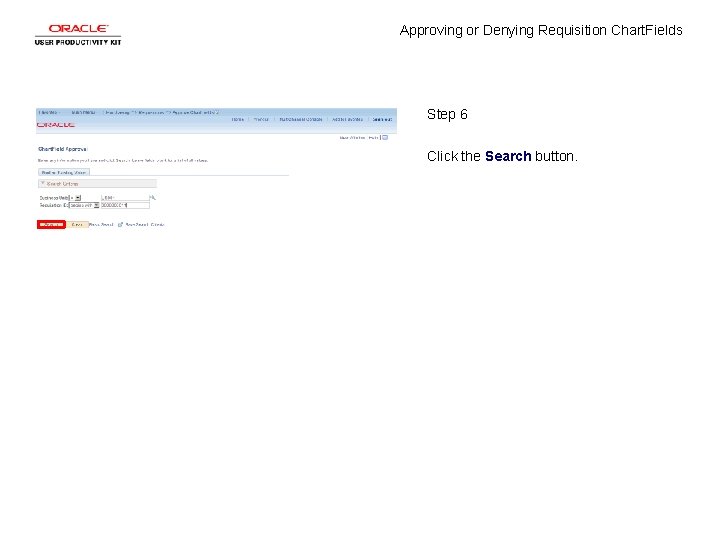
Approving or Denying Requisition Chart. Fields Step 6 Click the Search button.
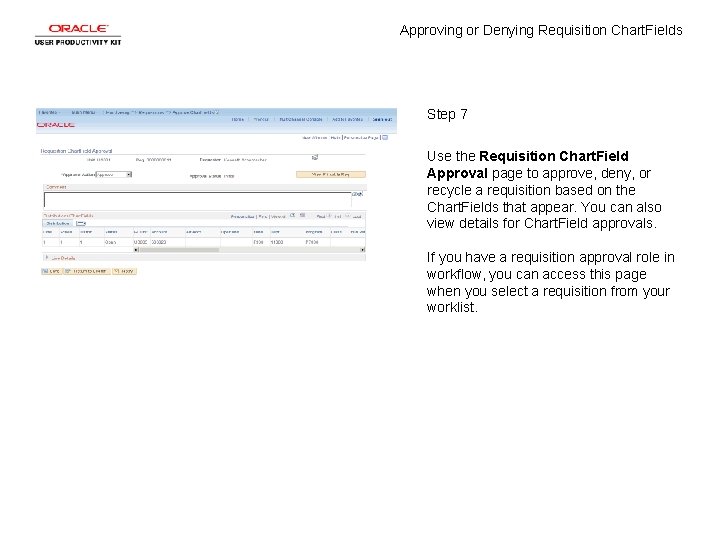
Approving or Denying Requisition Chart. Fields Step 7 Use the Requisition Chart. Field Approval page to approve, deny, or recycle a requisition based on the Chart. Fields that appear. You can also view details for Chart. Field approvals. If you have a requisition approval role in workflow, you can access this page when you select a requisition from your worklist.
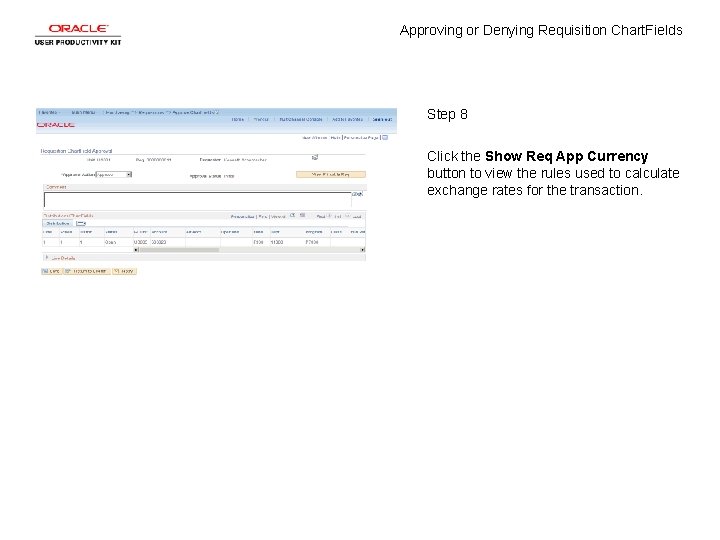
Approving or Denying Requisition Chart. Fields Step 8 Click the Show Req App Currency button to view the rules used to calculate exchange rates for the transaction.
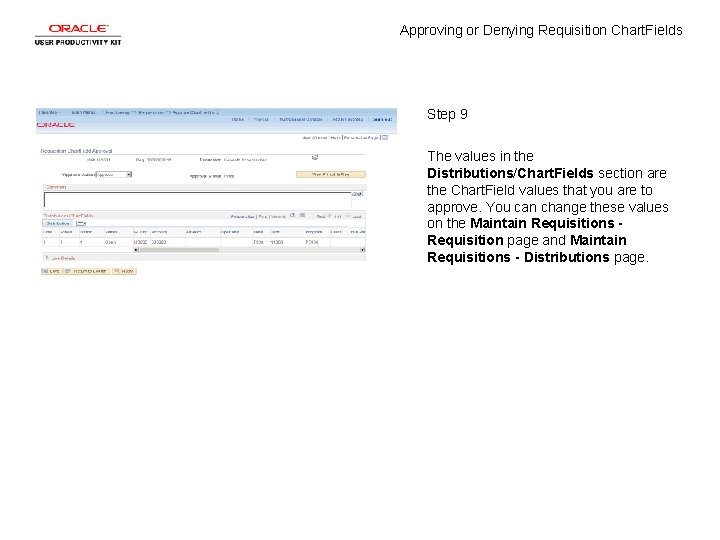
Approving or Denying Requisition Chart. Fields Step 9 The values in the Distributions/Chart. Fields section are the Chart. Field values that you are to approve. You can change these values on the Maintain Requisitions Requisition page and Maintain Requisitions - Distributions page.
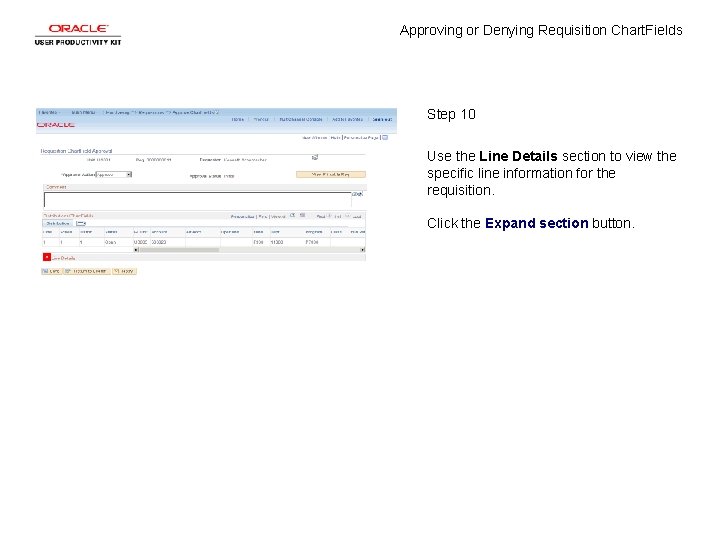
Approving or Denying Requisition Chart. Fields Step 10 Use the Line Details section to view the specific line information for the requisition. Click the Expand section button.
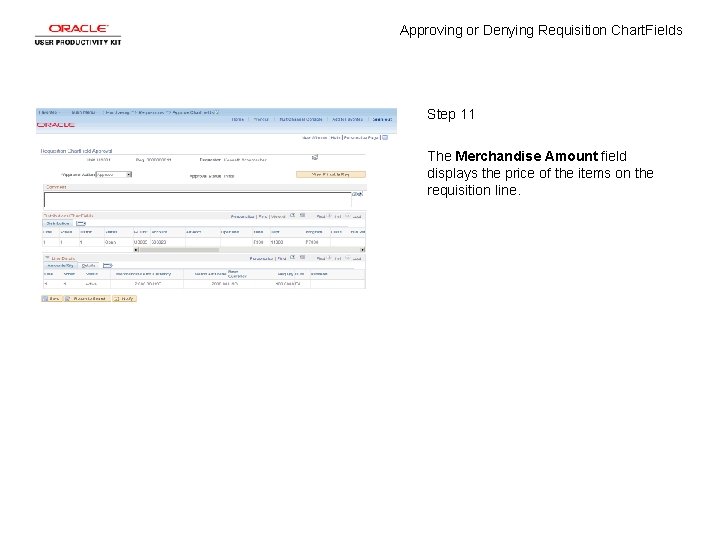
Approving or Denying Requisition Chart. Fields Step 11 The Merchandise Amount field displays the price of the items on the requisition line.
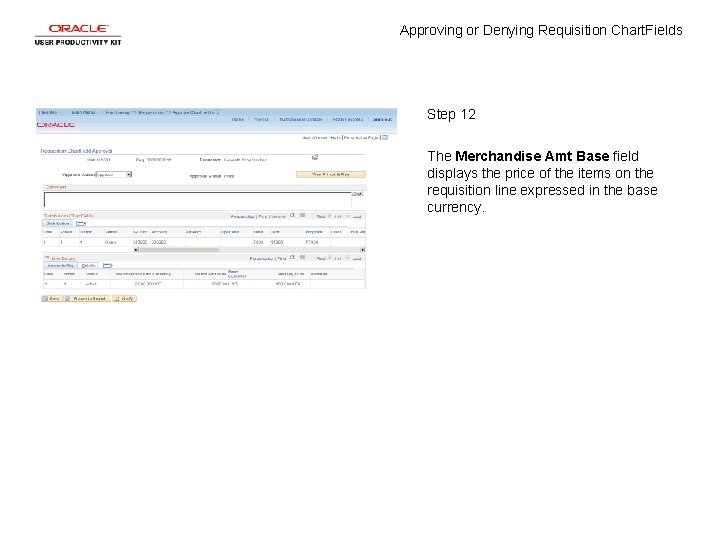
Approving or Denying Requisition Chart. Fields Step 12 The Merchandise Amt Base field displays the price of the items on the requisition line expressed in the base currency.
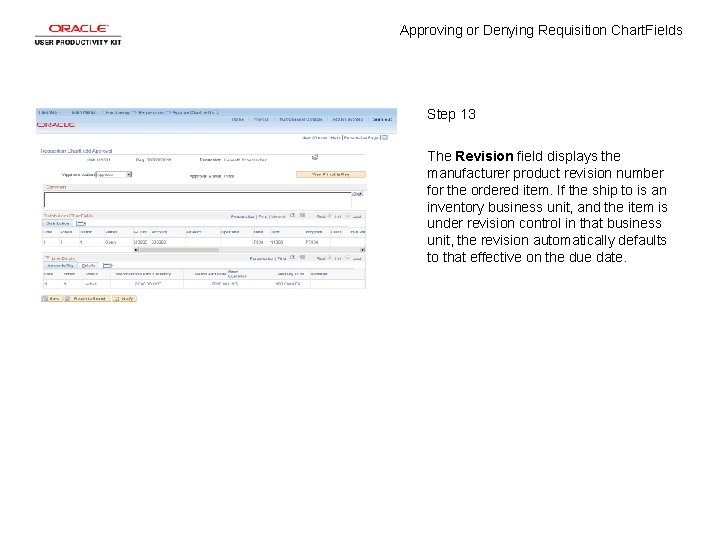
Approving or Denying Requisition Chart. Fields Step 13 The Revision field displays the manufacturer product revision number for the ordered item. If the ship to is an inventory business unit, and the item is under revision control in that business unit, the revision automatically defaults to that effective on the due date.
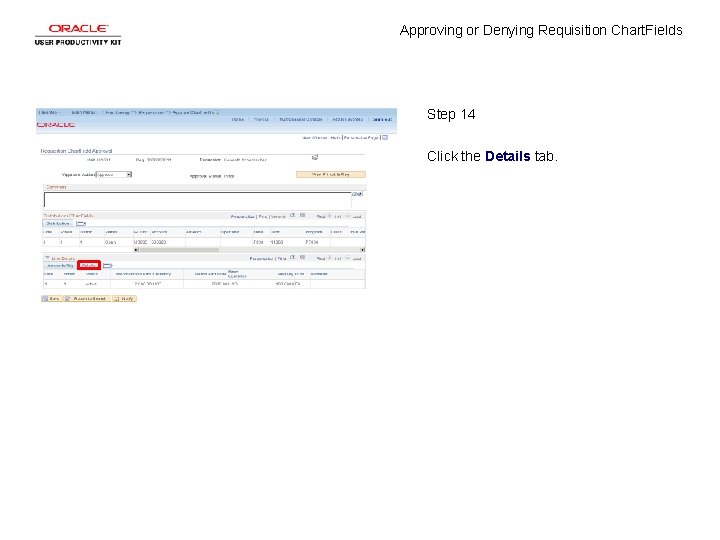
Approving or Denying Requisition Chart. Fields Step 14 Click the Details tab.
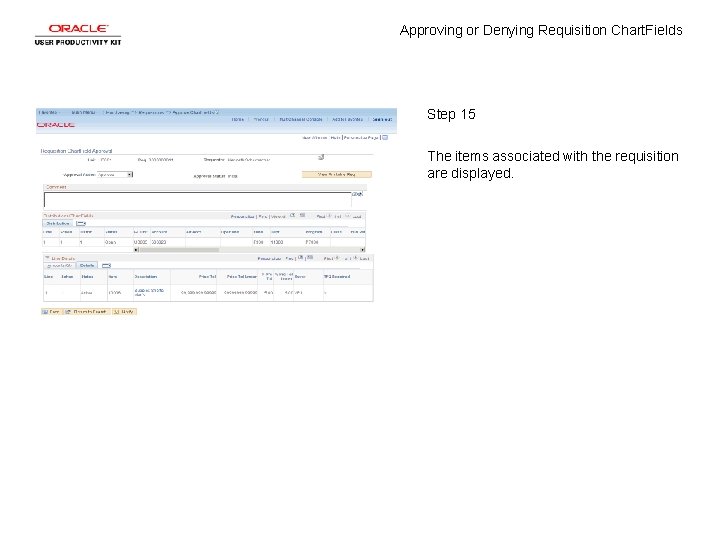
Approving or Denying Requisition Chart. Fields Step 15 The items associated with the requisition are displayed.
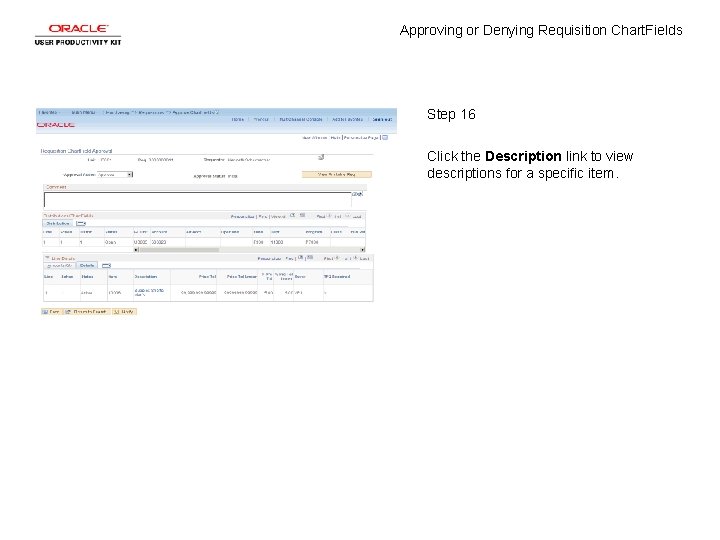
Approving or Denying Requisition Chart. Fields Step 16 Click the Description link to view descriptions for a specific item.
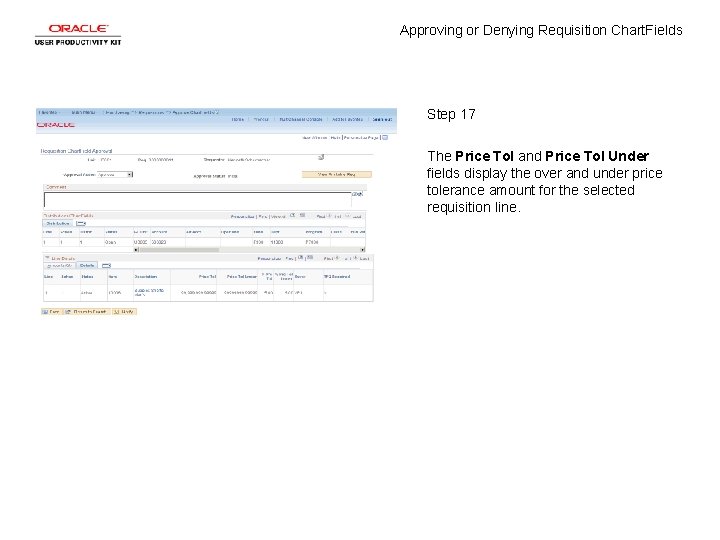
Approving or Denying Requisition Chart. Fields Step 17 The Price Tol and Price Tol Under fields display the over and under price tolerance amount for the selected requisition line.
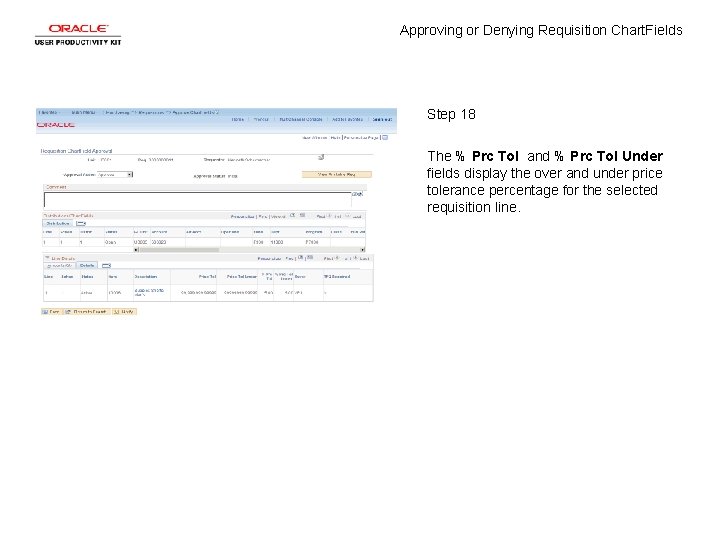
Approving or Denying Requisition Chart. Fields Step 18 The % Prc Tol and % Prc Tol Under fields display the over and under price tolerance percentage for the selected requisition line.
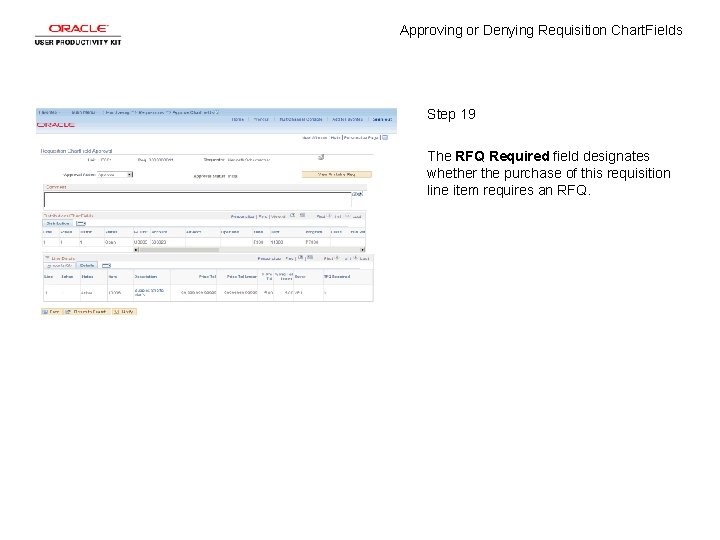
Approving or Denying Requisition Chart. Fields Step 19 The RFQ Required field designates whether the purchase of this requisition line item requires an RFQ.
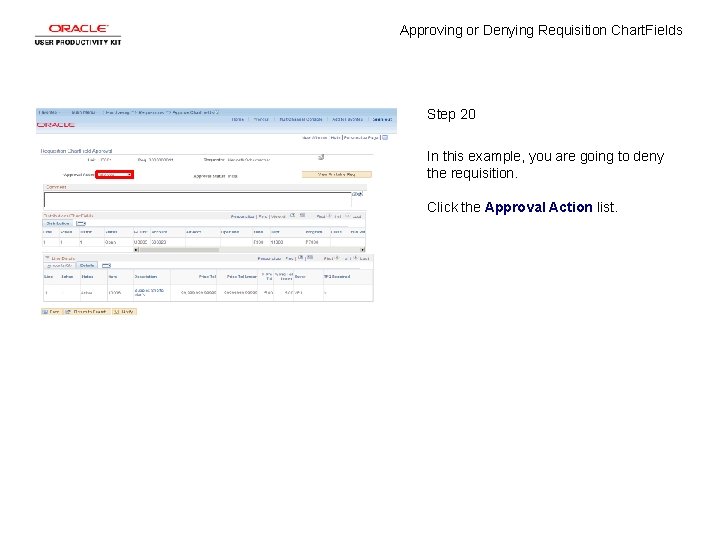
Approving or Denying Requisition Chart. Fields Step 20 In this example, you are going to deny the requisition. Click the Approval Action list.
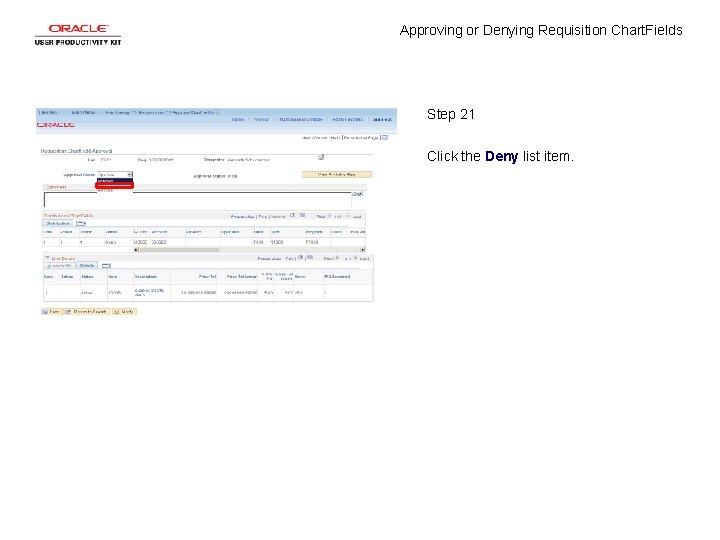
Approving or Denying Requisition Chart. Fields Step 21 Click the Deny list item.
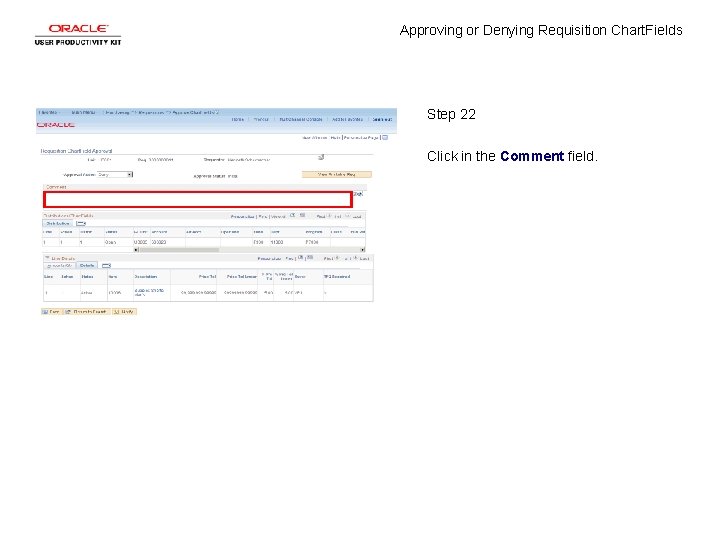
Approving or Denying Requisition Chart. Fields Step 22 Click in the Comment field.
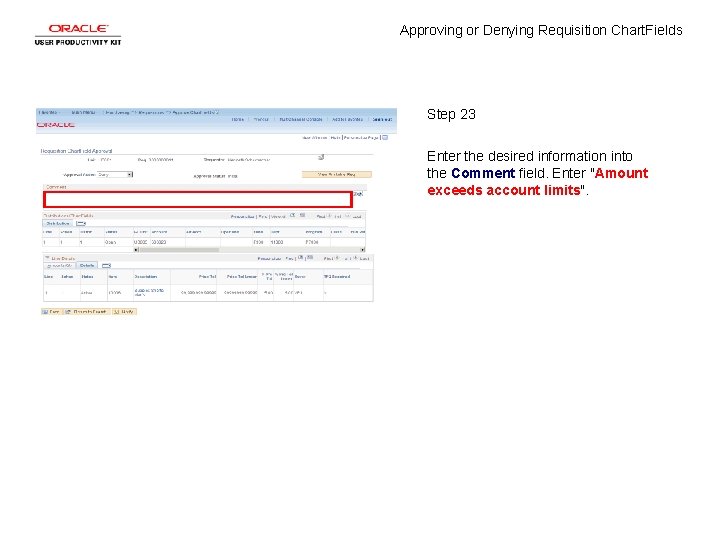
Approving or Denying Requisition Chart. Fields Step 23 Enter the desired information into the Comment field. Enter "Amount exceeds account limits".
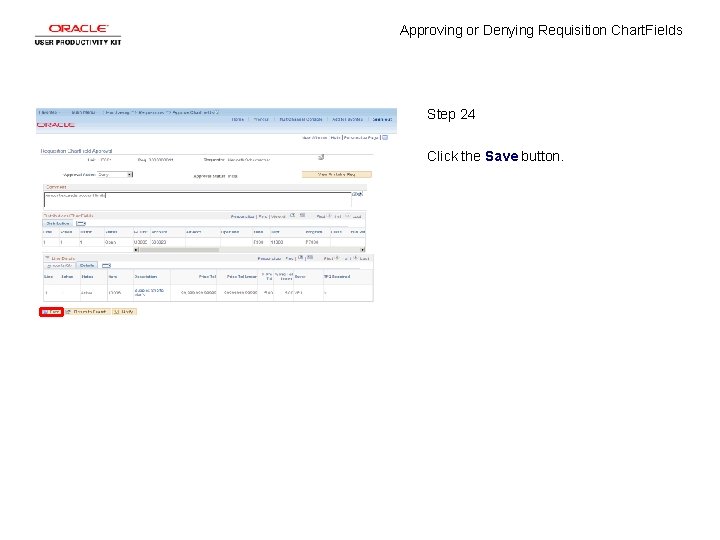
Approving or Denying Requisition Chart. Fields Step 24 Click the Save button.
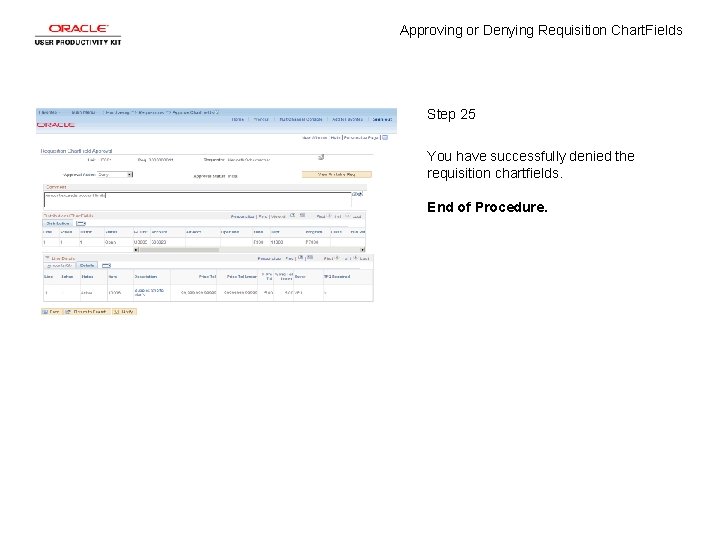
Approving or Denying Requisition Chart. Fields Step 25 You have successfully denied the requisition chartfields. End of Procedure.