
Applicant Portal Joe Baumgartner Did you know You

Applicant Portal Joe Baumgartner
Did you know? ? • You can define your password parameters such as length, the number of capital letters and numbers required, as well as special characters • You can prevent applicants from applying if they do not pass your security/background process • You can filter positions presented to applicants based on their skills, certificates, and/or endorsements 2
Password Security
Password Security • Prior to AP 8. 0, the only password requirements were a length greater than 6 characters but less than 30 characters. No special characters, no numbers, and no capital letters were required. • In AP 8. 0, new password security was implemented. You now control how strong you wish your Applicant Portal password to be by defining the following password parameters: o o o Minimum length (8 or higher) Maximum length (8 or higher) Number of capital letters required Number of numbers required Number of special characters required 4
Password Security • Lack of thought in creating password policies increases the chances of unauthorized access or compromised data • The SANS Institute recommends that strong password policy include the following characteristics: o o Contain a mix of uppercase and lowercase letters, punctuation, numbers, and symbols Contain at least 15 characters • Think one extra letter or number doesn’t mean much? Consider this: o o o A 6 -character password with only letters has 308, 915, 776 possible combinations An 8 -character password with only letters has 208, 827, 064, 576 possible combinations An 8 -character password with letters (upper & lower case), numbers and symbols has 6, 095, 689, 385, 410, 816 possible combinations 5
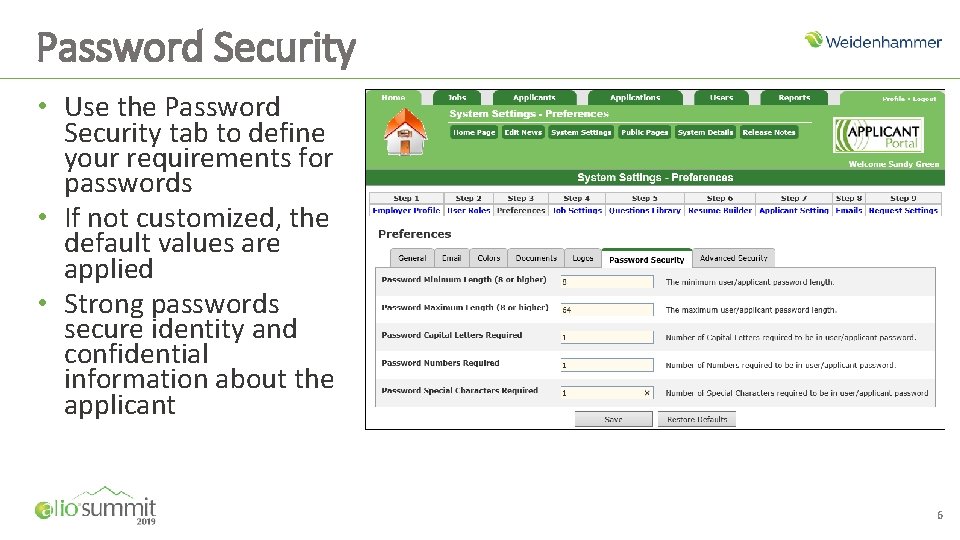
Password Security • Use the Password Security tab to define your requirements for passwords • If not customized, the default values are applied • Strong passwords secure identity and confidential information about the applicant 6
Security / Background Review

Security / Background Questions • Allows your organization to ask security or background questions before an applicant is allowed to apply to any open positions • When an applicant provides a YES answer to any security/background question, they must wait to receive approval before continuing the application process • Administrator(s) review the applicant’s answers • When the review is complete, they may grant the applicant access to the open positions or they may deny the applicant access and prevent the application process from occurring • The program notifies the applicant of the reviewer’s decision via e-mail 8
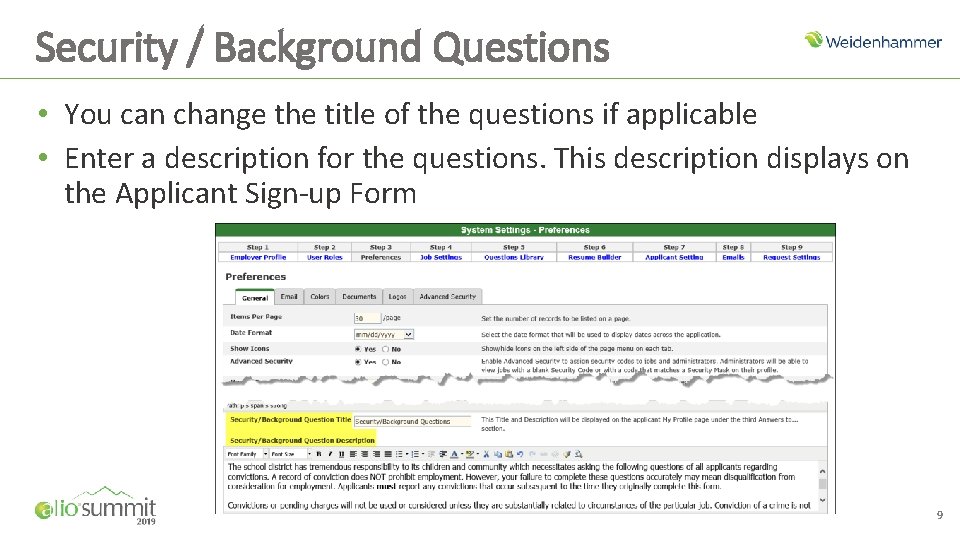
Security / Background Questions • You can change the title of the questions if applicable • Enter a description for the questions. This description displays on the Applicant Sign-up Form 9
Security / Background Questions • Define the Security / Background scheduler settings. This automated task sends e-mail notifications to the reviewers of applicant security / background YES answers o o o Initial Notification § Immediate to send an e-mail to the reviewers immediately after an applicant submits an answer that requires review § Scheduled to send an e-mail to the reviewers at a scheduled time Remind Every X Days – set the number of days to remind reviewers of reviews waiting Reviewers to Notify – select which administrators are responsible for reviewing applicant responses 10
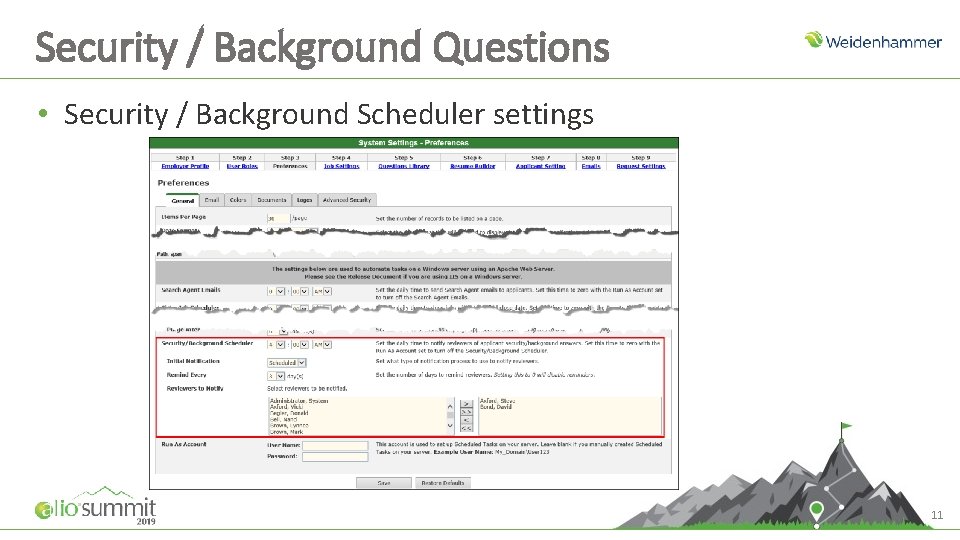
Security / Background Questions • Security / Background Scheduler settings 11
Security / Background Questions • Define your security / background questions • You can define as many or as few as needed • All questions by default are: o o o Radio Button (single selection) Must Answer Response type is Yes and No 12
Security / Background Questions • How to implement and use Security / Background Questions o o Create your Security / Background Questions; set to Active status so they display on the Applicant Signup page Applicant completes the Signup page. If an applicant answers YES to a question, they are prompted to enter the Month (optional), the Year (required), and an Explanation (required) of their answer If an applicant answers Yes to any question when the applicant submits their answers, it triggers an e-mail notification to the reviewers (immediately or at a scheduled time per admin setting) and an e-mail to the applicant stating an approver must review their answers before they can apply to specific openings. After the review is complete, the reviewer either approves the applicant or denies their request for access to Applicant Portal. This process triggers an email to the applicant to communicate the district’s decision. 13
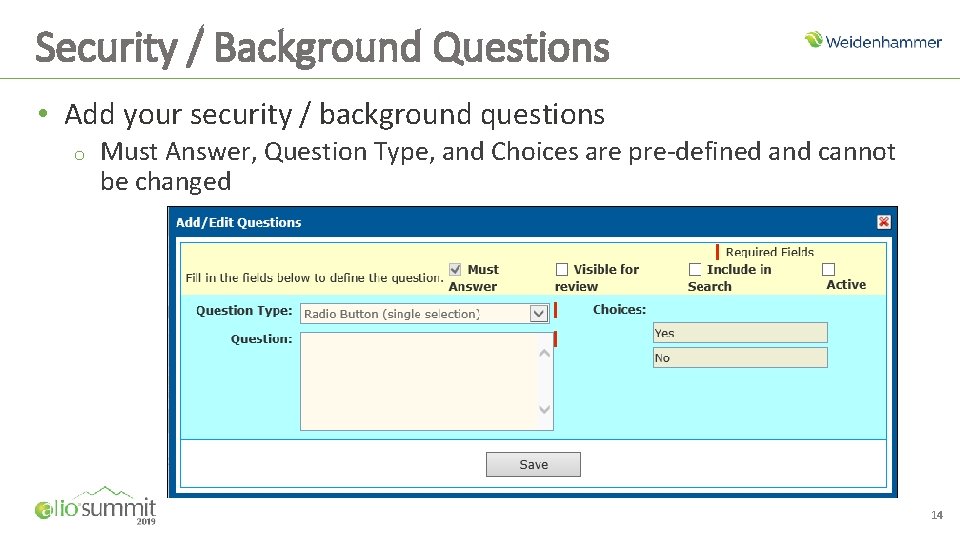
Security / Background Questions • Add your security / background questions o Must Answer, Question Type, and Choices are pre-defined and cannot be changed 14
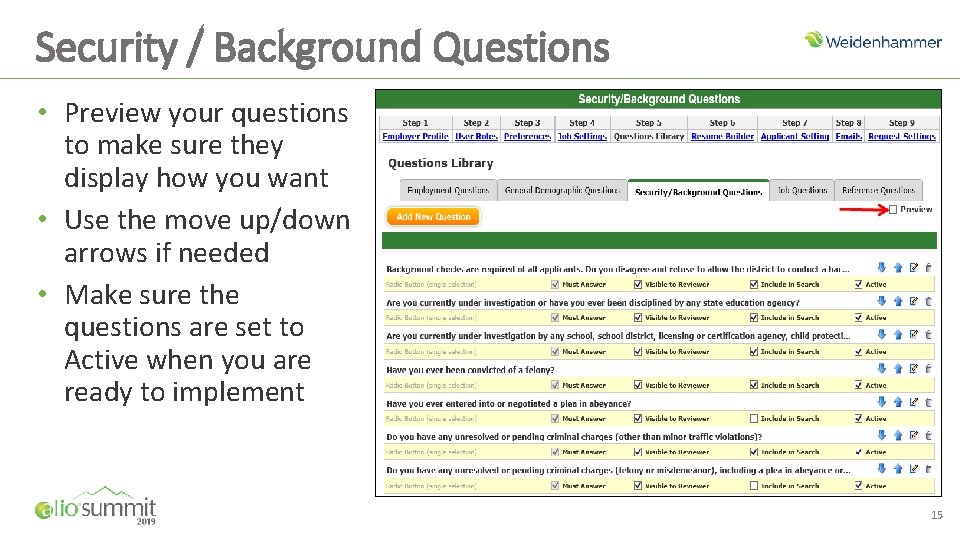
Security / Background Questions • Preview your questions to make sure they display how you want • Use the move up/down arrows if needed • Make sure the questions are set to Active when you are ready to implement 15
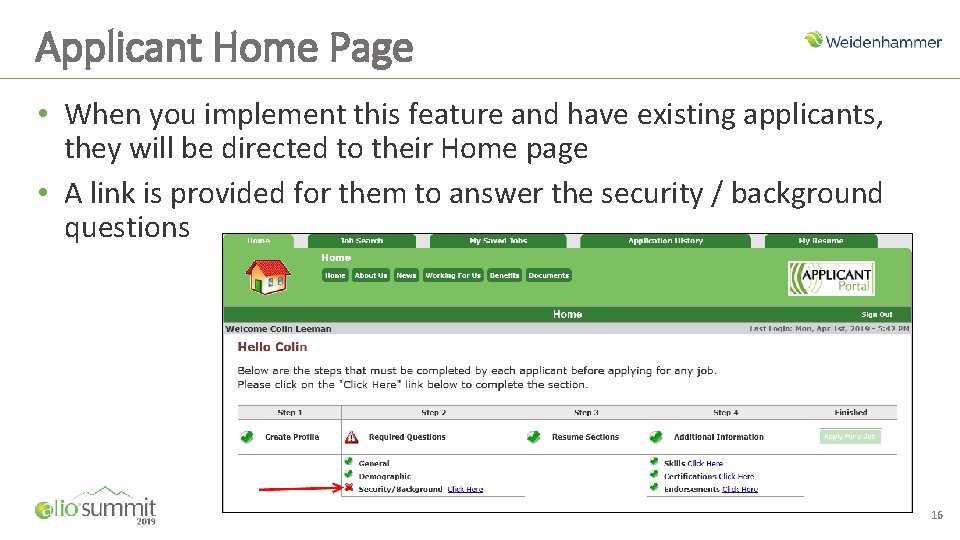
Applicant Home Page • When you implement this feature and have existing applicants, they will be directed to their Home page • A link is provided for them to answer the security / background questions 16
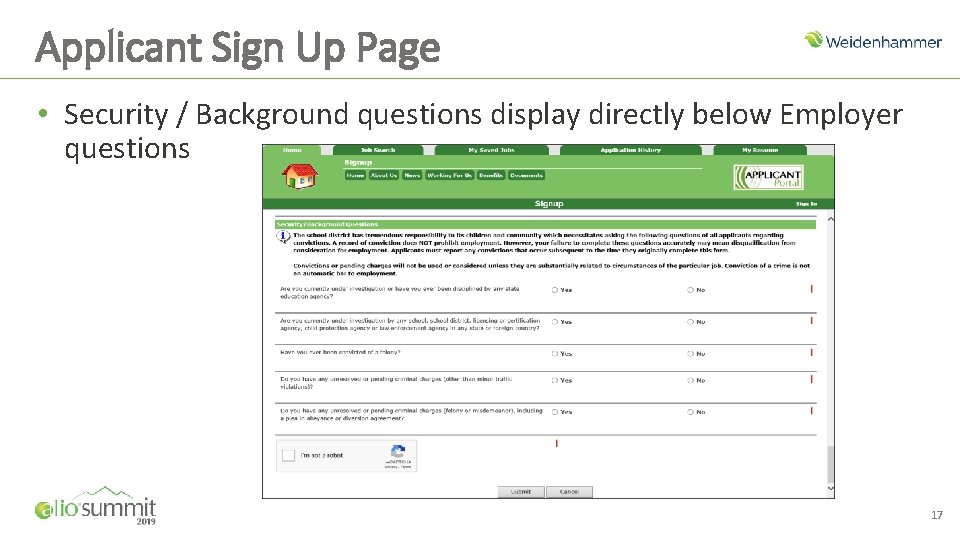
Applicant Sign Up Page • Security / Background questions display directly below Employer questions 17
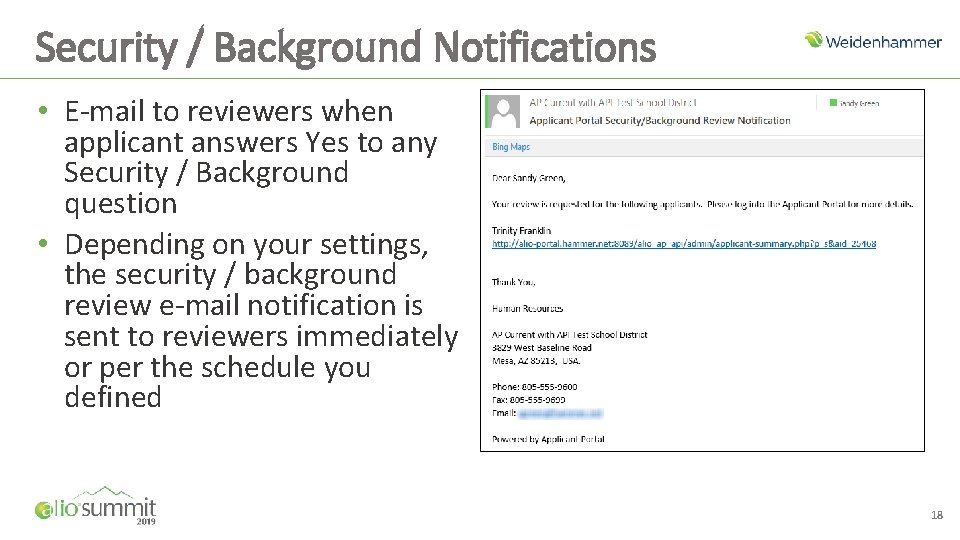
Security / Background Notifications • E-mail to reviewers when applicant answers Yes to any Security / Background question • Depending on your settings, the security / background review e-mail notification is sent to reviewers immediately or per the schedule you defined 18
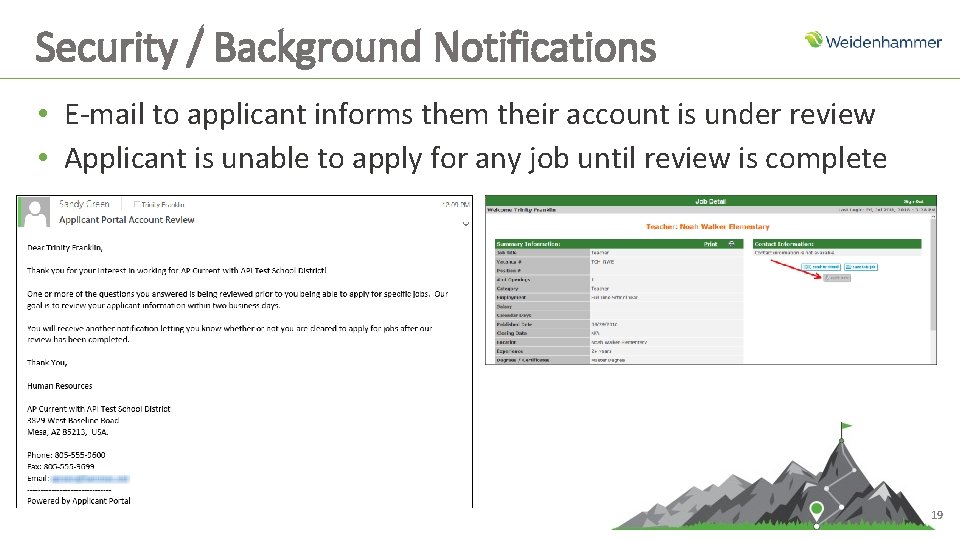
Security / Background Notifications • E-mail to applicant informs them their account is under review • Applicant is unable to apply for any job until review is complete 19
Security / Background Review • Reviewer sets status after review of applicant answers o o Not Eligible for Hire – Cannot Apply for Job Applicant Accepted – Can Apply for Job • Reviewer can View History to see an applicant’s review history and status 20
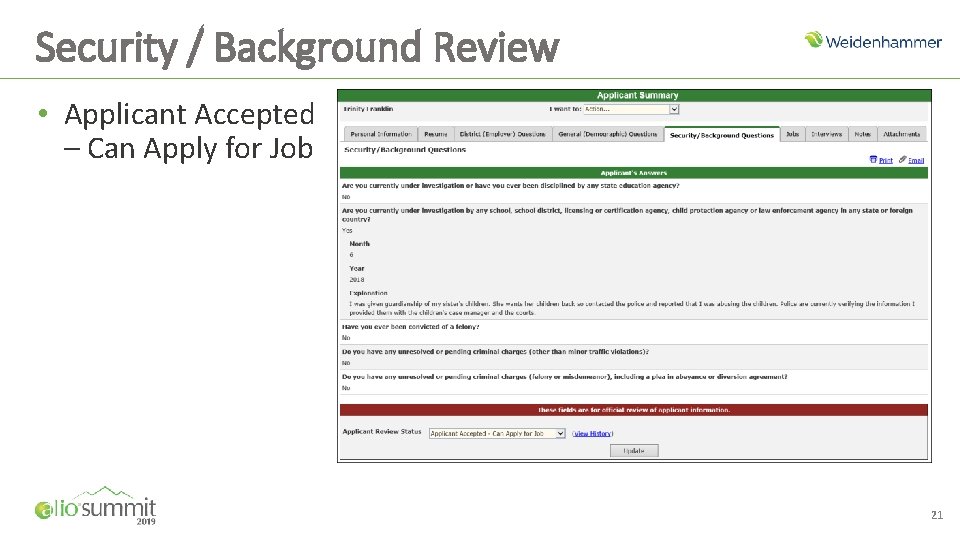
Security / Background Review • Applicant Accepted – Can Apply for Job 21
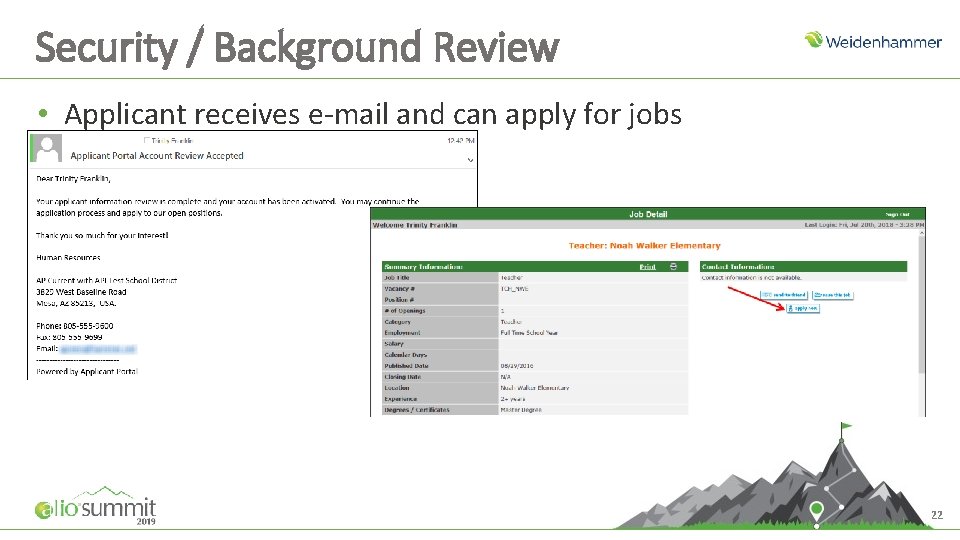
Security / Background Review • Applicant receives e-mail and can apply for jobs 22
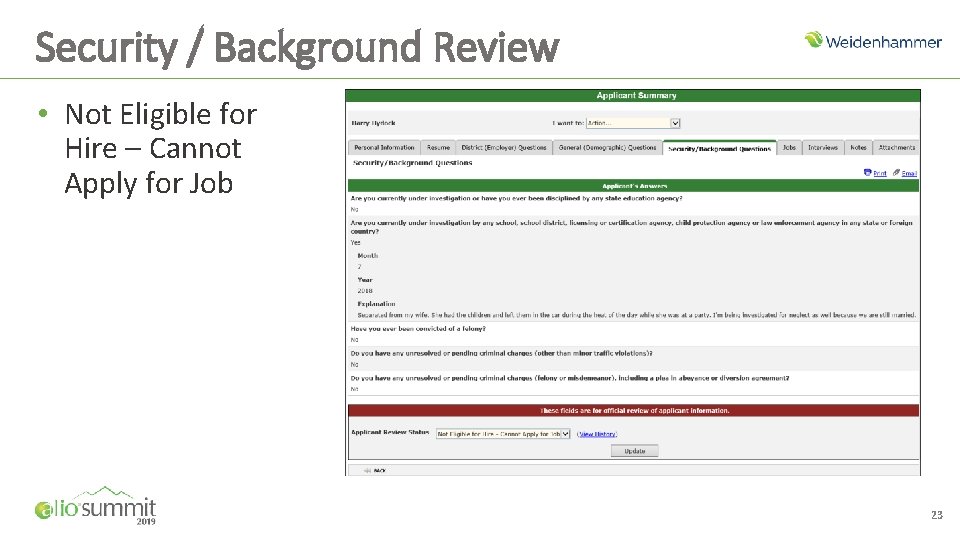
Security / Background Review • Not Eligible for Hire – Cannot Apply for Job 23
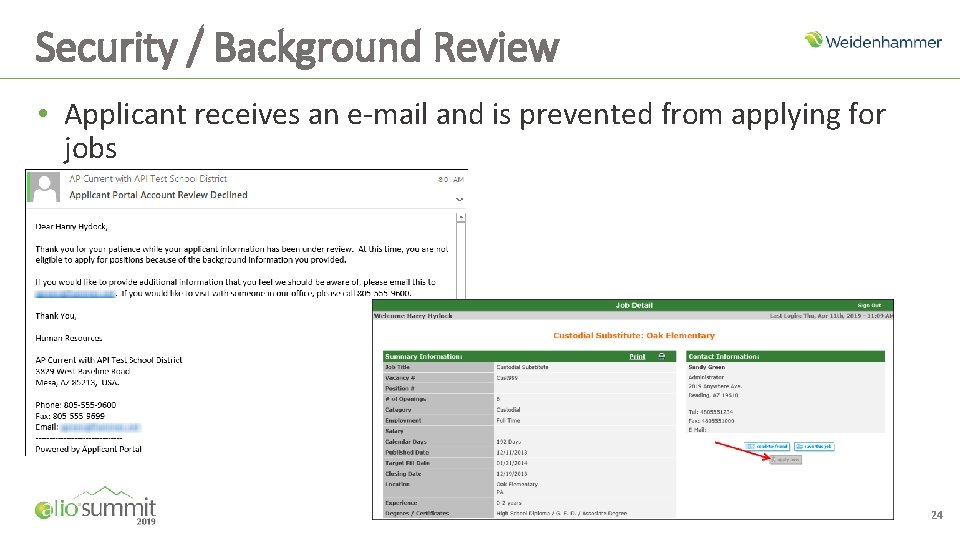
Security / Background Review • Applicant receives an e-mail and is prevented from applying for jobs 24
Security / Background Review • Applicant provides additional information • A different reviewer reviews the information and makes a determination that the applicant can now be approved • Reviewer changes status from Not Eligible for Hire to Applicant Accepted • Applicant receives e-mail and can apply for jobs • Security / Background History is updated 25
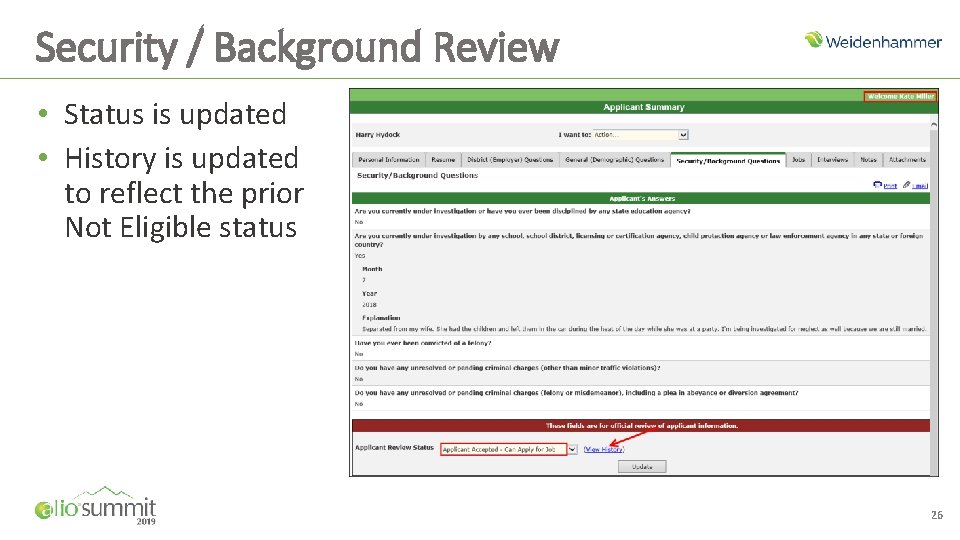
Security / Background Review • Status is updated • History is updated to reflect the prior Not Eligible status 26
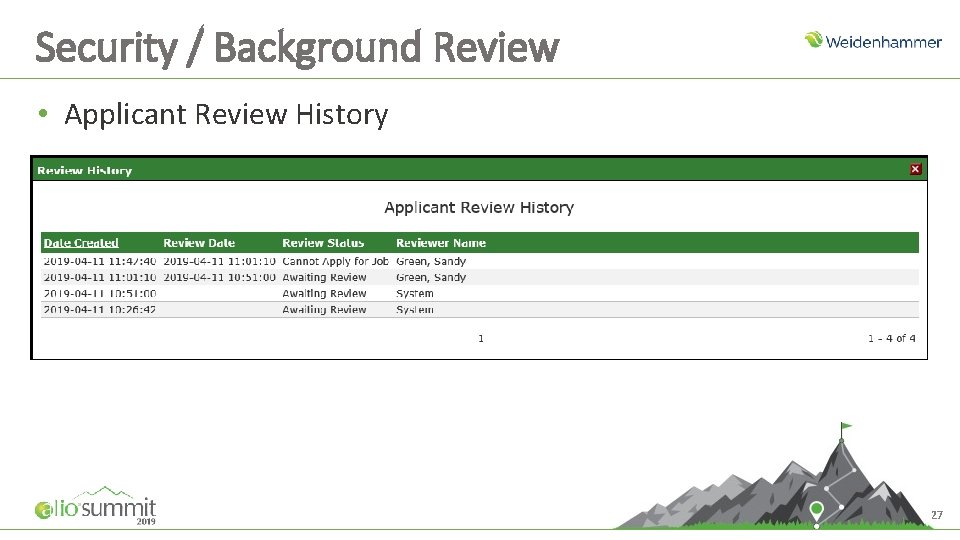
Security / Background Review • Applicant Review History 27

Skills, Certs, Endorsements
Preferences – Skills / Certs / Endorsements • Select to enable skills, certifications, and/or endorsements. The feature(s) you enable are linked to the jobs that require them • Select how jobs should be handled o o o Do not show job to hide any job for which the applicant is not qualified Show job and display custom message; do not allow to apply to display the skills, certs, and/or endorsements required and to prevent an applicant without those required items from applying for the job. If selecting this option, type a Custom Message that will display when the applicant is viewing job details. Show job and display missing skills, certifications, and endorsements; do not allow to apply to display the items the applicant is missing for the job and to prevent the applicant from applying for the job • Enter the Custom Message that displays to the applicant when the Skill, Cert, Endorsement Not Met field is set to Show job and display custom message; do not allow to apply 29
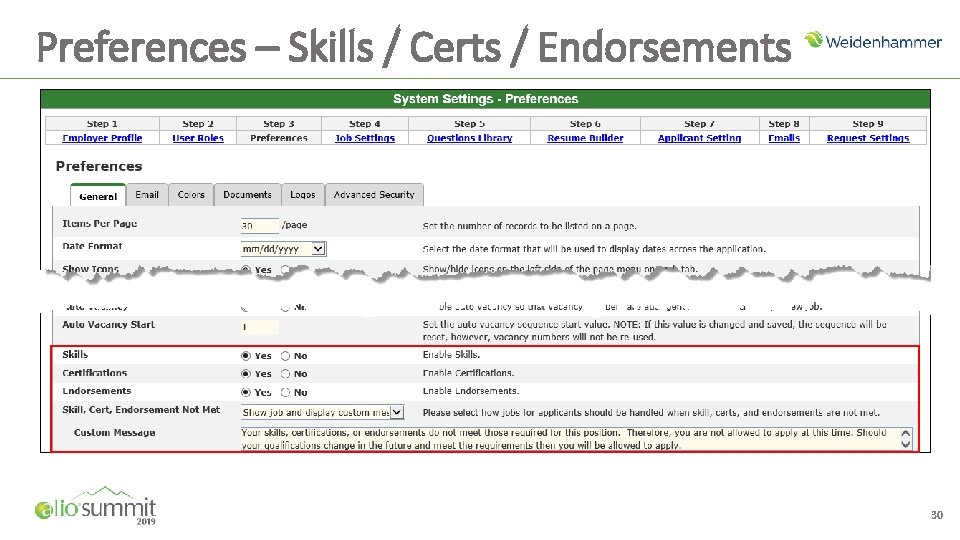
Preferences – Skills / Certs / Endorsements 30
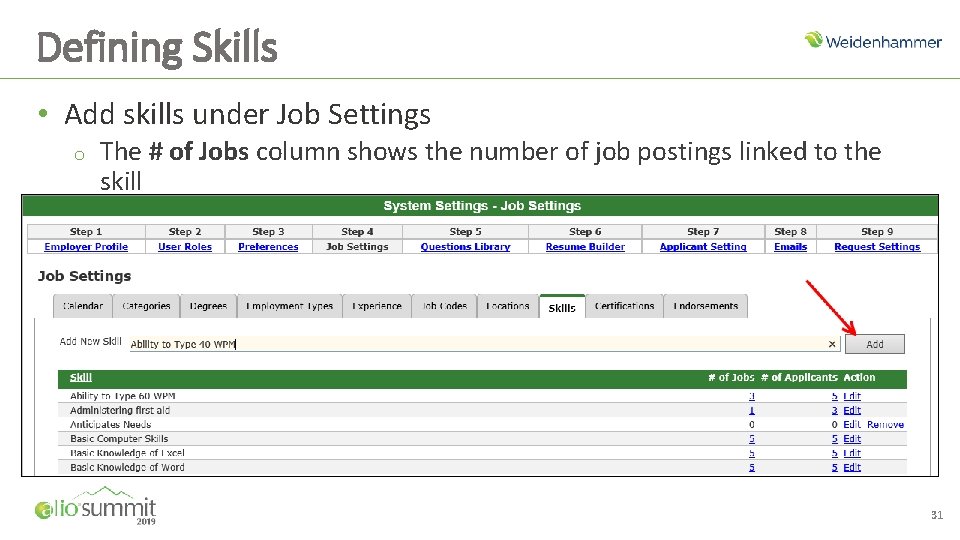
Defining Skills • Add skills under Job Settings o o The # of Jobs column shows the number of job postings linked to the skill The # of Applicants column shows the number of applicants with the skill. 31
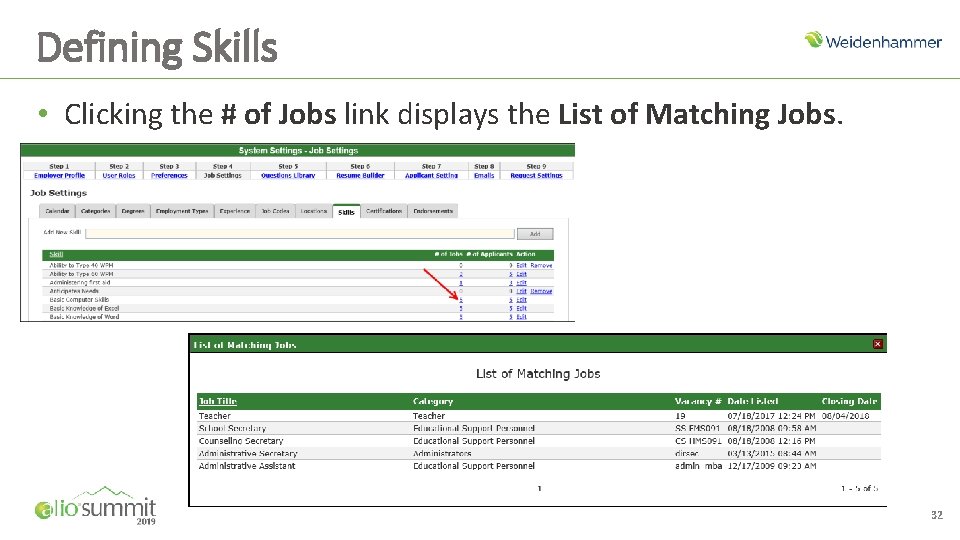
Defining Skills • Clicking the # of Jobs link displays the List of Matching Jobs. 32
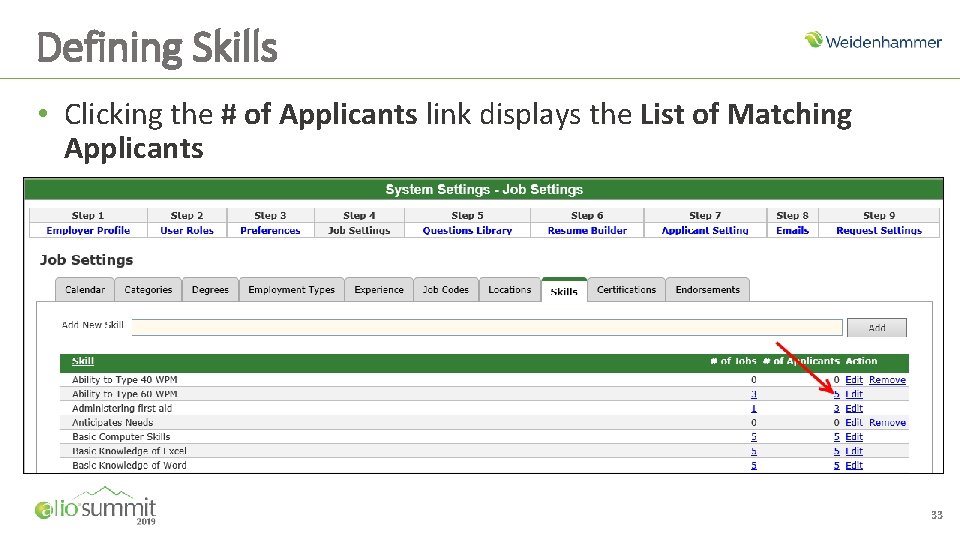
Defining Skills • Clicking the # of Applicants link displays the List of Matching Applicants 33
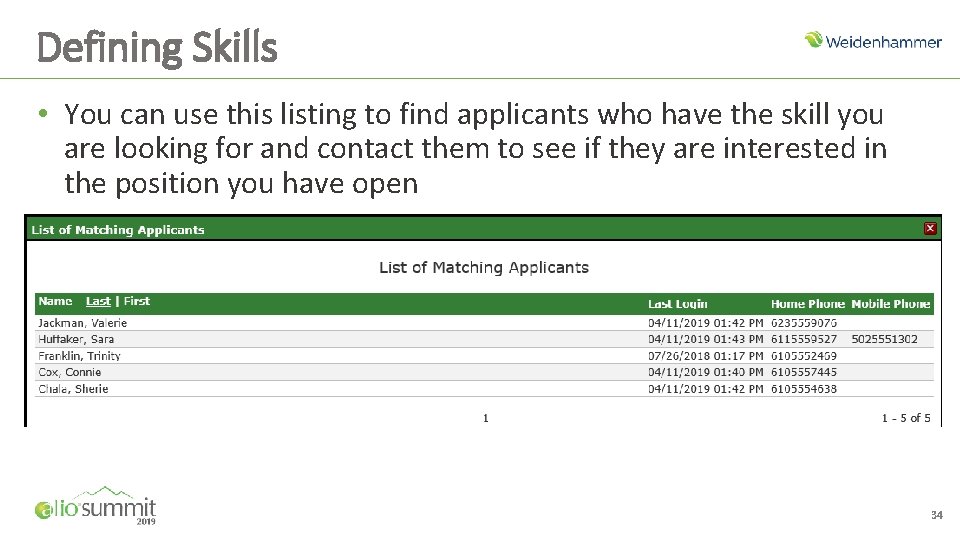
Defining Skills • You can use this listing to find applicants who have the skill you are looking for and contact them to see if they are interested in the position you have open 34
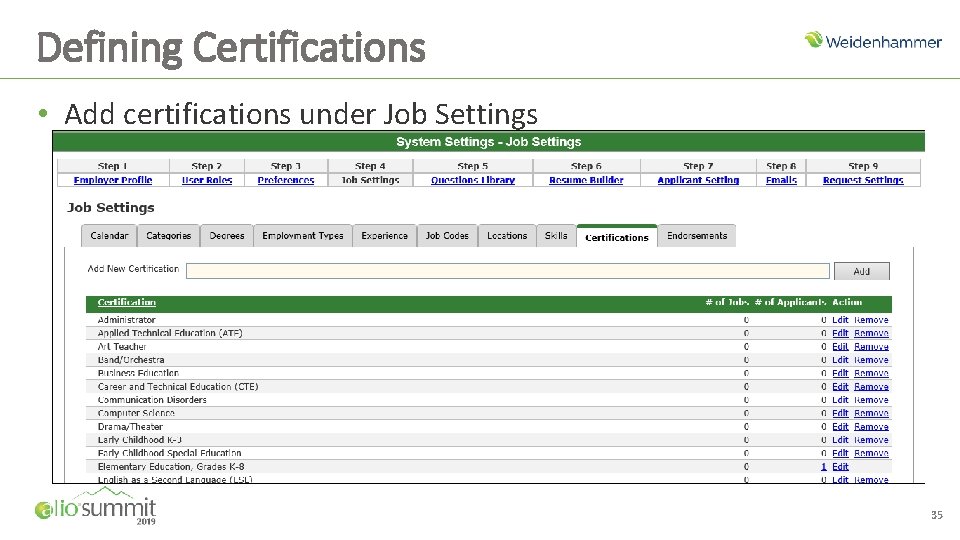
Defining Certifications • Add certifications under Job Settings 35
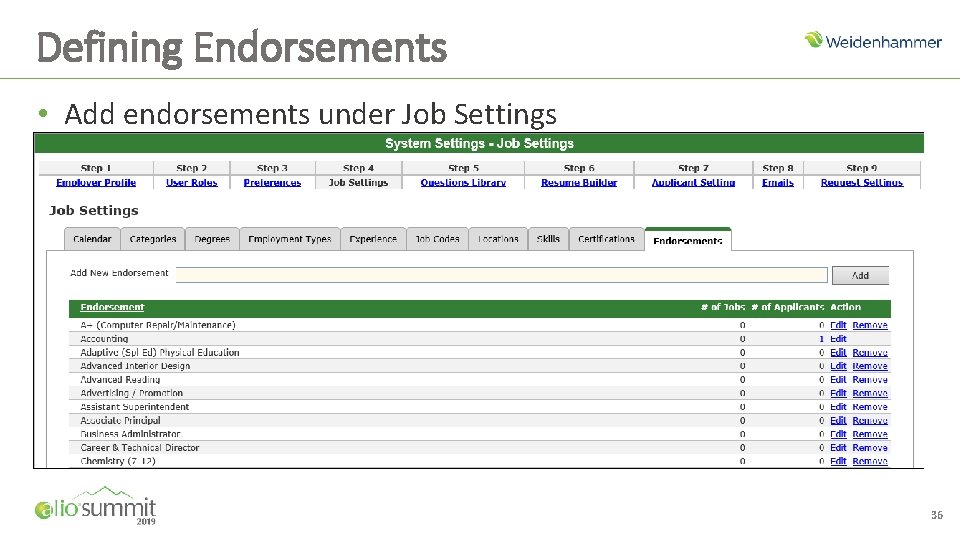
Defining Endorsements • Add endorsements under Job Settings 36
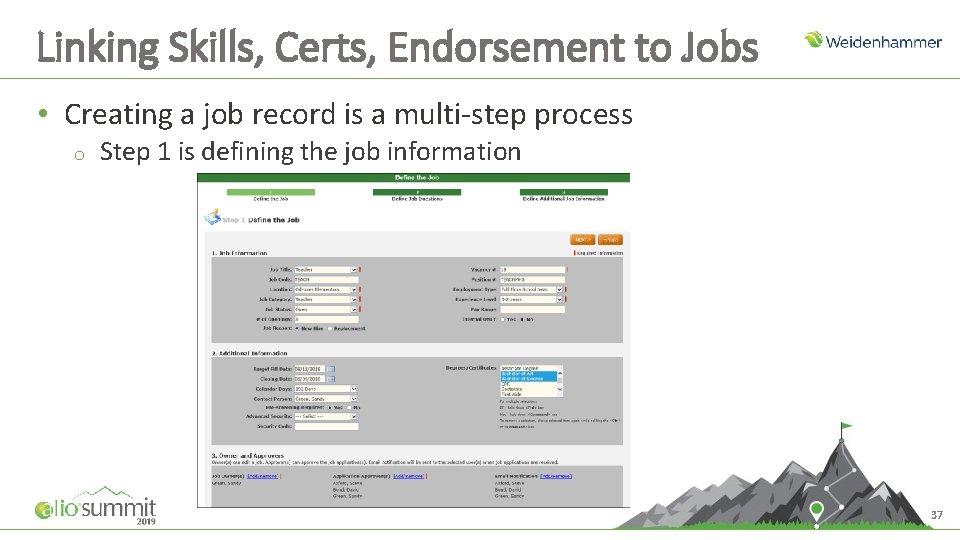
Linking Skills, Certs, Endorsement to Jobs • Creating a job record is a multi-step process o Step 1 is defining the job information 37
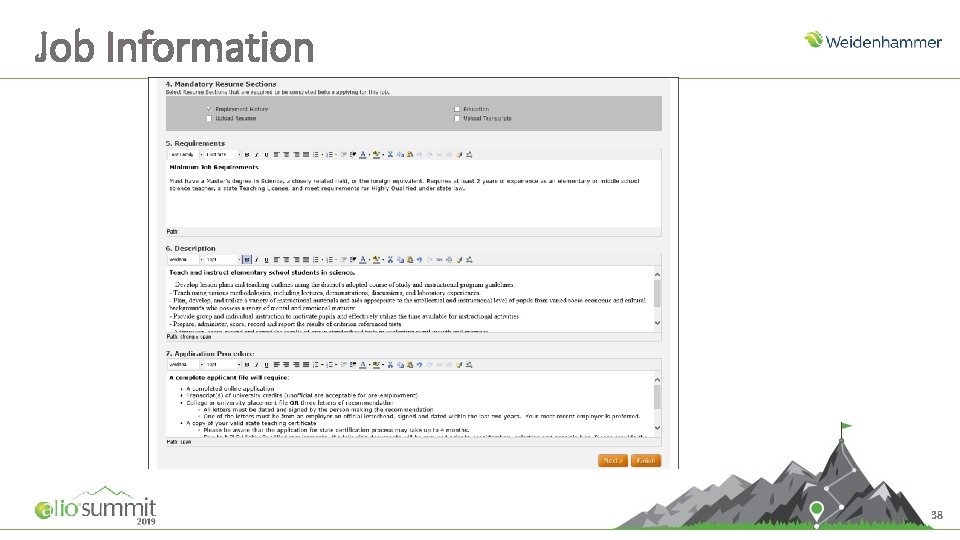
Job Information 38
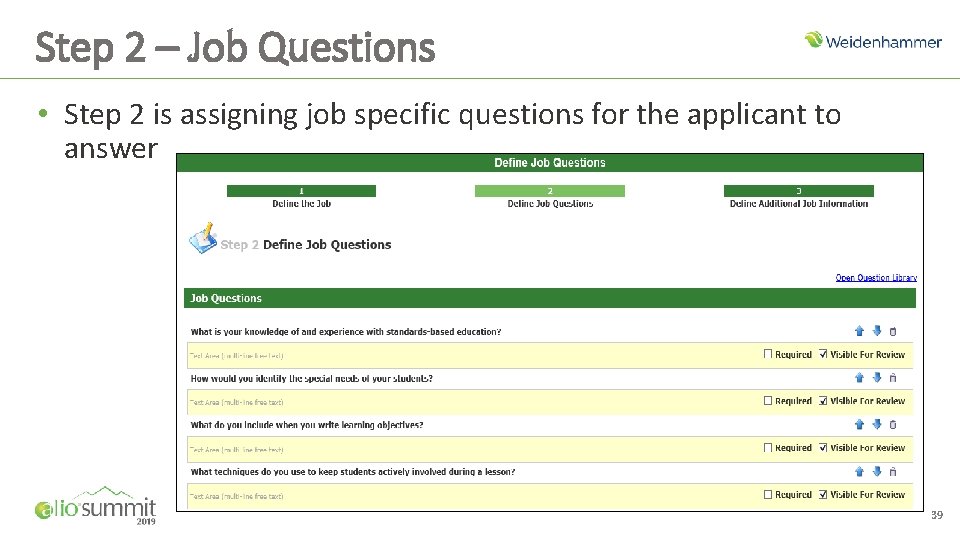
Step 2 – Job Questions • Step 2 is assigning job specific questions for the applicant to answer 39
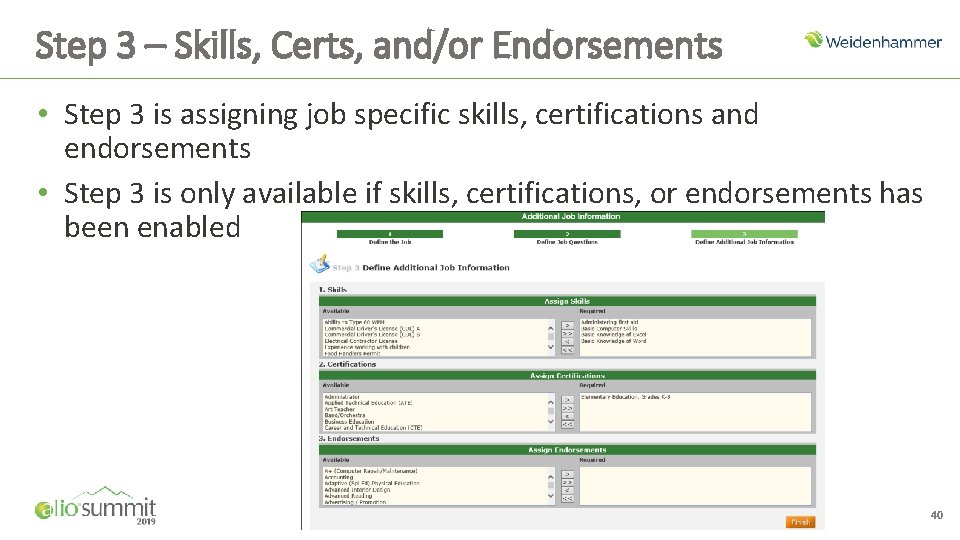
Step 3 – Skills, Certs, and/or Endorsements • Step 3 is assigning job specific skills, certifications and endorsements • Step 3 is only available if skills, certifications, or endorsements has been enabled 40
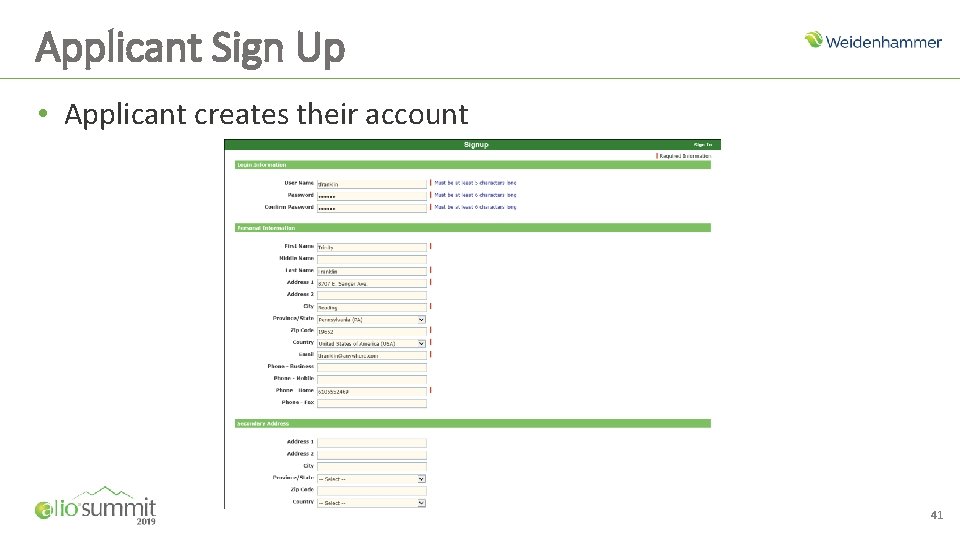
Applicant Sign Up • Applicant creates their account 41
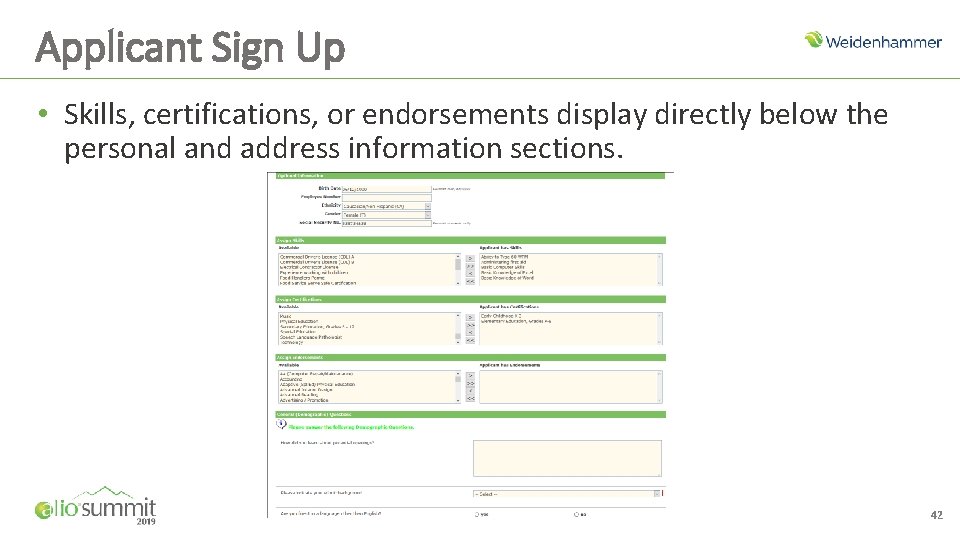
Applicant Sign Up • Skills, certifications, or endorsements display directly below the personal and address information sections. 42
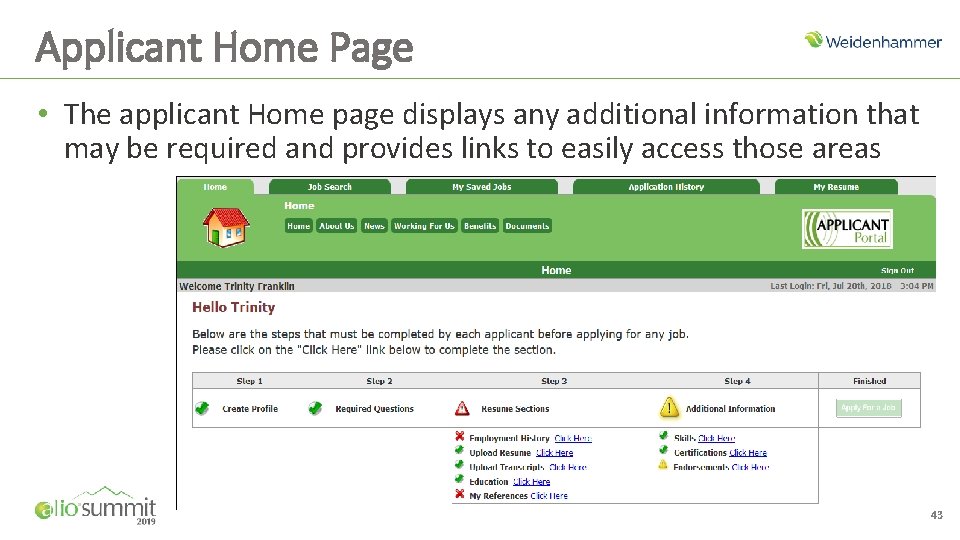
Applicant Home Page • The applicant Home page displays any additional information that may be required and provides links to easily access those areas 43
Select Job – Missing skills, certs, or endorsements • Admin option is set to display the job and a custom message when the applicant is missing required skills, certifications, and/or endorsements • Applicant is not allowed to apply for jobs when required skills, certifications, and/or endorsements are missing 44
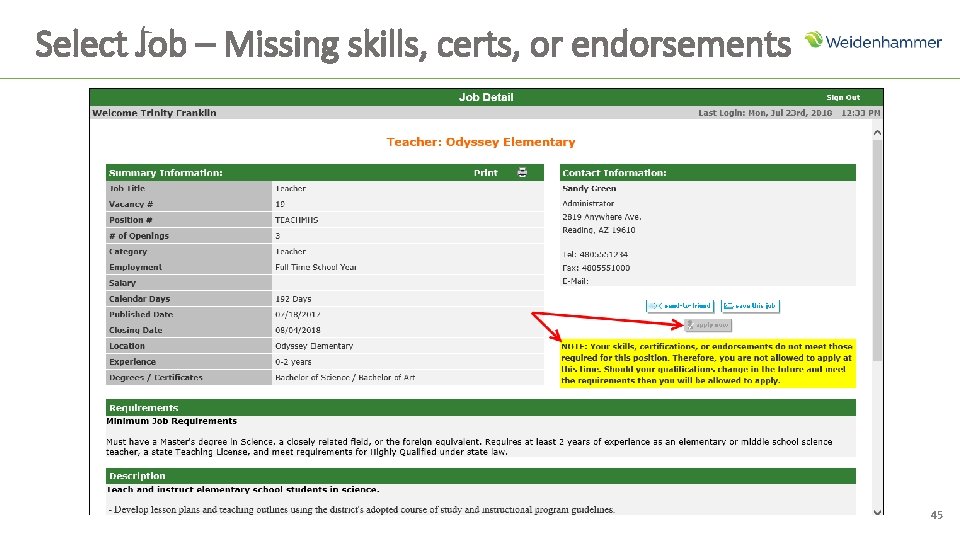
Select Job – Missing skills, certs, or endorsements 45
Select Job – Missing skills and certifications • Admin option is set to display the job and display a list of the required skills, certifications, and/or endorsements that the applicant does not have selected • Applicant is not allowed to apply for jobs when they have missing required skills, certifications, and/or endorsements 46
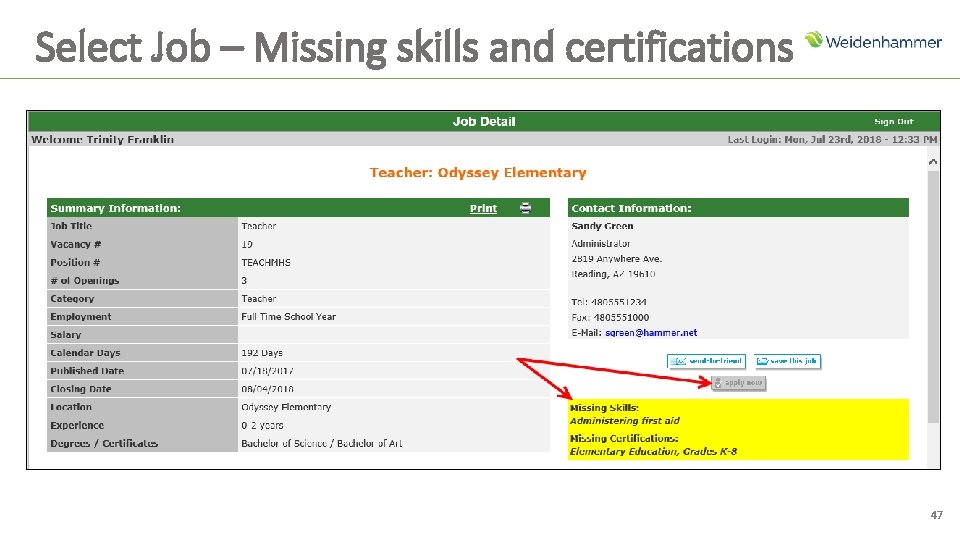
Select Job – Missing skills and certifications 47
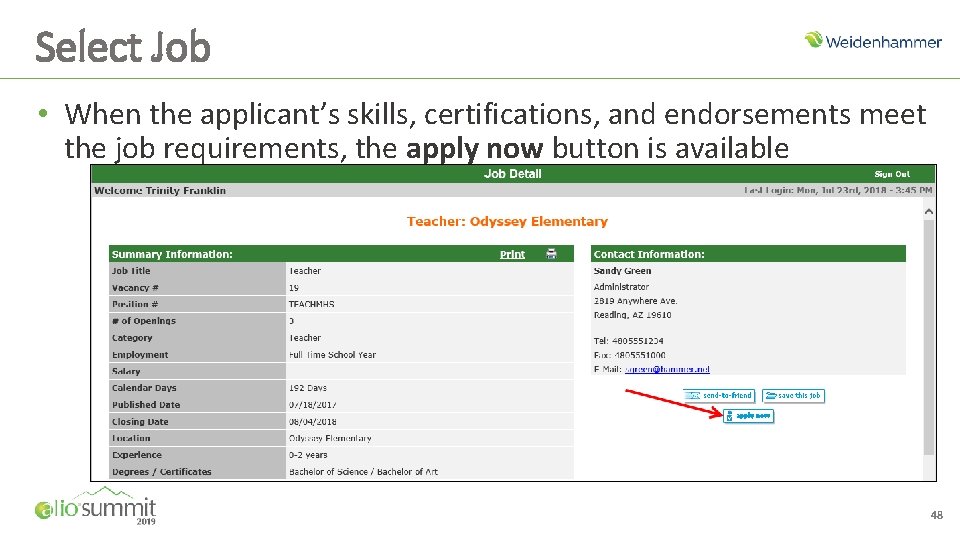
Select Job • When the applicant’s skills, certifications, and endorsements meet the job requirements, the apply now button is available 48

Discussion
Additional Training • If you are interested in other Alio Web. Ex group training sessions, you can view the list of sessions currently available at: http: //www. myalio. com/web-training • If you prefer one-on-one training, please contact your Alio support provider directly for cost and scheduling information • If you are seeking Alio documentation or recorded training sessions, please log onto infolink: https: //infolink. hammer. net/login. aspx • If you have any additional questions or concerns, please contact Alio support at 1 -800 -914 -9879 or by direct email to wccc@hammer. net

Thank You
- Slides: 51