
Applet Recording Testing Java Applets are making Web
Applet Recording

Testing Java Applets are making Web. Sites more and more sophisticated. Highly graphical techniques bring more interactivity and visual effects to your Web. Site. How can you make sure that your Web. Site lives up to its expectations?
What Is Different About Testing My Applet? A Java Applet creates objects outside the scope of normal HTML. e. Valid has the ability to record and playback successfully the interactive options of an applet and validate the pixel count of the applet to make sure it appears on the screen as it is supposed to.
e. Valid Advanced Recording Techniques Using the Advanced Recording features of e. Valid, one can create tests that interact and validate Java Applets. Advanced Recording options are powerful tools that can help test and validate even the most sophisticated Web. Sites.
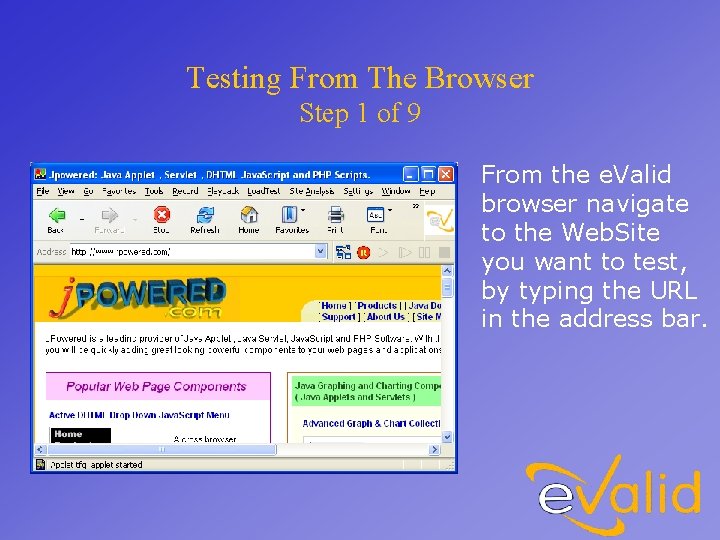
Testing From The Browser Step 1 of 9 From the e. Valid browser navigate to the Web. Site you want to test, by typing the URL in the address bar.
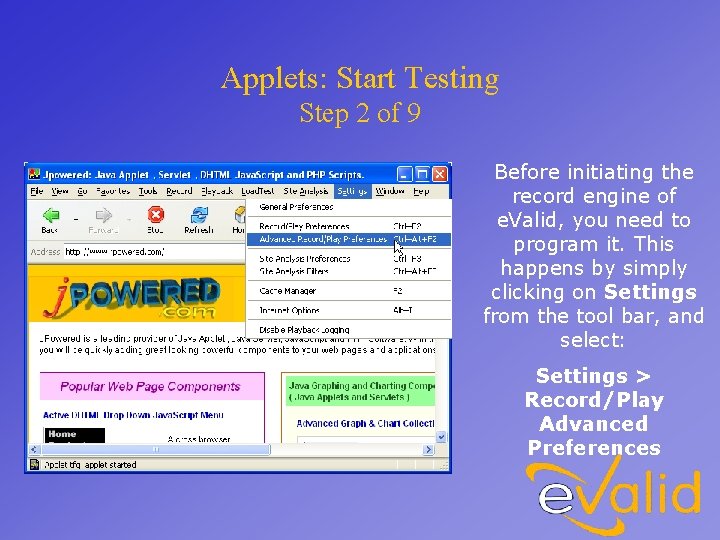
Applets: Start Testing Step 2 of 9 Before initiating the record engine of e. Valid, you need to program it. This happens by simply clicking on Settings from the tool bar, and select: Settings > Record/Play Advanced Preferences

Applets: Advanced Preferences Step 3 of 9 In the Miscellaneous Recording menu, select from the many Applet Recording options that will satisfy your testing needs.
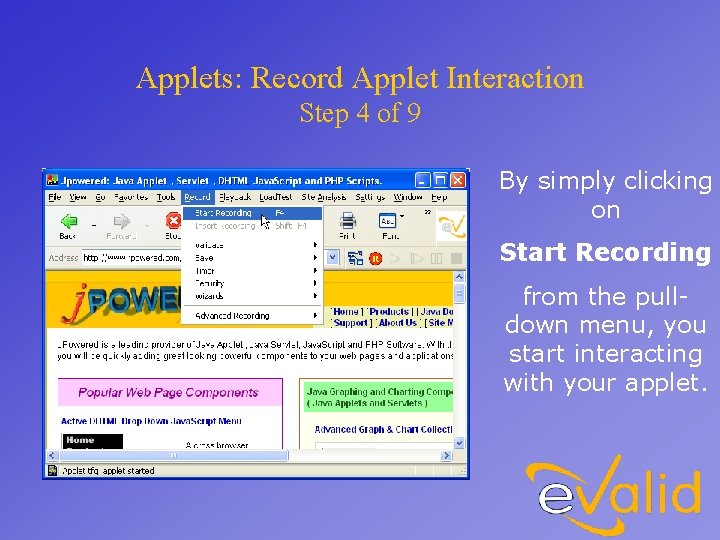
Applets: Record Applet Interaction Step 4 of 9 By simply clicking on Start Recording from the pulldown menu, you start interacting with your applet.
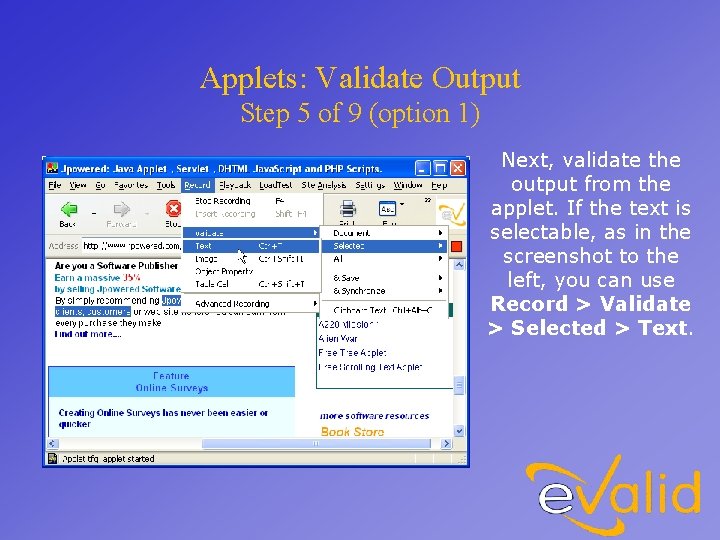
Applets: Validate Output Step 5 of 9 (option 1) Next, validate the output from the applet. If the text is selectable, as in the screenshot to the left, you can use Record > Validate > Selected > Text.
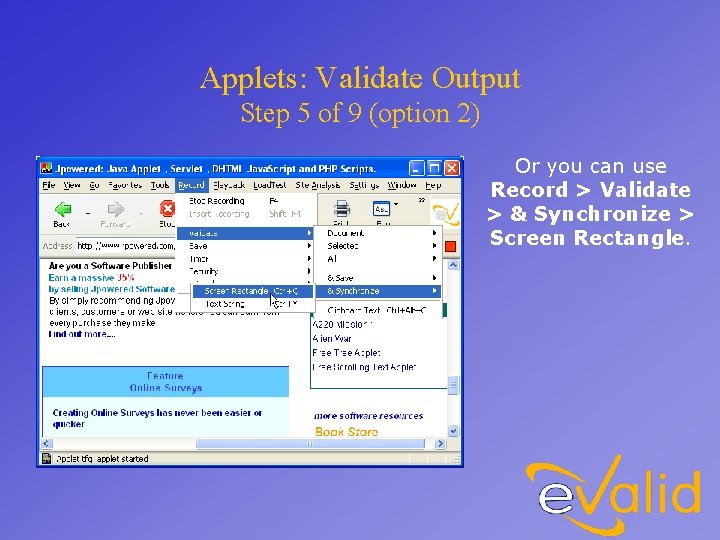
Applets: Validate Output Step 5 of 9 (option 2) Or you can use Record > Validate > & Synchronize > Screen Rectangle.
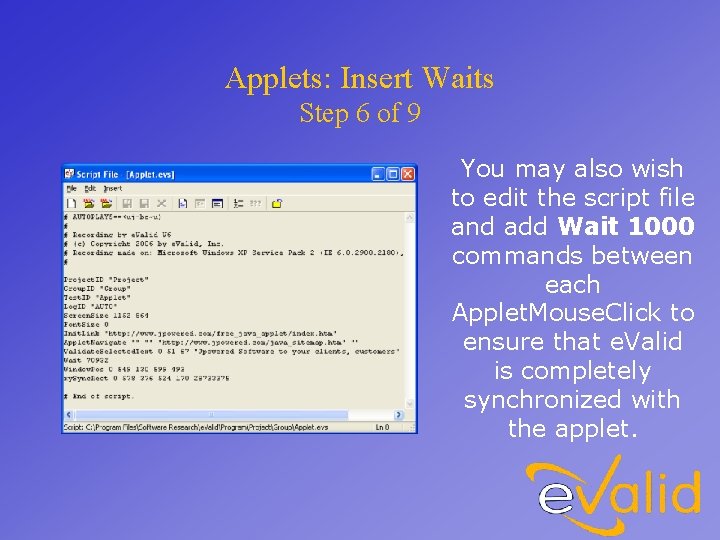
Applets: Insert Waits Step 6 of 9 You may also wish to edit the script file and add Wait 1000 commands between each Applet. Mouse. Click to ensure that e. Valid is completely synchronized with the applet.
Notes: Recording Tips and Solutions Sometimes, depending how an Applet or Active. X control is instantiated, an application creates another layer between itself and the browser.
Notes: Recording Tips and Solutions To properly record the applet, it may be necessary to enable use of the Absolute Events options.
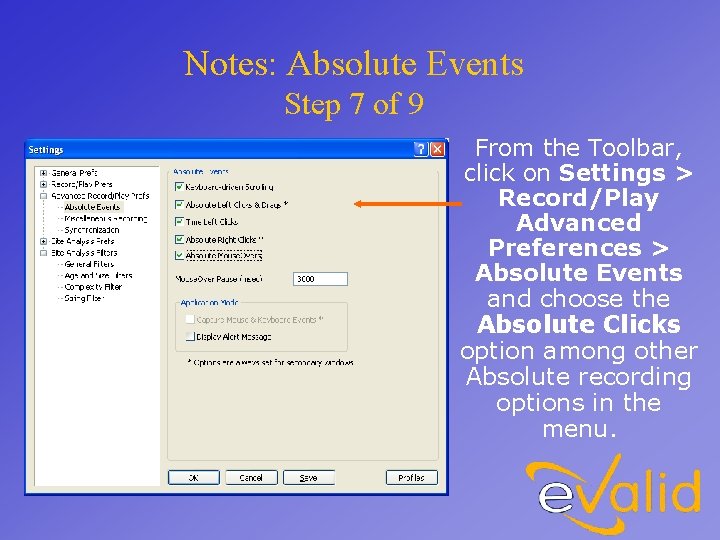
Notes: Absolute Events Step 7 of 9 From the Toolbar, click on Settings > Record/Play Advanced Preferences > Absolute Events and choose the Absolute Clicks option among other Absolute recording options in the menu.
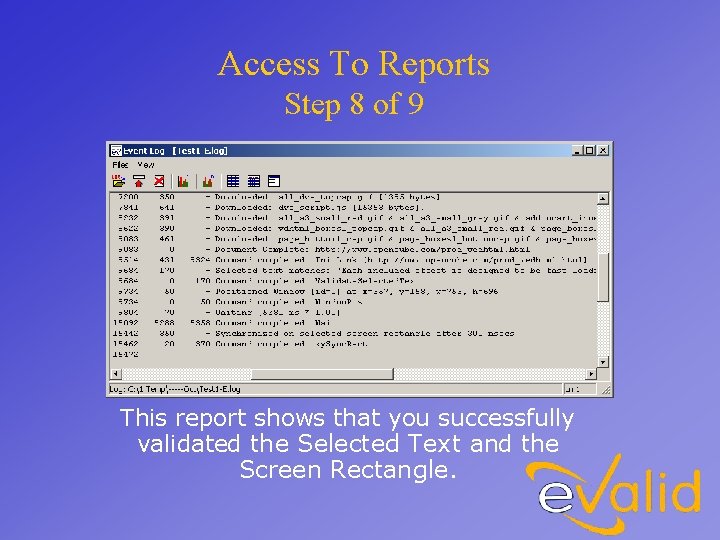
Access To Reports Step 8 of 9 This report shows that you successfully validated the Selected Text and the Screen Rectangle.
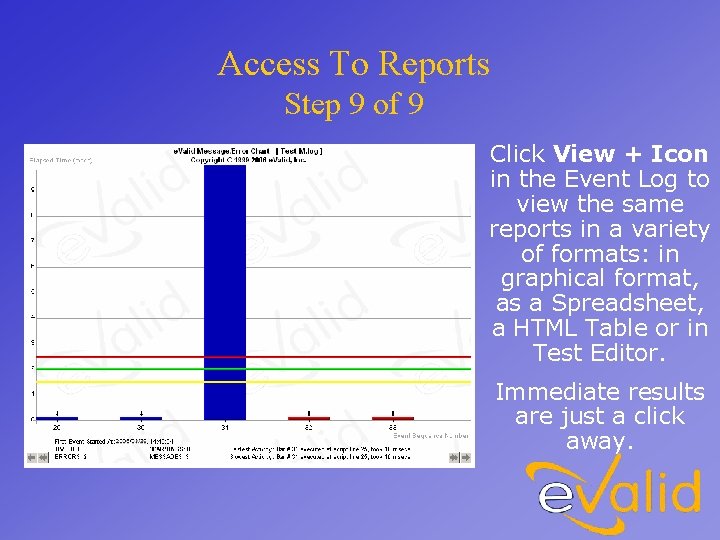
Access To Reports Step 9 of 9 Click View + Icon in the Event Log to view the same reports in a variety of formats: in graphical format, as a Spreadsheet, a HTML Table or in Test Editor. Immediate results are just a click away.
- Slides: 16