
APMP SOCAL Chapter The Proposal Process from Start
- Slides: 24
APMP SOCAL Chapter: The Proposal Process from Start to Finish: From New Word Document to Proposal Template Dick Eassom, AF. APMP (aka Wordman) APMP SOCAL Chapter 2011 1
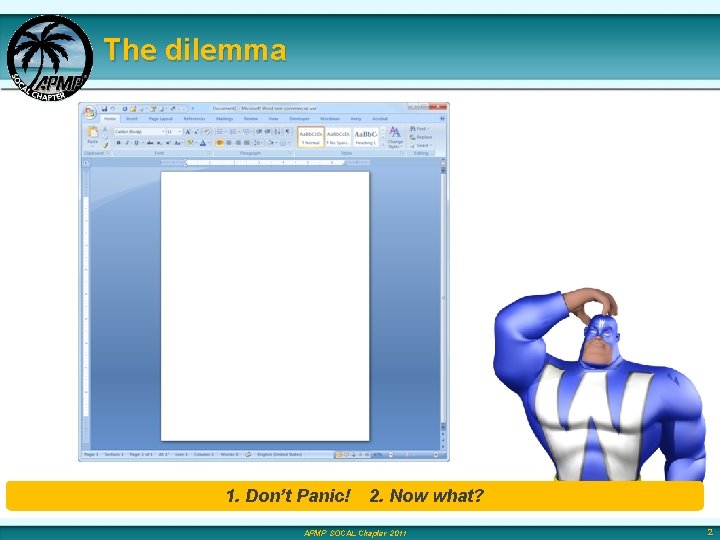
The dilemma 1. Don’t Panic! 2. Now what? APMP SOCAL Chapter 2011 2
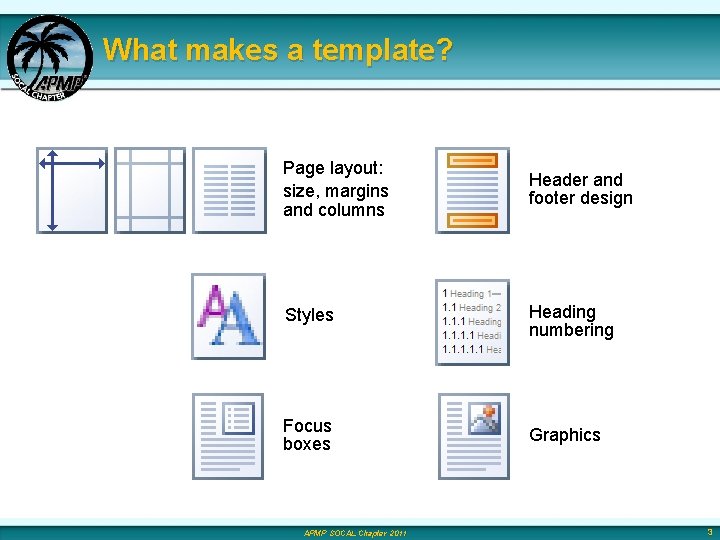
What makes a template? Page layout: size, margins and columns Header and footer design Styles Heading numbering Focus boxes Graphics APMP SOCAL Chapter 2011 3
Page size, margins & columns § Read your RFP for page size and margin requirements § Page size: Check RFP for page size requirements, and to see if foldouts count as 1 or 2 pages – Letter-size, portrait (8½” x 11”) for body of proposal – Tabloid-size, landscape (11” x 17”) for foldouts – § Margins: Check RFP for margin requirements – 1” margins all-round, or – 1” margins top and bottom, ¾” margins left and right – § Columns: – One column is easier than two § Graphics and captions can be inserted inline with text § No need to balance columns at the end of a section § Use borderless tables for multi-column bullet lists – However, two-column will save more space for text APMP SOCAL Chapter 2011 4
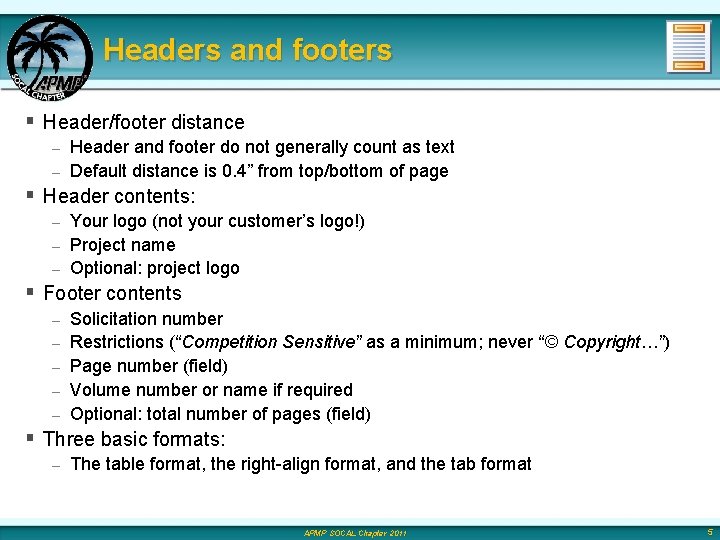
Headers and footers § Header/footer distance Header and footer do not generally count as text – Default distance is 0. 4” from top/bottom of page – § Header contents: Your logo (not your customer’s logo!) – Project name – Optional: project logo – § Footer contents – – – Solicitation number Restrictions (“Competition Sensitive” as a minimum; never “© Copyright…”) Page number (field) Volume number or name if required Optional: total number of pages (field) § Three basic formats: – The table format, the right-align format, and the tab format APMP SOCAL Chapter 2011 5
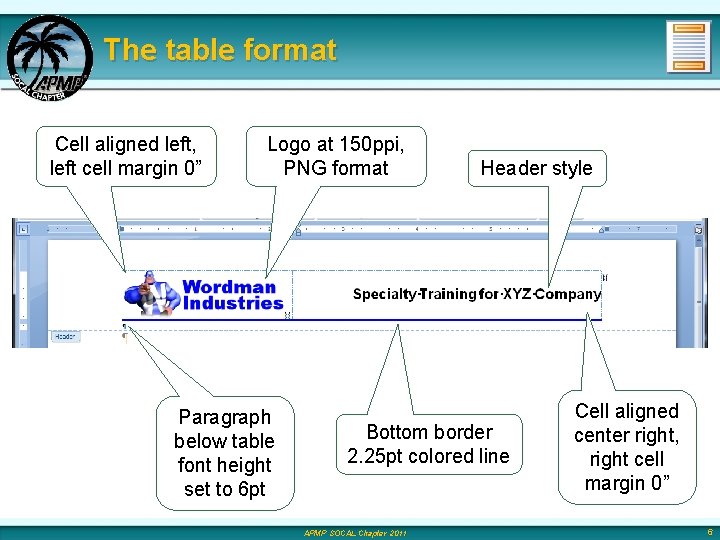
The table format Cell aligned left, left cell margin 0” Logo at 150 ppi, PNG format Paragraph below table font height set to 6 pt Header style Bottom border 2. 25 pt colored line APMP SOCAL Chapter 2011 Cell aligned center right, right cell margin 0” 6
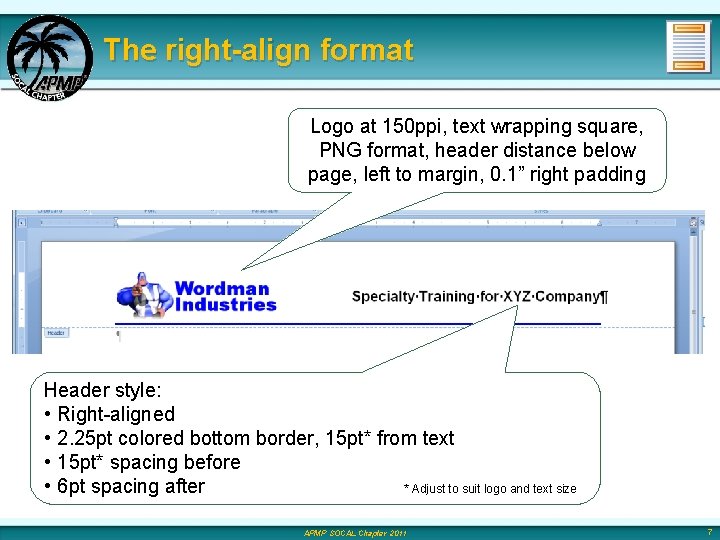
The right-align format Logo at 150 ppi, text wrapping square, PNG format, header distance below page, left to margin, 0. 1” right padding Header style: • Right-aligned • 2. 25 pt colored bottom border, 15 pt* from text • 15 pt* spacing before • 6 pt spacing after * Adjust to suit logo and text size APMP SOCAL Chapter 2011 7
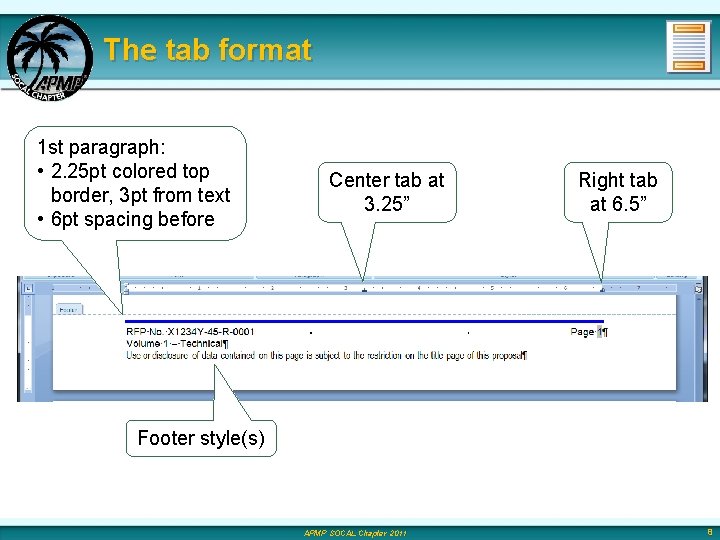
The tab format 1 st paragraph: • 2. 25 pt colored top border, 3 pt from text • 6 pt spacing before Center tab at 3. 25” Right tab at 6. 5” Footer style(s) APMP SOCAL Chapter 2011 8
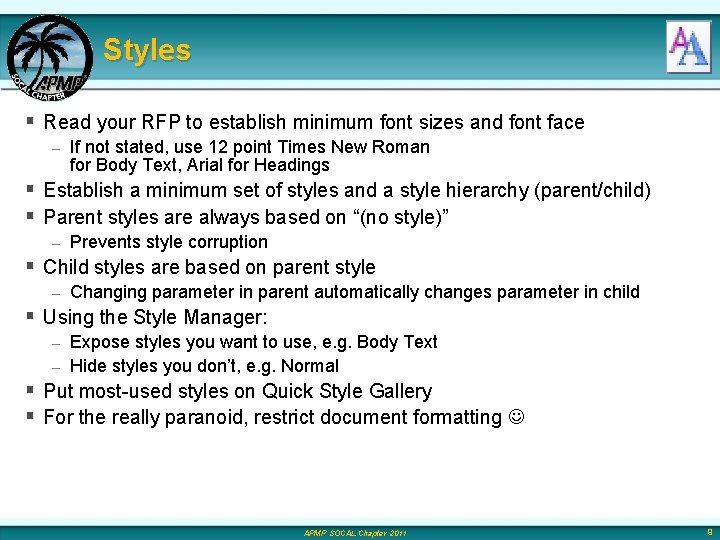
Styles § Read your RFP to establish minimum font sizes and font face – If not stated, use 12 point Times New Roman for Body Text, Arial for Headings § Establish a minimum set of styles and a style hierarchy (parent/child) § Parent styles are always based on “(no style)” – Prevents style corruption § Child styles are based on parent style – Changing parameter in parent automatically changes parameter in child § Using the Style Manager: Expose styles you want to use, e. g. Body Text – Hide styles you don’t, e. g. Normal – § Put most-used styles on Quick Style Gallery § For the really paranoid, restrict document formatting APMP SOCAL Chapter 2011 9
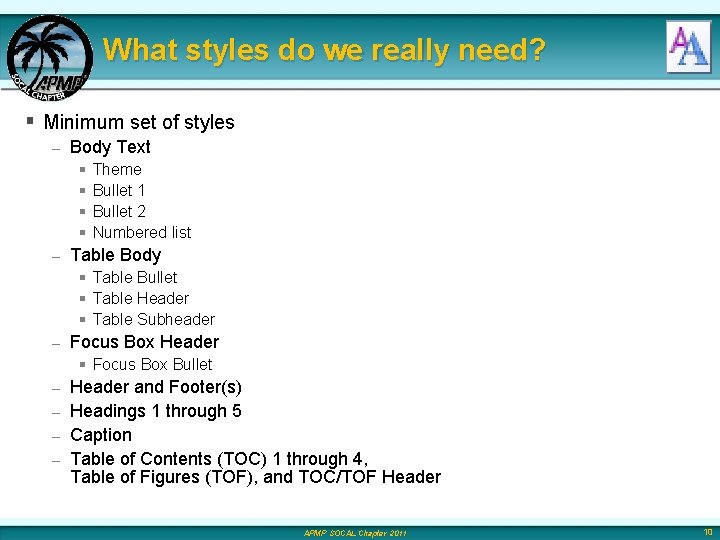
What styles do we really need? § Minimum set of styles – Body Text § § – Theme Bullet 1 Bullet 2 Numbered list Table Body § Table Bullet § Table Header § Table Subheader – Focus Box Header § Focus Box Bullet Header and Footer(s) – Headings 1 through 5 – Caption – Table of Contents (TOC) 1 through 4, Table of Figures (TOF), and TOC/TOF Header – APMP SOCAL Chapter 2011 10
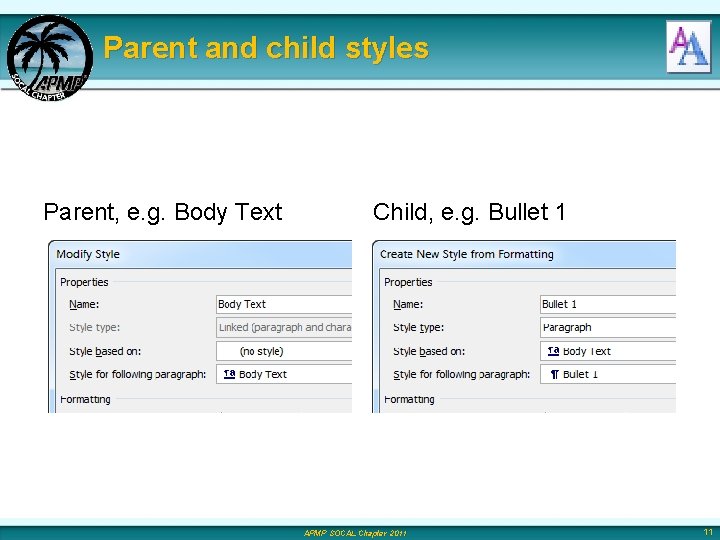
Parent and child styles Parent, e. g. Body Text Child, e. g. Bullet 1 APMP SOCAL Chapter 2011 11
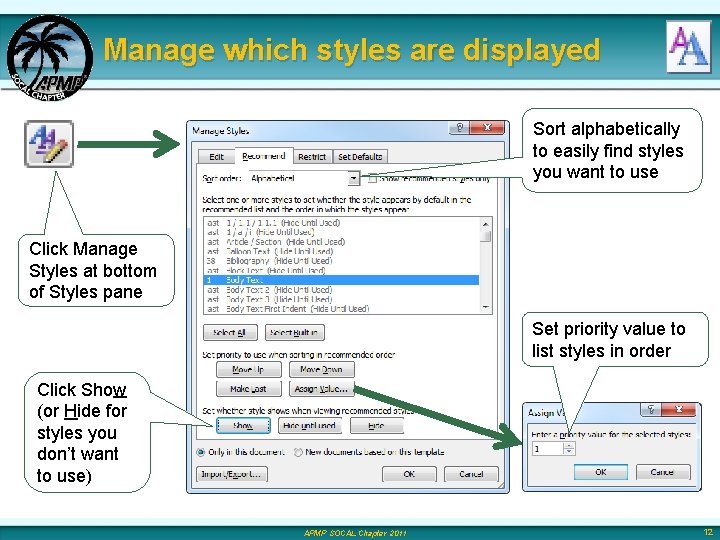
Manage which styles are displayed Sort alphabetically to easily find styles you want to use Click Manage Styles at bottom of Styles pane Set priority value to list styles in order Click Show (or Hide for styles you don’t want to use) APMP SOCAL Chapter 2011 12
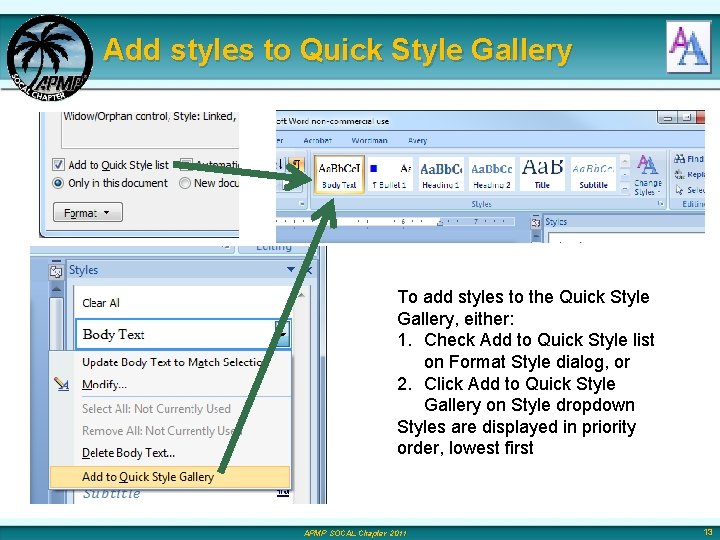
Add styles to Quick Style Gallery To add styles to the Quick Style Gallery, either: 1. Check Add to Quick Style list on Format Style dialog, or 2. Click Add to Quick Style Gallery on Style dropdown Styles are displayed in priority order, lowest first APMP SOCAL Chapter 2011 13
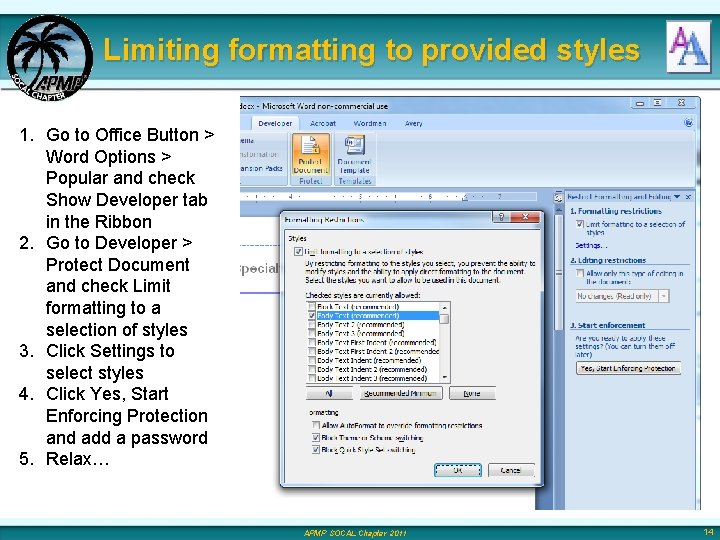
Limiting formatting to provided styles 1. Go to Office Button > Word Options > Popular and check Show Developer tab in the Ribbon 2. Go to Developer > Protect Document and check Limit formatting to a selection of styles 3. Click Settings to select styles 4. Click Yes, Start Enforcing Protection and add a password 5. Relax… APMP SOCAL Chapter 2011 14
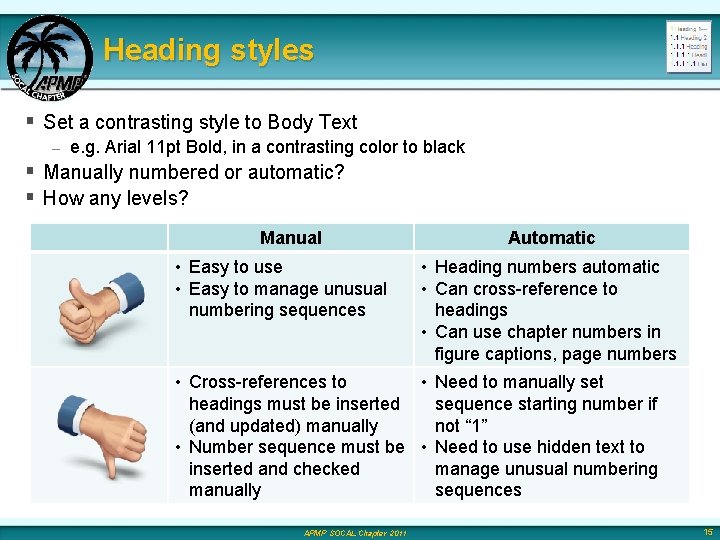
Heading styles § Set a contrasting style to Body Text – e. g. Arial 11 pt Bold, in a contrasting color to black § Manually numbered or automatic? § How any levels? Manual • Easy to use • Easy to manage unusual numbering sequences Automatic • Heading numbers automatic • Can cross-reference to headings • Can use chapter numbers in figure captions, page numbers • Cross-references to • Need to manually set headings must be inserted sequence starting number if (and updated) manually not “ 1” • Number sequence must be • Need to use hidden text to inserted and checked manage unusual numbering manually sequences APMP SOCAL Chapter 2011 15
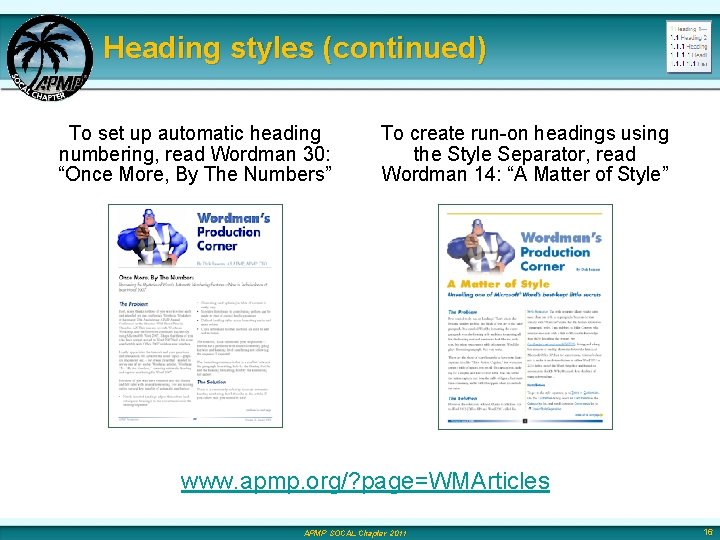
Heading styles (continued) To set up automatic heading numbering, read Wordman 30: “Once More, By The Numbers” To create run-on headings using the Style Separator, read Wordman 14: “A Matter of Style” www. apmp. org/? page=WMArticles APMP SOCAL Chapter 2011 16
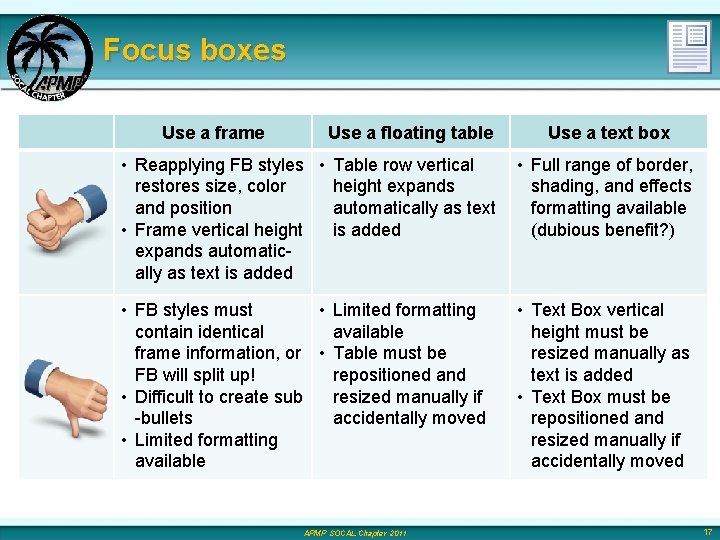
Focus boxes Use a frame Use a floating table Use a text box • Reapplying FB styles • Table row vertical restores size, color height expands and position automatically as text • Frame vertical height is added expands automatically as text is added • Full range of border, shading, and effects formatting available (dubious benefit? ) • FB styles must • Limited formatting contain identical available frame information, or • Table must be FB will split up! repositioned and • Difficult to create sub resized manually if -bullets accidentally moved • Limited formatting available • Text Box vertical height must be resized manually as text is added • Text Box must be repositioned and resized manually if accidentally moved APMP SOCAL Chapter 2011 17
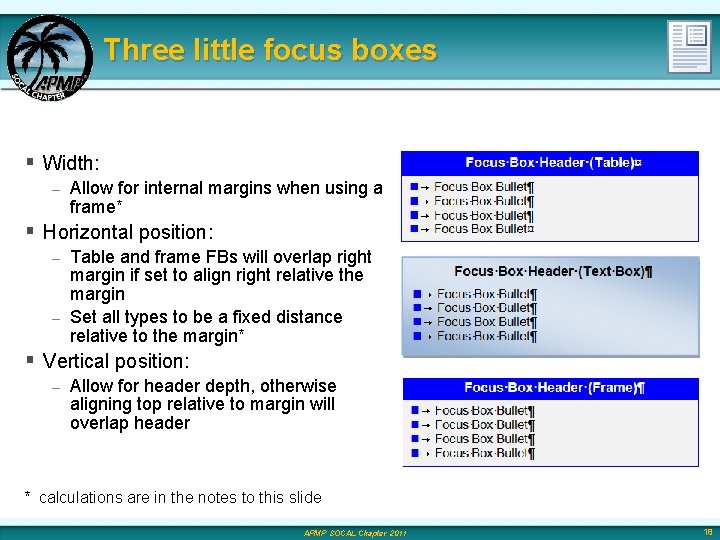
Three little focus boxes § Width: – Allow for internal margins when using a frame* § Horizontal position: Table and frame FBs will overlap right margin if set to align right relative the margin – Set all types to be a fixed distance relative to the margin* – § Vertical position: – Allow for header depth, otherwise aligning top relative to margin will overlap header * calculations are in the notes to this slide APMP SOCAL Chapter 2011 18
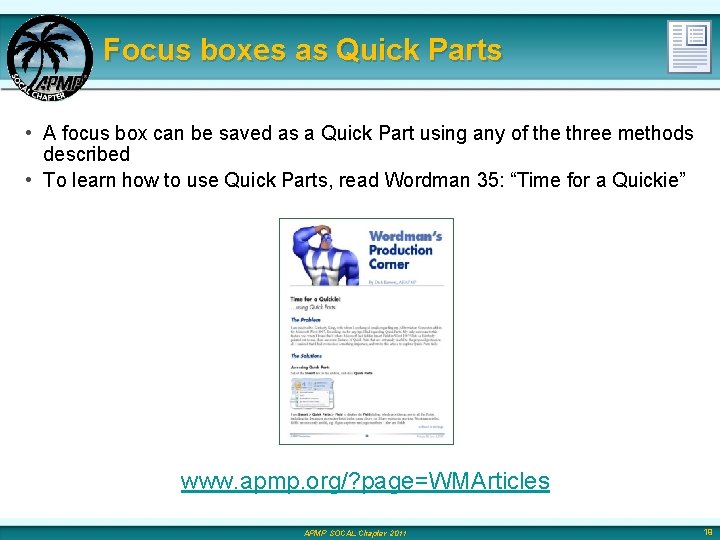
Focus boxes as Quick Parts • A focus box can be saved as a Quick Part using any of the three methods described • To learn how to use Quick Parts, read Wordman 35: “Time for a Quickie” www. apmp. org/? page=WMArticles APMP SOCAL Chapter 2011 19
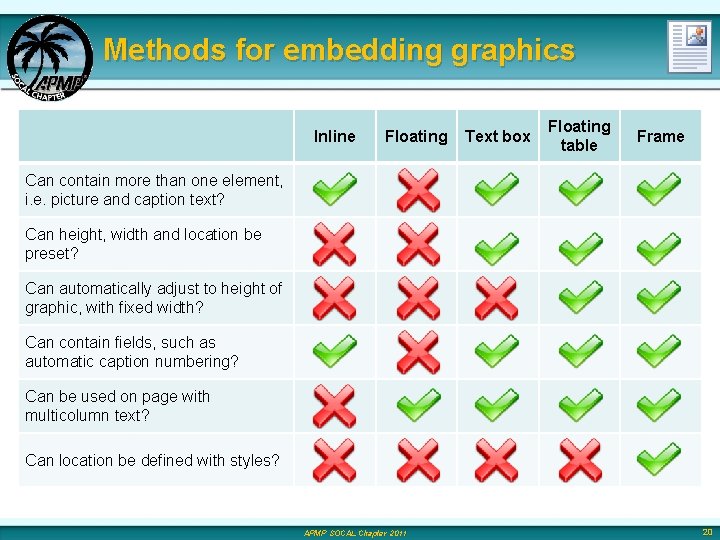
Methods for embedding graphics Inline Floating Text box Floating table Frame Can contain more than one element, i. e. picture and caption text? Can height, width and location be preset? Can automatically adjust to height of graphic, with fixed width? Can contain fields, such as automatic caption numbering? Can be used on page with multicolumn text? Can location be defined with styles? APMP SOCAL Chapter 2011 20
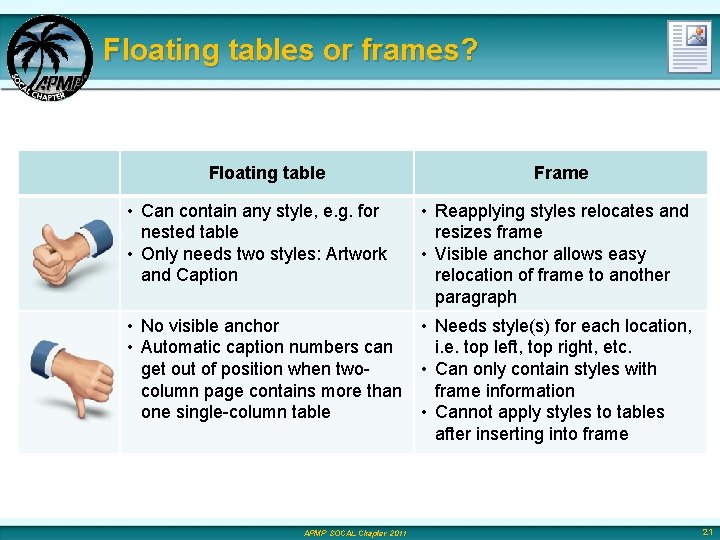
Floating tables or frames? Floating table Frame • Can contain any style, e. g. for nested table • Only needs two styles: Artwork and Caption • Reapplying styles relocates and resizes frame • Visible anchor allows easy relocation of frame to another paragraph • No visible anchor • Automatic caption numbers can get out of position when twocolumn page contains more than one single-column table • Needs style(s) for each location, i. e. top left, top right, etc. • Can only contain styles with frame information • Cannot apply styles to tables after inserting into frame APMP SOCAL Chapter 2011 21
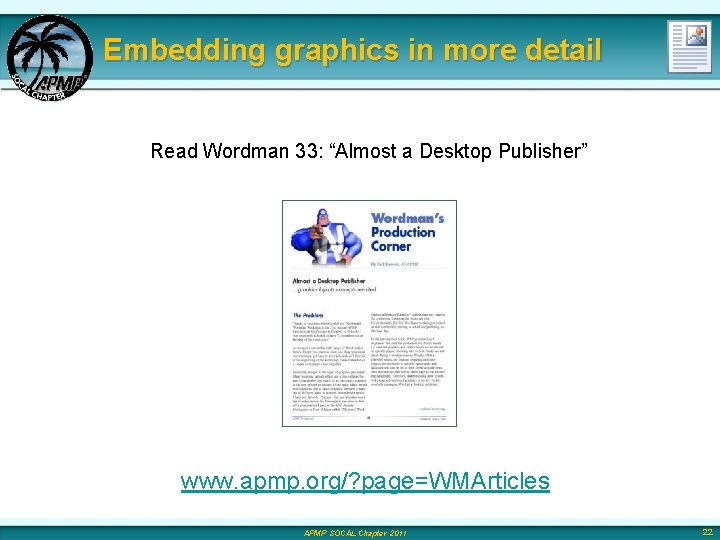
Embedding graphics in more detail Read Wordman 33: “Almost a Desktop Publisher” www. apmp. org/? page=WMArticles APMP SOCAL Chapter 2011 22
And finally… § Go to Office Button > Prepare > Properties § Click Document Properties > Advanced Properties to display Properties dialog § Enter Title (of proposal), Company. § Text restricting the use of the document can be added to the Comments § Add a password if you’re going to restrict formatting § And save as a Word Template (*. dotx) APMP SOCAL Chapter 2011 23
More information § Wordman archives on the APMP website: www. apmp. org/? page=WMArchives § Wordman’s Forum on Linked. In: www. linkedin. com/groups/Wordmans-Forum-4015004 § Wordman’s website: www. iamwordman. com § Wordman’s email: word. man@cox. net § Wordman on Twitter: @IAm. Wordman APMP SOCAL Chapter 2011 24