
Anthem Voice Signature Tool A guide for system
- Slides: 6
Anthem Voice Signature Tool A guide for system administrators “retrieving recordings”
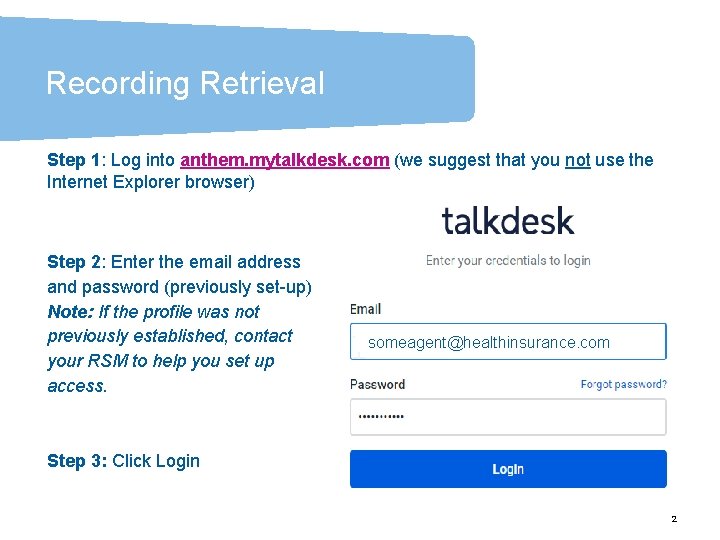
Recording Retrieval Step 1: Log into anthem. mytalkdesk. com (we suggest that you not use the Internet Explorer browser) Step 2: Enter the email address and password (previously set-up) Note: If the profile was not previously established, contact your RSM to help you set up access. someagent@healthinsurance. com Step 3: Click Login 2 2
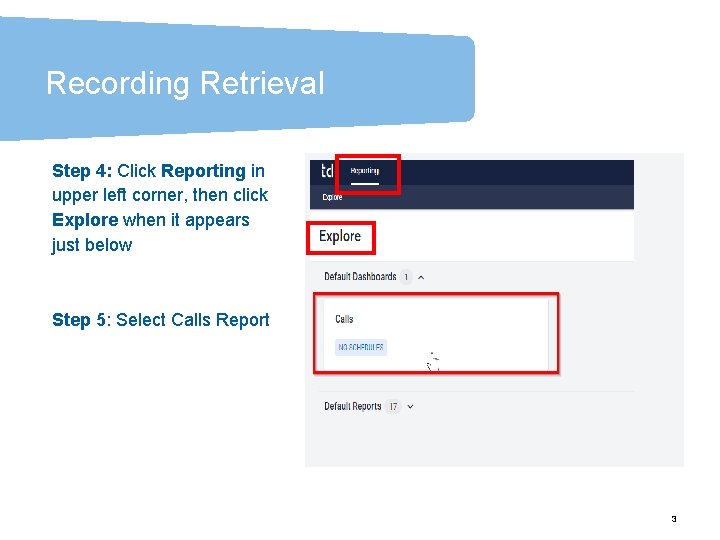
Recording Retrieval Step 4: Click Reporting in upper left corner, then click Explore when it appears just below Step 5: Select Calls Report 3 3
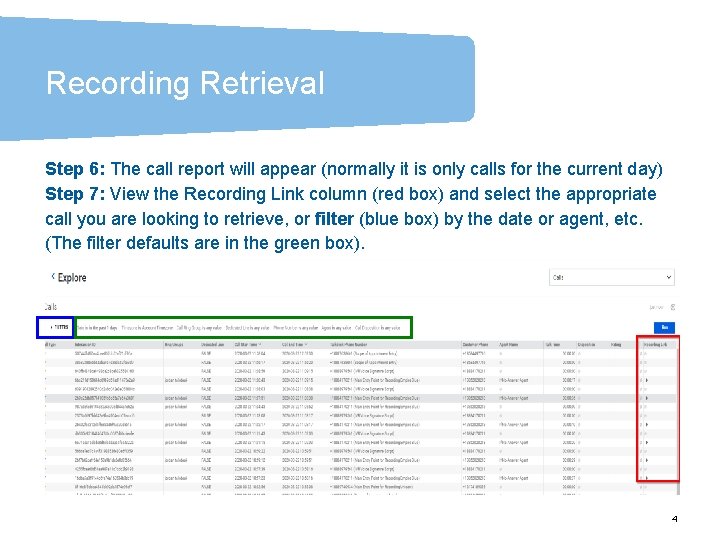
Recording Retrieval Step 6: The call report will appear (normally it is only calls for the current day) Step 7: View the Recording Link column (red box) and select the appropriate call you are looking to retrieve, or filter (blue box) by the date or agent, etc. (The filter defaults are in the green box). 4 4
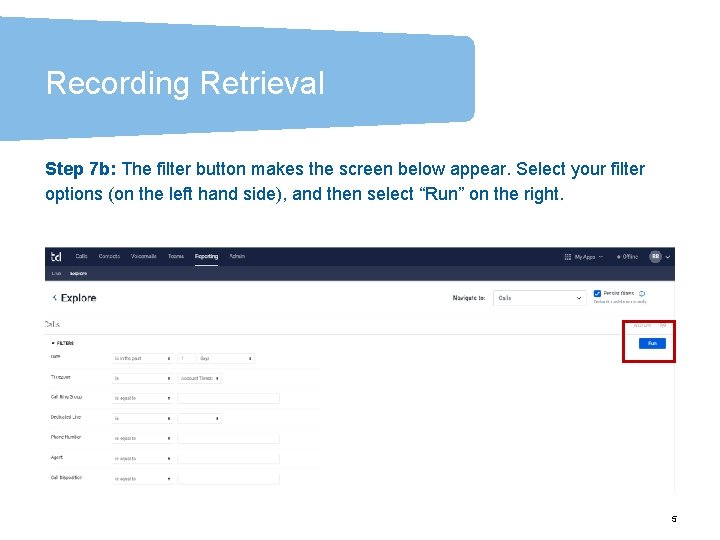
Recording Retrieval Step 7 b: The filter button makes the screen below appear. Select your filter options (on the left hand side), and then select “Run” on the right. 5 5
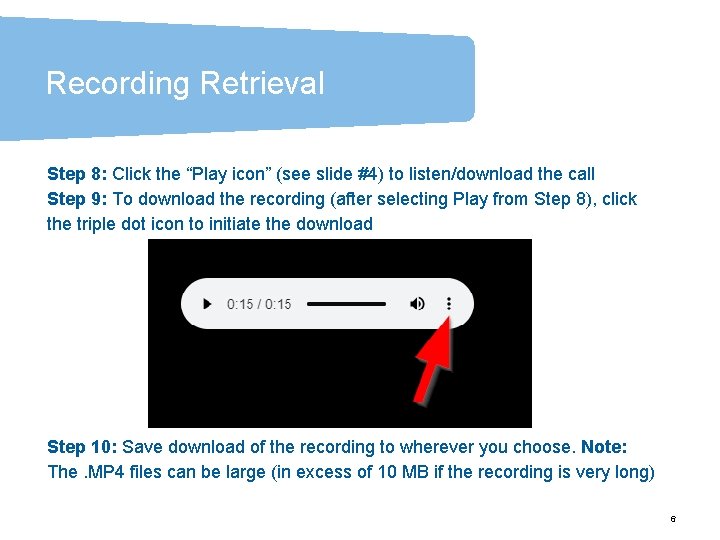
Recording Retrieval Step 8: Click the “Play icon” (see slide #4) to listen/download the call Step 9: To download the recording (after selecting Play from Step 8), click the triple dot icon to initiate the download Step 10: Save download of the recording to wherever you choose. Note: The. MP 4 files can be large (in excess of 10 MB if the recording is very long) 6 6