
Android Programming Setup for Android Development Based on
Android Programming: Setup for Android Development Based on material from Adam Champion, Xinfeng Li, C. Horstmann [1], J. Bloch [2], C. Collins et al. [4], M. L. Sichitiu (NCSU), V. Janjic (Imperial College London), CSE 2221 (OSU), and other sources 1
Outline • Introduction to Android • Getting Started • Android Programming 2
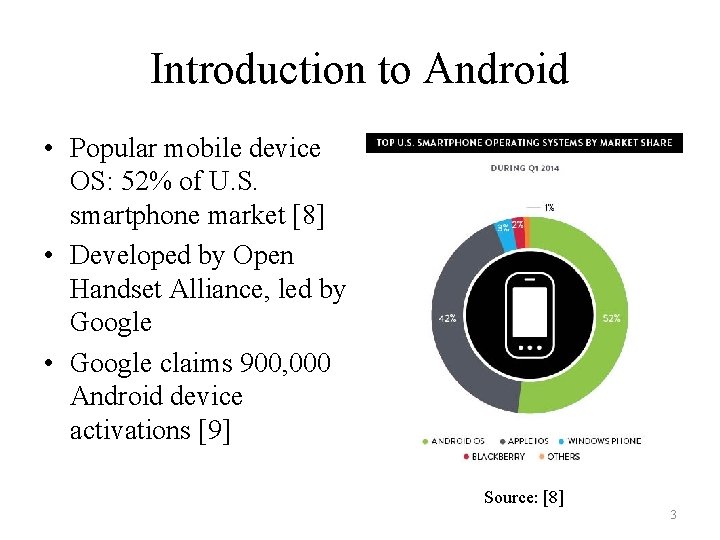
Introduction to Android • Popular mobile device OS: 52% of U. S. smartphone market [8] • Developed by Open Handset Alliance, led by Google • Google claims 900, 000 Android device activations [9] Source: [8] 3
What is Android • Android is an operating system for mobile devices such as smartphones and tablet computers. It is developed by the Open Handset Alliance led by Google. • Android has beaten Apple i. OS, being the leading mobile operating system from first quarter of 2011 • Version: Android 1. 0, 1. 1 to 1. 5 (Cupcake), 1. 6 (Donut), 2. 0/2. 1 (Eclair), 2. 2 (Froyo), 2. 3 (Gingerbread), to 3. 0 (Honeycomb), 4. 0 (Ice Cream Sandwich), 5. 0 (Lollipop)
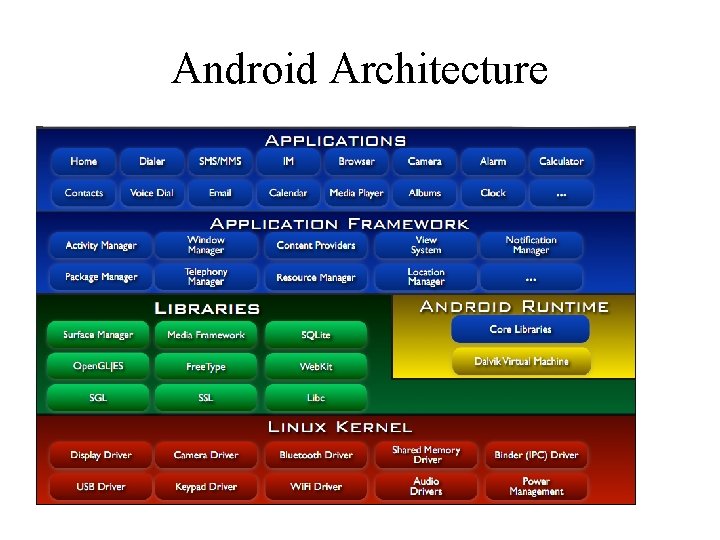
Android Architecture
Outline • Introduction to Android • Getting Started • Android Programming 6
Getting Started (1) • Need to install Java Development Kit (JDK) to write Java (and Android) programs – Do not install Java Runtime Environment (JRE); JDK and JRE are different! • Can download the JDK for your OS at http: //java. oracle. com • Alternatively, for OS X, Linux: – OS X: • Open /Applications/Utilities/Terminal. app • Type javac at command line • Install Java when prompt appears – Linux: • Type sudo apt–get install default–jdk at command line (Debian, Ubuntu) • Other distributions: consult distribution’s documentation 7
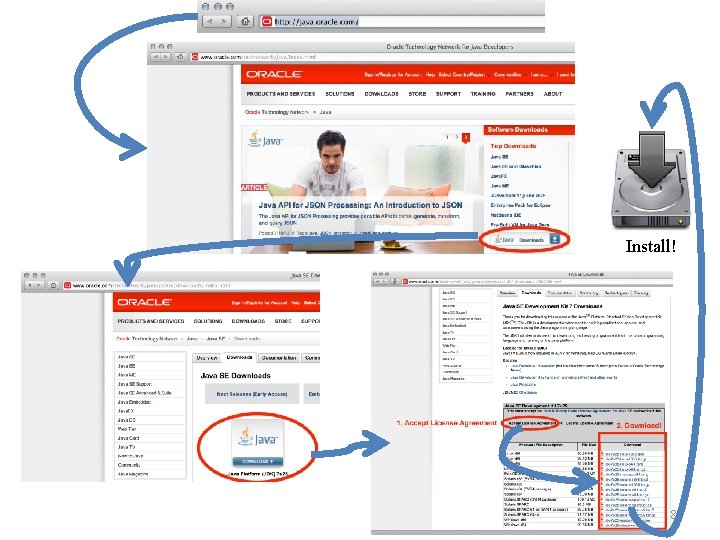
Install! 8
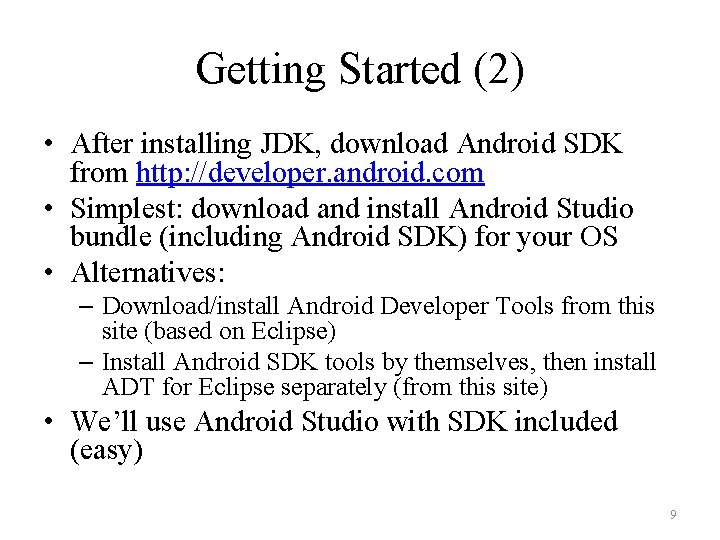
Getting Started (2) • After installing JDK, download Android SDK from http: //developer. android. com • Simplest: download and install Android Studio bundle (including Android SDK) for your OS • Alternatives: – Download/install Android Developer Tools from this site (based on Eclipse) – Install Android SDK tools by themselves, then install ADT for Eclipse separately (from this site) • We’ll use Android Studio with SDK included (easy) 9
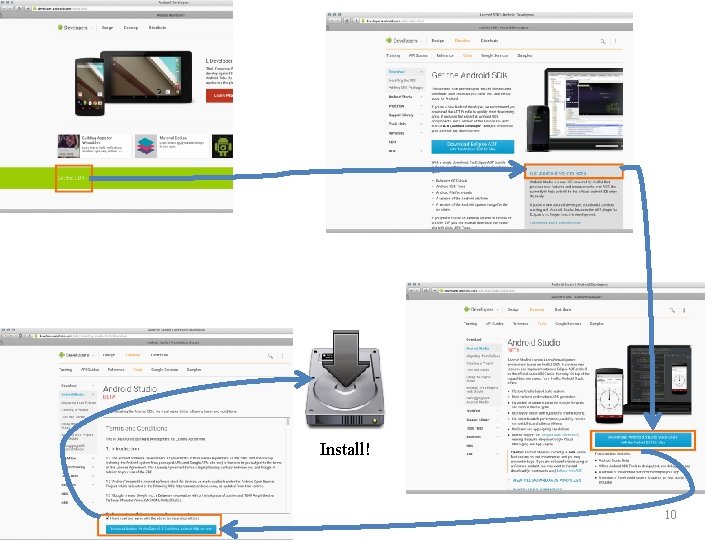
Install! 10
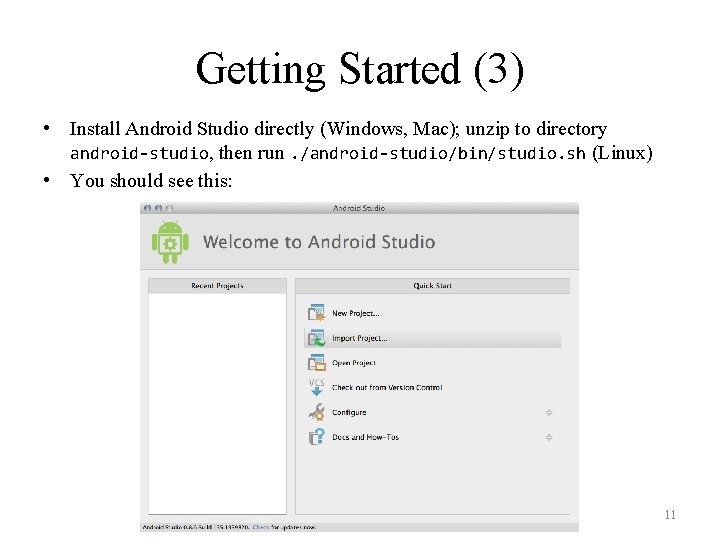
Getting Started (3) • Install Android Studio directly (Windows, Mac); unzip to directory android-studio, then run. /android-studio/bin/studio. sh (Linux) • You should see this: 11
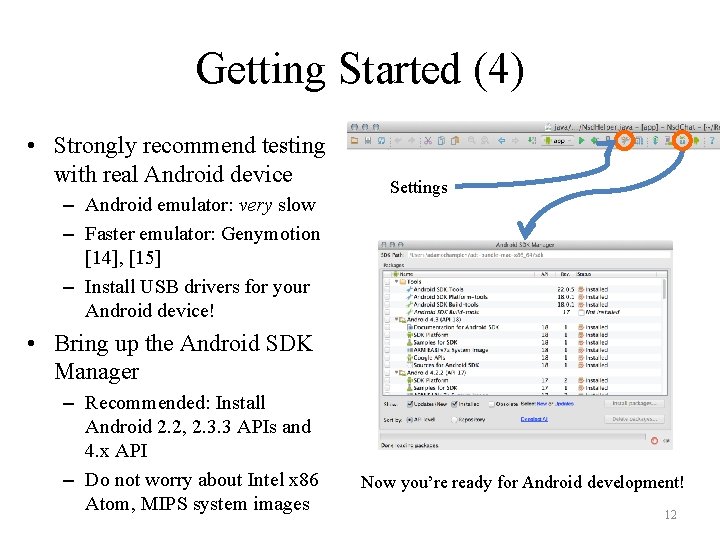
Getting Started (4) • Strongly recommend testing with real Android device – Android emulator: very slow – Faster emulator: Genymotion [14], [15] – Install USB drivers for your Android device! Settings • Bring up the Android SDK Manager – Recommended: Install Android 2. 2, 2. 3. 3 APIs and 4. x API – Do not worry about Intel x 86 Atom, MIPS system images Now you’re ready for Android development! 12
Outline • Introduction to Android • Getting Started • Android Programming 13
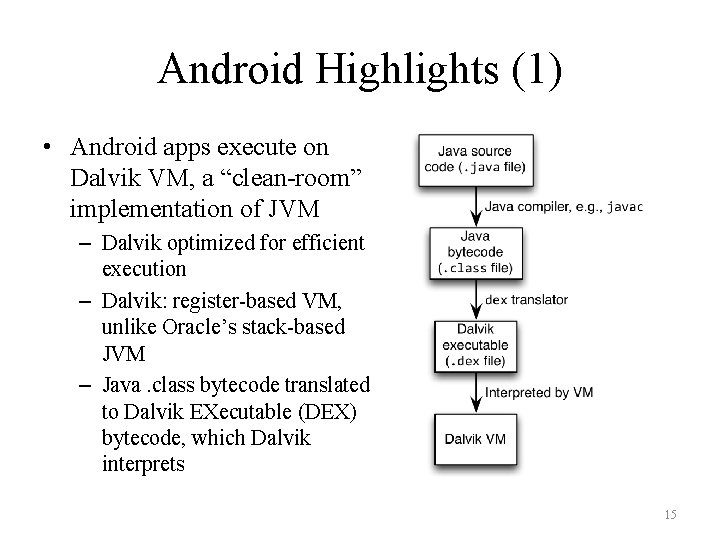
Android Highlights (1) • Android apps execute on Dalvik VM, a “clean-room” implementation of JVM – Dalvik optimized for efficient execution – Dalvik: register-based VM, unlike Oracle’s stack-based JVM – Java. class bytecode translated to Dalvik EXecutable (DEX) bytecode, which Dalvik interprets 15
Android Highlights (2) • Android apps written in Java 5 – Actually, a Java dialect (Apache Harmony) – Everything we’ve learned still holds • Apps use four main components: – Activity: A “single screen” that’s visible to user – Service: Long-running background “part” of app (not separate process or thread) – Content. Provider: Manages app data (usually stored in database) and data access for queries – Broadcast. Receiver: Component that listens for particular Android system “events”, e. g. , “found wireless device”, and responds accordingly 16
App Manifest • Every Android app must include an Android. Manifest. xml file describing functionality • The manifest specifies: – App’s Activities, Services, etc. – Permissions requested by app – Minimum API required – Hardware features required, e. g. , camera with autofocus – External libraries to which app is linked, e. g. , Google Maps library 17
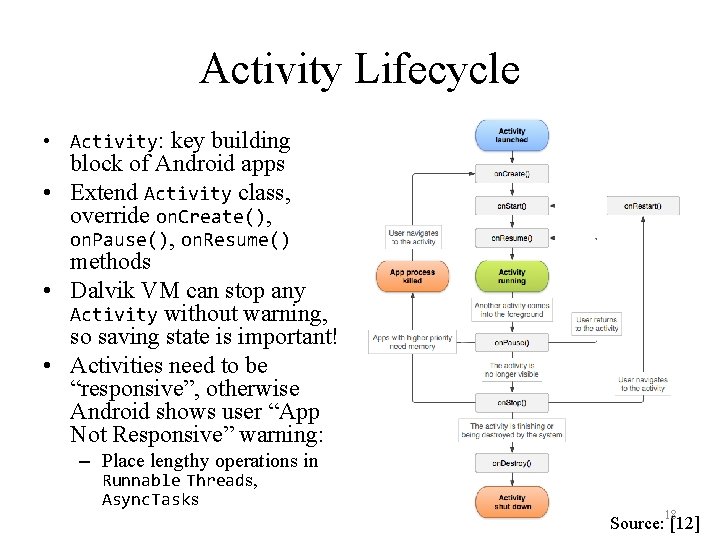
Activity Lifecycle • Activity: key building block of Android apps • Extend Activity class, override on. Create(), on. Pause(), on. Resume() methods • Dalvik VM can stop any Activity without warning, so saving state is important! • Activities need to be “responsive”, otherwise Android shows user “App Not Responsive” warning: – Place lengthy operations in Runnable Threads, Async. Tasks 18 Source: [12]
App Creation Checklist • If you own an Android device: – Ensure drivers are installed – Enable developer options on device under Settings, specifically USB Debugging • Android 4. 2+: Go to Settings→About phone, press Build number 7 times to enable developer options • For Android Studio: – Under File→Settings→Appearance, enable “Show tool window bars”; the Android view shows Log. Cat, devices – Programs should log states via android. util. Log’s Log. d(APP_TAG_STR, “debug”), where APP_TAG_STR is a final String tag denoting your app – Other commands: Log. e() (error); Log. i() (info); Log. w() (warning); Log. v() (verbose) – same parameters 19
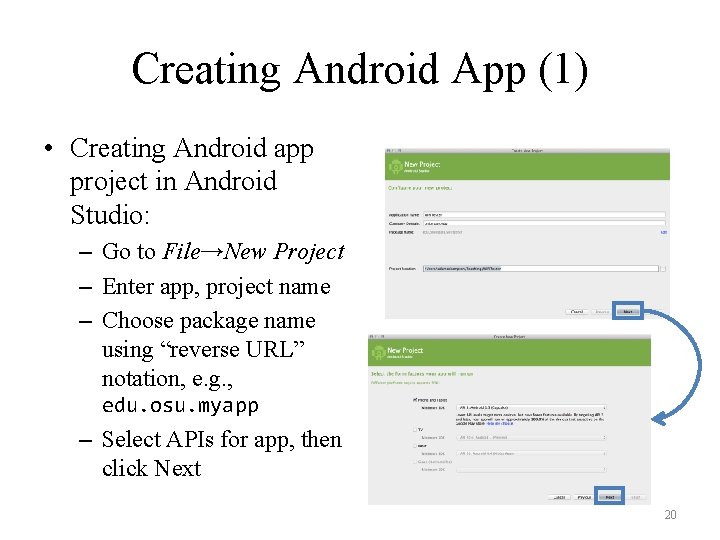
Creating Android App (1) • Creating Android app project in Android Studio: – Go to File→New Project – Enter app, project name – Choose package name using “reverse URL” notation, e. g. , edu. osu. myapp – Select APIs for app, then click Next 20
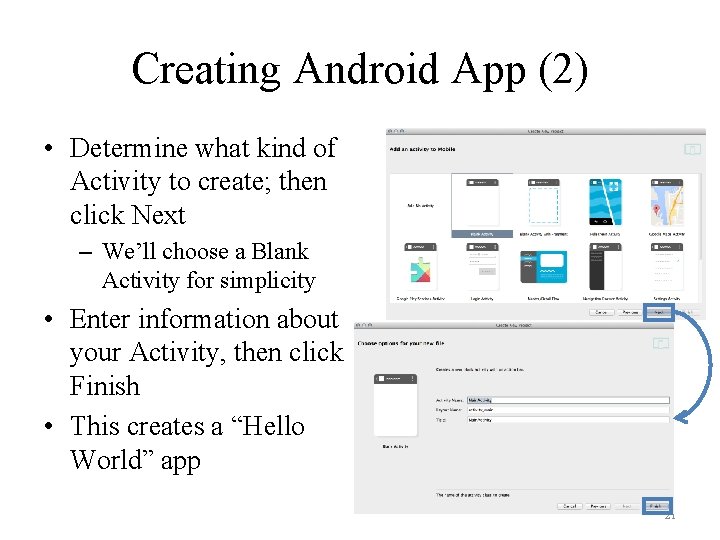
Creating Android App (2) • Determine what kind of Activity to create; then click Next – We’ll choose a Blank Activity for simplicity • Enter information about your Activity, then click Finish • This creates a “Hello World” app 21
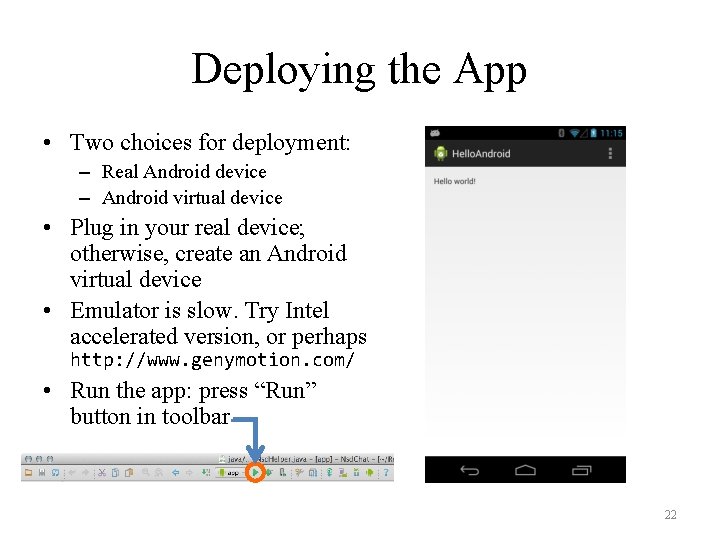
Deploying the App • Two choices for deployment: – Real Android device – Android virtual device • Plug in your real device; otherwise, create an Android virtual device • Emulator is slow. Try Intel accelerated version, or perhaps http: //www. genymotion. com/ • Run the app: press “Run” button in toolbar 22
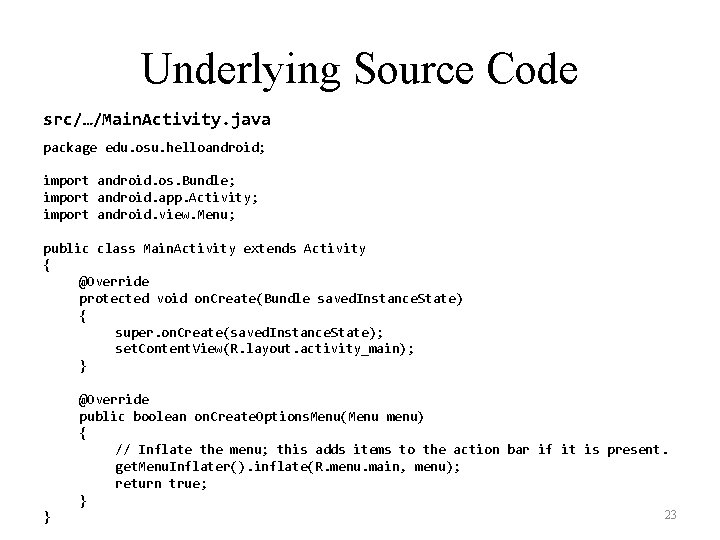
Underlying Source Code src/…/Main. Activity. java package edu. osu. helloandroid; import android. os. Bundle; import android. app. Activity; import android. view. Menu; public class Main. Activity extends Activity { @Override protected void on. Create(Bundle saved. Instance. State) { super. on. Create(saved. Instance. State); set. Content. View(R. layout. activity_main); } @Override public boolean on. Create. Options. Menu(Menu menu) { // Inflate the menu; this adds items to the action bar if it is present. get. Menu. Inflater(). inflate(R. menu. main, menu); return true; } } 23
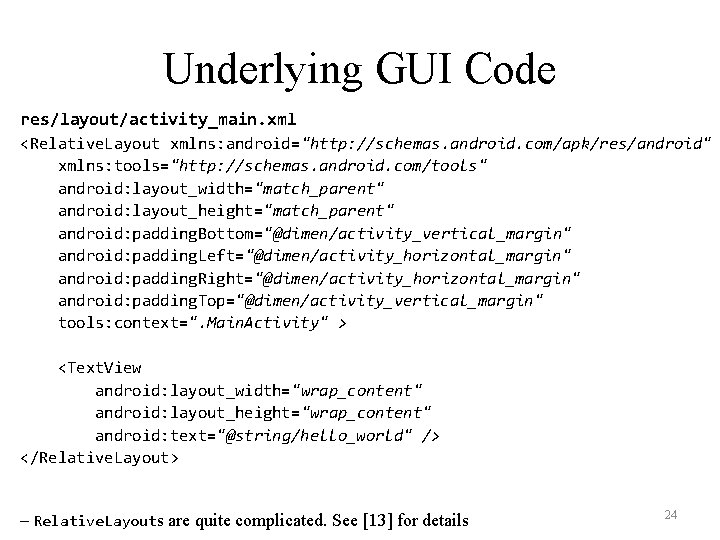
Underlying GUI Code res/layout/activity_main. xml <Relative. Layout xmlns: android="http: //schemas. android. com/apk/res/android" xmlns: tools="http: //schemas. android. com/tools" android: layout_width="match_parent" android: layout_height="match_parent" android: padding. Bottom="@dimen/activity_vertical_margin" android: padding. Left="@dimen/activity_horizontal_margin" android: padding. Right="@dimen/activity_horizontal_margin" android: padding. Top="@dimen/activity_vertical_margin" tools: context=". Main. Activity" > <Text. View android: layout_width="wrap_content" android: layout_height="wrap_content" android: text="@string/hello_world" /> </Relative. Layout> – Relative. Layouts are quite complicated. See [13] for details 24
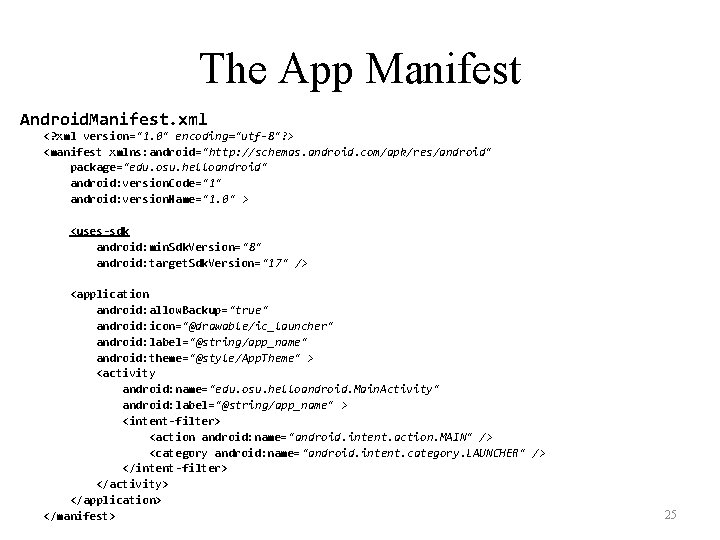
The App Manifest Android. Manifest. xml <? xml version="1. 0" encoding="utf-8"? > <manifest xmlns: android="http: //schemas. android. com/apk/res/android" package="edu. osu. helloandroid" android: version. Code="1" android: version. Name="1. 0" > <uses-sdk android: min. Sdk. Version="8" android: target. Sdk. Version= "17" /> <application android: allow. Backup="true" android: icon="@drawable/ic_launcher" android: label="@string/app_name" android: theme="@style/App. Theme" > <activity android: name="edu. osu. helloandroid. Main. Activity" android: label="@string/app_name" > <intent-filter> <action android: name= "android. intent. action. MAIN" /> <category android: name= "android. intent. category. LAUNCHER" /> </intent-filter> </activity> </application> </manifest> 25
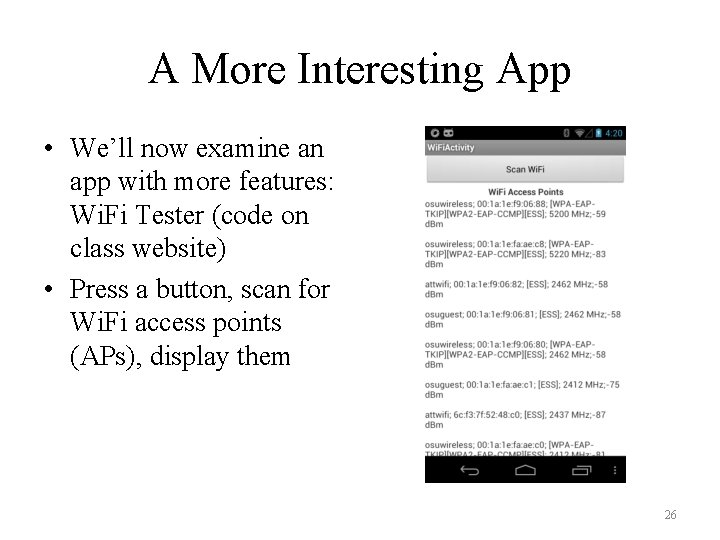
A More Interesting App • We’ll now examine an app with more features: Wi. Fi Tester (code on class website) • Press a button, scan for Wi. Fi access points (APs), display them 26
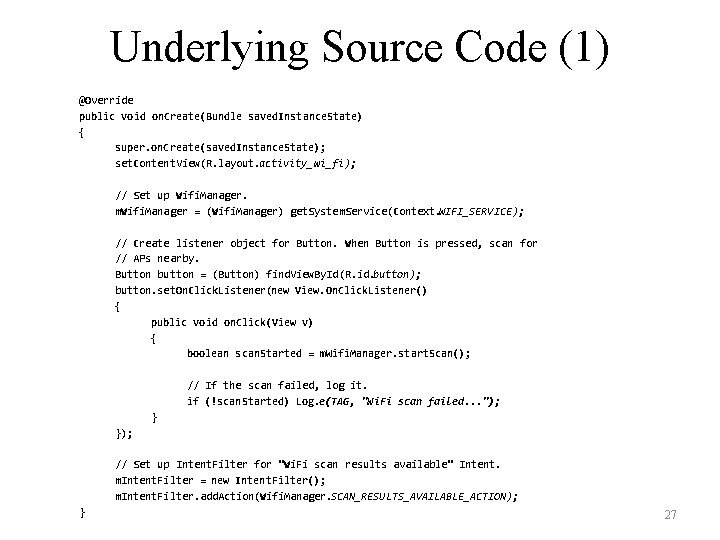
Underlying Source Code (1) @Override public void on. Create(Bundle saved. Instance. State) { super. on. Create(saved. Instance. State); set. Content. View(R. layout. activity_wi_fi); // Set up Wifi. Manager. m. Wifi. Manager = (Wifi. Manager) get. System. Service(Context. WIFI_SERVICE); // Create listener object for Button. When Button is pressed, scan for // APs nearby. Button button = (Button) find. View. By. Id(R. id. button); button. set. On. Click. Listener(new View. On. Click. Listener() { public void on. Click(View v) { boolean scan. Started = m. Wifi. Manager. start. Scan(); // If the scan failed, log it. if (!scan. Started) Log. e(TAG, "Wi. Fi scan failed. . . "); } }); // Set up Intent. Filter for "Wi. Fi scan results available" Intent. m. Intent. Filter = new Intent. Filter(); m. Intent. Filter. add. Action(Wifi. Manager. SCAN_RESULTS_AVAILABLE_ACTION); } 27
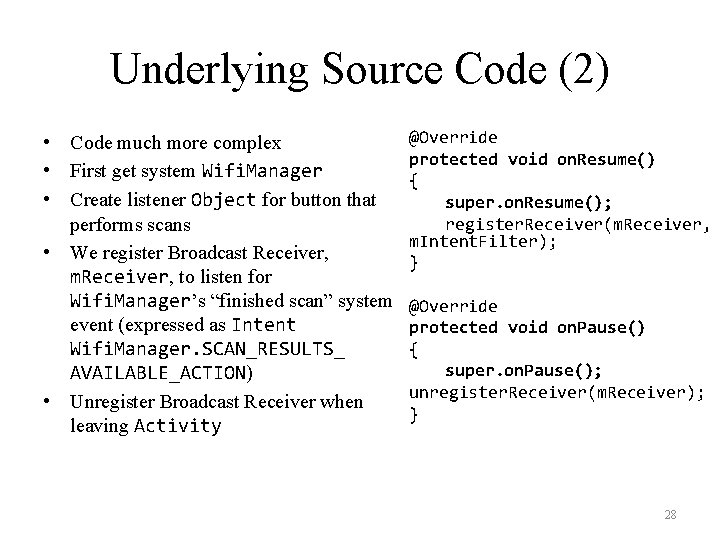
Underlying Source Code (2) • Code much more complex • First get system Wifi. Manager • Create listener Object for button that performs scans • We register Broadcast Receiver, m. Receiver, to listen for Wifi. Manager’s “finished scan” system event (expressed as Intent Wifi. Manager. SCAN_RESULTS_ AVAILABLE_ACTION) • Unregister Broadcast Receiver when leaving Activity @Override protected void on. Resume() { super. on. Resume(); register. Receiver(m. Receiver, m. Intent. Filter); } @Override protected void on. Pause() { super. on. Pause(); unregister. Receiver(m. Receiver); } 28
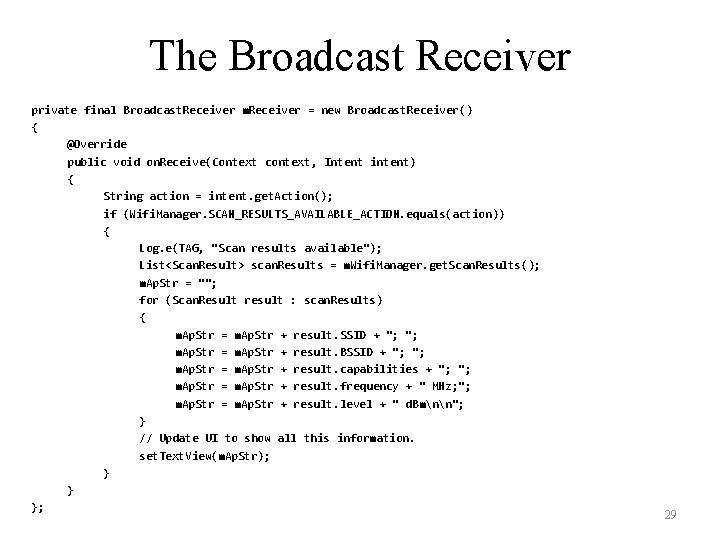
The Broadcast Receiver private final Broadcast. Receiver m. Receiver = new Broadcast. Receiver() { @Override public void on. Receive(Context context, Intent intent) { String action = intent. get. Action(); if (Wifi. Manager. SCAN_RESULTS_AVAILABLE_ACTION. equals(action)) { Log. e(TAG, "Scan results available"); List<Scan. Result> scan. Results = m. Wifi. Manager. get. Scan. Results(); m. Ap. Str = ""; for (Scan. Result result : scan. Results) { m. Ap. Str = m. Ap. Str + result. SSID + "; "; m. Ap. Str = m. Ap. Str + result. BSSID + "; "; m. Ap. Str = m. Ap. Str + result. capabilities + "; "; m. Ap. Str = m. Ap. Str + result. frequency + " MHz; "; m. Ap. Str = m. Ap. Str + result. level + " d. Bmnn"; } // Update UI to show all this information. set. Text. View(m. Ap. Str); } } }; 29
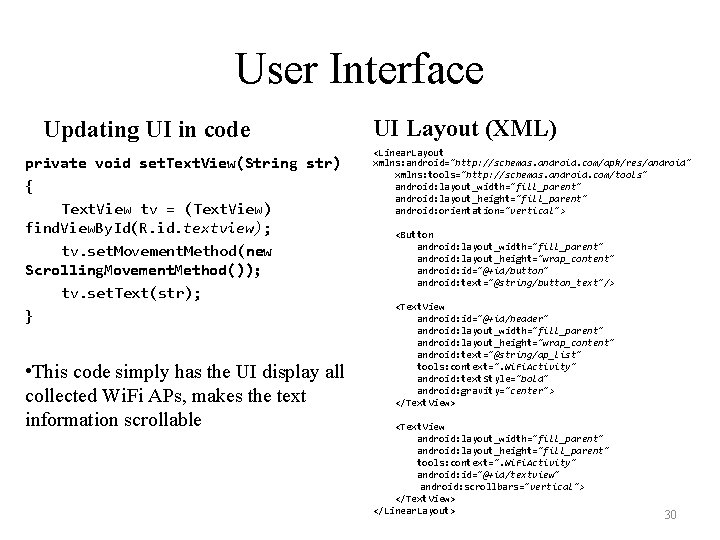
User Interface Updating UI in code private void set. Text. View(String str) { Text. View tv = (Text. View) find. View. By. Id(R. id. textview); tv. set. Movement. Method(new Scrolling. Movement. Method()); tv. set. Text(str); } • This code simply has the UI display all collected Wi. Fi APs, makes the text information scrollable UI Layout (XML) <Linear. Layout xmlns: android="http: //schemas. android. com/apk/res/android" xmlns: tools="http: //schemas. android. com/tools" android: layout_width="fill_parent" android: layout_height="fill_parent" android: orientation="vertical"> <Button android: layout_width="fill_parent" android: layout_height="wrap_content" android: id="@+id/button" android: text="@string/button_text"/> <Text. View android: id="@+id/header" android: layout_width="fill_parent" android: layout_height="wrap_content" android: text="@string/ap_list" tools: context=". Wi. Fi. Activity" android: text. Style="bold" android: gravity="center"> </Text. View> <Text. View android: layout_width="fill_parent" android: layout_height="fill_parent" tools: context=". Wi. Fi. Activity" android: id="@+id/textview" android: scrollbars="vertical"> </Text. View> </Linear. Layout> 30
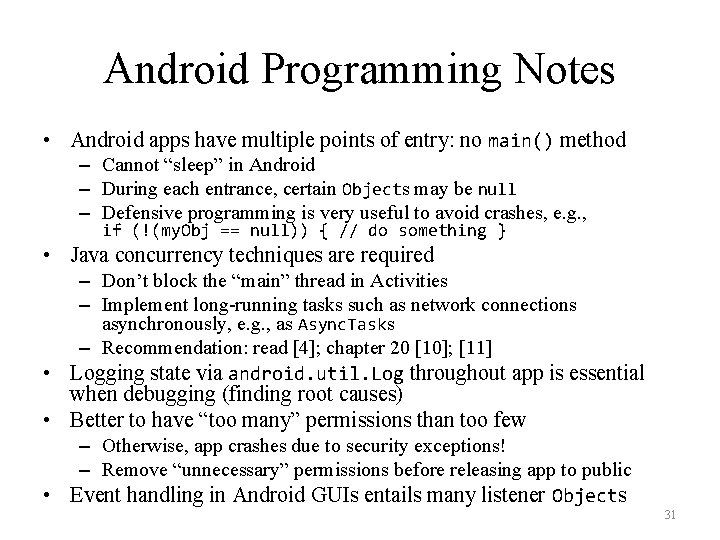
Android Programming Notes • Android apps have multiple points of entry: no main() method – Cannot “sleep” in Android – During each entrance, certain Objects may be null – Defensive programming is very useful to avoid crashes, e. g. , if (!(my. Obj == null)) { // do something } • Java concurrency techniques are required – Don’t block the “main” thread in Activities – Implement long-running tasks such as network connections asynchronously, e. g. , as Async. Tasks – Recommendation: read [4]; chapter 20 [10]; [11] • Logging state via android. util. Log throughout app is essential when debugging (finding root causes) • Better to have “too many” permissions than too few – Otherwise, app crashes due to security exceptions! – Remove “unnecessary” permissions before releasing app to public • Event handling in Android GUIs entails many listener Objects 31
Thank You Any questions? 35
References (1) 1. 2. 3. 4. 5. 6. 7. 8. 9. C. Horstmann, Big Java Late Objects, Wiley, 2012. Online: http: //proquest. safaribooksonline. com. proxy. lib. ohio–state. edu/book/–/9781118087886 J. Bloch, Effective Java, 2 nd ed. , Addison–Wesley, 2008. Online: http: //proquest. safaribooksonline. com. proxy. lib. ohio–state. edu/book/programming/java/9780137150021 S. B. Zakhour, S. Kannan, and R. Gallardo, The Java® Tutorial: A Short Course on the Basics, 5 th ed. , Addison–Wesley, 2013. Online: http: //proquest. safaribooksonline. com. proxy. lib. ohio–state. edu/book/programming/java/9780132761987 C. Collins, M. Galpin, and M. Kaeppler, Android in Practice, Manning, 2011. Online: http: //proquest. safaribooksonline. com. proxy. lib. ohio– state. edu/book/programming/android/9781935182924 M. L. Sichitiu, 2011, http: //www. ece. ncsu. edu/wireless/Made. In. WALAN/Android. Tutorial/PPTs/ java. Review. ppt Oracle, http: //docs. oracle. com/javase/1. 5. 0/docs/api/index. html Wikipedia, https: //en. wikipedia. org/wiki/Vehicle_Identification_Number Nielsen Co. , “Smartphone Milestone: Half of Mobile Subscribers Ages 55+ Own Smartphones”, 22 Apr. 2014, http: //www. nielsen. com/us/en/insights/news/2014/ smartphone-milestone-half-of-americans-ages-55 -own-smartphones. html 36 Android Open Source Project, http: //www. android. com
References (2) 10. 11. 12. 13. 14. 15. http: //bcs. wiley. com/he-bcs/Books? action=index&item. Id=1118087887&bcs. Id=7006 B. Goetz, T. Peierls, J. Bloch, J. Bowbeer, D. Holmes, and D. Lea, Java Concurrency in Practice, Addison-Wesley, 2006, online at http: //proquest. safaribooksonline. com/book/programming/java/0321349601 https: //developer. android. com/guide/components/activities. html https: //developer. android. com/guide/topics/ui/declaring-layout. html#Common. Layouts https: //cloud. genymotion. com/page/doc/#collapse 4 http: //blog. zeezonline. com/2013/11/install-google-play-on-genymotion-2 -0/ 37
- Slides: 33