
Android Image View and Splash Screen 1 After
- Slides: 19
Android Image. View and Splash Screen 1
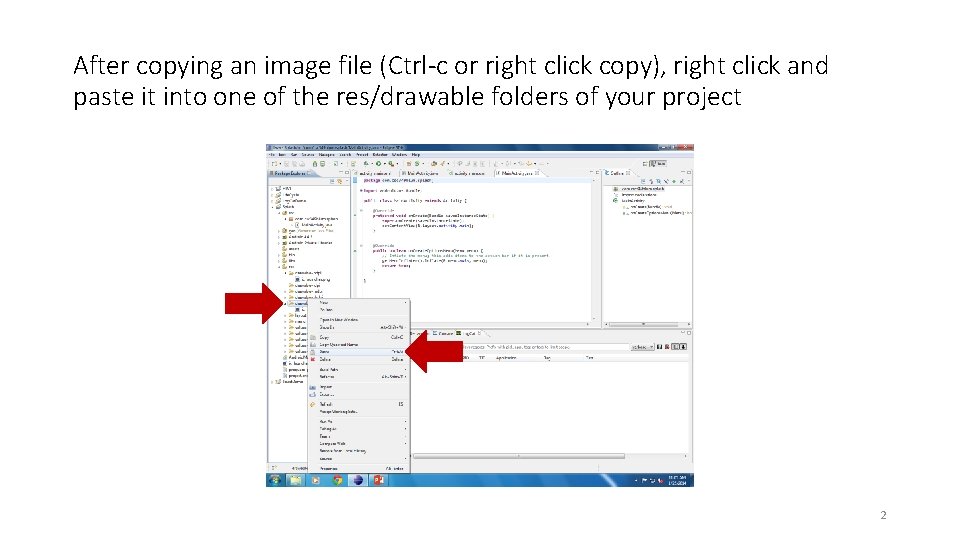
After copying an image file (Ctrl-c or right click copy), right click and paste it into one of the res/drawable folders of your project 2
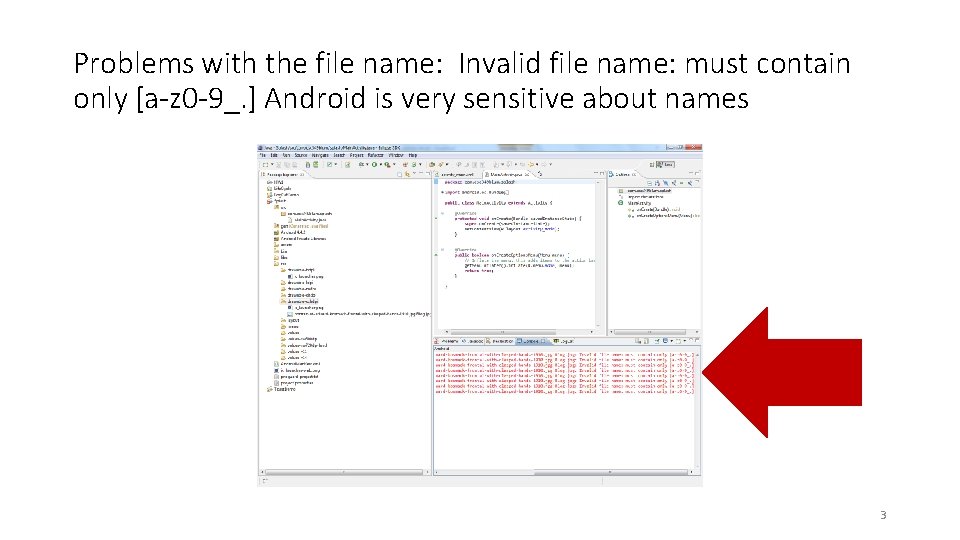
Problems with the file name: Invalid file name: must contain only [a-z 0 -9_. ] Android is very sensitive about names 3
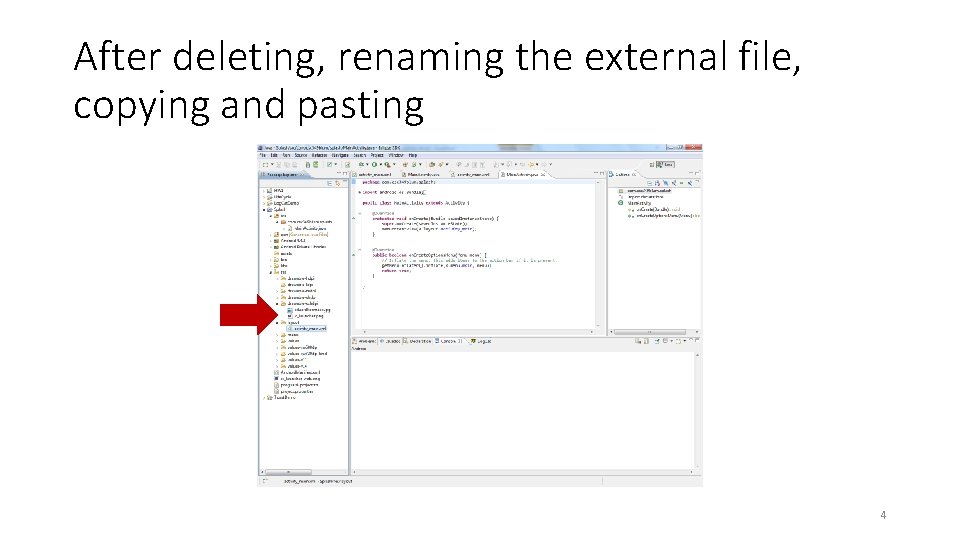
After deleting, renaming the external file, copying and pasting 4
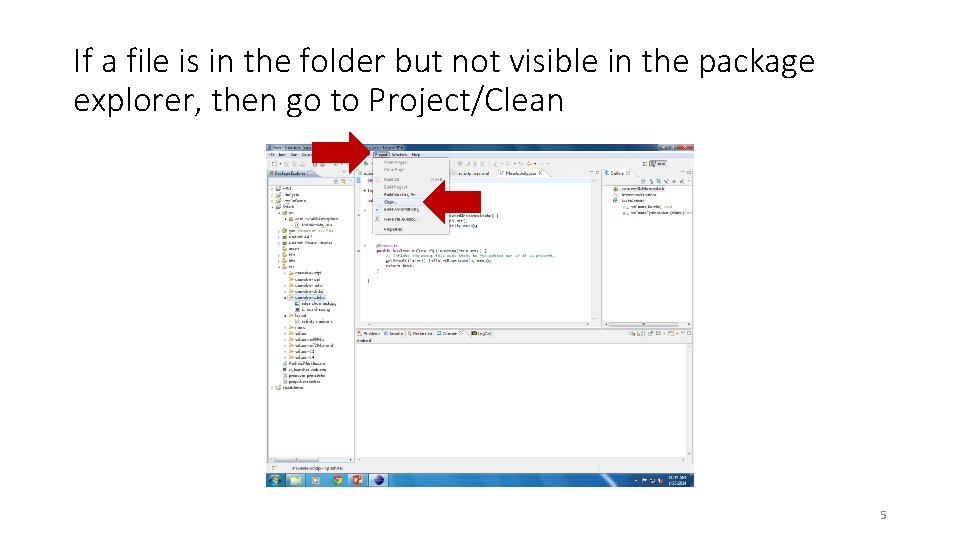
If a file is in the folder but not visible in the package explorer, then go to Project/Clean 5
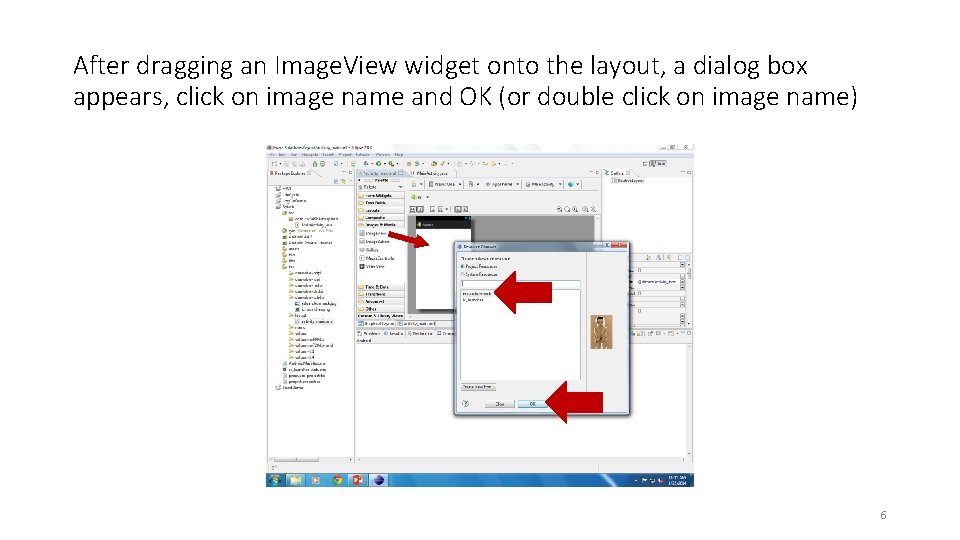
After dragging an Image. View widget onto the layout, a dialog box appears, click on image name and OK (or double click on image name) 6
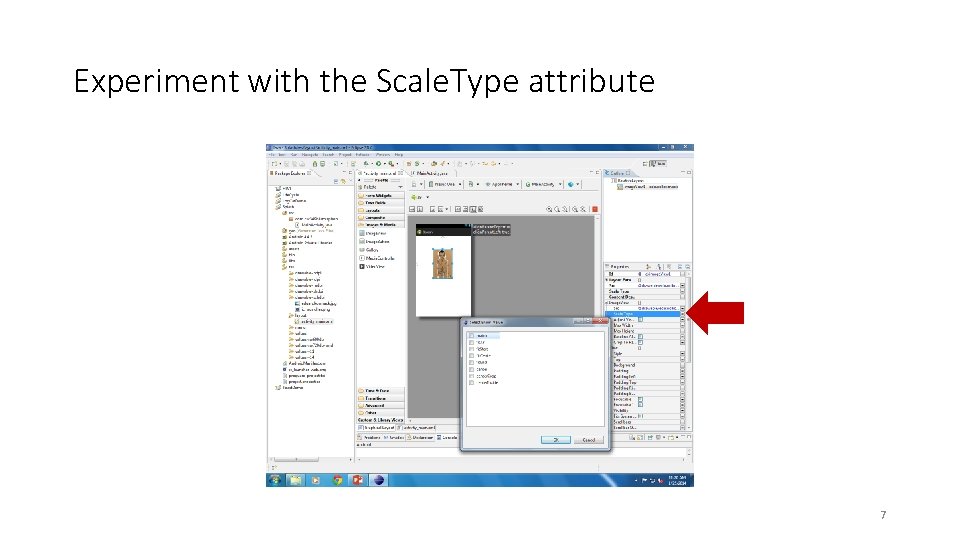
Experiment with the Scale. Type attribute 7
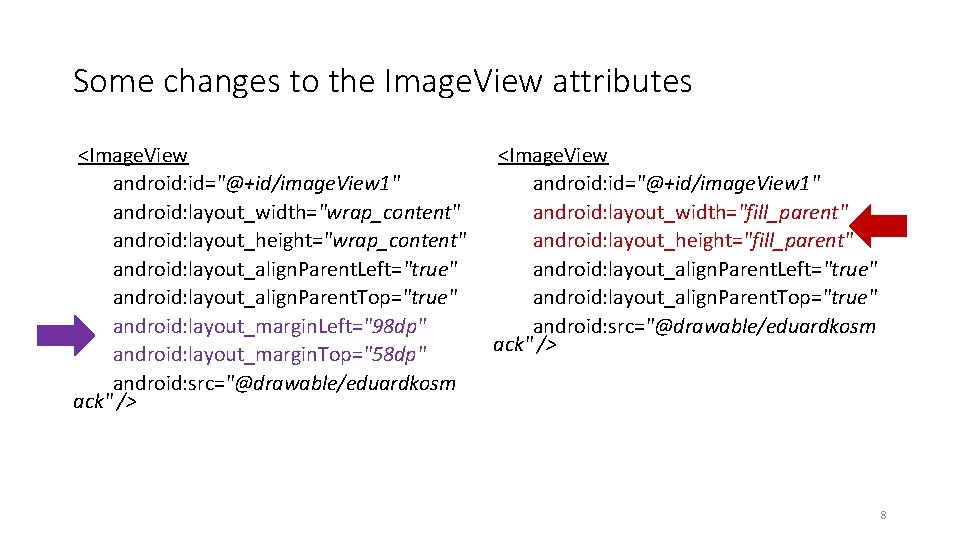
Some changes to the Image. View attributes <Image. View android: id="@+id/image. View 1" android: layout_width="wrap_content" android: layout_height="wrap_content" android: layout_align. Parent. Left="true" android: layout_align. Parent. Top="true" android: layout_margin. Left="98 dp" android: layout_margin. Top="58 dp" android: src="@drawable/eduardkosm ack" /> <Image. View android: id="@+id/image. View 1" android: layout_width="fill_parent" android: layout_height="fill_parent" android: layout_align. Parent. Left="true" android: layout_align. Parent. Top="true" android: src="@drawable/eduardkosm ack" /> 8
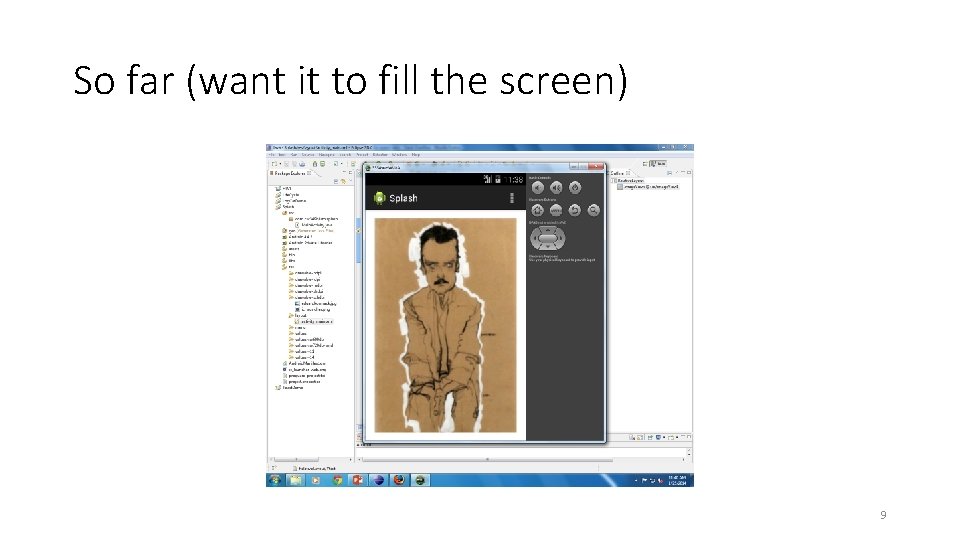
So far (want it to fill the screen) 9
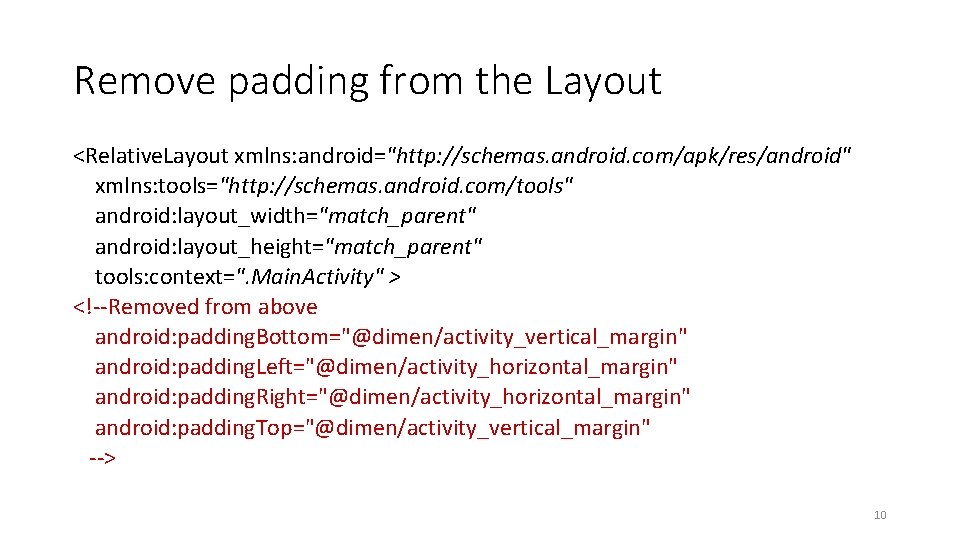
Remove padding from the Layout <Relative. Layout xmlns: android="http: //schemas. android. com/apk/res/android" xmlns: tools="http: //schemas. android. com/tools" android: layout_width="match_parent" android: layout_height="match_parent" tools: context=". Main. Activity" > <!--Removed from above android: padding. Bottom="@dimen/activity_vertical_margin" android: padding. Left="@dimen/activity_horizontal_margin" android: padding. Right="@dimen/activity_horizontal_margin" android: padding. Top="@dimen/activity_vertical_margin" --> 10
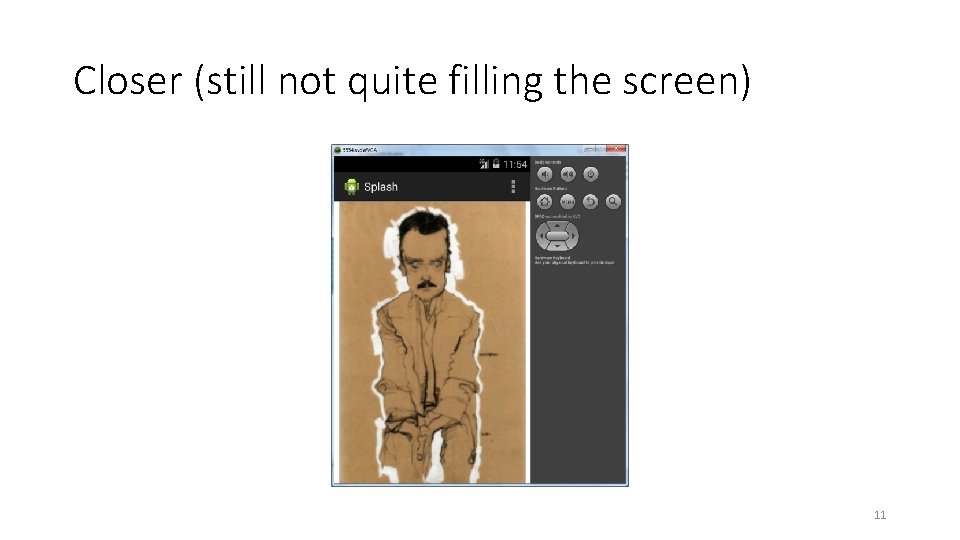
Closer (still not quite filling the screen) 11
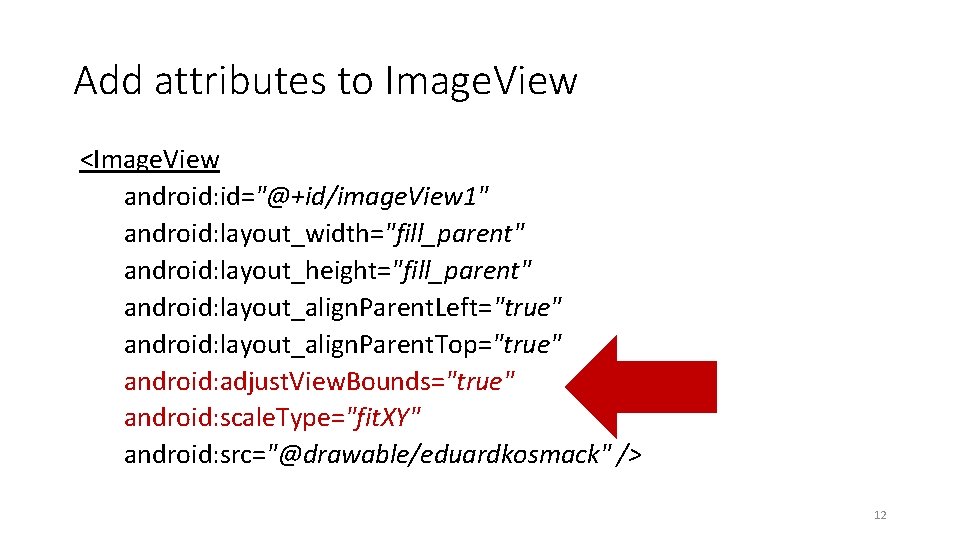
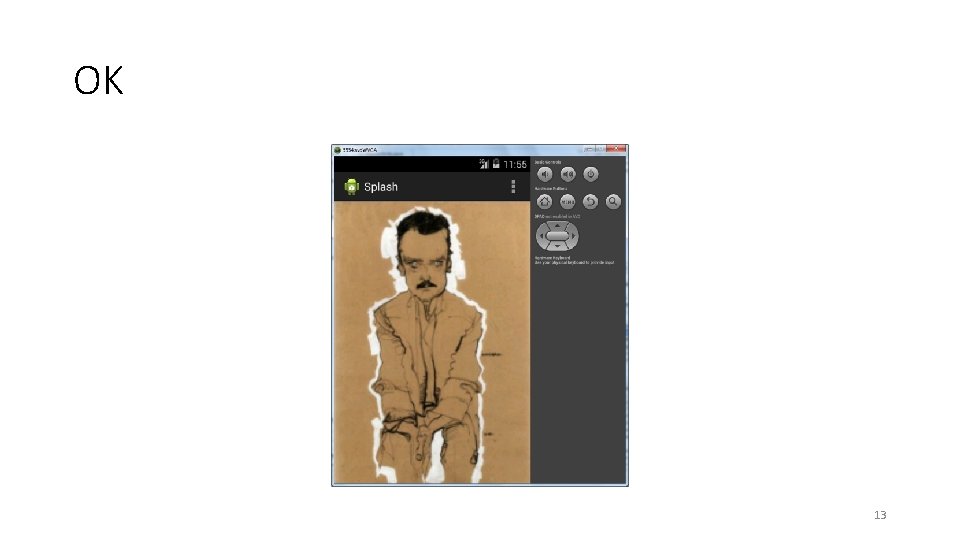
Add attributes to Image. View <Image. View android: id="@+id/image. View 1" android: layout_width="fill_parent" android: layout_height="fill_parent" android: layout_align. Parent. Left="true" android: layout_align. Parent. Top="true" android: adjust. View. Bounds="true" android: scale. Type="fit. XY" android: src="@drawable/eduardkosmack" /> 12
OK 13
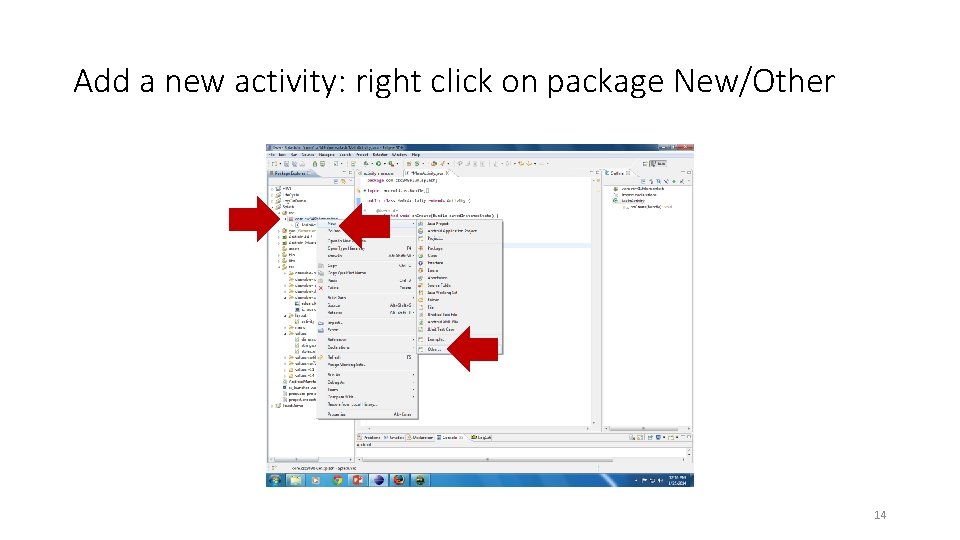
Add a new activity: right click on package New/Other 14
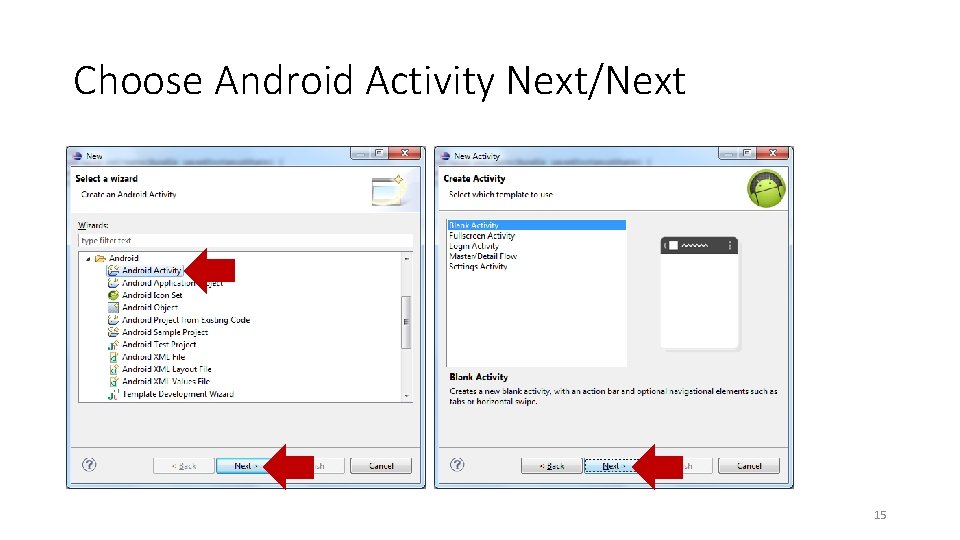
Choose Android Activity Next/Next 15
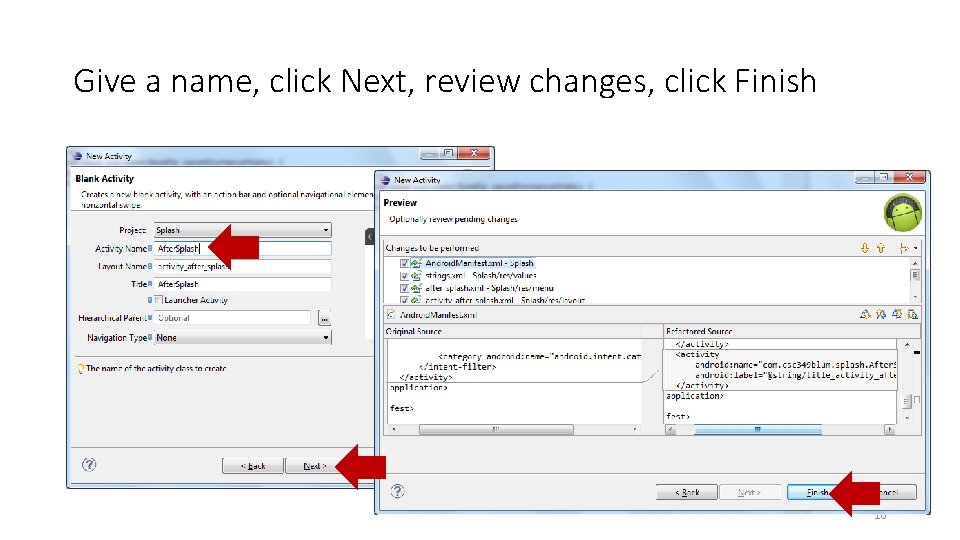
Give a name, click Next, review changes, click Finish 16
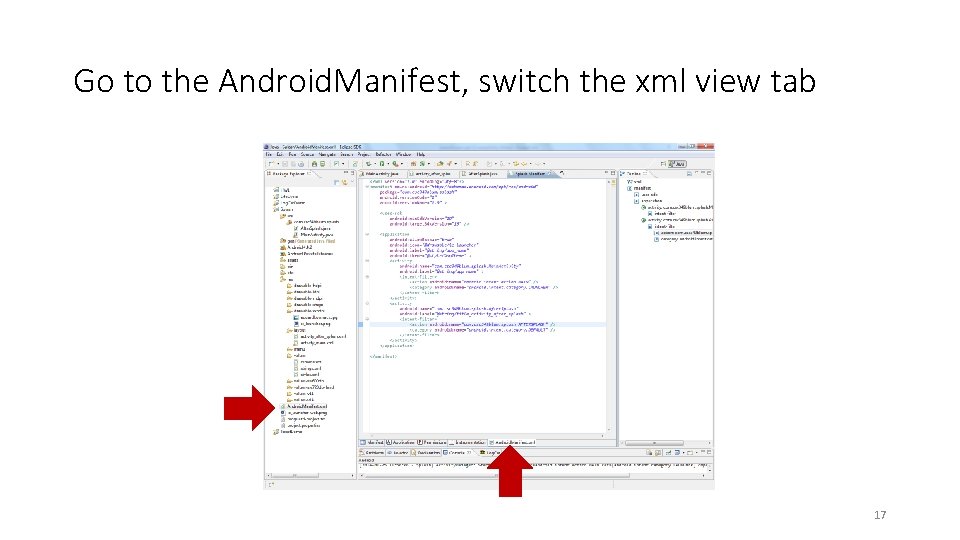
Go to the Android. Manifest, switch the xml view tab 17
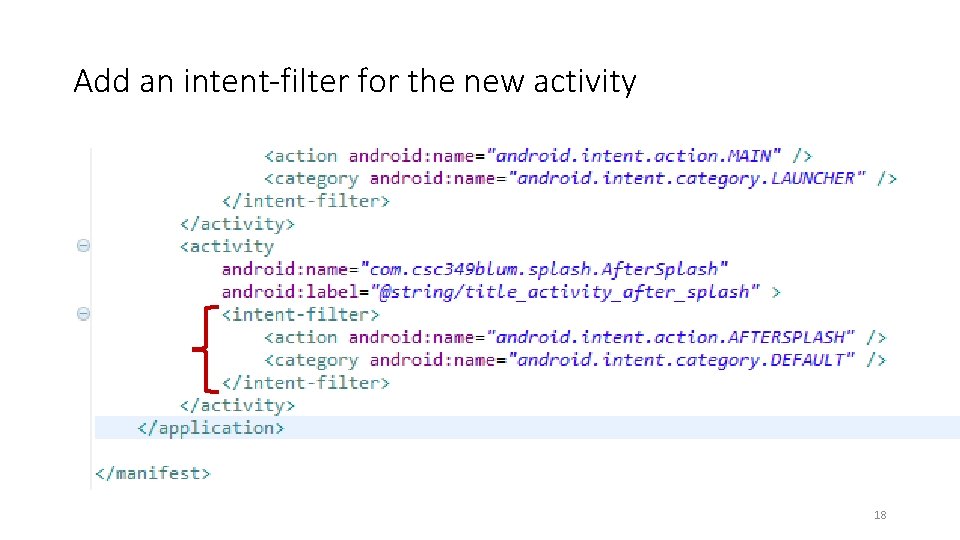
Add an intent-filter for the new activity 18
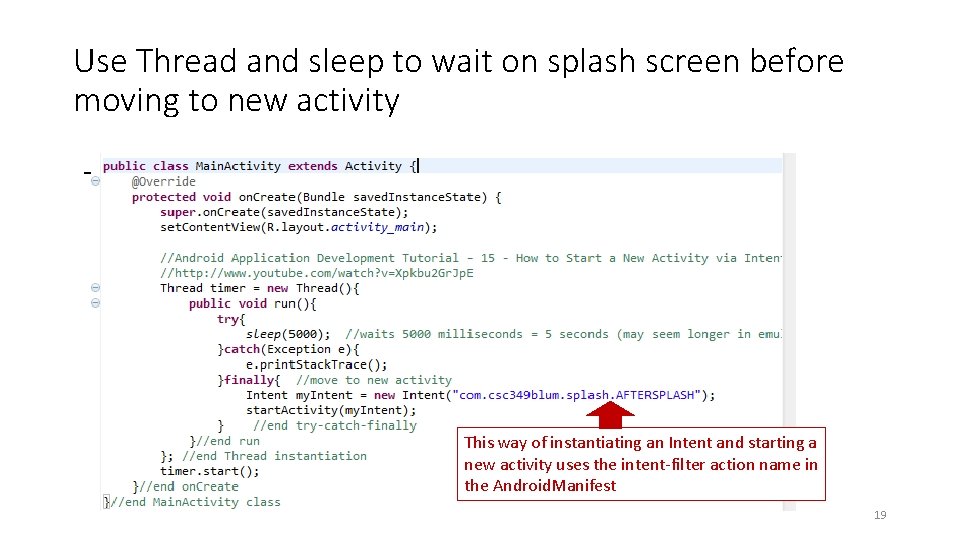
Use Thread and sleep to wait on splash screen before moving to new activity This way of instantiating an Intent and starting a new activity uses the intent-filter action name in the Android. Manifest 19