
ANDROID GESTURES What and why a great way

- Slides: 18
ANDROID – GESTURES
What and why a great way to interact with applications on mobile devices. With a touch screen, users can easily tap, drag, fling, or slide to quickly perform actions in their favorite applications. Android framework makes it's easy to recognize simple actions, like a swipe, new gestures API in Android 1. 6. lets developer recognize more complicated gestures. package android. gesture, : store, load, draw,
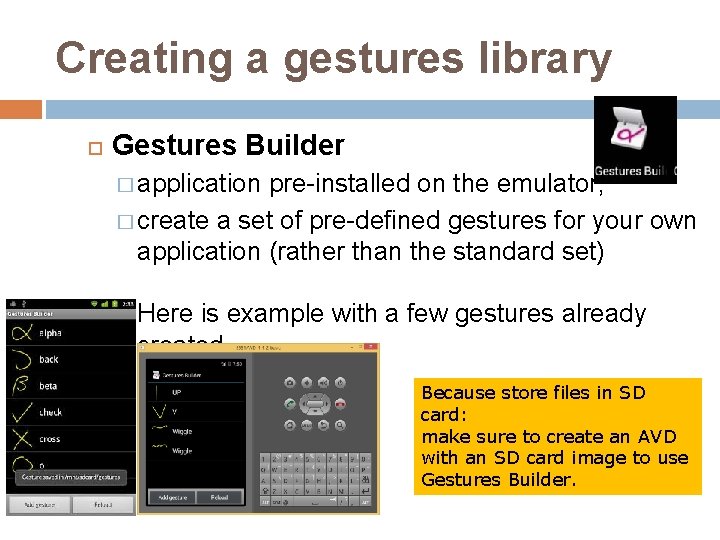
Creating a gestures library Gestures Builder � application pre-installed on the emulator, � create a set of pre-defined gestures for your own application (rather than the standard set) Here is example with a few gestures already created Because store files in SD card: make sure to create an AVD with an SD card image to use Gestures Builder.
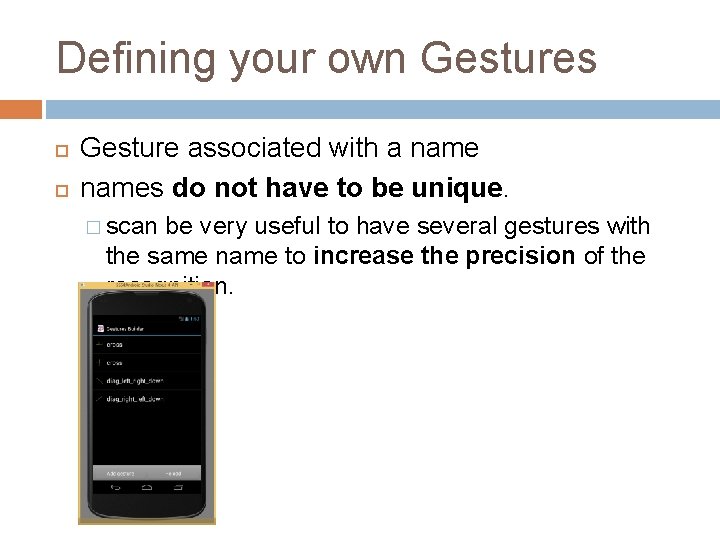
Defining your own Gestures Gesture associated with a names do not have to be unique. � scan be very useful to have several gestures with the same name to increase the precision of the recognition.
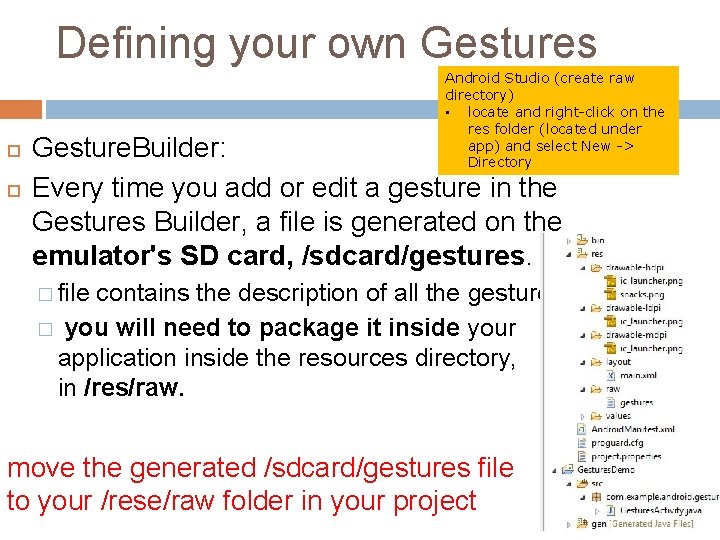
Defining your own Gestures Android Studio (create raw directory) • locate and right-click on the res folder (located under app) and select New -> Directory Gesture. Builder: Every time you add or edit a gesture in the Gestures Builder, a file is generated on the emulator's SD card, /sdcard/gestures. � file contains the description of all the gestures � you will need to package it inside your application inside the resources directory, in /res/raw. move the generated /sdcard/gestures file to your /rese/raw folder in your project
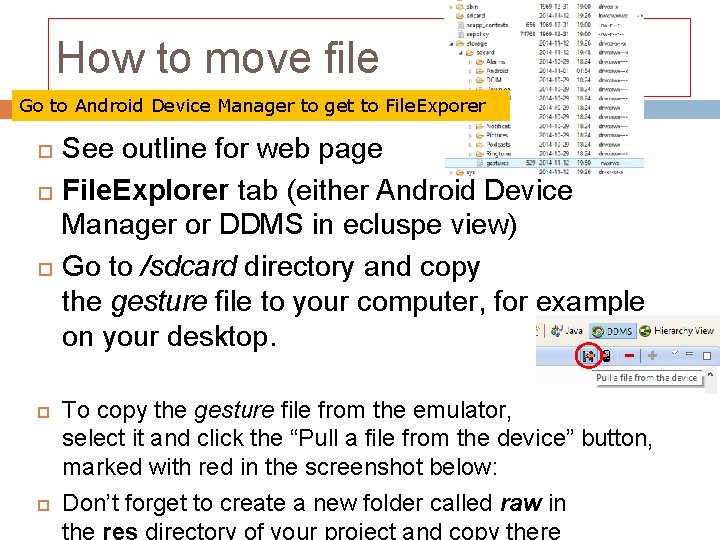
How to move file Go to Android Device Manager to get to File. Exporer See outline for web page File. Explorer tab (either Android Device Manager or DDMS in ecluspe view) Go to /sdcard directory and copy the gesture file to your computer, for example on your desktop. To copy the gesture file from the emulator, select it and click the “Pull a file from the device” button, marked with red in the screenshot below: Don’t forget to create a new folder called raw in the res directory of your project and copy there
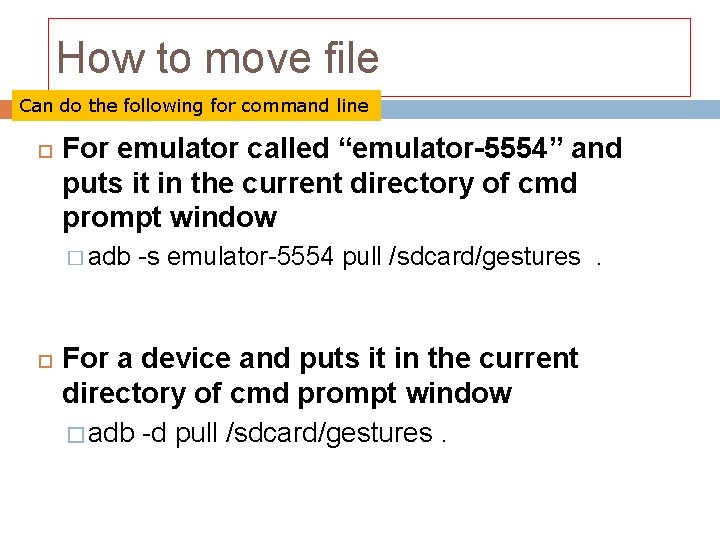
How to move file Can do the following for command line For emulator called “emulator-5554” and puts it in the current directory of cmd prompt window � adb -s emulator-5554 pull /sdcard/gestures. For a device and puts it in the current directory of cmd prompt window � adb -d pull /sdcard/gestures.
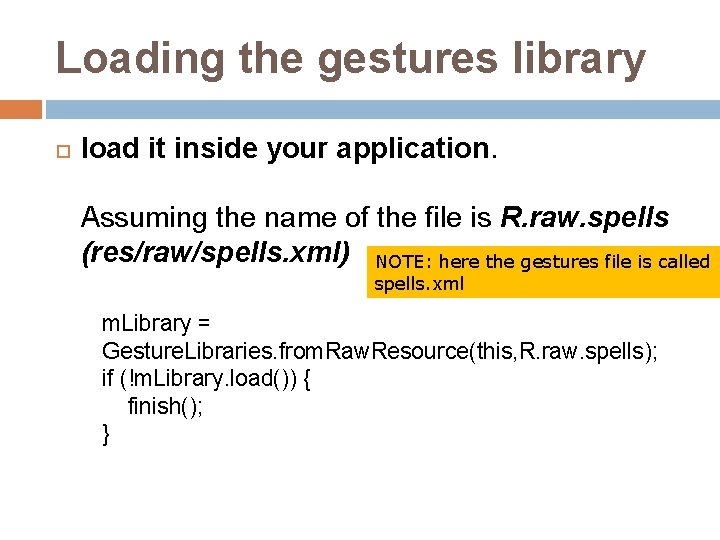
Loading the gestures library load it inside your application. Assuming the name of the file is R. raw. spells (res/raw/spells. xml) NOTE: here the gestures file is called spells. xml m. Library = Gesture. Libraries. from. Raw. Resource(this, R. raw. spells); if (!m. Library. load()) { finish(); }
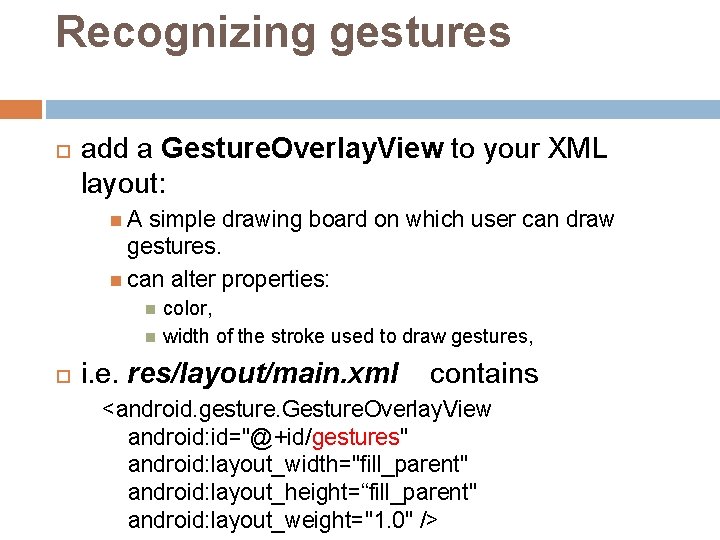
Recognizing gestures add a Gesture. Overlay. View to your XML layout: A simple drawing board on which user can draw gestures. can alter properties: color, width of the stroke used to draw gestures, i. e. res/layout/main. xml contains <android. gesture. Gesture. Overlay. View android: id="@+id/gestures" android: layout_width="fill_parent" android: layout_height=“fill_parent" android: layout_weight="1. 0" />
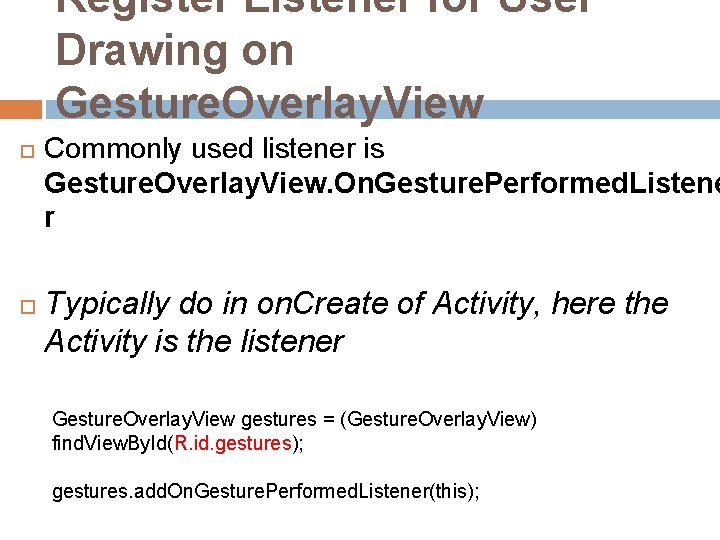
Register Listener for User Drawing on Gesture. Overlay. View Commonly used listener is Gesture. Overlay. View. On. Gesture. Performed. Listene r Typically do in on. Create of Activity, here the Activity is the listener Gesture. Overlay. View gestures = (Gesture. Overlay. View) find. View. By. Id(R. id. gestures); gestures. add. On. Gesture. Performed. Listener(this);
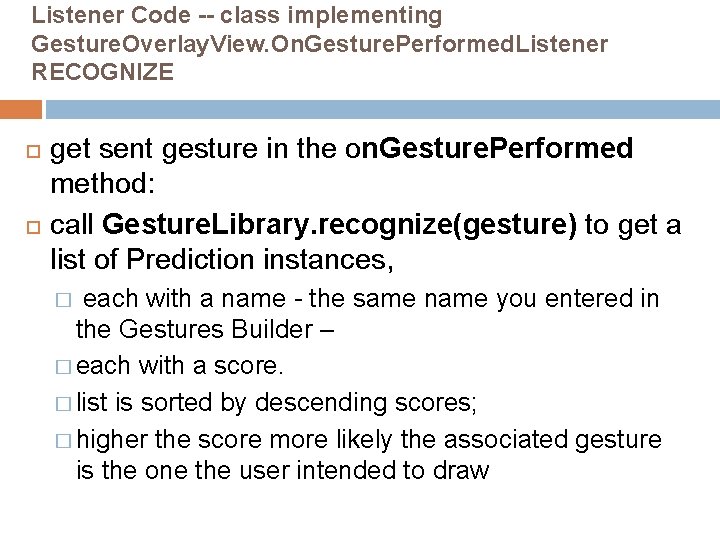
Listener Code -- class implementing Gesture. Overlay. View. On. Gesture. Performed. Listener RECOGNIZE get sent gesture in the on. Gesture. Performed method: call Gesture. Library. recognize(gesture) to get a list of Prediction instances, each with a name - the same name you entered in the Gestures Builder – � each with a score. � list is sorted by descending scores; � higher the score more likely the associated gesture is the one the user intended to draw �
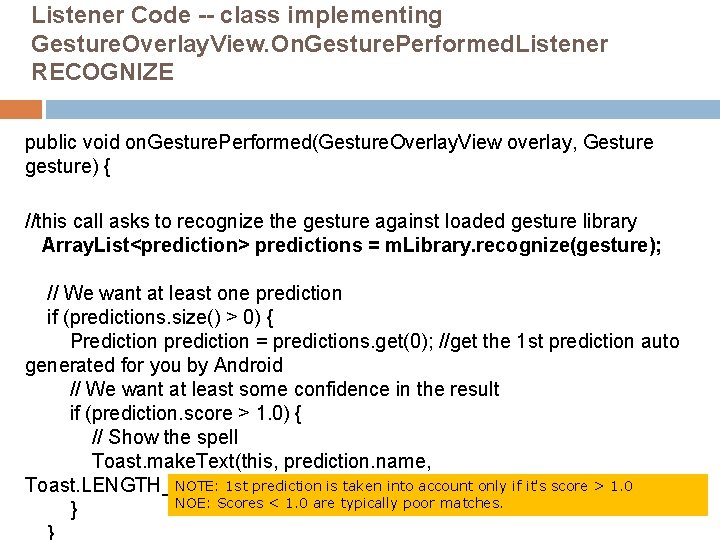
Listener Code -- class implementing Gesture. Overlay. View. On. Gesture. Performed. Listener RECOGNIZE public void on. Gesture. Performed(Gesture. Overlay. View overlay, Gesture gesture) { //this call asks to recognize the gesture against loaded gesture library Array. List<prediction> predictions = m. Library. recognize(gesture); // We want at least one prediction if (predictions. size() > 0) { Prediction prediction = predictions. get(0); //get the 1 st prediction auto generated for you by Android // We want at least some confidence in the result if (prediction. score > 1. 0) { // Show the spell Toast. make. Text(this, prediction. name, NOTE: 1 st prediction is taken into account only if it's score > 1. 0 Toast. LENGTH_SHORT). show(); NOE: Scores < 1. 0 are typically poor matches. }
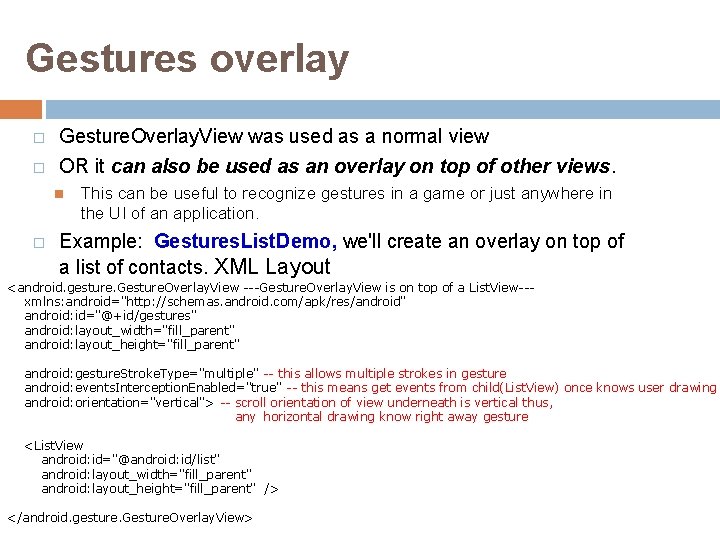
Gestures overlay � � Gesture. Overlay. View was used as a normal view OR it can also be used as an overlay on top of other views. � This can be useful to recognize gestures in a game or just anywhere in the UI of an application. Example: Gestures. List. Demo, we'll create an overlay on top of a list of contacts. XML Layout <android. gesture. Gesture. Overlay. View ---Gesture. Overlay. View is on top of a List. View--xmlns: android="http: //schemas. android. com/apk/res/android" android: id="@+id/gestures" android: layout_width="fill_parent" android: layout_height="fill_parent" android: gesture. Stroke. Type="multiple" -- this allows multiple strokes in gesture android: events. Interception. Enabled="true" -- this means get events from child(List. View) once knows user drawing android: orientation="vertical"> -- scroll orientation of view underneath is vertical thus, any horizontal drawing know right away gesture <List. View android: id="@android: id/list" android: layout_width="fill_parent" android: layout_height="fill_parent" /> </android. gesture. Gesture. Overlay. View>
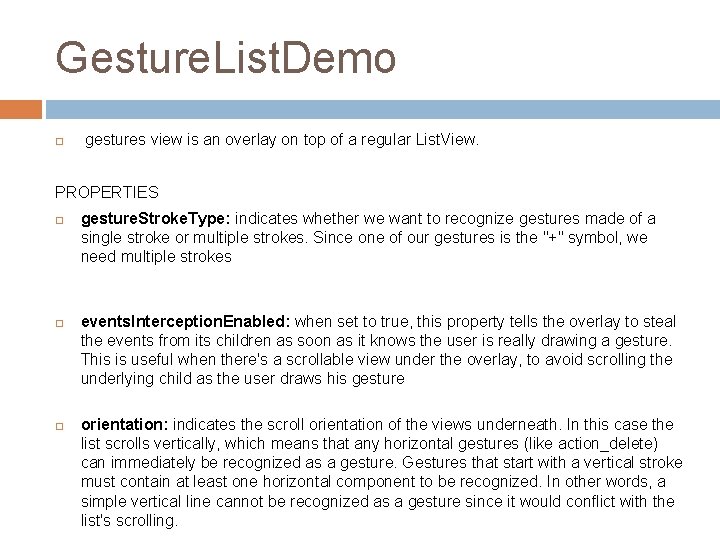
Gesture. List. Demo gestures view is an overlay on top of a regular List. View. PROPERTIES gesture. Stroke. Type: indicates whether we want to recognize gestures made of a single stroke or multiple strokes. Since one of our gestures is the "+" symbol, we need multiple strokes events. Interception. Enabled: when set to true, this property tells the overlay to steal the events from its children as soon as it knows the user is really drawing a gesture. This is useful when there's a scrollable view under the overlay, to avoid scrolling the underlying child as the user draws his gesture orientation: indicates the scroll orientation of the views underneath. In this case the list scrolls vertically, which means that any horizontal gestures (like action_delete) can immediately be recognized as a gesture. Gestures that start with a vertical stroke must contain at least one horizontal component to be recognized. In other words, a simple vertical line cannot be recognized as a gesture since it would conflict with the list's scrolling.
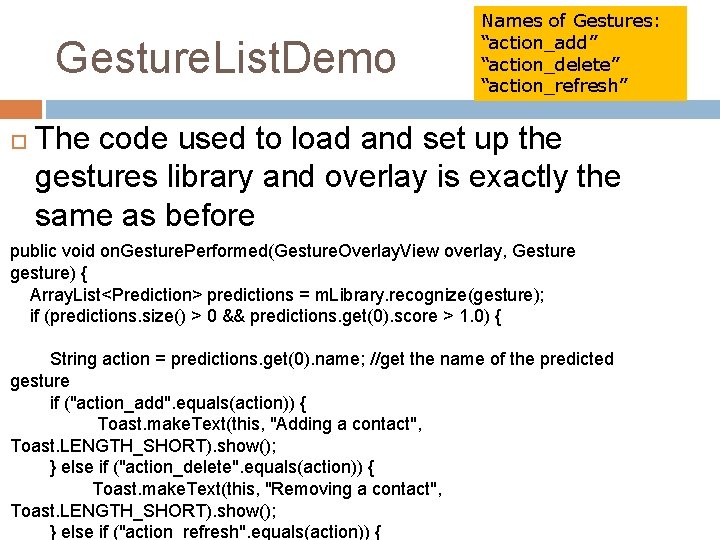
Gesture. List. Demo Names of Gestures: “action_add” “action_delete” “action_refresh” The code used to load and set up the gestures library and overlay is exactly the same as before public void on. Gesture. Performed(Gesture. Overlay. View overlay, Gesture gesture) { Array. List<Prediction> predictions = m. Library. recognize(gesture); if (predictions. size() > 0 && predictions. get(0). score > 1. 0) { String action = predictions. get(0). name; //get the name of the predicted gesture if ("action_add". equals(action)) { Toast. make. Text(this, "Adding a contact", Toast. LENGTH_SHORT). show(); } else if ("action_delete". equals(action)) { Toast. make. Text(this, "Removing a contact", Toast. LENGTH_SHORT). show(); } else if ("action_refresh". equals(action)) {
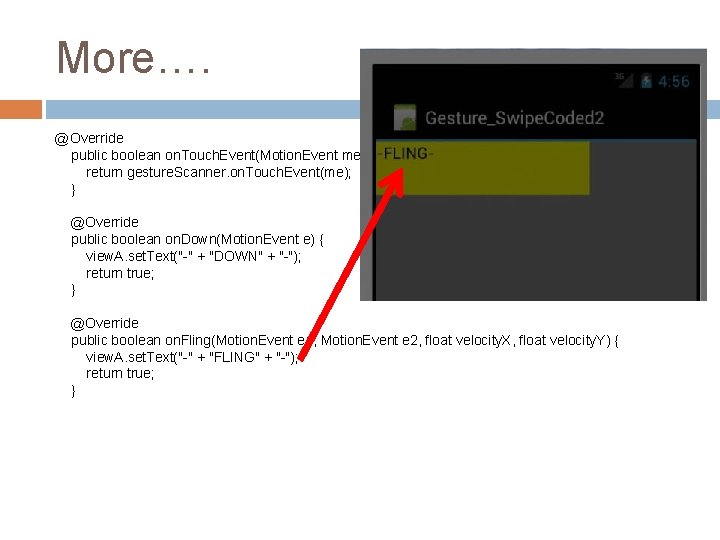
You can Also recognize standard Gestures without setting them up Example, screen shot where did a swipe from left to right ---- called a "Fling“ public class Gesture_Swipe. Coded 2 extends Activity implements On. Gesture. Listener { private Linear. Layout main; private Text. View view. A; private Gesture. Detector gesture. Scanner; @Override public void on. Create(Bundle saved. Instance. State) { super. on. Create(saved. Instance. State); gesture. Scanner = new Gesture. Detector(this); main = new Linear. Layout(this); main. set. Background. Color(Color. GRAY); main. set. Layout. Params(new Linear. Layout. Params(320, 480)); view. A = new Text. View(this); view. A. set. Background. Color(Color. YELLOW); view. A. set. Text. Color(Color. BLACK); view. A. set. Text. Size(16); view. A. set. Layout. Params(new Linear. Layout. Params(320, 80)); main. add. View(view. A);
More…. @Override public boolean on. Touch. Event(Motion. Event me) { return gesture. Scanner. on. Touch. Event(me); } @Override public boolean on. Down(Motion. Event e) { view. A. set. Text("-" + "DOWN" + "-"); return true; } @Override public boolean on. Fling(Motion. Event e 1, Motion. Event e 2, float velocity. X, float velocity. Y) { view. A. set. Text("-" + "FLING" + "-"); return true; }
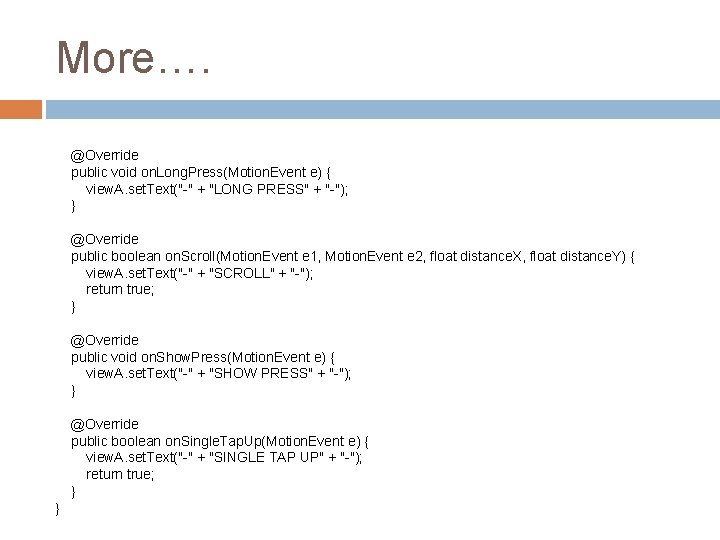
More…. @Override public void on. Long. Press(Motion. Event e) { view. A. set. Text("-" + "LONG PRESS" + "-"); } @Override public boolean on. Scroll(Motion. Event e 1, Motion. Event e 2, float distance. X, float distance. Y) { view. A. set. Text("-" + "SCROLL" + "-"); return true; } @Override public void on. Show. Press(Motion. Event e) { view. A. set. Text("-" + "SHOW PRESS" + "-"); } @Override public boolean on. Single. Tap. Up(Motion. Event e) { view. A. set. Text("-" + "SINGLE TAP UP" + "-"); return true; } }