
ANDROID DRAWING IMAGES SIMPLE EXAMPLE IN INTERFACE AND
- Slides: 23
ANDROID – DRAWING IMAGES – SIMPLE EXAMPLE IN INTERFACE AND EVENT HANDLING L. Grewe
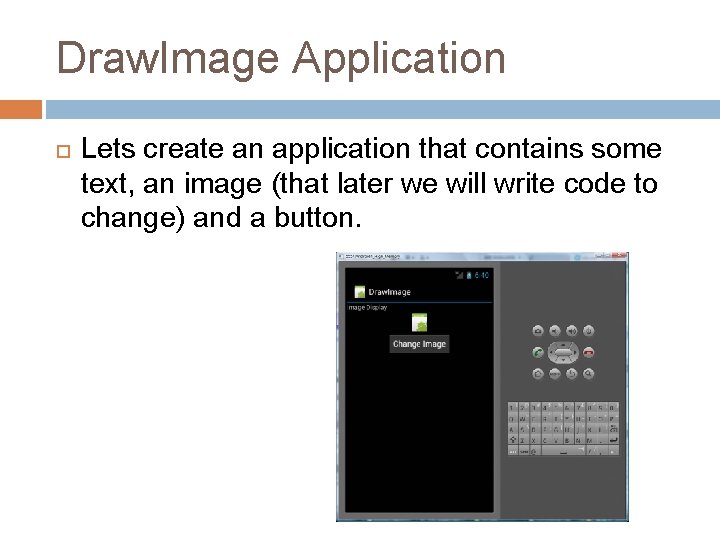
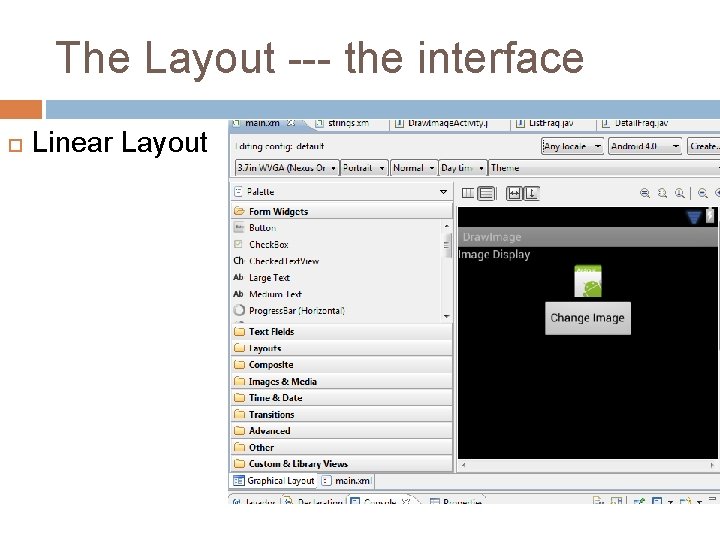
Draw. Image Application Lets create an application that contains some text, an image (that later we will write code to change) and a button.
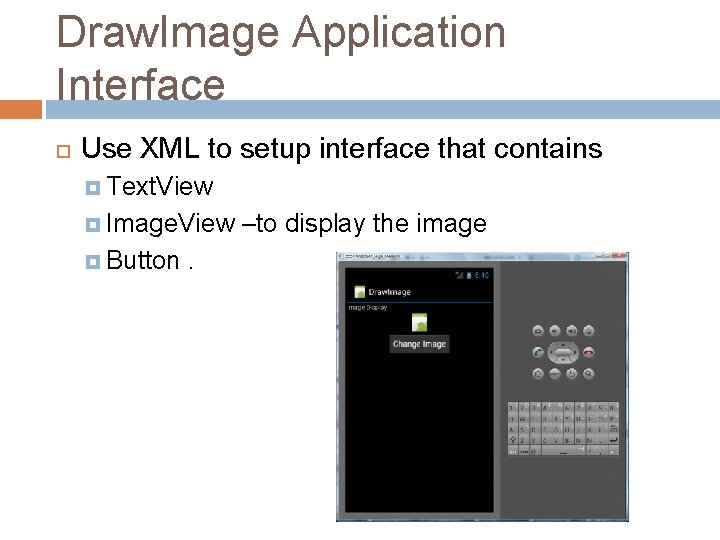
Draw. Image Application Interface Use XML to setup interface that contains Text. View Image. View Button . –to display the image
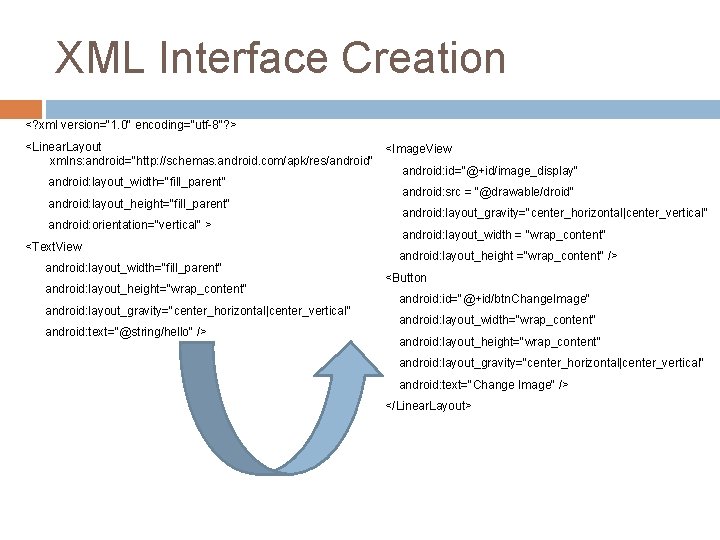
XML Interface Creation <? xml version="1. 0" encoding="utf-8"? > <Linear. Layout <Image. View xmlns: android="http: //schemas. android. com/apk/res/android" android: id="@+id/image_display" android: layout_width="fill_parent" android: src = "@drawable/droid" android: layout_height="fill_parent" android: layout_gravity="center_horizontal|center_vertical" android: orientation="vertical" > android: layout_width = "wrap_content" <Text. View android: layout_height ="wrap_content" /> android: layout_width="fill_parent" <Button android: layout_height="wrap_content" android: id="@+id/btn. Change. Image" android: layout_gravity="center_horizontal|center_vertical" android: layout_width="wrap_content" android: text="@string/hello" /> android: layout_height="wrap_content" android: layout_gravity="center_horizontal|center_vertical" android: text="Change Image" /> </Linear. Layout>
The Layout --- the interface Linear Layout
Lets Setup the images we want to use res/drawable-hdpi = contains drawable resources like images for hdpi resolution use res/drawable-mdpi = contains drawable resources like images for mdpi resolution use res/drawable-ldpi = contains drawable resources like images for ldpi resolution use You can add the images to all folders or only some – the application will figure it out
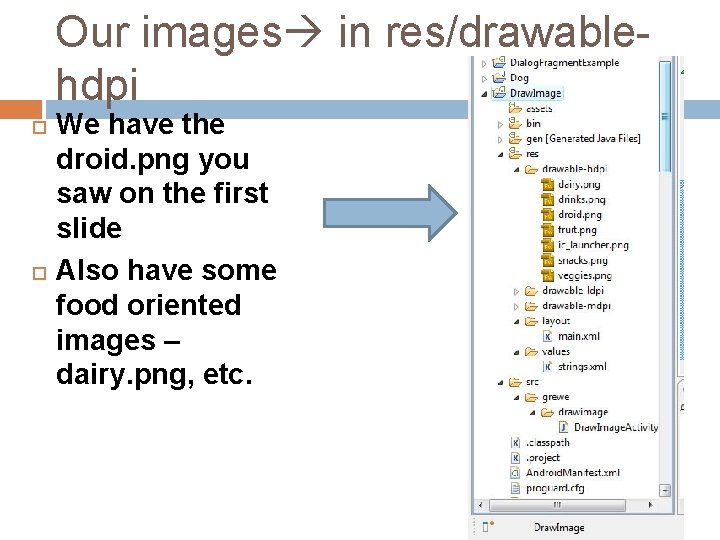
Our images in res/drawablehdpi We have the droid. png you saw on the first slide Also have some food oriented images – dairy. png, etc.
What is Image. View Displays an arbitrary image can load images from various sources (such as resources or content providers) takes care of computing its measurement from the image so that it can be used in any layout manager provides various display options such as scaling and tinting.
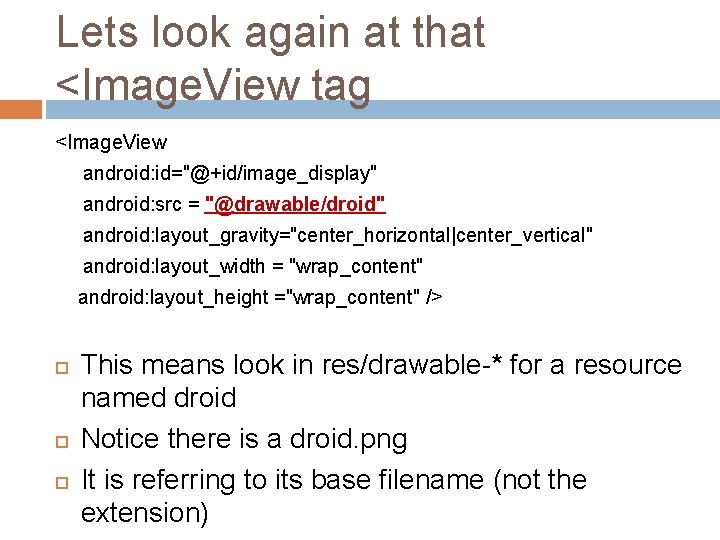
Lets look again at that <Image. View tag <Image. View android: id="@+id/image_display" android: src = "@drawable/droid" android: layout_gravity="center_horizontal|center_vertical" android: layout_width = "wrap_content" android: layout_height ="wrap_content" /> This means look in res/drawable-* for a resource named droid Notice there is a droid. png It is referring to its base filename (not the extension)
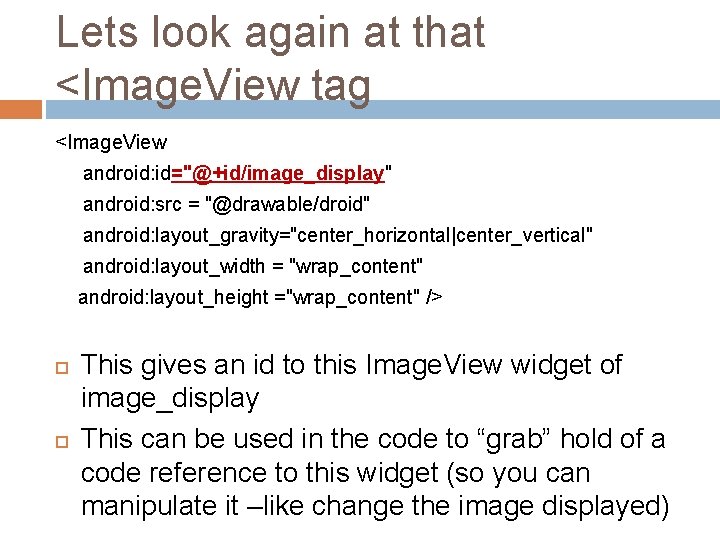
Lets look again at that <Image. View tag <Image. View android: id="@+id/image_display" android: src = "@drawable/droid" android: layout_gravity="center_horizontal|center_vertical" android: layout_width = "wrap_content" android: layout_height ="wrap_content" /> This gives an id to this Image. View widget of image_display This can be used in the code to “grab” hold of a code reference to this widget (so you can manipulate it –like change the image displayed)
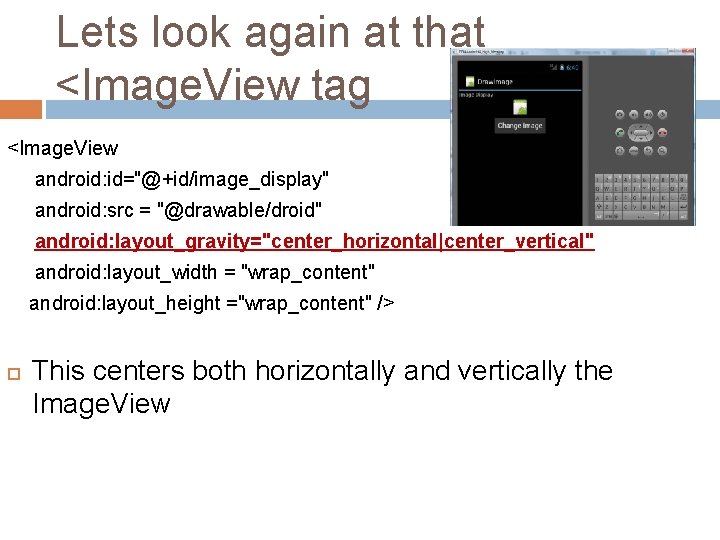
Lets look again at that <Image. View tag <Image. View android: id="@+id/image_display" android: src = "@drawable/droid" android: layout_gravity="center_horizontal|center_vertical" android: layout_width = "wrap_content" android: layout_height ="wrap_content" /> This centers both horizontally and vertically the Image. View
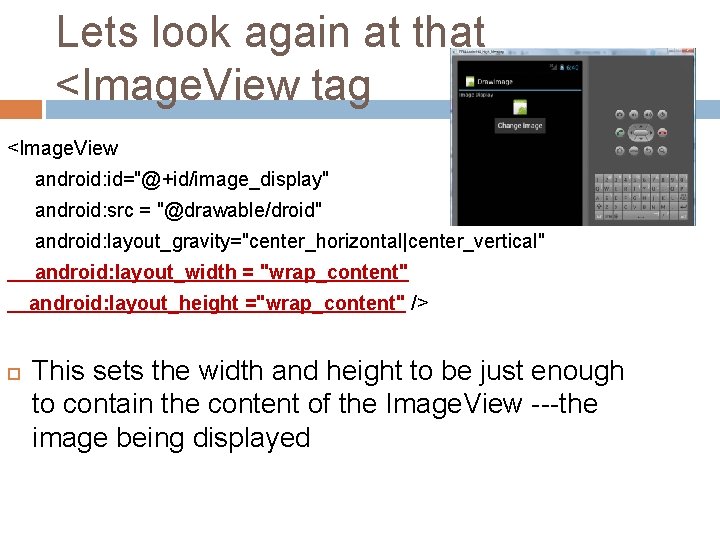
Lets look again at that <Image. View tag <Image. View android: id="@+id/image_display" android: src = "@drawable/droid" android: layout_gravity="center_horizontal|center_vertical" android: layout_width = "wrap_content" android: layout_height ="wrap_content" /> This sets the width and height to be just enough to contain the content of the Image. View ---the image being displayed
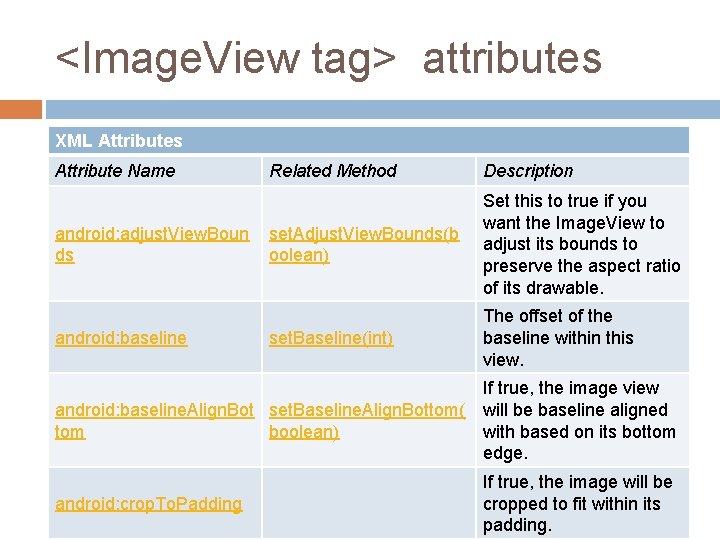
<Image. View tag> attributes XML Attributes Attribute Name android: adjust. View. Boun ds android: baseline Related Method Description set. Adjust. View. Bounds(b oolean) Set this to true if you want the Image. View to adjust its bounds to preserve the aspect ratio of its drawable. set. Baseline(int) The offset of the baseline within this view. android: baseline. Align. Bot set. Baseline. Align. Bottom( tom boolean) If true, the image view will be baseline aligned with based on its bottom edge. android: crop. To. Padding If true, the image will be cropped to fit within its padding.
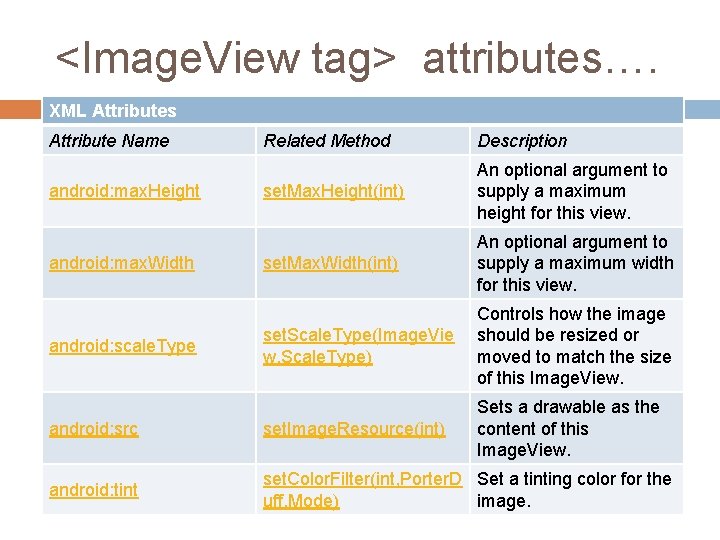
<Image. View tag> attributes…. XML Attributes Attribute Name Related Method Description set. Max. Height(int) An optional argument to supply a maximum height for this view. set. Max. Width(int) An optional argument to supply a maximum width for this view. set. Scale. Type(Image. Vie w. Scale. Type) Controls how the image should be resized or moved to match the size of this Image. View. android: src set. Image. Resource(int) Sets a drawable as the content of this Image. View. android: tint set. Color. Filter(int, Porter. D Set a tinting color for the uff. Mode) image. android: max. Height android: max. Width android: scale. Type
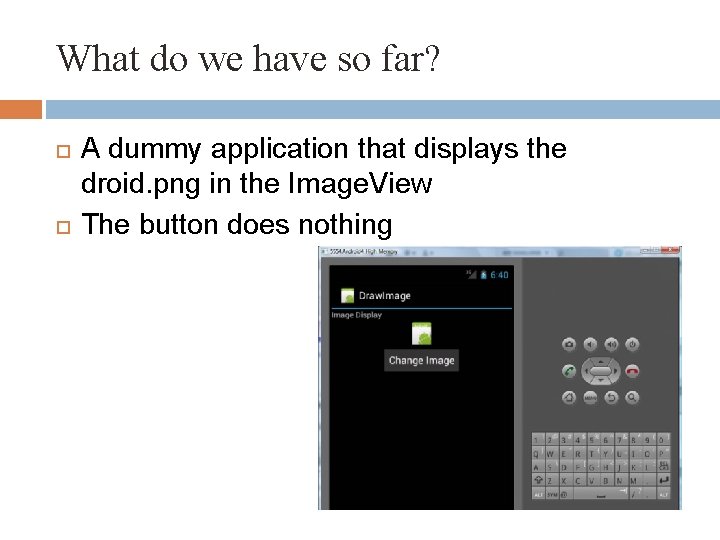
What do we have so far? A dummy application that displays the droid. png in the Image. View The button does nothing
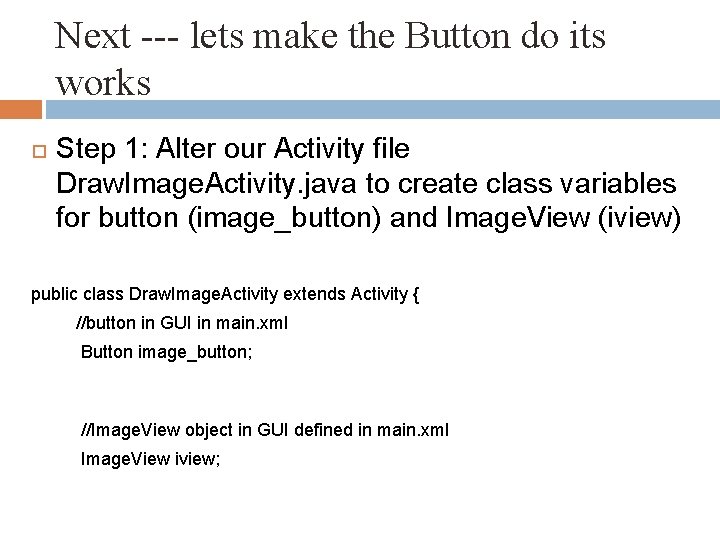
Next --- lets make the Button do its works Step 1: Alter our Activity file Draw. Image. Activity. java to create class variables for button (image_button) and Image. View (iview) public class Draw. Image. Activity extends Activity { //button in GUI in main. xml Button image_button; //Image. View object in GUI defined in main. xml Image. View iview;
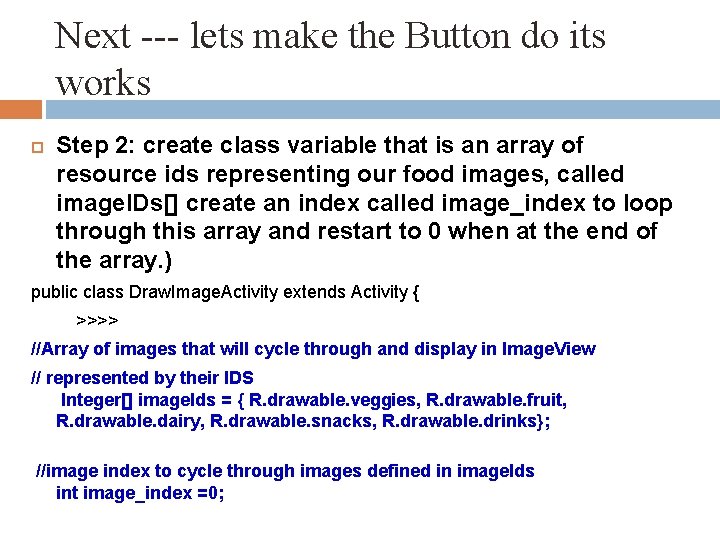
Next --- lets make the Button do its works Step 2: create class variable that is an array of resource ids representing our food images, called image. IDs[] create an index called image_index to loop through this array and restart to 0 when at the end of the array. ) public class Draw. Image. Activity extends Activity { >>>> //Array of images that will cycle through and display in Image. View // represented by their IDS Integer[] image. Ids = { R. drawable. veggies, R. drawable. fruit, R. drawable. dairy, R. drawable. snacks, R. drawable. drinks}; //image index to cycle through images defined in image. Ids int image_index =0;
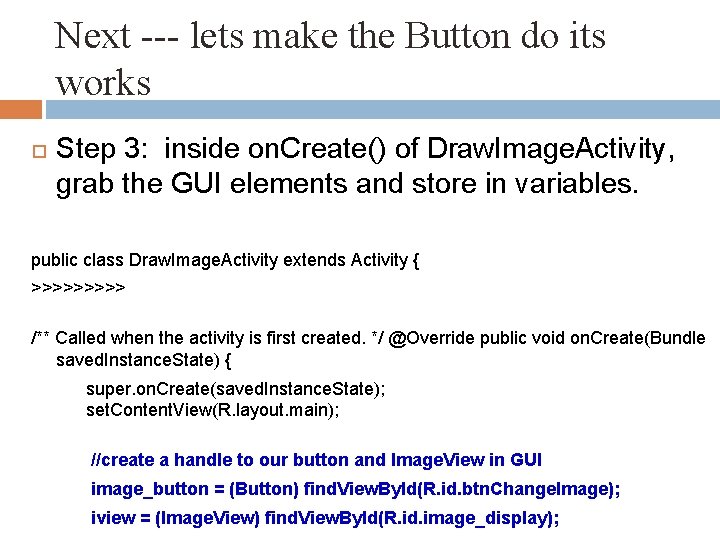
Next --- lets make the Button do its works Step 3: inside on. Create() of Draw. Image. Activity, grab the GUI elements and store in variables. public class Draw. Image. Activity extends Activity { >>>>> /** Called when the activity is first created. */ @Override public void on. Create(Bundle saved. Instance. State) { super. on. Create(saved. Instance. State); set. Content. View(R. layout. main); //create a handle to our button and Image. View in GUI image_button = (Button) find. View. By. Id(R. id. btn. Change. Image); iview = (Image. View) find. View. By. Id(R. id. image_display);
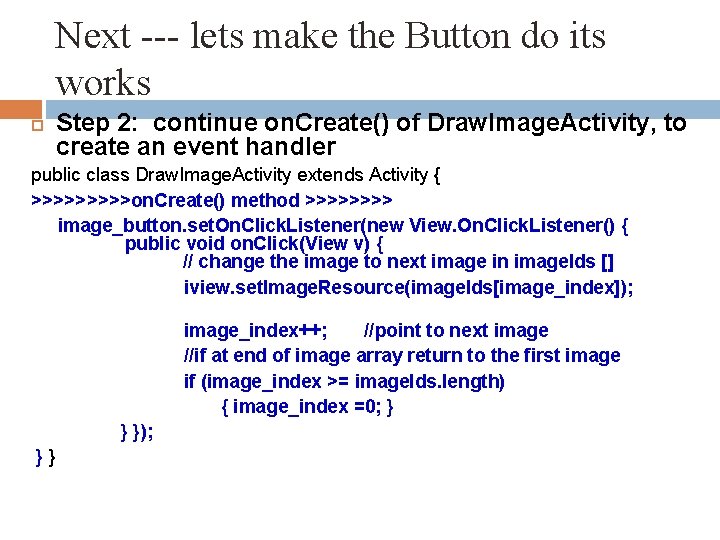
Next --- lets make the Button do its works Step 2: continue on. Create() of Draw. Image. Activity, to create an event handler public class Draw. Image. Activity extends Activity { >>>>>on. Create() method >>>> image_button. set. On. Click. Listener(new View. On. Click. Listener() { public void on. Click(View v) { // change the image to next image in image. Ids [] iview. set. Image. Resource(image. Ids[image_index]); image_index++; //point to next image //if at end of image array return to the first image if (image_index >= image. Ids. length) { image_index =0; } } }); }}
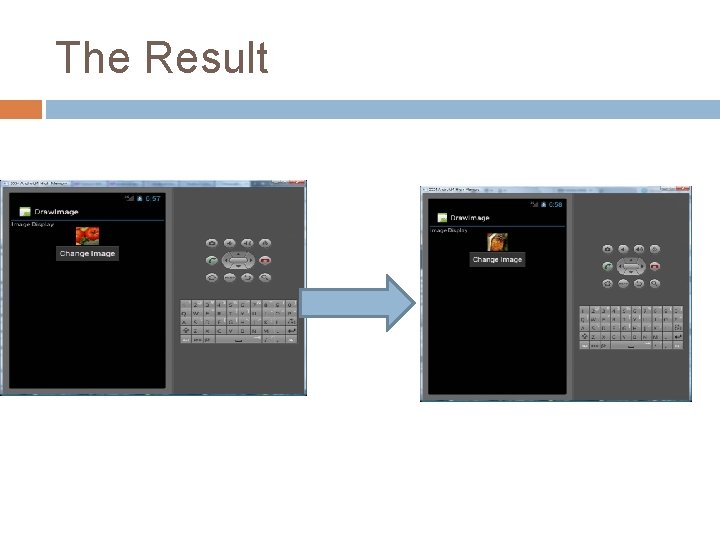
The Result
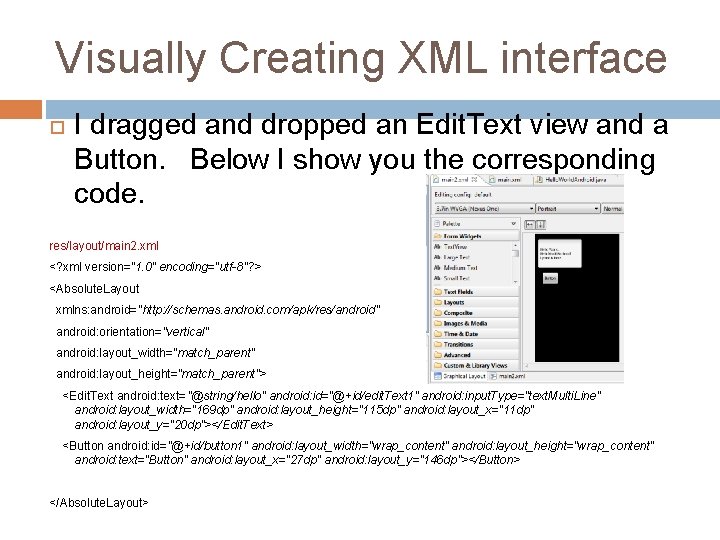
Visually Creating XML interface I dragged and dropped an Edit. Text view and a Button. Below I show you the corresponding code. res/layout/main 2. xml <? xml version="1. 0" encoding="utf-8"? > <Absolute. Layout xmlns: android="http: //schemas. android. com/apk/res/android" android: orientation="vertical" android: layout_width="match_parent" android: layout_height="match_parent"> <Edit. Text android: text="@string/hello" android: id="@+id/edit. Text 1" android: input. Type="text. Multi. Line" android: layout_width="169 dp" android: layout_height="115 dp" android: layout_x="11 dp" android: layout_y="20 dp"></Edit. Text> <Button android: id="@+id/button 1" android: layout_width="wrap_content" android: layout_height="wrap_content" android: text="Button" android: layout_x="27 dp" android: layout_y="146 dp"></Button> </Absolute. Layout>
Image. View Class Beyond the attributes of <Image. View>, the actual Image. View class has a rich(er) set of methods…. see API…. . Here are some: clear. Color. Filter(), get. Baseline() get. Baseline. Align. Bottom(), set. Adjust. View. Bounds(boolean adjust. View. Bounds), set. Baseline(int baseline), Here are some methods that can be used to set the Image. View contents set. Image. Bitmap(Bitmap bm), set. Image. Drawable(Drawable drawable), set. Image. Matrix(Matrix matrix), set. Image. Resource(int res. Id), set. Image. URI(Uri uri)
MORE>>> There are more classes that can be useful for display of imaes, some that have built in user interaction events – See book and online for more examples…. . i. e. Gallery