
Anatomy of a slide Ribbon Folders Ribbon Minis
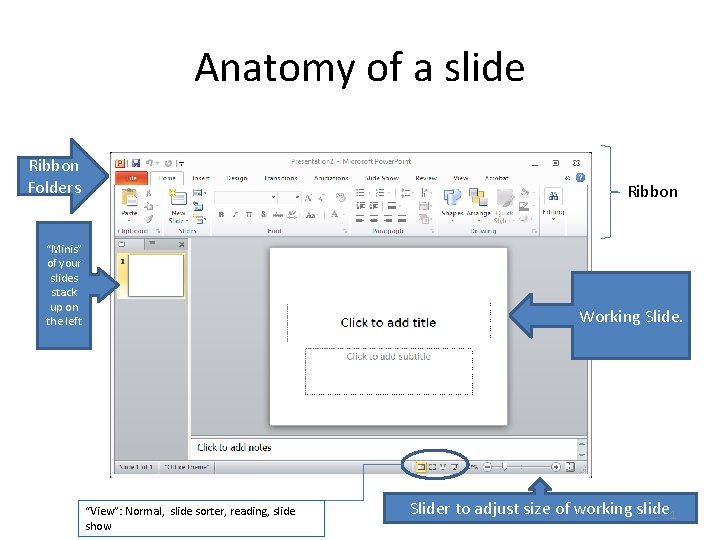
Anatomy of a slide Ribbon Folders Ribbon “Minis” of your slides stack up on the left Working Slide. “View”: Normal, slide sorter, reading, slide show Slider to adjust size of working slide 1
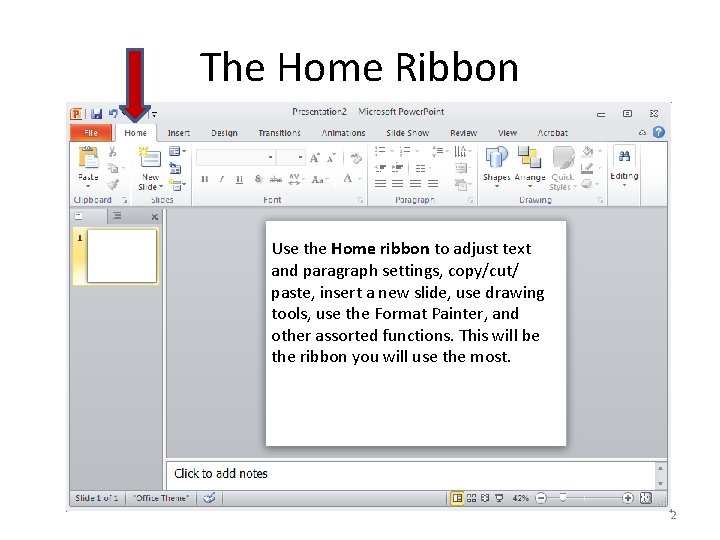
The Home Ribbon Use the Home ribbon to adjust text and paragraph settings, copy/cut/ paste, insert a new slide, use drawing tools, use the Format Painter, and other assorted functions. This will be the ribbon you will use the most. 2
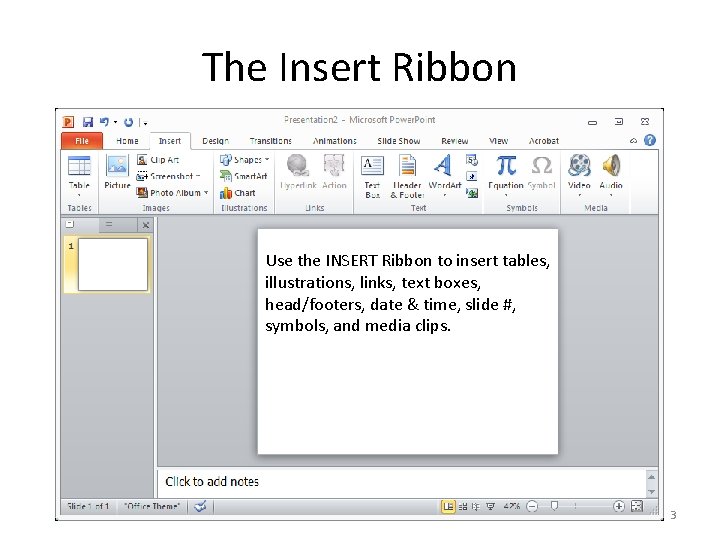
The Insert Ribbon Use the INSERT Ribbon to insert tables, illustrations, links, text boxes, head/footers, date & time, slide #, symbols, and media clips. 3
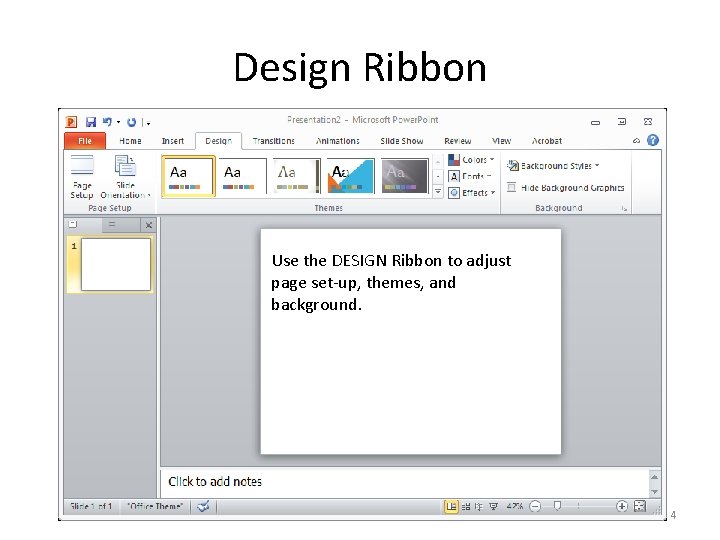
Design Ribbon Use the DESIGN Ribbon to adjust page set-up, themes, and background. 4
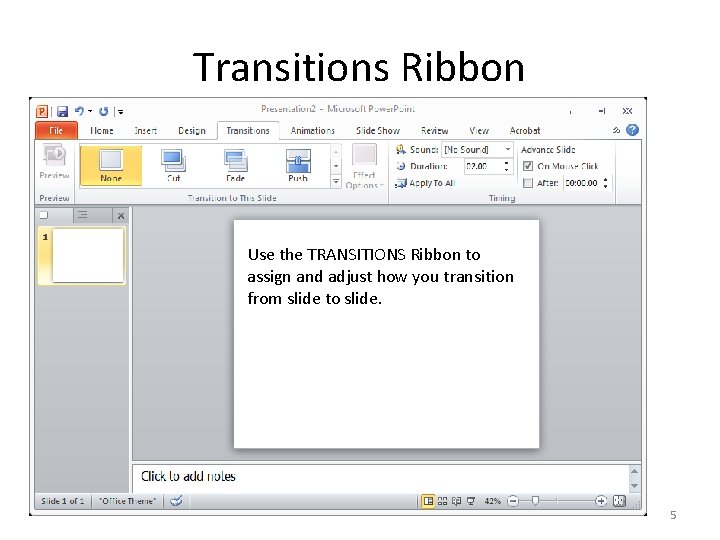
Transitions Ribbon Use the TRANSITIONS Ribbon to assign and adjust how you transition from slide to slide. 5
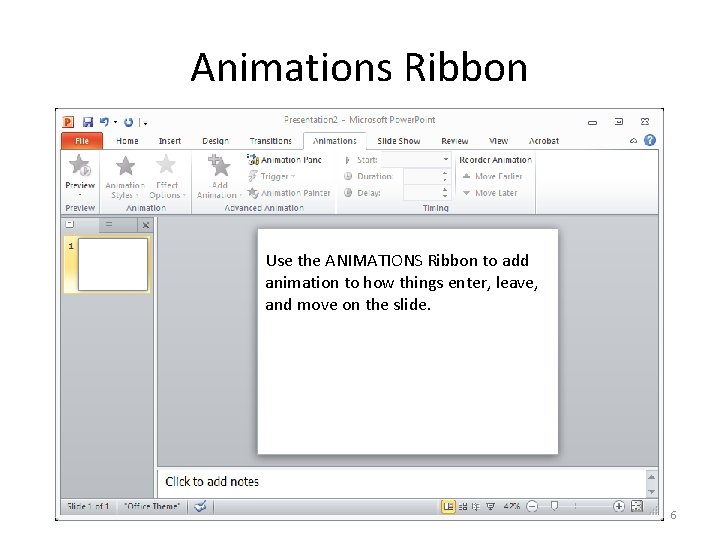
Animations Ribbon Use the ANIMATIONS Ribbon to add animation to how things enter, leave, and move on the slide. 6
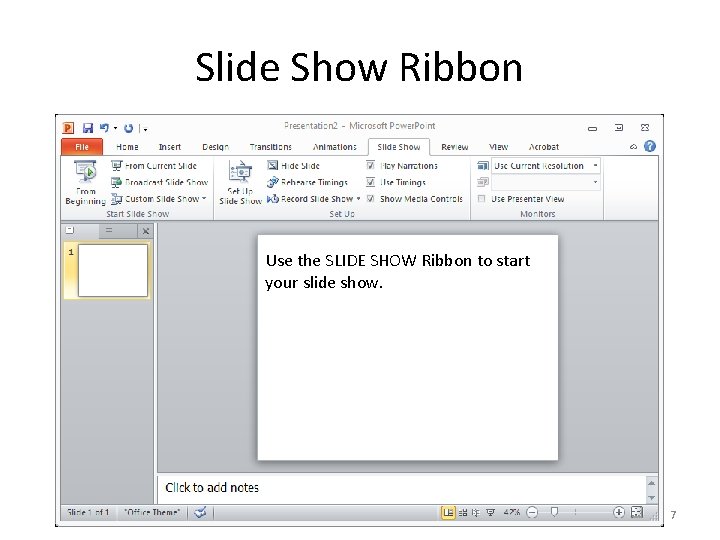
Slide Show Ribbon Use the SLIDE SHOW Ribbon to start your slide show. 7
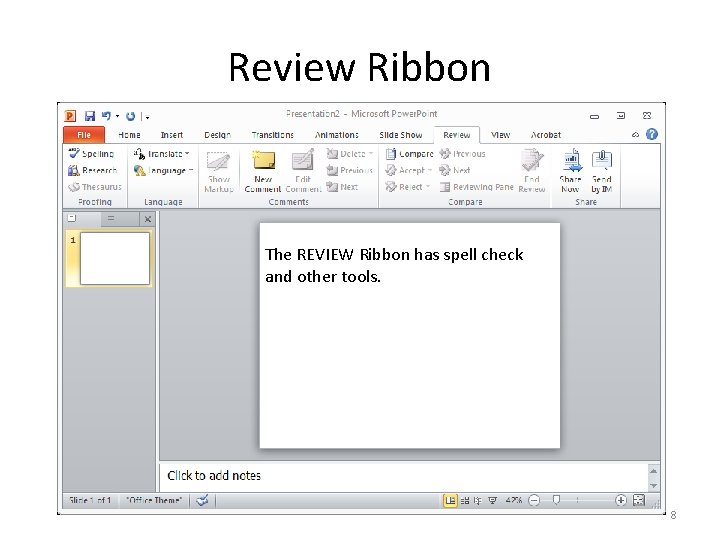
Review Ribbon The REVIEW Ribbon has spell check and other tools. 8
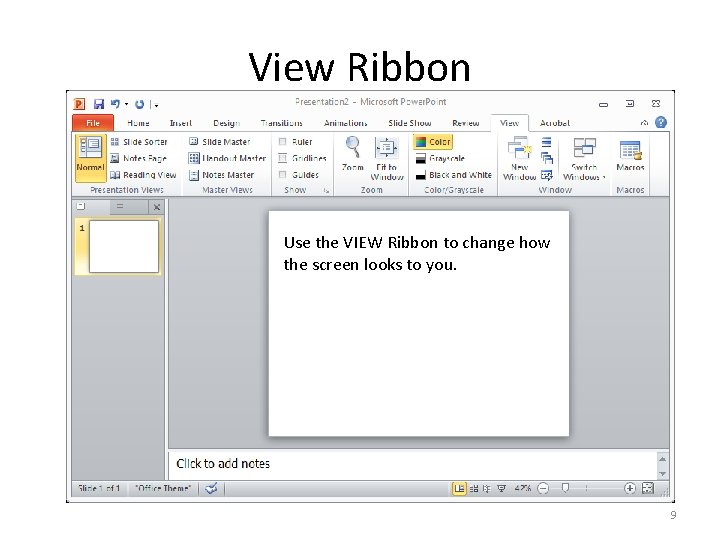
View Ribbon Use the VIEW Ribbon to change how the screen looks to you. 9
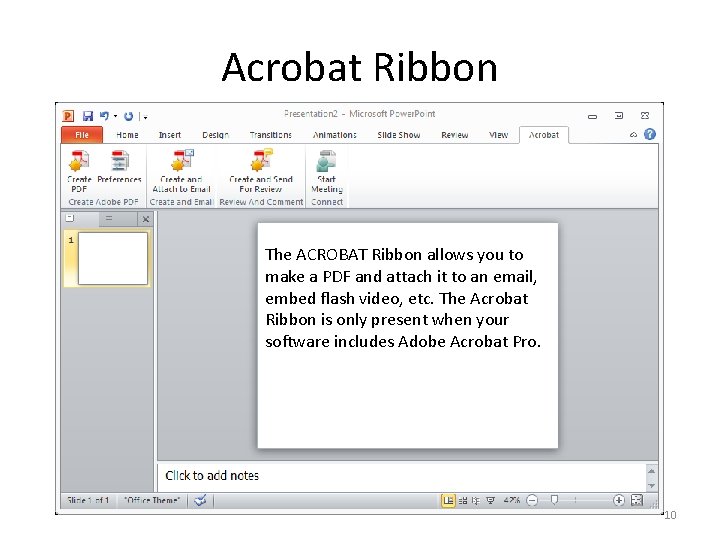
Acrobat Ribbon The ACROBAT Ribbon allows you to make a PDF and attach it to an email, embed flash video, etc. The Acrobat Ribbon is only present when your software includes Adobe Acrobat Pro. 10
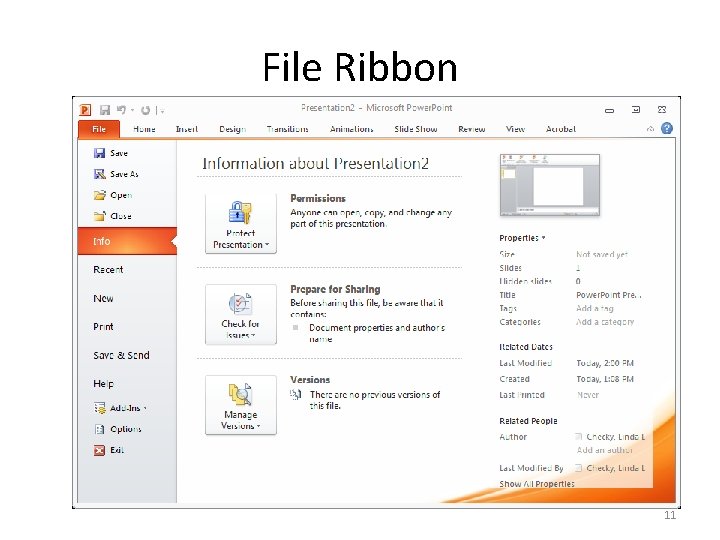
File Ribbon 11
- Slides: 11