
Analyzing Table Data Objectives Filter a table Create
Analyzing Table Data
Objectives • • Filter a table Create a custom filter Filter a table with Advanced Filter Extract table data Microsoft Office 2013 - Illustrated 2
Objectives • • Look up values in a table Summarize table data Validate table data Create subtotals Microsoft Office 2013 - Illustrated 3
Filtering a Table • Filter – display records meeting userspecified criteria • Auto. Filter – uses filter list arrows to set criteria • Search criterion – text you are searching for Microsoft Office 2013 - Illustrated 4
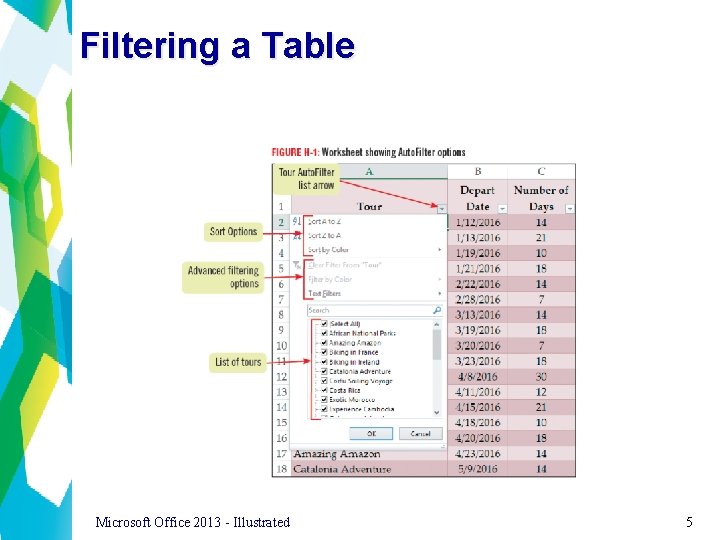
Filtering a Table Microsoft Office 2013 - Illustrated 5
Creating a Custom Filter • Custom Auto. Filter – creates complex filters to narrow displayed records • Comparison operators • Greater than • Less than • Logical conditions • And –both criteria met • Or – one or more criteria met Microsoft Office 2013 - Illustrated 6
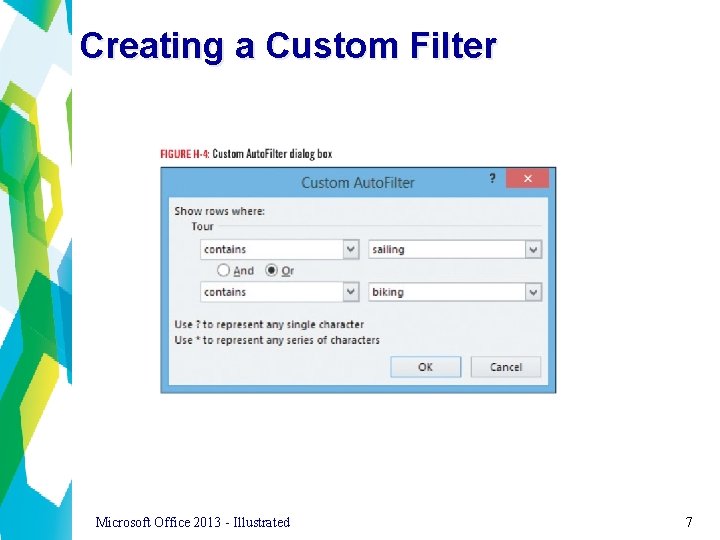
Creating a Custom Filter Microsoft Office 2013 - Illustrated 7
Using More than One Rule when Conditionally Formatting Data • You can apply conditional formatting to table cells in the same way that you can format a range of worksheet data • After you have applied conditional formatting such as color fills, icon sets, or color scales to a numeric table range, you can use Auto. Filter to sort or filter based on the colors or symbols Microsoft Office 2013 - Illustrated 8
Filtering a Table with the Advanced Filter • Criteria range – cell range containing one row of labels and at least one additional row underneath containing the criteria • And condition – criteria in same row • Or condition – criteria in different rows Microsoft Office 2013 - Illustrated 9

Filtering a Table with the Advanced Filter Microsoft Office 2013 - Illustrated 10
Using Advanced Conditional Formatting Options • You can emphasize top- or bottom-ranked values in a field using conditional formatting • You can also format your worksheet or table data using icon sets and color scales based on the cell values • A color scale uses a set of two, three, or four fill colors to convey relative values Microsoft Office 2013 - Illustrated 11
Extracting Table Data • Extract data – filtered data copied to different range Microsoft Office 2013 - Illustrated 12
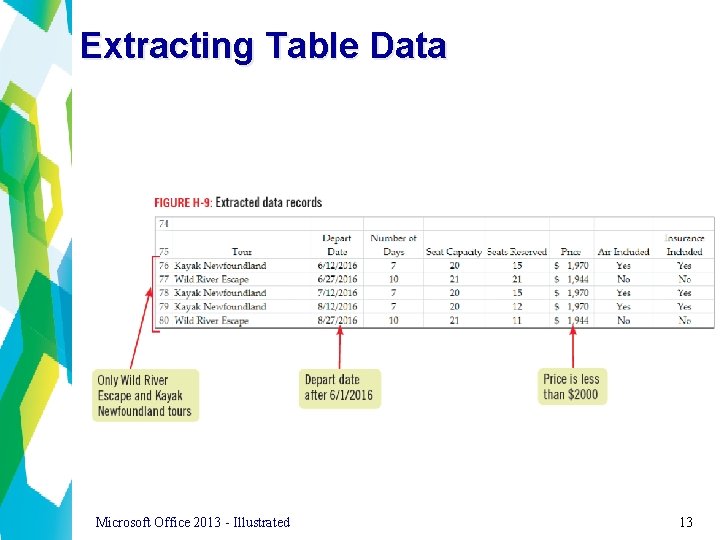
Extracting Table Data Microsoft Office 2013 - Illustrated 13
Understanding the Criteria Range and the Copy-to Location • When you define the criteria range and the copy -to location in the Advanced Filter dialog box, Excel automatically creates the range names Criteria and Extract for these ranges in the worksheet • The Criteria range includes the field names and any criteria rows underneath them • The Extract range includes just the field names above the extracted table Microsoft Office 2013 - Illustrated 14
Look Up Values in a Table • VLOOKUP – locates values • Searches vertically down the left-most column • Reads across the row to value in specified column Microsoft Office 2013 - Illustrated 15
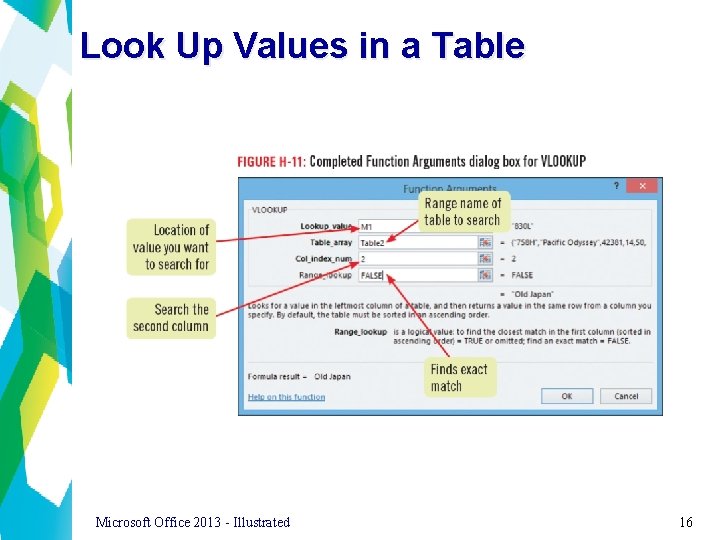
Look Up Values in a Table Microsoft Office 2013 - Illustrated 16
Finding Records using the DGET Function • You can also use the DGET function to find a record in a table that matches specified criteria • Unlike VLOOKUP, you do not have the option of using a Range_Lookup value of TRUE to find an approximate match Microsoft Office 2013 - Illustrated 17
Using the HLOOKUP and MATCH functions • HLOOKUP searches horizontally across the upper row of a table until it finds the matching value, then looks down the number of rows you specify • You can use the MATCH function when you want the position of an item in a range • The MATCH function uses the syntax: MATCH(lookup_value, lookup_array, match_ type) Microsoft Office 2013 - Illustrated 18
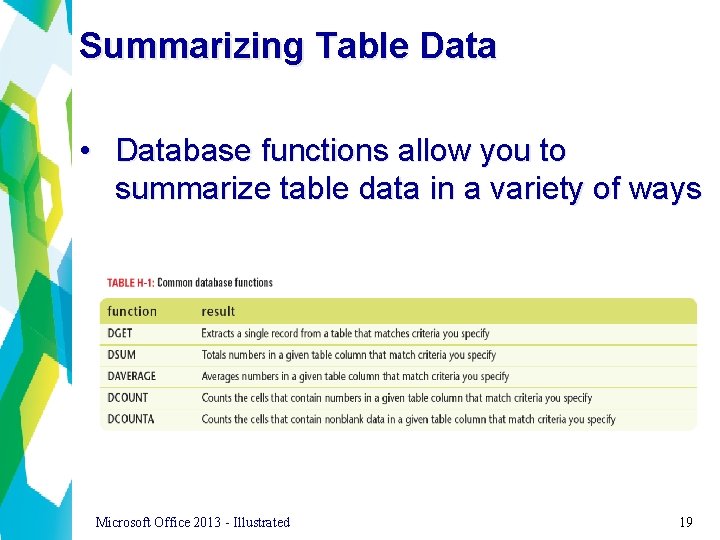
Summarizing Table Data • Database functions allow you to summarize table data in a variety of ways Microsoft Office 2013 - Illustrated 19
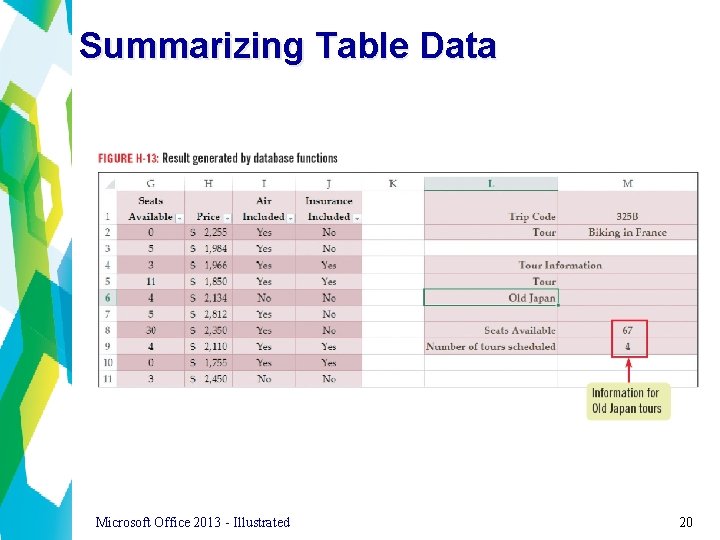
Summarizing Table Data Microsoft Office 2013 - Illustrated 20
Validating Table Data • The Excel data validation feature allows you to specify what data users can enter in a range of cells • Restrict data to whole numbers, decimal numbers, or text • Specify list of acceptable entries • Excel displays an error message when invalid data is entered Microsoft Office 2013 - Illustrated 21
Validating Table Data Microsoft Office 2013 - Illustrated 22
Adding Input Messages and Error Alerts • You can customize the way data validation works • Input message – displays when users select that cell • Error alert – when users enter invalid data Microsoft Office 2013 - Illustrated 23
Creating Subtotals • Subtotals – group and summarize data • • • SUM COUNT AVERAGE MAX MIN Microsoft Office 2013 - Illustrated 24
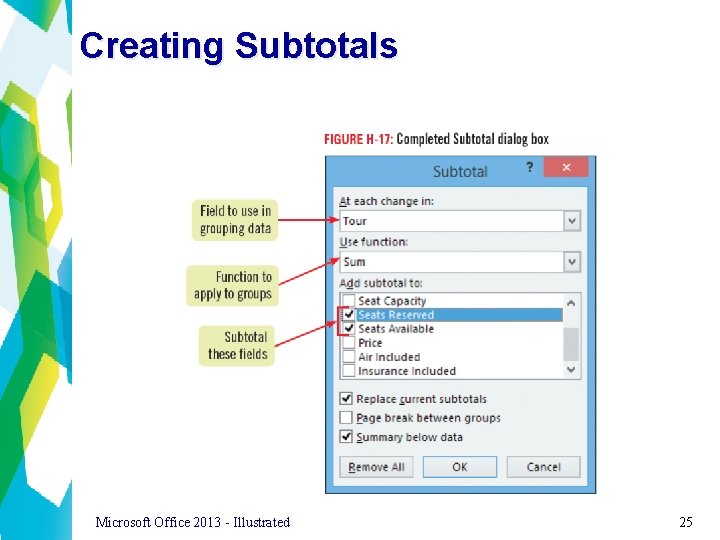
Creating Subtotals Microsoft Office 2013 - Illustrated 25
- Slides: 25