
Analyzing an Image using MAC Systems Sleuth kit
- Slides: 29
Analyzing an Image using MAC Systems Sleuth kit version 3. 2. 0 & Autopsy 2. 24 Page 325 from “Guide to Computer Forensics and Investigations 4 th edition”
MAC Forensic Tools n n Sleuth Kit – base program for Unix investigations. Uses a command-line interface. Autopsy – Graphical User Interface (GUI) that “sits on top” of Sleuth Kit commandline interface. Allows access to Sleuth Kit functions via a GUI.
Boot your MAC n Select number 2 on your KVM Switch n Press the power button on the MAC n Login in to the ‘student’ account n Password: $tudent 1
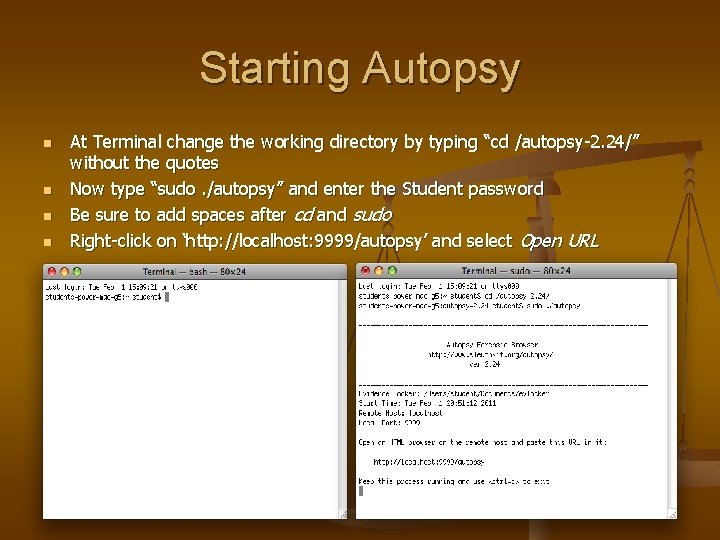
Starting Autopsy n n At Terminal change the working directory by typing “cd /autopsy-2. 24/” without the quotes Now type “sudo. /autopsy” and enter the Student password Be sure to add spaces after cd and sudo Right-click on ‘http: //localhost: 9999/autopsy’ and select Open URL
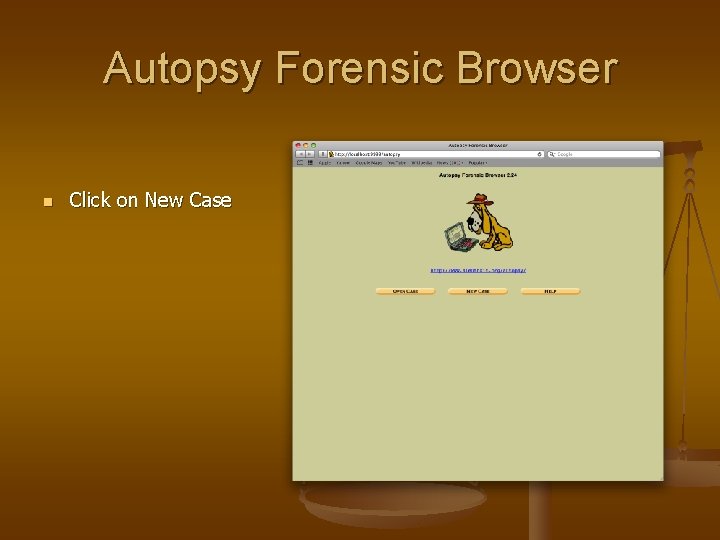
Autopsy Forensic Browser n Click on New Case
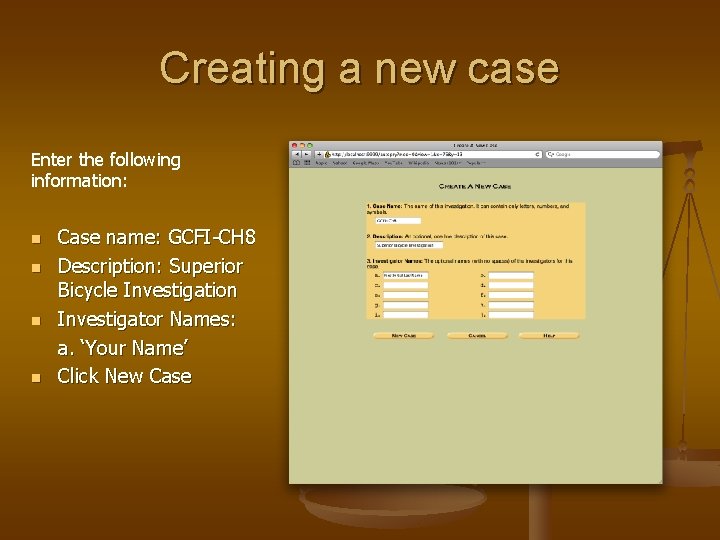
Creating a new case Enter the following information: n n Case name: GCFI-CH 8 Description: Superior Bicycle Investigation Investigator Names: a. ‘Your Name’ Click New Case
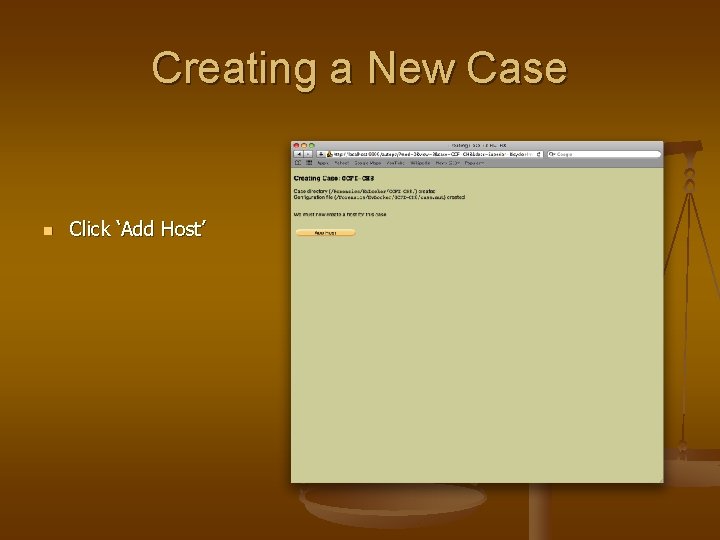
Creating a New Case n Click ‘Add Host’
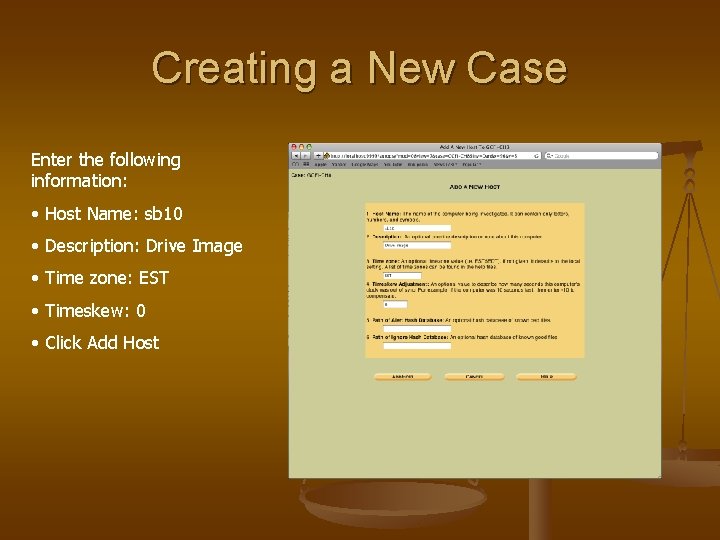
Creating a New Case Enter the following information: • Host Name: sb 10 • Description: Drive Image • Time zone: EST • Timeskew: 0 • Click Add Host
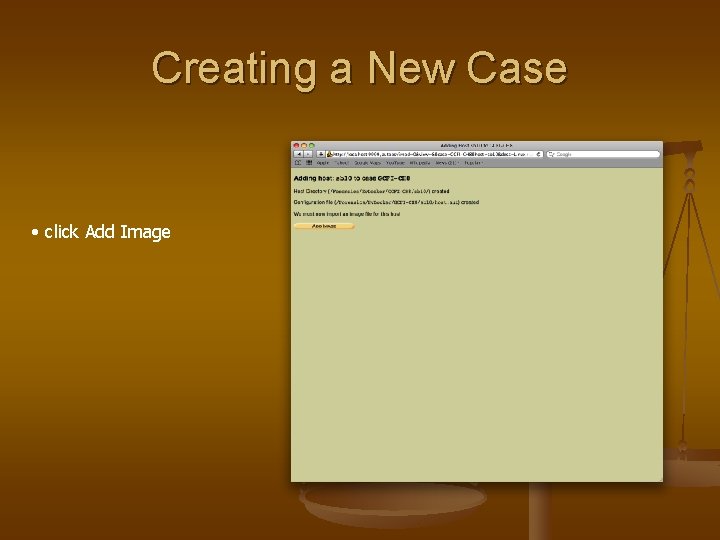
Creating a New Case • click Add Image
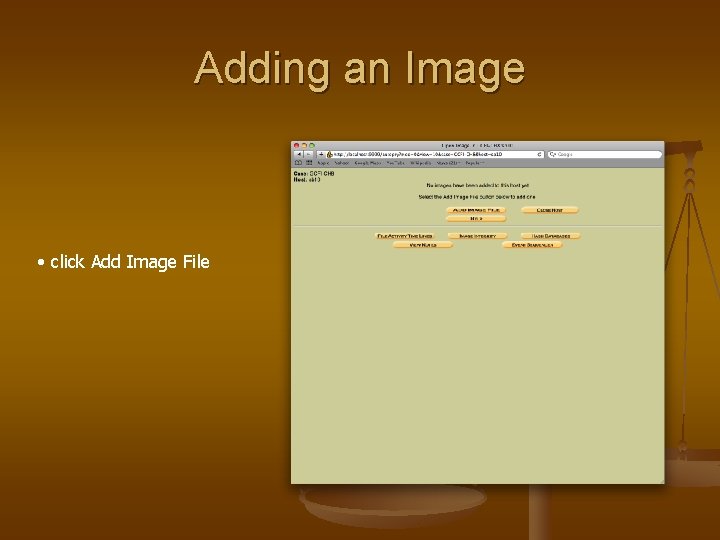
Adding an Image • click Add Image File
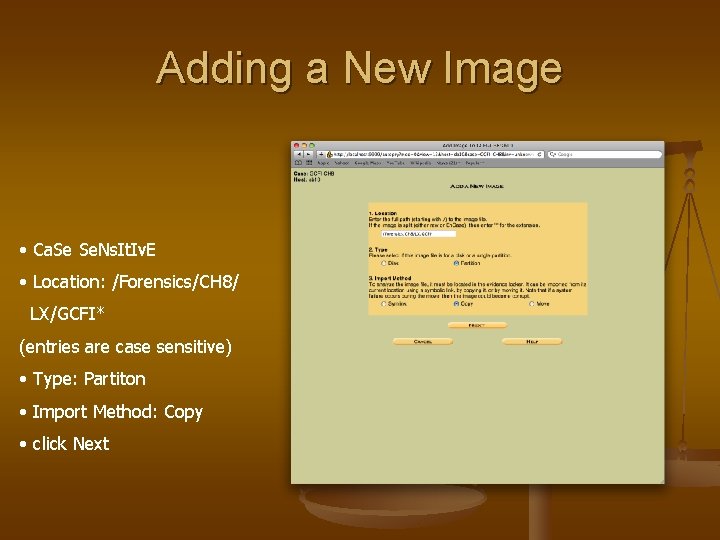
Adding a New Image • Ca. Se Se. Ns. It. Iv. E • Location: /Forensics/CH 8/ LX/GCFI* (entries are case sensitive) • Type: Partiton • Import Method: Copy • click Next
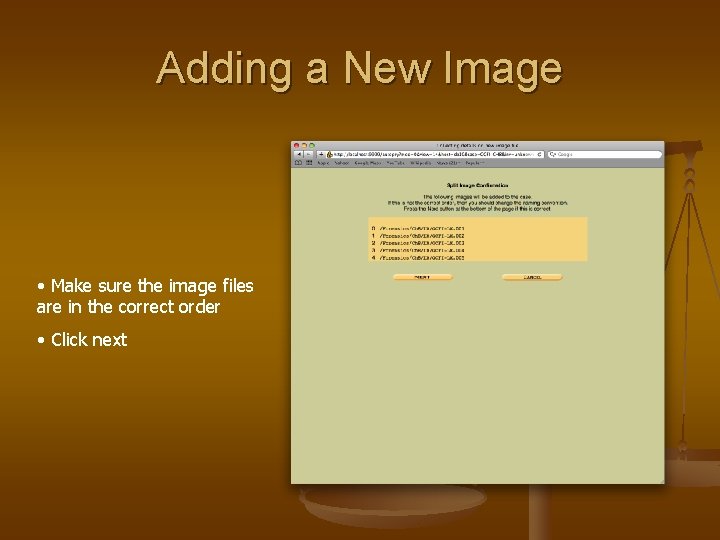
Adding a New Image • Make sure the image files are in the correct order • Click next
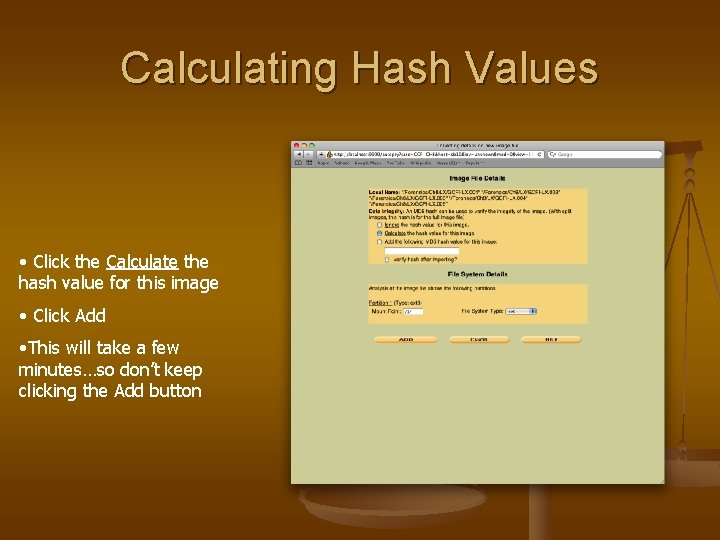
Calculating Hash Values • Click the Calculate the hash value for this image • Click Add • This will take a few minutes…so don’t keep clicking the Add button
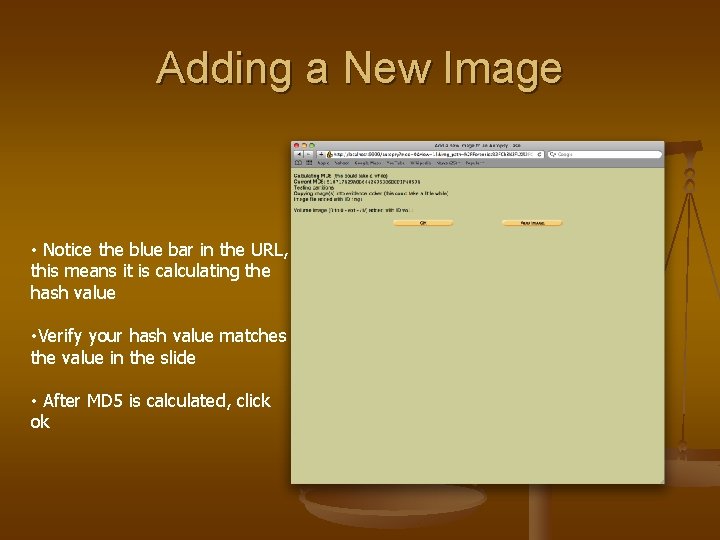
Adding a New Image • Notice the blue bar in the URL, this means it is calculating the hash value • Verify your hash value matches the value in the slide • After MD 5 is calculated, click ok
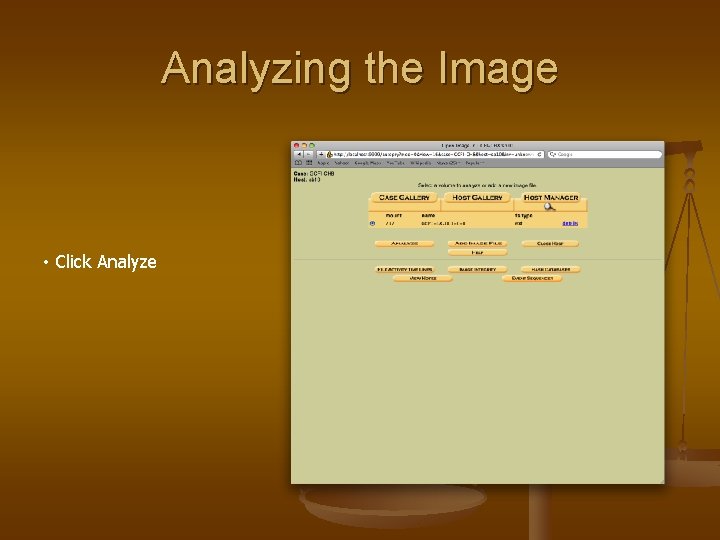
Analyzing the Image • Click Analyze
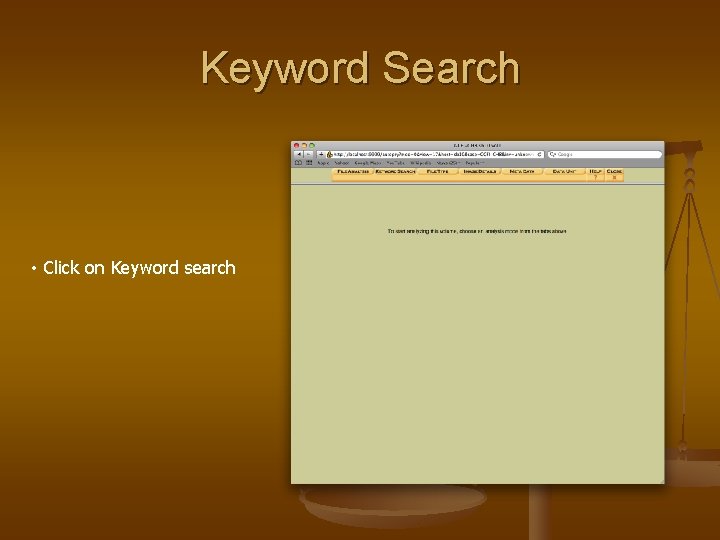
Keyword Search • Click on Keyword search
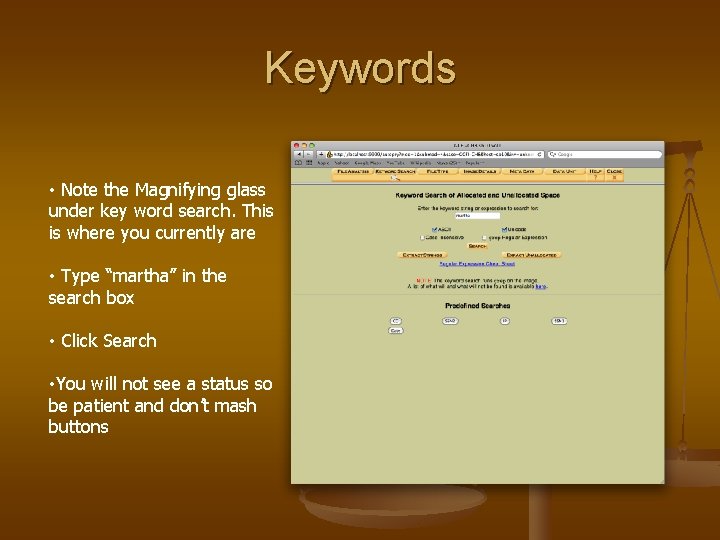
Keywords • Note the Magnifying glass under key word search. This is where you currently are • Type “martha” in the search box • Click Search • You will not see a status so be patient and don’t mash buttons
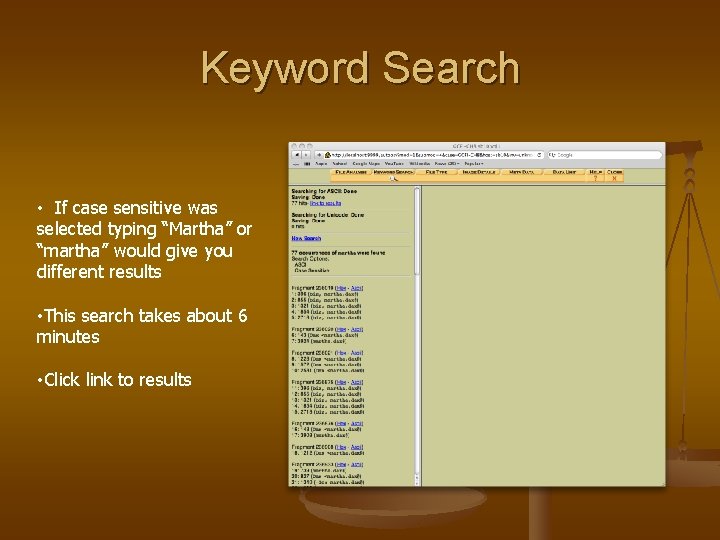
Keyword Search • If case sensitive was selected typing “Martha” or “martha” would give you different results • This search takes about 6 minutes • Click link to results
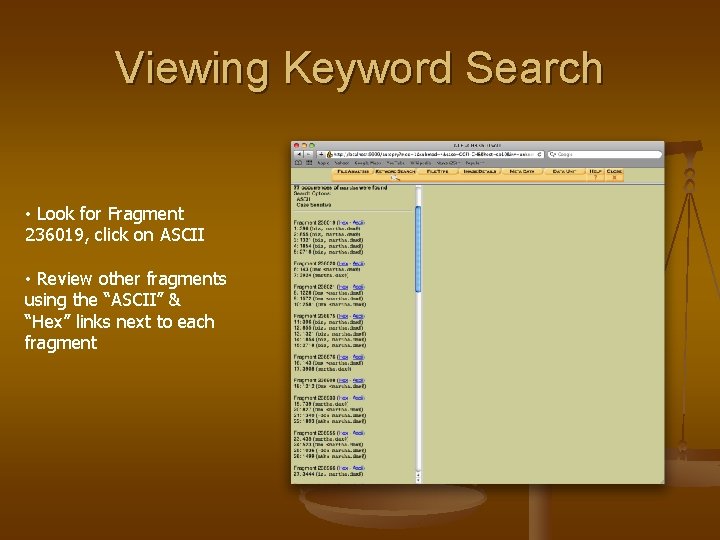
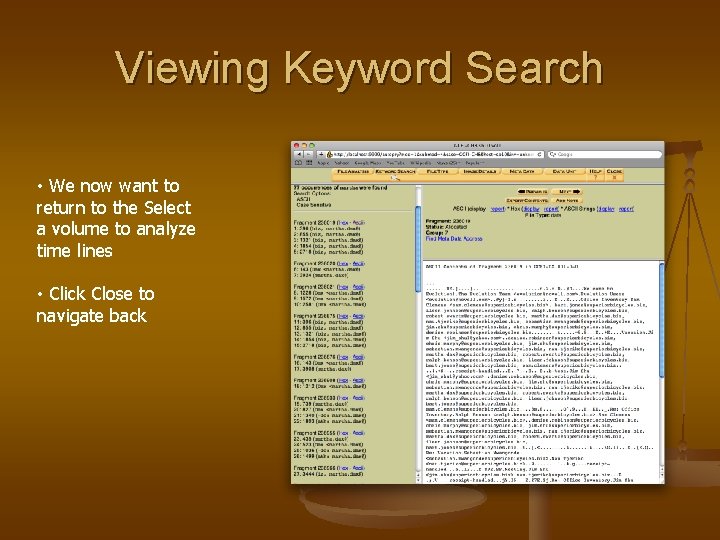
Viewing Keyword Search • Look for Fragment 236019, click on ASCII • Review other fragments using the “ASCII” & “Hex” links next to each fragment
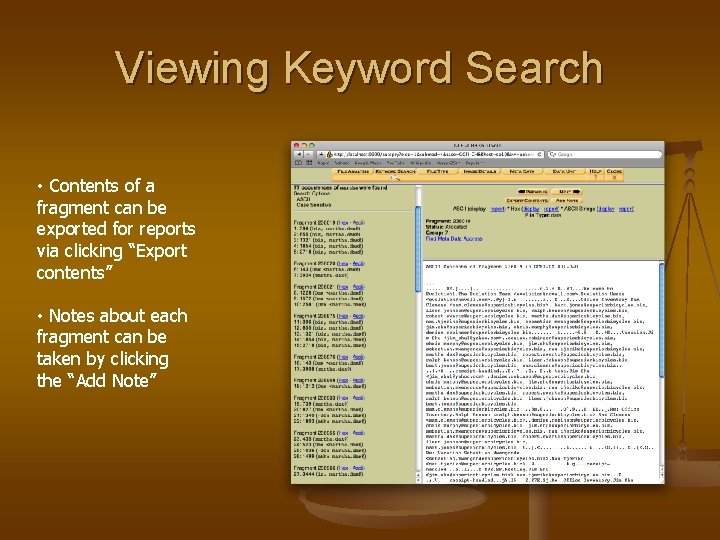
Viewing Keyword Search • Contents of a fragment can be exported for reports via clicking “Export contents” • Notes about each fragment can be taken by clicking the “Add Note”
Viewing Keyword Search • We now want to return to the Select a volume to analyze time lines • Click Close to navigate back
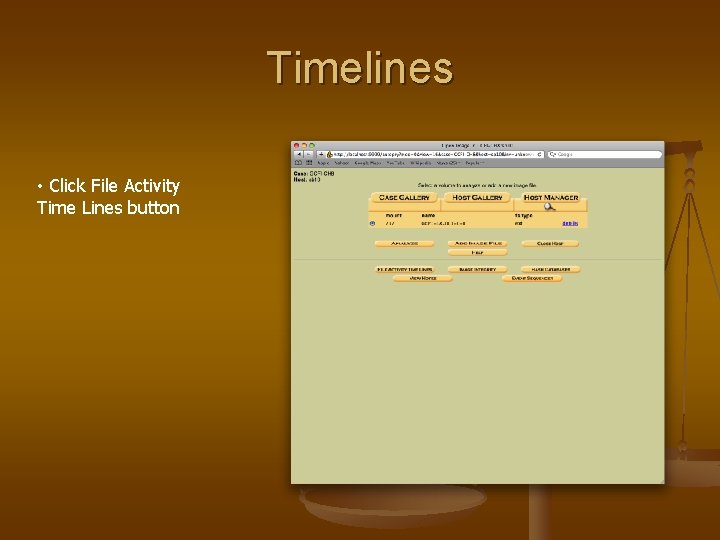
Timelines • Click File Activity Time Lines button
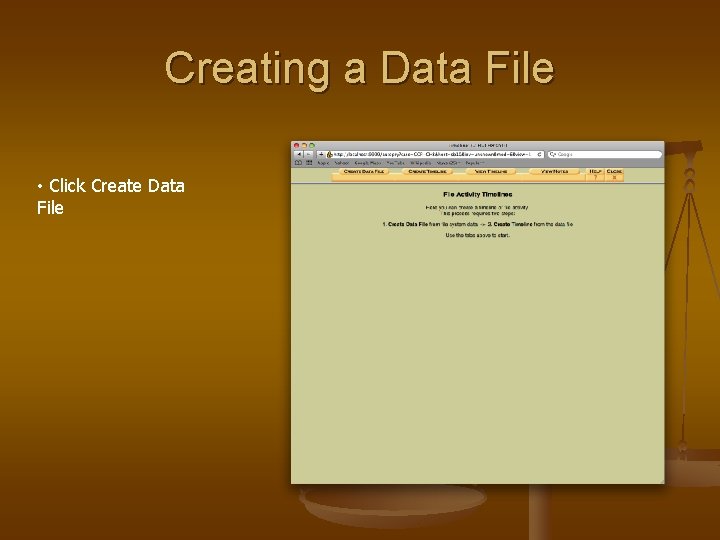
Creating a Data File • Click Create Data File
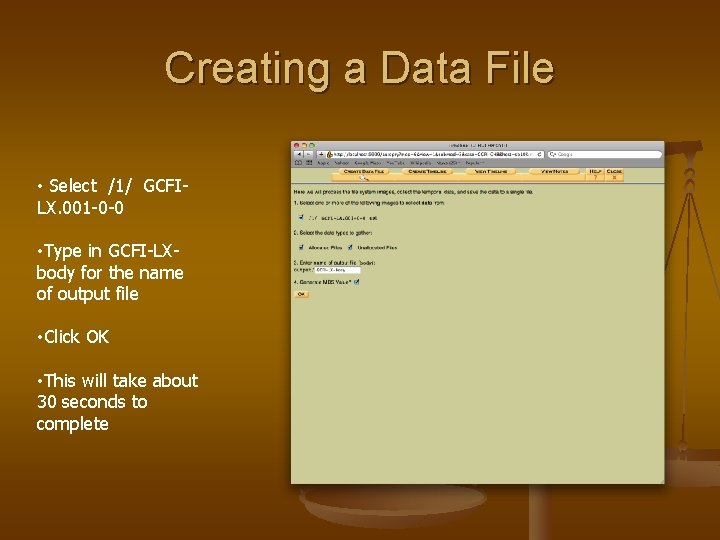
Creating a Data File • Select /1/ GCFILX. 001 -0 -0 • Type in GCFI-LXbody for the name of output file • Click OK • This will take about 30 seconds to complete
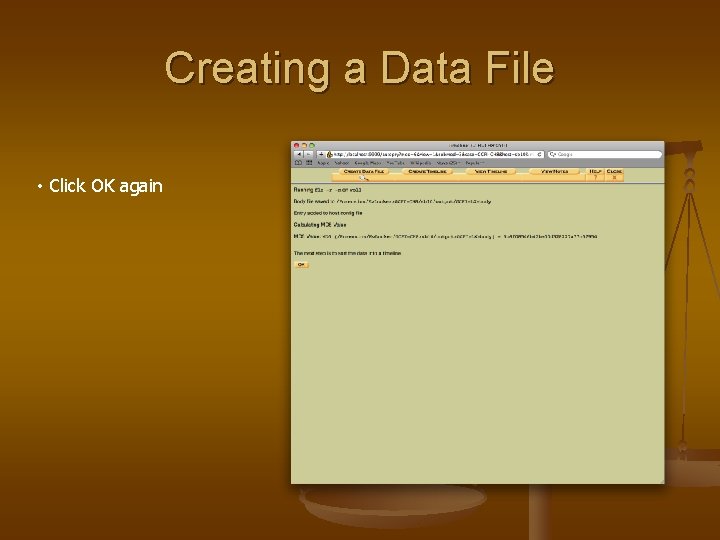
Creating a Data File • Click OK again
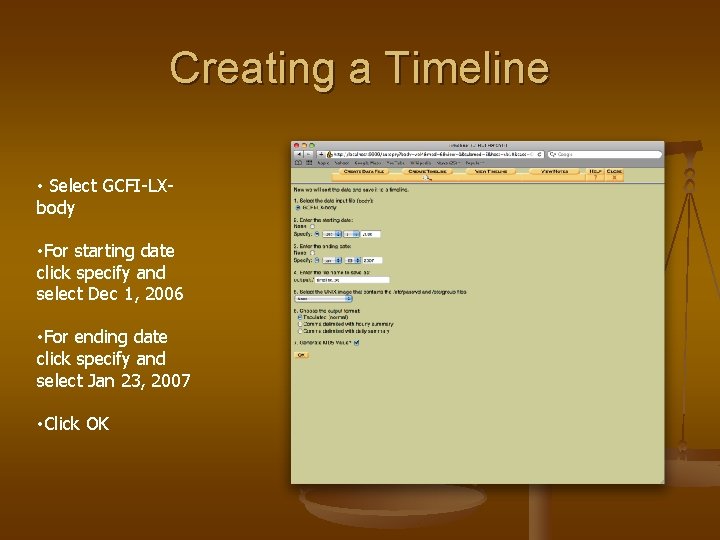
Creating a Timeline • Select GCFI-LXbody • For starting date click specify and select Dec 1, 2006 • For ending date click specify and select Jan 23, 2007 • Click OK
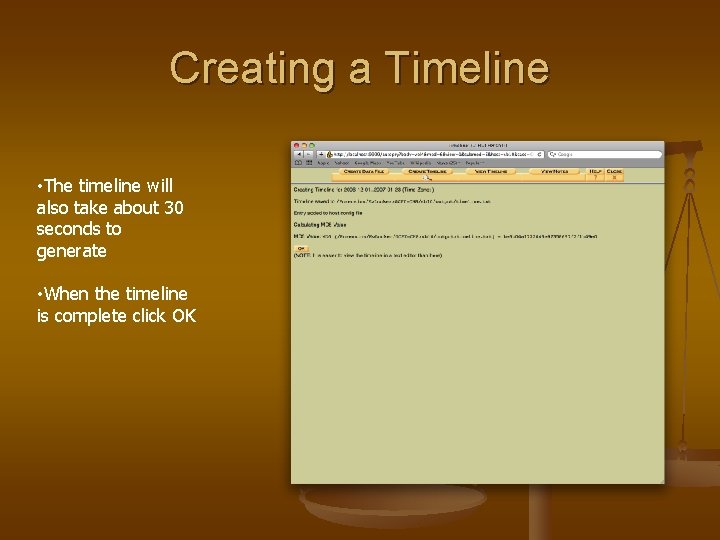
Creating a Timeline • The timeline will also take about 30 seconds to generate • When the timeline is complete click OK
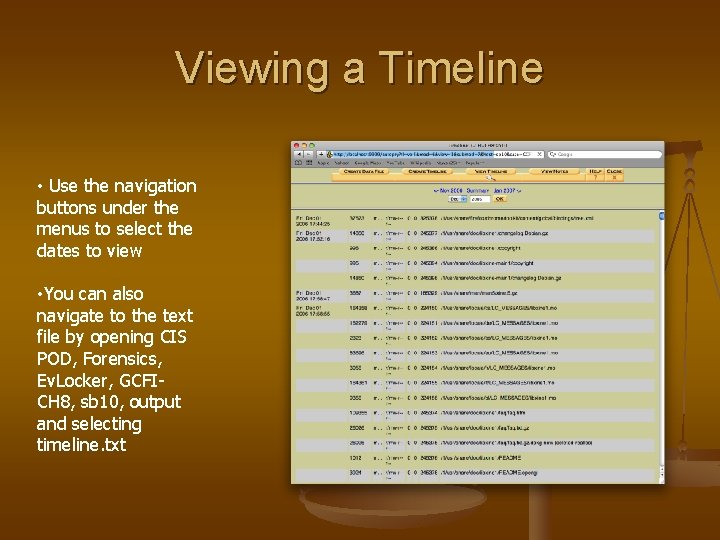
Viewing a Timeline • Use the navigation buttons under the menus to select the dates to view • You can also navigate to the text file by opening CIS POD, Forensics, Ev. Locker, GCFICH 8, sb 10, output and selecting timeline. txt
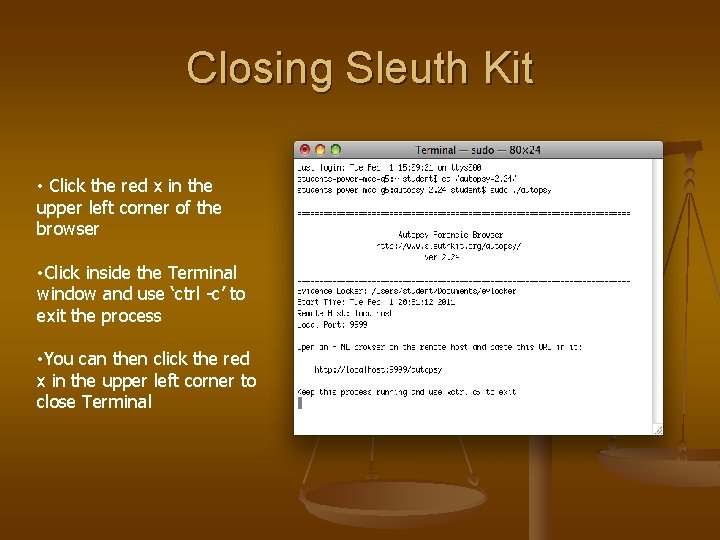
Closing Sleuth Kit • Click the red x in the upper left corner of the browser • Click inside the Terminal window and use ‘ctrl -c’ to exit the process • You can then click the red x in the upper left corner to close Terminal