
ANALYTICS EXPOSED Using Dashboards Prompts and Scheduled Reports
ANALYTICS EXPOSED Using Dashboards, Prompts, and Scheduled Reports GLUG 2019
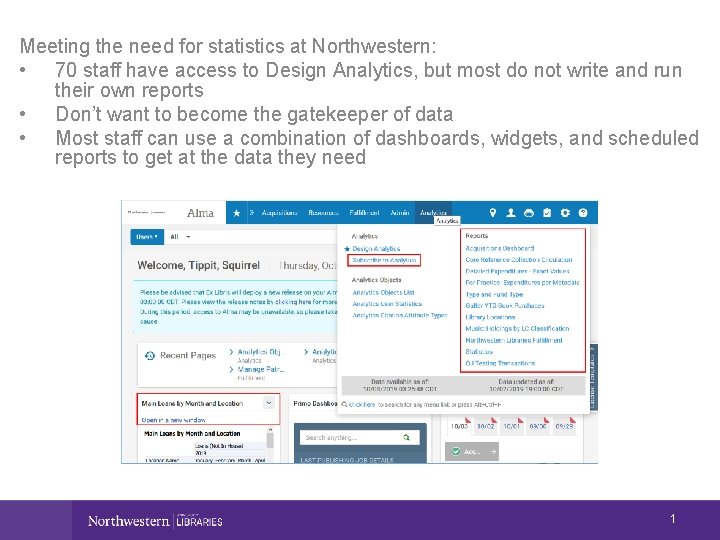
Meeting the need for statistics at Northwestern: • 70 staff have access to Design Analytics, but most do not write and run their own reports • Don’t want to become the gatekeeper of data • Most staff can use a combination of dashboards, widgets, and scheduled reports to get at the data they need 1
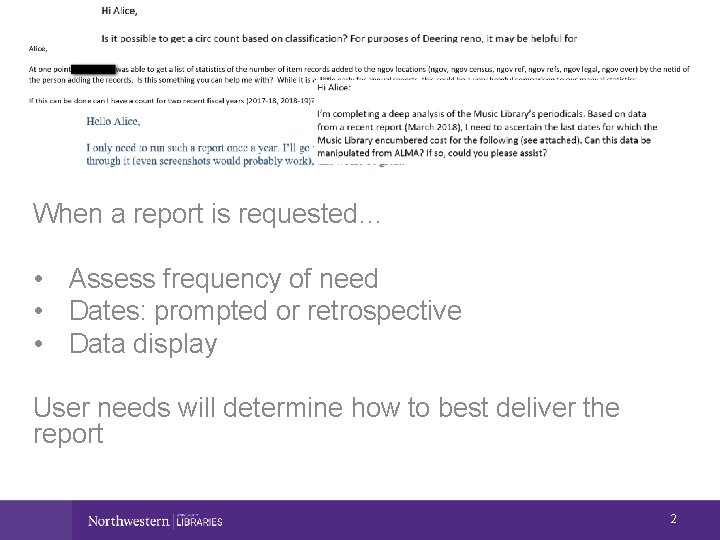
When a report is requested… • Assess frequency of need • Dates: prompted or retrospective • Data display User needs will determine how to best deliver the report 2
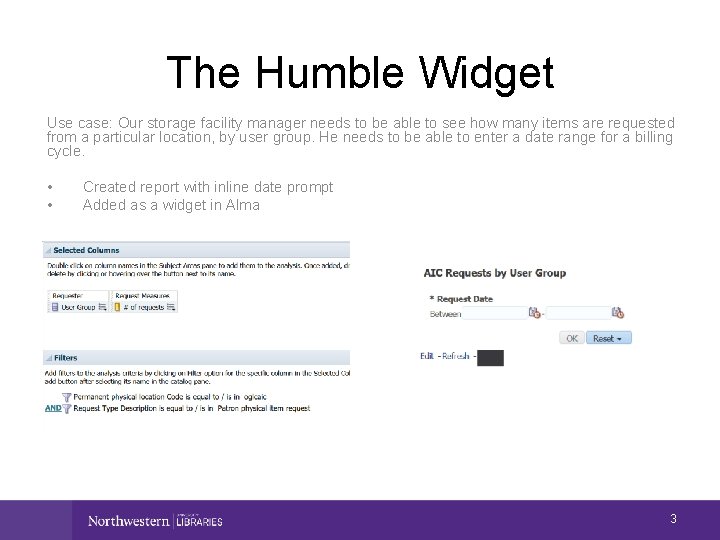
The Humble Widget Use case: Our storage facility manager needs to be able to see how many items are requested from a particular location, by user group. He needs to be able to enter a date range for a billing cycle. • • Created report with inline date prompt Added as a widget in Alma 3
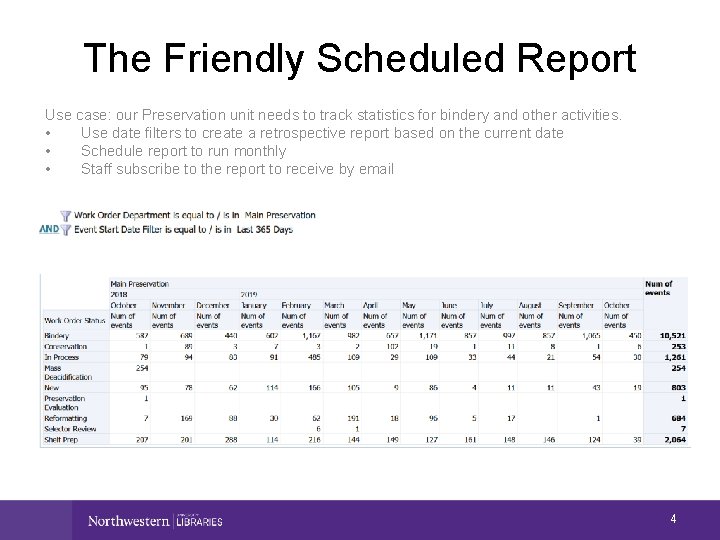
The Friendly Scheduled Report Use case: our Preservation unit needs to track statistics for bindery and other activities. • Use date filters to create a retrospective report based on the current date • Schedule report to run monthly • Staff subscribe to the report to receive by email 4
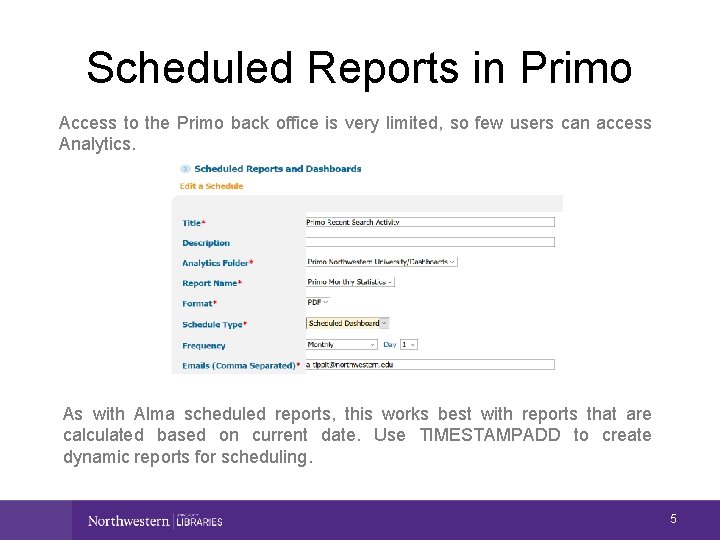
Scheduled Reports in Primo Access to the Primo back office is very limited, so few users can access Analytics. As with Alma scheduled reports, this works best with reports that are calculated based on current date. Use TIMESTAMPADD to create dynamic reports for scheduling. 5
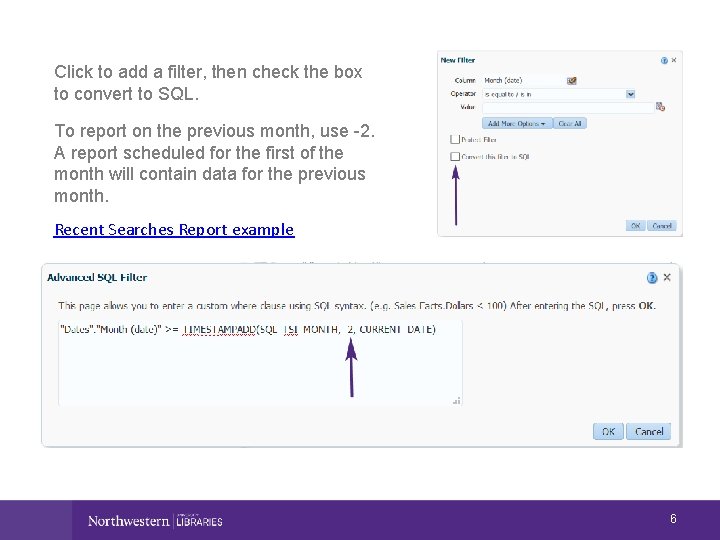
Click to add a filter, then check the box to convert to SQL. To report on the previous month, use -2. A report scheduled for the first of the month will contain data for the previous month. Recent Searches Report example 6
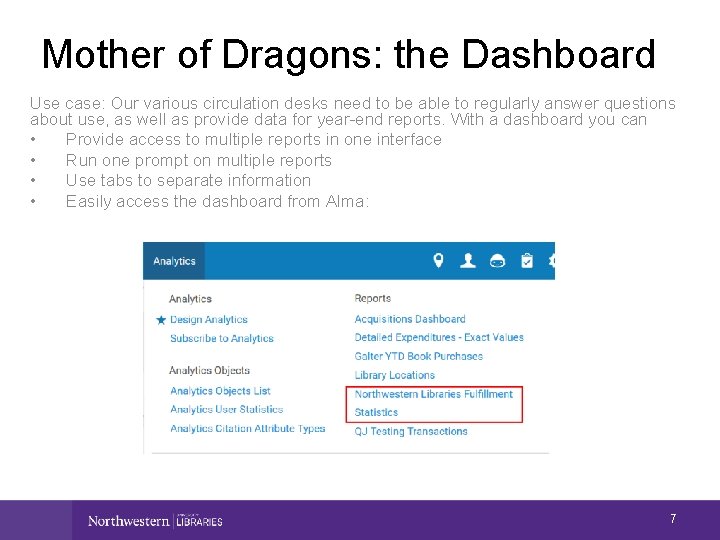
Mother of Dragons: the Dashboard Use case: Our various circulation desks need to be able to regularly answer questions about use, as well as provide data for year-end reports. With a dashboard you can • Provide access to multiple reports in one interface • Run one prompt on multiple reports • Use tabs to separate information • Easily access the dashboard from Alma: 7
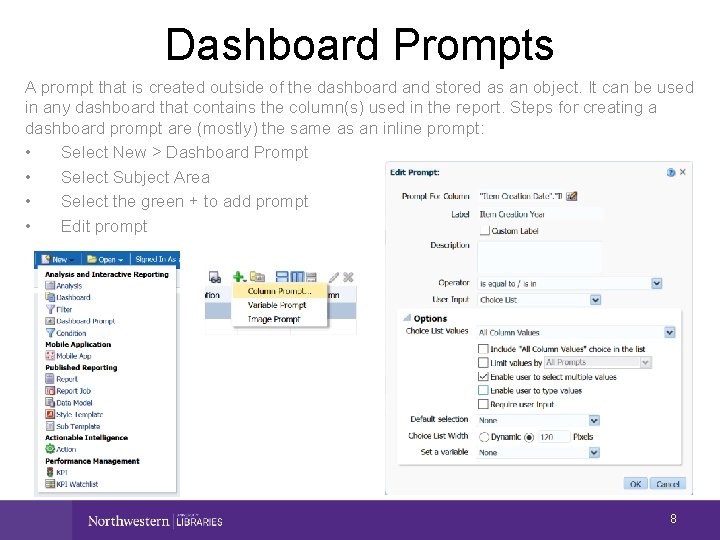
Dashboard Prompts A prompt that is created outside of the dashboard and stored as an object. It can be used in any dashboard that contains the column(s) used in the report. Steps for creating a dashboard prompt are (mostly) the same as an inline prompt: • Select New > Dashboard Prompt • Select Subject Area • Select the green + to add prompt • Edit prompt 8
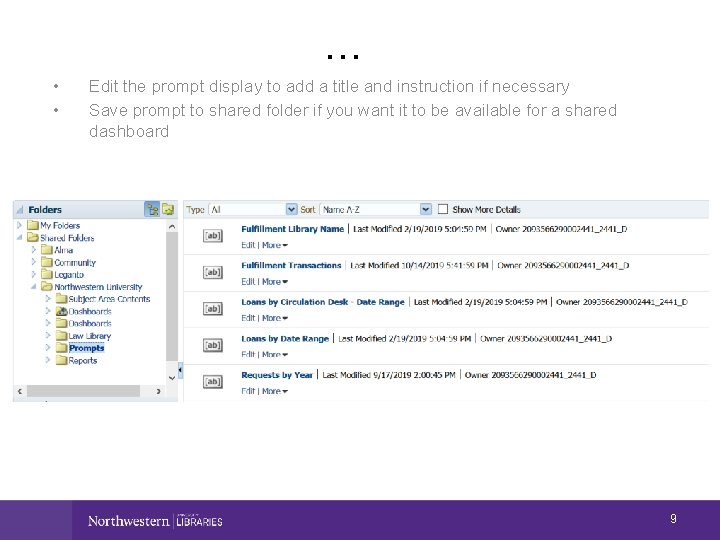
… • • Edit the prompt display to add a title and instruction if necessary Save prompt to shared folder if you want it to be available for a shared dashboard 9
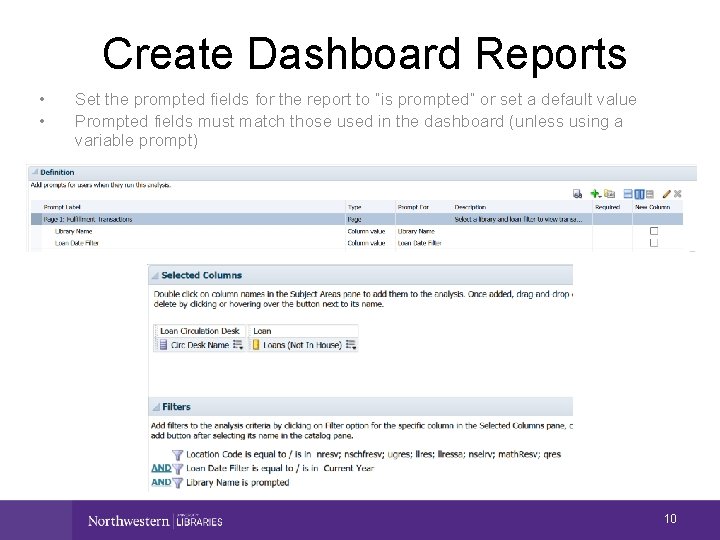
Create Dashboard Reports • • Set the prompted fields for the report to “is prompted” or set a default value Prompted fields must match those used in the dashboard (unless using a variable prompt) 10
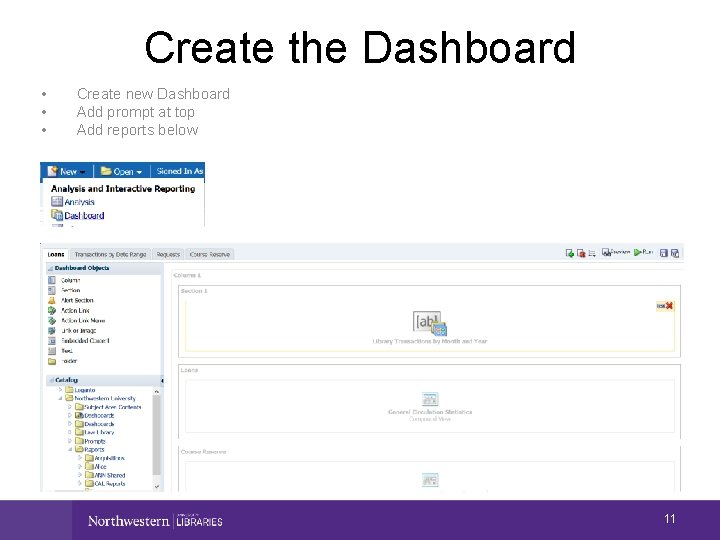
Create the Dashboard • • • Create new Dashboard Add prompt at top Add reports below 11
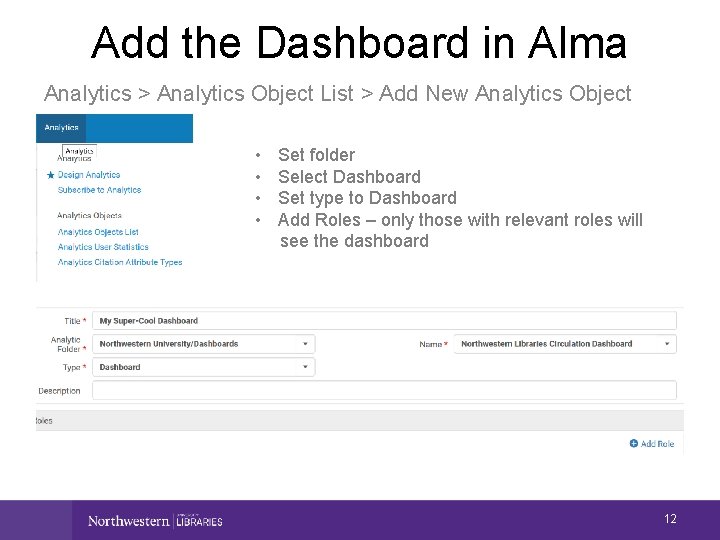
Add the Dashboard in Alma Analytics > Analytics Object List > Add New Analytics Object • • Set folder Select Dashboard Set type to Dashboard Add Roles – only those with relevant roles will see the dashboard 12
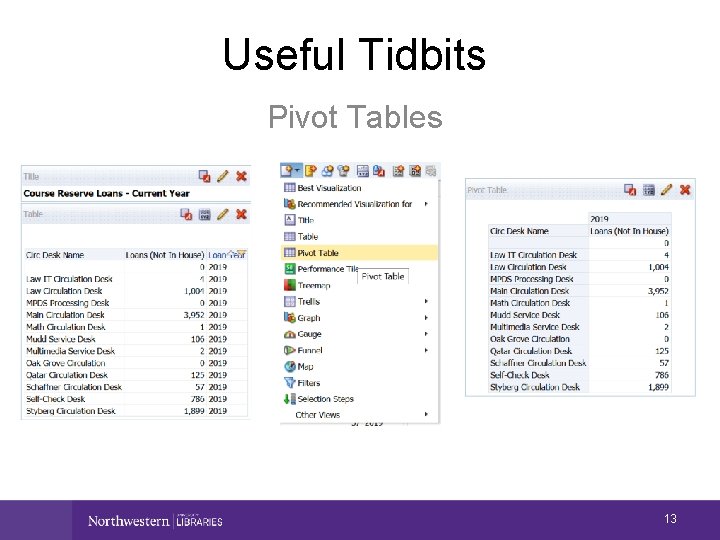
Useful Tidbits Pivot Tables 13
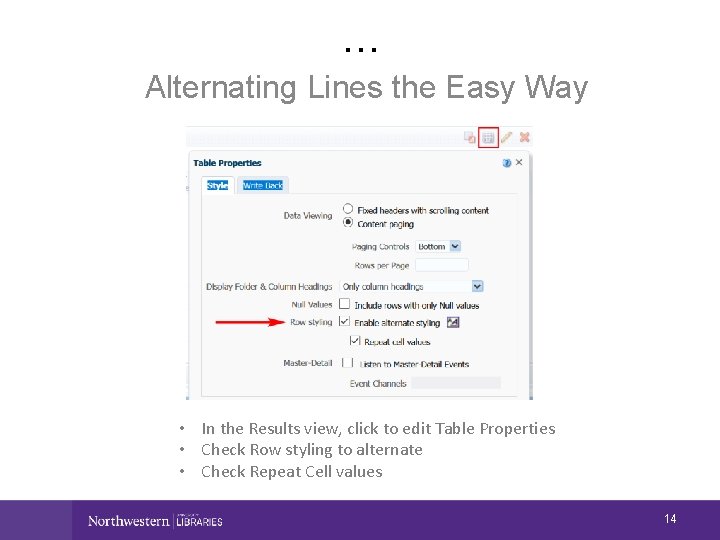
… Alternating Lines the Easy Way • In the Results view, click to edit Table Properties • Check Row styling to alternate • Check Repeat Cell values 14
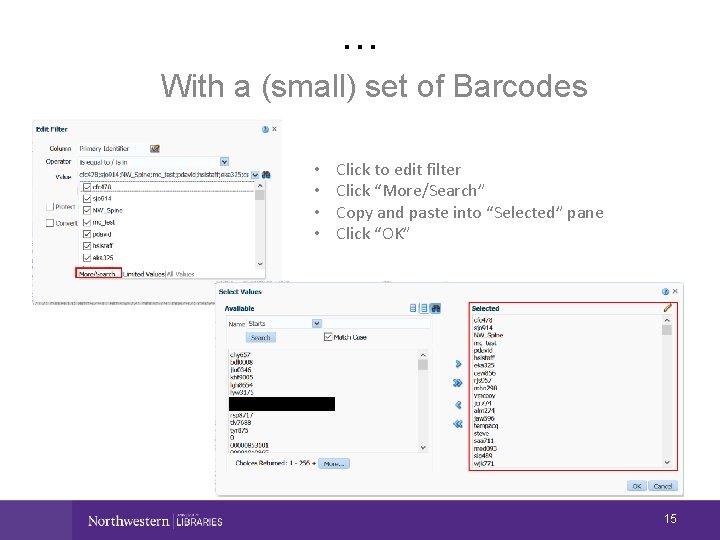
… With a (small) set of Barcodes • • Click to edit filter Click “More/Search” Copy and paste into “Selected” pane Click “OK” 15
LEARN MORE: https: //knowledge. exlibrisgroup. com/ Alma/Training/Extended_Training/Pr esentations_and_Documents__Analytics 16
- Slides: 17