
An overview of the Erecruitment system for Vacancy
- Slides: 4
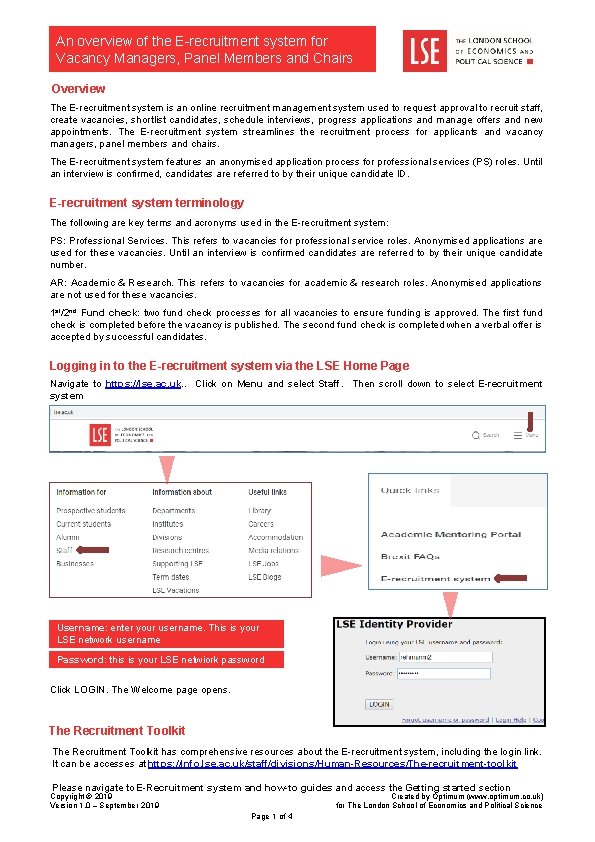
An overview of the E-recruitment system for Vacancy Managers, Panel Members and Chairs Overview The E-recruitment system is an online recruitment management system used to request approval to recruit staff, create vacancies, shortlist candidates, schedule interviews, progress applications and manage offers and new appointments. The E-recruitment system streamlines the recruitment process for applicants and vacancy managers, panel members and chairs. The E-recruitment system features an anonymised application process for professional services (PS) roles. Until an interview is confirmed, candidates are referred to by their unique candidate ID. E-recruitment system terminology The following are key terms and acronyms used in the E-recruitment system: PS: Professional Services. This refers to vacancies for professional service roles. Anonymised applications are used for these vacancies. Until an interview is confirmed candidates are referred to by their unique candidate number. AR: Academic & Research. This refers to vacancies for academic & research roles. Anonymised applications are not used for these vacancies. 1 st/2 nd Fund check: two fund check processes for all vacancies to ensure funding is approved. The first fund check is completed before the vacancy is published. The second fund check is completed when a verbal offer is accepted by successful candidates. Logging in to the E-recruitment system via the LSE Home Page Navigate to https: //lse. ac. uk. . Click on Menu and select Staff. Then scroll down to select E-recruitment system Username: enter your username. This is your LSE network username Password: this is your LSE netwiork password Click LOGIN. The Welcome page opens. The Recruitment Toolkit has comprehensive resources about the E-recruitment system, including the login link. It can be accesses at https: //info. lse. ac. uk/staff/divisions/Human-Resources/The-recruitment-toolkit Please navigate to E-Recruitment system and how-to guides and access the Getting started section Copyright © 2019 Version 1. 0 – September 2019 Created by Optimum (www. optimum. co. uk) for The London School of Economics and Political Science Page 1 of 4
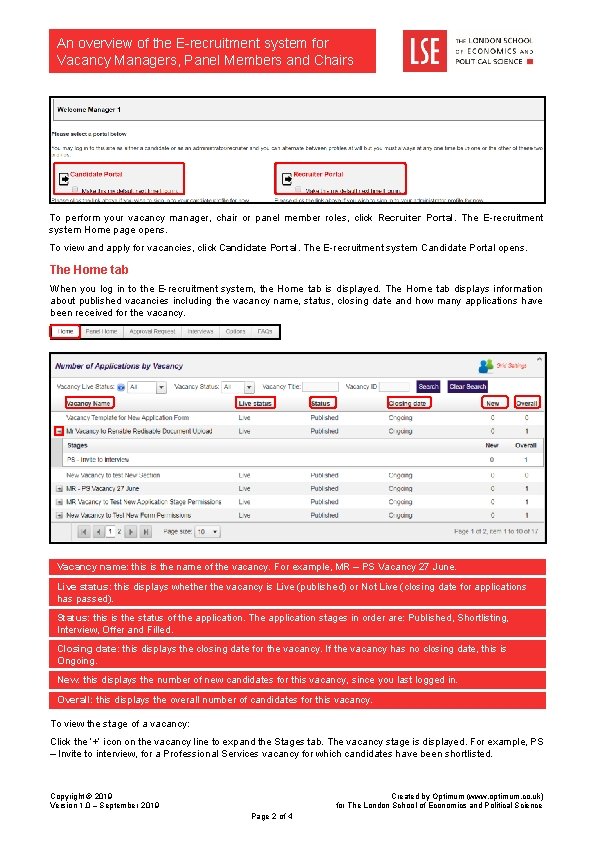
An overview of the E-recruitment system for Vacancy Managers, Panel Members and Chairs To perform your vacancy manager, chair or panel member roles, click Recruiter Portal. The E-recruitment system Home page opens. To view and apply for vacancies, click Candidate Portal. The E-recruitment system Candidate Portal opens. The Home tab When you log in to the E-recruitment system, the Home tab is displayed. The Home tab displays information about published vacancies including the vacancy name, status, closing date and how many applications have been received for the vacancy. Vacancy name: this is the name of the vacancy. For example, MR – PS Vacancy 27 June. Live status: this displays whether the vacancy is Live (published) or Not Live (closing date for applications has passed). Status: this is the status of the application. The application stages in order are: Published, Shortlisting, Interview, Offer and Filled. Closing date: this displays the closing date for the vacancy. If the vacancy has no closing date, this is Ongoing. New: this displays the number of new candidates for this vacancy, since you last logged in. Overall: this displays the overall number of candidates for this vacancy. To view the stage of a vacancy: Click the ‘+’ icon on the vacancy line to expand the Stages tab. The vacancy stage is displayed. For example, PS – Invite to interview, for a Professional Services vacancy for which candidates have been shortlisted. Copyright © 2019 Version 1. 0 – September 2019 Created by Optimum (www. optimum. co. uk) for The London School of Economics and Political Science Page 2 of 4
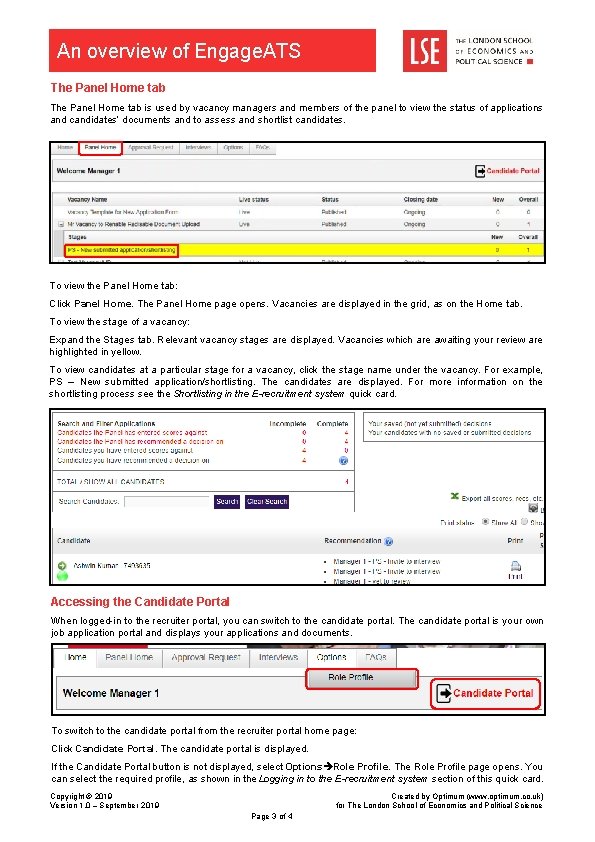
An overview of Engage. ATS The Panel Home tab is used by vacancy managers and members of the panel to view the status of applications and candidates’ documents and to assess and shortlist candidates. To view the Panel Home tab: Click Panel Home. The Panel Home page opens. Vacancies are displayed in the grid, as on the Home tab. To view the stage of a vacancy: Expand the Stages tab. Relevant vacancy stages are displayed. Vacancies which are awaiting your review are highlighted in yellow. To view candidates at a particular stage for a vacancy, click the stage name under the vacancy. For example, PS – New submitted application/shortlisting. The candidates are displayed. For more information on the shortlisting process see the Shortlisting in the E-recruitment system quick card. Accessing the Candidate Portal When logged-in to the recruiter portal, you can switch to the candidate portal. The candidate portal is your own job application portal and displays your applications and documents. To switch to the candidate portal from the recruiter portal home page: Click Candidate Portal. The candidate portal is displayed. If the Candidate Portal button is not displayed, select Options Role Profile. The Role Profile page opens. You can select the required profile, as shown in the Logging in to the E-recruitment system section of this quick card. Copyright © 2019 Version 1. 0 – September 2019 Created by Optimum (www. optimum. co. uk) for The London School of Economics and Political Science Page 3 of 4
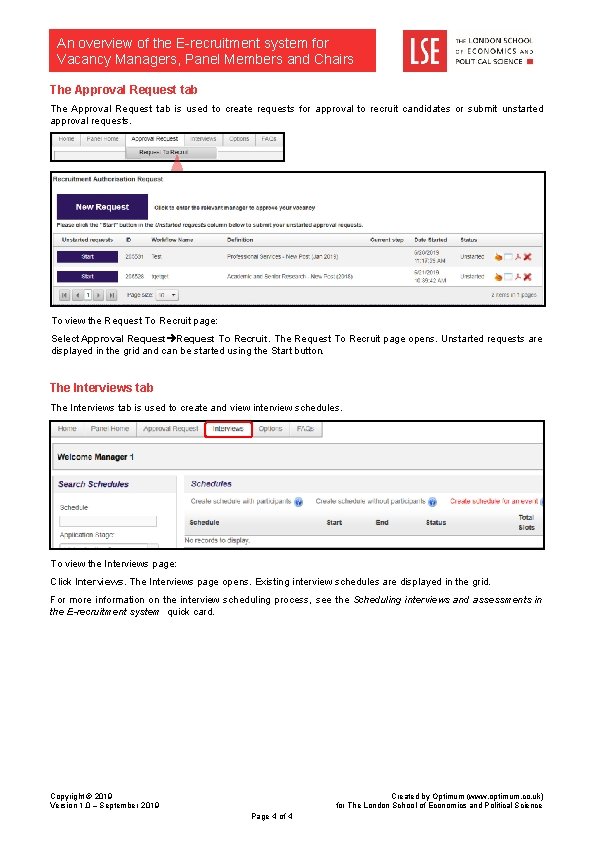
An overview of the E-recruitment system for Vacancy Managers, Panel Members and Chairs The Approval Request tab is used to create requests for approval to recruit candidates or submit unstarted approval requests. To view the Request To Recruit page: Select Approval Request To Recruit. The Request To Recruit page opens. Unstarted requests are displayed in the grid and can be started using the Start button. The Interviews tab is used to create and view interview schedules. To view the Interviews page: Click Interviews. The Interviews page opens. Existing interview schedules are displayed in the grid. For more information on the interview scheduling process, see the Scheduling interviews and assessments in the E-recruitment system quick card. Copyright © 2019 Version 1. 0 – September 2019 Created by Optimum (www. optimum. co. uk) for The London School of Economics and Political Science Page 4 of 4