
An Introduction to Visual Studio Web Forms Lesson

An Introduction to Visual Studio – Web Forms
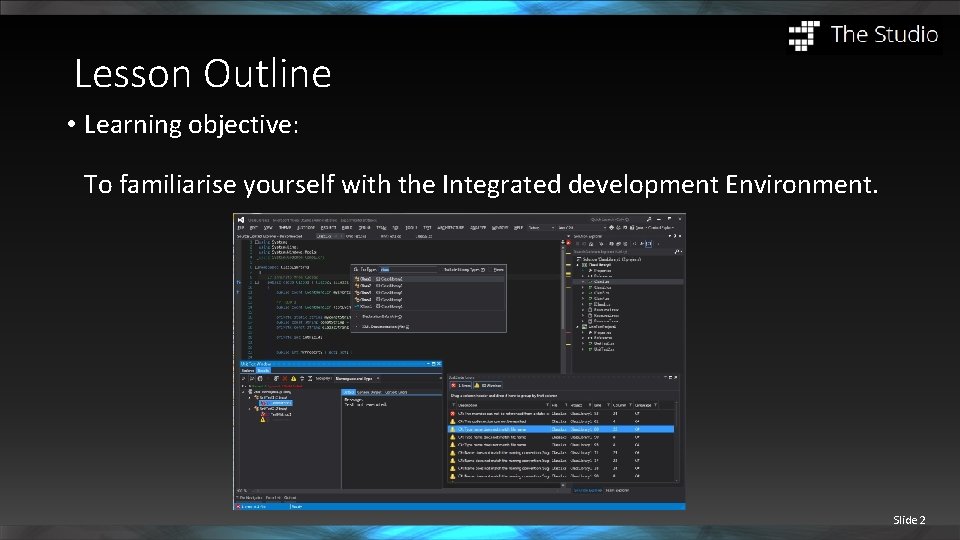
Lesson Outline • Learning objective: To familiarise yourself with the Integrated development Environment. Slide 2
Presentation Outline • Introduction to web forms • Overview of the Visual Studio. Net IDE • Getting Started • Solution Explorer • Toolbox • Properties Window • Using Help and Intellisense • Simple Program • Debugging • Additional Resources Slide 3
Introduction to web forms • Visual Studio. NET • Microsoft’s Integrated Development Environment (IDE) • Used for C#, VB, C++ and other languages to create, run and to debug programs. • Visual web Programming through the design interface • Web forms differ considerably from win forms. Where as win forms (short for windows forms) Slide 4
Software – Visual Studio Community • At the studio we use software that is commonly used across industry. • Commonly used with windows, Visual Studio is a free IDE that is well supported and provides development capabilities across a wide range of development frameworks. • It is used to make, windows, web, Mobile and game applications. • Download the installer from. • https: //visualstudio. microsoft. com/vs/community/ Slide 5
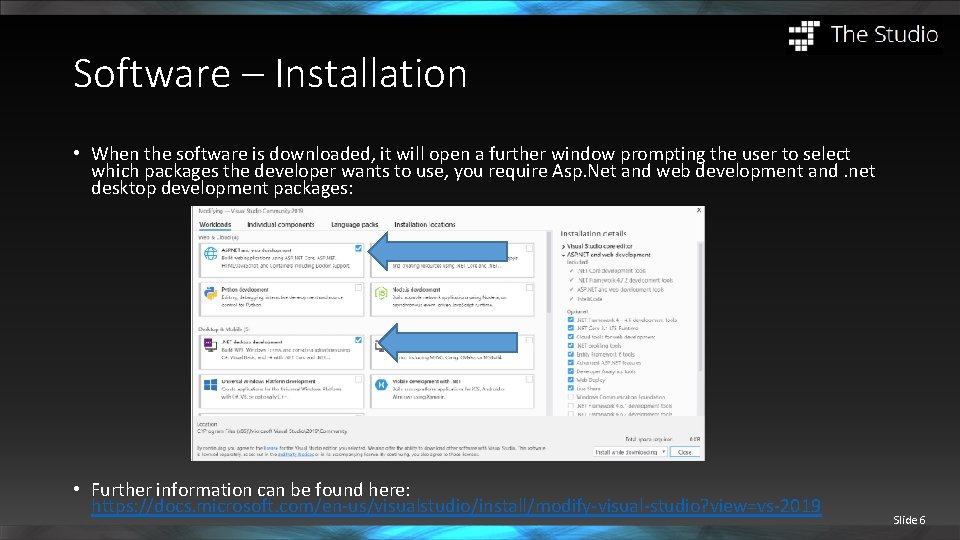
Software – Installation • When the software is downloaded, it will open a further window prompting the user to select which packages the developer wants to use, you require Asp. Net and web development and. net desktop development packages: • Further information can be found here: https: //docs. microsoft. com/en-us/visualstudio/install/modify-visual-studio? view=vs-2019 Slide 6
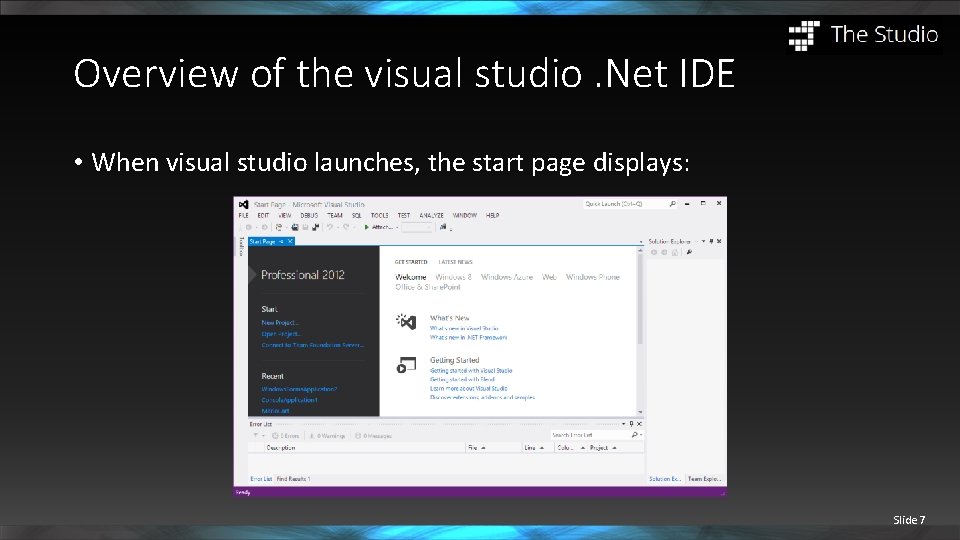
Overview of the visual studio. Net IDE • When visual studio launches, the start page displays: Slide 7
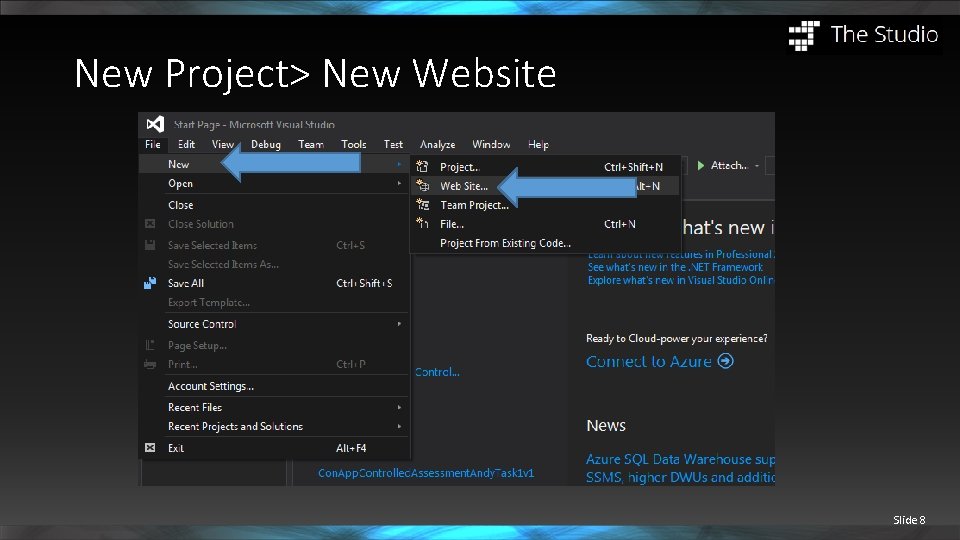
New Project> New Website Slide 8
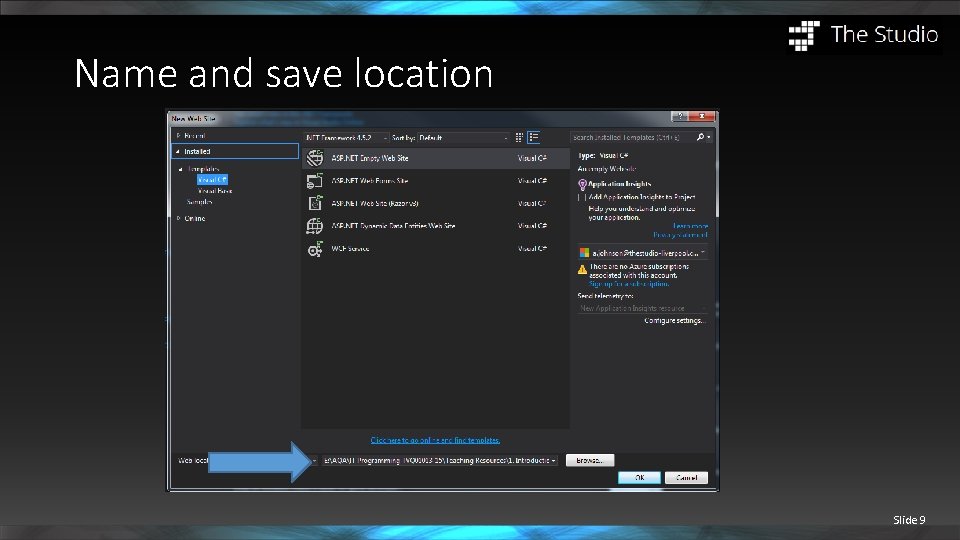
Name and save location Slide 9
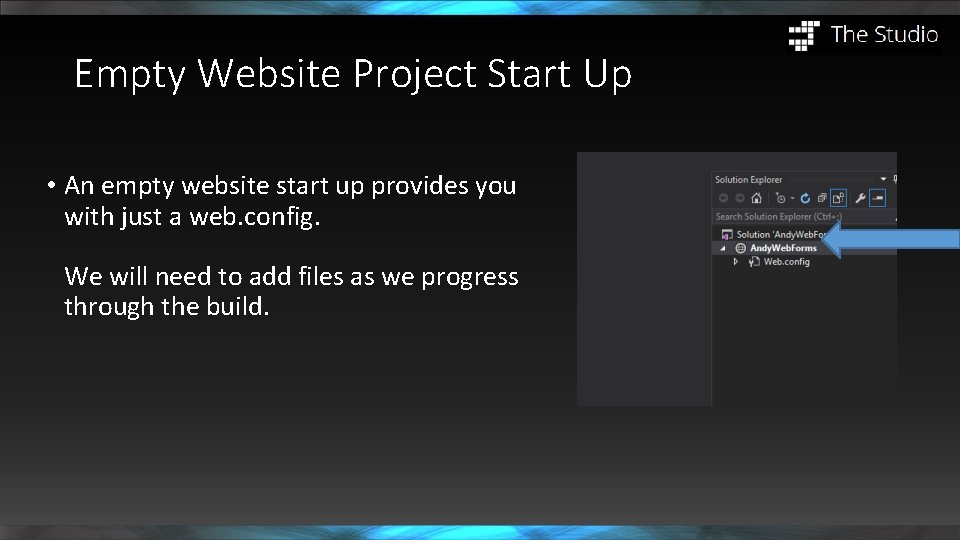
Empty Website Project Start Up • An empty website start up provides you with just a web. config. We will need to add files as we progress through the build.
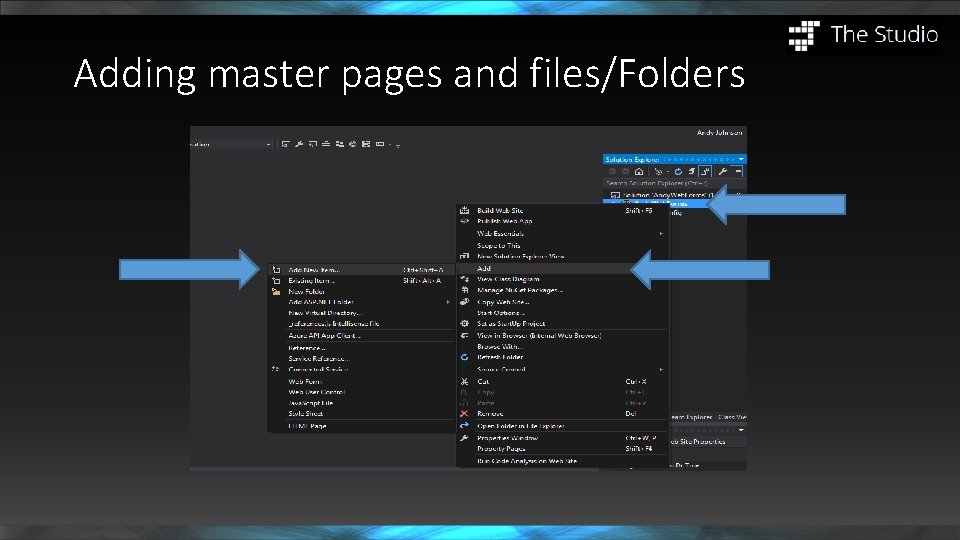
Adding master pages and files/Folders
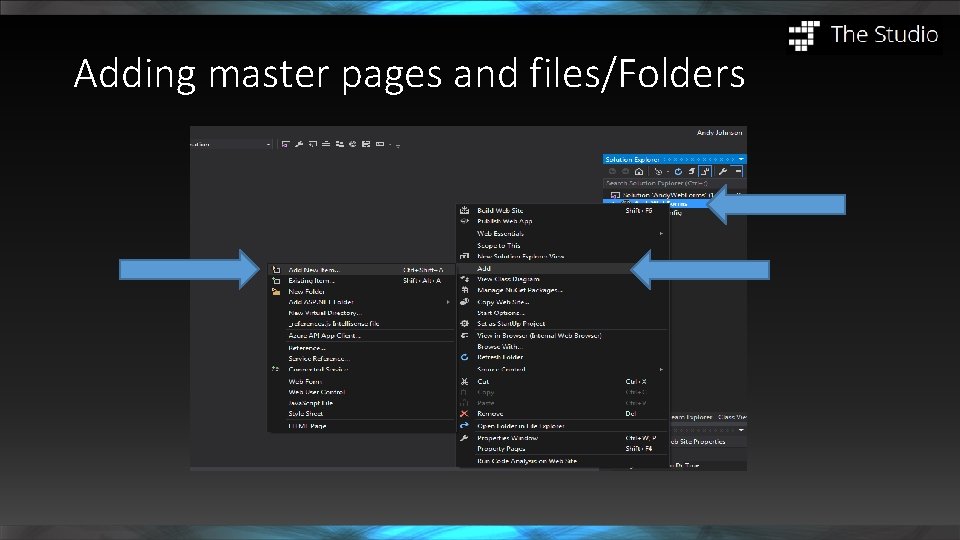
Adding master pages and files/Folders
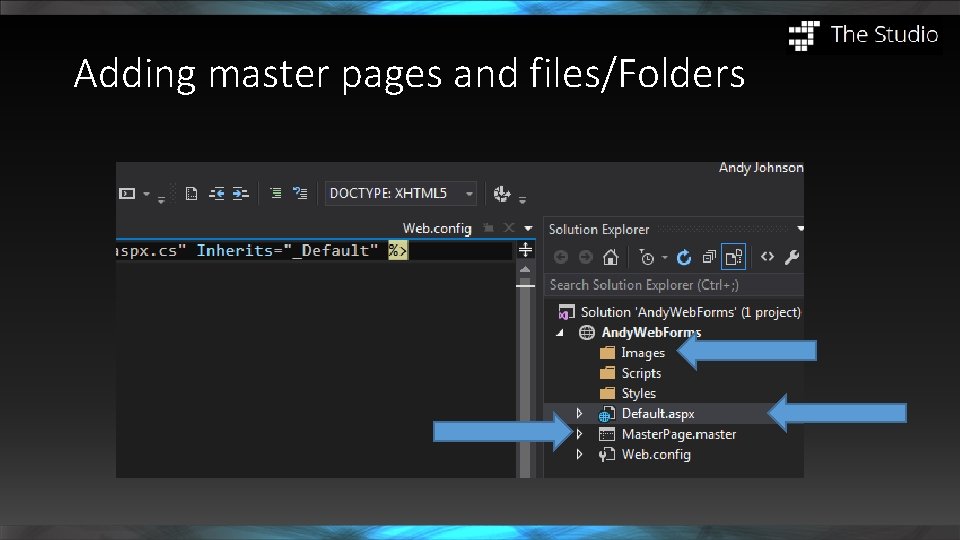
Adding master pages and files/Folders
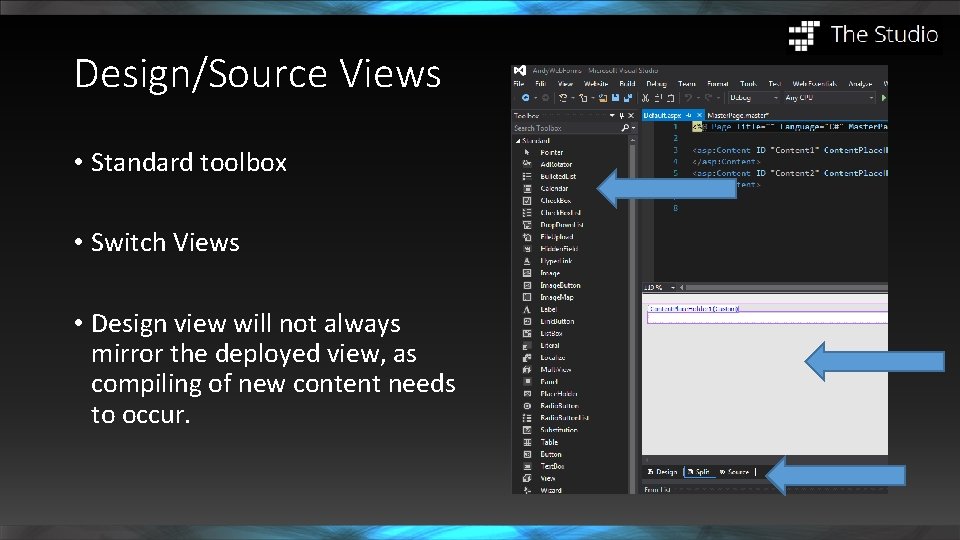
Design/Source Views • Standard toolbox • Switch Views • Design view will not always mirror the deployed view, as compiling of new content needs to occur.
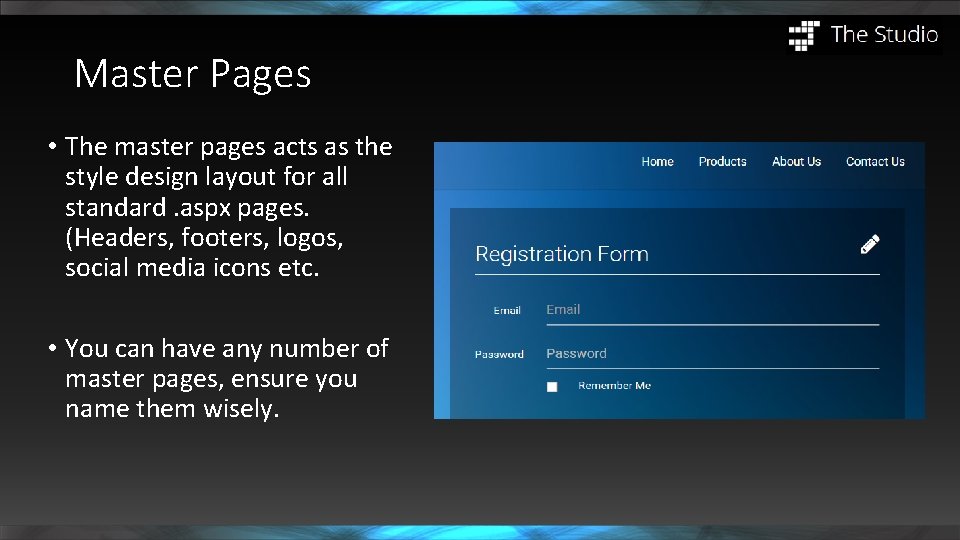
Master Pages • The master pages acts as the style design layout for all standard. aspx pages. (Headers, footers, logos, social media icons etc. • You can have any number of master pages, ensure you name them wisely.
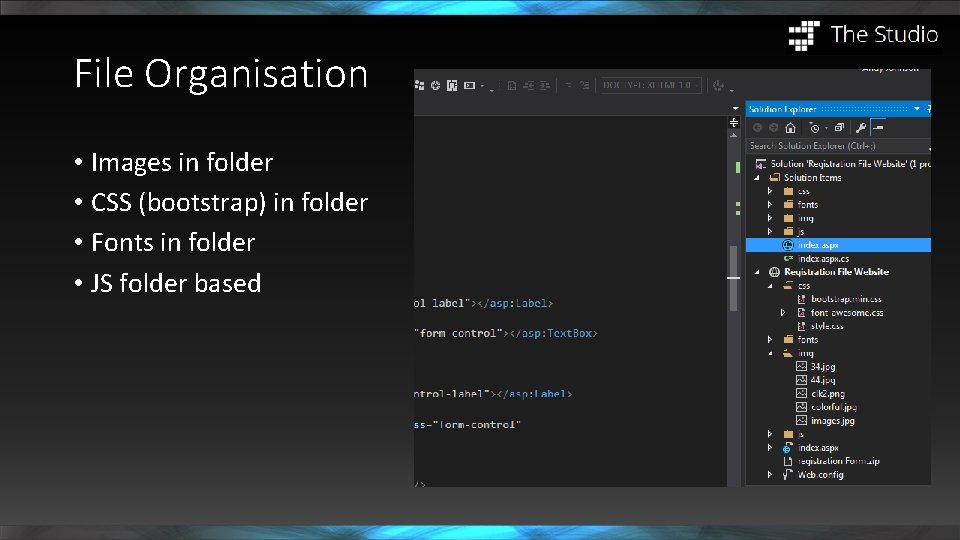
File Organisation • Images in folder • CSS (bootstrap) in folder • Fonts in folder • JS folder based
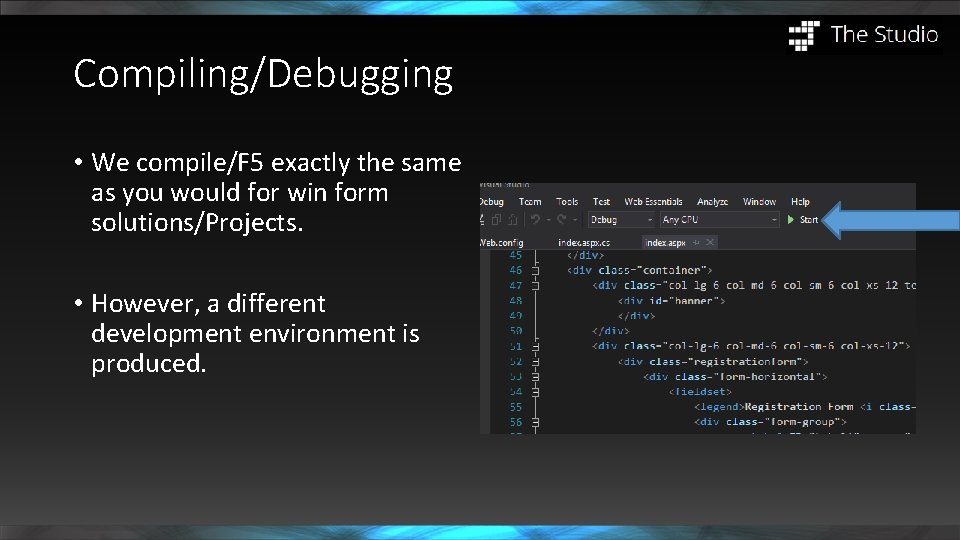
Compiling/Debugging • We compile/F 5 exactly the same as you would for win form solutions/Projects. • However, a different development environment is produced.
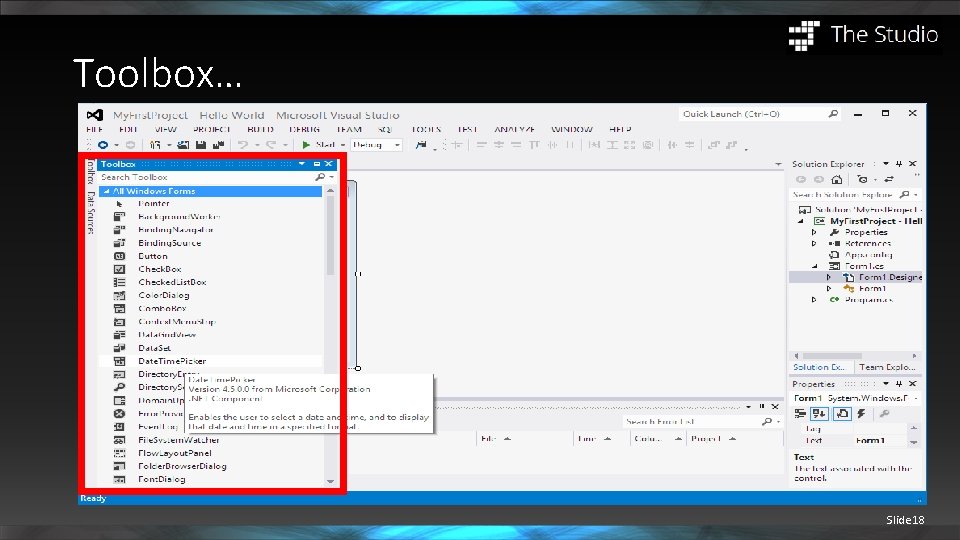
Toolbox… Slide 18
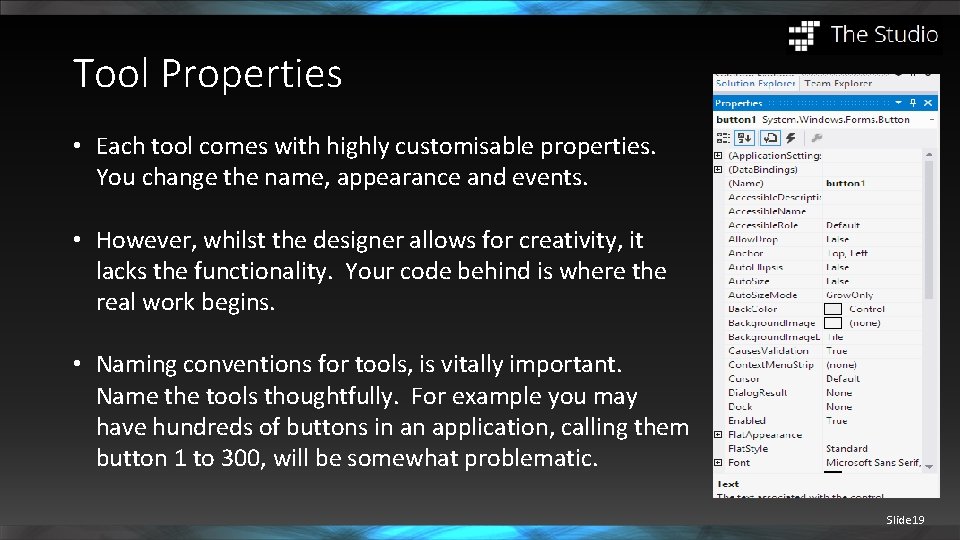
Tool Properties • Each tool comes with highly customisable properties. You change the name, appearance and events. • However, whilst the designer allows for creativity, it lacks the functionality. Your code behind is where the real work begins. • Naming conventions for tools, is vitally important. Name the tools thoughtfully. For example you may have hundreds of buttons in an application, calling them button 1 to 300, will be somewhat problematic. Slide 19
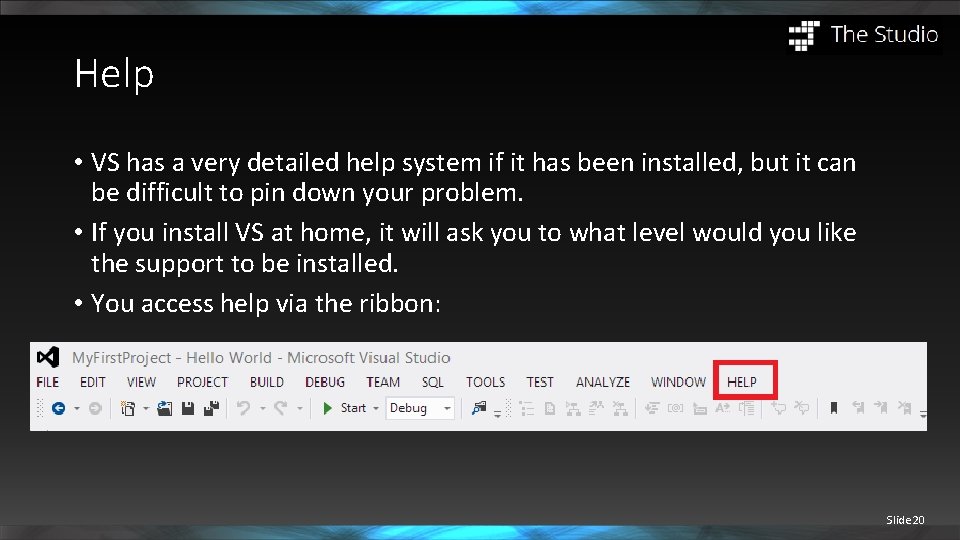
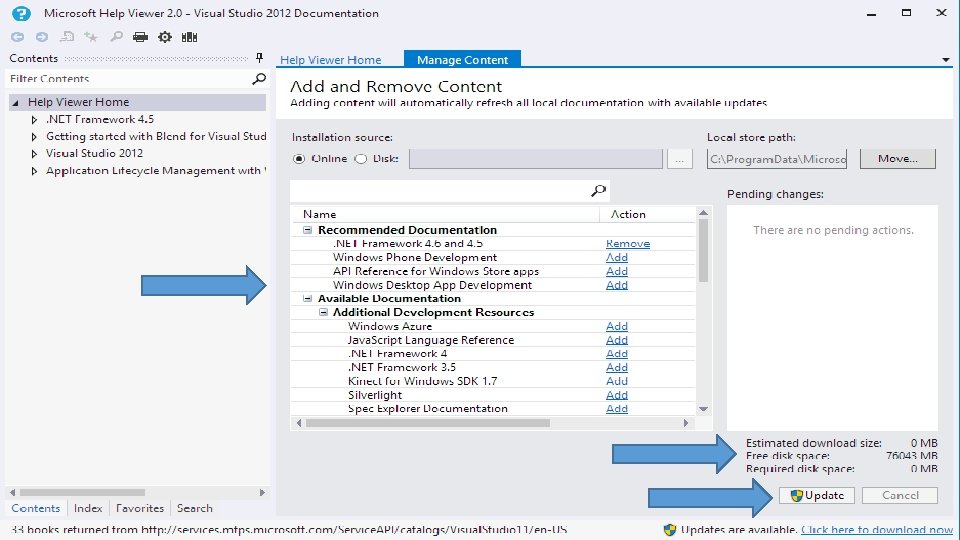
Help • VS has a very detailed help system if it has been installed, but it can be difficult to pin down your problem. • If you install VS at home, it will ask you to what level would you like the support to be installed. • You access help via the ribbon: Slide 20
Slide 21
Intellisense • VS Intellisense is available when coding in the IDE, and whilst you are debugging in the immediate mode command window. • Intellisense learns from your code as you build the solution and makes suggestions to speed up your development. • It helps you learn from your code, keeps track of your parameters and adds calls to properties and methods with only a few keystrokes. Slide 22
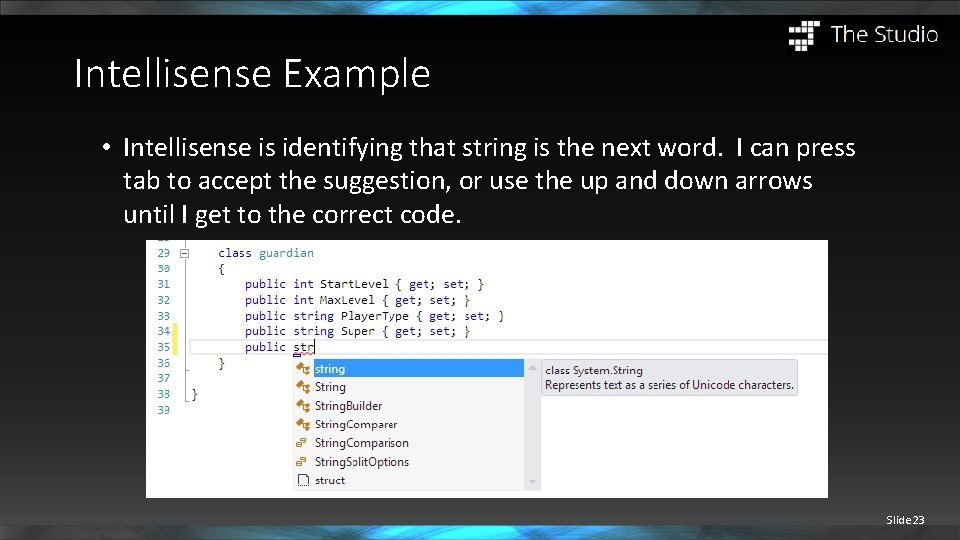
Intellisense Example • Intellisense is identifying that string is the next word. I can press tab to accept the suggestion, or use the up and down arrows until I get to the correct code. Slide 23
Further Reading • https: //msdn. microsoft. com/en-us/library/dd 492171. aspx • http: //www. microsoftvirtualacademy. com/product-training/visualstudio-courses • https: //www. youtube. com/watch? v=v-hv. QXEPX 8 E Slide 24
- Slides: 24