
An Introduction to the Java Model Railroad Interface
- Slides: 91
An Introduction to the Java Model Railroad Interface JMRI Victor Gilbert victor@sugarwood. info *Disclaimer This clinic is intended to provide information on getting stared with JMRI. The ideas and suggestions presented here are not the only way of accomplishing these tasks, they are merely the way I do it. I am not the “expert”. Contributions from the audience are welcome!!
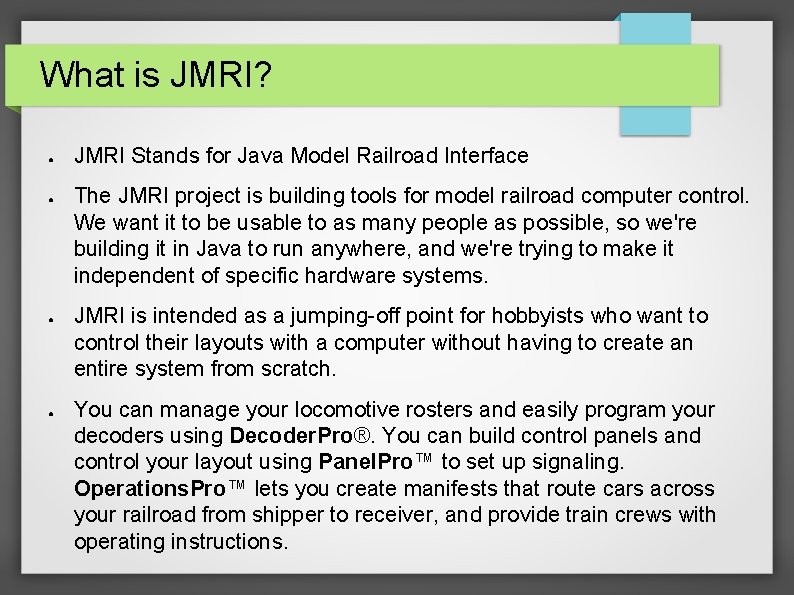
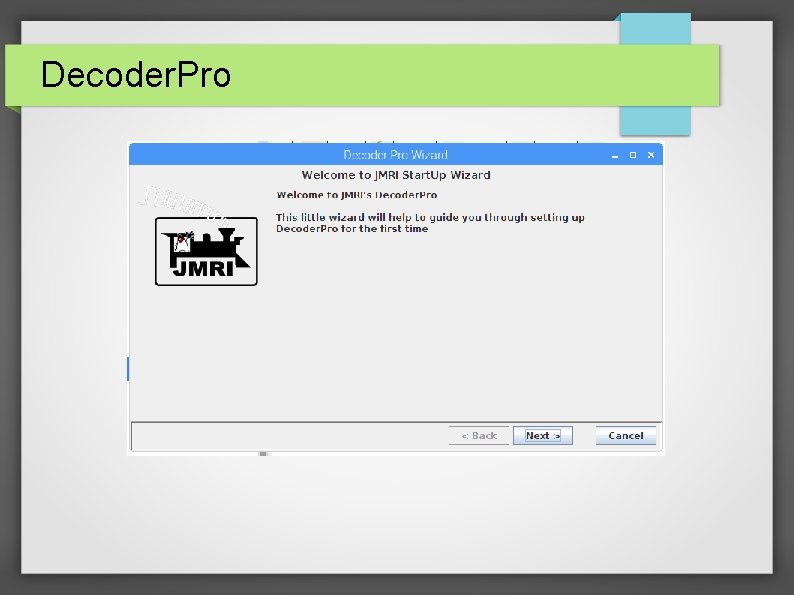
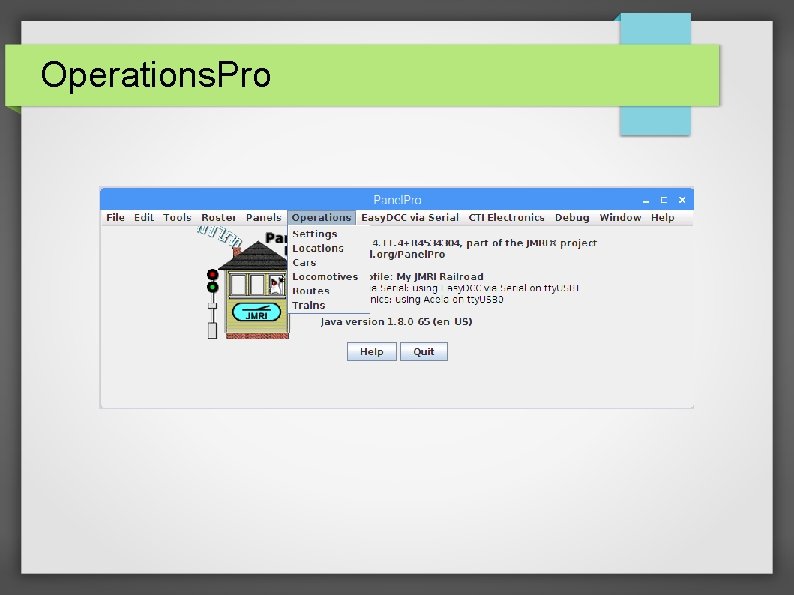
What is JMRI? ● ● JMRI Stands for Java Model Railroad Interface The JMRI project is building tools for model railroad computer control. We want it to be usable to as many people as possible, so we're building it in Java to run anywhere, and we're trying to make it independent of specific hardware systems. JMRI is intended as a jumping-off point for hobbyists who want to control their layouts with a computer without having to create an entire system from scratch. You can manage your locomotive rosters and easily program your decoders using Decoder. Pro®. You can build control panels and control your layout using Panel. Pro™ to set up signaling. Operations. Pro™ lets you create manifests that route cars across your railroad from shipper to receiver, and provide train crews with operating instructions.
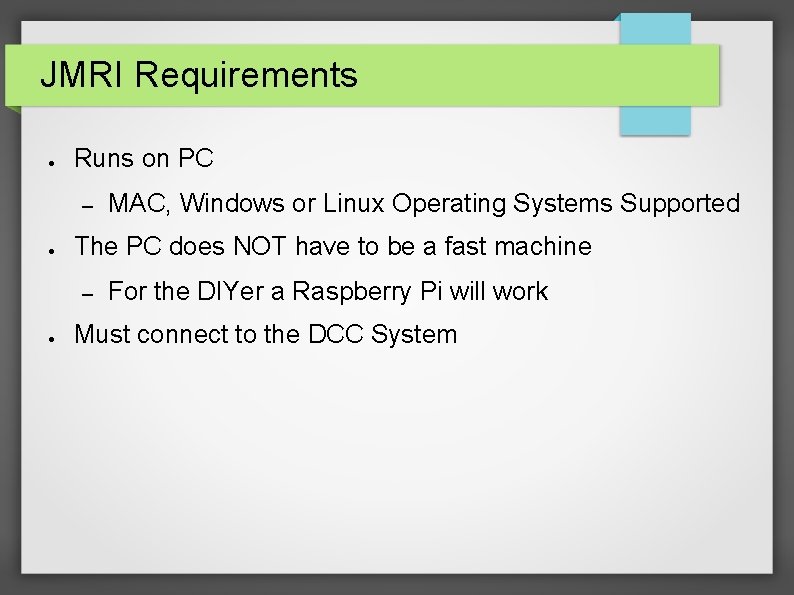
JMRI Requirements ● Runs on PC – ● The PC does NOT have to be a fast machine – ● MAC, Windows or Linux Operating Systems Supported For the DIYer a Raspberry Pi will work Must connect to the DCC System
What Can I Do With JMRI? ● Decoder Programmer – Common Locomotive Roster ● Universal Throttle ● Web Accessible Panels ● Locomotive and Rolling Stock Inventory ● Car Forwarding ● Automation
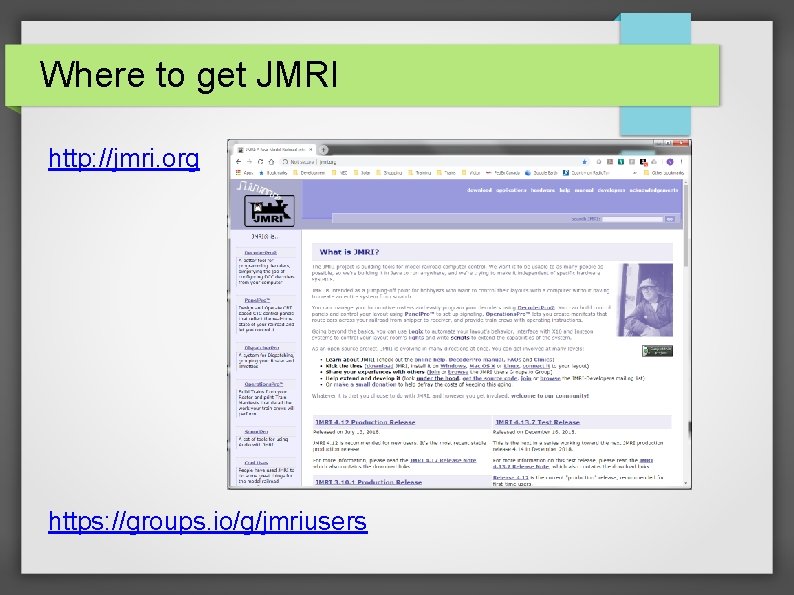
Where to get JMRI http: //jmri. org https: //groups. io/g/jmriusers
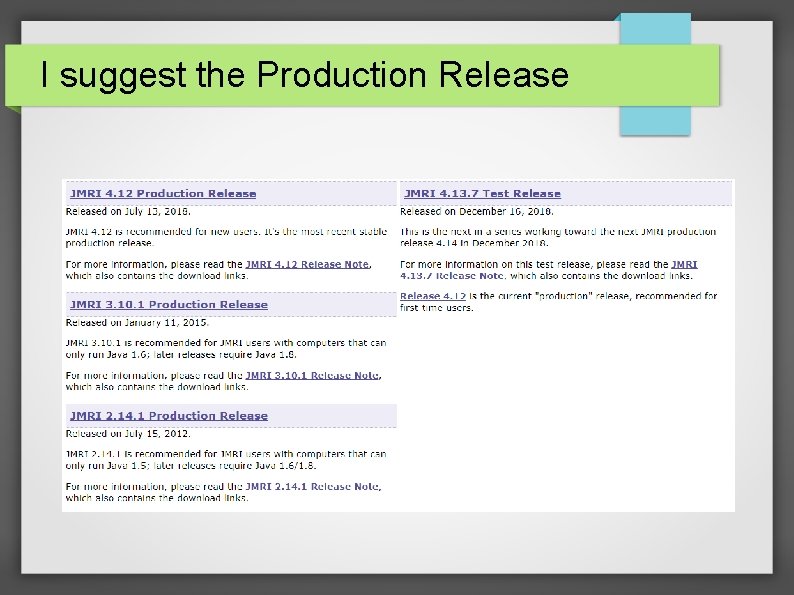
I suggest the Production Release
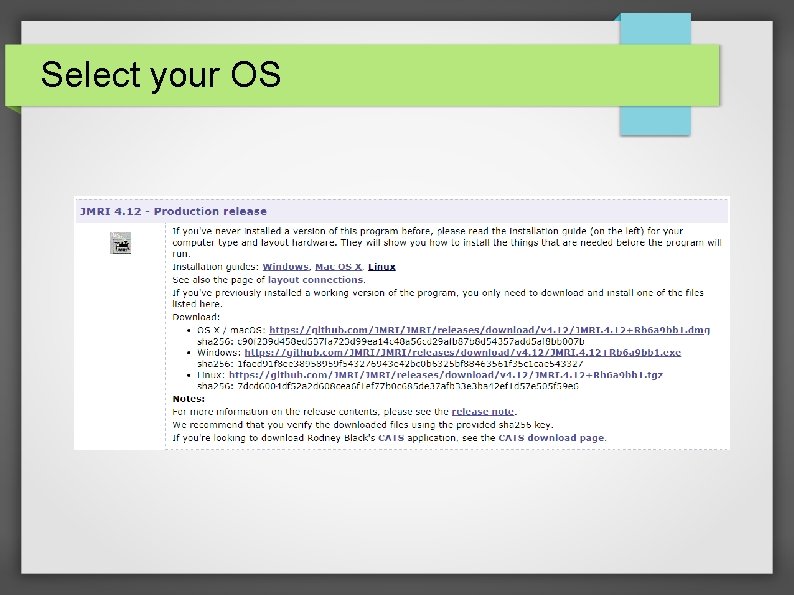
Select your OS
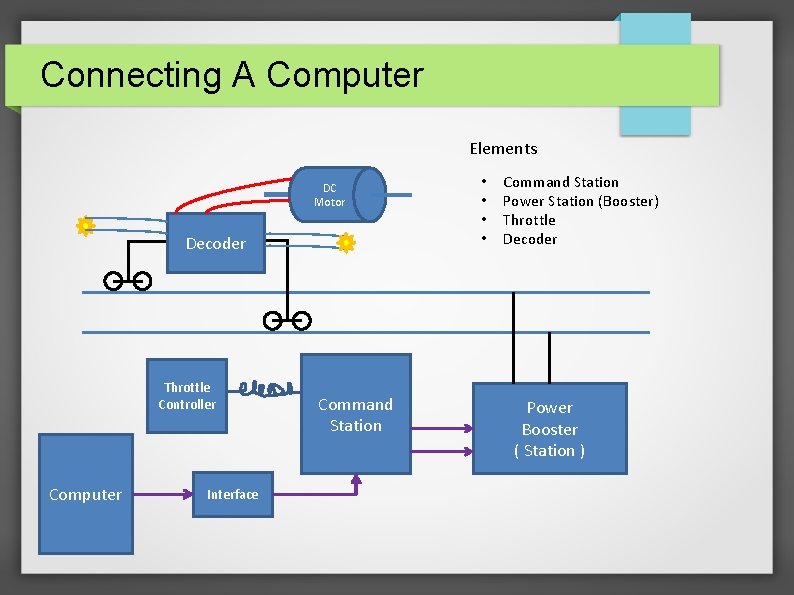
Connecting A Computer Elements DC Motor Decoder Throttle Controller Computer Interface Command Station • • Command Station Power Station (Booster) Throttle Decoder Power Booster ( Station )
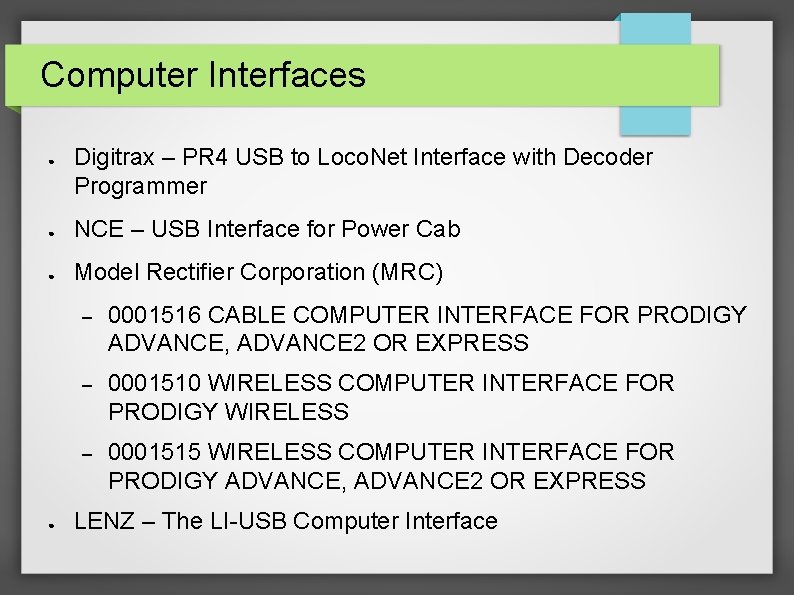
Computer Interfaces ● Digitrax – PR 4 USB to Loco. Net Interface with Decoder Programmer ● NCE – USB Interface for Power Cab ● Model Rectifier Corporation (MRC) ● – 0001516 CABLE COMPUTER INTERFACE FOR PRODIGY ADVANCE, ADVANCE 2 OR EXPRESS – 0001510 WIRELESS COMPUTER INTERFACE FOR PRODIGY WIRELESS – 0001515 WIRELESS COMPUTER INTERFACE FOR PRODIGY ADVANCE, ADVANCE 2 OR EXPRESS LENZ – The LI-USB Computer Interface
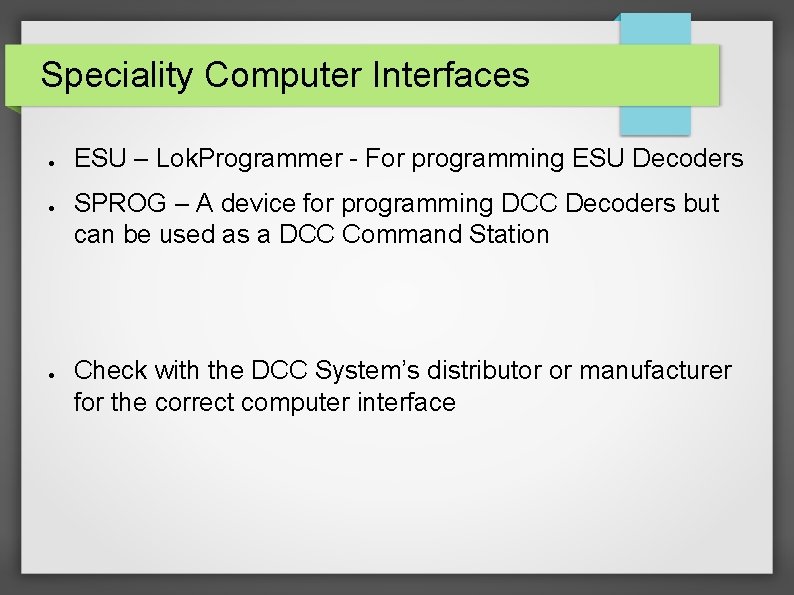
Speciality Computer Interfaces ● ● ● ESU – Lok. Programmer - For programming ESU Decoders SPROG – A device for programming DCC Decoders but can be used as a DCC Command Station Check with the DCC System’s distributor or manufacturer for the correct computer interface
Configuring JMRI
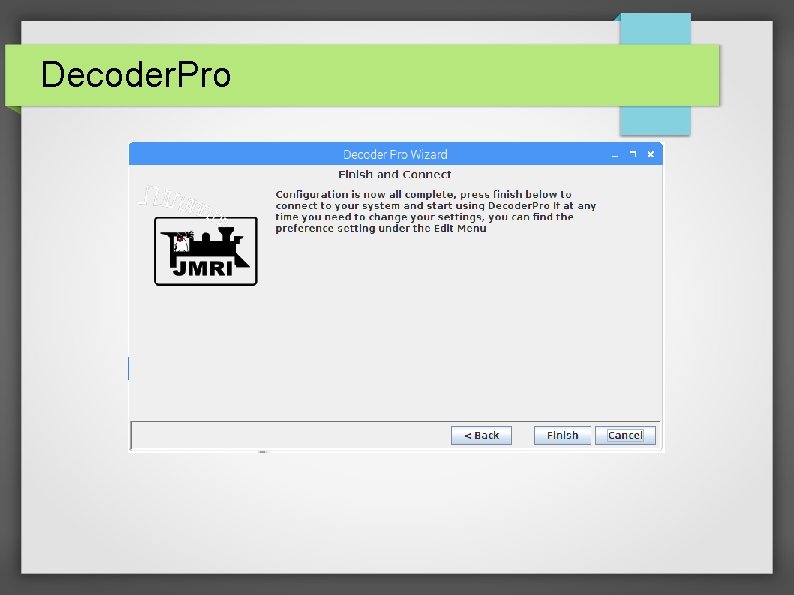
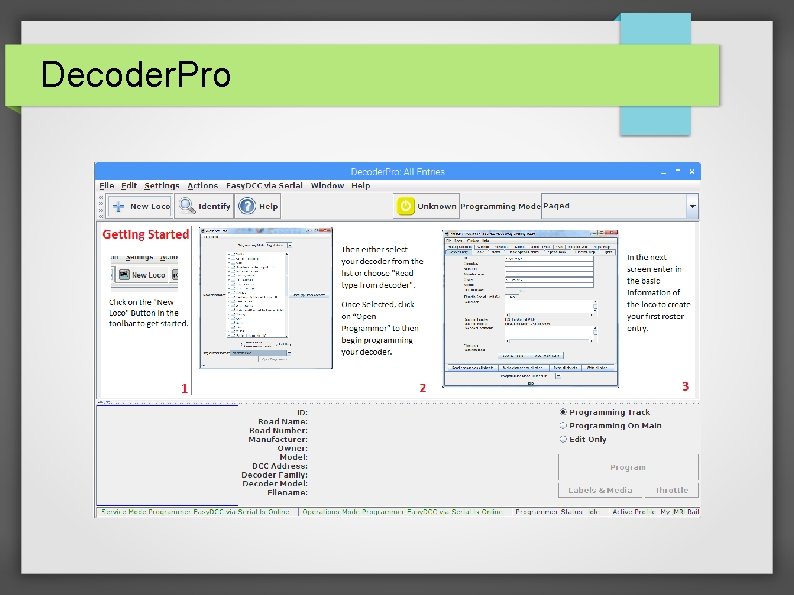
Decoder. Pro
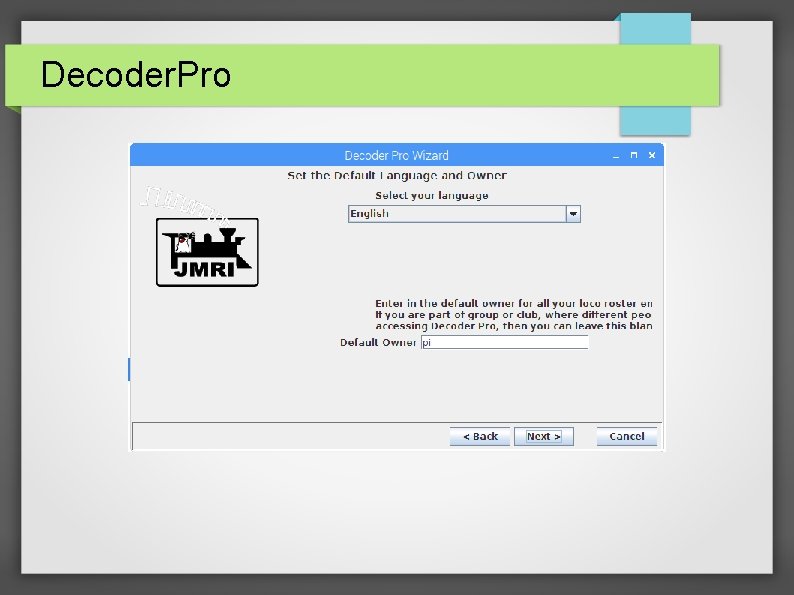
Decoder. Pro
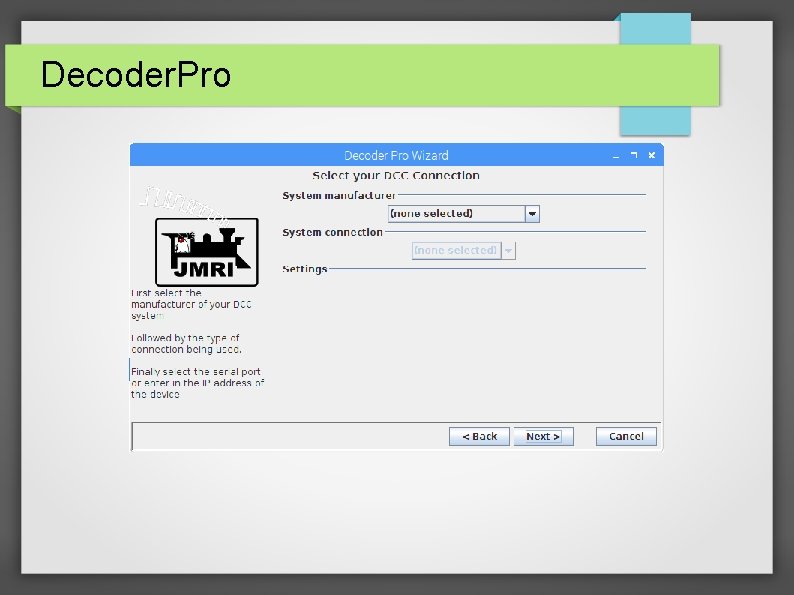
Decoder. Pro
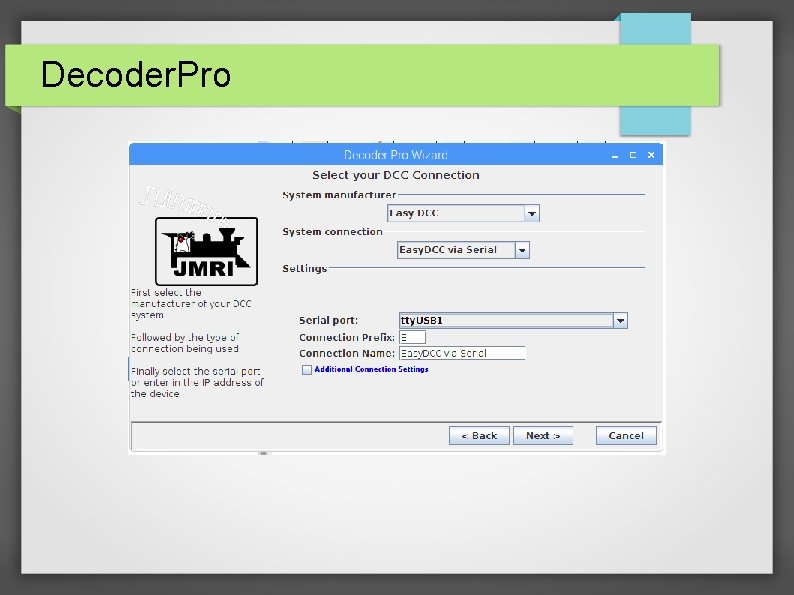
Decoder. Pro
Decoder. Pro
Decoder. Pro
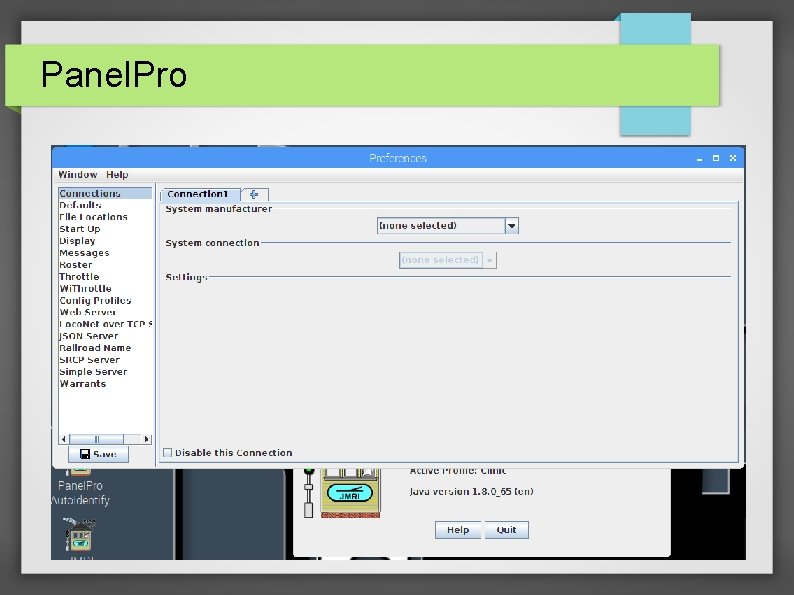
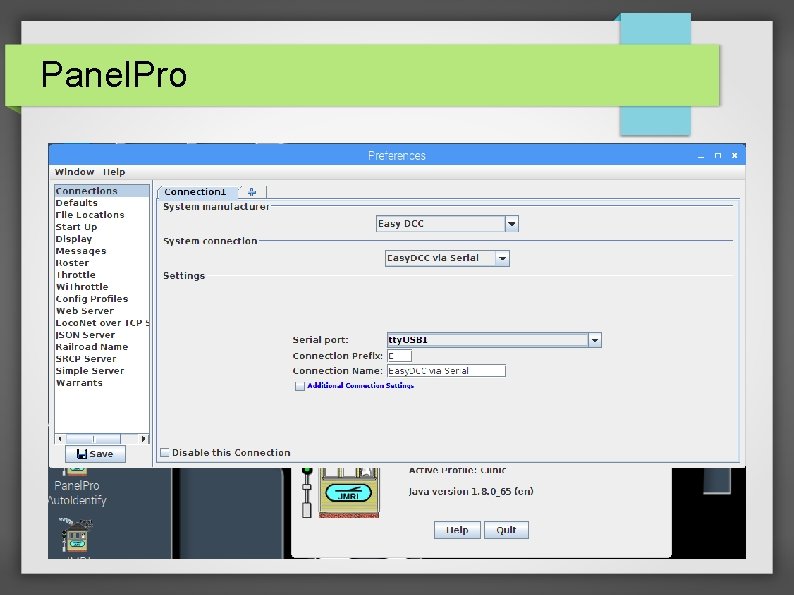
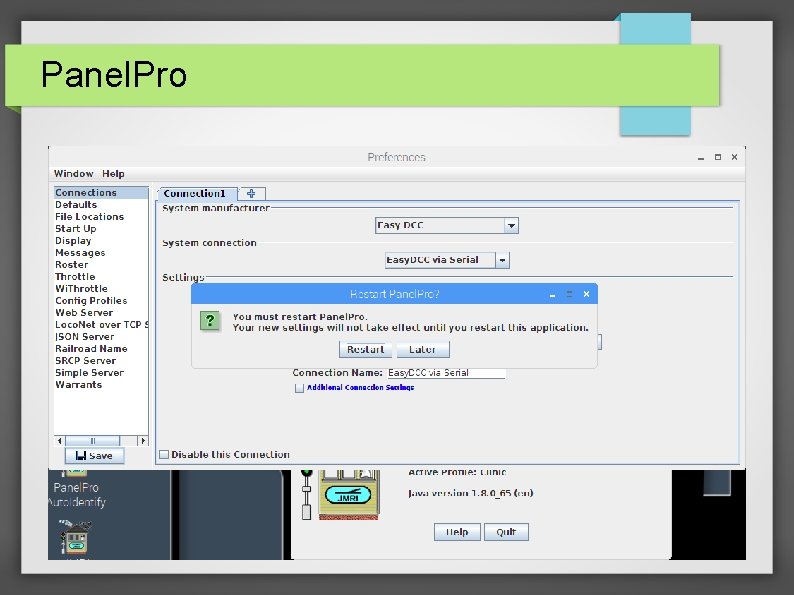
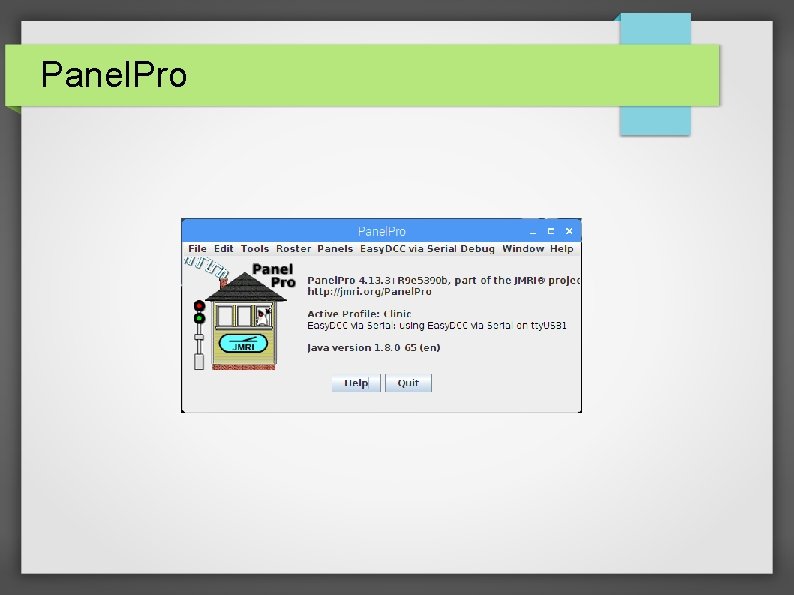
Panel. Pro
Panel. Pro
Panel. Pro
Panel. Pro
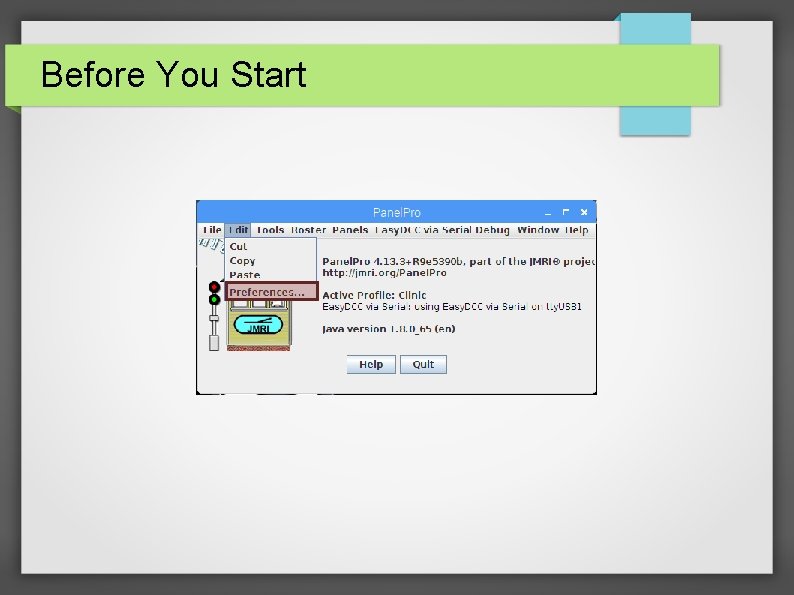
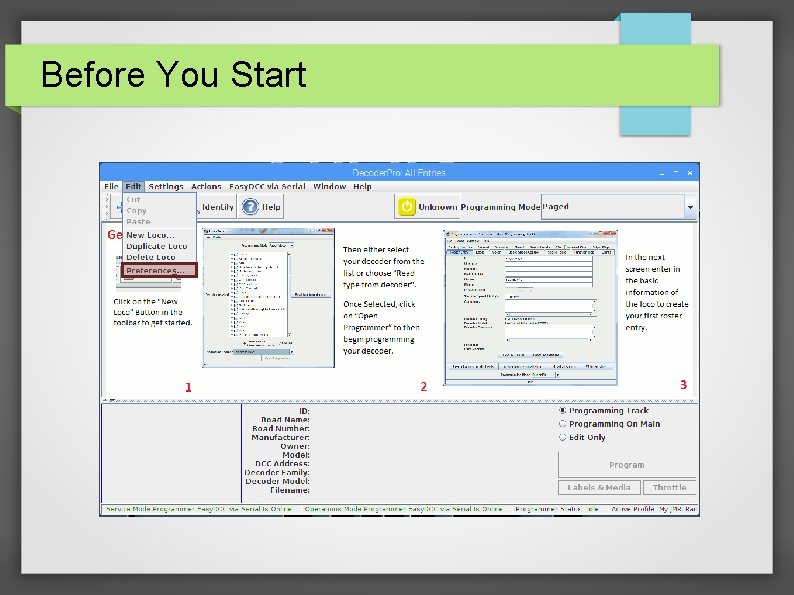
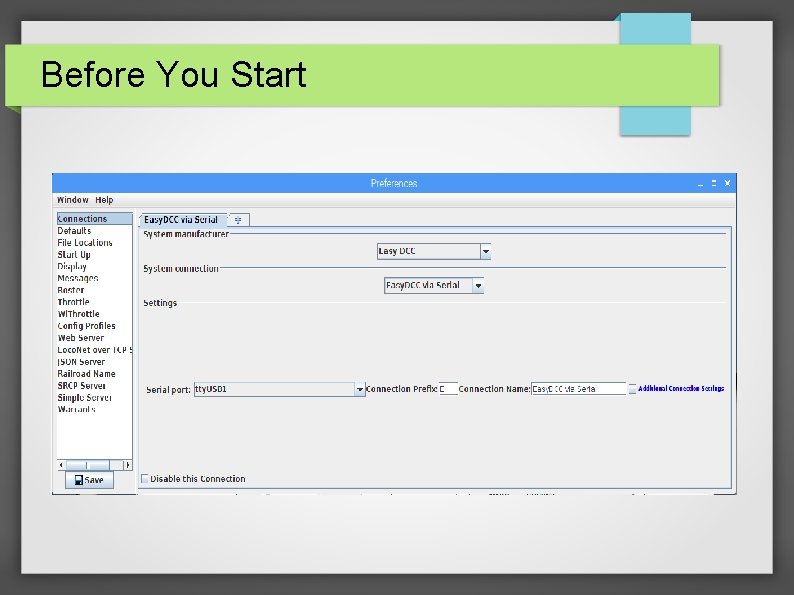
Before You Start
Before You Start
Before You Start
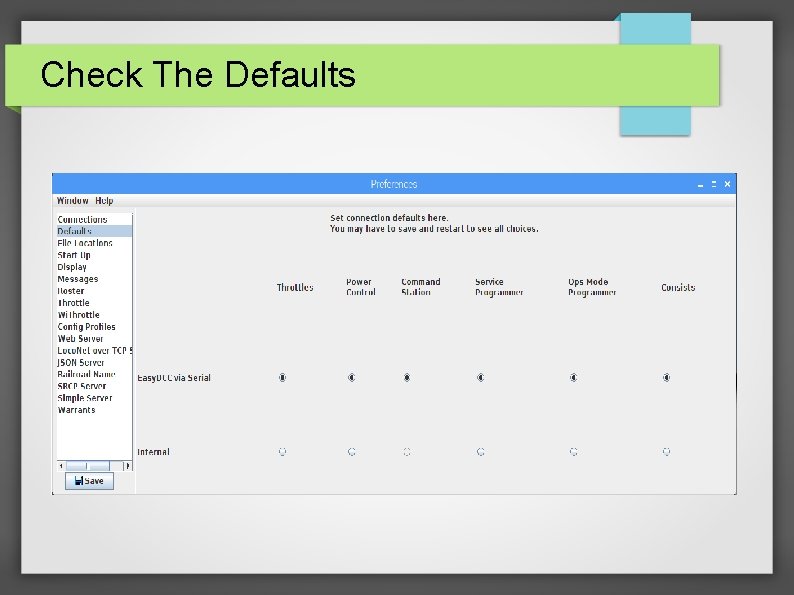
Check The Defaults
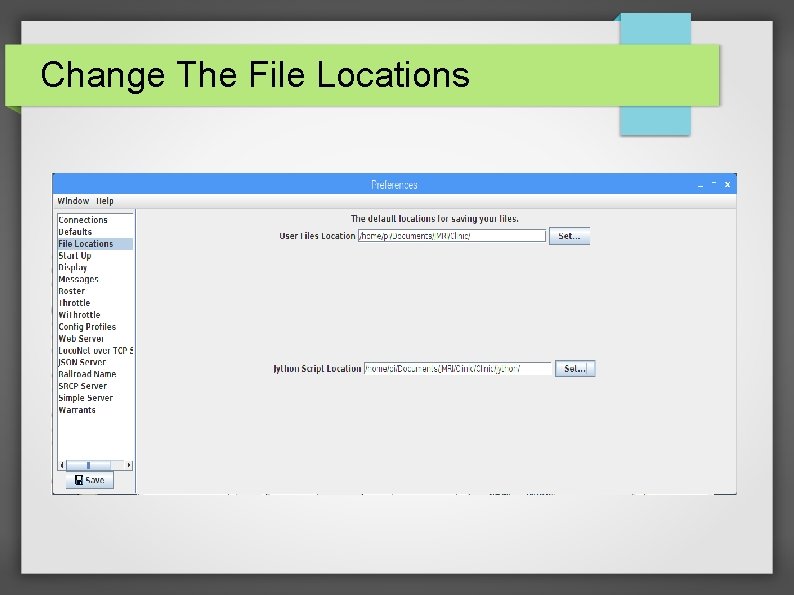
Change The File Locations
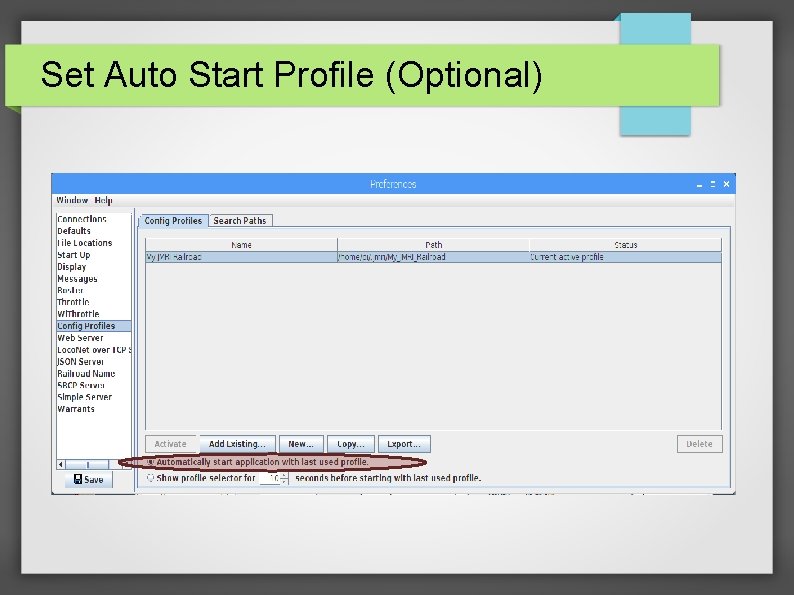
Set Auto Start Profile (Optional)
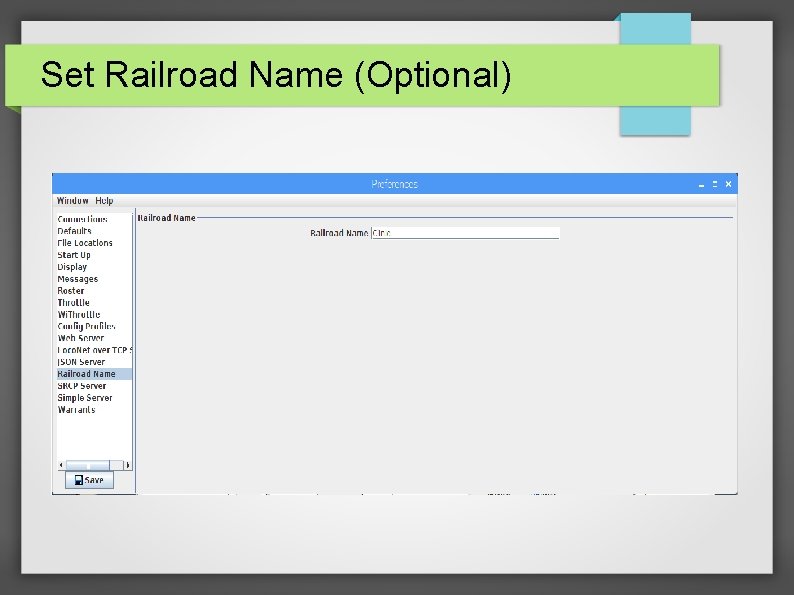
Set Railroad Name (Optional)
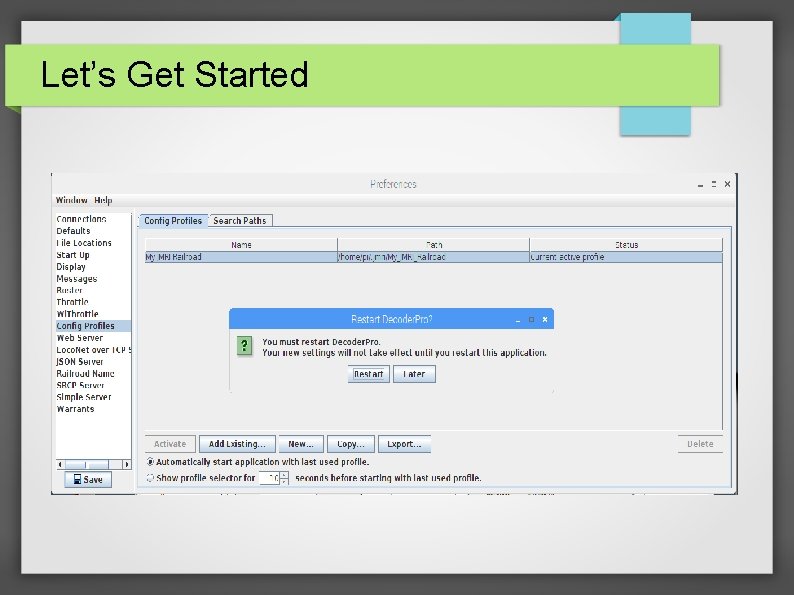
Let’s Get Started
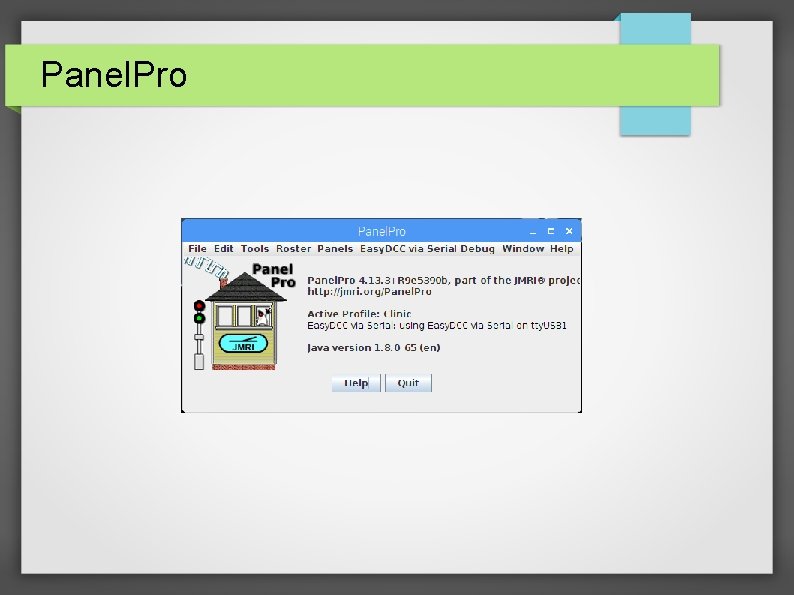
Panel. Pro
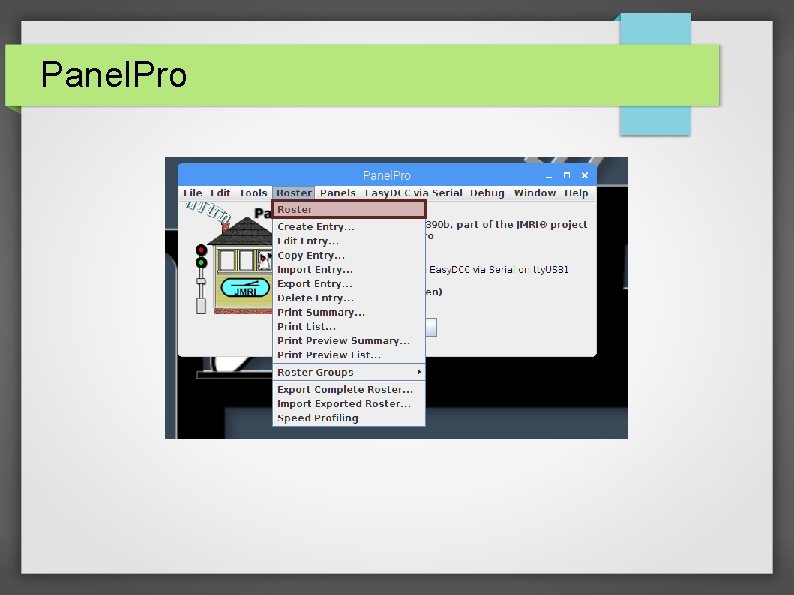
Panel. Pro
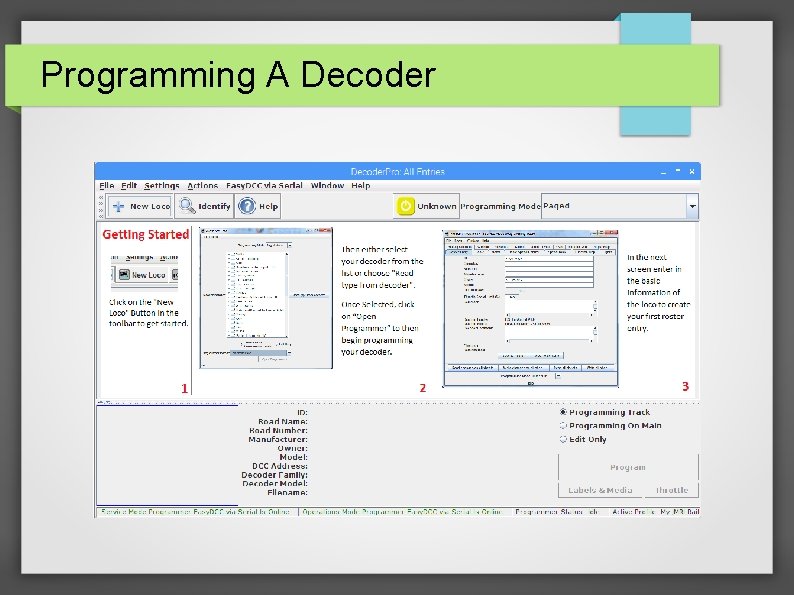
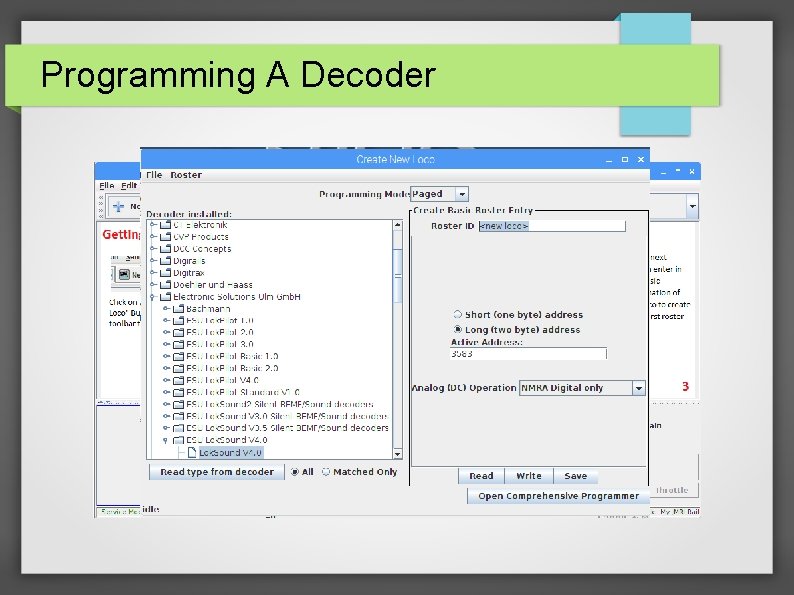
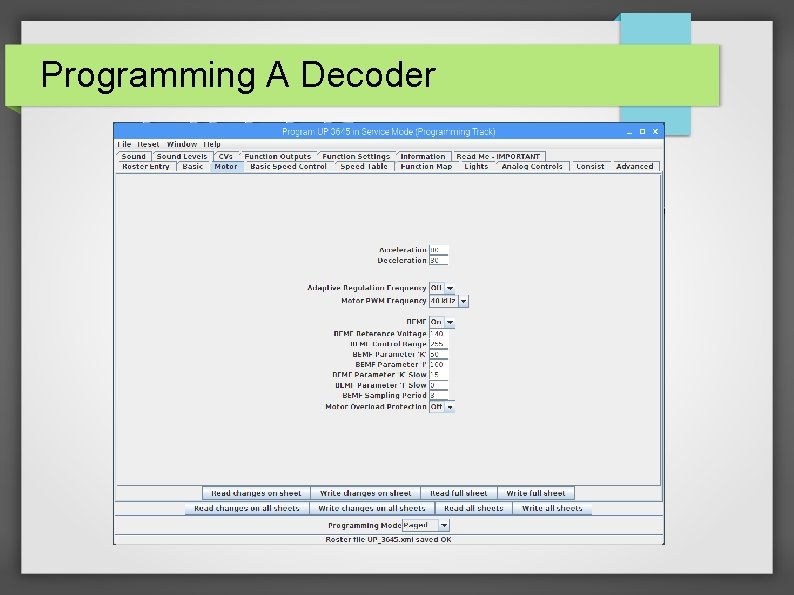
Programming A Decoder
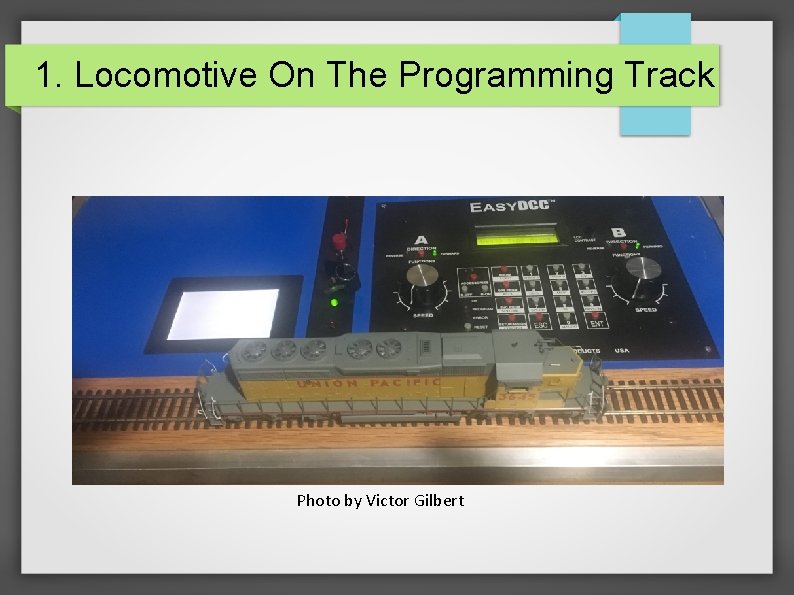
1. Locomotive On The Programming Track Photo by Victor Gilbert
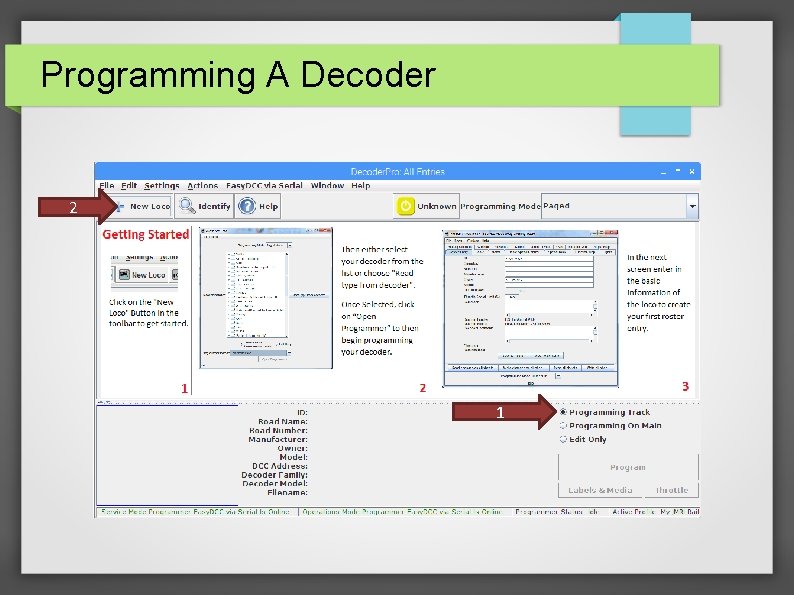
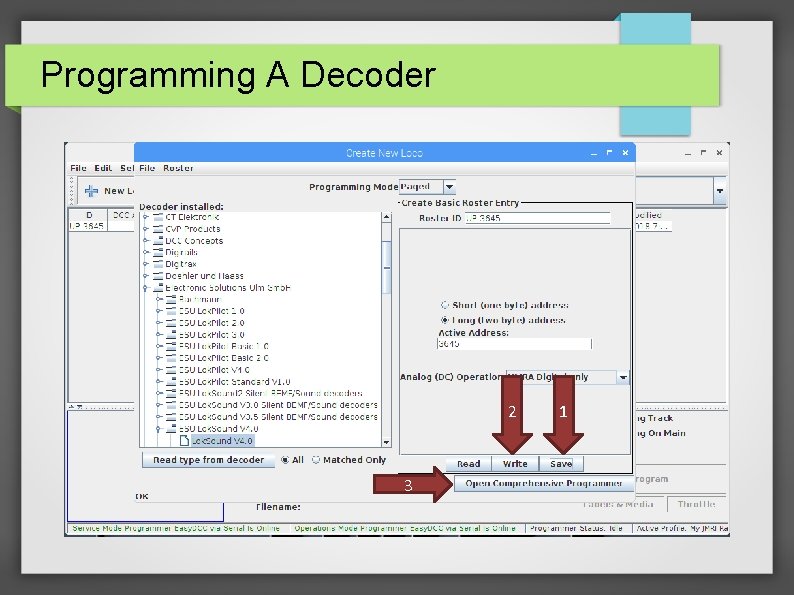
Programming A Decoder 2 1
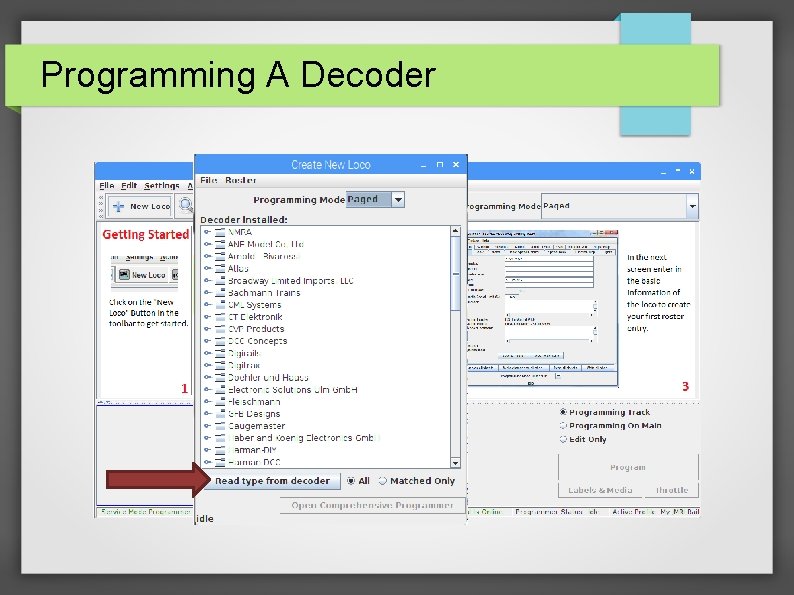
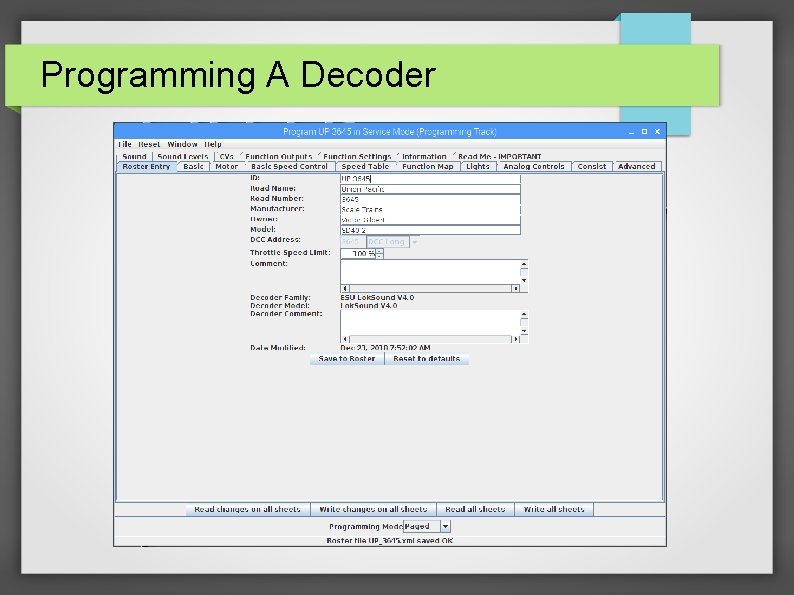
Programming A Decoder
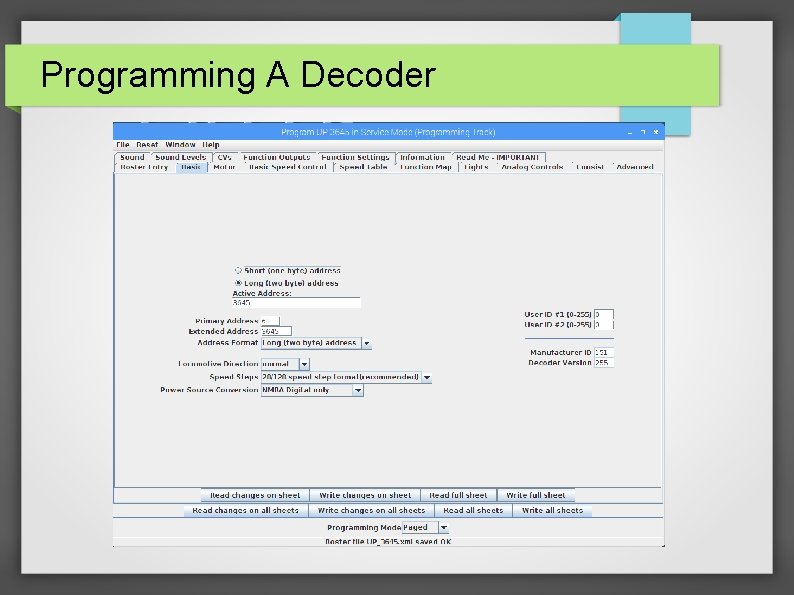
Programming A Decoder
Programming A Decoder 2 3 1
Programming A Decoder
Programming A Decoder
Programming A Decoder
Programming A Decoder
Programming A Decoder
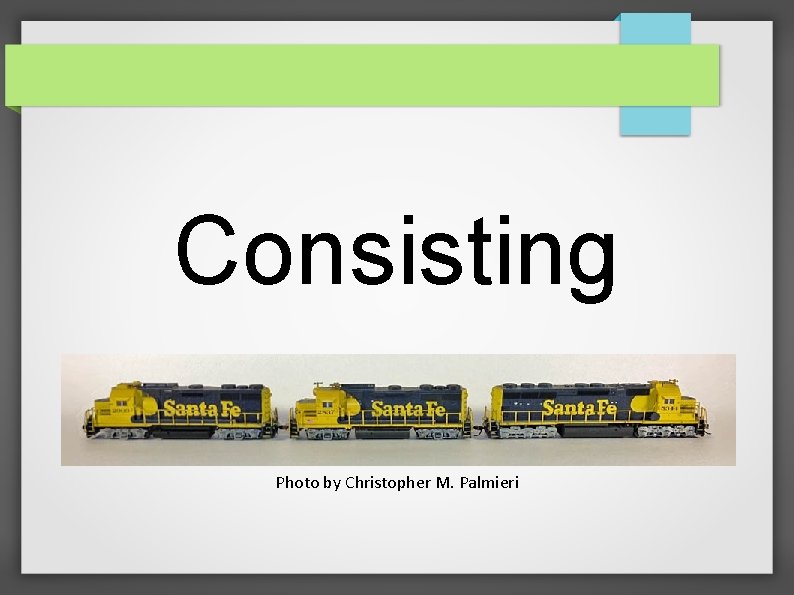
Consisting Photo by Christopher M. Palmieri
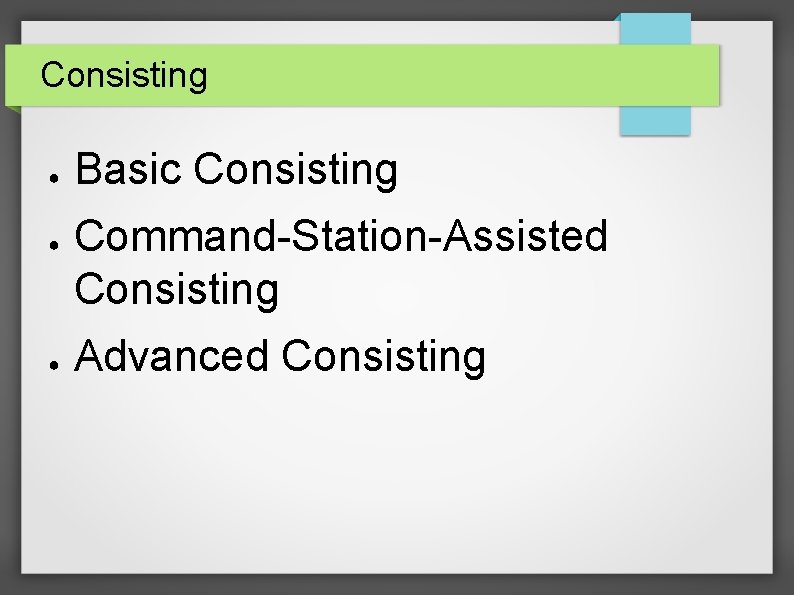
Consisting ● ● ● Basic Consisting Command-Station-Assisted Consisting Advanced Consisting
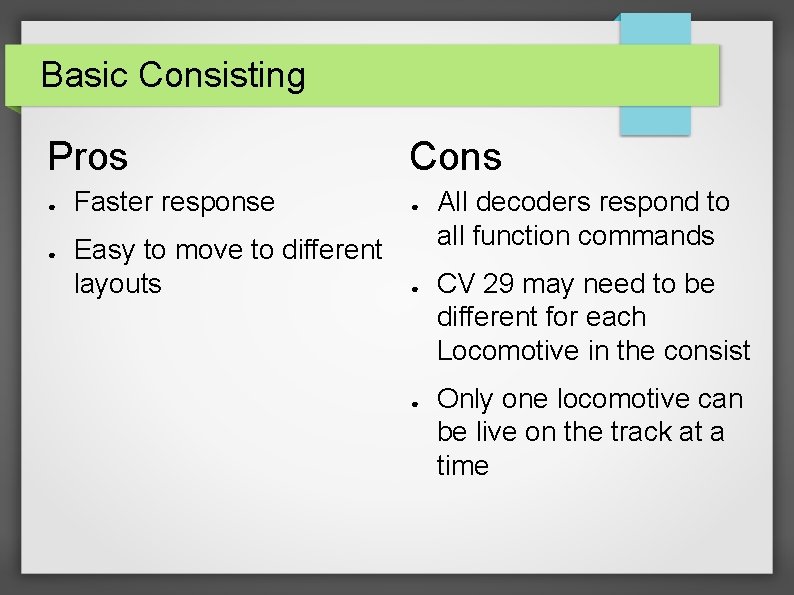
Basic Consisting Pros ● ● Cons Faster response ● Easy to move to different layouts ● ● All decoders respond to all function commands CV 29 may need to be different for each Locomotive in the consist Only one locomotive can be live on the track at a time
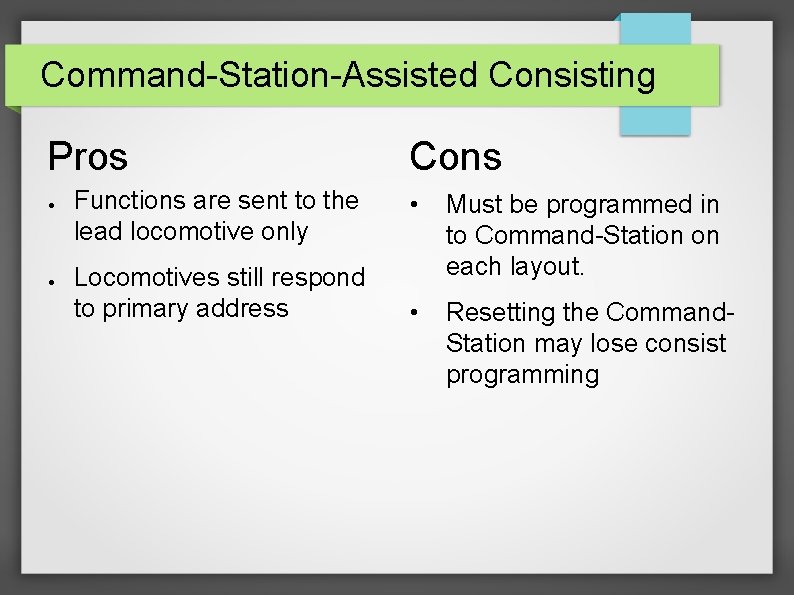
Command-Station-Assisted Consisting Pros ● ● Functions are sent to the lead locomotive only Locomotives still respond to primary address Cons • Must be programmed in to Command-Station on each layout. • Resetting the Command. Station may lose consist programming
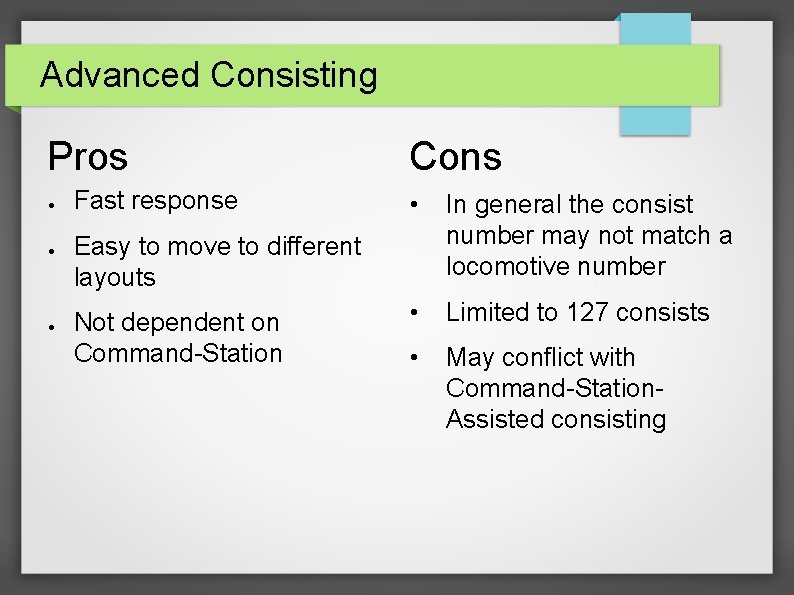
Advanced Consisting Pros ● ● ● Fast response Cons • In general the consist number may not match a locomotive number • Limited to 127 consists • May conflict with Command-Station. Assisted consisting Easy to move to different layouts Not dependent on Command-Station
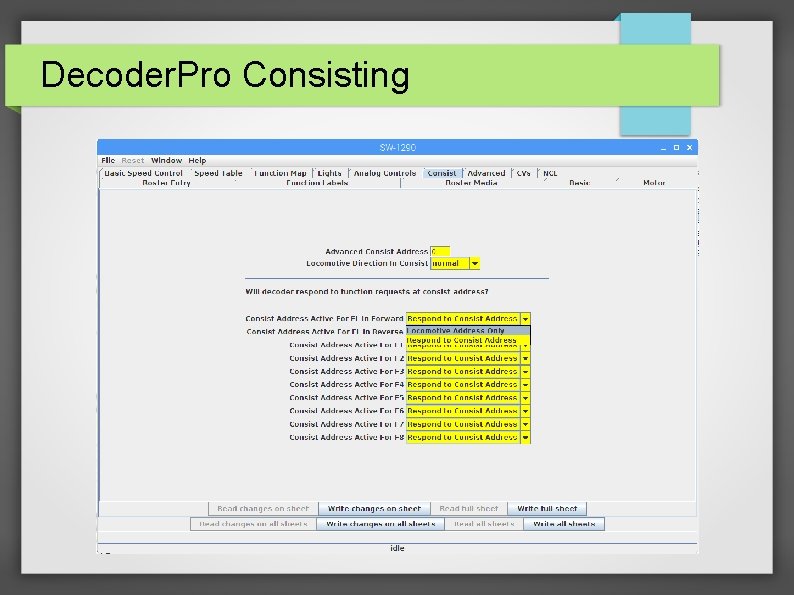
Decoder. Pro Consisting
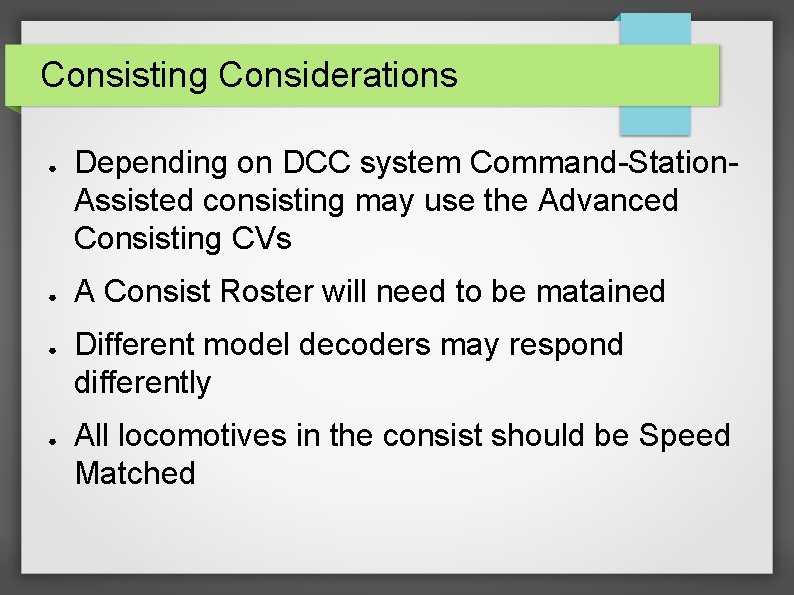
Consisting Considerations ● ● Depending on DCC system Command-Station. Assisted consisting may use the Advanced Consisting CVs A Consist Roster will need to be matained Different model decoders may respond differently All locomotives in the consist should be Speed Matched
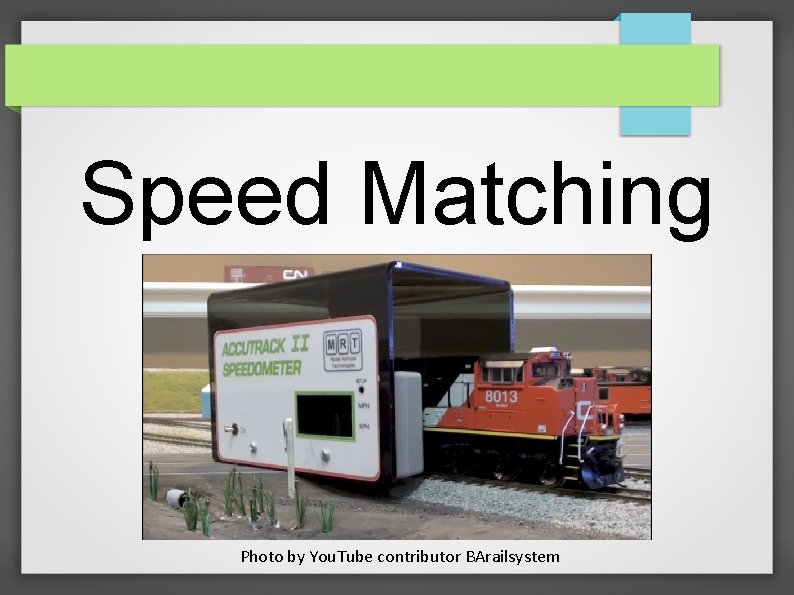
Speed Matching Photo by You. Tube contributor BArailsystem
Speed Matching ● Speed = The TIME to travel a given DISTANCE – ● Miles per Hours (MPH) / Kilometers per Hours (KPH) How do we measure Speed? – Mechanical – Stopwatch – I think that’s right
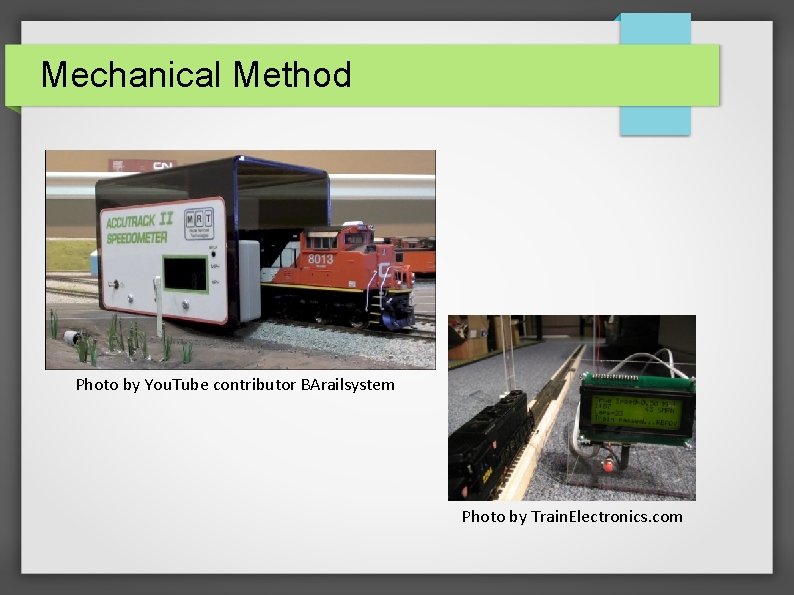
Mechanical Method Photo by You. Tube contributor BArailsystem Photo by Train. Electronics. com
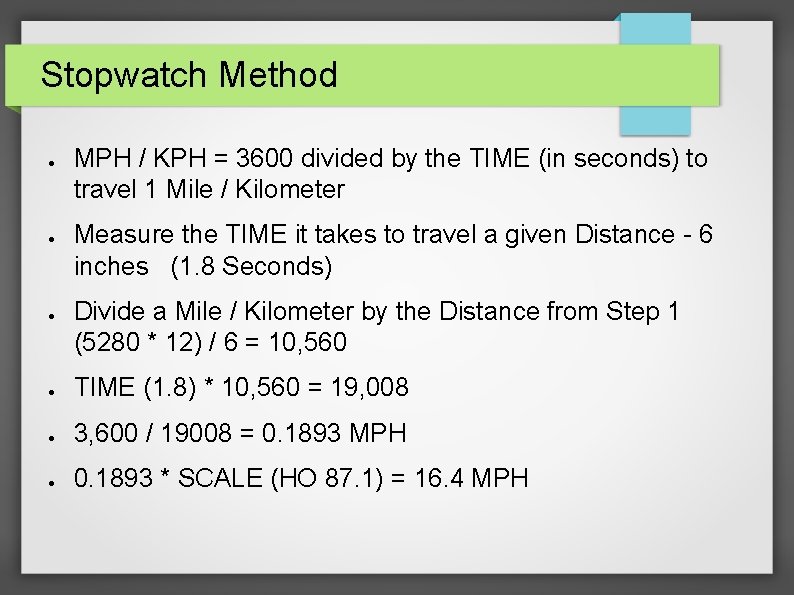
Stopwatch Method ● ● ● MPH / KPH = 3600 divided by the TIME (in seconds) to travel 1 Mile / Kilometer Measure the TIME it takes to travel a given Distance - 6 inches (1. 8 Seconds) Divide a Mile / Kilometer by the Distance from Step 1 (5280 * 12) / 6 = 10, 560 ● TIME (1. 8) * 10, 560 = 19, 008 ● 3, 600 / 19008 = 0. 1893 MPH ● 0. 1893 * SCALE (HO 87. 1) = 16. 4 MPH
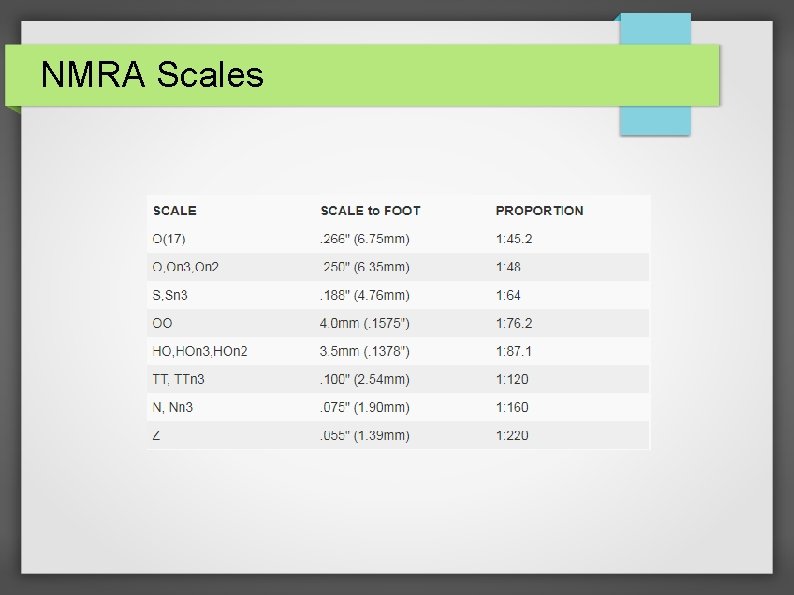
NMRA Scales
“I thinks that’s right” Method ● Create a Golden or Master locomotive ● Match locomotives together
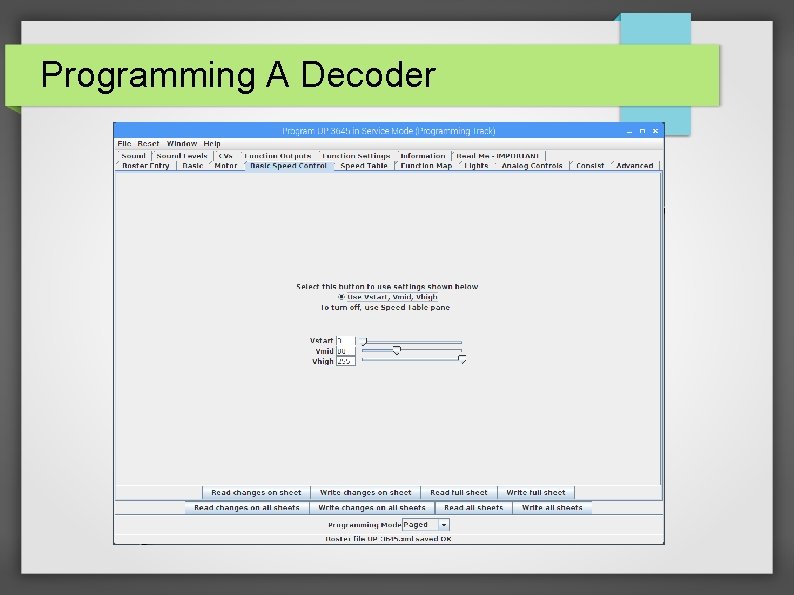
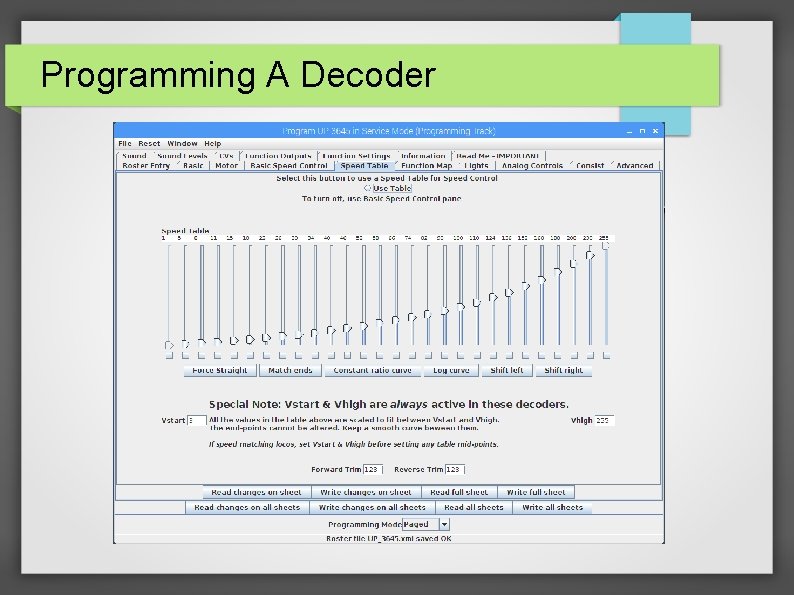
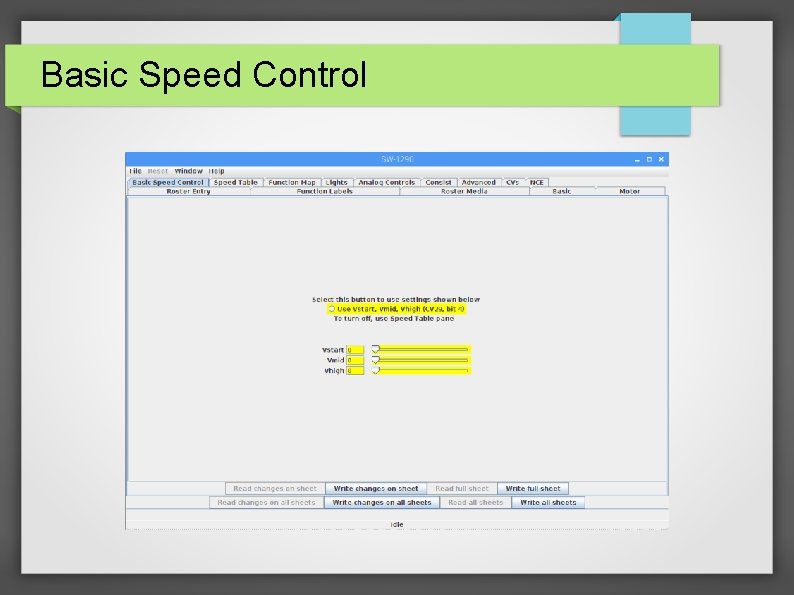
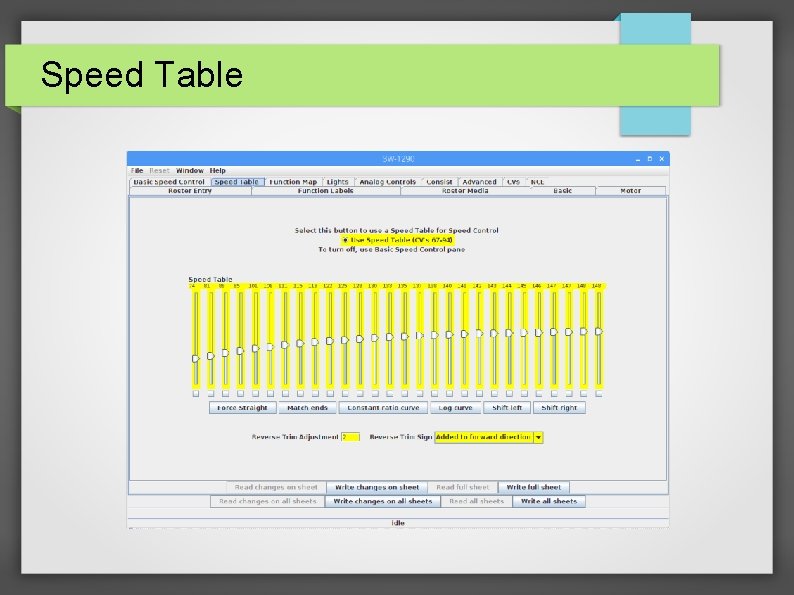
Getting Started ● ● Choose Speed Table or Basic Speed Control Set throttle position to the point the locomotive should start moving Basic Speed Control – Adjust VStart until locomotive moves slowly smoothly – Adjust Vhigh for locomotive’s top speed – Set Vmid to a mid range value Speed Table – Adjust Left most slider until locomotive moves slowly smoothly – Adjust Right most slider to the locomotive’s top speed
Basic Speed Control
Speed Table
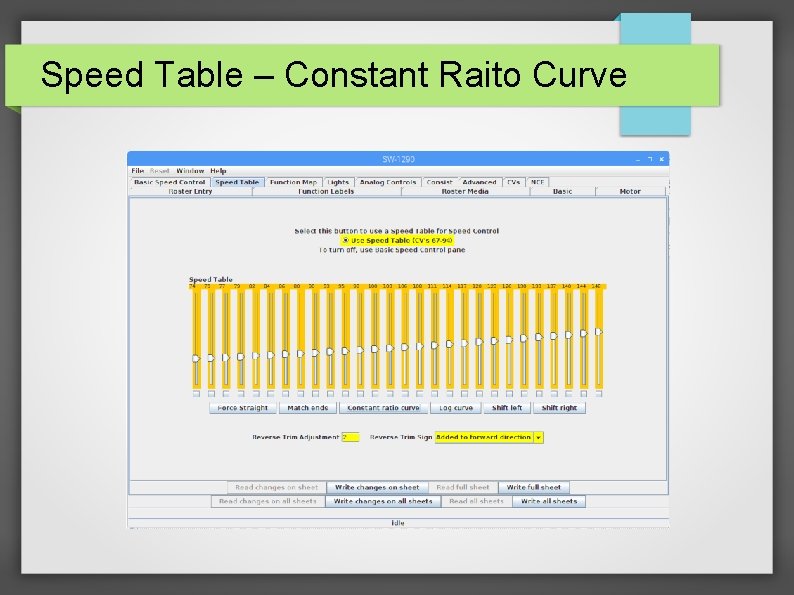
Speed Table – Constant Raito Curve
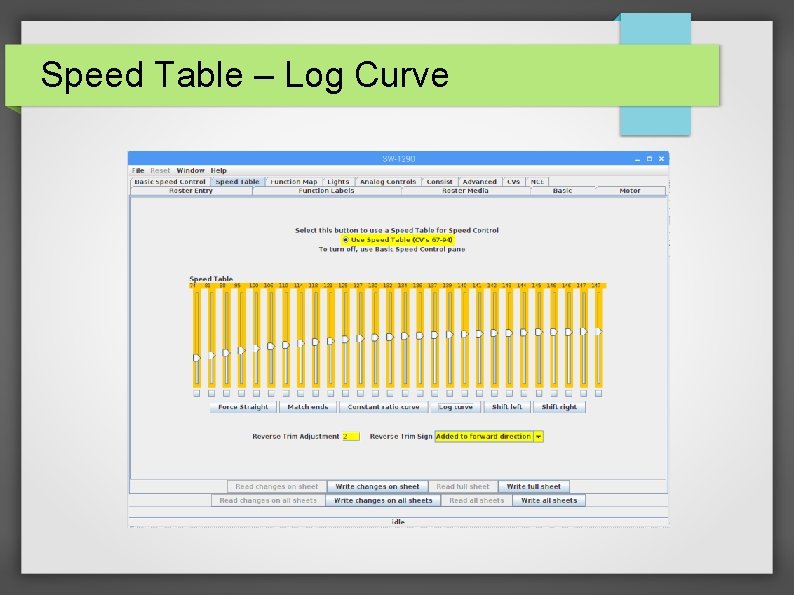
Speed Table – Log Curve
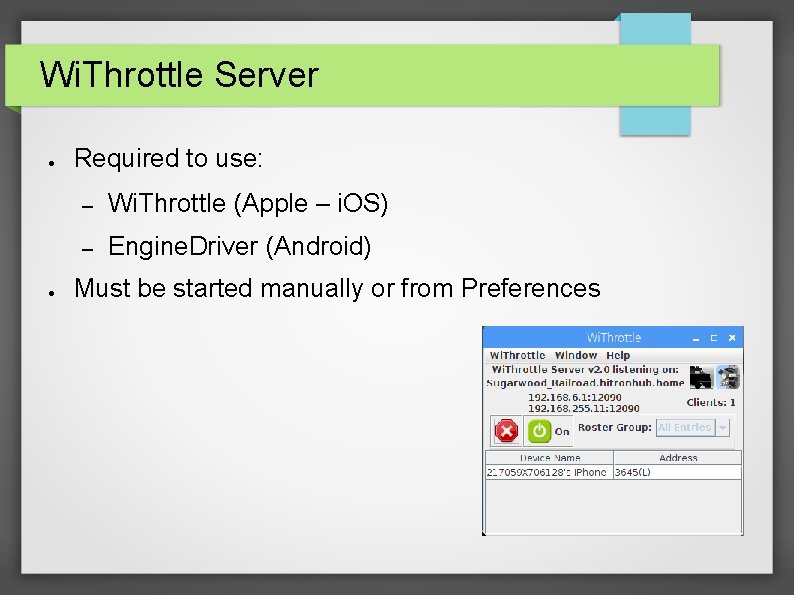
Wi. Throttle Server ● ● Required to use: – Wi. Throttle (Apple – i. OS) – Engine. Driver (Android) Must be started manually or from Preferences
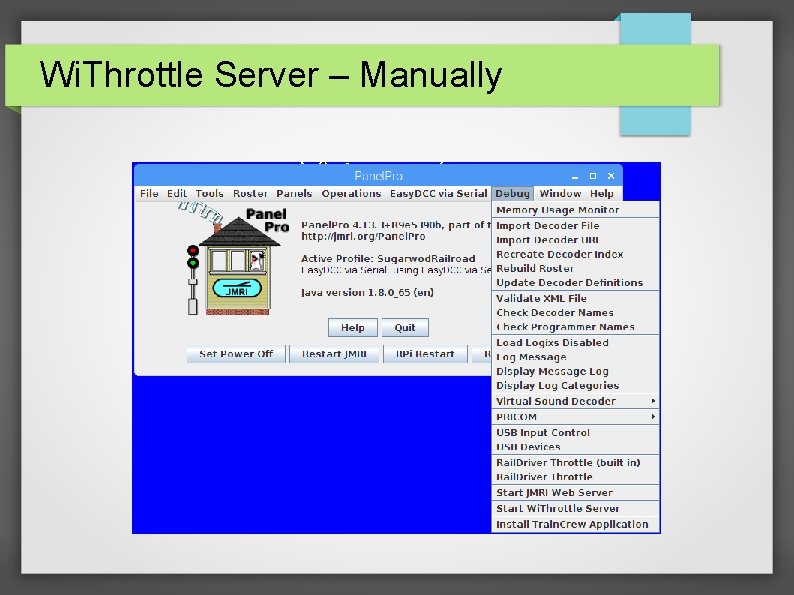
Wi. Throttle Server – Manually
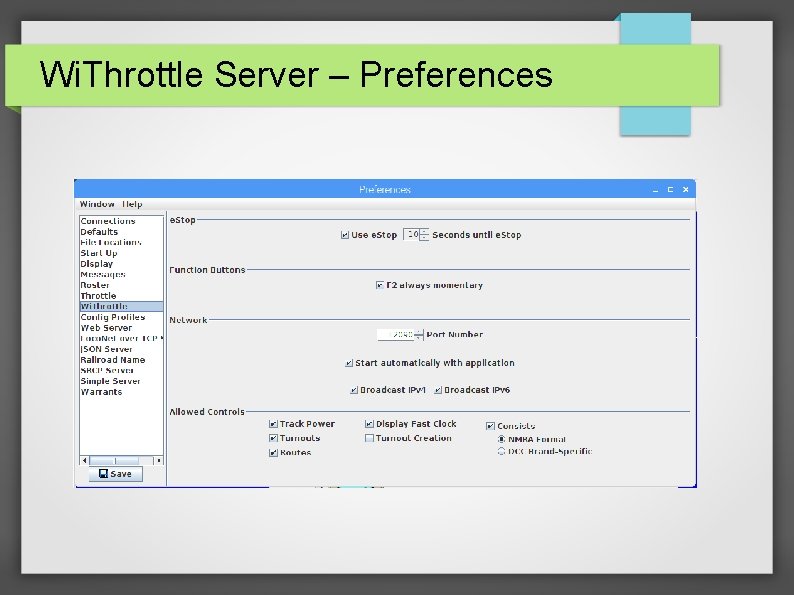
Wi. Throttle Server – Preferences
Panel. Pro ● ● This is just a very simple overview Layout Editor and Control Panel Editor are a clinic on their own
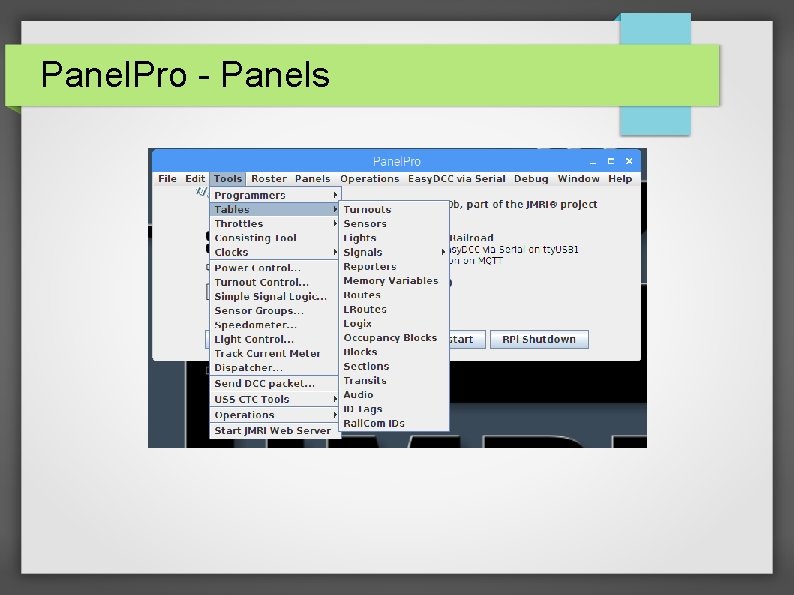
Panel. Pro - Panels
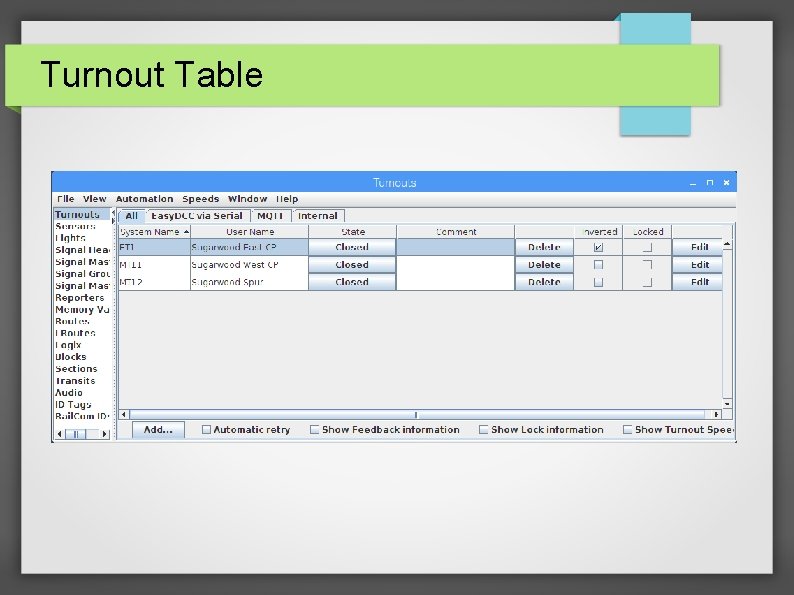
Turnout Table
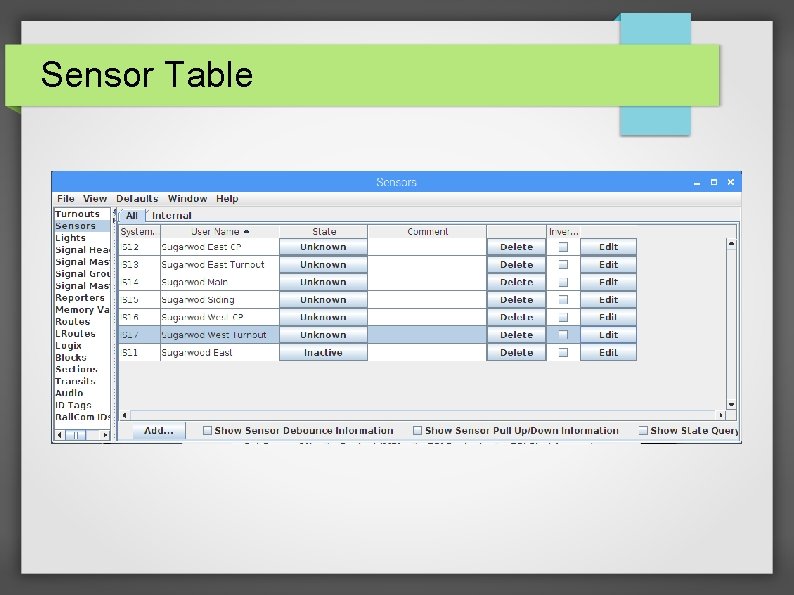
Sensor Table
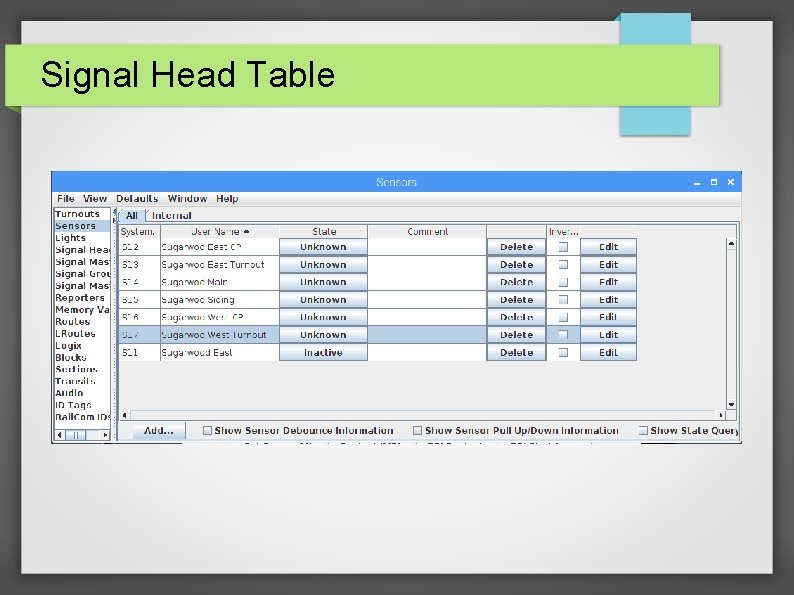
Signal Head Table
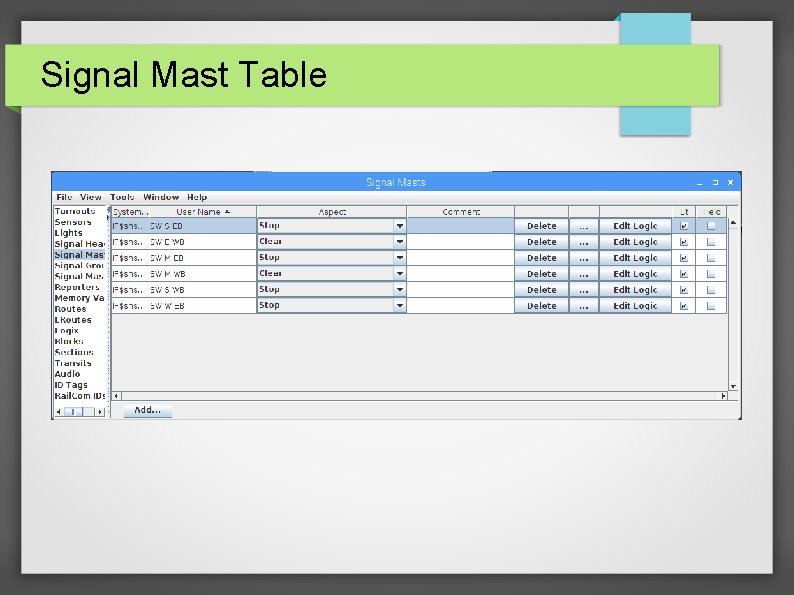
Signal Mast Table
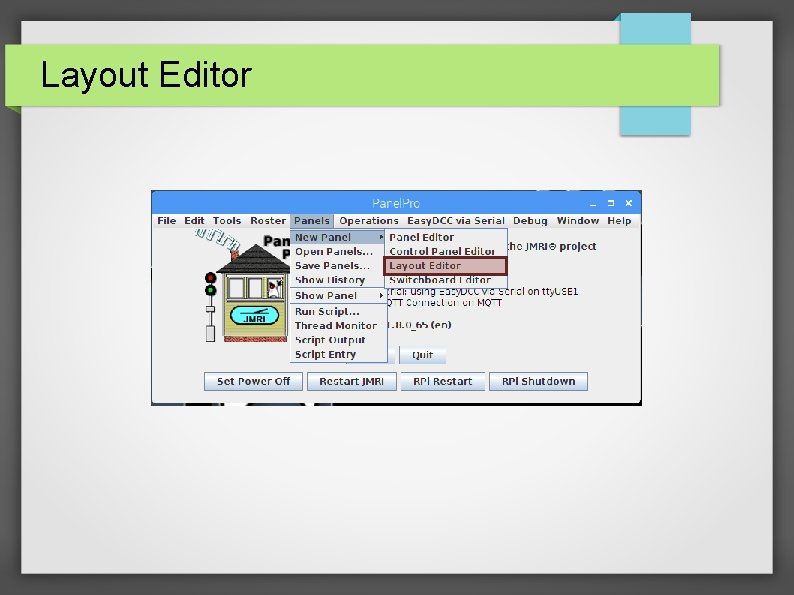
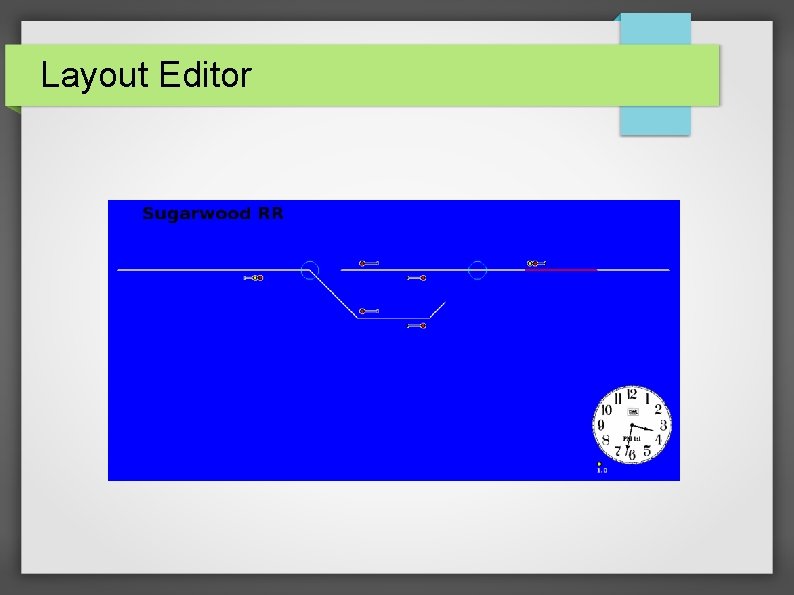
Layout Editor
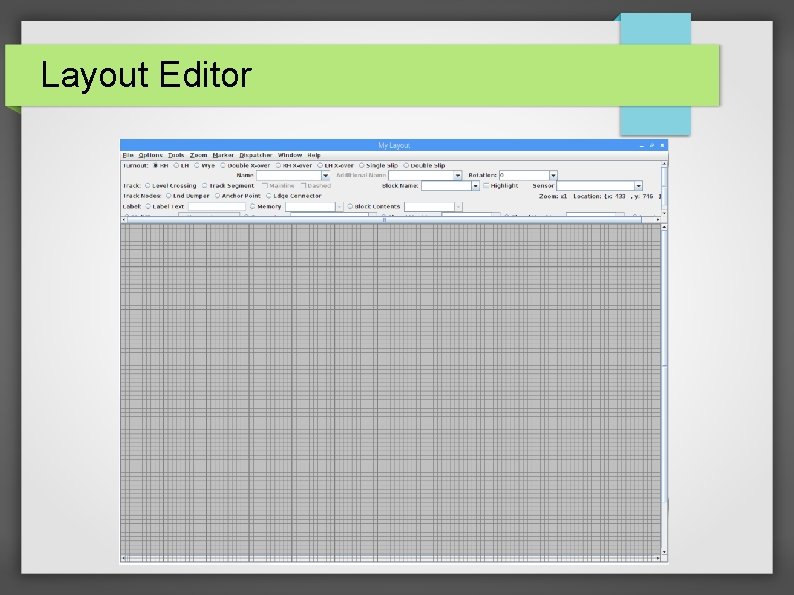
Layout Editor
Layout Editor
Layout Editor ● ● Placing an object: Shift + Left Click Moving an object: Hold Right Button and drag to new location then release the Right Button
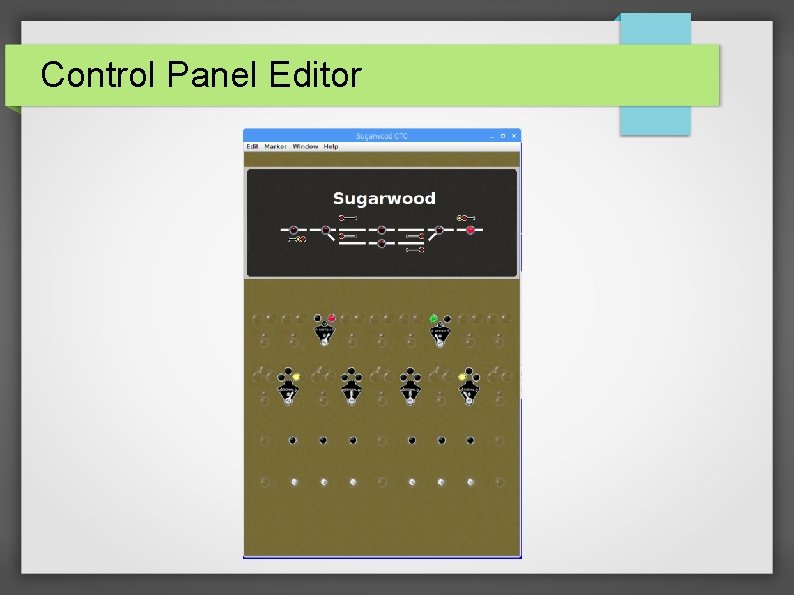
Control Panel Editor
Control Panel Editor ● ● Placing an object: Right Click select Add Item Moving an Background objects: Hold Ctrl and Right Button and drag to new location then release the Right Button Moving an Control objects (Sensors, Signals, Turnouts): hold Right Button and drag to new location then release the Right Button Edit Menu – hold Ctrl and Right Click item
Operations. Pro
Operations. Pro ● This is just a very simple overview ● Operations. Pro is a clinic on its own
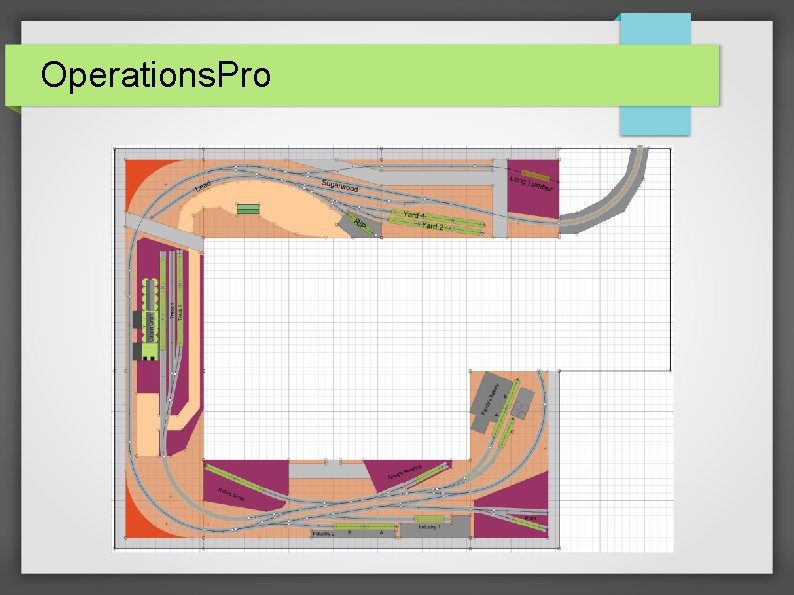
Operations. Pro
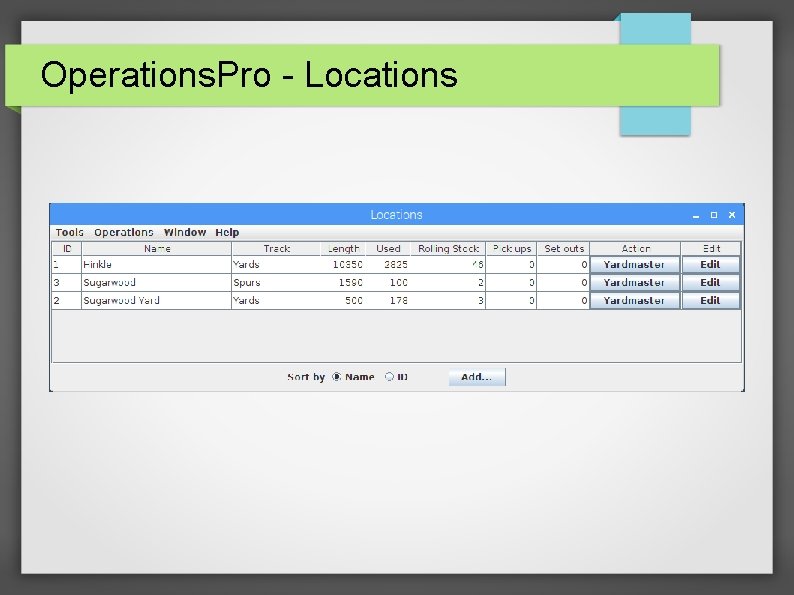
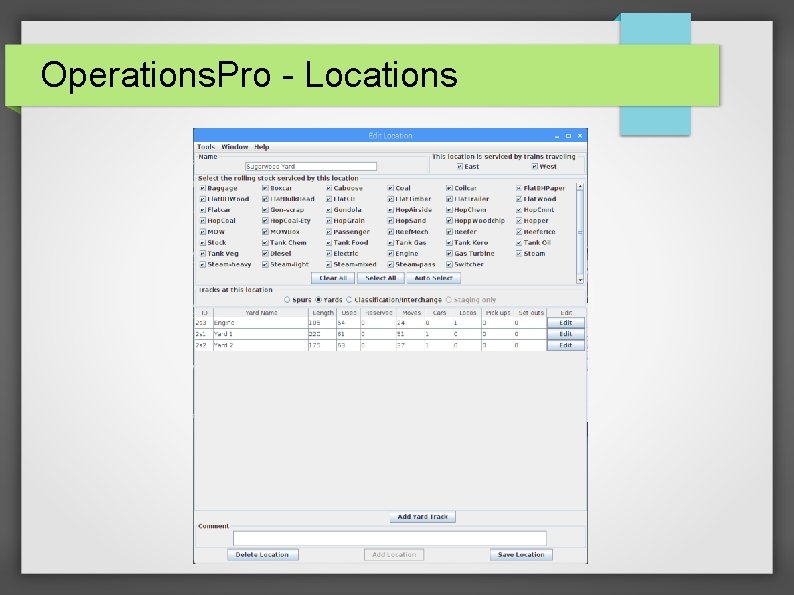
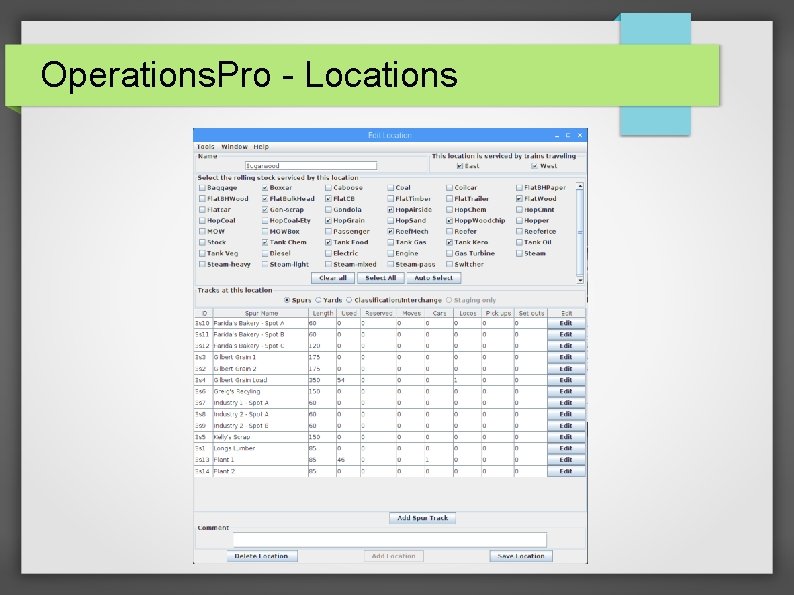
Operations. Pro - Locations
Operations. Pro - Locations
Operations. Pro - Locations
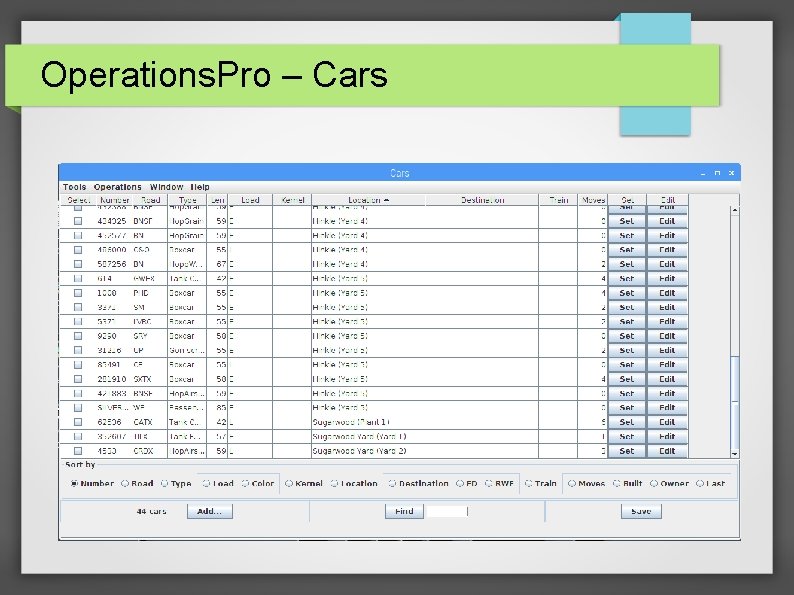
Operations. Pro – Cars
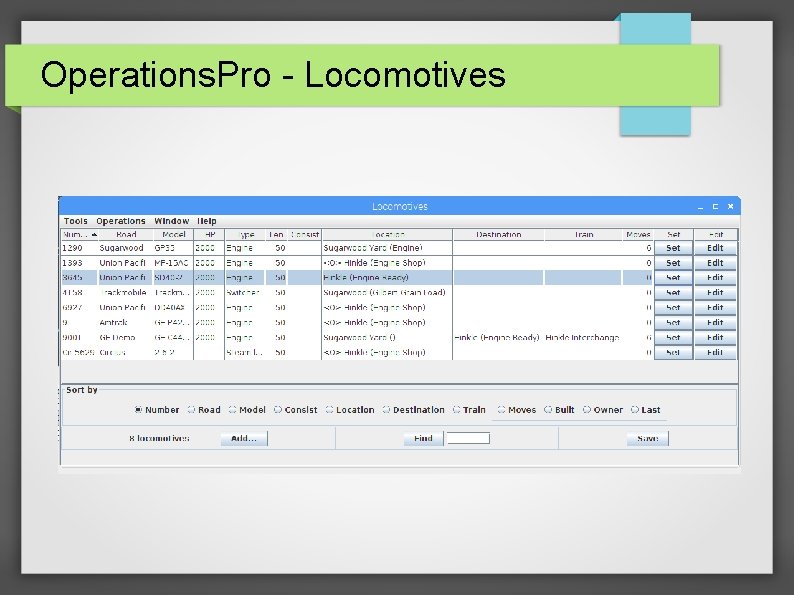
Operations. Pro - Locomotives
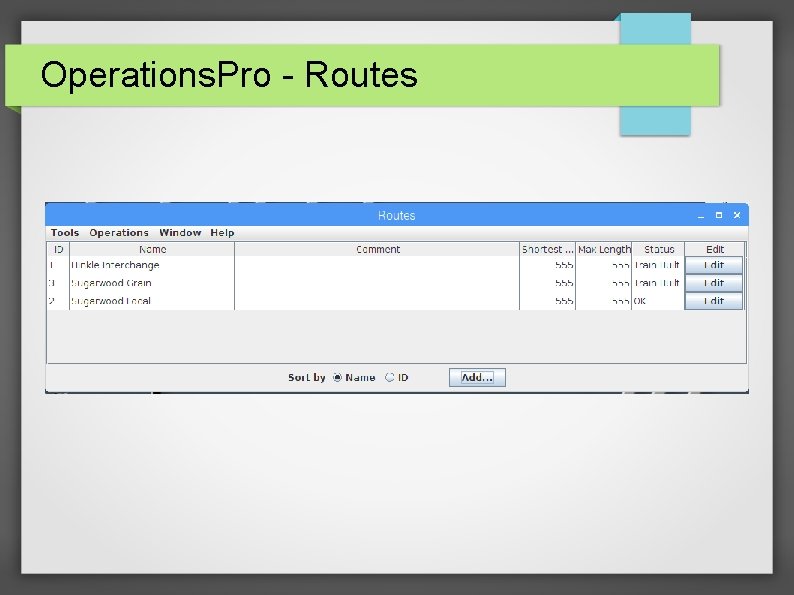
Operations. Pro - Routes
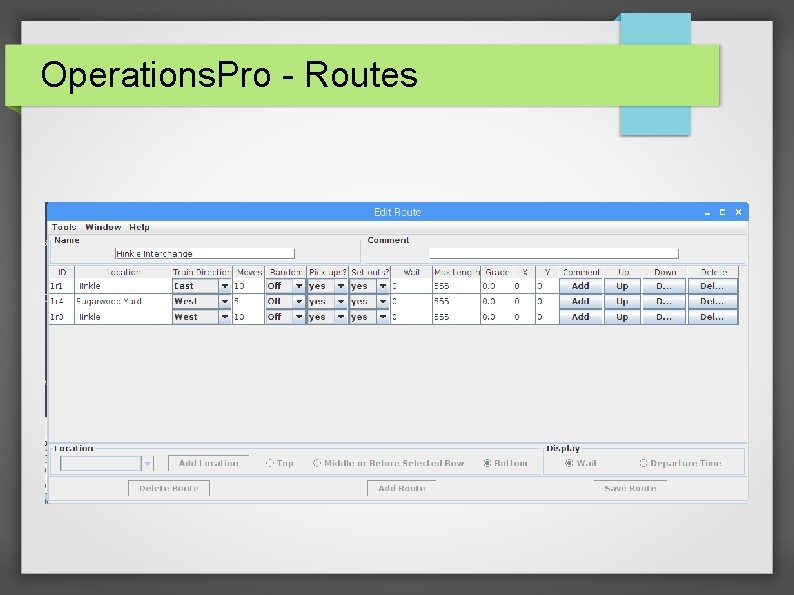
Operations. Pro - Routes
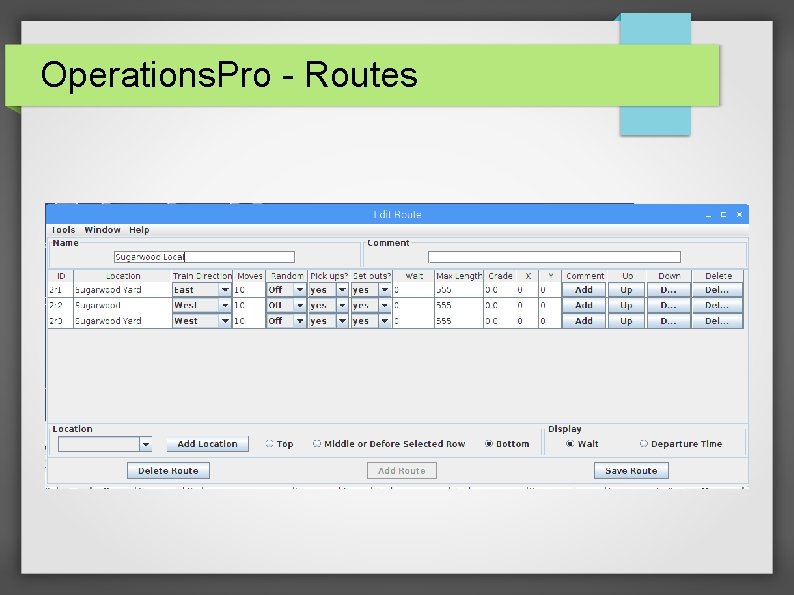
Operations. Pro - Routes
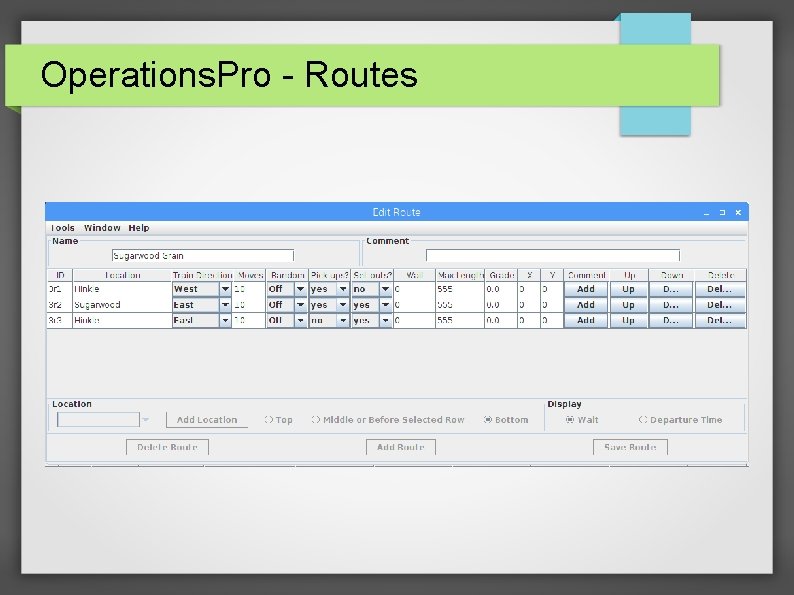
Operations. Pro - Routes
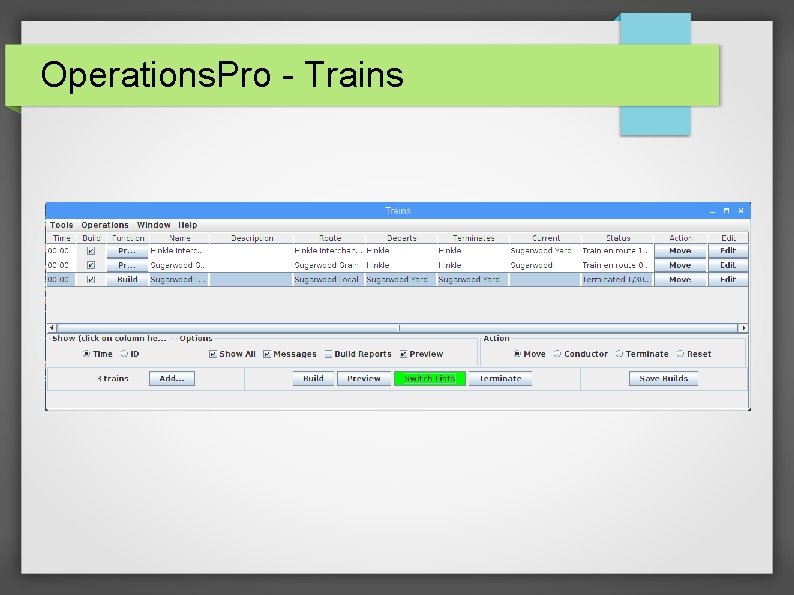
Operations. Pro - Trains
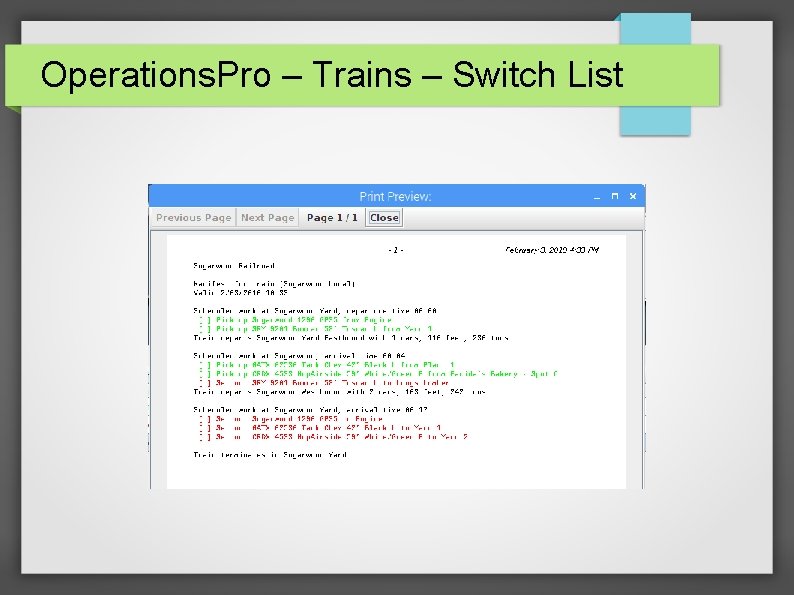
Operations. Pro – Trains – Switch List
Acknowledgements, References and Resources Thanks to: • JMRI http: //jmri. org • Groups. io – JMRIUsers https: //groups. io/g/jmriusers/topics • Train Electronics http: //www. trainelectronics. com/products. htm • Model Railroader – DCC Corner http: //mrr. trains. com/