
An Introduction to the IRI Data Library Michael

An Introduction to the IRI Data Library Michael Bell
Objectives – Become familiar with the organization of the Data Library – Learn how to find datasets and select spatial and temporal domains – See how to perform simple arithmetic analyses – See how to create customized maps and graphs – Learn how to download data and images – Understand how the Data Library is related to the IRI Map Room
Structure of Course 1. Introduction to the organization and primary tools of the Data Library 2. Group examples 3. Individual examples
The IRI Data Library is a… • Data repository – >300 datasets covering all aspects of climate-related characteristics • Data analysis tool – Arithmetic operations EOF analysis • Data visualization tool – Time series, maps, cross-sections • Data download resource – Free access to text, binary, GIScompatible, etc. data files http: //iridl. ldeo. columbia. edu
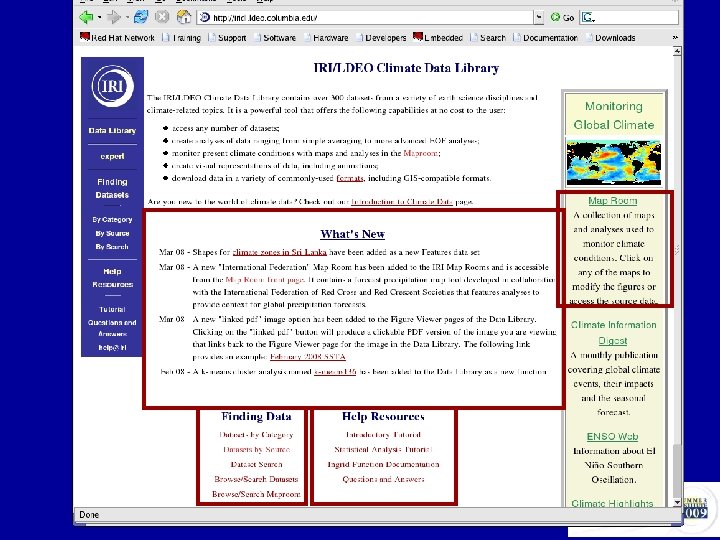
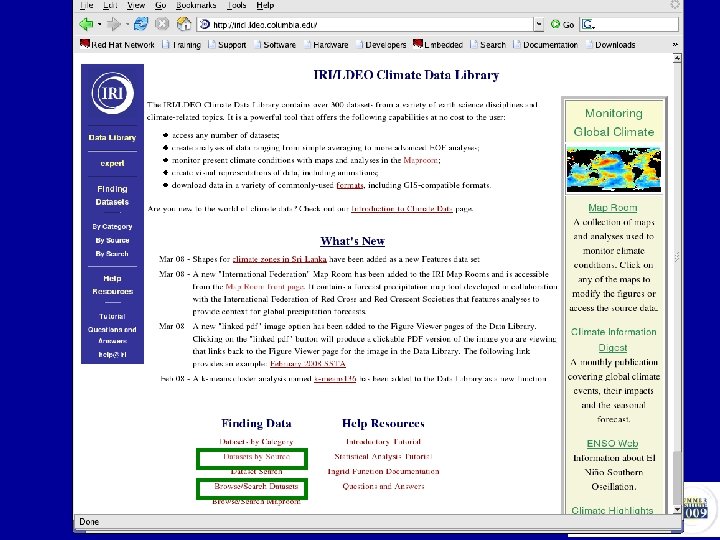
Data Library Home Page
Finding Datasets
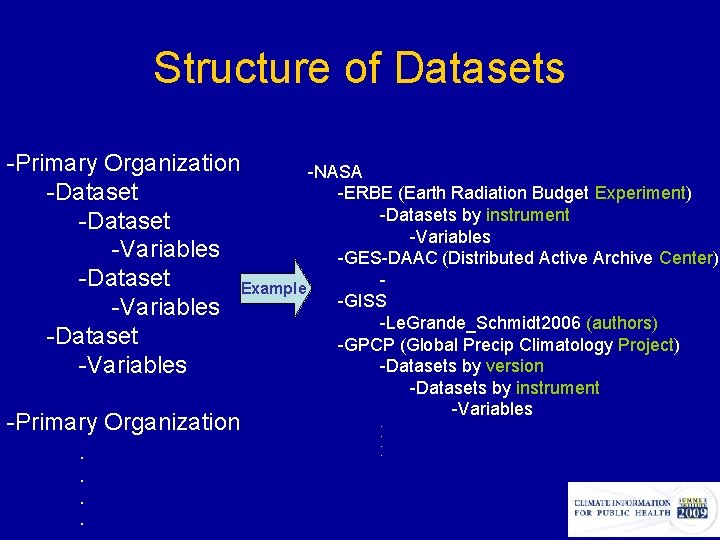
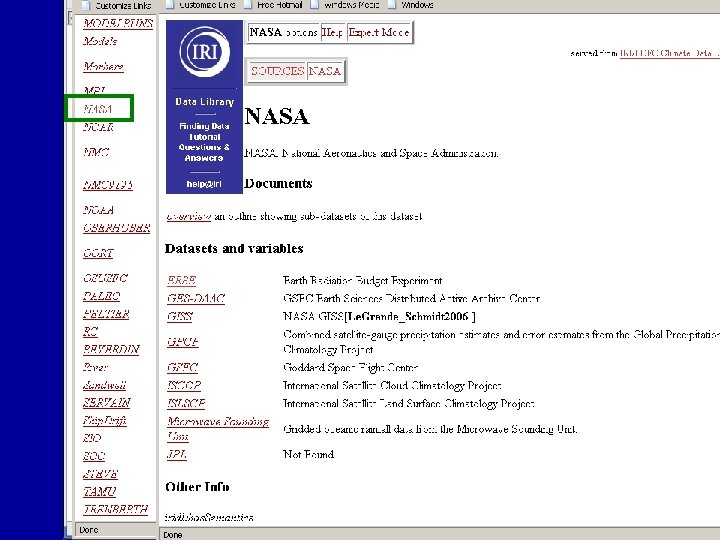
Structure of Datasets -Primary Organization -NASA -ERBE (Earth Radiation Budget Experiment) -Datasets by instrument -Dataset -Variables -GES-DAAC (Distributed Active Archive Center) -Dataset Example -GISS -Variables -Le. Grande_Schmidt 2006 (authors) -Dataset -GPCP (Global Precip Climatology Project) -Datasets by version -Variables -Primary Organization. . -Datasets by instrument -Variables . .
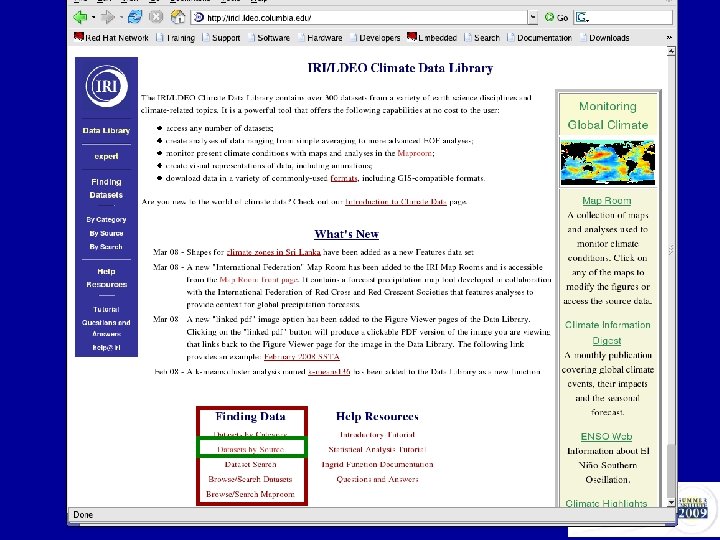
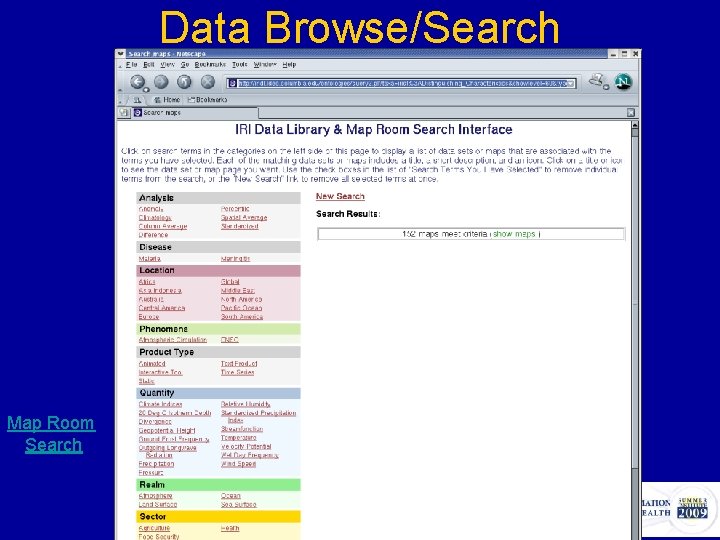
Data Browse/Search Map Room Search
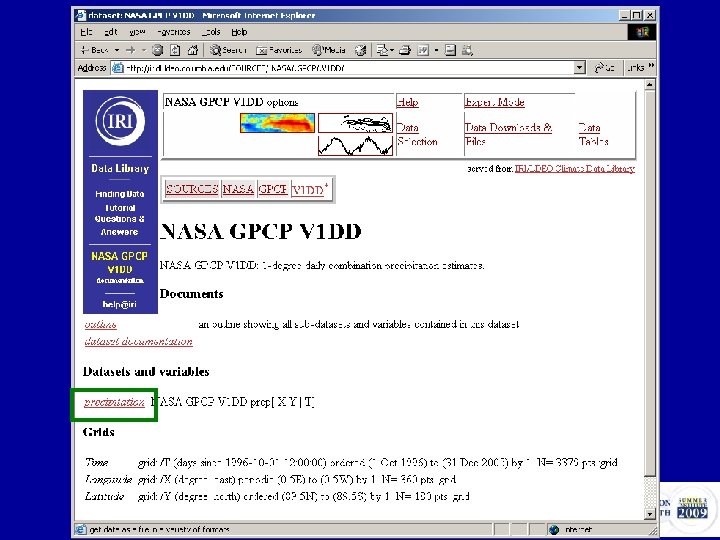
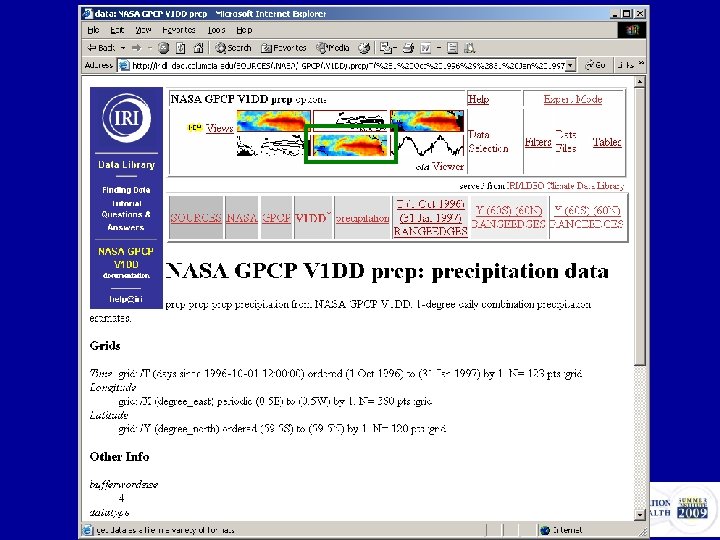
Dataset Page Contents and Structure Gridded Datasets
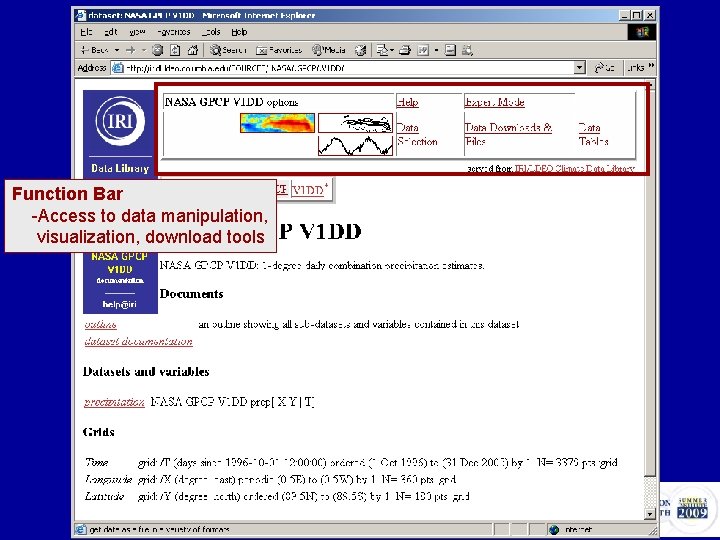
Function Bar -Access to data manipulation, visualization, download tools
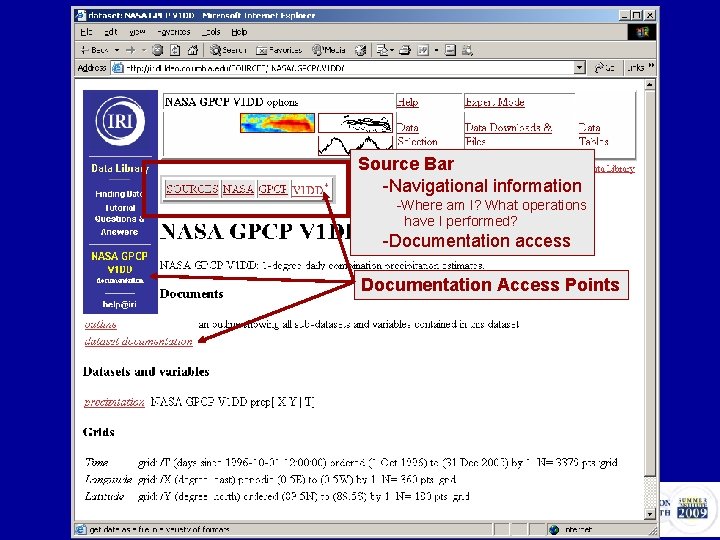
Source Bar -Navigational information -Where am I? What operations have I performed? -Documentation access Documentation Access Points
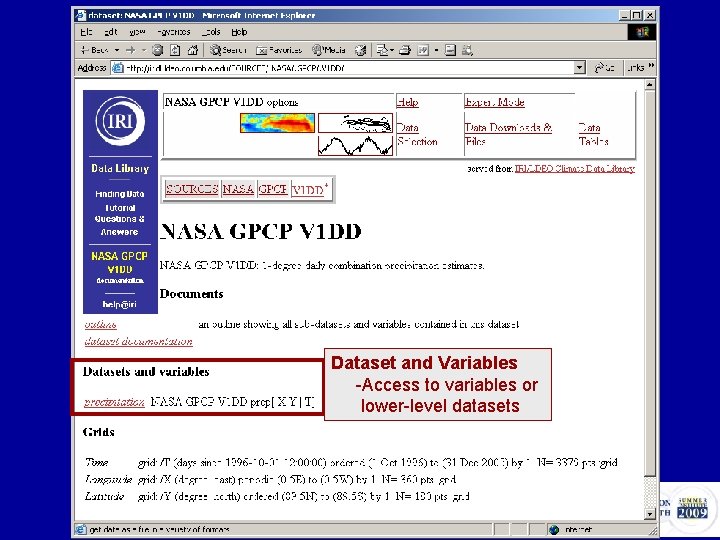
Dataset and Variables -Access to variables or lower-level datasets
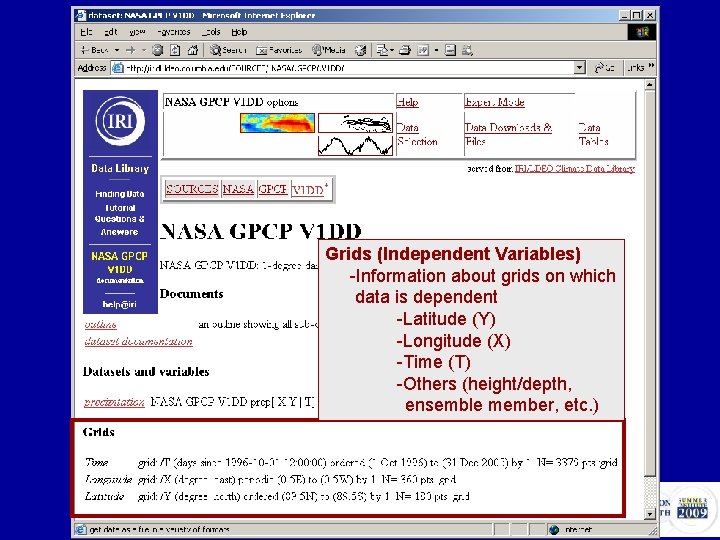
Grids (Independent Variables) -Information about grids on which data is dependent -Latitude (Y) -Longitude (X) -Time (T) -Others (height/depth, ensemble member, etc. )
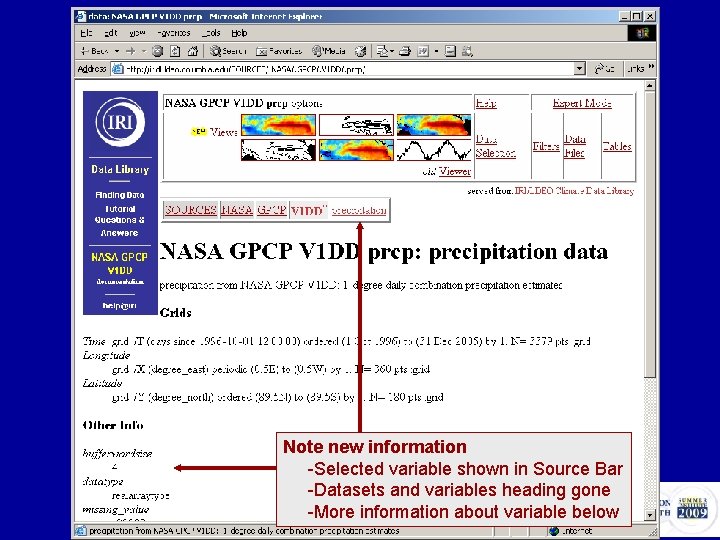
Note new information -Selected variable shown in Source Bar -Datasets and variables heading gone -More information about variable below
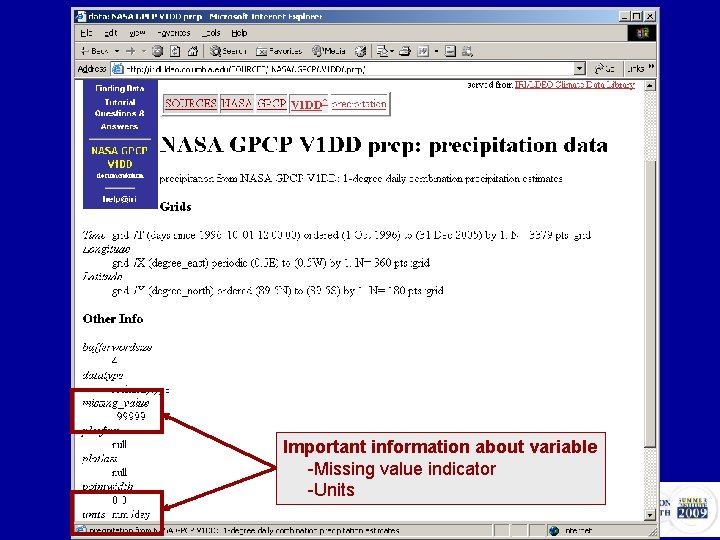
Important information about variable -Missing value indicator -Units
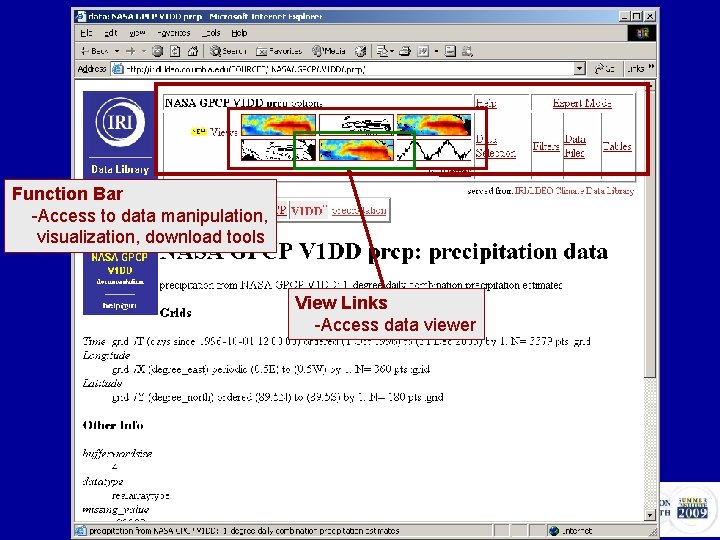
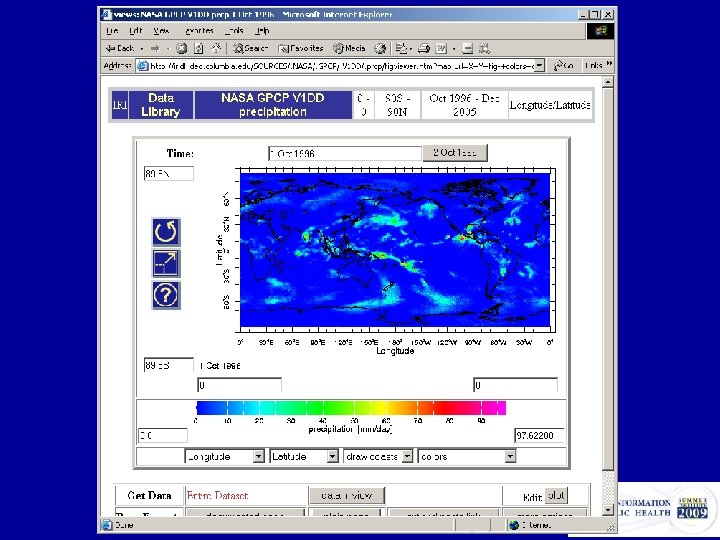
Function Bar -Access to data manipulation, visualization, download tools View Links -Access data viewer
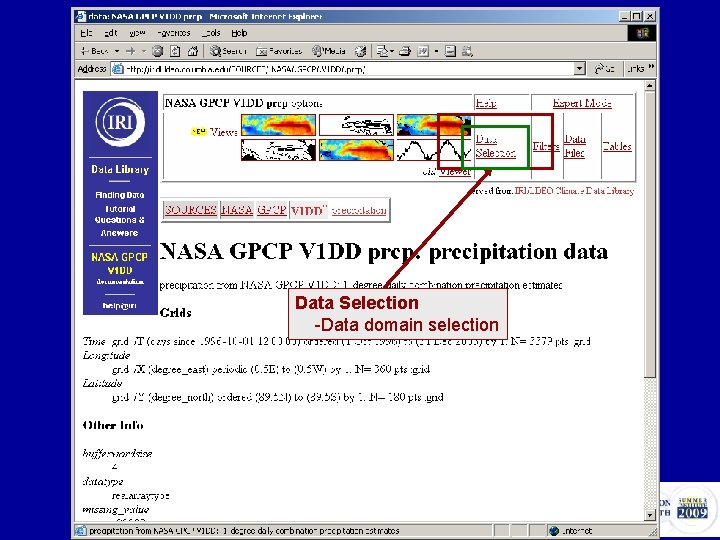
Data Selection -Data domain selection
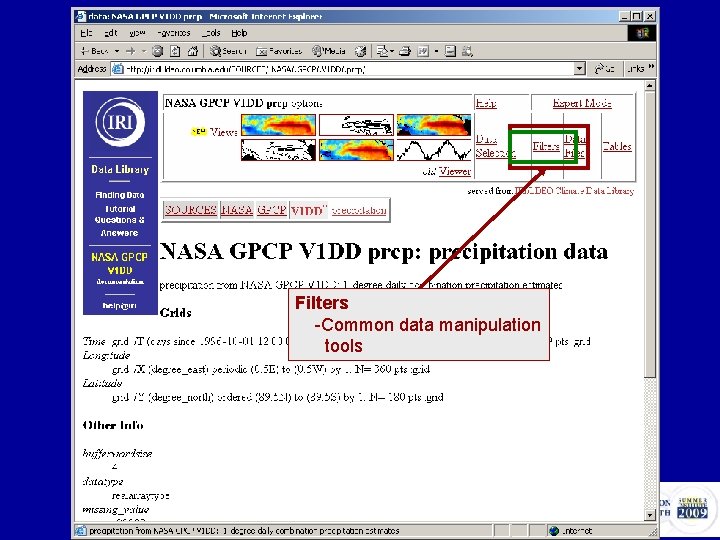
Filters -Common data manipulation tools
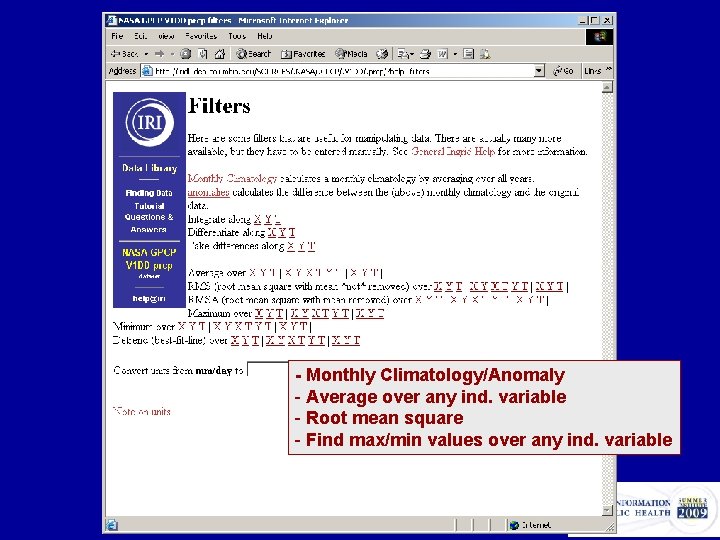
- Monthly Climatology/Anomaly - Average over any ind. variable - Root mean square - Find max/min values over any ind. variable
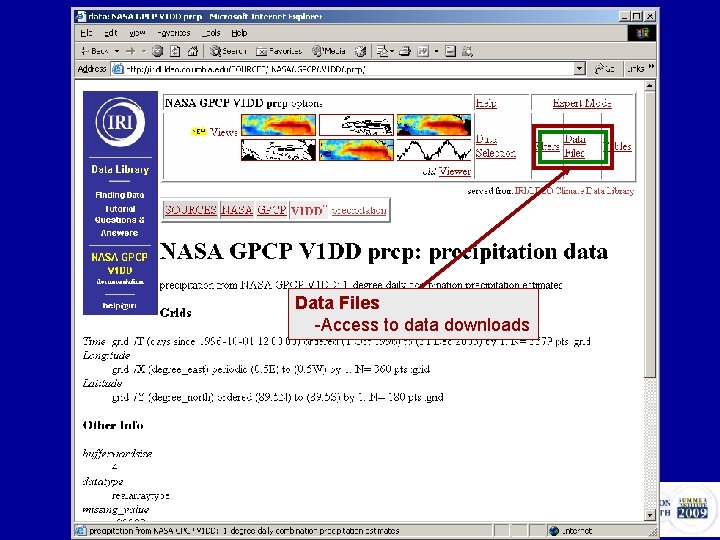
Data Files -Access to data downloads
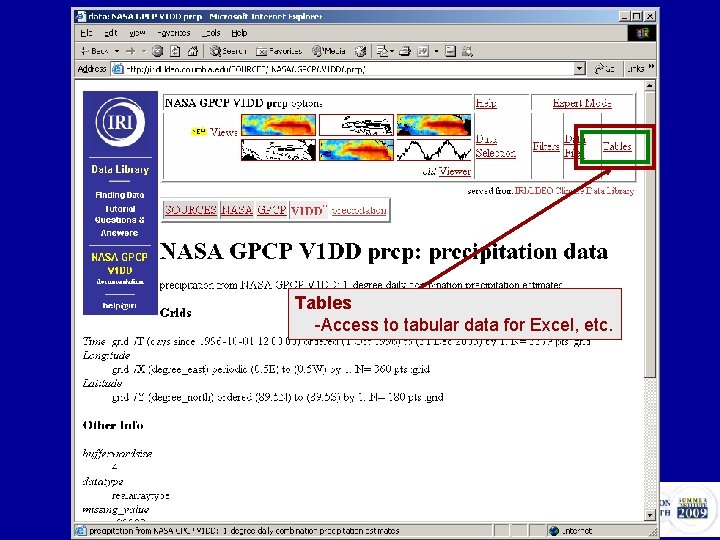
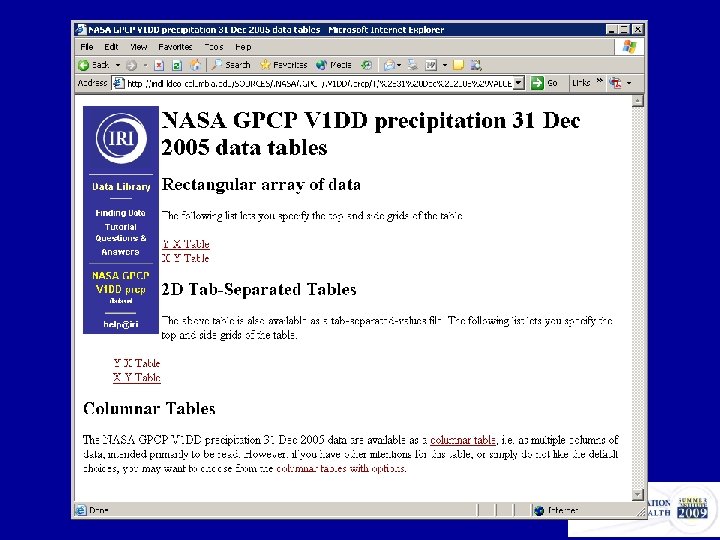
Tables -Access to tabular data for Excel, etc.
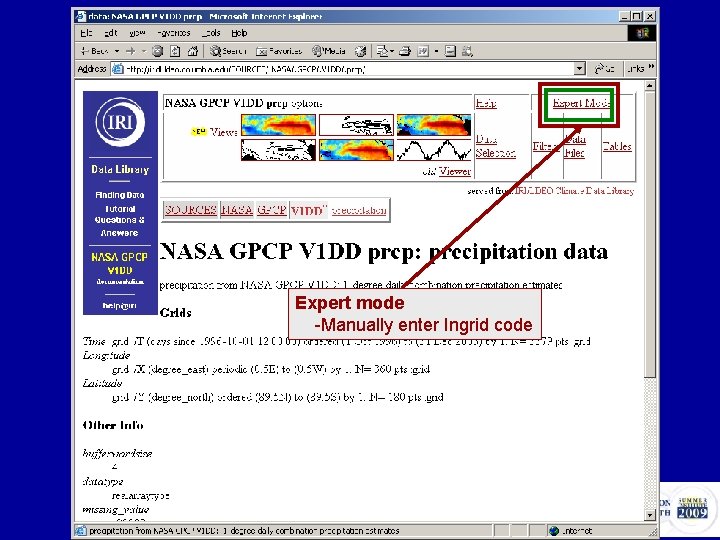
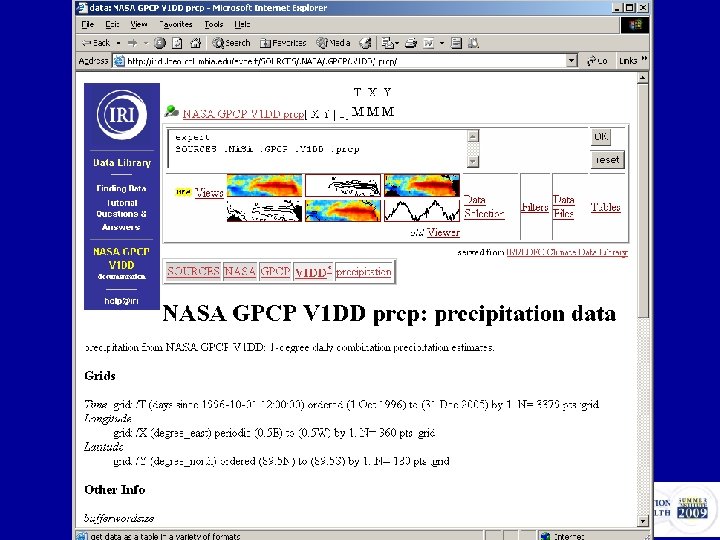
Expert mode -Manually enter Ingrid code
Selecting Data Domain Gridded Datasets
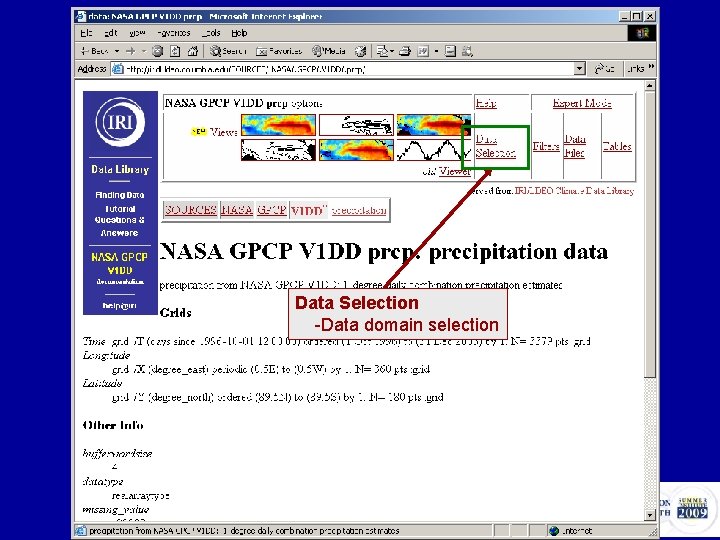
Data Selection -Data domain selection
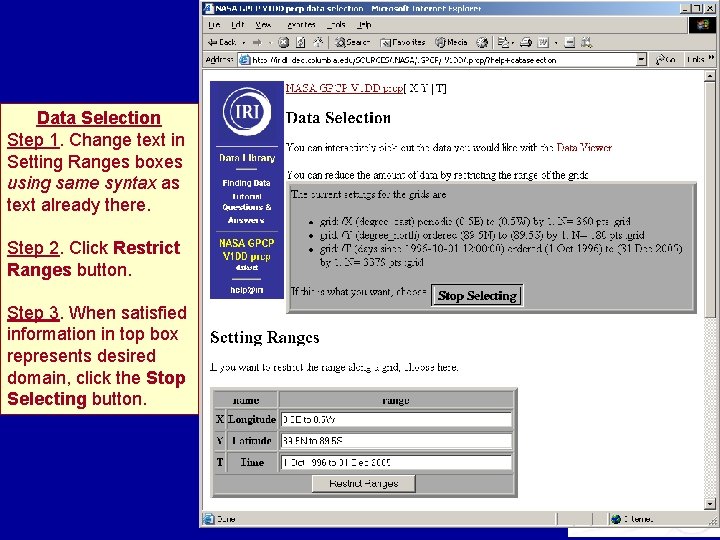
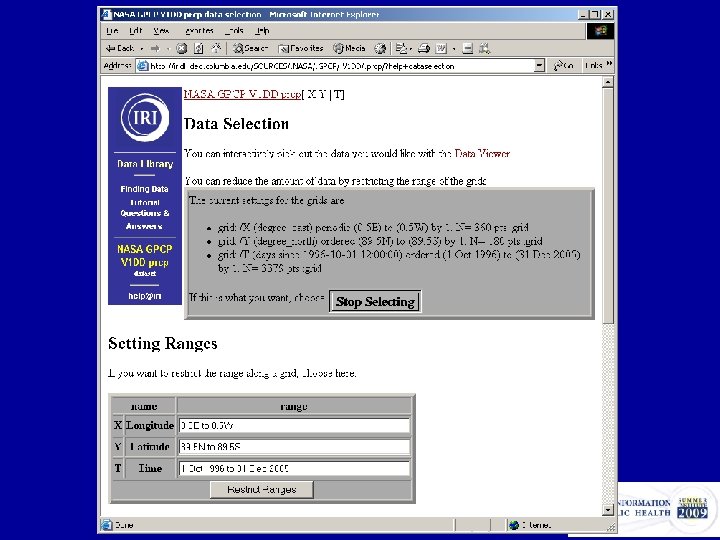
Data Selection Step 1. Change text in Setting Ranges boxes using same syntax as text already there. Step 2. Click Restrict Ranges button. Step 3. When satisfied information in top box represents desired domain, click the Stop Selecting button.
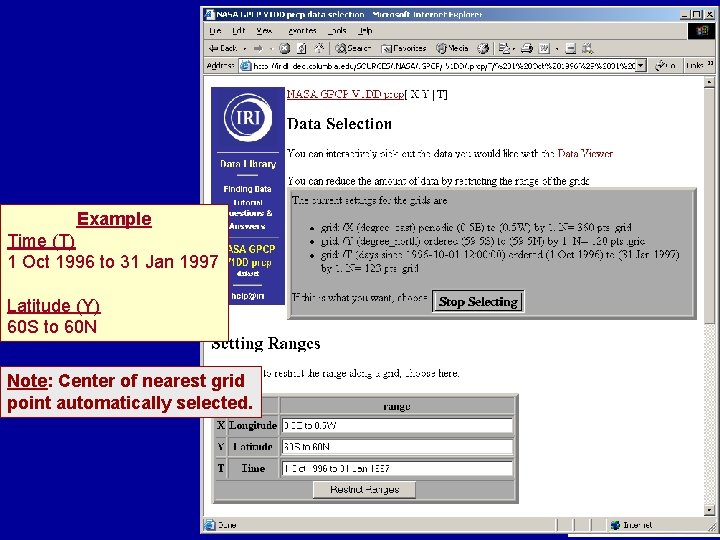
Example Time (T) 1 Oct 1996 to 31 Jan 1997 Latitude (Y) 60 S to 60 N Note: Center of nearest grid point automatically selected.
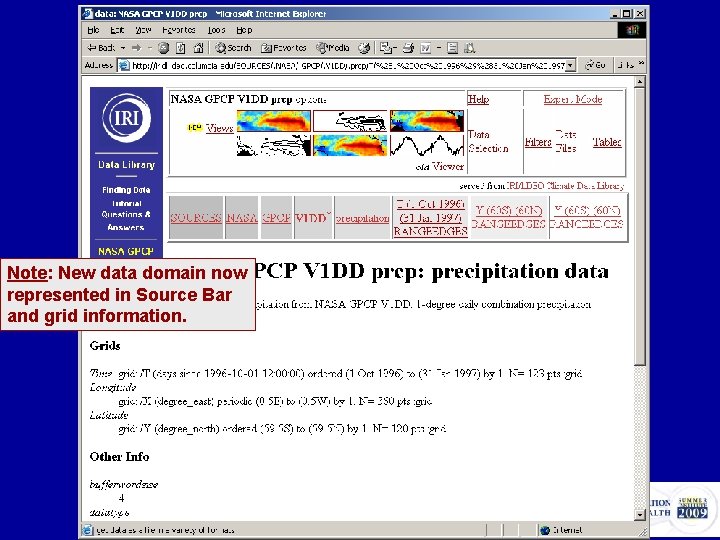
Note: New data domain now represented in Source Bar and grid information.
Visualizing Data: Making maps and graphs
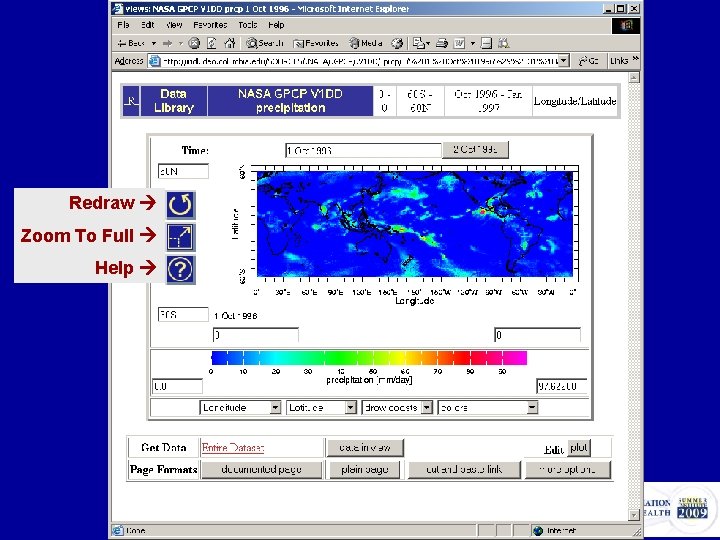
Redraw Zoom To Full Help
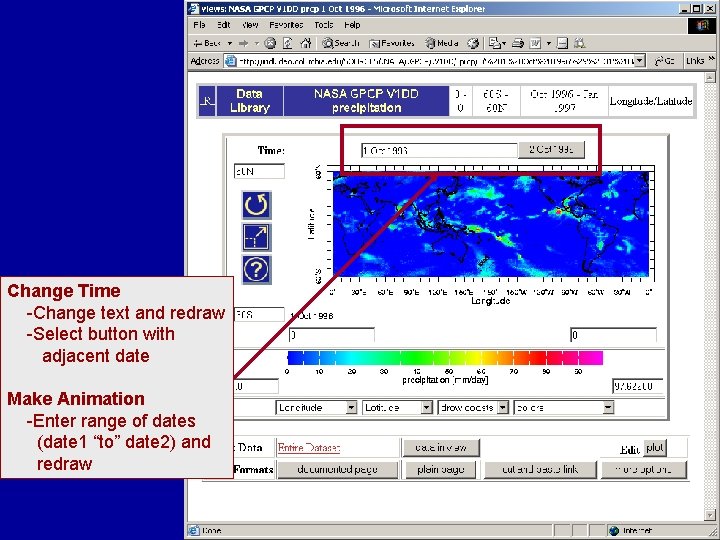
Change Time -Change text and redraw -Select button with adjacent date Make Animation -Enter range of dates (date 1 “to” date 2) and redraw
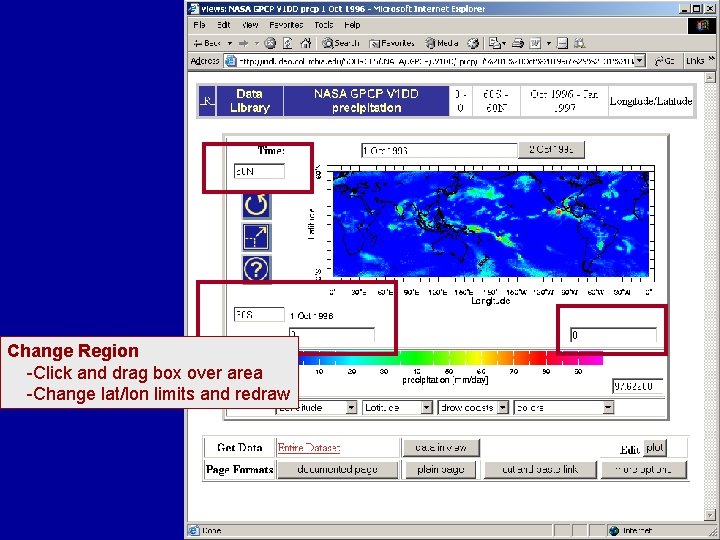
Change Region -Click and drag box over area -Change lat/lon limits and redraw
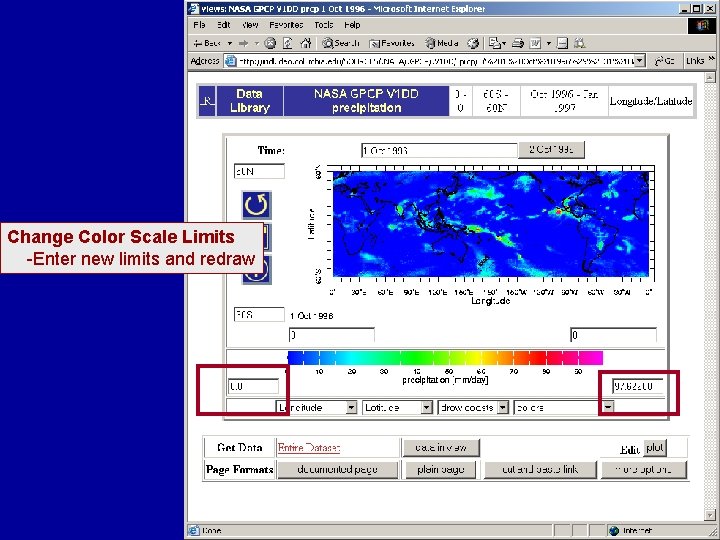
Change Color Scale Limits -Enter new limits and redraw
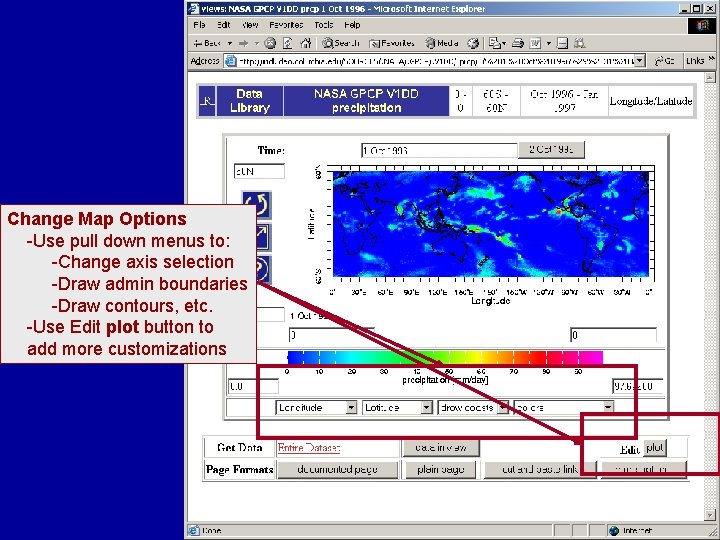
Change Map Options -Use pull down menus to: -Change axis selection -Draw admin boundaries -Draw contours, etc. -Use Edit plot button to add more customizations
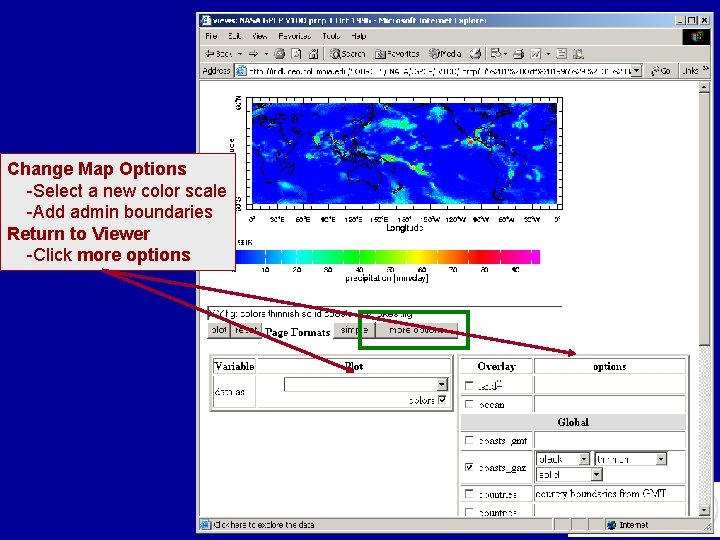
Change Map Options -Select a new color scale -Add admin boundaries Return to Viewer -Click more options
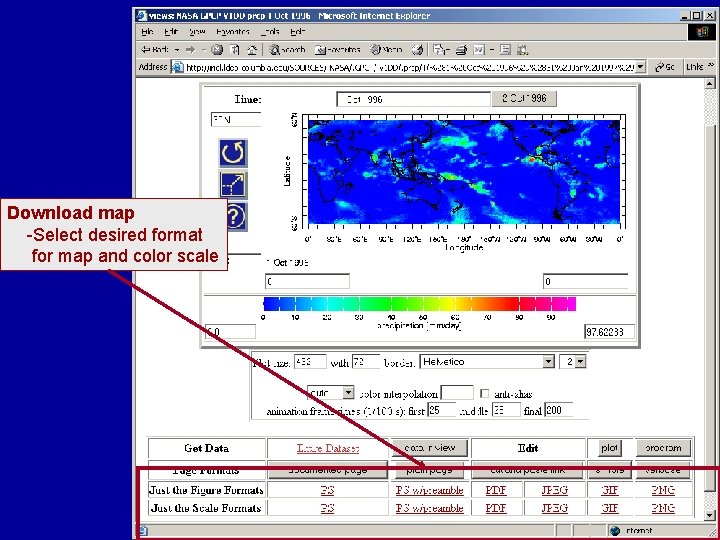
Download map -Select desired format for map and color scale
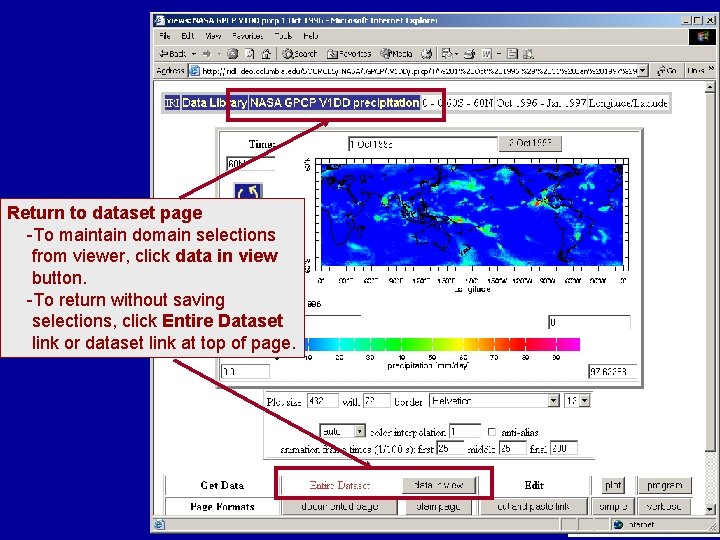
Return to dataset page -To maintain domain selections from viewer, click data in view button. -To return without saving selections, click Entire Dataset link or dataset link at top of page.
Downloading Data Files
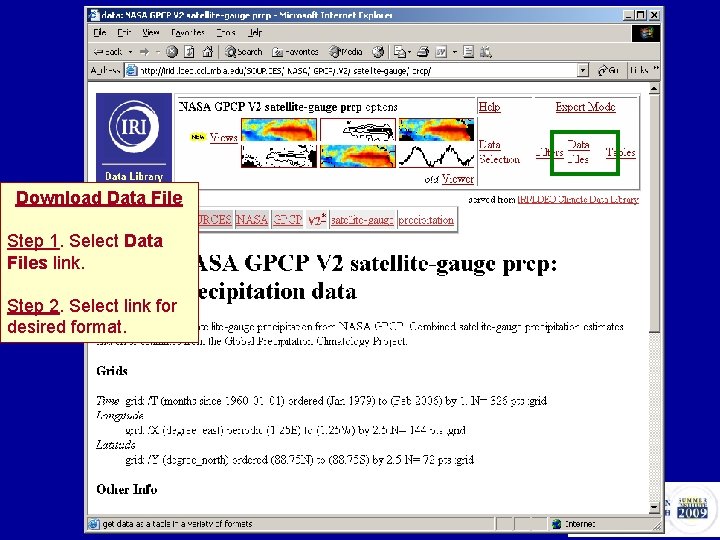
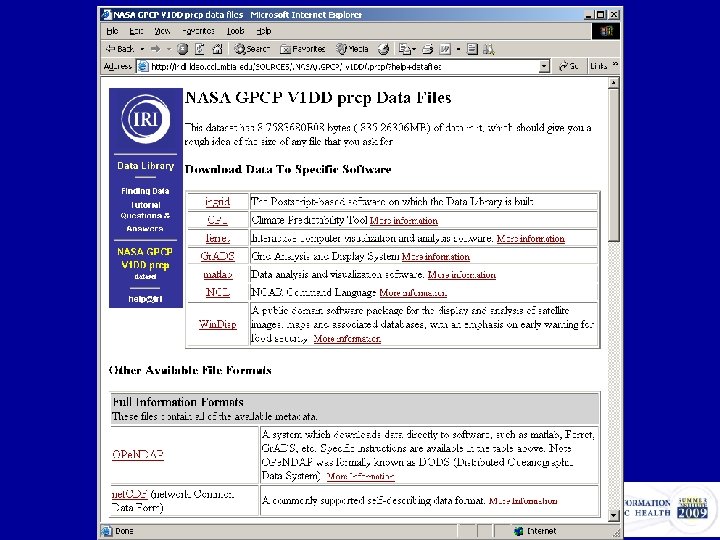
Download Data File Step 1. Select Data Files link. Step 2. Select link for desired format.
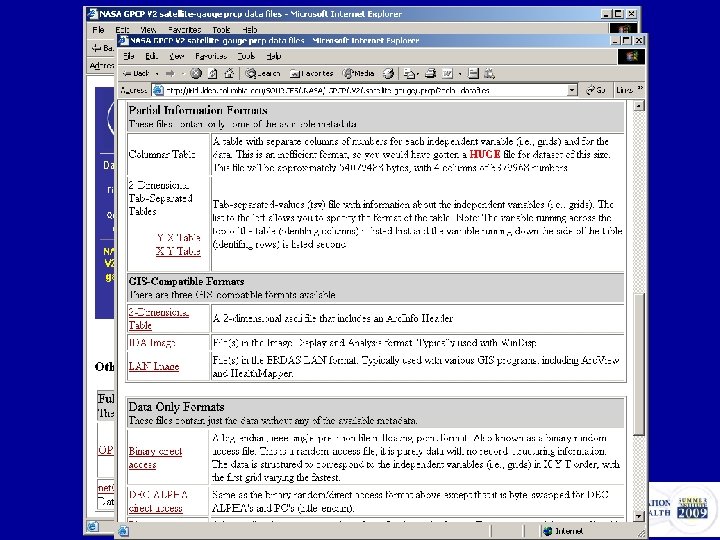
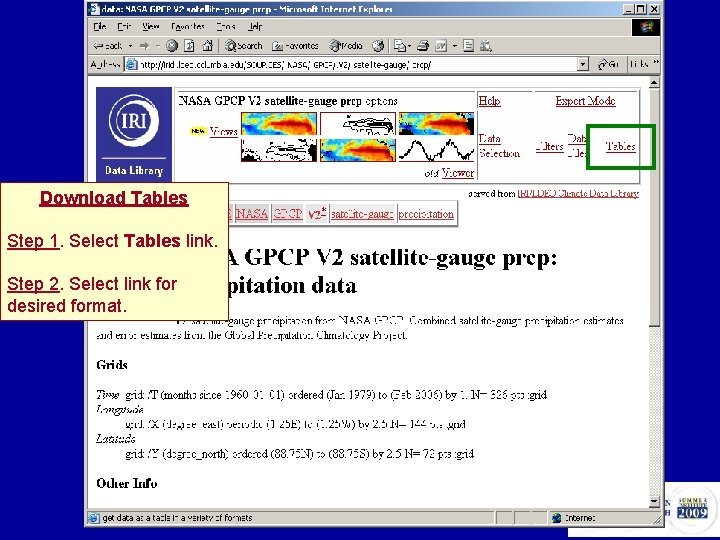
Download Tables Step 1. Select Tables link. Step 2. Select link for desired format.
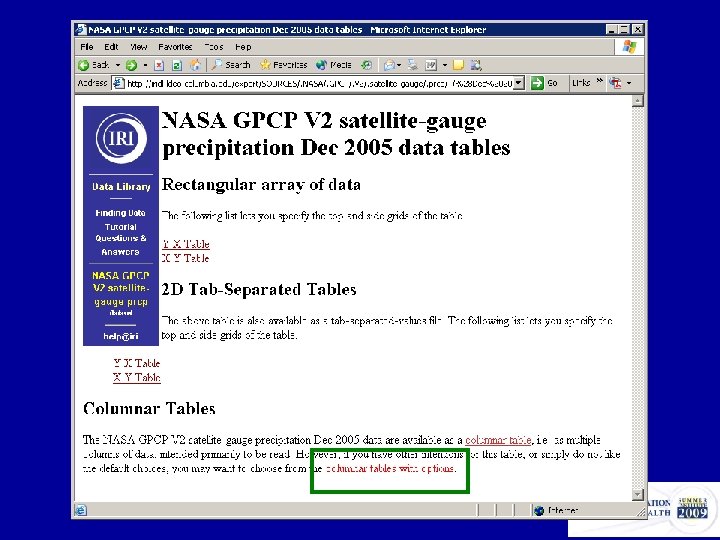
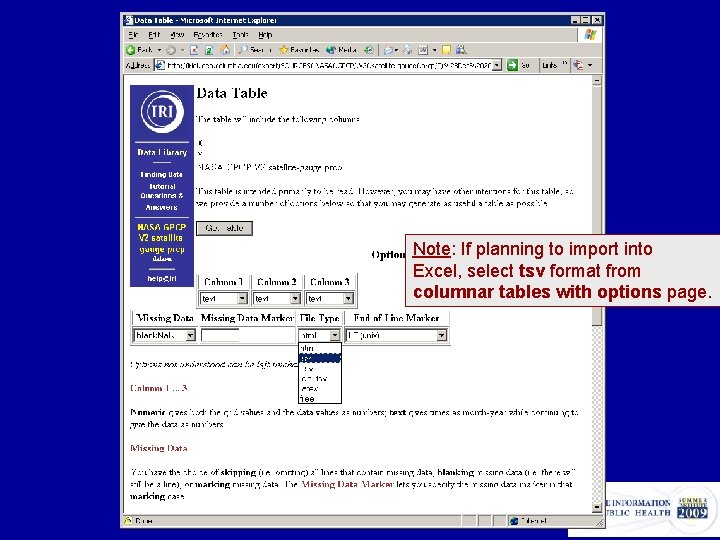
Note: If planning to import into Excel, select tsv format from columnar tables with options page.
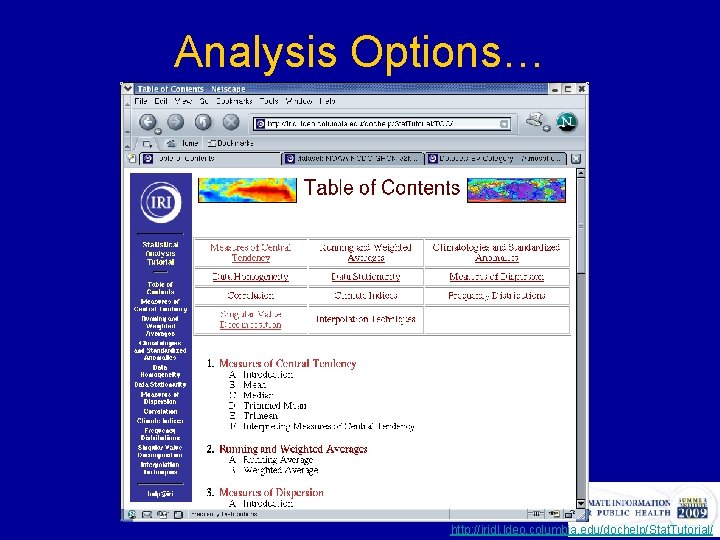
Analysis Options… http: //iridl. ldeo. columbia. edu/dochelp/Stat. Tutorial/
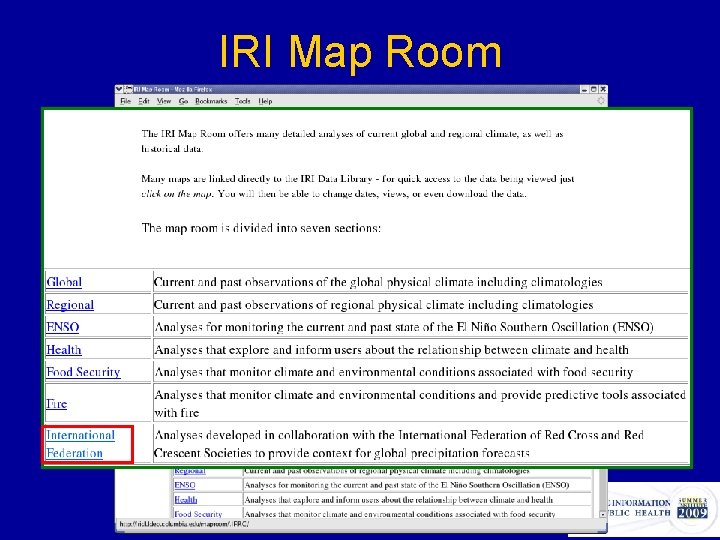
IRI Map Room
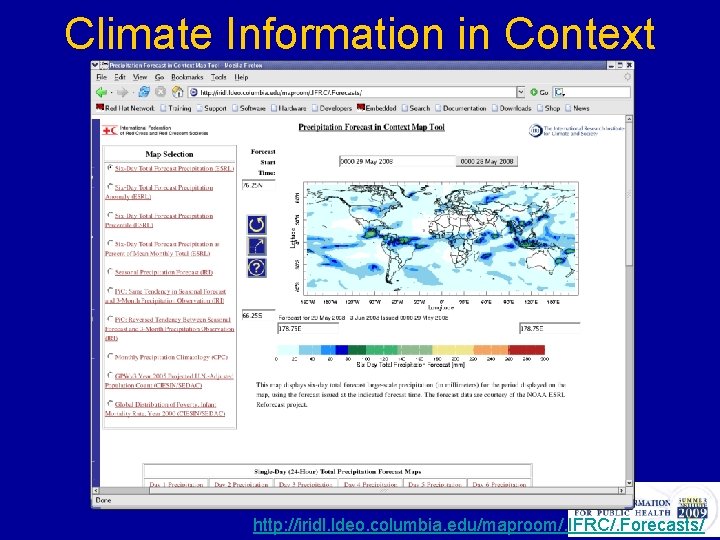
Climate Information in Context http: //iridl. ldeo. columbia. edu/maproom/. IFRC/. Forecasts/
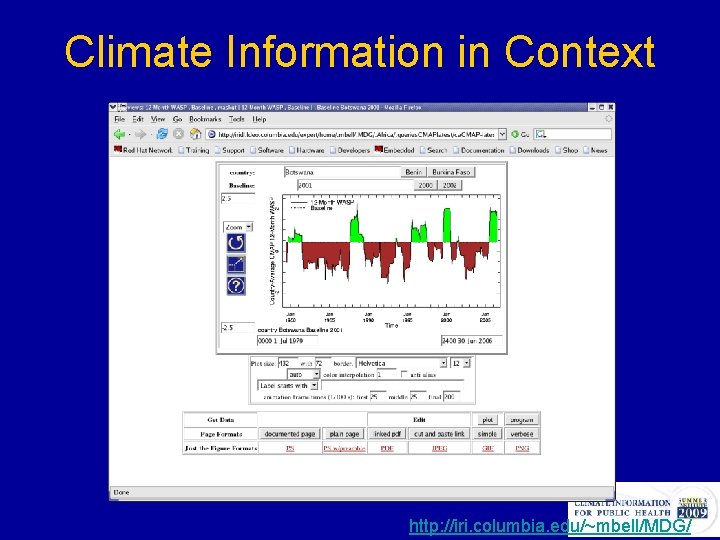
Climate Information in Context http: //iri. columbia. edu/~mbell/MDG/

Flying Solo • Tip: Bookmark analyses you might like to use again • What to do when you have a question: 1. Look for similar example in the Tutorials and Documentation resources 2. Send email to help@iri. columbia. edu ** Copy the url of the page in question into the email
Location of slides: http: //iri. columbia. edu/~mbell/ciph 09/
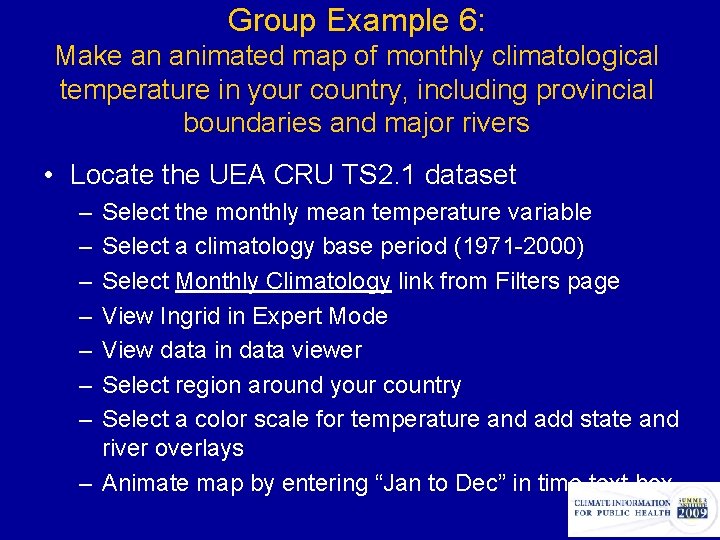
Group Example 6: Make an animated map of monthly climatological temperature in your country, including provincial boundaries and major rivers • Locate the UEA CRU TS 2. 1 dataset – – – – Select the monthly mean temperature variable Select a climatology base period (1971 -2000) Select Monthly Climatology link from Filters page View Ingrid in Expert Mode View data in data viewer Select region around your country Select a color scale for temperature and add state and river overlays – Animate map by entering “Jan to Dec” in time text box
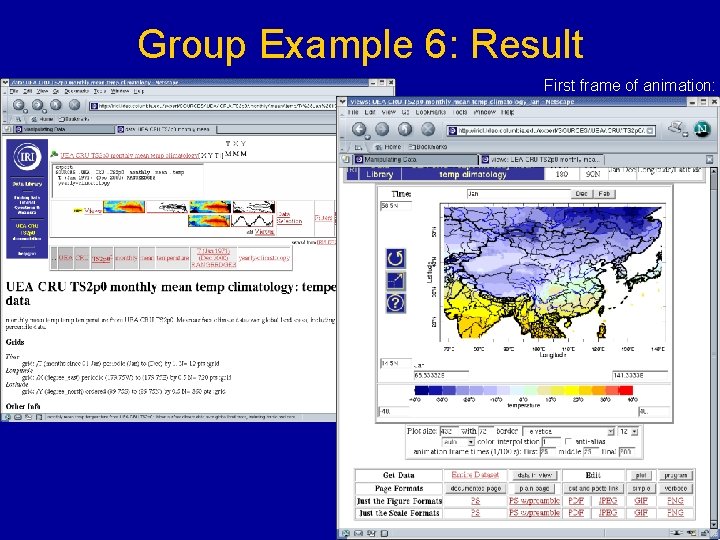
Group Example 6: Result First frame of animation:
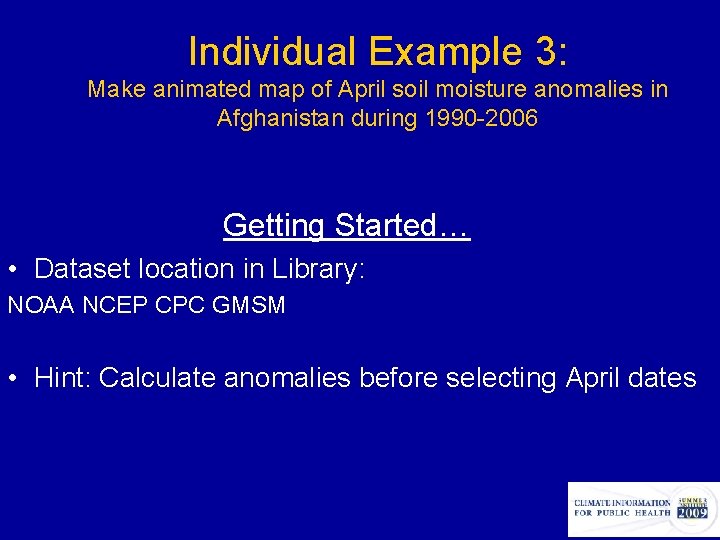
Individual Example 3: Make animated map of April soil moisture anomalies in Afghanistan during 1990 -2006 Getting Started… • Dataset location in Library: NOAA NCEP CPC GMSM • Hint: Calculate anomalies before selecting April dates
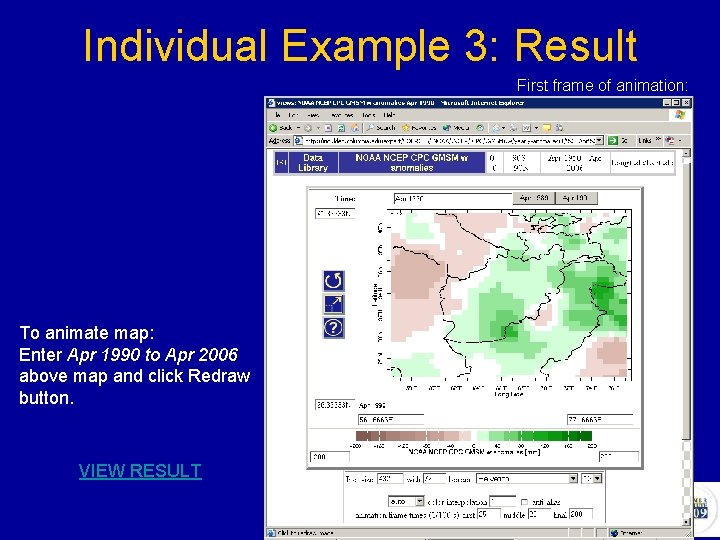
Individual Example 3: Result First frame of animation: To animate map: Enter Apr 1990 to Apr 2006 above map and click Redraw button. VIEW RESULT
- Slides: 63