
AN INTRODUCTION TO Merlin net Patient Care Network




















- Slides: 87
AN INTRODUCTION TO Merlin. net™ Patient Care Network (PCN) Heart Failure Management Portal
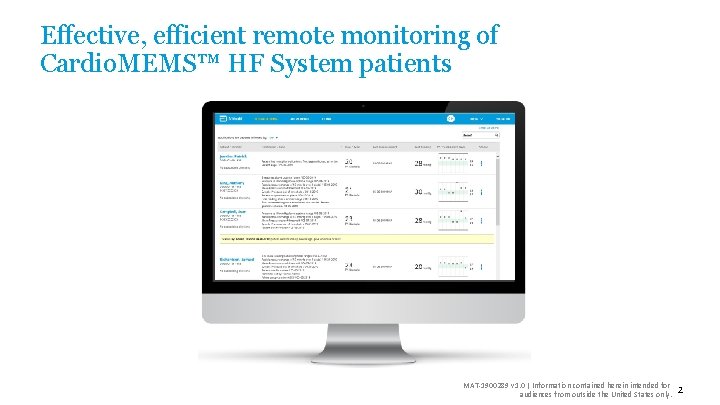
Effective, efficient remote monitoring of Cardio. MEMS™ HF System patients MAT-1900289 v 1. 0 | Information contained herein intended for audiences from outside the United States only. 2
Tools to drive efficiency The MERLIN. NET™ PATIENT CARE NETWORK and MYCARDIOMEMS™ PATIENT APPLICATION allow you to: • • Triage patients effectively with web-based notifications Easily assess patients in a single view Document interventions Reduce patient phone calls with custom messaging MAT-1900289 v 1. 0 | Information contained herein intended for audiences from outside the United States only. 3
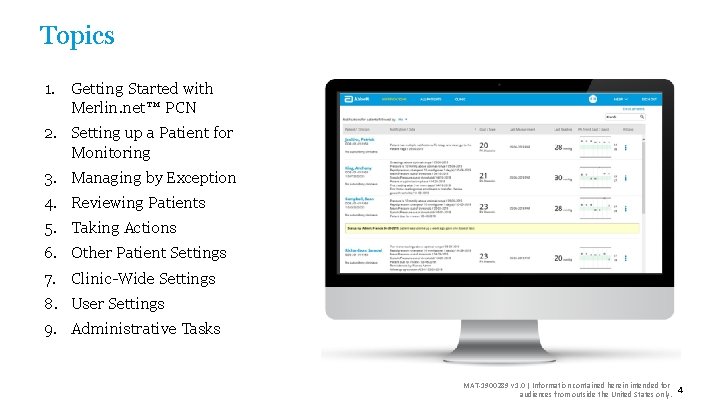
Topics 1. Getting Started with Merlin. net™ PCN 2. Setting up a Patient for Monitoring 3. Managing by Exception 4. Reviewing Patients 5. Taking Actions 6. Other Patient Settings 7. Clinic-Wide Settings 8. User Settings 9. Administrative Tasks MAT-1900289 v 1. 0 | Information contained herein intended for audiences from outside the United States only. 4
1. Getting Started with Merlin. net™ PCN MAT-1900289 v 1. 0 | Information contained herein intended for audiences from outside the United States only. 5
Merlin. net™ PCN overview MAT-1900289 v 1. 0 | Information contained herein intended for audiences from outside the United States only. 6
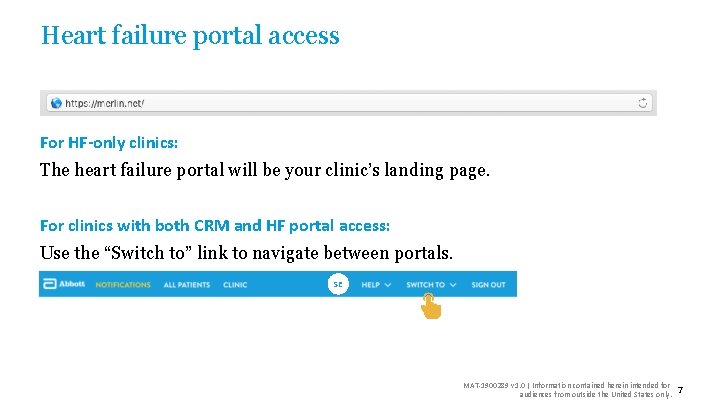
Heart failure portal access For HF-only clinics: The heart failure portal will be your clinic’s landing page. For clinics with both CRM and HF portal access: Use the “Switch to” link to navigate between portals. SE MAT-1900289 v 1. 0 | Information contained herein intended for audiences from outside the United States only. 7
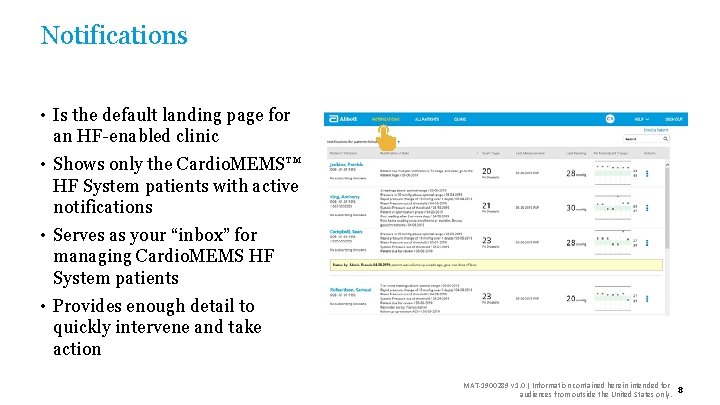
Notifications • Is the default landing page for an HF-enabled clinic • Shows only the Cardio. MEMS™ HF System patients with active notifications • Serves as your “inbox” for managing Cardio. MEMS HF System patients • Provides enough detail to quickly intervene and take action MAT-1900289 v 1. 0 | Information contained herein intended for audiences from outside the United States only. 8
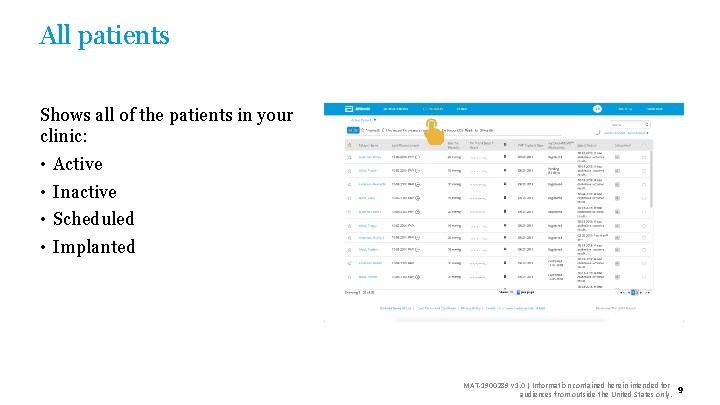
All patients Shows all of the patients in your clinic: • • Active Inactive Scheduled Implanted MAT-1900289 v 1. 0 | Information contained herein intended for audiences from outside the United States only. 9
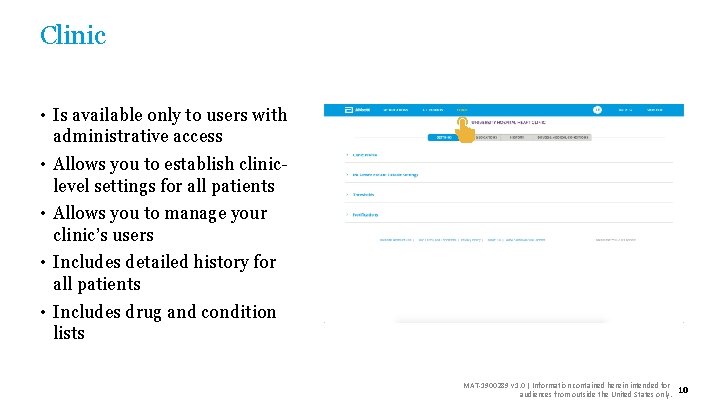
Clinic • Is available only to users with administrative access • Allows you to establish cliniclevel settings for all patients • Allows you to manage your clinic’s users • Includes detailed history for all patients • Includes drug and condition lists MAT-1900289 v 1. 0 | Information contained herein intended for audiences from outside the United States only. 10
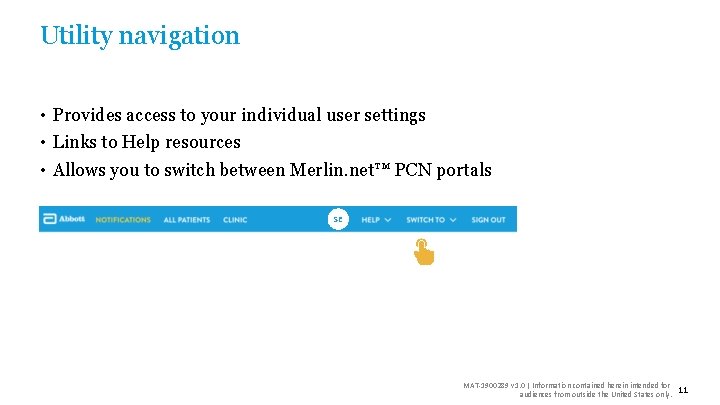
Utility navigation • Provides access to your individual user settings • Links to Help resources • Allows you to switch between Merlin. net™ PCN portals SE MAT-1900289 v 1. 0 | Information contained herein intended for audiences from outside the United States only. 11
Setting up your clinic MAT-1900289 v 1. 0 | Information contained herein intended for audiences from outside the United States only. 12
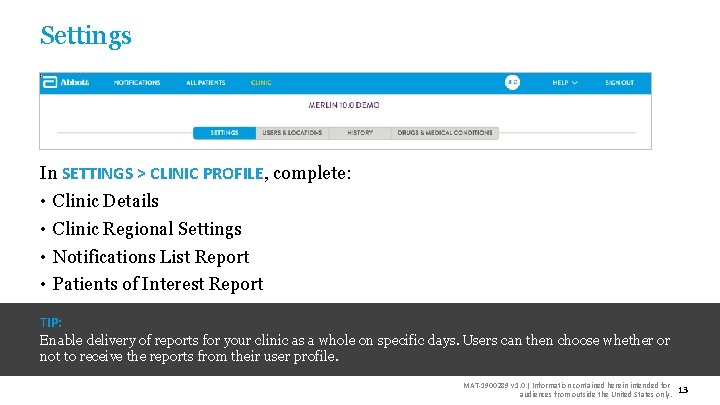
Settings In SETTINGS > CLINIC PROFILE, complete: • • Clinic Details Clinic Regional Settings Notifications List Report Patients of Interest Report TIP: Enable delivery of reports for your clinic as a whole on specific days. Users can then choose whether or not to receive the reports from their user profile. MAT-1900289 v 1. 0 | Information contained herein intended for audiences from outside the United States only. 13
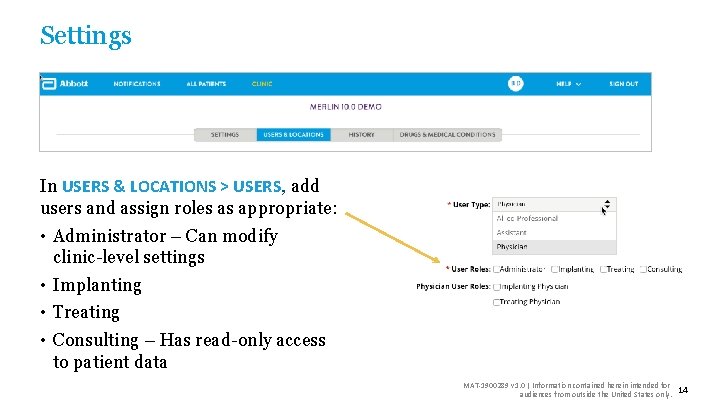
Settings In USERS & LOCATIONS > USERS, add users and assign roles as appropriate: • Administrator – Can modify clinic-level settings • Implanting • Treating • Consulting – Has read-only access to patient data MAT-1900289 v 1. 0 | Information contained herein intended for audiences from outside the United States only. 14
2. Setting up a Patient for Monitoring MAT-1900289 v 1. 0 | Information contained herein intended for audiences from outside the United States only. 15
Enrolling a patient MAT-1900289 v 1. 0 | Information contained herein intended for audiences from outside the United States only. 16
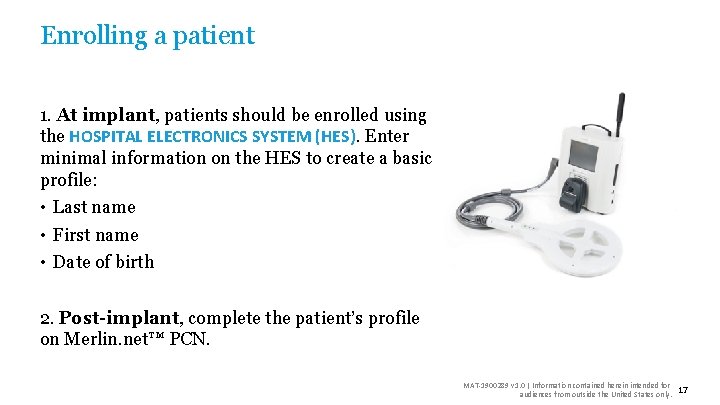
Enrolling a patient 1. At implant, patients should be enrolled using the HOSPITAL ELECTRONICS SYSTEM (HES). Enter minimal information on the HES to create a basic profile: • Last name • First name • Date of birth 2. Post-implant, complete the patient’s profile on Merlin. net™ PCN. MAT-1900289 v 1. 0 | Information contained herein intended for audiences from outside the United States only. 17
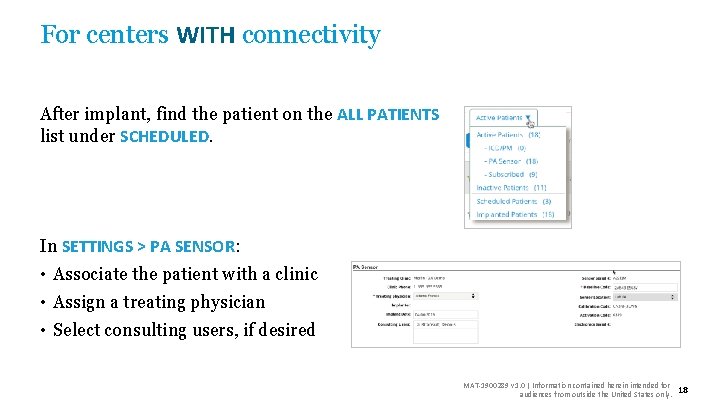
For centers WITH connectivity After implant, find the patient on the ALL PATIENTS list under SCHEDULED. In SETTINGS > PA SENSOR: • Associate the patient with a clinic • Assign a treating physician • Select consulting users, if desired MAT-1900289 v 1. 0 | Information contained herein intended for audiences from outside the United States only. 18
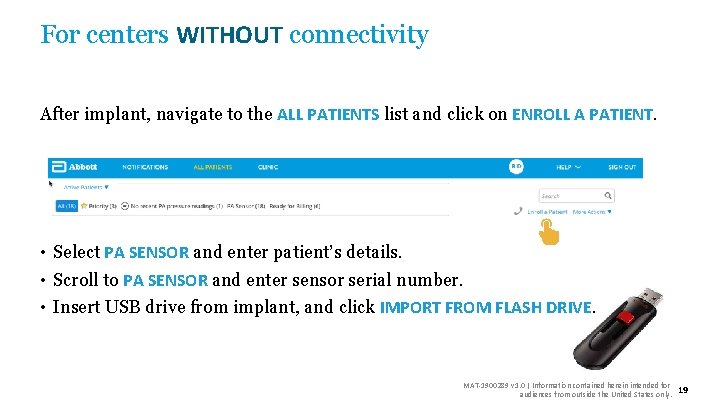
For centers WITHOUT connectivity After implant, navigate to the ALL PATIENTS list and click on ENROLL A PATIENT. • Select PA SENSOR and enter patient’s details. • Scroll to PA SENSOR and enter sensor serial number. • Insert USB drive from implant, and click IMPORT FROM FLASH DRIVE. MAT-1900289 v 1. 0 | Information contained herein intended for audiences from outside the United States only. 19
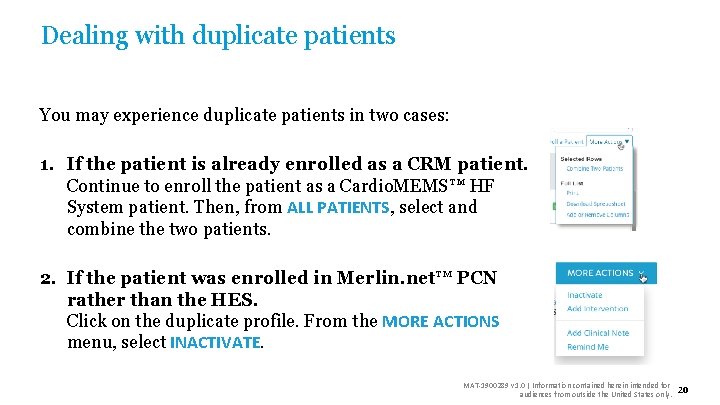
Dealing with duplicate patients You may experience duplicate patients in two cases: 1. If the patient is already enrolled as a CRM patient. Continue to enroll the patient as a Cardio. MEMS™ HF System patient. Then, from ALL PATIENTS, select and combine the two patients. 2. If the patient was enrolled in Merlin. net™ PCN rather than the HES. Click on the duplicate profile. From the MORE ACTIONS menu, select INACTIVATE. MAT-1900289 v 1. 0 | Information contained herein intended for audiences from outside the United States only. 20
Setting up a patient’s profile MAT-1900289 v 1. 0 | Information contained herein intended for audiences from outside the United States only. 21
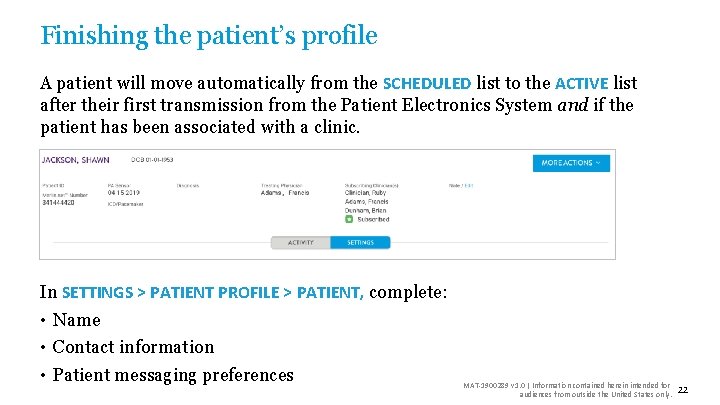
Finishing the patient’s profile A patient will move automatically from the SCHEDULED list to the ACTIVE list after their first transmission from the Patient Electronics System and if the patient has been associated with a clinic. In SETTINGS > PATIENT PROFILE > PATIENT, complete: • Name • Contact information • Patient messaging preferences MAT-1900289 v 1. 0 | Information contained herein intended for audiences from outside the United States only. 22
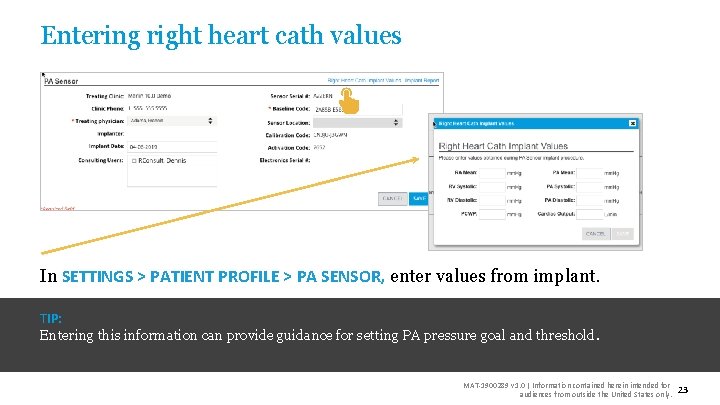
Entering right heart cath values In SETTINGS > PATIENT PROFILE > PA SENSOR, enter values from implant. TIP: Entering this information can provide guidance for setting PA pressure goal and threshold. MAT-1900289 v 1. 0 | Information contained herein intended for audiences from outside the United States only. 23
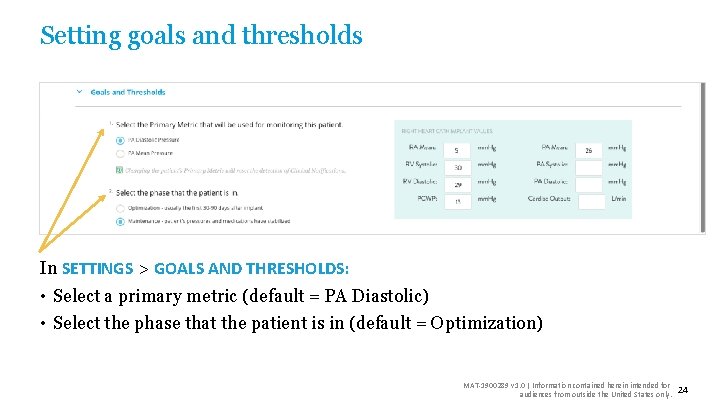
Setting goals and thresholds In SETTINGS > GOALS AND THRESHOLDS: • Select a primary metric (default = PA Diastolic) • Select the phase that the patient is in (default = Optimization) MAT-1900289 v 1. 0 | Information contained herein intended for audiences from outside the United States only. 24
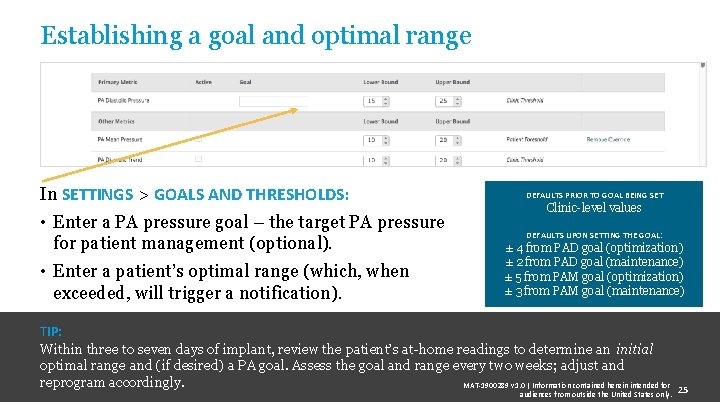
Establishing a goal and optimal range In SETTINGS > GOALS AND THRESHOLDS: • Enter a PA pressure goal – the target PA pressure for patient management (optional). • Enter a patient’s optimal range (which, when exceeded, will trigger a notification). DEFAULTS PRIOR TO GOAL BEING SET Clinic-level values DEFAULTS UPON SETTING THE GOAL: ± 4 from PAD goal (optimization) ± 2 from PAD goal (maintenance) ± 5 from PAM goal (optimization) ± 3 from PAM goal (maintenance) TIP: Within three to seven days of implant, review the patient’s at-home readings to determine an initial optimal range and (if desired) a PA goal. Assess the goal and range every two weeks; adjust and reprogram accordingly. MAT-1900289 v 1. 0 | Information contained herein intended for audiences from outside the United States only. 25
3. Managing by Exception MAT-1900289 v 1. 0 | Information contained herein intended for audiences from outside the United States only. 26
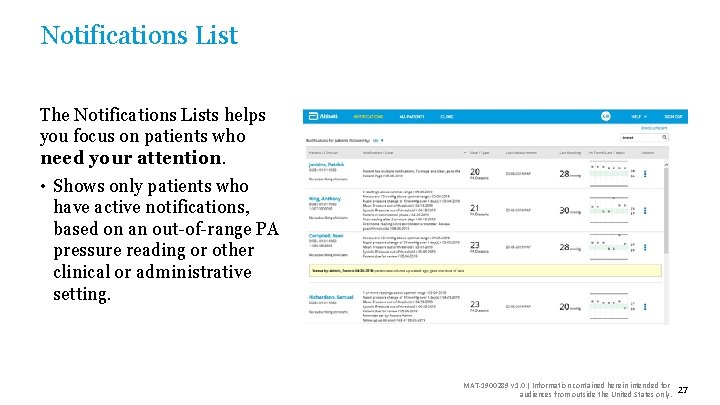
Notifications List The Notifications Lists helps you focus on patients who need your attention. • Shows only patients who have active notifications, based on an out-of-range PA pressure reading or other clinical or administrative setting. MAT-1900289 v 1. 0 | Information contained herein intended for audiences from outside the United States only. 27
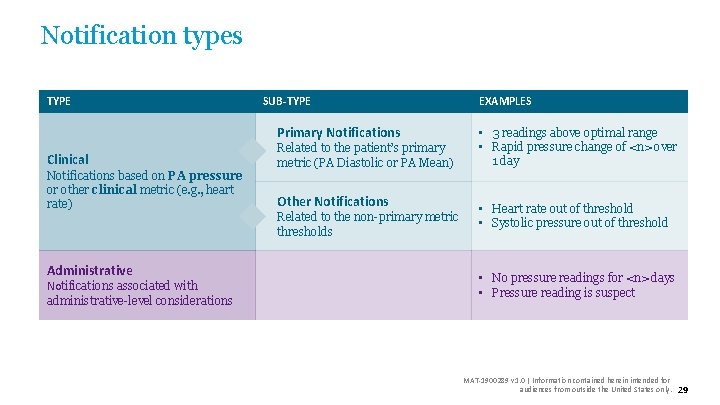
Notification types MAT-1900289 v 1. 0 | Information contained herein intended for audiences from outside the United States only. 28
Notification types TYPE SUB-TYPE Primary Notifications Clinical Notifications based on PA pressure or other clinical metric (e. g. , heart rate) Administrative Notifications associated with administrative-level considerations Related to the patient’s primary metric (PA Diastolic or PA Mean) Other Notifications Related to the non-primary metric thresholds EXAMPLES • 3 readings above optimal range • Rapid pressure change of <n> over 1 day • Heart rate out of threshold • Systolic pressure out of threshold • No pressure readings for <n> days • Pressure reading is suspect MAT-1900289 v 1. 0 | Information contained herein intended for audiences from outside the United States only. 29
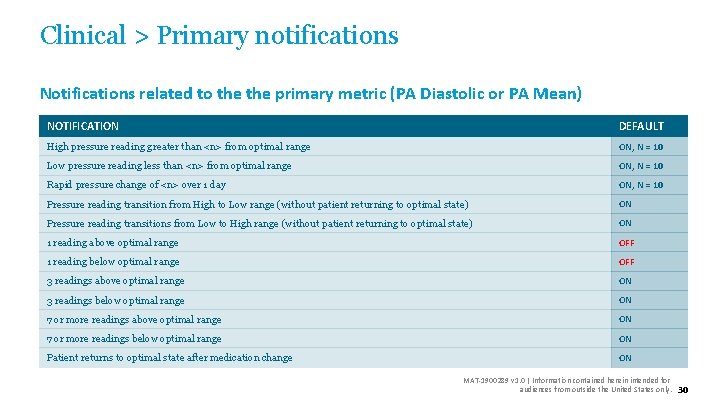
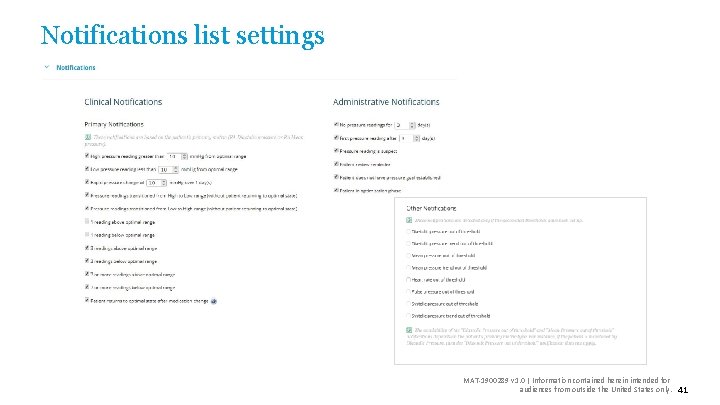
Clinical > Primary notifications Notifications related to the primary metric (PA Diastolic or PA Mean) NOTIFICATION DEFAULT High pressure reading greater than <n> from optimal range ON, N = 10 Low pressure reading less than <n> from optimal range ON, N = 10 Rapid pressure change of <n> over 1 day ON, N = 10 Pressure reading transition from High to Low range (without patient returning to optimal state) ON Pressure reading transitions from Low to High range (without patient returning to optimal state) ON 1 reading above optimal range OFF 1 reading below optimal range OFF 3 readings above optimal range ON 3 readings below optimal range ON 7 or more readings above optimal range ON 7 or more readings below optimal range ON Patient returns to optimal state after medication change ON MAT-1900289 v 1. 0 | Information contained herein intended for audiences from outside the United States only. 30
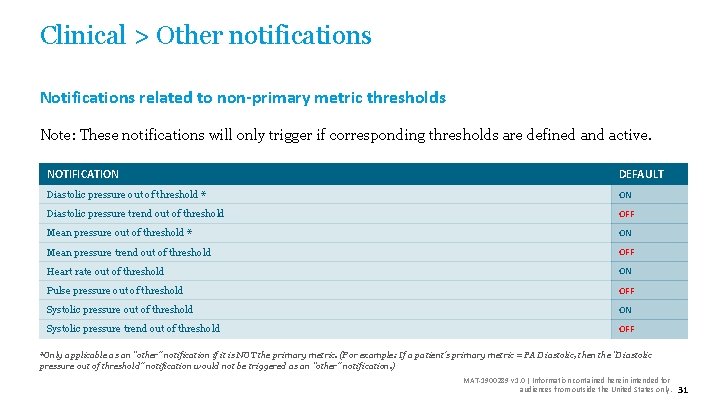
Clinical > Other notifications Notifications related to non-primary metric thresholds Note: These notifications will only trigger if corresponding thresholds are defined and active. NOTIFICATION DEFAULT Diastolic pressure out of threshold * ON Diastolic pressure trend out of threshold OFF Mean pressure out of threshold * ON Mean pressure trend out of threshold OFF Heart rate out of threshold ON Pulse pressure out of threshold OFF Systolic pressure out of threshold ON Systolic pressure trend out of threshold OFF *Only applicable as an “other” notification if it is NOT the primary metric. (For example: If a patient’s primary metric = PA Diastolic, then the “Diastolic pressure out of threshold” notification would not be triggered as an “other” notification. ) MAT-1900289 v 1. 0 | Information contained herein intended for audiences from outside the United States only. 31
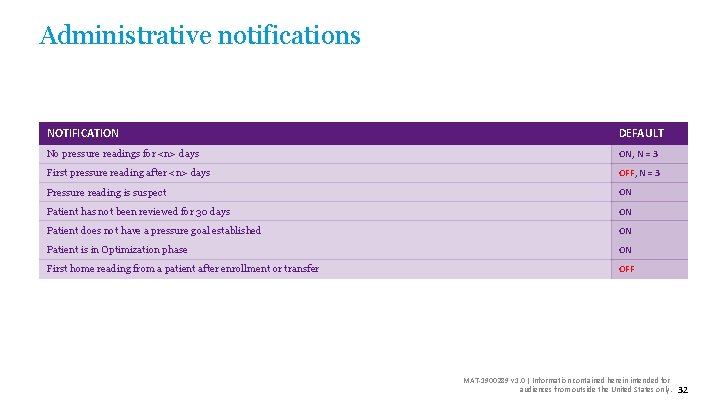
Administrative notifications NOTIFICATION DEFAULT No pressure readings for <n> days ON, N = 3 First pressure reading after <n> days OFF, N = 3 Pressure reading is suspect ON Patient has not been reviewed for 30 days ON Patient does not have a pressure goal established ON Patient is in Optimization phase ON First home reading from a patient after enrollment or transfer OFF MAT-1900289 v 1. 0 | Information contained herein intended for audiences from outside the United States only. 32
Using the notifications list MAT-1900289 v 1. 0 | Information contained herein intended for audiences from outside the United States only. 33
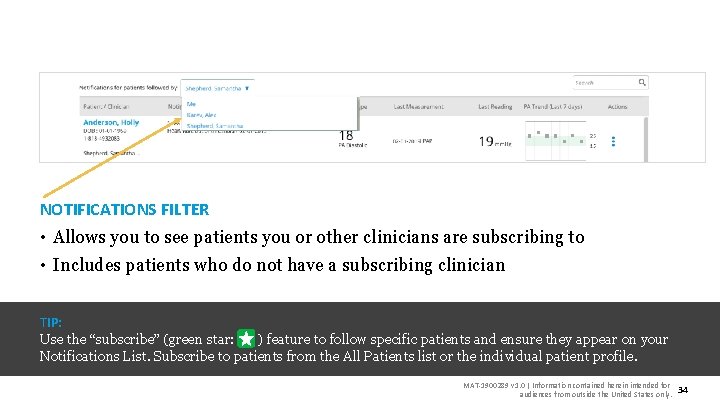
NOTIFICATIONS FILTER • Allows you to see patients you or other clinicians are subscribing to • Includes patients who do not have a subscribing clinician TIP: Use the “subscribe” (green star: ) feature to follow specific patients and ensure they appear on your Notifications List. Subscribe to patients from the All Patients list or the individual patient profile. MAT-1900289 v 1. 0 | Information contained herein intended for audiences from outside the United States only. 34
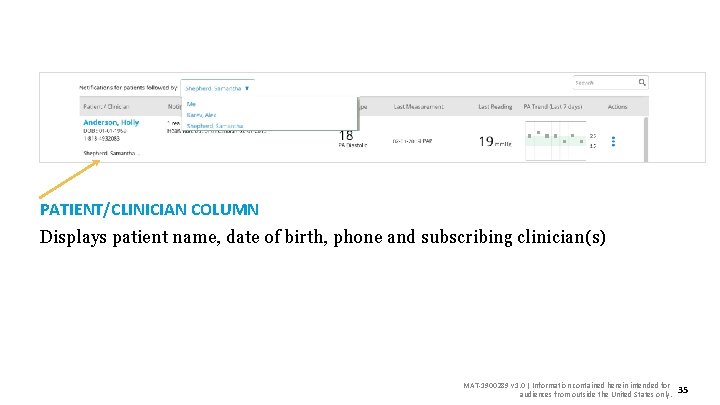
PATIENT/CLINICIAN COLUMN Displays patient name, date of birth, phone and subscribing clinician(s) MAT-1900289 v 1. 0 | Information contained herein intended for audiences from outside the United States only. 35
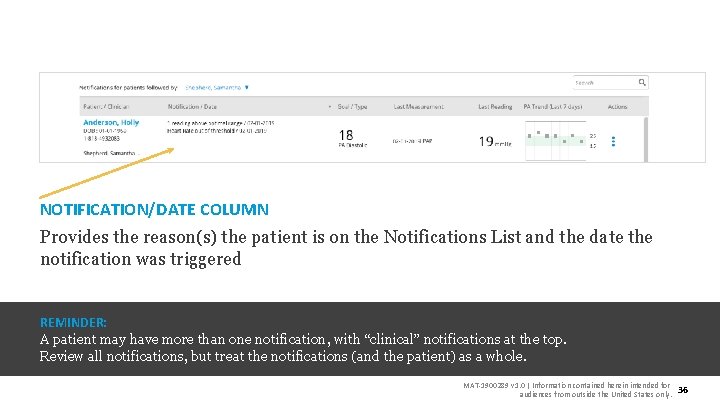
NOTIFICATION/DATE COLUMN Provides the reason(s) the patient is on the Notifications List and the date the notification was triggered REMINDER: A patient may have more than one notification, with “clinical” notifications at the top. Review all notifications, but treat the notifications (and the patient) as a whole. MAT-1900289 v 1. 0 | Information contained herein intended for audiences from outside the United States only. 36
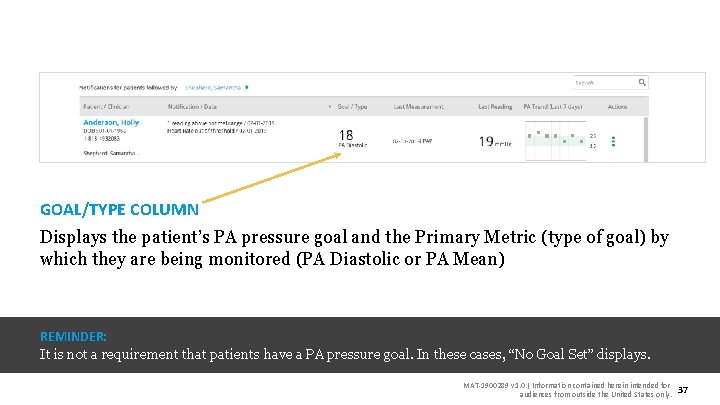
GOAL/TYPE COLUMN Displays the patient’s PA pressure goal and the Primary Metric (type of goal) by which they are being monitored (PA Diastolic or PA Mean) REMINDER: It is not a requirement that patients have a PA pressure goal. In these cases, “No Goal Set” displays. MAT-1900289 v 1. 0 | Information contained herein intended for audiences from outside the United States only. 37
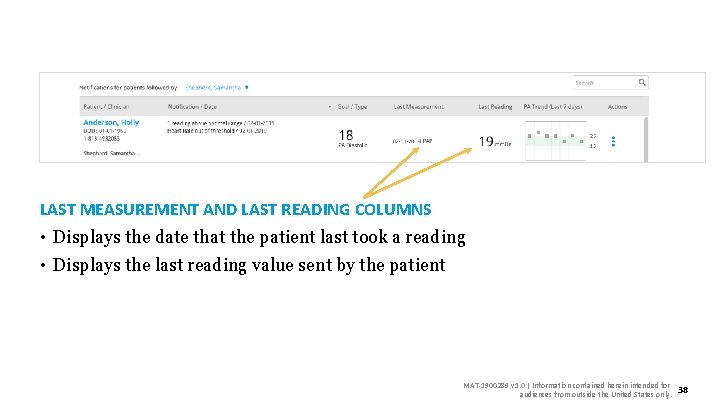
LAST MEASUREMENT AND LAST READING COLUMNS • Displays the date that the patient last took a reading • Displays the last reading value sent by the patient MAT-1900289 v 1. 0 | Information contained herein intended for audiences from outside the United States only. 38
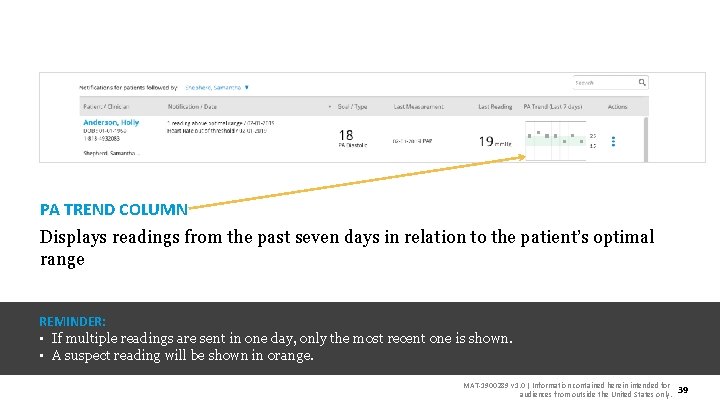
PA TREND COLUMN Displays readings from the past seven days in relation to the patient’s optimal range REMINDER: • If multiple readings are sent in one day, only the most recent one is shown. • A suspect reading will be shown in orange. MAT-1900289 v 1. 0 | Information contained herein intended for audiences from outside the United States only. 39
Getting notified MAT-1900289 v 1. 0 | Information contained herein intended for audiences from outside the United States only. 40
Notifications list settings MAT-1900289 v 1. 0 | Information contained herein intended for audiences from outside the United States only. 41
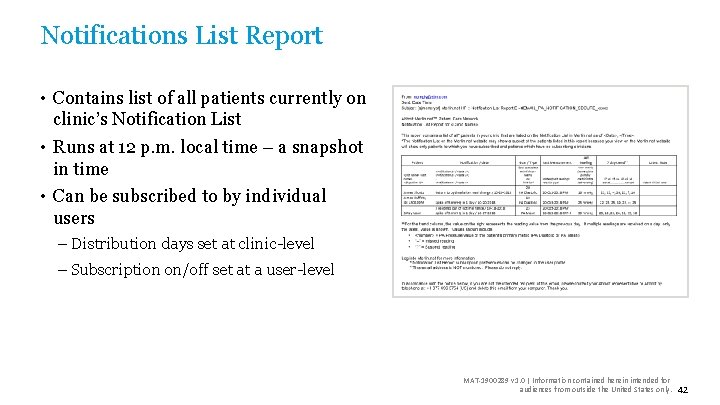
Notifications List Report • Contains list of all patients currently on clinic’s Notification List • Runs at 12 p. m. local time – a snapshot in time • Can be subscribed to by individual users – Distribution days set at clinic-level – Subscription on/off set at a user-level MAT-1900289 v 1. 0 | Information contained herein intended for audiences from outside the United States only. 42
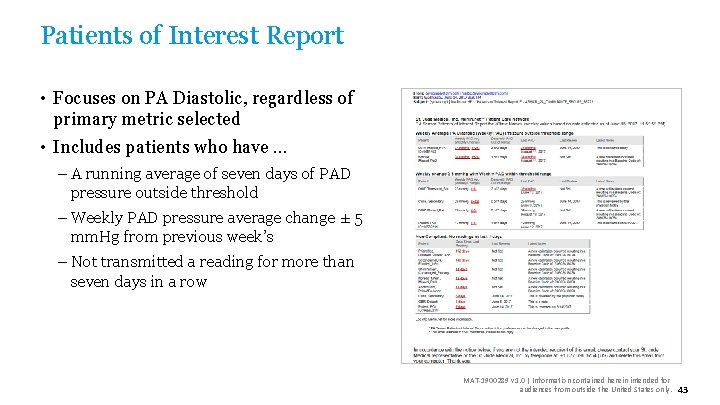
Patients of Interest Report • Focuses on PA Diastolic, regardless of primary metric selected • Includes patients who have … – A running average of seven days of PAD pressure outside threshold – Weekly PAD pressure average change ± 5 mm. Hg from previous week’s – Not transmitted a reading for more than seven days in a row MAT-1900289 v 1. 0 | Information contained herein intended for audiences from outside the United States only. 43
4. Reviewing Patients MAT-1900289 v 1. 0 | Information contained herein intended for audiences from outside the United States only. 44
Patient data review MAT-1900289 v 1. 0 | Information contained herein intended for audiences from outside the United States only. 45
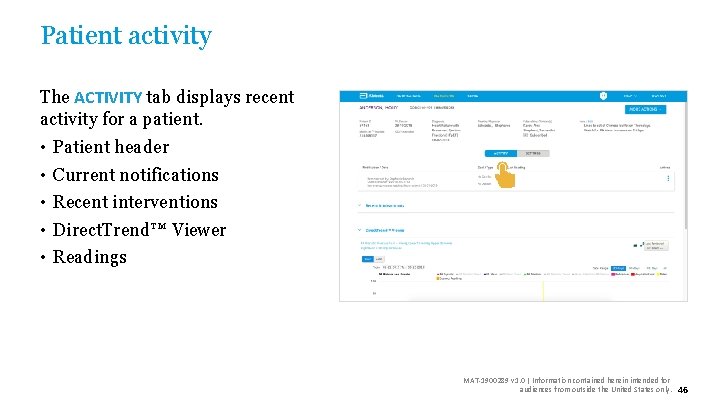
Patient activity The ACTIVITY tab displays recent activity for a patient. • • • Patient header Current notifications Recent interventions Direct. Trend™ Viewer Readings MAT-1900289 v 1. 0 | Information contained herein intended for audiences from outside the United States only. 46
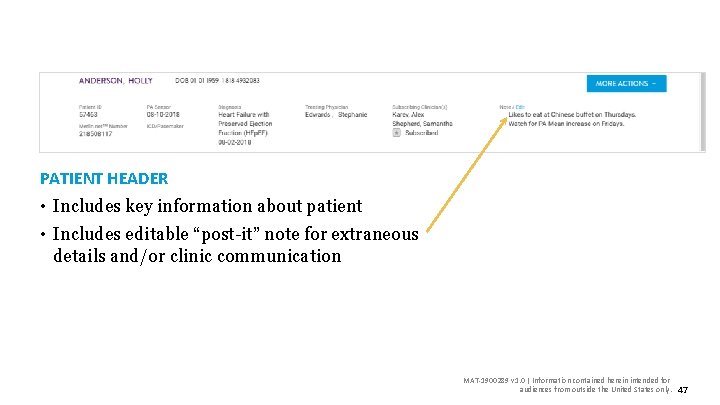
PATIENT HEADER • Includes key information about patient • Includes editable “post-it” note for extraneous details and/or clinic communication MAT-1900289 v 1. 0 | Information contained herein intended for audiences from outside the United States only. 47
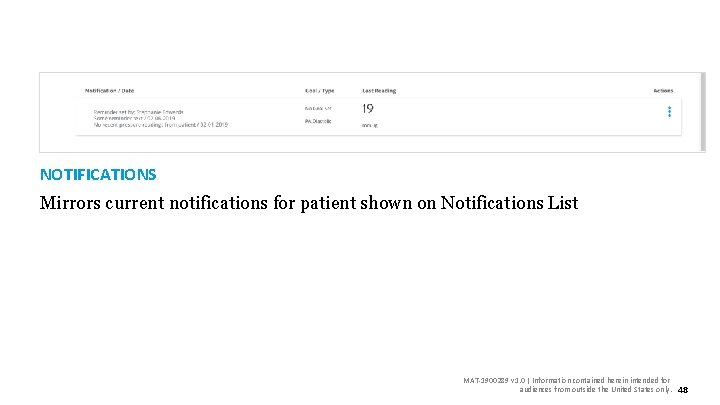
NOTIFICATIONS Mirrors current notifications for patient shown on Notifications List MAT-1900289 v 1. 0 | Information contained herein intended for audiences from outside the United States only. 48
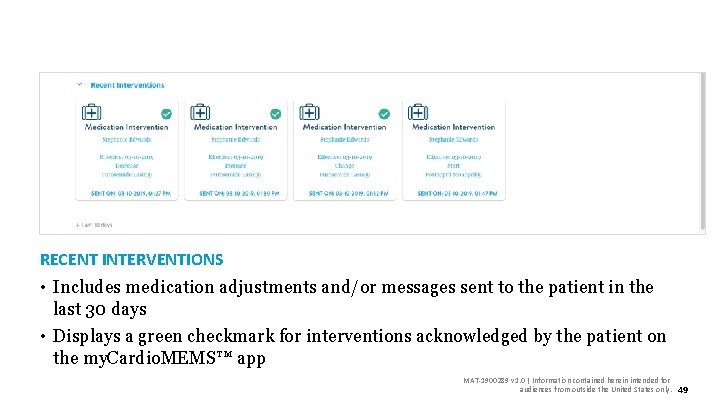
RECENT INTERVENTIONS • Includes medication adjustments and/or messages sent to the patient in the last 30 days • Displays a green checkmark for interventions acknowledged by the patient on the my. Cardio. MEMS™ app MAT-1900289 v 1. 0 | Information contained herein intended for audiences from outside the United States only. 49
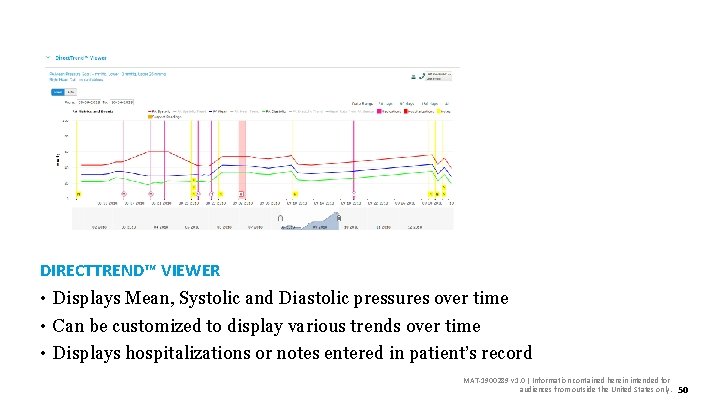
DIRECTTREND™ VIEWER • Displays Mean, Systolic and Diastolic pressures over time • Can be customized to display various trends over time • Displays hospitalizations or notes entered in patient’s record MAT-1900289 v 1. 0 | Information contained herein intended for audiences from outside the United States only. 50
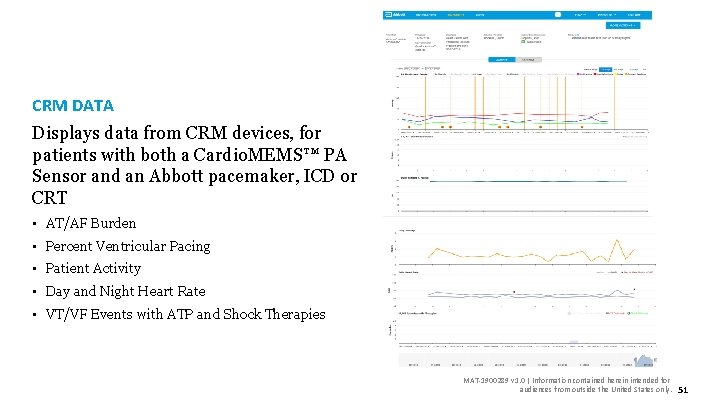
CRM DATA Displays data from CRM devices, for patients with both a Cardio. MEMS™ PA Sensor and an Abbott pacemaker, ICD or CRT • AT/AF Burden • Percent Ventricular Pacing • Patient Activity • Day and Night Heart Rate • VT/VF Events with ATP and Shock Therapies MAT-1900289 v 1. 0 | Information contained herein intended for audiences from outside the United States only. 51
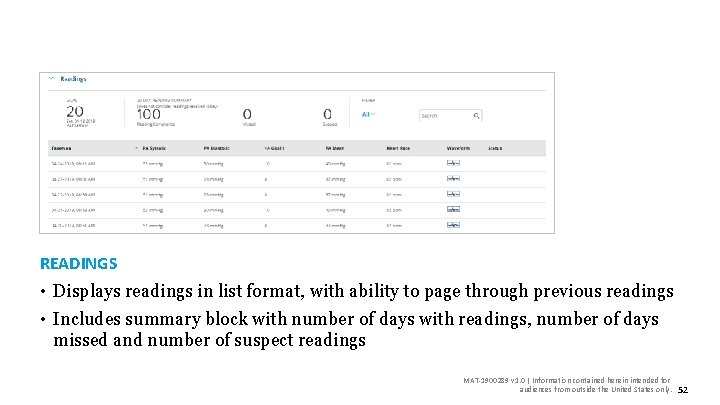
READINGS • Displays readings in list format, with ability to page through previous readings • Includes summary block with number of days with readings, number of days missed and number of suspect readings MAT-1900289 v 1. 0 | Information contained herein intended for audiences from outside the United States only. 52
Suspect readings MAT-1900289 v 1. 0 | Information contained herein intended for audiences from outside the United States only. 53
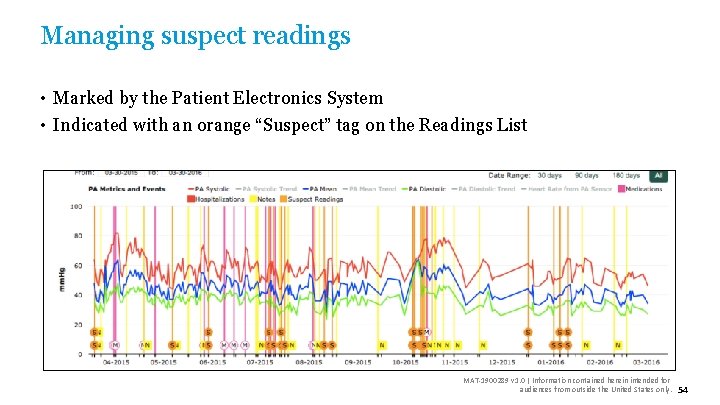
Managing suspect readings • Marked by the Patient Electronics System • Indicated with an orange “Suspect” tag on the Readings List MAT-1900289 v 1. 0 | Information contained herein intended for audiences from outside the United States only. 54
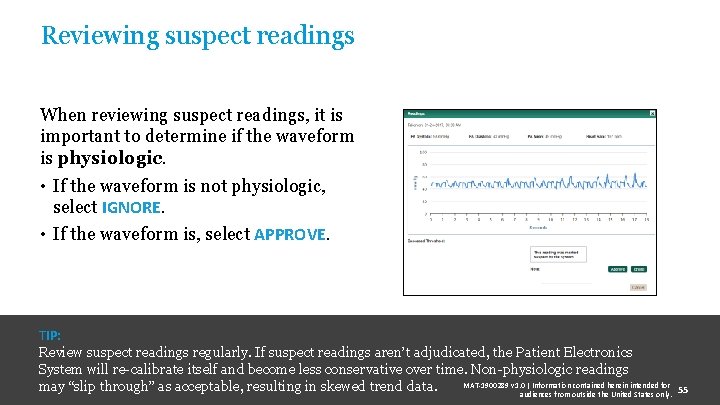
Reviewing suspect readings When reviewing suspect readings, it is important to determine if the waveform is physiologic. • If the waveform is not physiologic, select IGNORE. • If the waveform is, select APPROVE. TIP: Review suspect readings regularly. If suspect readings aren’t adjudicated, the Patient Electronics System will re-calibrate itself and become less conservative over time. Non-physiologic readings MAT-1900289 v 1. 0 | Information contained herein intended for may “slip through” as acceptable, resulting in skewed trend data. audiences from outside the United States only. 55
Finishing your review MAT-1900289 v 1. 0 | Information contained herein intended for audiences from outside the United States only. 56
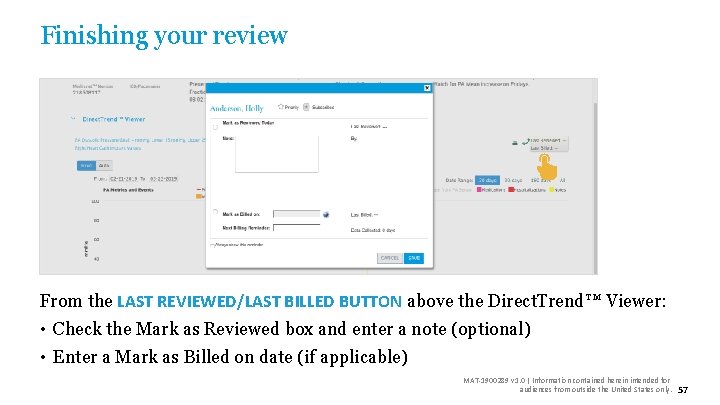
Finishing your review From the LAST REVIEWED/LAST BILLED BUTTON above the Direct. Trend™ Viewer: • Check the Mark as Reviewed box and enter a note (optional) • Enter a Mark as Billed on date (if applicable) MAT-1900289 v 1. 0 | Information contained herein intended for audiences from outside the United States only. 57
5. Taking Actions MAT-1900289 v 1. 0 | Information contained herein intended for audiences from outside the United States only. 58
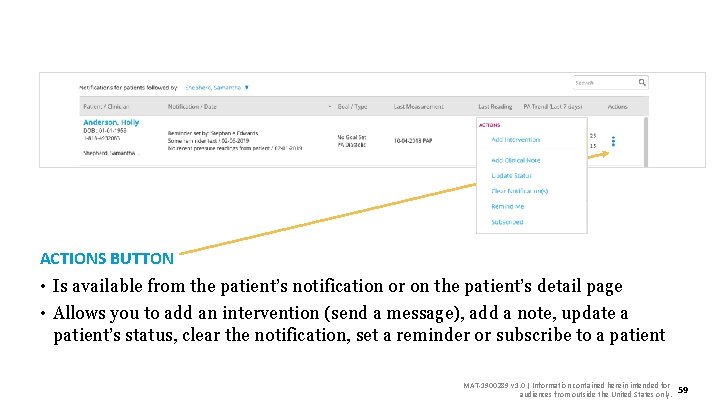
ACTIONS BUTTON • Is available from the patient’s notification or on the patient’s detail page • Allows you to add an intervention (send a message), add a note, update a patient’s status, clear the notification, set a reminder or subscribe to a patient MAT-1900289 v 1. 0 | Information contained herein intended for audiences from outside the United States only. 59
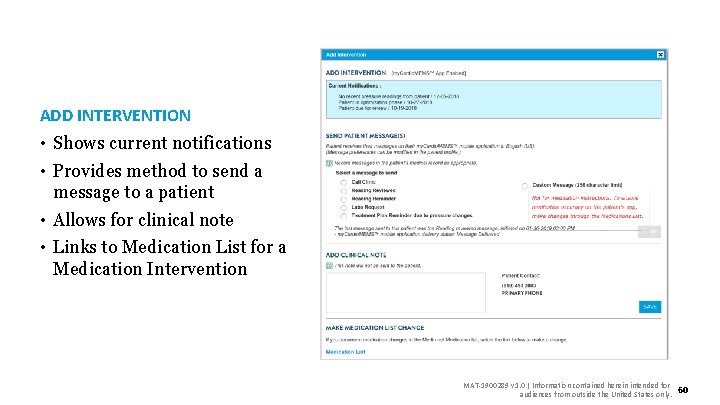
ADD INTERVENTION • Shows current notifications • Provides method to send a message to a patient • Allows for clinical note • Links to Medication List for a Medication Intervention MAT-1900289 v 1. 0 | Information contained herein intended for audiences from outside the United States only. 60
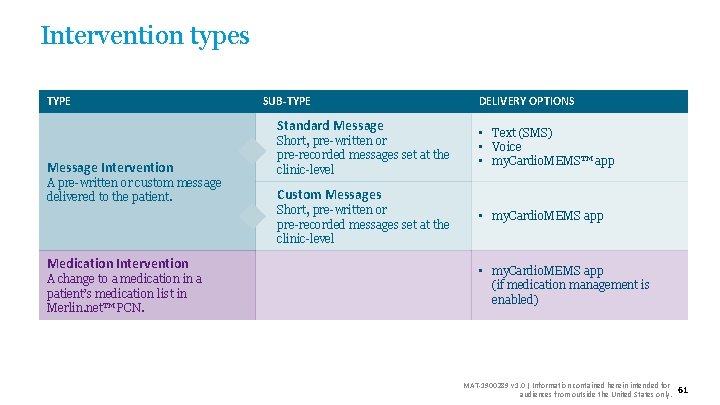
Intervention types TYPE SUB-TYPE Standard Message Intervention A pre-written or custom message delivered to the patient. Medication Intervention A change to a medication in a patient’s medication list in Merlin. net™ PCN. Short, pre-written or pre-recorded messages set at the clinic-level DELIVERY OPTIONS • Text (SMS) • Voice • my. Cardio. MEMS™ app Custom Messages Short, pre-written or pre-recorded messages set at the clinic-level • my. Cardio. MEMS app (if medication management is enabled) MAT-1900289 v 1. 0 | Information contained herein intended for audiences from outside the United States only. 61
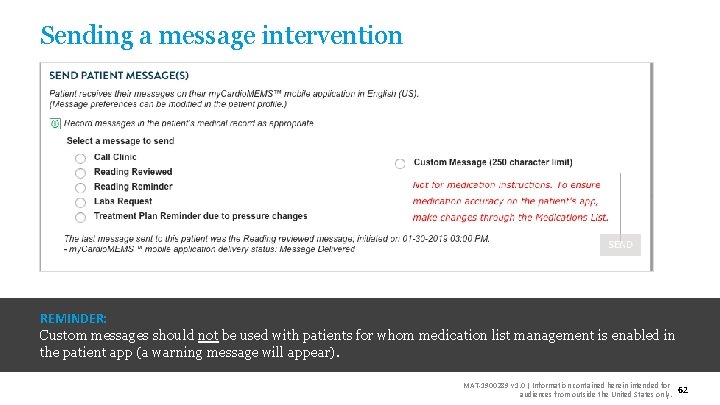
Sending a message intervention REMINDER: Custom messages should not be used with patients for whom medication list management is enabled in the patient app (a warning message will appear). MAT-1900289 v 1. 0 | Information contained herein intended for audiences from outside the United States only. 62
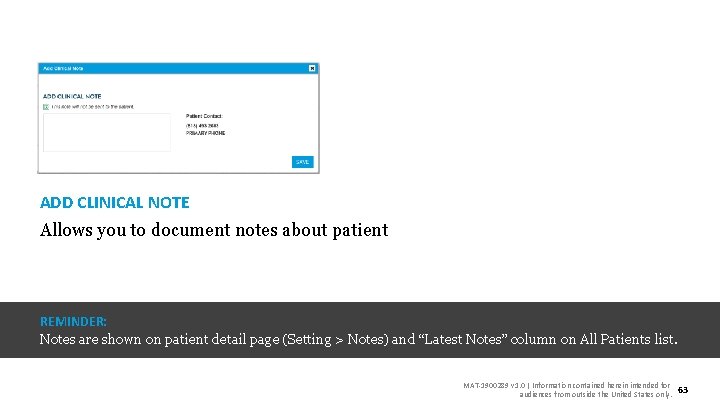
ADD CLINICAL NOTE Allows you to document notes about patient REMINDER: Notes are shown on patient detail page (Setting > Notes) and “Latest Notes” column on All Patients list. MAT-1900289 v 1. 0 | Information contained herein intended for audiences from outside the United States only. 63
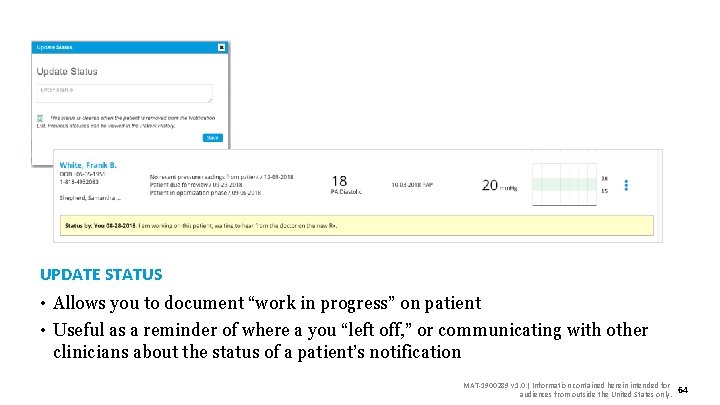
UPDATE STATUS • Allows you to document “work in progress” on patient • Useful as a reminder of where a you “left off, ” or communicating with other clinicians about the status of a patient’s notification MAT-1900289 v 1. 0 | Information contained herein intended for audiences from outside the United States only. 64
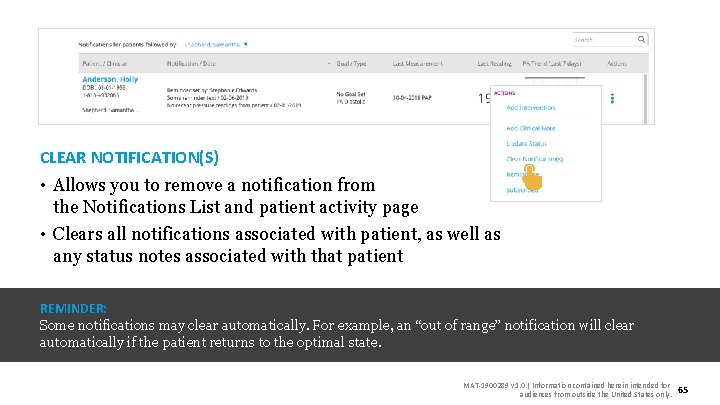
CLEAR NOTIFICATION(S) • Allows you to remove a notification from the Notifications List and patient activity page • Clears all notifications associated with patient, as well as any status notes associated with that patient REMINDER: Some notifications may clear automatically. For example, an “out of range” notification will clear automatically if the patient returns to the optimal state. MAT-1900289 v 1. 0 | Information contained herein intended for audiences from outside the United States only. 65
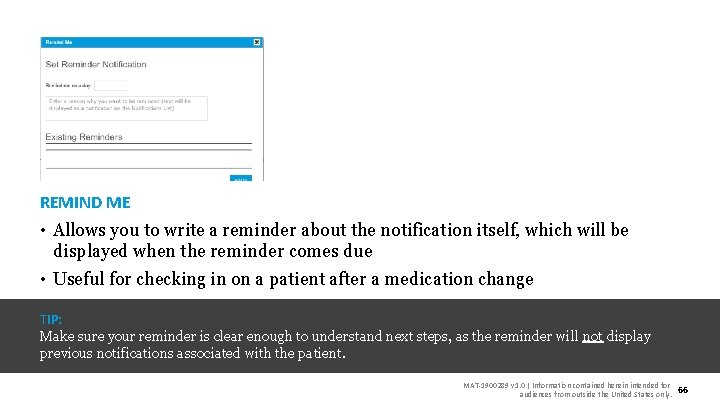
REMIND ME • Allows you to write a reminder about the notification itself, which will be displayed when the reminder comes due • Useful for checking in on a patient after a medication change TIP: Make sure your reminder is clear enough to understand next steps, as the reminder will not display previous notifications associated with the patient. MAT-1900289 v 1. 0 | Information contained herein intended for audiences from outside the United States only. 66
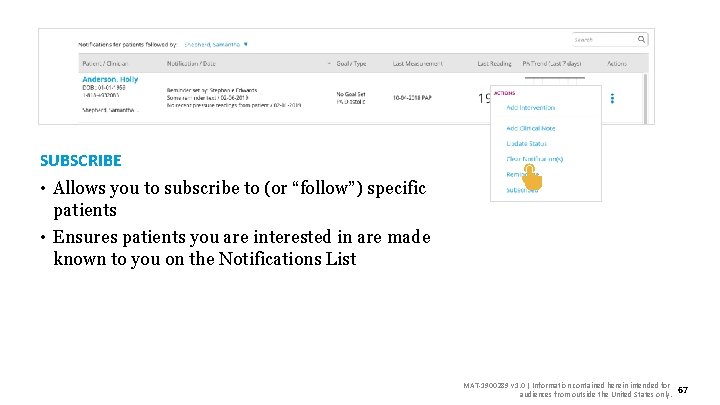
SUBSCRIBE • Allows you to subscribe to (or “follow”) specific patients • Ensures patients you are interested in are made known to you on the Notifications List MAT-1900289 v 1. 0 | Information contained herein intended for audiences from outside the United States only. 67
6. Other Patient Settings MAT-1900289 v 1. 0 | Information contained herein intended for audiences from outside the United States only. 68
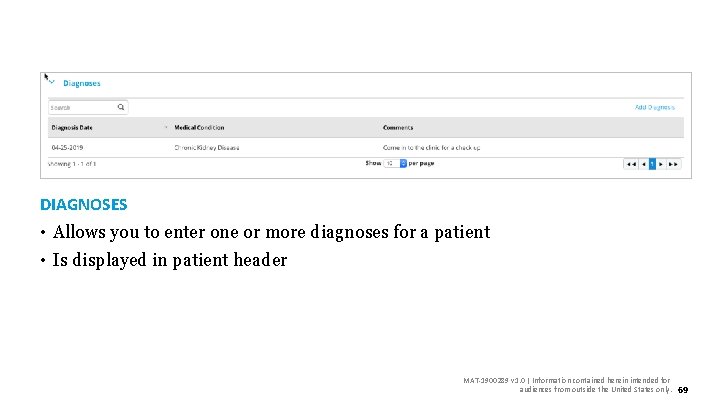
DIAGNOSES • Allows you to enter one or more diagnoses for a patient • Is displayed in patient header MAT-1900289 v 1. 0 | Information contained herein intended for audiences from outside the United States only. 69
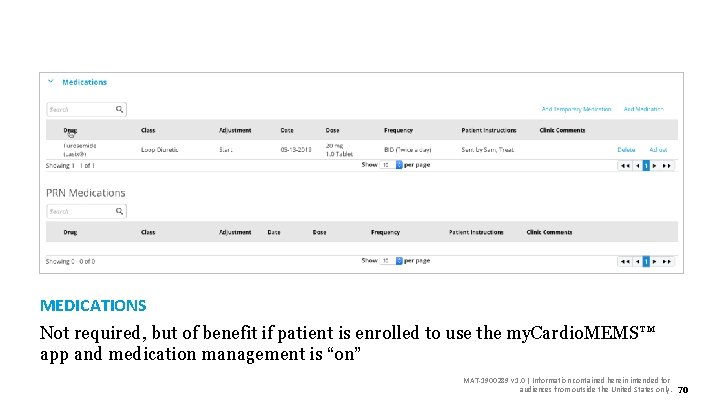
MEDICATIONS Not required, but of benefit if patient is enrolled to use the my. Cardio. MEMS™ app and medication management is “on” MAT-1900289 v 1. 0 | Information contained herein intended for audiences from outside the United States only. 70
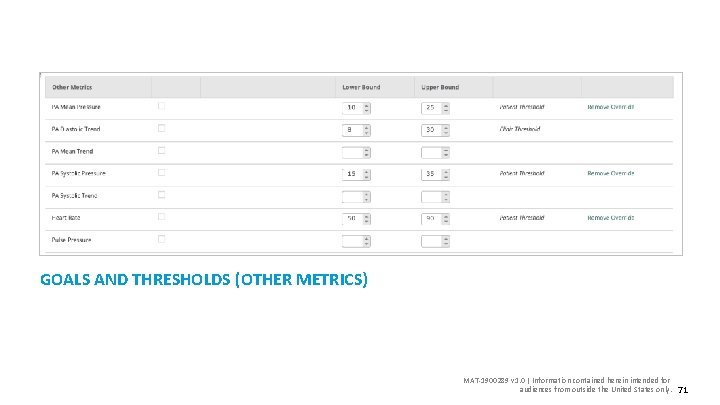
GOALS AND THRESHOLDS (OTHER METRICS) MAT-1900289 v 1. 0 | Information contained herein intended for audiences from outside the United States only. 71
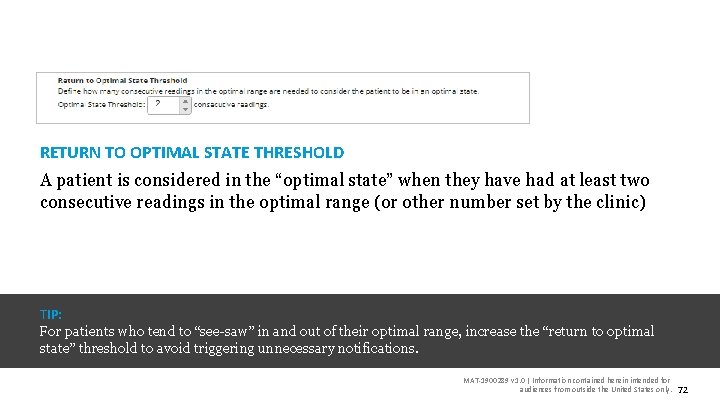
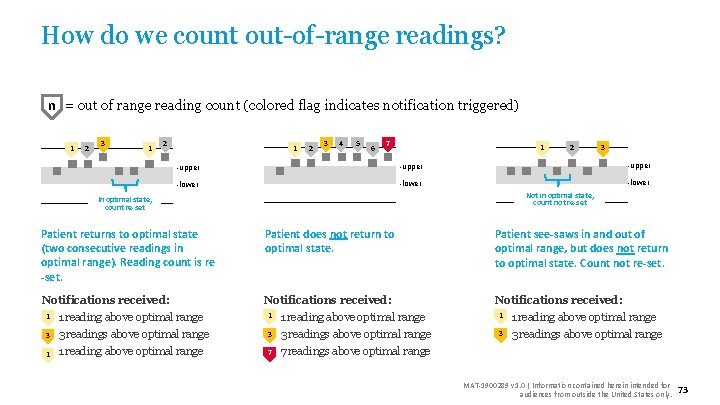
RETURN TO OPTIMAL STATE THRESHOLD A patient is considered in the “optimal state” when they have had at least two consecutive readings in the optimal range (or other number set by the clinic) TIP: For patients who tend to “see-saw” in and out of their optimal range, increase the “return to optimal state” threshold to avoid triggering unnecessary notifications. MAT-1900289 v 1. 0 | Information contained herein intended for audiences from outside the United States only. 72
How do we count out-of-range readings? n = out of range reading count (colored flag indicates notification triggered) 1 2 3 4 5 6 7 1 -upper -lower 2 3 -upper -lower Not in optimal state, count not re-set In optimal state, count re-set Patient returns to optimal state (two consecutive readings in optimal range). Reading count is re -set. Patient does not return to optimal state. Patient see-saws in and out of optimal range, but does not return to optimal state. Count not re-set. Notifications received: 1 reading above optimal range 1 1 reading above optimal range 3 3 readings above optimal range 1 1 reading above optimal range 7 7 readings above optimal range 1 MAT-1900289 v 1. 0 | Information contained herein intended for audiences from outside the United States only. 73
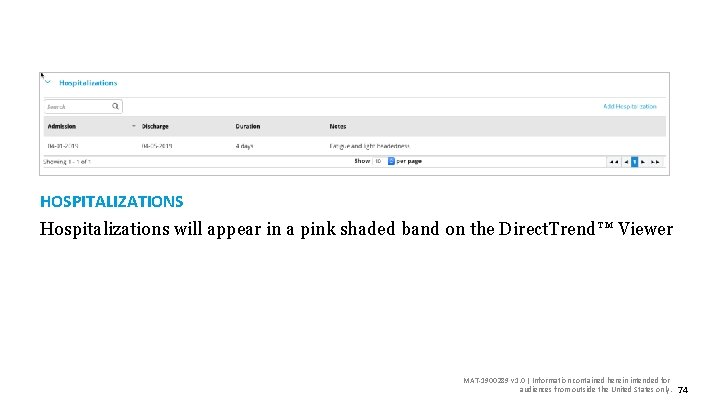
HOSPITALIZATIONS Hospitalizations will appear in a pink shaded band on the Direct. Trend™ Viewer MAT-1900289 v 1. 0 | Information contained herein intended for audiences from outside the United States only. 74
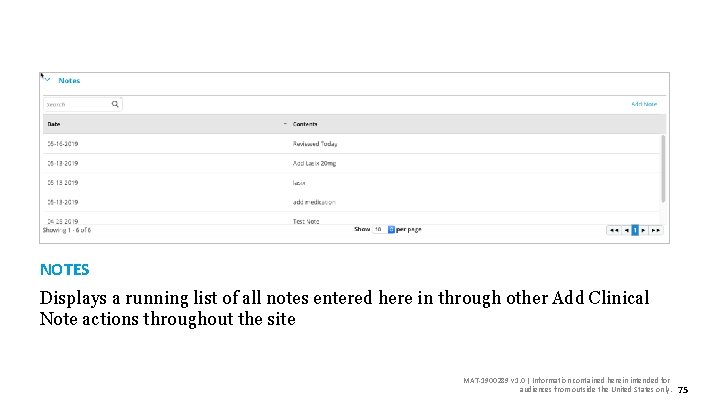
NOTES Displays a running list of all notes entered here in through other Add Clinical Note actions throughout the site MAT-1900289 v 1. 0 | Information contained herein intended for audiences from outside the United States only. 75
7. Clinic-Wide Settings MAT-1900289 v 1. 0 | Information contained herein intended for audiences from outside the United States only. 76
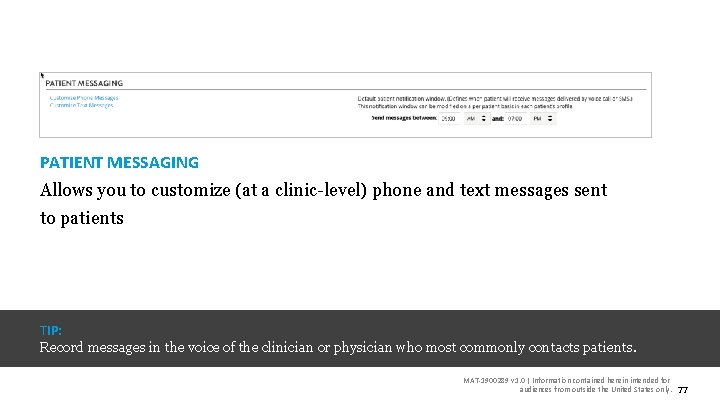
PATIENT MESSAGING Allows you to customize (at a clinic-level) phone and text messages sent to patients TIP: Record messages in the voice of the clinician or physician who most commonly contacts patients. MAT-1900289 v 1. 0 | Information contained herein intended for audiences from outside the United States only. 77
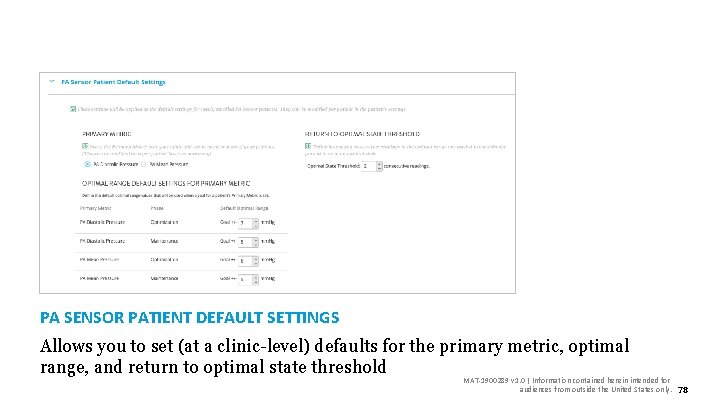
PA SENSOR PATIENT DEFAULT SETTINGS Allows you to set (at a clinic-level) defaults for the primary metric, optimal range, and return to optimal state threshold MAT-1900289 v 1. 0 | Information contained herein intended for audiences from outside the United States only. 78
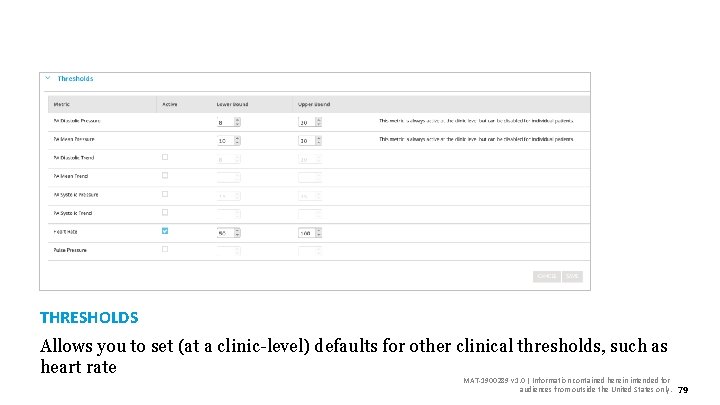
THRESHOLDS Allows you to set (at a clinic-level) defaults for other clinical thresholds, such as heart rate MAT-1900289 v 1. 0 | Information contained herein intended for audiences from outside the United States only. 79
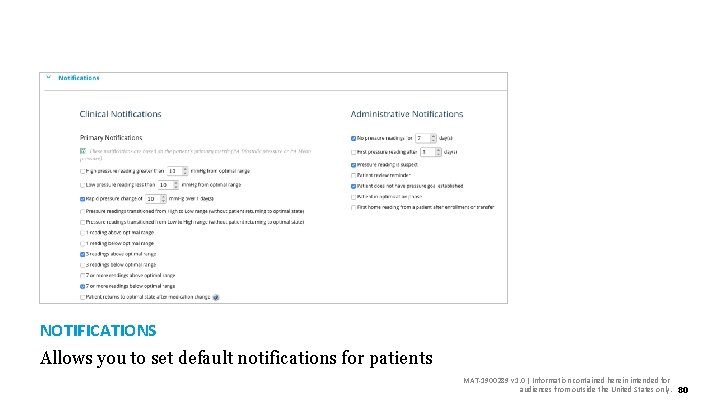
NOTIFICATIONS Allows you to set default notifications for patients MAT-1900289 v 1. 0 | Information contained herein intended for audiences from outside the United States only. 80
8. User Settings MAT-1900289 v 1. 0 | Information contained herein intended for audiences from outside the United States only. 81
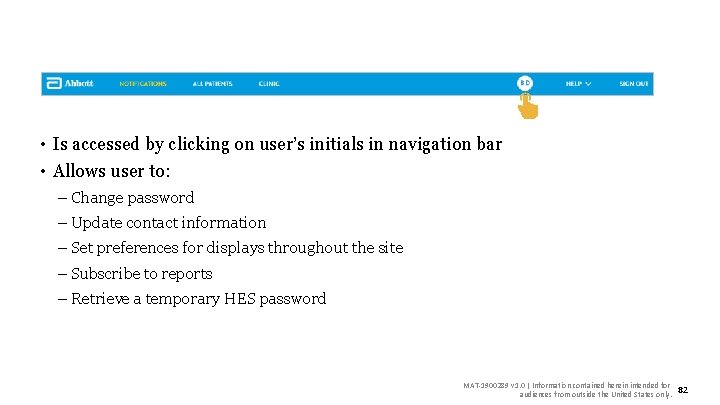
• Is accessed by clicking on user’s initials in navigation bar • Allows user to: – Change password – Update contact information – Set preferences for displays throughout the site – Subscribe to reports – Retrieve a temporary HES password MAT-1900289 v 1. 0 | Information contained herein intended for audiences from outside the United States only. 82
9. Administrative Tasks MAT-1900289 v 1. 0 | Information contained herein intended for audiences from outside the United States only. 83
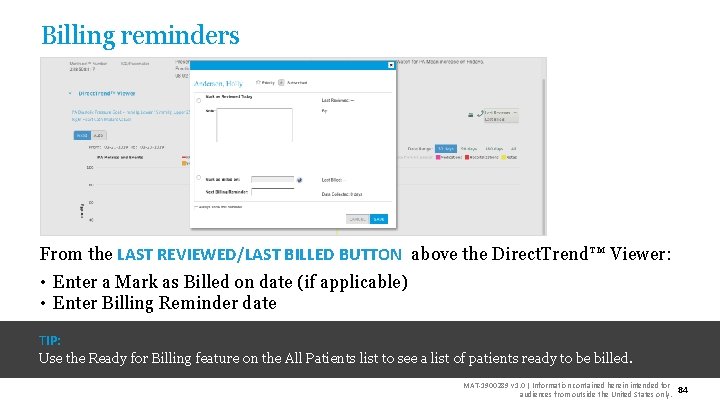
Billing reminders From the LAST REVIEWED/LAST BILLED BUTTON above the Direct. Trend™ Viewer: • Enter a Mark as Billed on date (if applicable) • Enter Billing Reminder date TIP: Use the Ready for Billing feature on the All Patients list to see a list of patients ready to be billed. MAT-1900289 v 1. 0 | Information contained herein intended for audiences from outside the United States only. 84
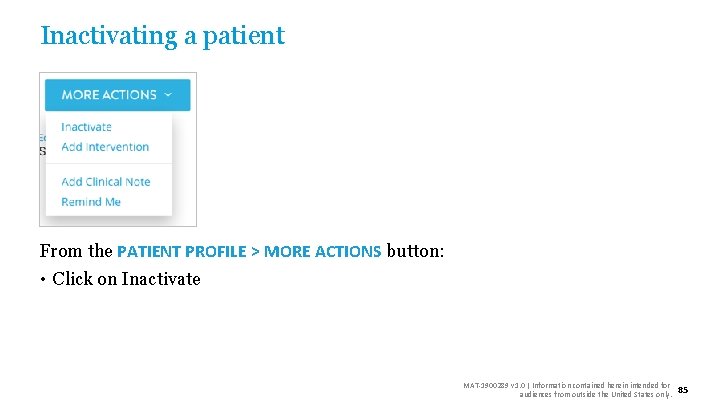
Inactivating a patient From the PATIENT PROFILE > MORE ACTIONS button: • Click on Inactivate MAT-1900289 v 1. 0 | Information contained herein intended for audiences from outside the United States only. 85
Abbott The Corporate Village, Da Vincilaan 11 Box F 1, 1935 Zaventem, Belgium, +32 2 774 68 11 Abbott. com Brief Summary: Prior to using these devices, please review the Instructions for Use for a complete listing of indications, contraindications, warnings, precautions, potential adverse events and directions for use. ‡ Indicates a third party trademark, which is property of its respective owner. © 2019 Abbott. All Rights Reserved. Check the regulatory status of the device in areas where CE marking is not the regulation in force. MAT-1900289 v 1. 0 | Information contained herein intended for audiences from outside the United States only. 86