
An Introduction to Easy C programming By Joshua
An Introduction to Easy C programming By Joshua Shaw
Introduction to Programming � This presentation demonstrates how to create a program � Take as much time as you need to go through this Power. Point � Just remember that you need to get the program finished as soon as possible so the drivers can practice � Good Luck 2
Before We Get Started � In this power point I will walk you through as many steps as possible to ensure that the program runs smoothly � This includes several of the most obvious steps ◦ Such as using the start menu � This power point will act as if I am there to help. ◦ I will say “we” often � So, let us begin 3
What is Easy C � Easy C is a simpler version of C++ � It uses cause and effect statements, which allow you to manipulate the robot � The next slide gives an example of a basic program � It can be modified to fit the conditions of the game 4
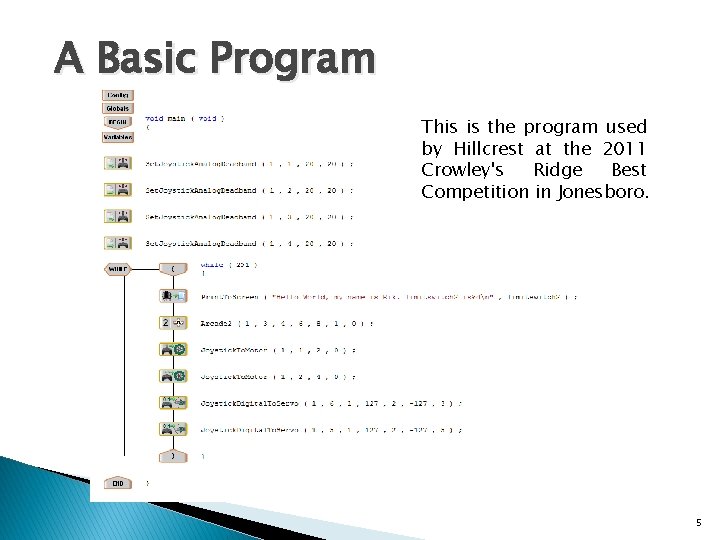
A Basic Program This is the program used by Hillcrest at the 2011 Crowley's Ridge Best Competition in Jonesboro. It does have limit switch capability which will be discussed later. 5

Getting Started � The first step to create the program is to start the Easy C software ◦ It will most likely be found on the desktop of your computer ◦ If not, then click the Start menu (indicated by red arrow below) ◦ Go to All Programs ◦ Click on easy C V 4 for Cortex 6
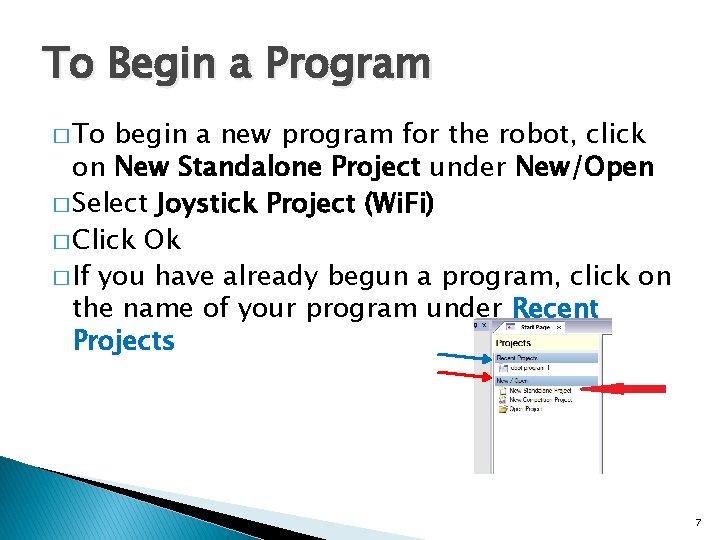
To Begin a Program � To begin a new program for the robot, click on New Standalone Project under New/Open � Select Joystick Project (Wi. Fi) � Click Ok � If you have already begun a program, click on the name of your program under Recent Projects 7
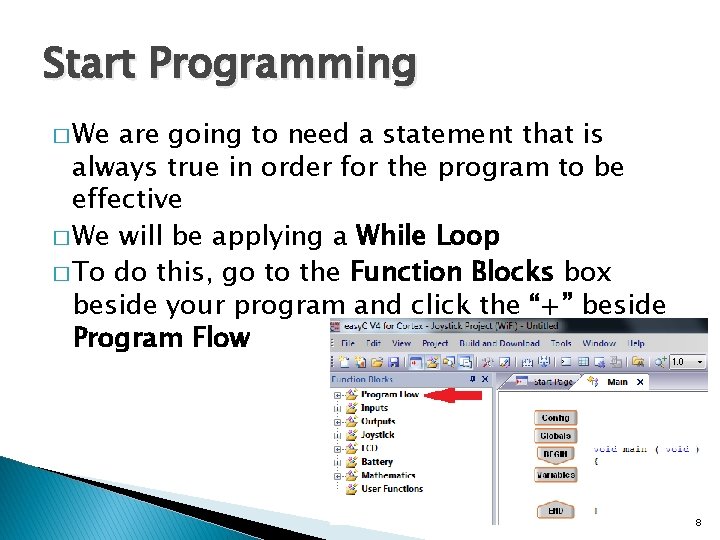
Start Programming � We are going to need a statement that is always true in order for the program to be effective � We will be applying a While Loop � To do this, go to the Function Blocks box beside your program and click the “+” beside Program Flow 8
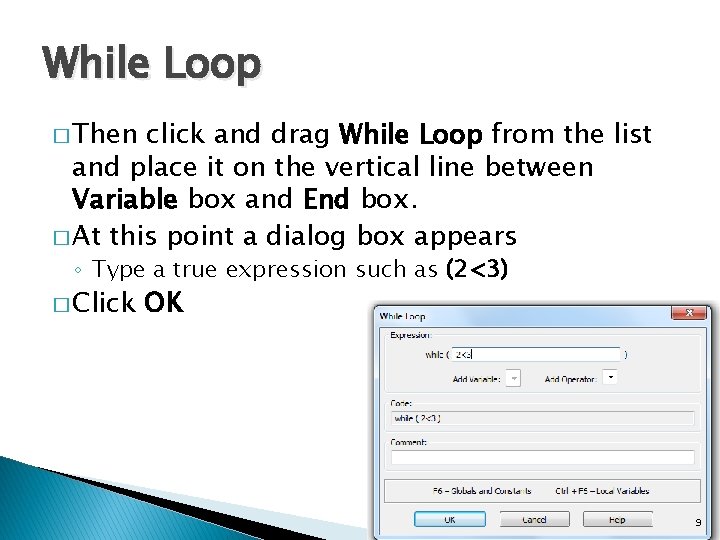
While Loop � Then click and drag While Loop from the list and place it on the vertical line between Variable box and End box. � At this point a dialog box appears ◦ Type a true expression such as (2<3) � Click OK 9
Next Power. Point � The next Power. Point is Programming a Motor
- Slides: 10