
An introduction to application software Word processing An
- Slides: 34
• An introduction to application software • Word processing
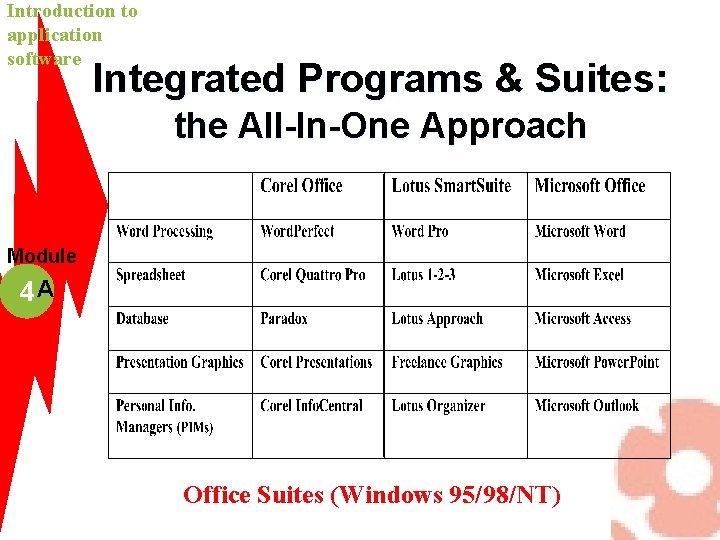
An Introduction to Application Software l Introducing Application Software: Tools for Productivity Module 4 A l Integrated Programs & Suites: The All-in. One Approach l Web Integration: A New Way to Get the Word Out
Introduction to application software Considerations l System Module 4 A requirements l Commercial programs, shareware, & freeware l Software licenses l Distribution methods Not sure whether you’re using the latest version? Versions will send you e-mail notifying you of new versions of the software you’re using.
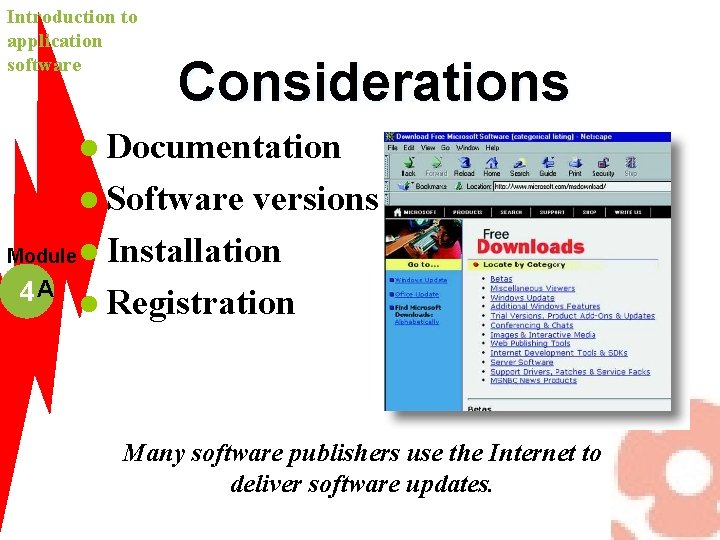
Introduction to application software Considerations l Documentation l Software versions Module l Installation 4 A l Registration Many software publishers use the Internet to deliver software updates.
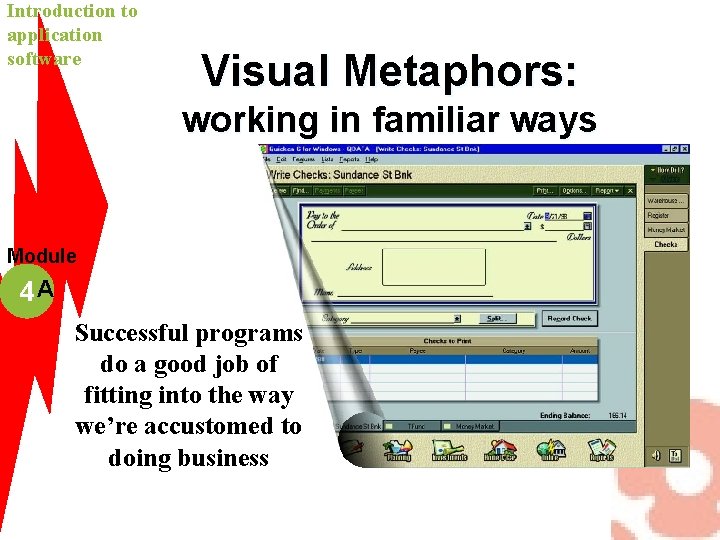
Introduction to application software Visual Metaphors: working in familiar ways Module 4 A Successful programs do a good job of fitting into the way we’re accustomed to doing business
Introduction to application software Integrated Programs & Suites: the All-In-One Approach Module 4 A Office Suites (Windows 95/98/NT)
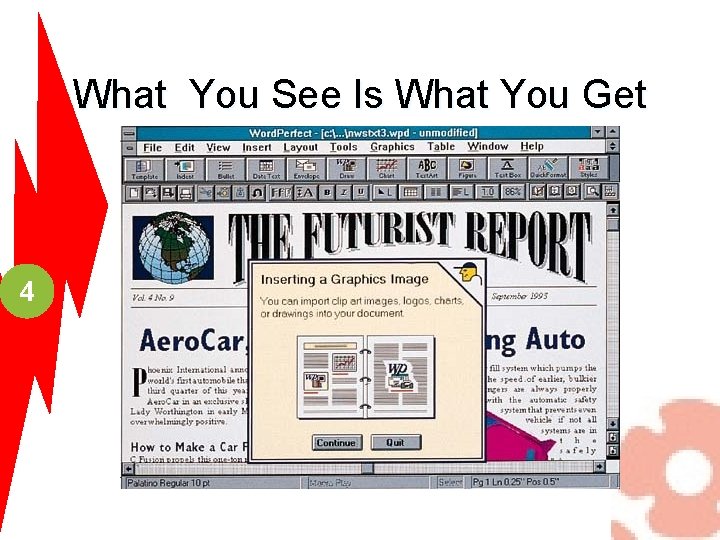
What You See Is What You Get 4
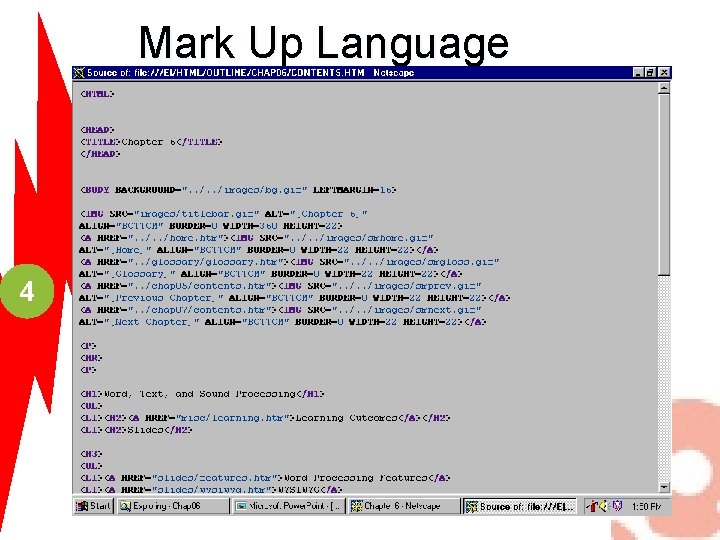
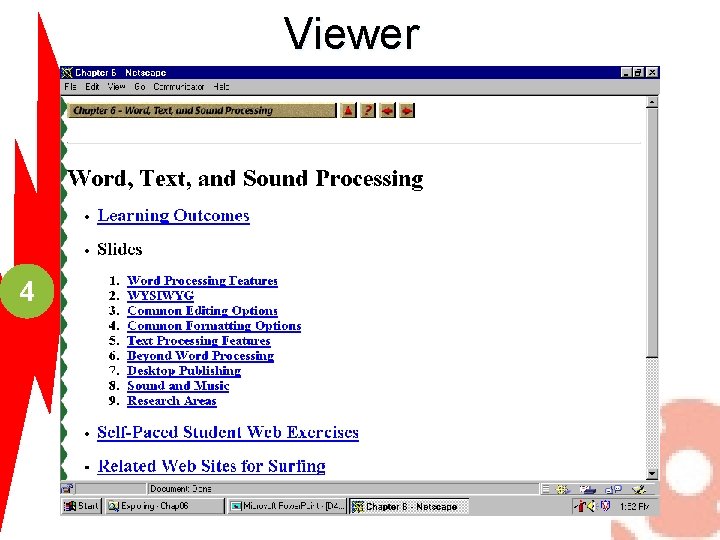
Introduction to Word Processing There are 2 major ways to process text l Use a WORD PROCESSOR One program does everything WYSIWYG - ex: WORD 4 l Use a Mark Up Language Process uses two programs EDITOR to create the document VIEWER to render the document WWW documents - HTML l
Mark Up Language 4
Viewer 4
Basic Features of WP Software write-enter the text without worrying about how it looks l edit-replace or insert text, move or delete 4 text l format-adjusting the appearance l save-put the contents to secondary storage l print-produce a hard copy l
Word Processing Vocabulary Word Wrap - pressing enter (VAX Mail) l Paragraph- text that ends with enter keystroke l Insert or typeover mode 4 l Cut and Paste l Save vs. Save As l Print - Use Print Preview!!! l
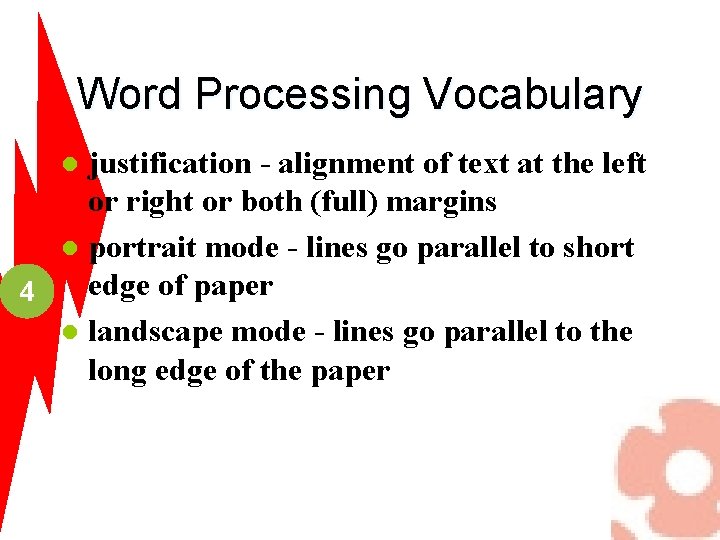
Word Processing Vocabulary justification - alignment of text at the left or right or both (full) margins l portrait mode - lines go parallel to short edge of paper 4 l landscape mode - lines go parallel to the long edge of the paper l
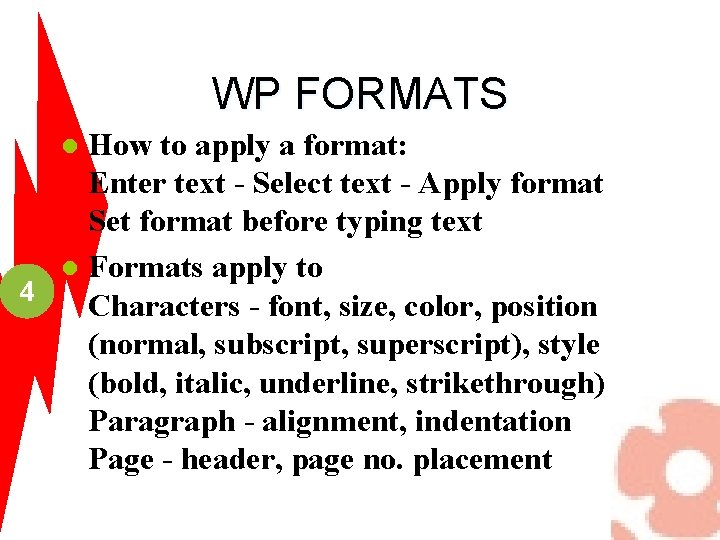
WP FORMATS How to apply a format: Enter text - Select text - Apply format Set format before typing text l Formats apply to 4 Characters - font, size, color, position (normal, subscript, superscript), style (bold, italic, underline, strikethrough) Paragraph - alignment, indentation Page - header, page no. placement l
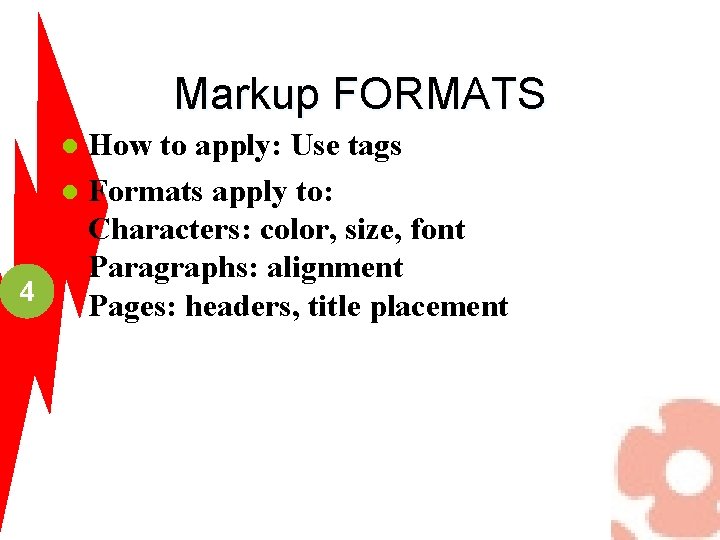
Markup FORMATS How to apply: Use tags l Formats apply to: Characters: color, size, font Paragraphs: alignment 4 Pages: headers, title placement l
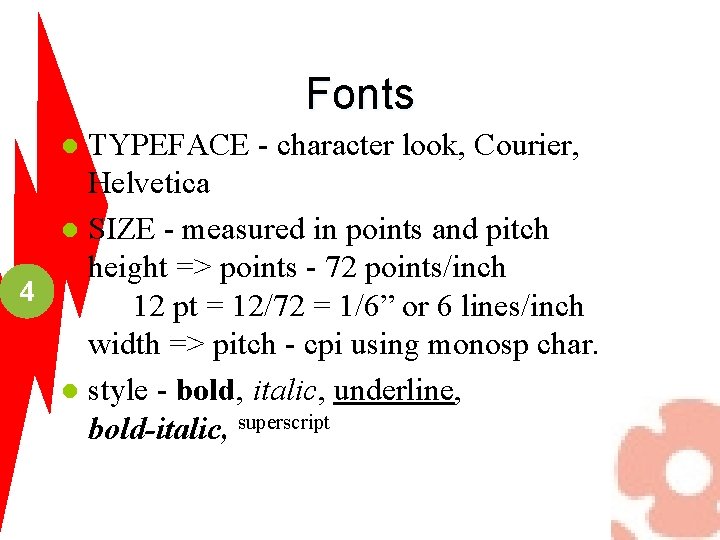
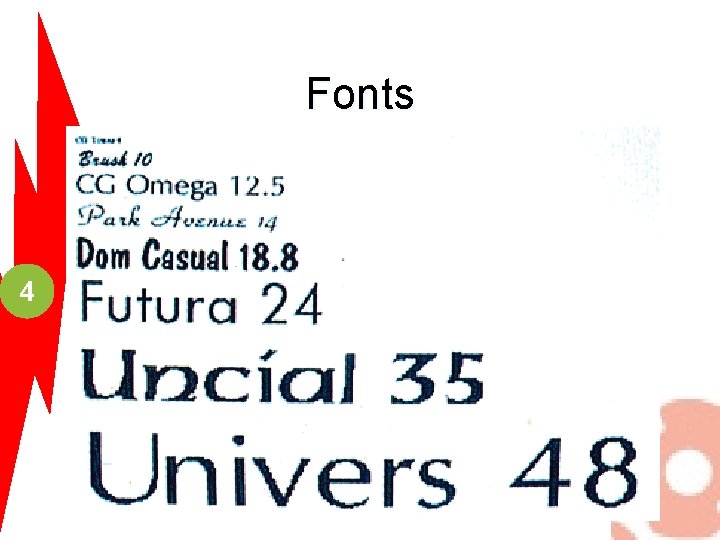
Fonts TYPEFACE - character look, Courier, Helvetica l SIZE - measured in points and pitch height => points - 72 points/inch 4 12 pt = 12/72 = 1/6” or 6 lines/inch width => pitch - cpi using monosp char. l style - bold, italic, underline, bold-italic, superscript l
Fonts 4
Fonts monospaced and proportional fonts l kerning - amount of space between letters l 4
Rules to Easy Reading 4 1. Leave white space. 1” margin all round. 2. Use 12 -point for easy readability. 3. Don’t overdo emphasis attributes. 4. Don’t emphasize long blocks of text. 5. Use typeface and size consistently. 6. Main text - serif font; Titles - sans serif.
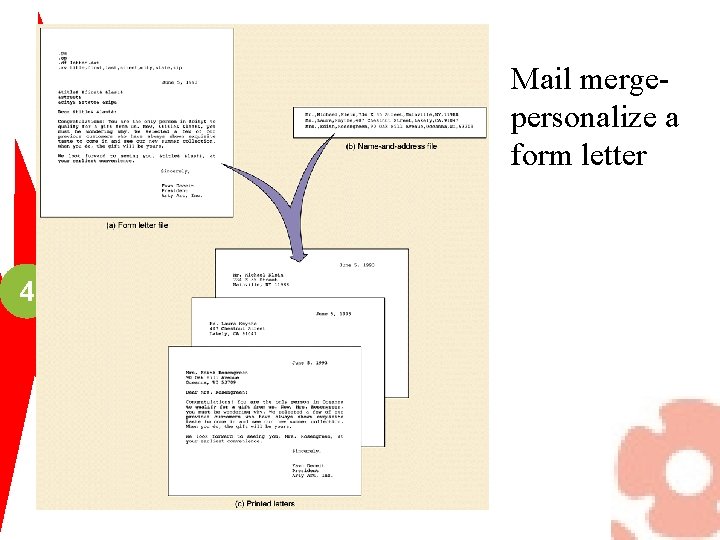
Additional features of WP Software spell checker - (in Word) l electronic thesaurus (in Word) l style and grammar checker (in Word) l mail merge ( in Word) l 4
Mail mergepersonalize a form letter 4
Additional features of WP Software l 4 macros - (Works has several macros to automate repetitive tasks in WP but has no feature of creating your own, can create your own in its communication part!)
Word processing Word Processing Software: the electronic scribe l Word Module 4 B processing & writing quality l The Internet connection äsave in HTML Need some help with writing? Visit one of the most amazing sites on the Web, Purdue University’s Online Writing Lab (OWL).
Word processing Desktop Publishing Module 4 B Combines text and graphics, and advanced formatting to create visually appealing printed documents, such as newsletters, brochures, magazines, and books.
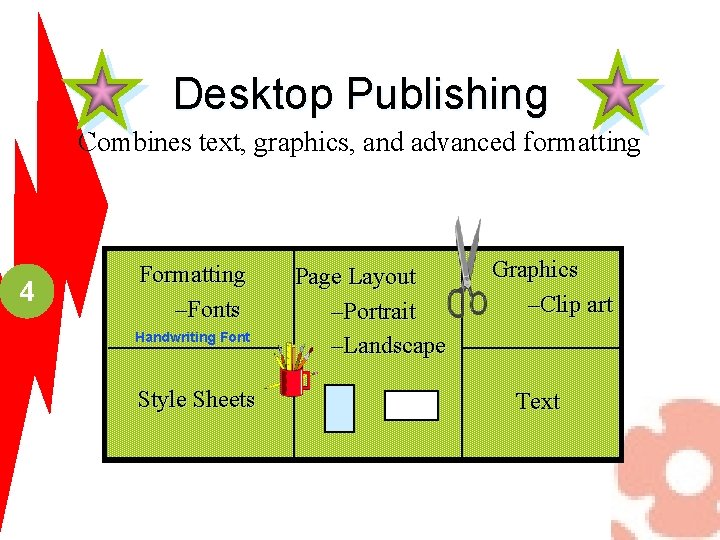
Desktop Publishing Combines text, graphics, and advanced formatting 4 Formatting –Fonts Handwriting Font Style Sheets Page Layout –Portrait –Landscape Graphics –Clip art Text
Desktop Publishing DTP combines text, graphics and advanced formatting l most WP packages contain many of the DTP features 4 l usually has a larger clip art gallery l ex. Page. Maker l
Presentation Packages l Presentation Module 4 E Graphics: Liven your Presentations l The Internet Connection l Using Visual Aids Effectively: Some Pointers
Presentation packages Presentation Graphics: Liven Your Presentations Module 4 E This software, like other top-selling productivity programs, uses a visual metaphor: here, a simulation of the media (such as a 35 mm slide or transparency) that you’ll actually use for your presentation. Each “page” of the presentation is called a slide
Presentation packages Presentation Graphics l Getting Module 4 E fancy äon-screen show ätransparencies ä 35 mm slides äaudience handouts äspeaker notes l Templates äready-made designs
Presentation packages Presentation Graphics l View Module 4 E options äslide view äoutline view äslide sorter view änotes view ämaster
Presentation packages Presentation Graphics l Slide Module 4 E options ätwo-column bulleted list ätable äorganization chart ätext and clip art ämultimedia
Presentation packages Presentation Graphics l Getting Module 4 E fancy ätransition effect äexpansion äbuild ämultimedia äautomatic presentations l Runtime version
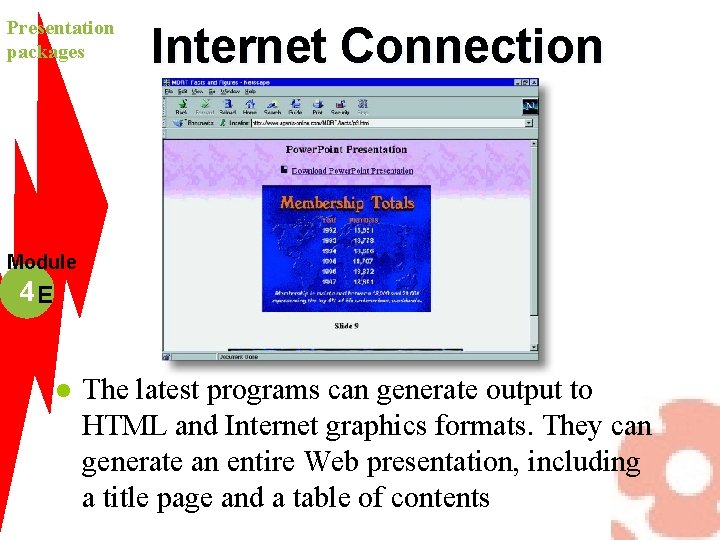
Presentation packages Internet Connection Module 4 E l The latest programs can generate output to HTML and Internet graphics formats. They can generate an entire Web presentation, including a title page and a table of contents
Presentation packages Using Visual Aids Effectively l One Module 4 E concept per slide l Keep language simple l Don’t tell everything l Use a variety of slide formats l Make sure your text is legible