
An Installation Guide of PGP on Windows 2000
- Slides: 28
An Installation Guide of PGP on Windows 2000 CS 627 Taotao Zhao 9/17/2020 1
Presentation Outline • • 9/17/2020 Overview System requirements for installation Downloading Installation Creating a key pair Basically using PGP References 2
Overview of PGP • PGP, created by Philip Zimmermann, stands for Pretty Good Privacy • The standard program for secure e-mail and file encryption on the Internet. • Based on the public-key cryptography system 9/17/2020 3
System Requirements for Installation To install PGP on a Windows 2000 system • Windows 2000 • 32 MB RAM • 16 MB hard disk space 9/17/2020 4
Downloading First make sure you have a zip utility loaded on your computer. • Go to website http: //www. pgpi. org • Click "Download" option • Click "PGP" • Click Windows 2000 • Click PGP 6. 5. 8 • Choose nearest site to you and click • Select "save to disk“ • Just put it in “desktop”. After downloading, you will see “PGPFW 658” sitting on your desktop. Close the Web. 9/17/2020 5
Installation • Double click “PGPFW 658” and open it. • Follow the steps for Installation. 9/17/2020 6
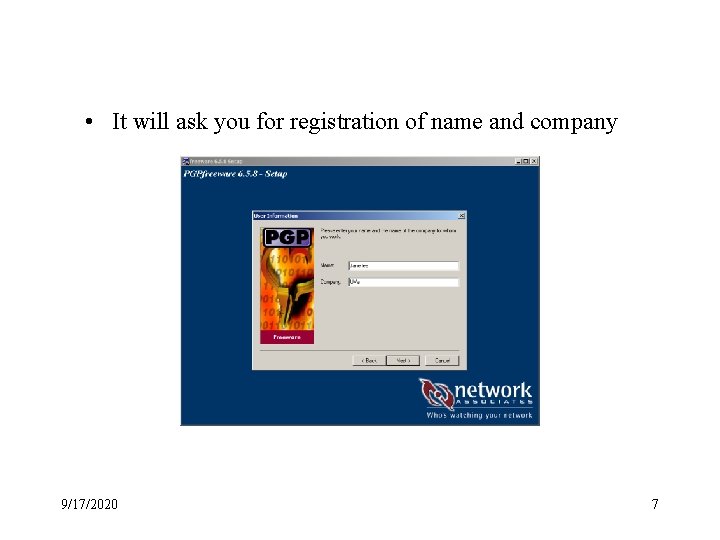
• It will ask you for registration of name and company 9/17/2020 7
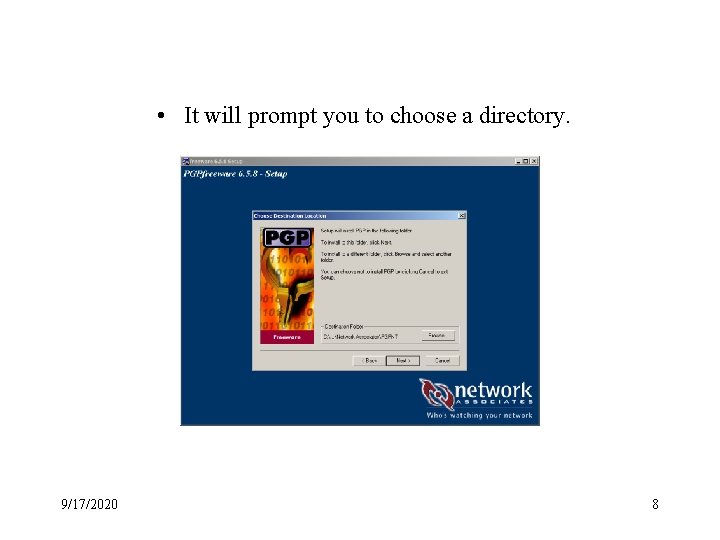
• It will prompt you to choose a directory. 9/17/2020 8
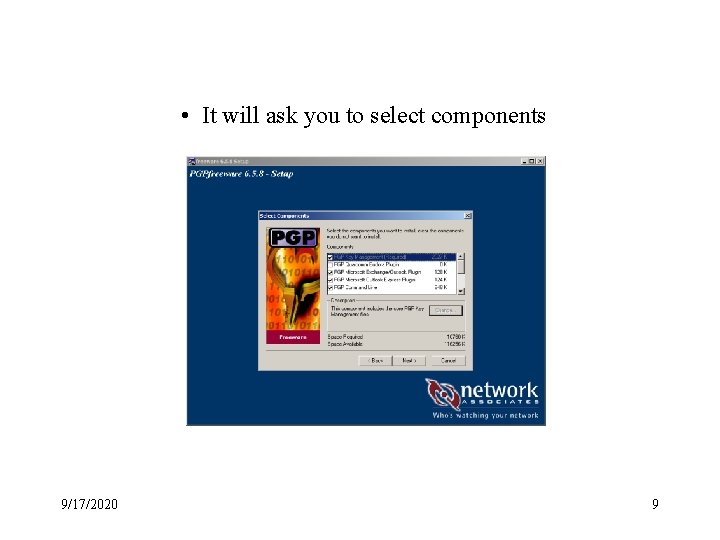
• It will ask you to select components 9/17/2020 9
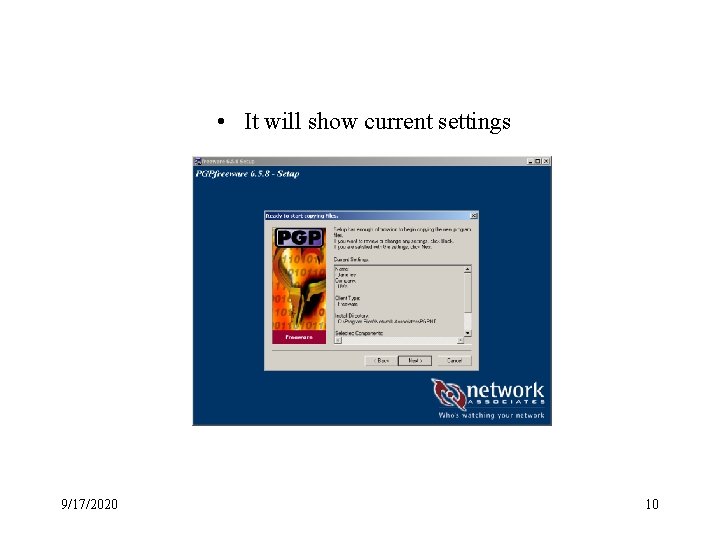
• It will show current settings 9/17/2020 10
Installation, con’t • It will ask if you have existing keyrings you wish to use • Last it will ask if you want to launch PGP Keys • Click “finish” to complete the PGP installation. 9/17/2020 11
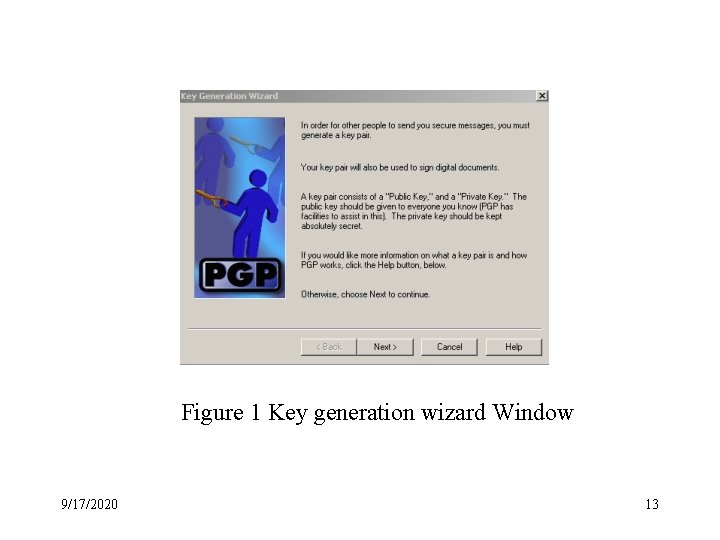
Creating a Key Pair • After you click “finish”, the “ Key Generation Wizard” window (see Figure 1) will appear if you chose to launch PGP keys during installation. • If you did not choose to launch PGP keys during installation, you may use Start menu. On the Task bar, click the Start button, then click Programs and PGP and select PGP keys. • Then follow the Key Generation Wizard to create a key pair. 9/17/2020 12
Figure 1 Key generation wizard Window 9/17/2020 13
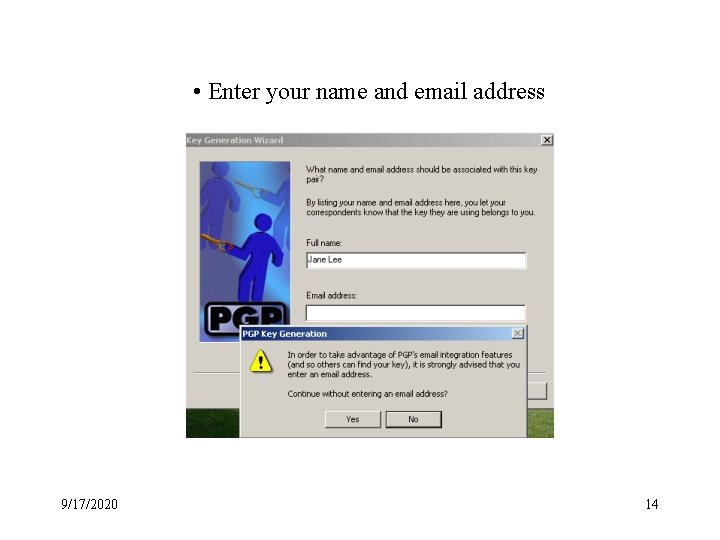
• Enter your name and email address 9/17/2020 14
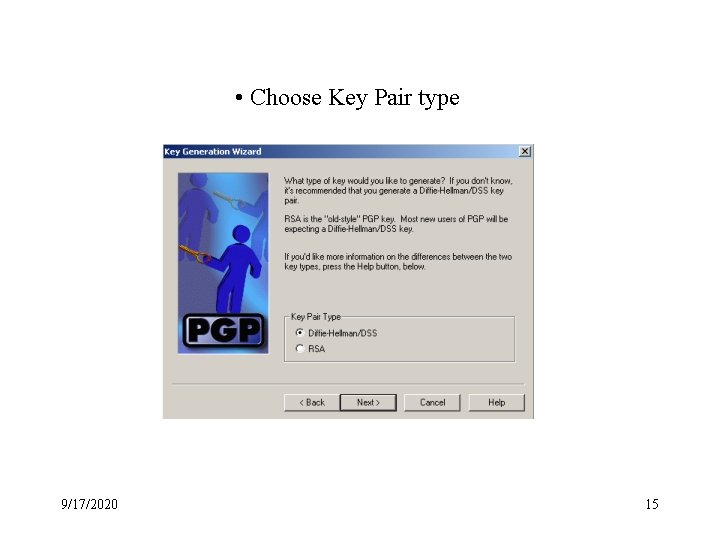
• Choose Key Pair type 9/17/2020 15
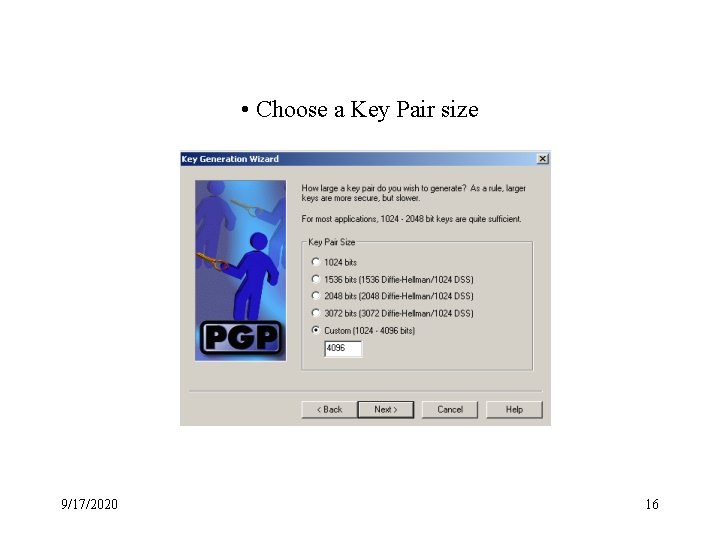
• Choose a Key Pair size 9/17/2020 16
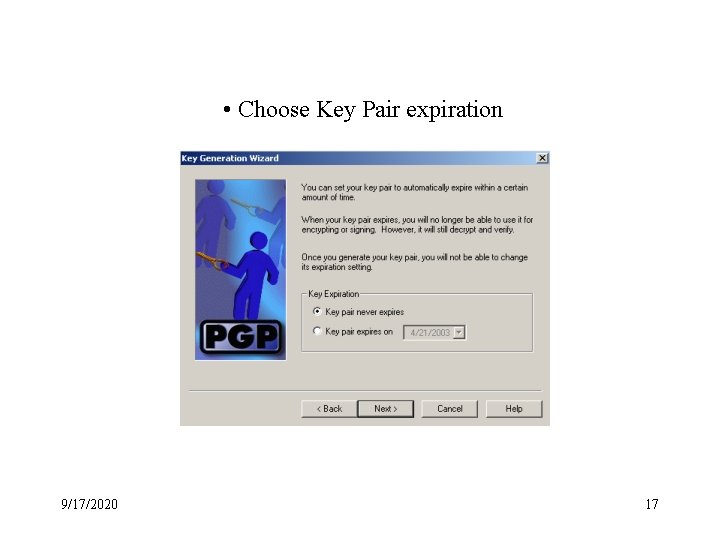
• Choose Key Pair expiration 9/17/2020 17
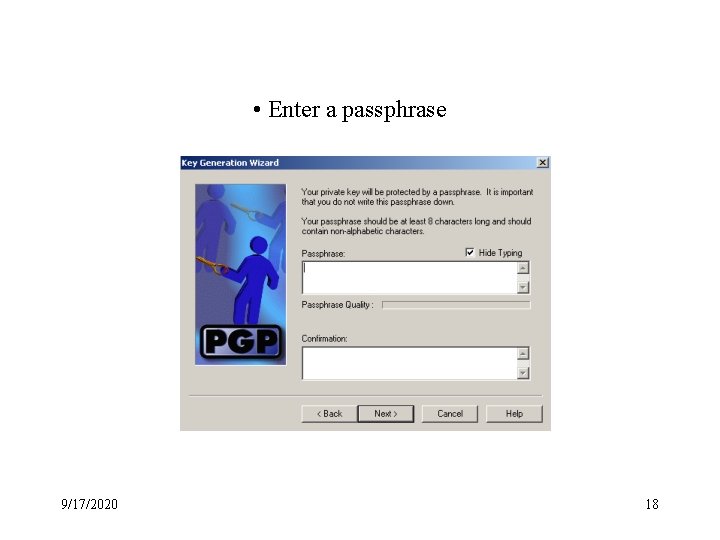
• Enter a passphrase 9/17/2020 18
Example of PGP Public Key • Public Key Server -- Index ``tester '' 9/17/2020 19
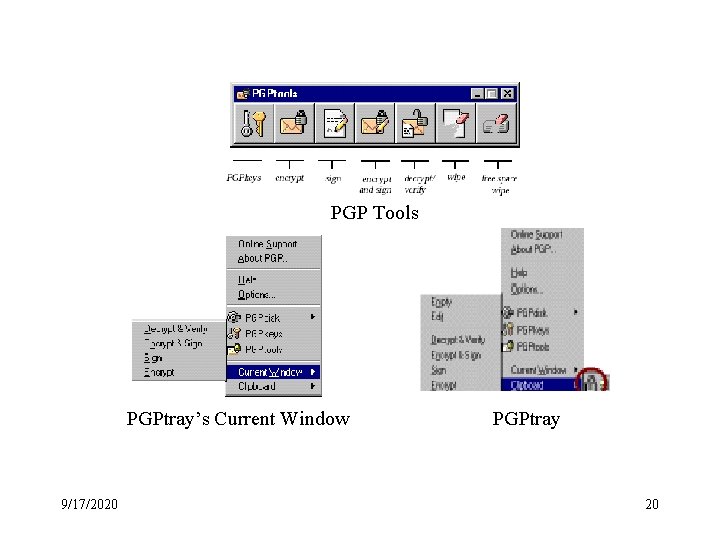
PGP Tools PGPtray’s Current Window 9/17/2020 PGPtray 20
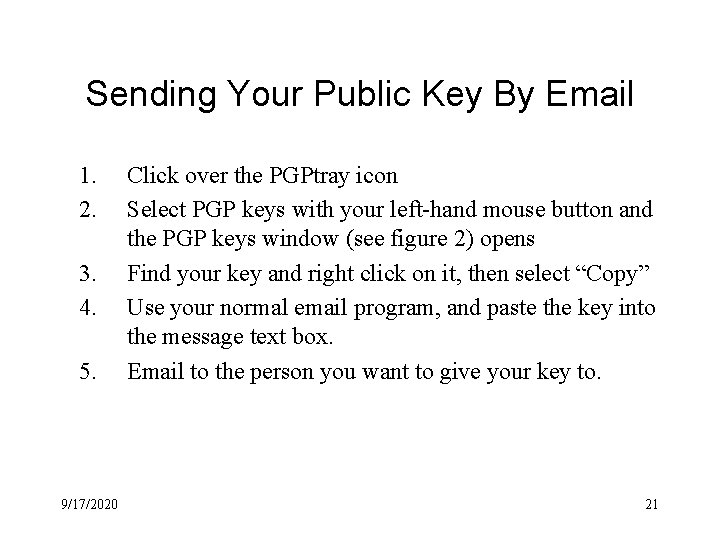
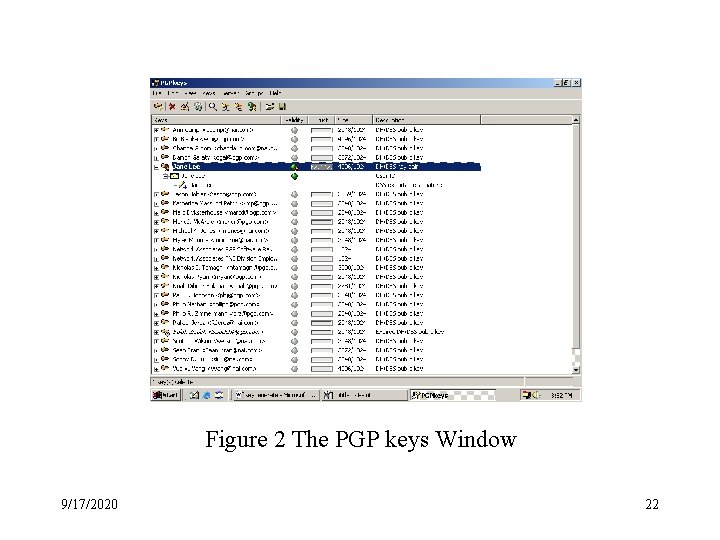
Sending Your Public Key By Email 1. 2. 3. 4. 5. 9/17/2020 Click over the PGPtray icon Select PGP keys with your left-hand mouse button and the PGP keys window (see figure 2) opens Find your key and right click on it, then select “Copy” Use your normal email program, and paste the key into the message text box. Email to the person you want to give your key to. 21
Figure 2 The PGP keys Window 9/17/2020 22
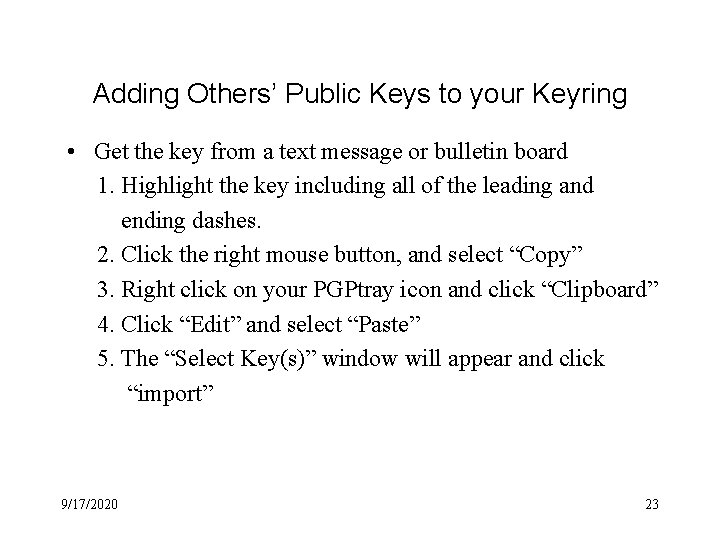
Adding Others’ Public Keys to your Keyring • Get the key from a text message or bulletin board 1. Highlight the key including all of the leading and ending dashes. 2. Click the right mouse button, and select “Copy” 3. Right click on your PGPtray icon and click “Clipboard” 4. Click “Edit” and select “Paste” 5. The “Select Key(s)” window will appear and click “import” 9/17/2020 23
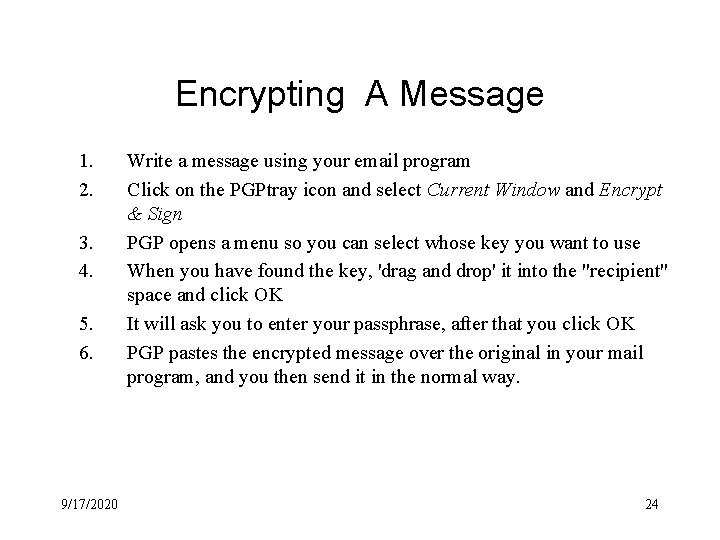
Encrypting A Message 1. 2. 3. 4. 5. 6. 9/17/2020 Write a message using your email program Click on the PGPtray icon and select Current Window and Encrypt & Sign PGP opens a menu so you can select whose key you want to use When you have found the key, 'drag and drop' it into the "recipient" space and click OK It will ask you to enter your passphrase, after that you click OK PGP pastes the encrypted message over the original in your mail program, and you then send it in the normal way. 24
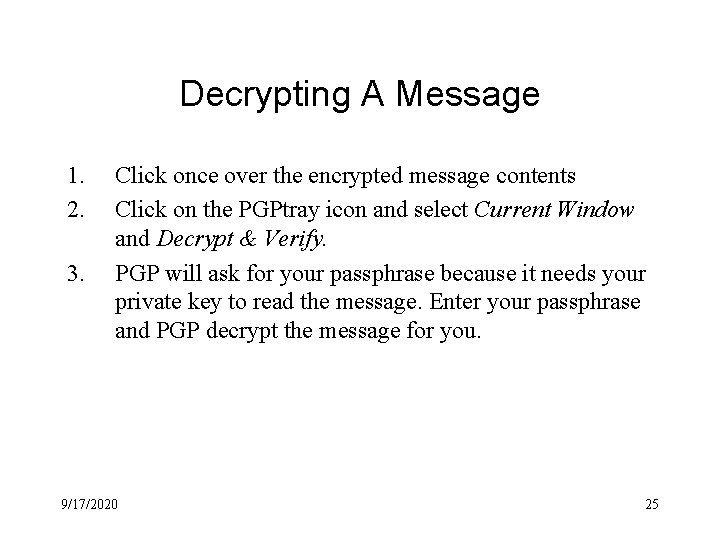
Decrypting A Message 1. 2. 3. Click once over the encrypted message contents Click on the PGPtray icon and select Current Window and Decrypt & Verify. PGP will ask for your passphrase because it needs your private key to read the message. Enter your passphrase and PGP decrypt the message for you. 9/17/2020 25
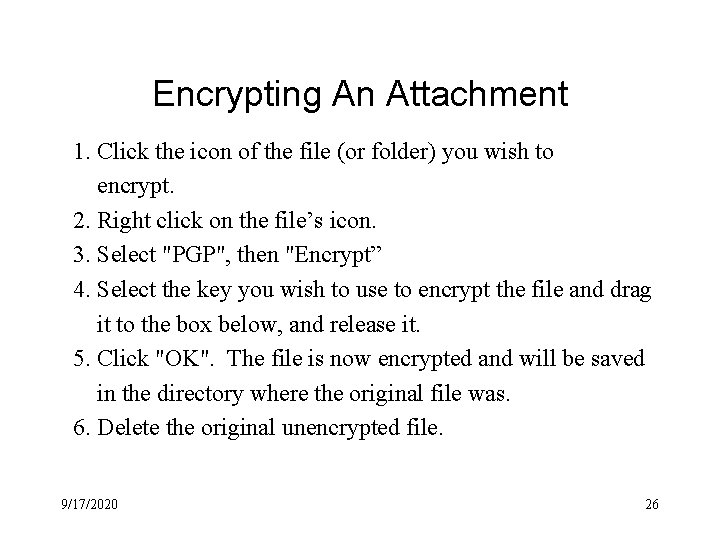
Encrypting An Attachment 1. Click the icon of the file (or folder) you wish to encrypt. 2. Right click on the file’s icon. 3. Select "PGP", then "Encrypt” 4. Select the key you wish to use to encrypt the file and drag it to the box below, and release it. 5. Click "OK". The file is now encrypted and will be saved in the directory where the original file was. 6. Delete the original unencrypted file. 9/17/2020 26
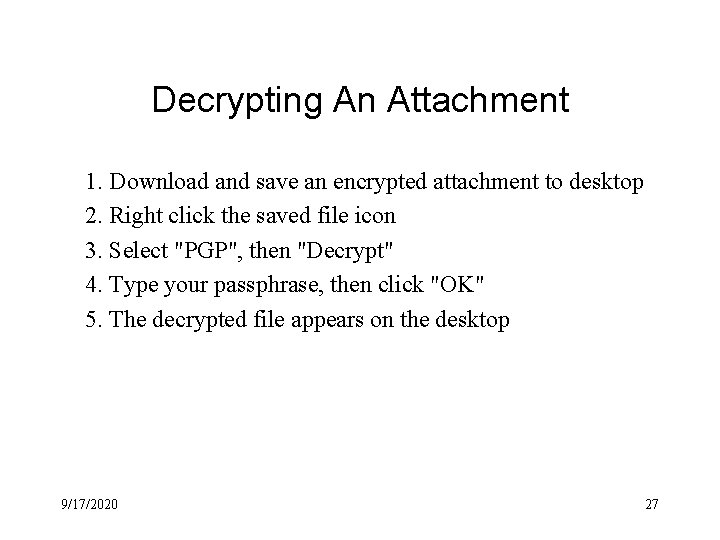
Decrypting An Attachment 1. Download and save an encrypted attachment to desktop 2. Right click the saved file icon 3. Select "PGP", then "Decrypt" 4. Type your passphrase, then click "OK" 5. The decrypted file appears on the desktop 9/17/2020 27
References • User’s Guide, PGP Freeware for Windows 95, Windows 98 and Windows NT & Windows 2000, Version 6. 5 & 7. 0 http: //www. pgpi. org/doc/6. 5, http: //www. pgpi. org/doc/7. 0 • Installation of PGP on Windows machine, http: //www. vigay. com/cgi-bin/r? a=pgp-windows • PGP Installation and use for Dummies, http: //www. theinternet. cc/pgp 4 dummies/main. htm • http: //www. nai. com/products/security/freeware. asp 9/17/2020 28