
AMERICA LEARNS TIMESHEET REVIEW Agenda Purpose Using it



- Slides: 19
AMERICA LEARNS TIMESHEET REVIEW
Agenda • Purpose • Using it • Questions
Sunday, September 12, 2021 3
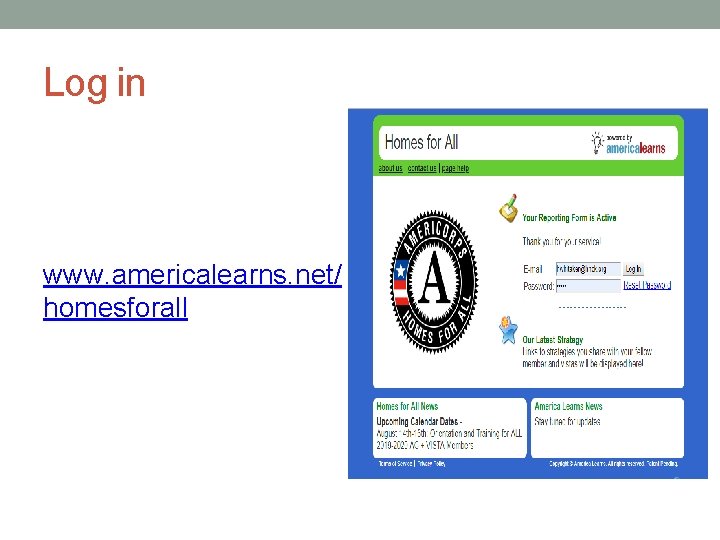
Log in www. americalearns. net/ homesforall
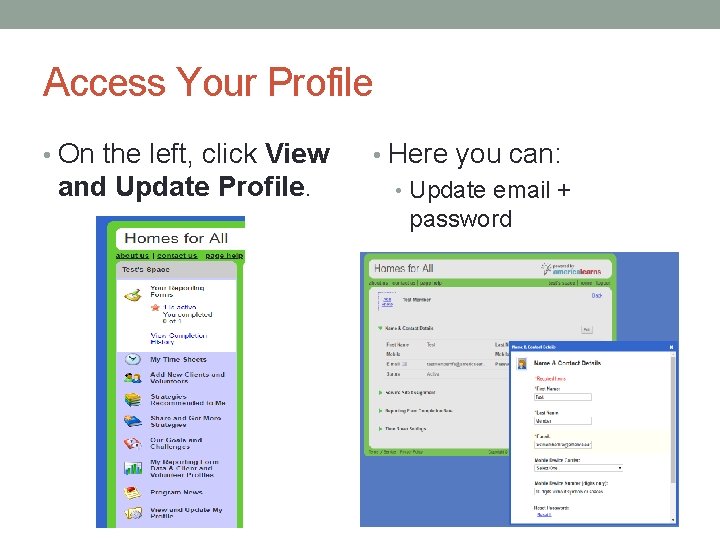
Access Your Profile • On the left, click View and Update Profile. • Here you can: • Update email + password
time sheets
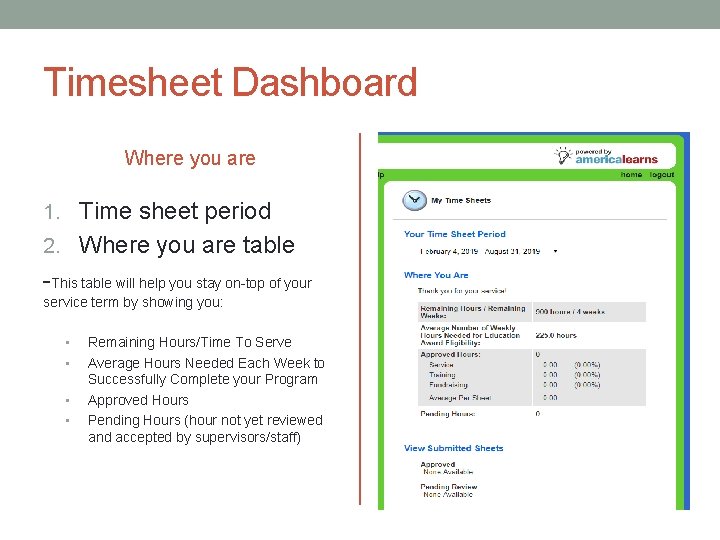
Timesheet Dashboard Where you are 1. Time sheet period 2. Where you are table -This table will help you stay on-top of your service term by showing you: • • Remaining Hours/Time To Serve Average Hours Needed Each Week to Successfully Complete your Program Approved Hours Pending Hours (hour not yet reviewed and accepted by supervisors/staff)
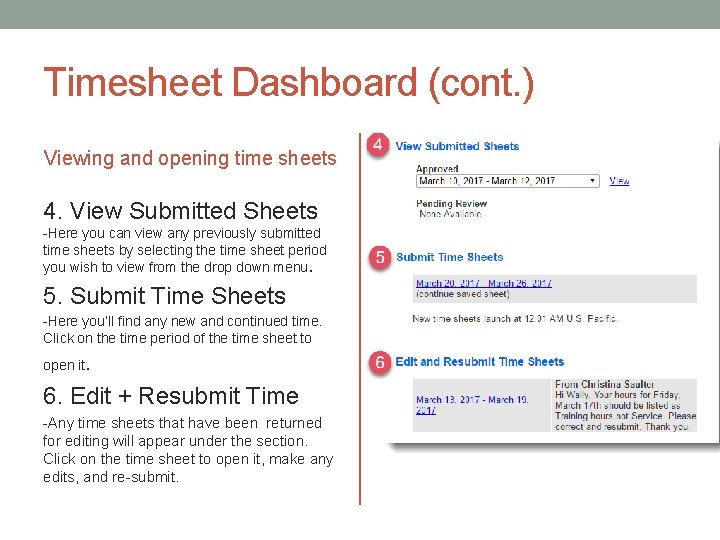
Timesheet Dashboard (cont. ) Viewing and opening time sheets 4. View Submitted Sheets -Here you can view any previously submitted time sheets by selecting the time sheet period you wish to view from the drop down menu. 5. Submit Time Sheets -Here you’ll find any new and continued time. Click on the time period of the time sheet to . 6. Edit + Resubmit Time open it -Any time sheets that have been returned for editing will appear under the section. Click on the time sheet to open it, make any edits, and re-submit.
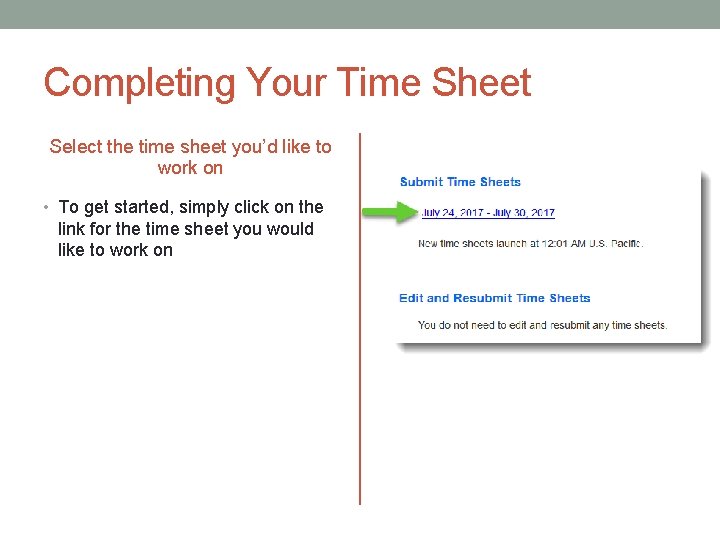
Completing Your Time Sheet Select the time sheet you’d like to work on • To get started, simply click on the link for the time sheet you would like to work on
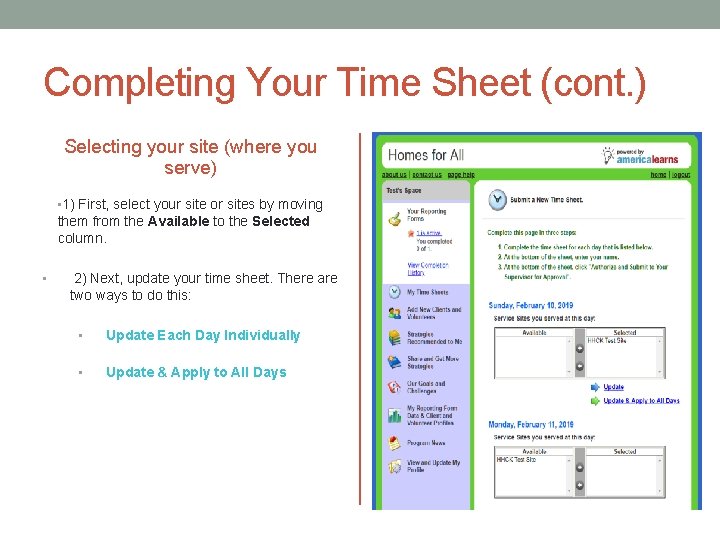
Completing Your Time Sheet (cont. ) Selecting your site (where you serve) • 1) First, select your site or sites by moving them from the Available to the Selected column. • 2) Next, update your time sheet. There are two ways to do this: • Update Each Day Individually • Update & Apply to All Days
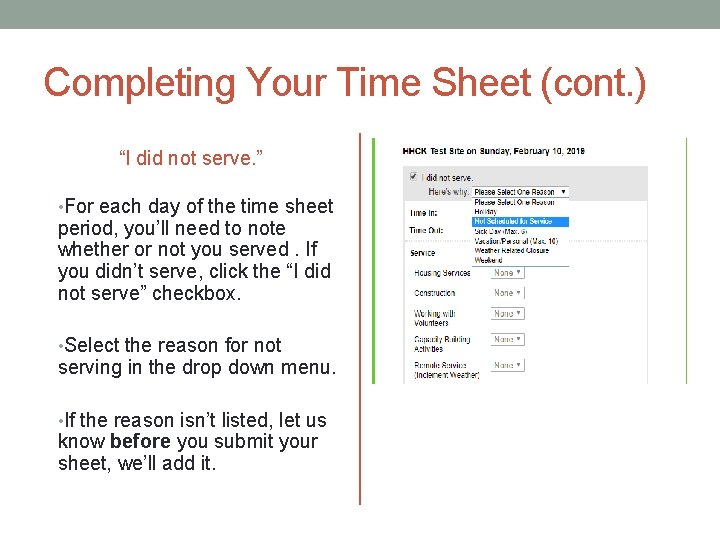
Completing Your Time Sheet (cont. ) “I did not serve. ” • For each day of the time sheet period, you’ll need to note whether or not you served. If you didn’t serve, click the “I did not serve” checkbox. • Select the reason for not serving in the drop down menu. • If the reason isn’t listed, let us know before you submit your sheet, we’ll add it.
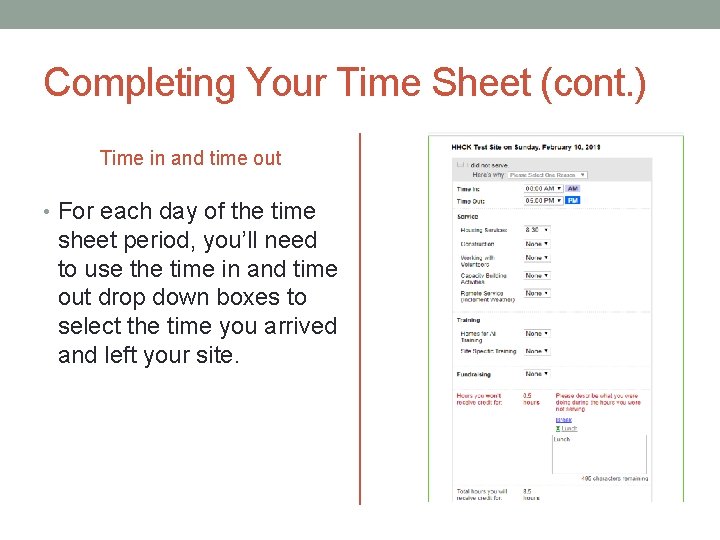
Completing Your Time Sheet (cont. ) Time in and time out • For each day of the time sheet period, you’ll need to use the time in and time out drop down boxes to select the time you arrived and left your site.
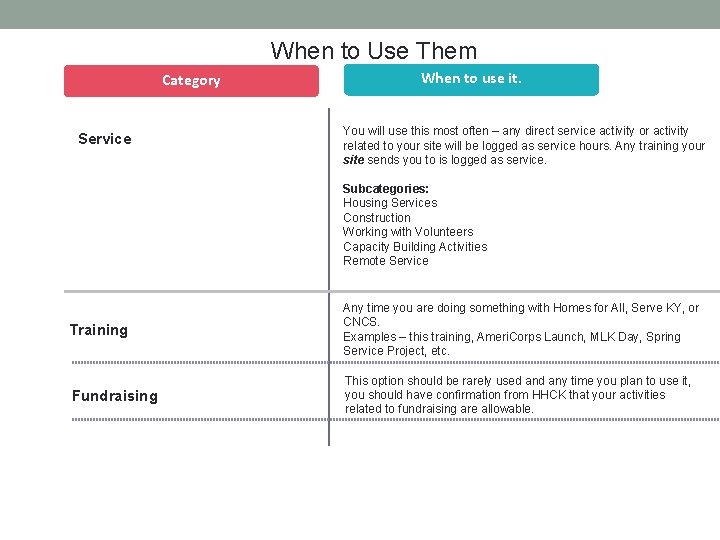
When to Use Them Category Service When to use it. You will use this most often – any direct service activity or activity related to your site will be logged as service hours. Any training your site sends you to is logged as service. Subcategories: Housing Services Construction Working with Volunteers Capacity Building Activities Remote Service Training Any time you are doing something with Homes for All, Serve KY, or CNCS. Examples – this training, Ameri. Corps Launch, MLK Day, Spring Service Project, etc. Fundraising This option should be rarely used any time you plan to use it, you should have confirmation from HHCK that your activities related to fundraising are allowable.
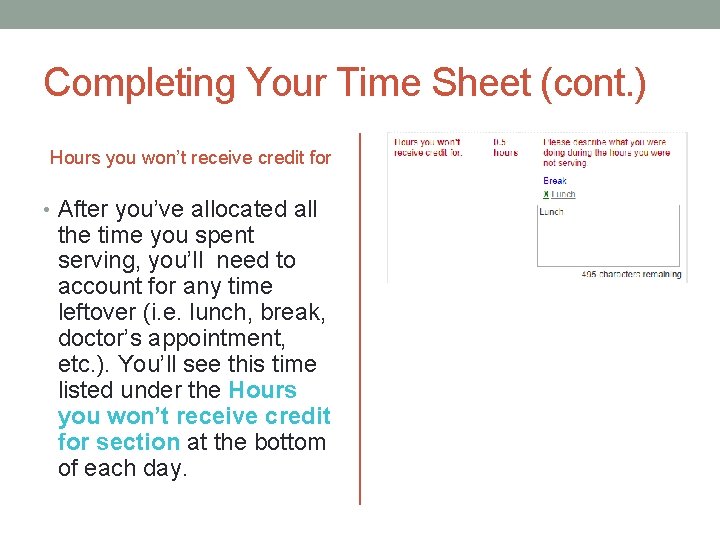
Completing Your Time Sheet (cont. ) Hours you won’t receive credit for • After you’ve allocated all the time you spent serving, you’ll need to account for any time leftover (i. e. lunch, break, doctor’s appointment, etc. ). You’ll see this time listed under the Hours you won’t receive credit for section at the bottom of each day.
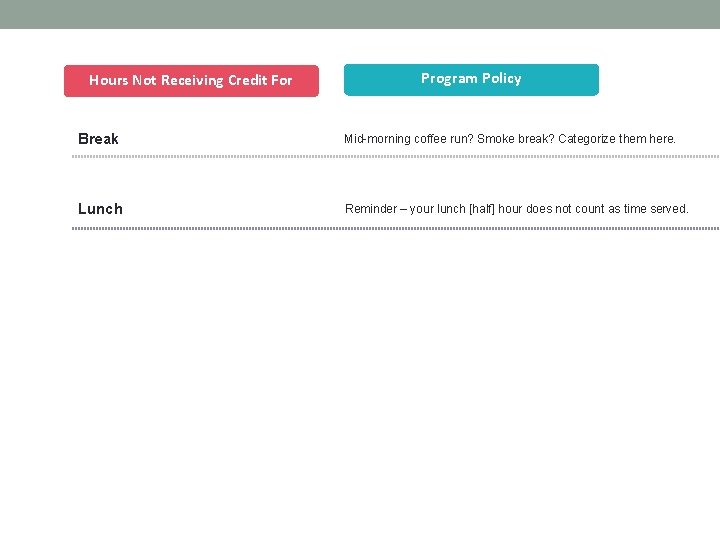
Hours Not Receiving Credit For Program Policy Break Mid-morning coffee run? Smoke break? Categorize them here. Lunch Reminder – your lunch [half] hour does not count as time served.
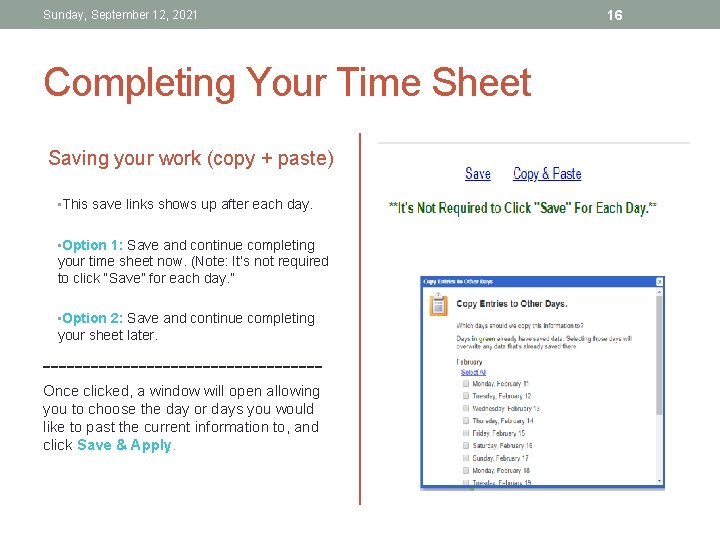
Sunday, September 12, 2021 Completing Your Time Sheet Saving your work (copy + paste) • This save links shows up after each day. • Option 1: Save and continue completing your time sheet now. (Note: It’s not required to click “Save” for each day. ” • Option 2: Save and continue completing your sheet later. -----------------Once clicked, a window will open allowing you to choose the day or days you would like to past the current information to, and click Save & Apply. 16
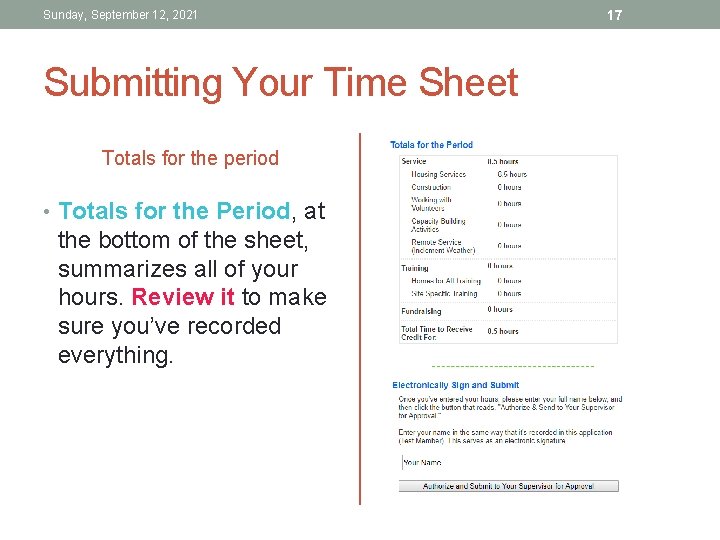
Sunday, September 12, 2021 Submitting Your Time Sheet Totals for the period • Totals for the Period, at the bottom of the sheet, summarizes all of your hours. Review it to make sure you’ve recorded everything. 17
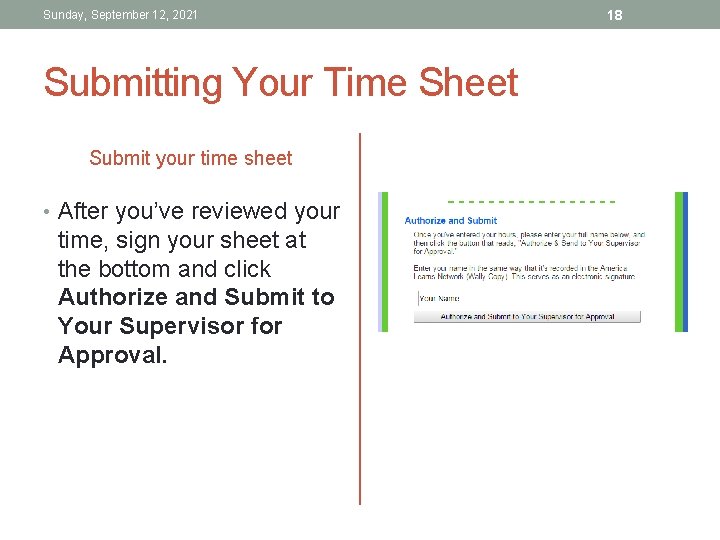
Sunday, September 12, 2021 Submitting Your Time Sheet Submit your time sheet • After you’ve reviewed your time, sign your sheet at the bottom and click Authorize and Submit to Your Supervisor for Approval. 18
EMAIL: hwhitaker@hhck. org Need Help? PHONE: 502. 223. 1834 ext. 103