
Altiris Notification Server 7 Symantec Management Platform UpgradingMigration

- Slides: 18
Altiris Notification Server 7 Symantec Management Platform Upgrading/Migration Best Practices Kevin N. Wilson, Altiris Specialist - Symantec
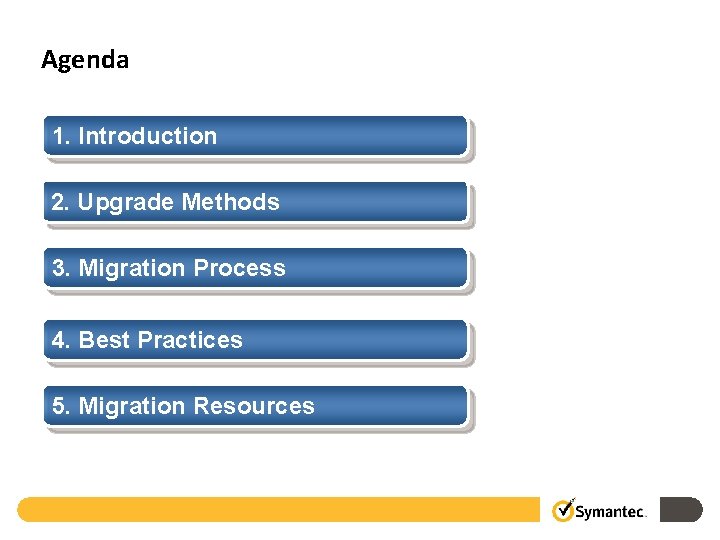
Agenda 1. Introduction 2. Upgrade Methods 3. Migration Process 4. Best Practices 5. Migration Resources
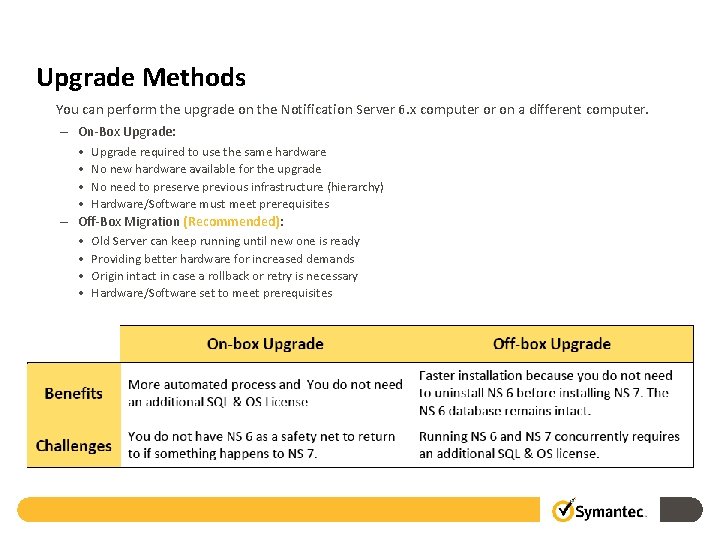
Upgrade Methods You can perform the upgrade on the Notification Server 6. x computer or on a different computer. – On-Box Upgrade: • Upgrade required to use the same hardware • No new hardware available for the upgrade • No need to preserve previous infrastructure (hierarchy) • Hardware/Software must meet prerequisites – Off-Box Migration (Recommended): • Old Server can keep running until new one is ready • Providing better hardware for increased demands • Origin intact in case a rollback or retry is necessary • Hardware/Software set to meet prerequisites
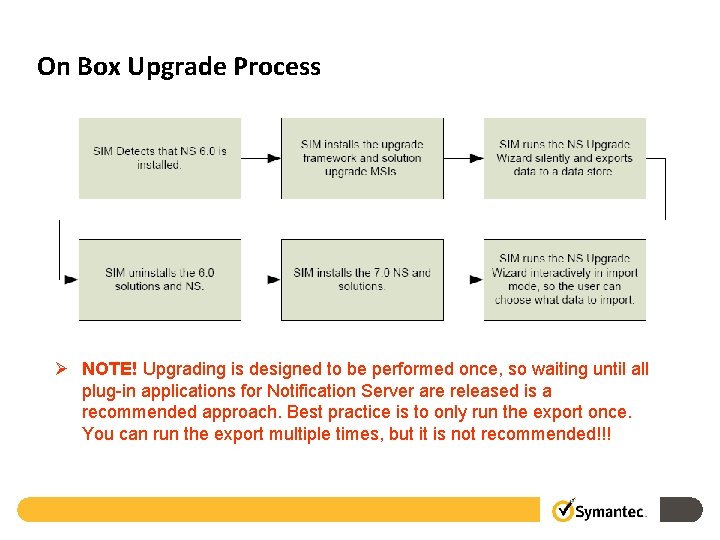
On Box Upgrade Process Ø NOTE! Upgrading is designed to be performed once, so waiting until all plug-in applications for Notification Server are released is a recommended approach. Best practice is to only run the export once. You can run the export multiple times, but it is not recommended!!!
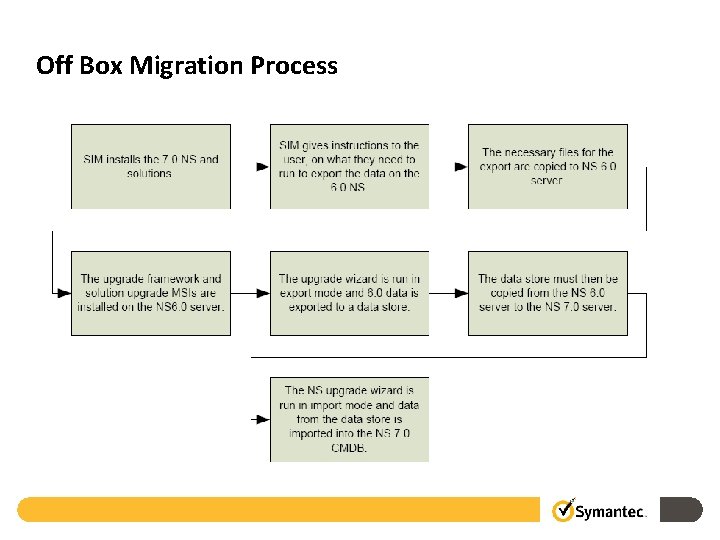
Off Box Migration Process
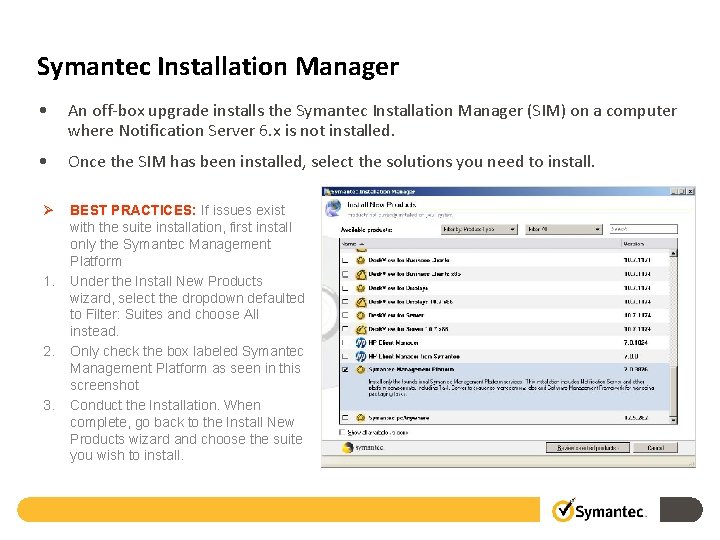
Symantec Installation Manager • An off-box upgrade installs the Symantec Installation Manager (SIM) on a computer where Notification Server 6. x is not installed. • Once the SIM has been installed, select the solutions you need to install. Ø 1. 2. 3. BEST PRACTICES: If issues exist with the suite installation, first install only the Symantec Management Platform Under the Install New Products wizard, select the dropdown defaulted to Filter: Suites and choose All instead. Only check the box labeled Symantec Management Platform as seen in this screenshot Conduct the Installation. When complete, go back to the Install New Products wizard and choose the suite you wish to install.
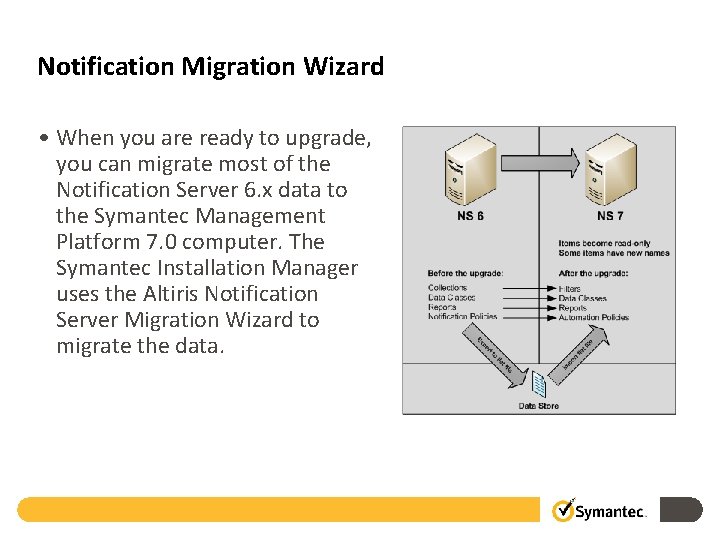
Notification Migration Wizard • When you are ready to upgrade, you can migrate most of the Notification Server 6. x data to the Symantec Management Platform 7. 0 computer. The Symantec Installation Manager uses the Altiris Notification Server Migration Wizard to migrate the data.
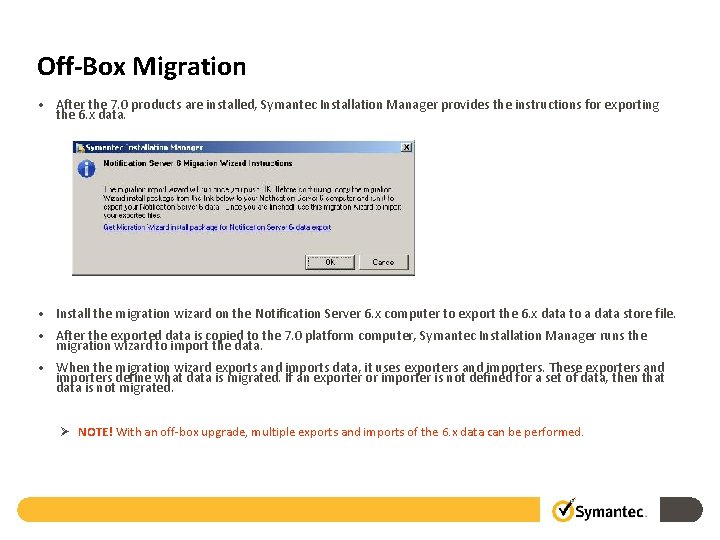
Off-Box Migration • After the 7. 0 products are installed, Symantec Installation Manager provides the instructions for exporting the 6. x data. • Install the migration wizard on the Notification Server 6. x computer to export the 6. x data to a data store file. • After the exported data is copied to the 7. 0 platform computer, Symantec Installation Manager runs the migration wizard to import the data. • When the migration wizard exports and imports data, it uses exporters and importers. These exporters and importers define what data is migrated. If an exporter or importer is not defined for a set of data, then that data is not migrated. Ø NOTE! With an off-box upgrade, multiple exports and imports of the 6. x data can be performed.
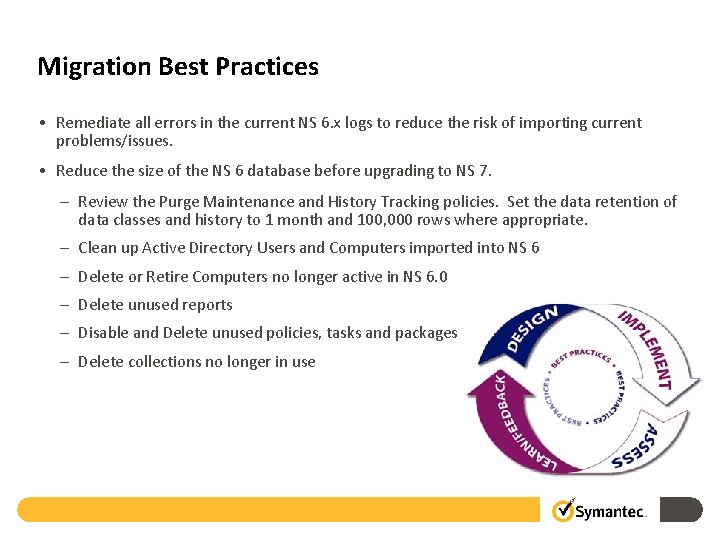
Migration Best Practices • Remediate all errors in the current NS 6. x logs to reduce the risk of importing current problems/issues. • Reduce the size of the NS 6 database before upgrading to NS 7. – Review the Purge Maintenance and History Tracking policies. Set the data retention of data classes and history to 1 month and 100, 000 rows where appropriate. – Clean up Active Directory Users and Computers imported into NS 6 – Delete or Retire Computers no longer active in NS 6. 0 – Delete unused reports – Disable and Delete unused policies, tasks and packages – Delete collections no longer in use
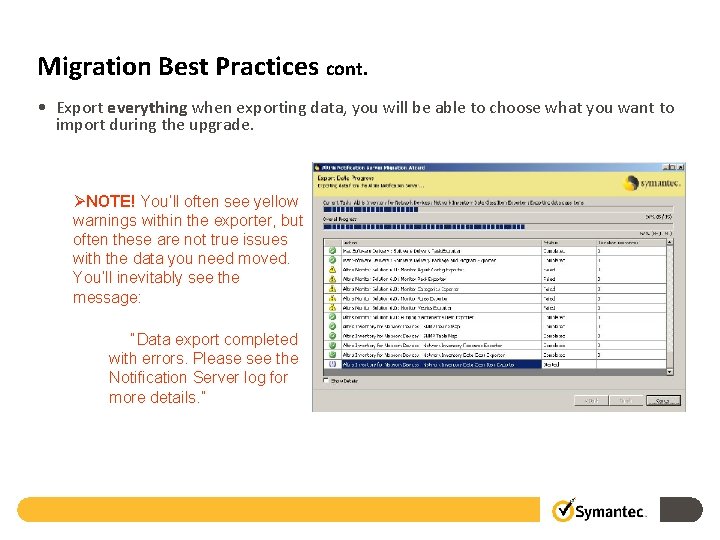
Migration Best Practices cont. • Export everything when exporting data, you will be able to choose what you want to import during the upgrade. ØNOTE! You’ll often see yellow warnings within the exporter, but often these are not true issues with the data you need moved. You’ll inevitably see the message: “Data export completed with errors. Please see the Notification Server log for more details. ”
Migration Best Practices cont. Migrate Managed Computers: • Use Deployment Server to uninstall Altiris 6 Agent – Command Line: "C: Program FilesAltiris AgentAex. Agent. Util. exe" /Clean /Uninstall. Agents • Use Deployment Server to install Altiris 7 Agent – Command Line: ”\NS 7 ServernscapbinWin 32X 86NS Client PackageAe. XNSC. exe" /install /ns=New. CMS 7 Name /s • Check the Client Agent Settings to ensure the correct versions have been installed for 7. 0
Migration Best Practices cont. Collections, Reports, Data Classes, and Notification Policies • In the NS Upgrade Wizard, you have the ability to specify whether custom collections (in NS 7, called filters), reports, and data classes are migrated into NS 7. • Test NS 6 reports after the upgrade to make sure that they run properly, because several underlying tables have changed in NS 7 (such as the Item table). Your reports may be referring to a table that no longer exists, in particular, re-test custom reports. • Notification policies are migrated, but they are replaced with automation policies. You can view them using the Policies and Tasks web pages. Ø NOTE! Once migrated, these become read-only and are stored in folders titled Legacy.
Mixed Mode Environments • When upgrading an Altiris 6 environment to Altiris 7, customers with more advanced installs of Altiris products may encounter problems with the upgrade infrastructure provided by Altiris 7. The Altiris 7 upgrade assumes that a customer is upgrading all solutions on all servers at the same time and that they are able to upgrade all servers in the same time window. • This will affect customers that meet any of the following criteria: – – Customers not able to upgrade all of their Altiris 6 server within an acceptable window of downtime. Data at top tier Notification Server supports other business processes so it can’t just ‘go away. ’
Mixed Mode Environments cont. • This problems creates a need for customers to be able to run in a mixed mode environment where they are able to run Altiris 7 servers as well as Altiris 6 servers. There is no built-in functionality in Altiris 7 that allows a user to specify an Altiris 6 server to pull data from, however this can be easily accomplished by supplying an Altiris 6 Connector Rule that allows Altiris 6 servers to “push” their data into an Altiris 7 server. • This Connector Rule will be able to forward basic inventory as well as computer serial number, computer manufacturer model, system type and processor, etc. This Connector Rule will be able to be run on a scheduled basis, typically once every night, and will provide a delta export of the data. • Once a customer has properly mapped out their site hierarchy, this would allow a customer to bring their environment to Altiris 7 in a staged approach, starting and the bottom child servers and working their way up to the top most Altiris 6 server.
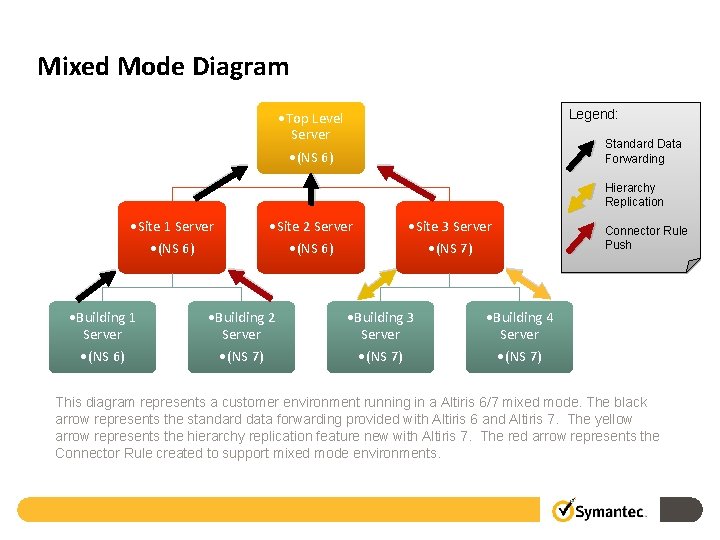
Mixed Mode Diagram Legend: • Top Level Server • (NS 6) Standard Data Forwarding Hierarchy Replication • Site 1 Server • (NS 6) • Building 1 Server • (NS 6) • Site 2 Server • (NS 6) • Building 2 Server • (NS 7) • Site 3 Server • (NS 7) • Building 3 Server • (NS 7) Connector Rule Push • Building 4 Server • (NS 7) This diagram represents a customer environment running in a Altiris 6/7 mixed mode. The black arrow represents the standard data forwarding provided with Altiris 6 and Altiris 7. The yellow arrow represents the hierarchy replication feature new with Altiris 7. The red arrow represents the Connector Rule created to support mixed mode environments. Symantec Confidential
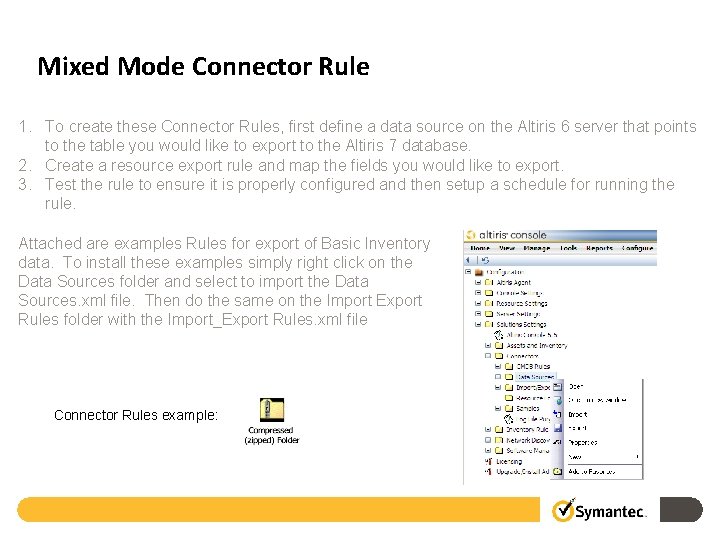
Mixed Mode Connector Rule 1. To create these Connector Rules, first define a data source on the Altiris 6 server that points to the table you would like to export to the Altiris 7 database. 2. Create a resource export rule and map the fields you would like to export. 3. Test the rule to ensure it is properly configured and then setup a schedule for running the rule. Attached are examples Rules for export of Basic Inventory data. To install these examples simply right click on the Data Sources folder and select to import the Data Sources. xml file. Then do the same on the Import Export Rules folder with the Import_Export Rules. xml file Connector Rules example:
Migration Resources • Refer to the following Knowledge Base articles to ensure you are prepared to meet the minimum and/or recommended requirements to migrate from Altiris 6. x to Altiris 7. 0. As a basis to all solutions the Symantec Management Platform defines the supported and unsupported managed OS platforms, as well as NS server side OS platform and technology requirements: References: – http: //kb. altiris. com • KB 43648 – Support FAQ for Symantec Management Platform • KB 37648 – Symantec Management Platform 7. 0 Release Notes • KB 19750 – Notification Server Maintenance • KB 45092 – Improving Performance of your Symantec Management Platform • KB 33867 – Notification Server and Non-Standard Ports • Symantec Installation Manager Guide – Online help reference, and available when the Installation Manager is downloaded • Symantec Management Platform User Guide – Online help reference
Thank you! Kevin N. Wilson Kevin_Wilson 1@symantec. com Copyright © 2010 Symantec Corporation. All rights reserved. Symantec and the Symantec Logo are trademarks or registered trademarks of Symantec Corporation or its affiliates in the U. S. and other countries. Other names may be trademarks of their respective owners. This document is provided for informational purposes only and is not intended as advertising. All warranties relating to the information in this document, either express or implied, are disclaimed to the maximum extent allowed by law. The information in this document is subject to change without notice.