
Aid Management Platform AMP Advanced User Training Module
- Slides: 12
Aid Management Platform (AMP) Advanced User Training, Module 1 F Entering Activities Tanzania, February 2009
Topics Covered • How do you create a new activity? • What kind of information is collected? • How do you edit an activity?
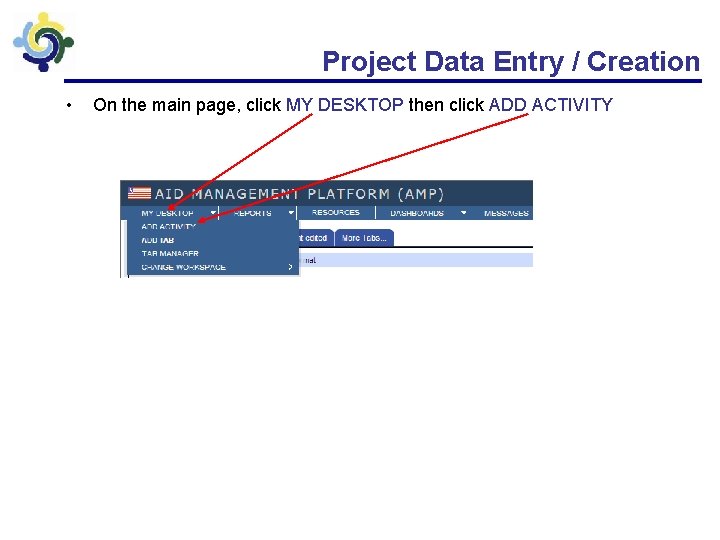
Project Data Entry / Creation • On the main page, click MY DESKTOP then click ADD ACTIVITY
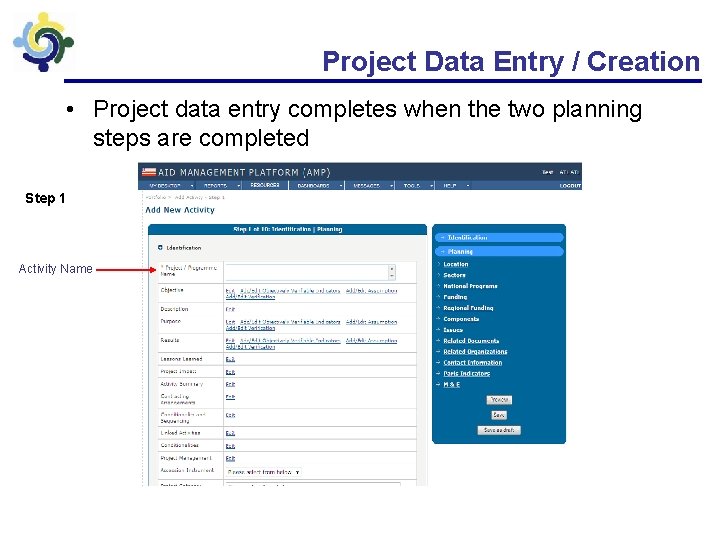
Project Data Entry / Creation • Project data entry completes when the two planning steps are completed Step 1 Activity Name
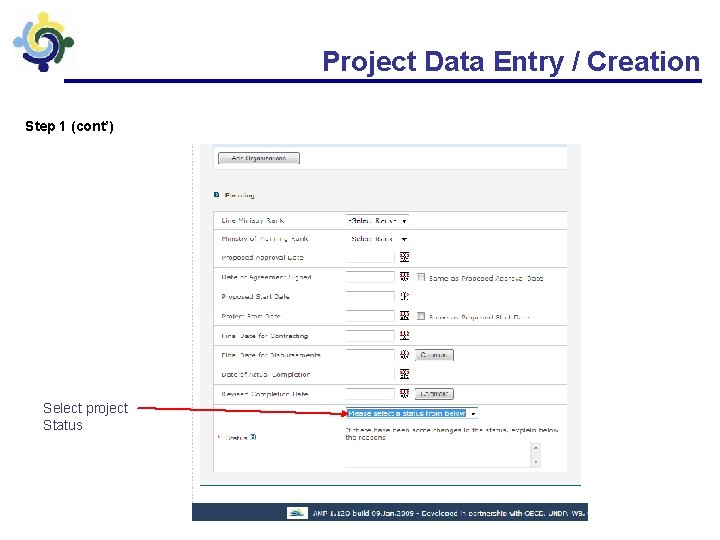
Project Data Entry / Creation Step 1 (cont’) Select project Status
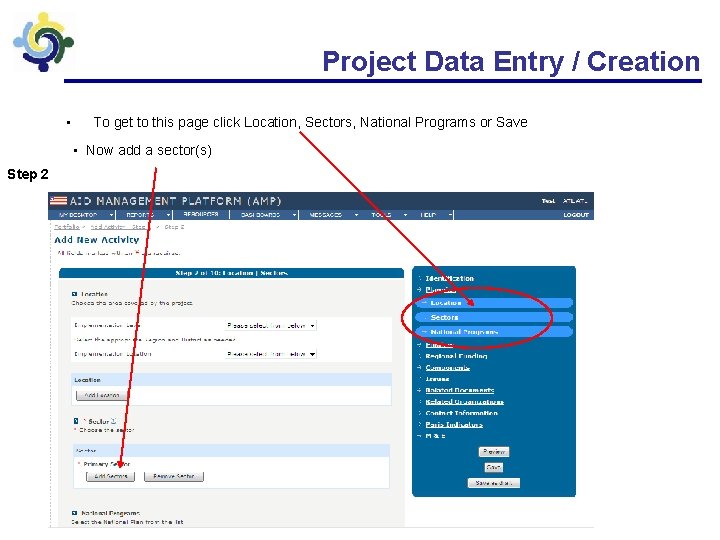
Project Data Entry / Creation • To get to this page click Location, Sectors, National Programs or Save • Now add a sector(s) Step 2
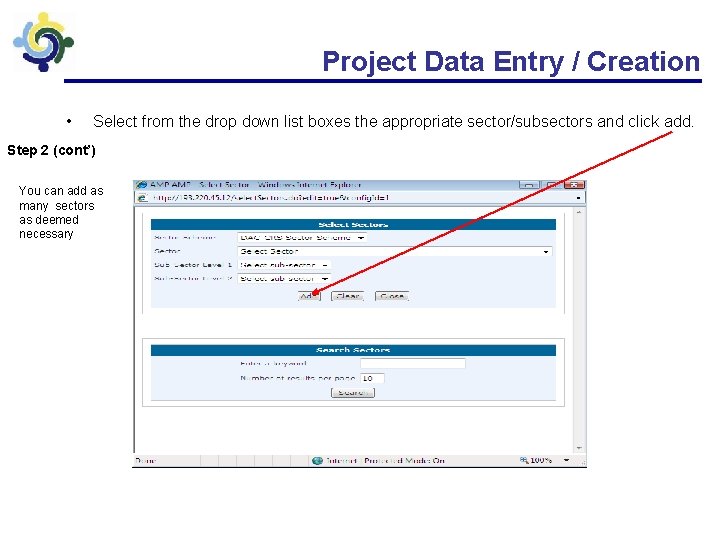
Project Data Entry / Creation • Select from the drop down list boxes the appropriate sector/subsectors and click add. Step 2 (cont’) You can add as many sectors as deemed necessary
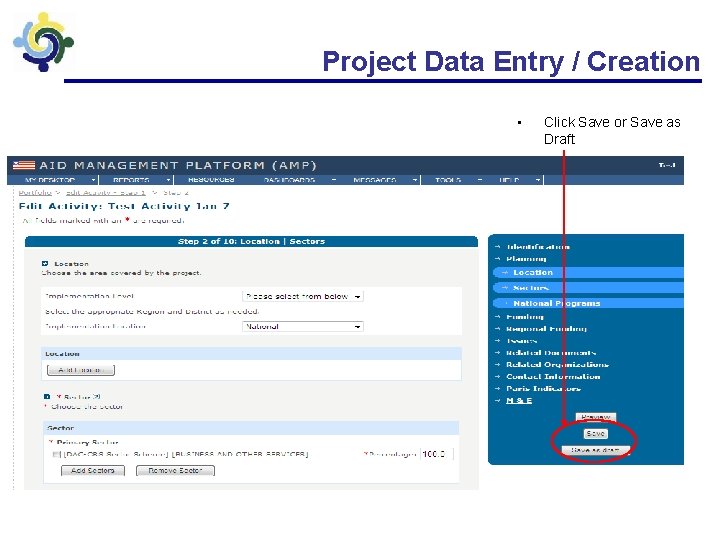
Project Data Entry / Creation • Click Save or Save as Draft
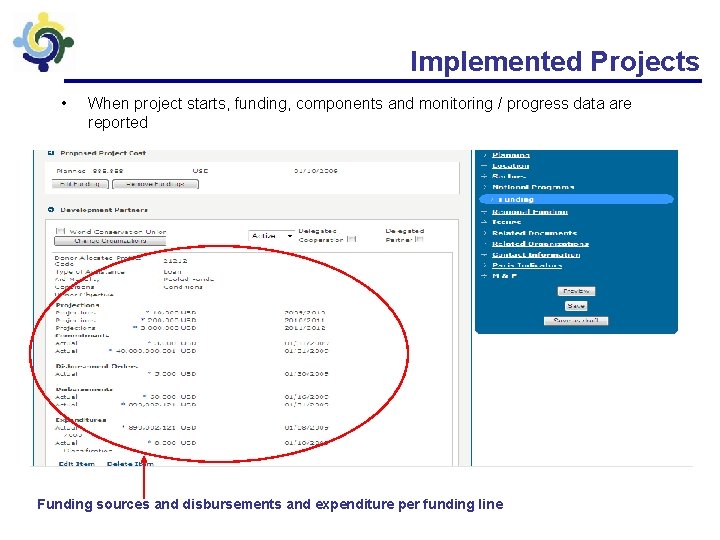
Implemented Projects • When project starts, funding, components and monitoring / progress data are reported Funding sources and disbursements and expenditure per funding line
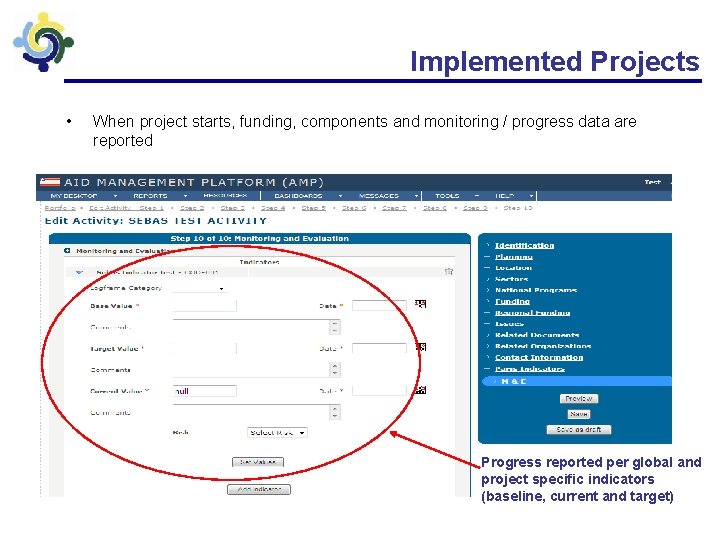
Implemented Projects • When project starts, funding, components and monitoring / progress data are reported Progress reported per global and project specific indicators (baseline, current and target)
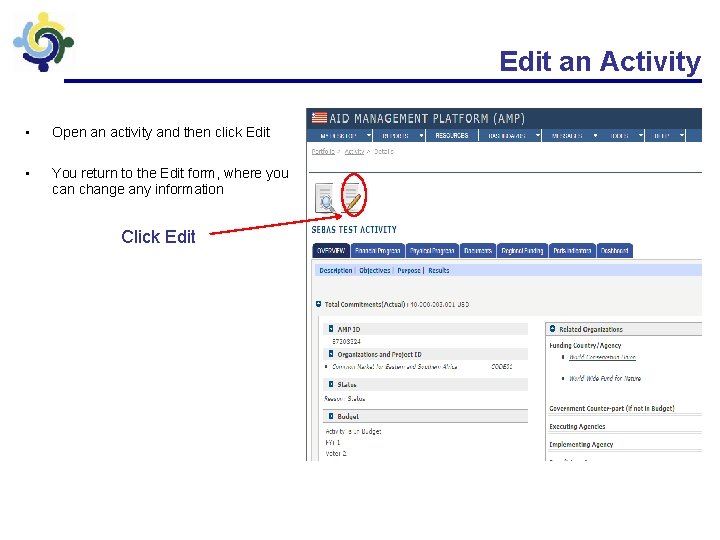
Edit an Activity • Open an activity and then click Edit • You return to the Edit form, where you can change any information Click Edit
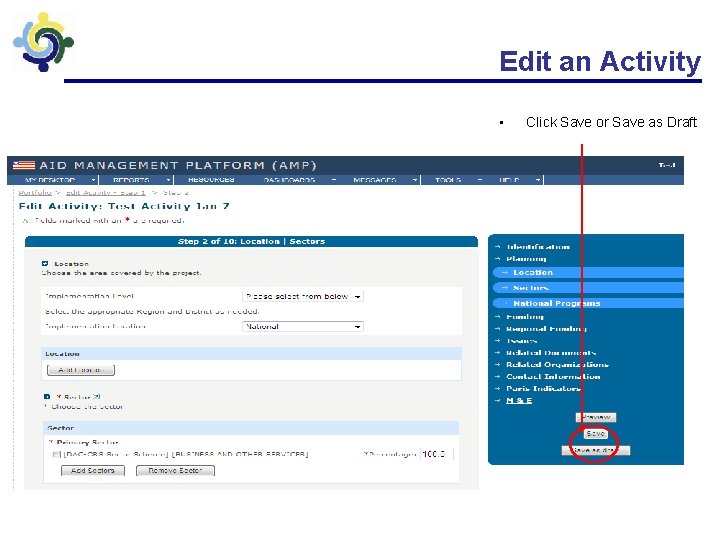
Edit an Activity • Click Save or Save as Draft