
Agenda for Unit 6 Using Animation in Games




- Slides: 25
Agenda for Unit 6: Using Animation in Games • Objectives Ø 6. Develop animation for games. • 6. 1: Define the purpose of a game loop. • 6. 2: Identify the five parts of game loop programming code. • 6. 3: Describe how to write code that allows users to control game objects with the keyboard. • 6. 4: Explain the role of sprites in game animation. • 6. 5: Create a sprite to use in a game.
Hour 1 • Review Homework 5. 1 • Quick Hits • Review week 5 lab (Red Shift and Round Peg in a Square Hole)
Hour 2 Chapter 7: The Game Loop and Animation
Hour 3 • Chapter 7: The Game Loop and Animation • More Quick Hits • Lab 6. 1 Lunar Lander and Project Conception
Hour 4 • Lab 6. 1 Lunar Lander and Project Conception (cont. ) • Quiz 5. 1 answers • Quiz 6. 1 answers • Homework 6. 1 assignment
Ready?
Hour 1: Answers to Homework 5. 1: Turn to page 273 and read aloud: Email me for answers
Hour 1: Quick Hits Make sure you empty your folder each week. Landing Spaceship feedback is coming Make sure you are sending me. cpp files Using my skeletons Testing Scripts
Hour 1: Review week 5 lab (Red Shift) See File
Hour 1: Review week 5 lab (Round Peg in a Square Hole) See File
BREAK!
Hour 2: Chapter 7: The Game Loop and Animation You should have read this over the break so the lecture should be a REVIEW! Monitors off!
BREAK!
Hour 3: Chapter 7: The Game Loop and Animation You should have read this over the break so the lecture should be a REVIEW! Monitors off!
Hour 3: More Quick Hits Mistakes in the book: Turn to page 301: Getting a Sprite’s X and Y Coordinates Turn to page 330: Sprite Collision Detection
Hour 3: Lab 6. 1: Lunar Landing and Project Conception (Programming Exercise #8 -10 on pages 343 of Starting Out with Games and Graphics in C++) What is the purpose? In this lab, you will write game and animation loops, display and control sprites, and learn to extend a simple program through three iterations of increasing complexity. What are the steps? Task 1: Lunar Lander: Up and Down (Programming Exercise #8). Procedure 1. Complete Programming Exercise #8 on page 343 of the textbook. 2. Find the right y value for the ship to appear correctly on the lunar surface. This value will, of course, be unique to the artwork each student is using. 3. When the ship is moving up and down and stopping appropriately, continue with Task 2.
Hour 3: Lab 6. 1: Lunar Landing and Project Conception (cont. ) What are the steps? Task 2: Lunar Lander: Left and Right (Programming Exercise #9). Procedure 1. Complete Programming Exercise #9 on page 343 of the textbook. 2. Be sure to note that the specifications for this program require that the spacebar be pressed in order for the left and right arrow keys to have any effect. 3. When the ship is moving right and left correctly, continue with Task 3.
Hour 3: Lab 6. 1: Lunar Landing and Project Conception (cont. ) What are the steps? Task 3: Lunar Lander: Avoid Rocks (Programming Exercise #10). Procedure 1. Complete Programming Exercise #10 on page 343 of the textbook. 2. Use the sprite collision detection functions to determine when the ship has reached the landing pad.
Hour 3: Lab 6. 1: Lunar Landing and Project Conception (cont. ) What are the steps? Task 4: Start your Course Project. Procedure 1. Submit a one-page overview of your project, its basic summary, and three stages of developments. Each stage will be due at the following class period: ◦ Stage 1: Feb 8 th, 2011 ◦ Stage 2: Feb 22 nd, 2011 ◦ Stage 3: March 8 th, 2011
BREAK!
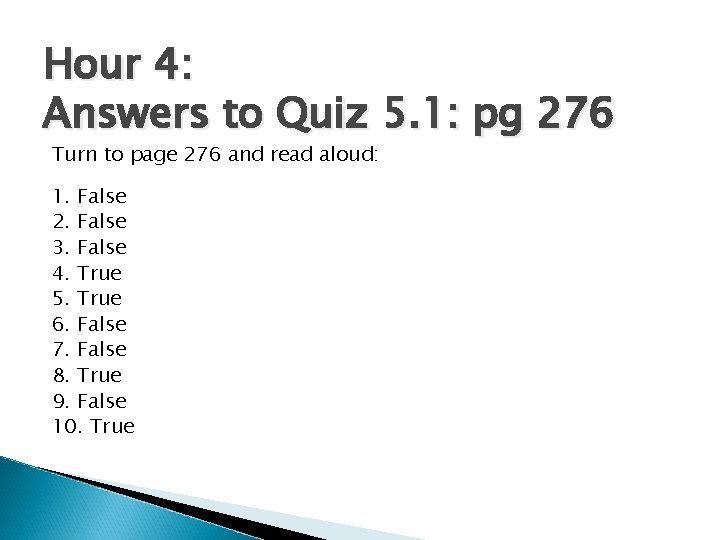
Hour 4: Answers to Quiz 5. 1: pg 276 Turn to page 276 and read aloud: 1. False 2. False 3. False 4. True 5. True 6. False 7. False 8. True 9. False 10. True
Hour 4: Quiz 6. 1: pg 341 Using the answer sheet provided, answer the 7 short-answer questions on pages 341 of Starting Out with Games and Graphics in C++.
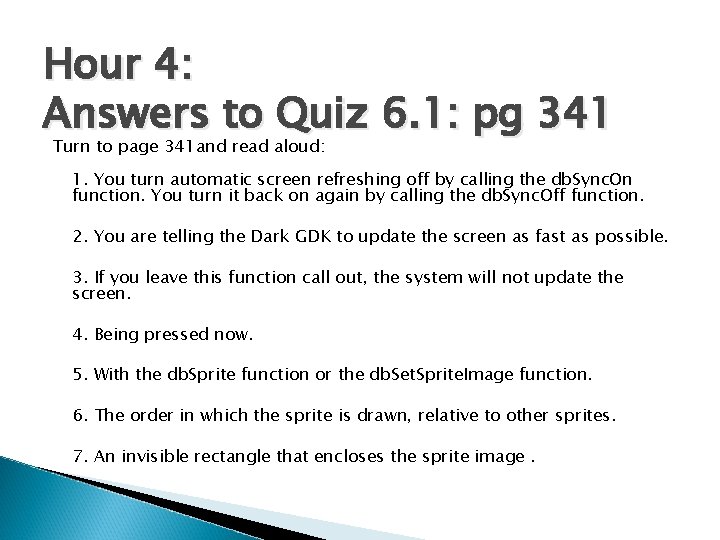
Hour 4: Answers to Quiz 6. 1: pg 341 Turn to page 341 and read aloud: 1. You turn automatic screen refreshing off by calling the db. Sync. On function. You turn it back on again by calling the db. Sync. Off function. 2. You are telling the Dark GDK to update the screen as fast as possible. 3. If you leave this function call out, the system will not update the screen. 4. Being pressed now. 5. With the db. Sprite function or the db. Set. Sprite. Image function. 6. The order in which the sprite is drawn, relative to other sprites. 7. An invisible rectangle that encloses the sprite image.
Hour 4: Homework 6. 1 Answer the Multiple Choice Review Questions on pages 340 -341 of Starting Out with Games and Graphics in C++. Submit your written answers to me in next week.
Hour 4: Next Week Read Chapter 8: The Vulture Trouble Game: Read Chapter 9: Value-Returning Functions and Turn in Homework 6. 1. Introducing Audio, Physics, and Text Effects Mouse Input Email your lab. cpp files to jasongrose@gmail. com