
After launching Access from the Microsoft Office folder
- Slides: 25
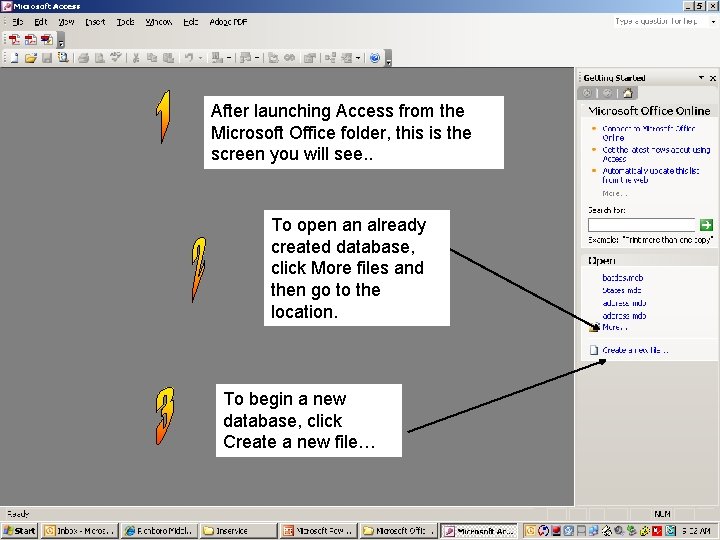
After launching Access from the Microsoft Office folder, this is the screen you will see. . To open an already created database, click More files and then go to the location. To begin a new database, click Create a new file…
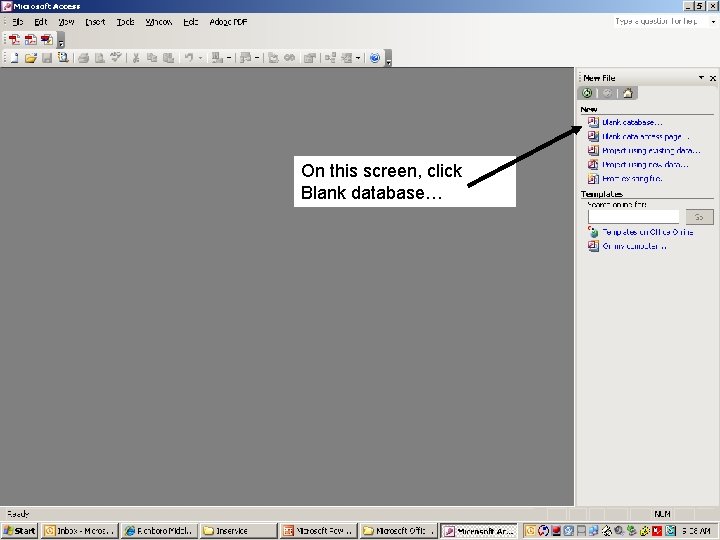
On this screen, click Blank database…
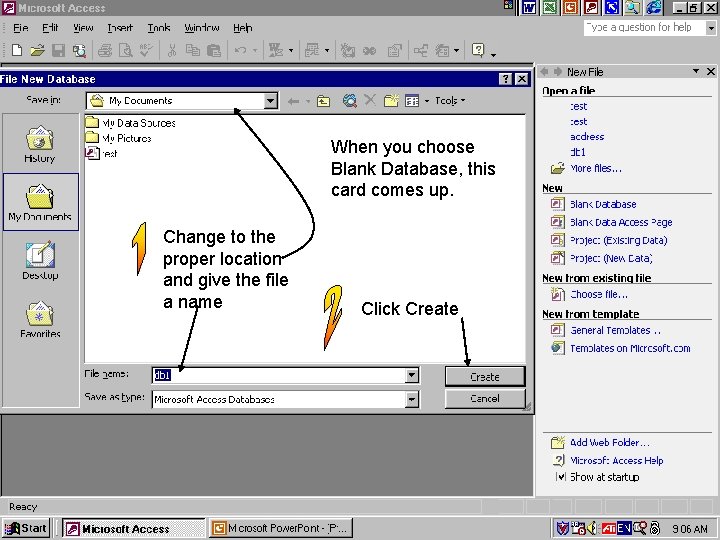
When you choose Blank Database, this card comes up. Change to the proper location and give the file a name Click Create
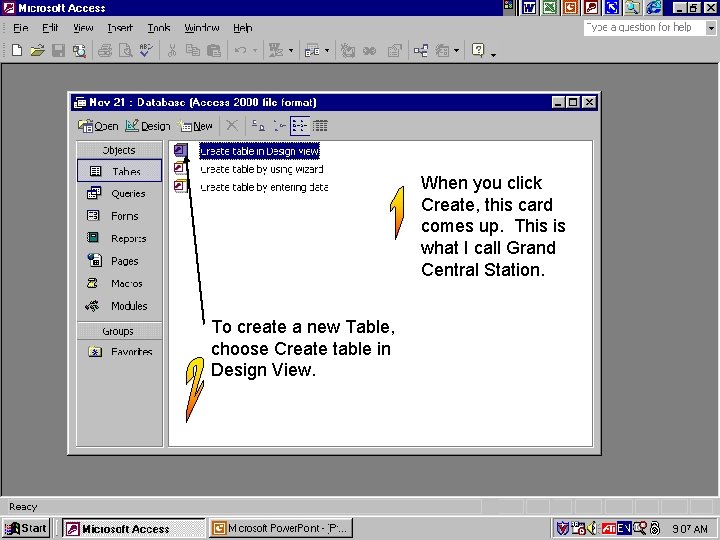
When you click Create, this card comes up. This is what I call Grand Central Station. To create a new Table, choose Create table in Design View.
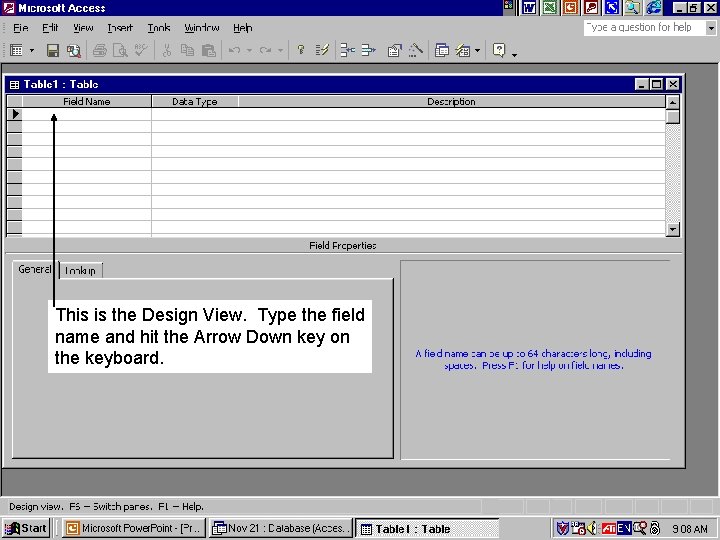
This is the Design View. Type the field name and hit the Arrow Down key on the keyboard.
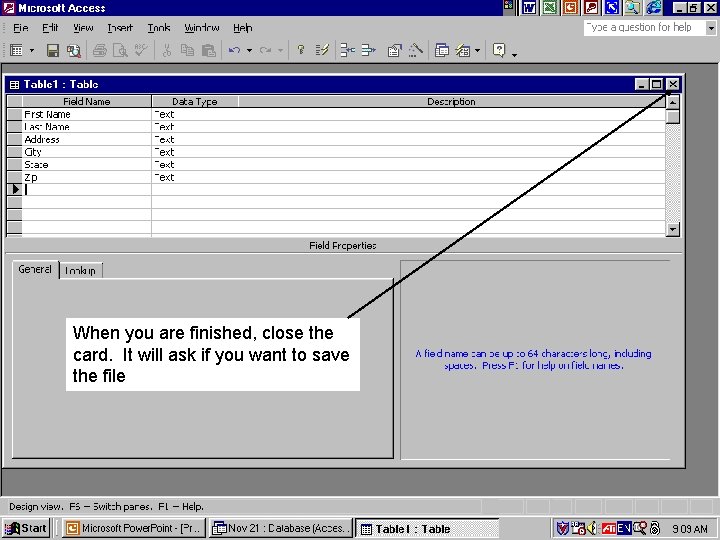
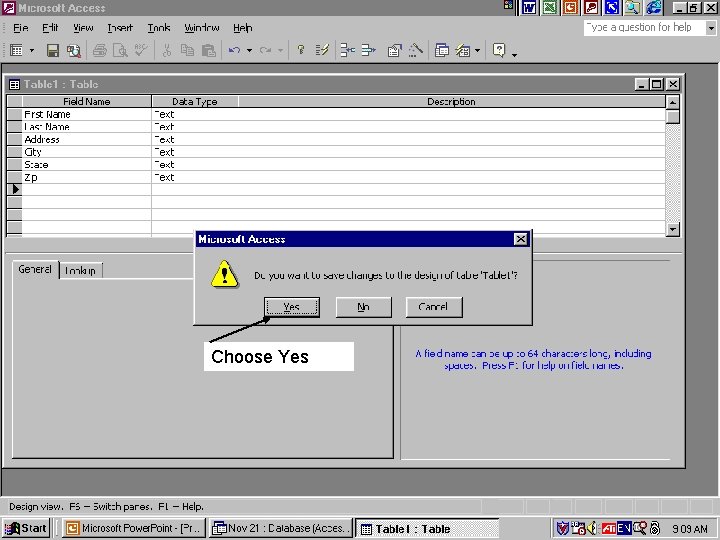
When you are finished, close the card. It will ask if you want to save the file
Choose Yes
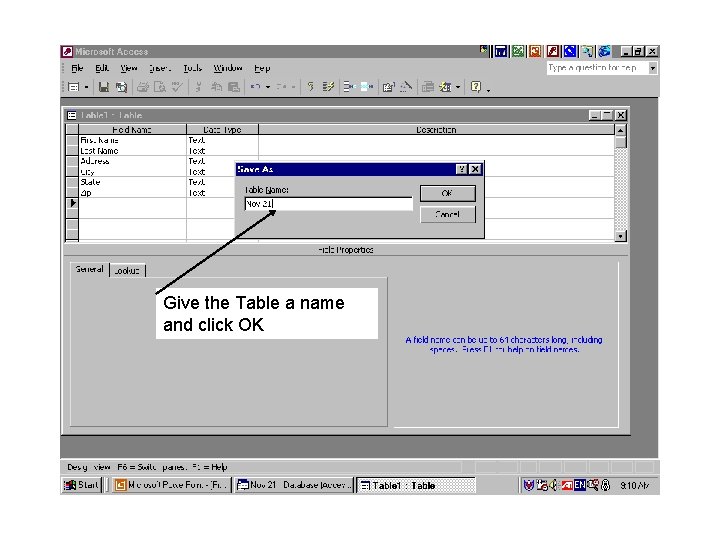
Give the Table a name and click OK
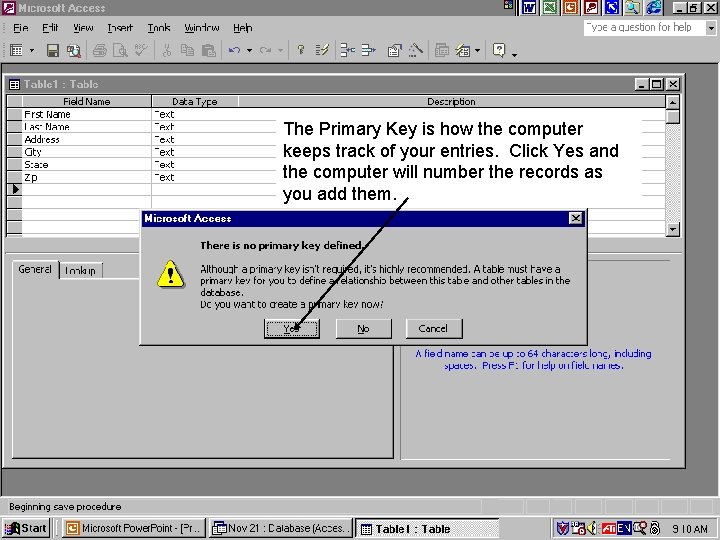
The Primary Key is how the computer keeps track of your entries. Click Yes and the computer will number the records as you add them.
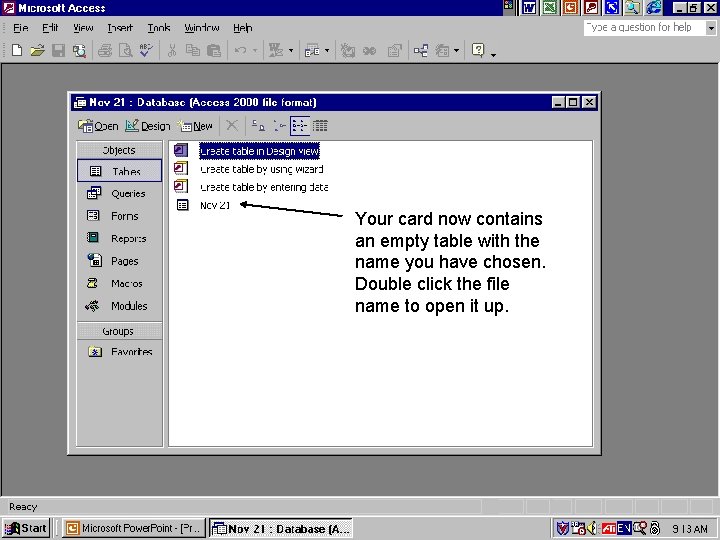
Your card now contains an empty table with the name you have chosen. Double click the file name to open it up.
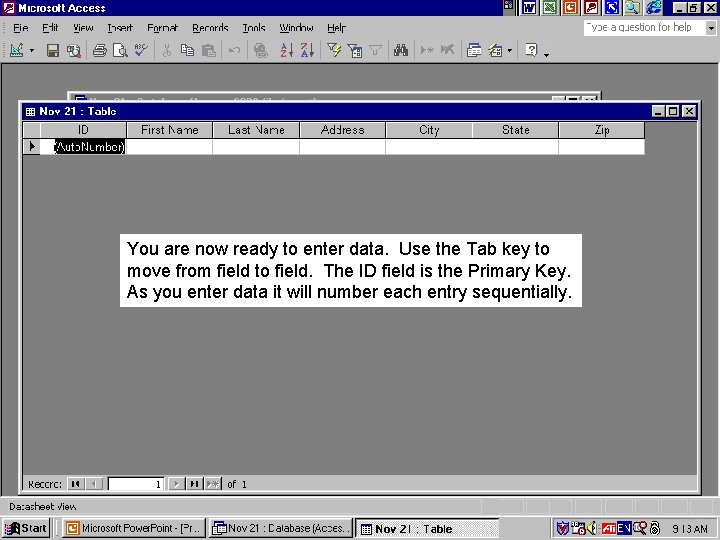
You are now ready to enter data. Use the Tab key to move from field to field. The ID field is the Primary Key. As you enter data it will number each entry sequentially.
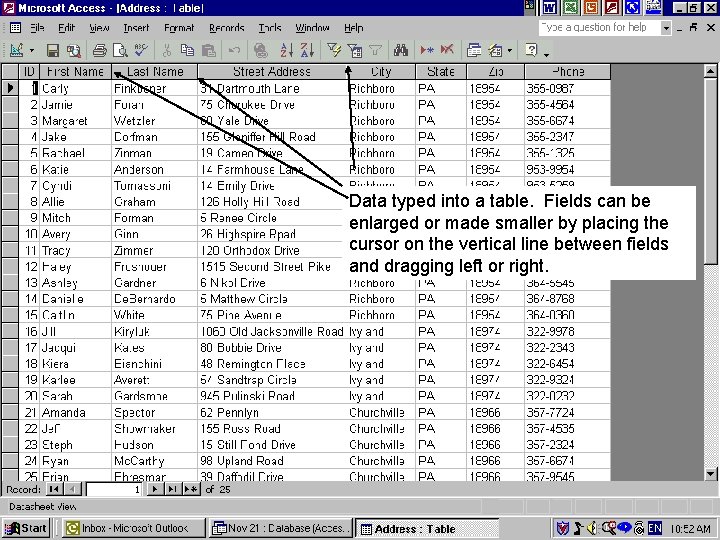
Data typed into a table. Fields can be enlarged or made smaller by placing the cursor on the vertical line between fields and dragging left or right.
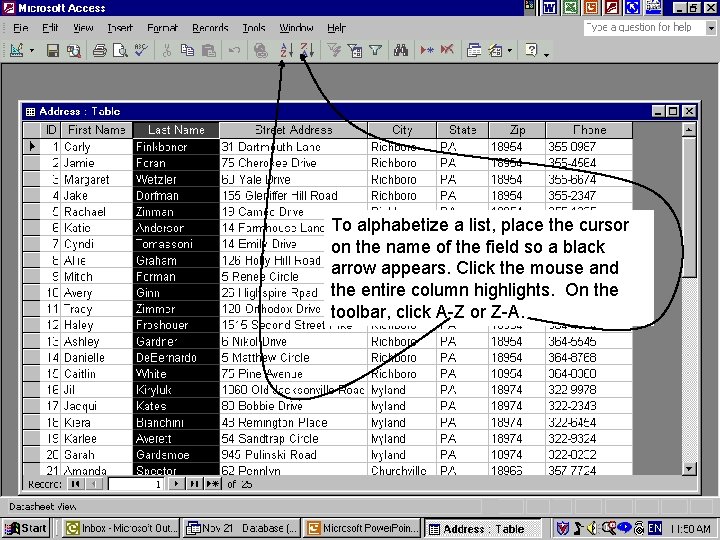
To alphabetize a list, place the cursor on the name of the field so a black arrow appears. Click the mouse and the entire column highlights. On the toolbar, click A-Z or Z-A.
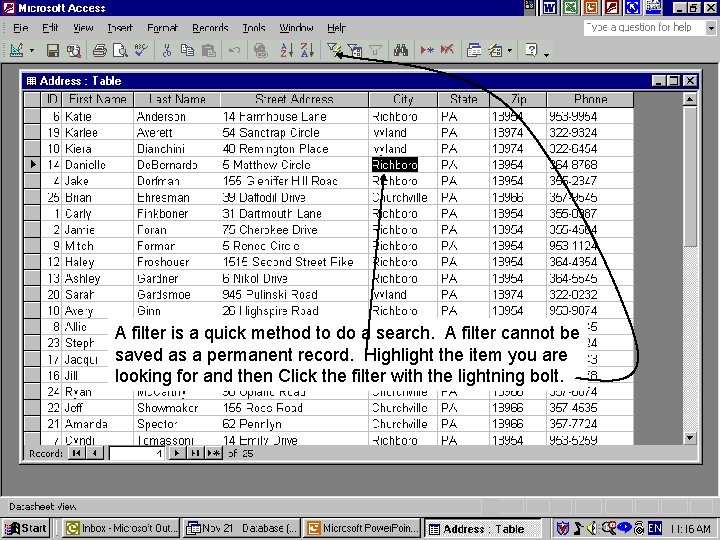
A filter is a quick method to do a search. A filter cannot be saved as a permanent record. Highlight the item you are looking for and then Click the filter with the lightning bolt.
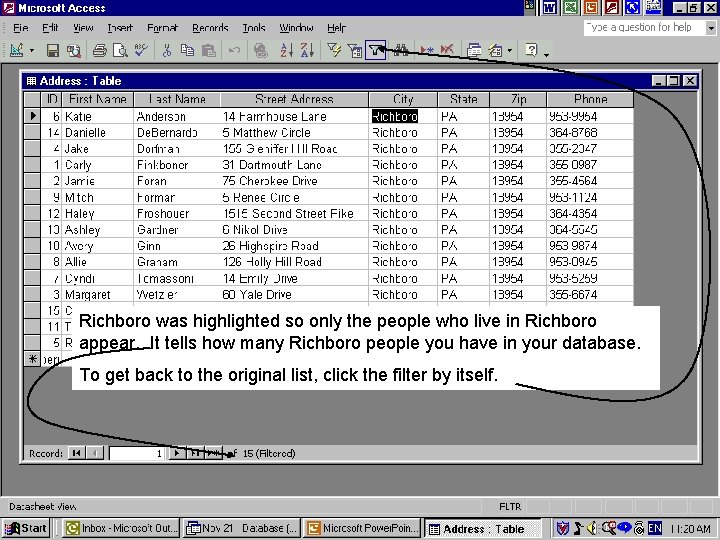
Richboro was highlighted so only the people who live in Richboro appear. It tells how many Richboro people you have in your database. To get back to the original list, click the filter by itself.
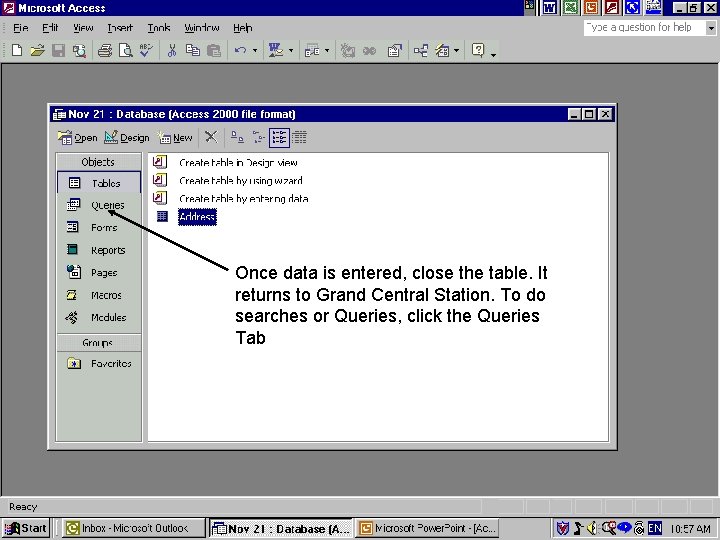
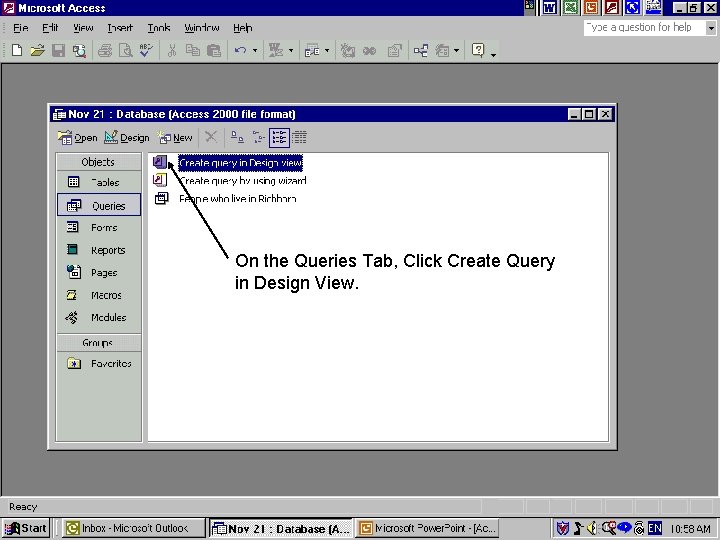
Once data is entered, close the table. It returns to Grand Central Station. To do searches or Queries, click the Queries Tab
On the Queries Tab, Click Create Query in Design View.
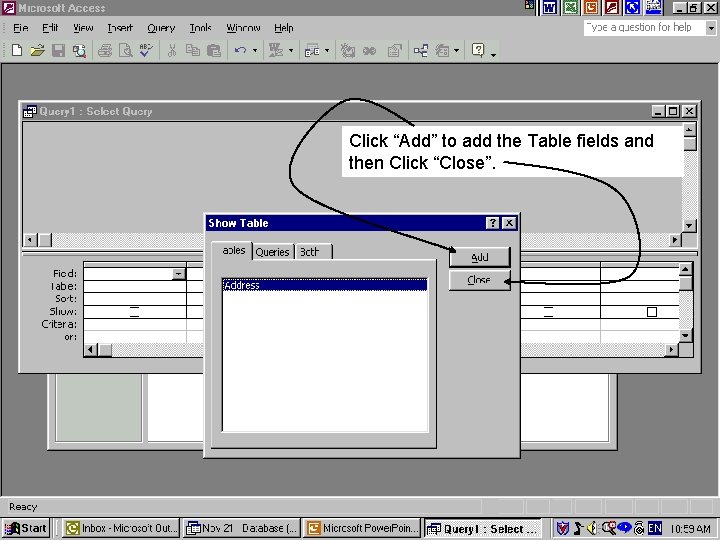
Click “Add” to add the Table fields and then Click “Close”.
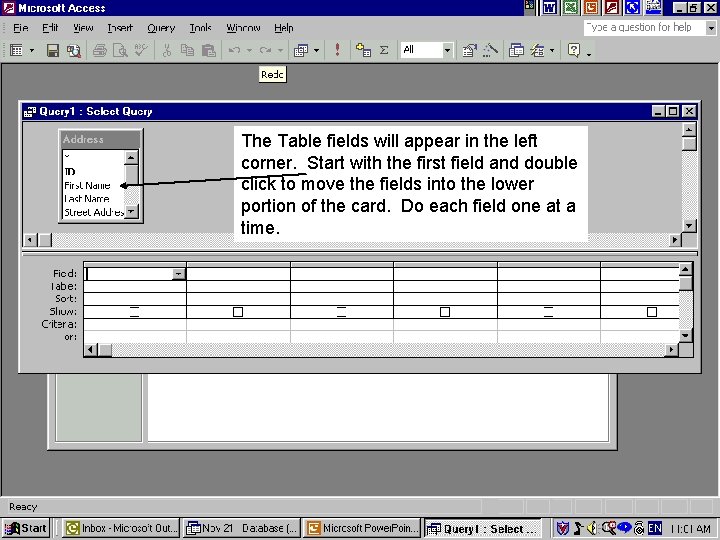
The Table fields will appear in the left corner. Start with the first field and double click to move the fields into the lower portion of the card. Do each field one at a time.
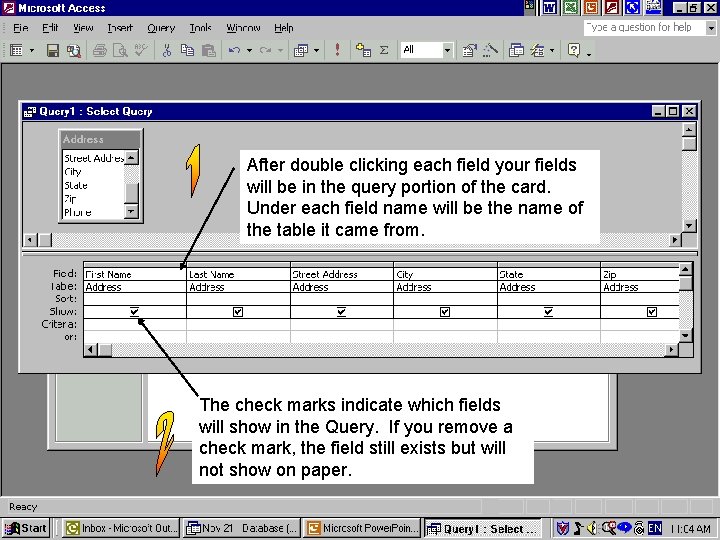
After double clicking each field your fields will be in the query portion of the card. Under each field name will be the name of the table it came from. The check marks indicate which fields will show in the Query. If you remove a check mark, the field still exists but will not show on paper.
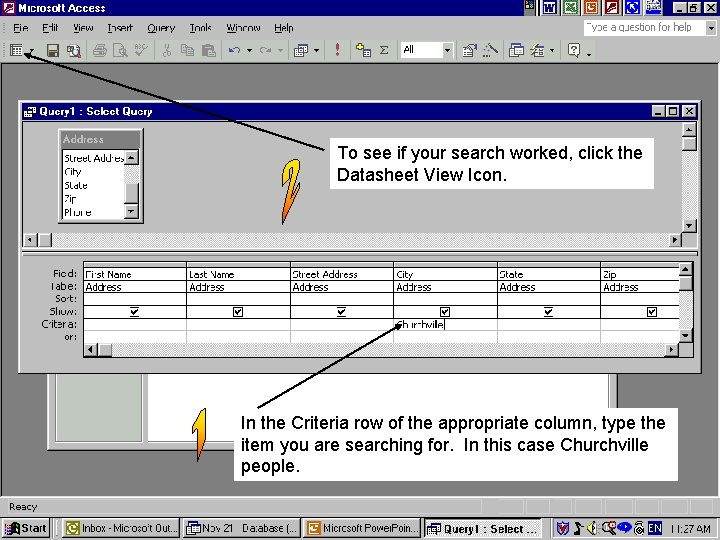
To see if your search worked, click the Datasheet View Icon. In the Criteria row of the appropriate column, type the item you are searching for. In this case Churchville people.
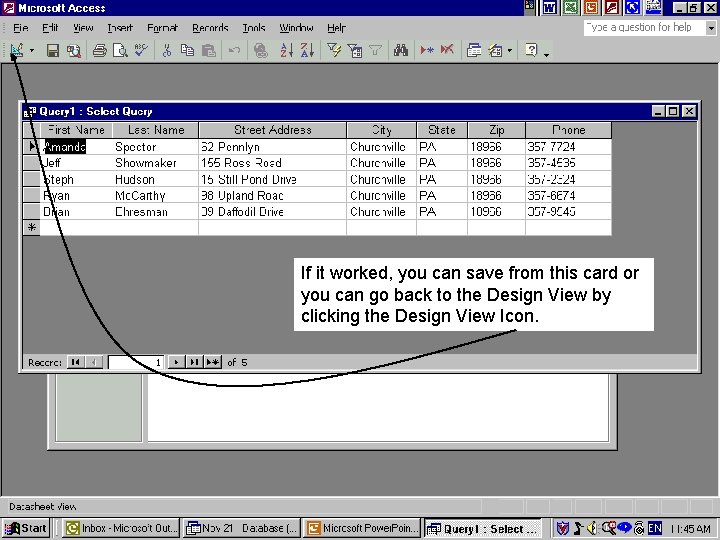
If it worked, you can save from this card or you can go back to the Design View by clicking the Design View Icon.
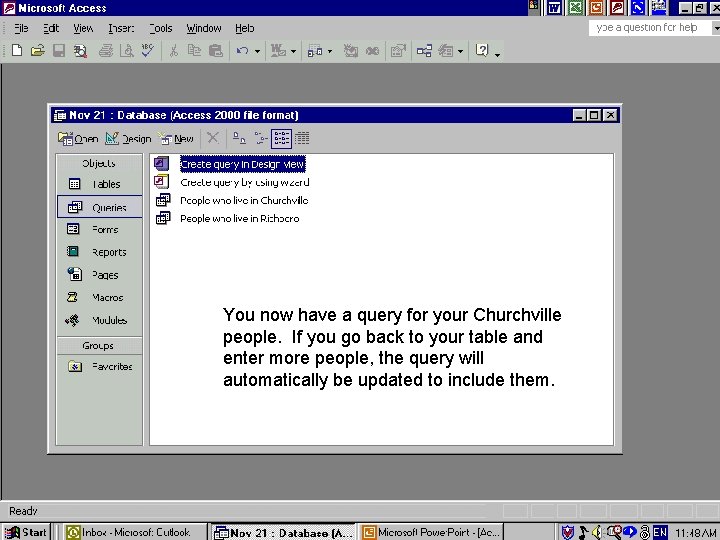
You now have a query for your Churchville people. If you go back to your table and enter more people, the query will automatically be updated to include them.
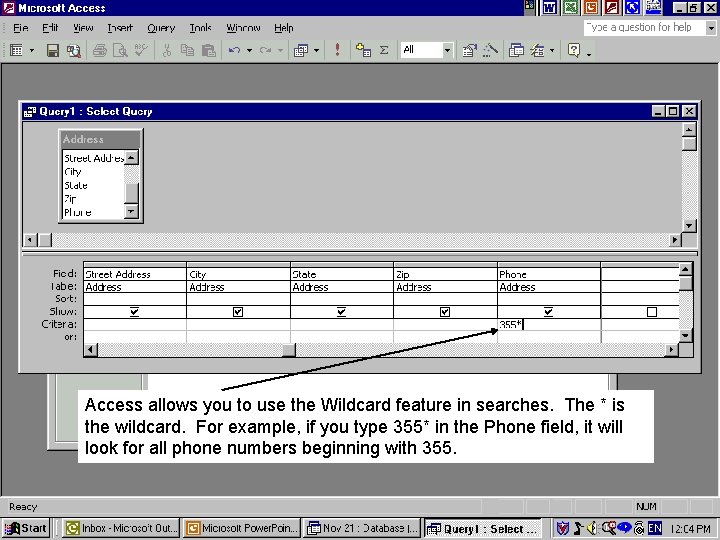
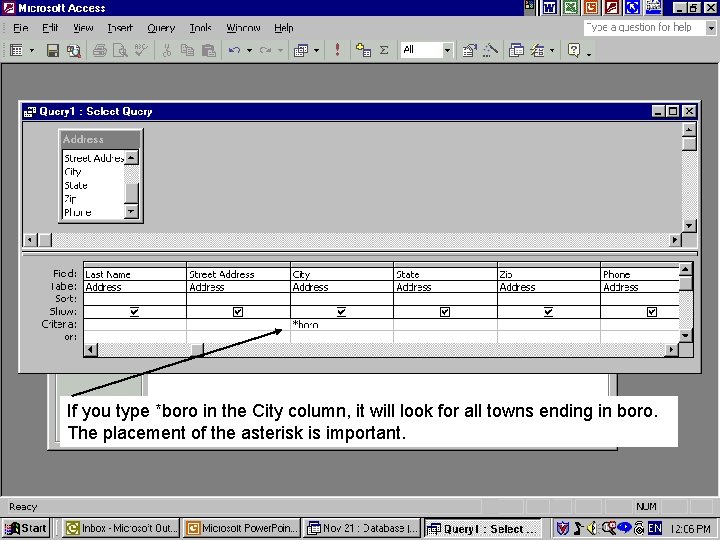
Access allows you to use the Wildcard feature in searches. The * is the wildcard. For example, if you type 355* in the Phone field, it will look for all phone numbers beginning with 355.
If you type *boro in the City column, it will look for all towns ending in boro. The placement of the asterisk is important.