
AESuniversity Ad hoc Reporting Adsystech Inc Ad hoc
- Slides: 26
AESuniversity Ad hoc Reporting Adsystech, Inc.
Ad hoc Reports • • • What are ad hoc reports? Why would you use ad hoc reports? Creating an ad hoc report from a query Building a new query Saving an ad hoc report query Adsystech, Inc.
ad hoc • for the special purpose or end presently under consideration • concerned or dealing with a specific subject, purpose, or end - dictionary. com Adsystech, Inc.
What is an Ad hoc Report? • A report that is completely customizable – – The type of format (list, chart, graph) Items to include How to group the information Parameters Adsystech, Inc.
Why use ad hoc reports • There may not be a management or application report that gives the information you need • May need very specific information • You can check large amounts of data • Send the report to Excel to do further calculations or turn into graphs Adsystech, Inc.
Ad hoc reports choices • Two main choices – Type of report – this determines what the report will look like – Table to use – this determines what items you can select to be part of the report Adsystech, Inc.
Types of ad hoc reports • 50 Fields List – most information of all types • Fields List – good to view data that do not work with sums or counts • Group and List/Group and List Sum – can get counts and sums, only shows 5 – 6 items • Pie Charts – good to show relationships within one data set • Cylinder Chart – compares items in data set • Matrix Charts – can show more complex relationships Adsystech, Inc.
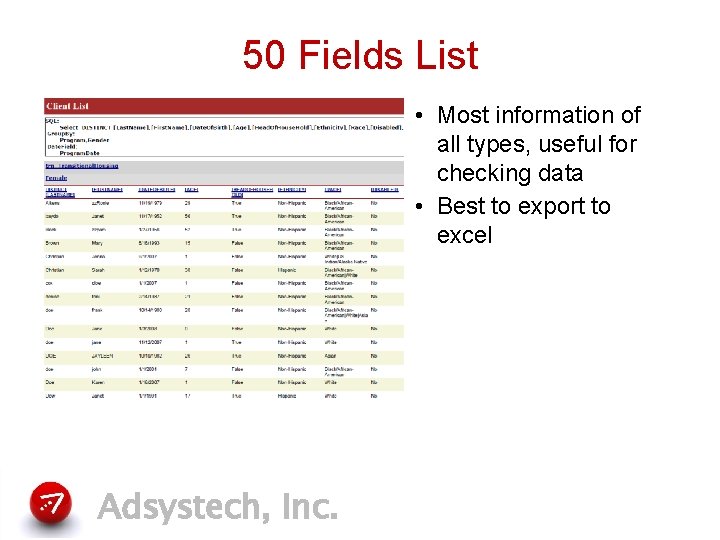
50 Fields List • Most information of all types, useful for checking data • Best to export to excel Adsystech, Inc.
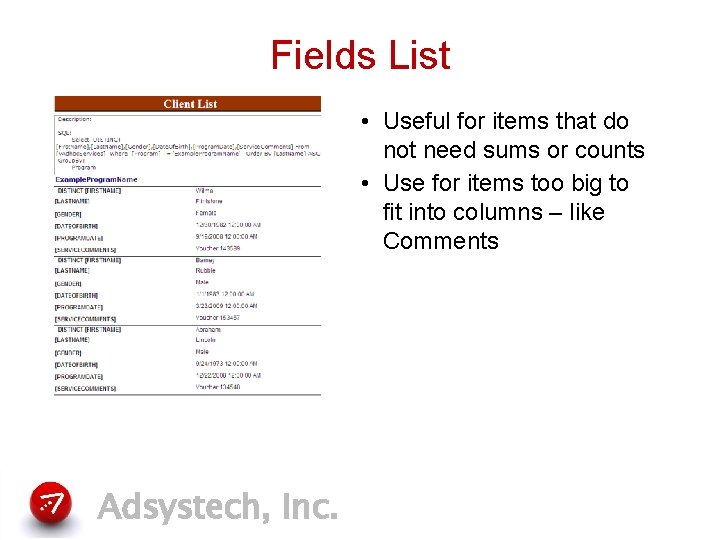
Fields List • Useful for items that do not need sums or counts • Use for items too big to fit into columns – like Comments Adsystech, Inc.
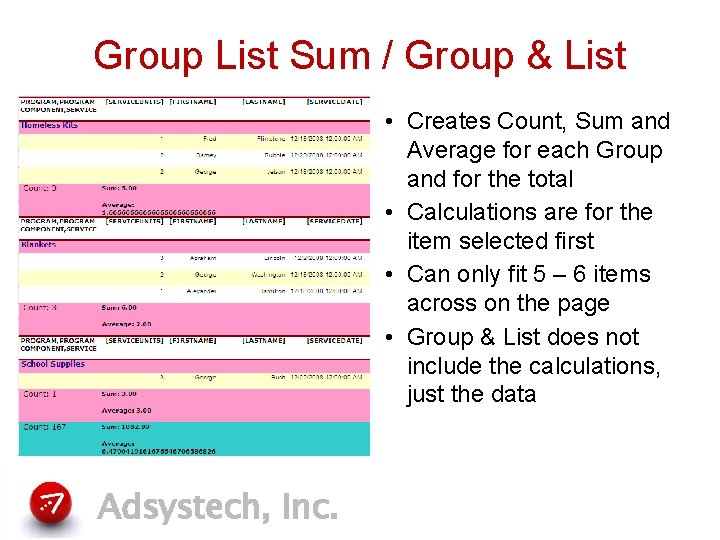
Group List Sum / Group & List • Creates Count, Sum and Average for each Group and for the total • Calculations are for the item selected first • Can only fit 5 – 6 items across on the page • Group & List does not include the calculations, just the data Adsystech, Inc.
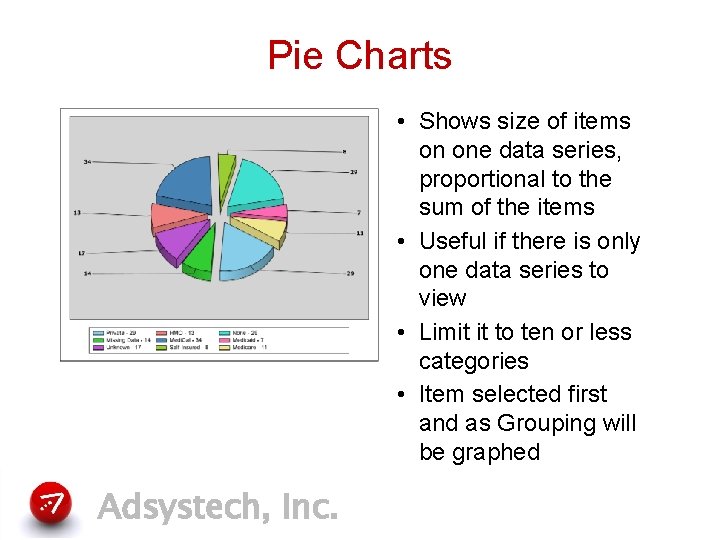
Pie Charts • Shows size of items on one data series, proportional to the sum of the items • Useful if there is only one data series to view • Limit it to ten or less categories • Item selected first and as Grouping will be graphed Adsystech, Inc.
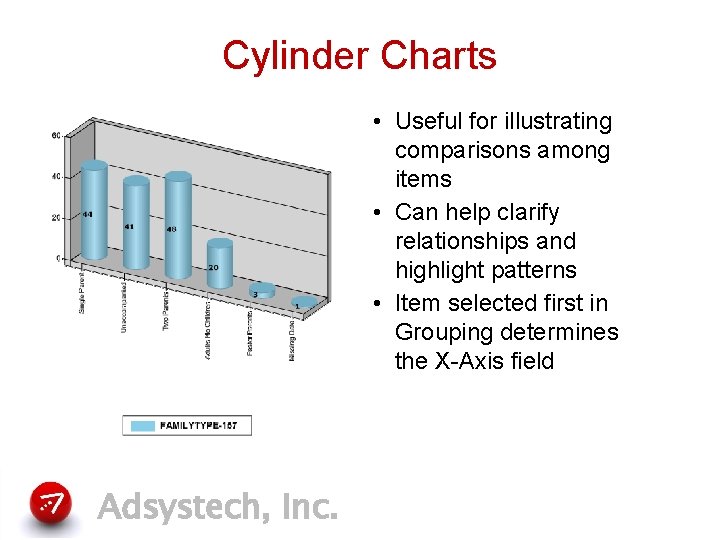
Cylinder Charts • Useful for illustrating comparisons among items • Can help clarify relationships and highlight patterns • Item selected first in Grouping determines the X-Axis field Adsystech, Inc.
Matrix charts • Matrix charts show data arranged in a grid or matrix format • Four types of Matrix charts: – Listing lists just the data – Count provides counts of occurrences of the data – Distinct Count counts distinct occurrences – Sum provides a sum of the data Adsystech, Inc.
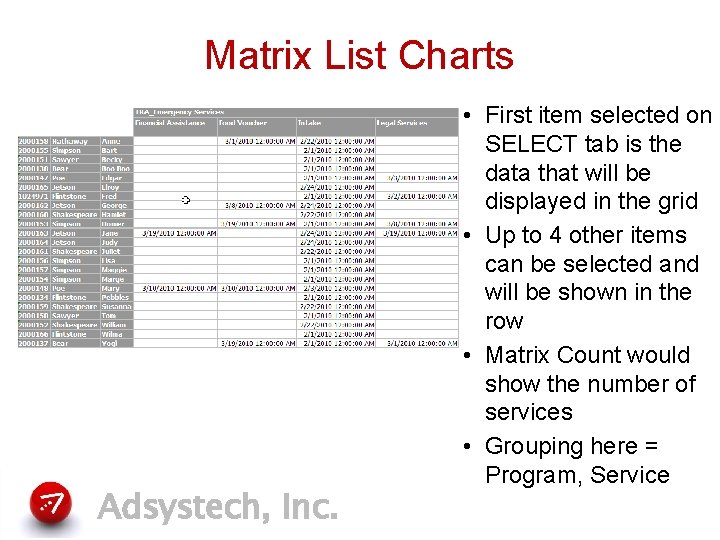
Matrix List Charts Adsystech, Inc. • First item selected on SELECT tab is the data that will be displayed in the grid • Up to 4 other items can be selected and will be shown in the row • Matrix Count would show the number of services • Grouping here = Program, Service
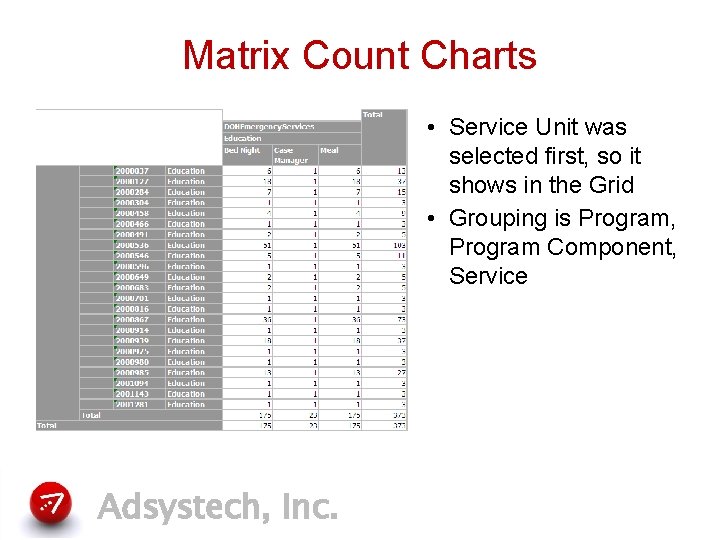
Matrix Count Charts • Service Unit was selected first, so it shows in the Grid • Grouping is Program, Program Component, Service Adsystech, Inc.
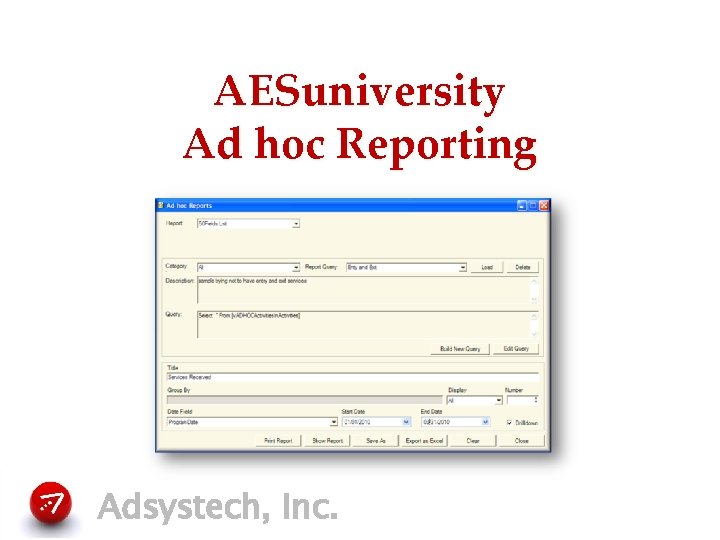
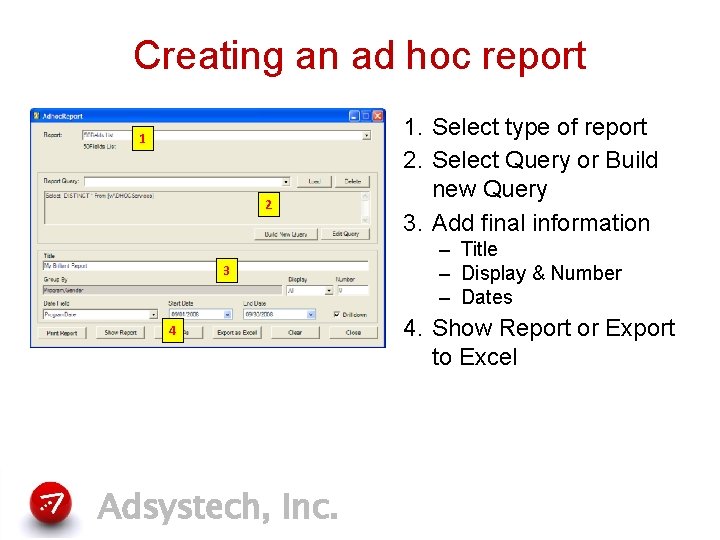
Creating an ad hoc report 1 2 3 4 Adsystech, Inc. 1. Select type of report 2. Select Query or Build new Query 3. Add final information – Title – Display & Number – Dates 4. Show Report or Export to Excel
Run report from saved Query • Running a report from a saved Query – Must know the type of report – 50 fields, Matrix, etc. – Must know name of saved Query – May need to edit Query Adsystech, Inc.
Build a new ad hoc query • Ad hoc query builder popup window tabs – FROM: select table which determines available items (required) – SELECT: available items list (required) – WHERE: filters items searched – SORT: determines order of matches – GROUPING: determines categories of data (required) Adsystech, Inc.
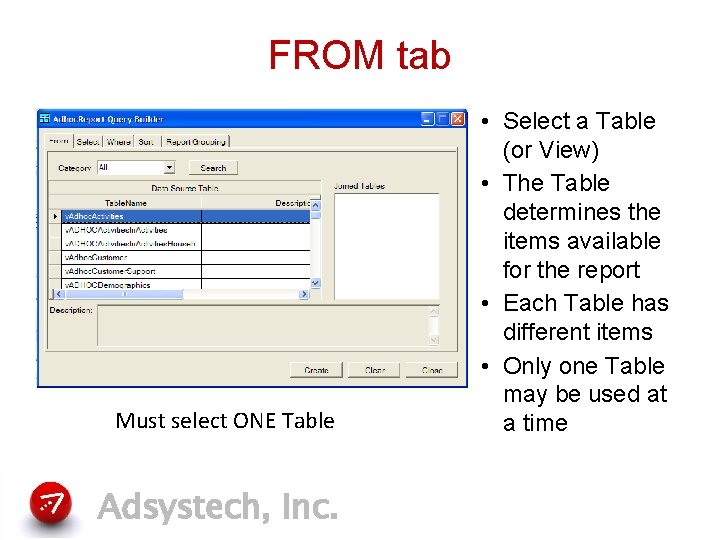
FROM tab Must select ONE Table Adsystech, Inc. • Select a Table (or View) • The Table determines the items available for the report • Each Table has different items • Only one Table may be used at a time
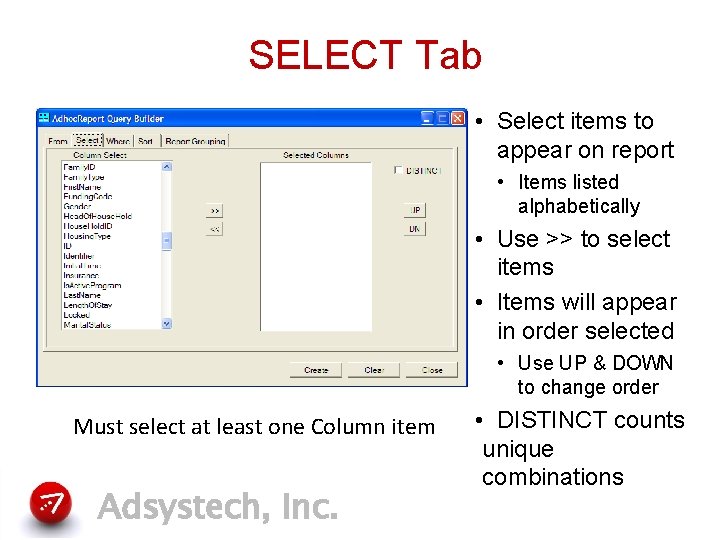
SELECT Tab • Select items to appear on report • Items listed alphabetically • Use >> to select items • Items will appear in order selected • Use UP & DOWN to change order Must select at least one Column item Adsystech, Inc. • DISTINCT counts unique combinations
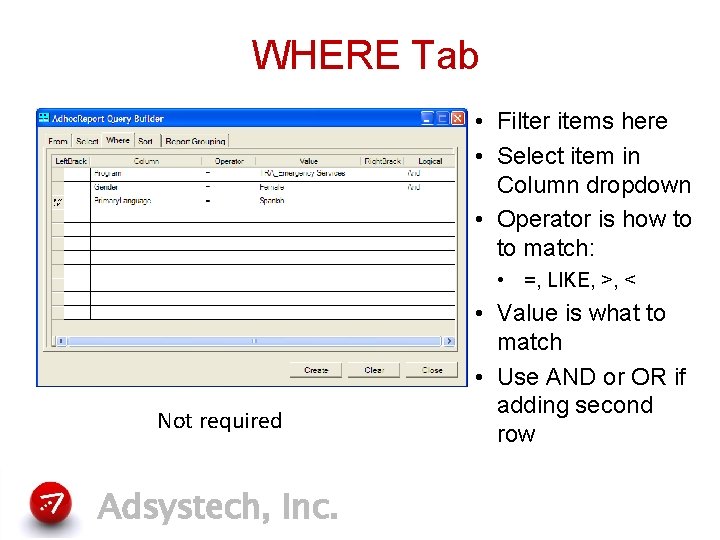
WHERE Tab • Filter items here • Select item in Column dropdown • Operator is how to to match: • =, LIKE, >, < Not required Adsystech, Inc. • Value is what to match • Use AND or OR if adding second row
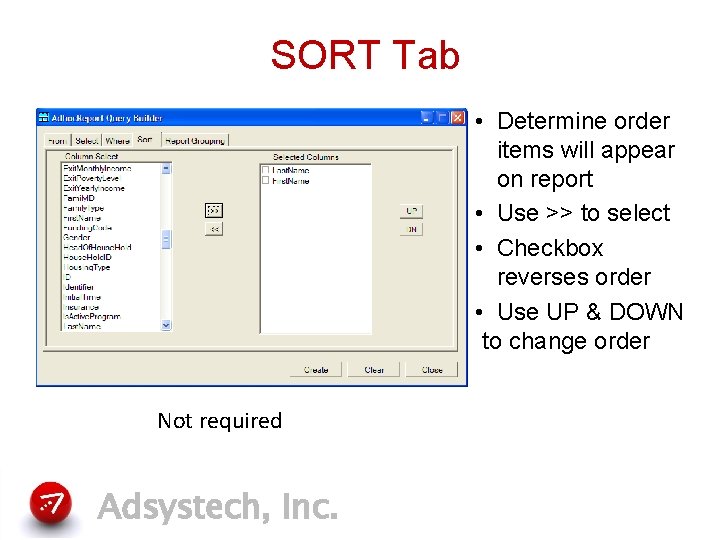
SORT Tab • Determine order items will appear on report • Use >> to select • Checkbox reverses order • Use UP & DOWN to change order Not required Adsystech, Inc.
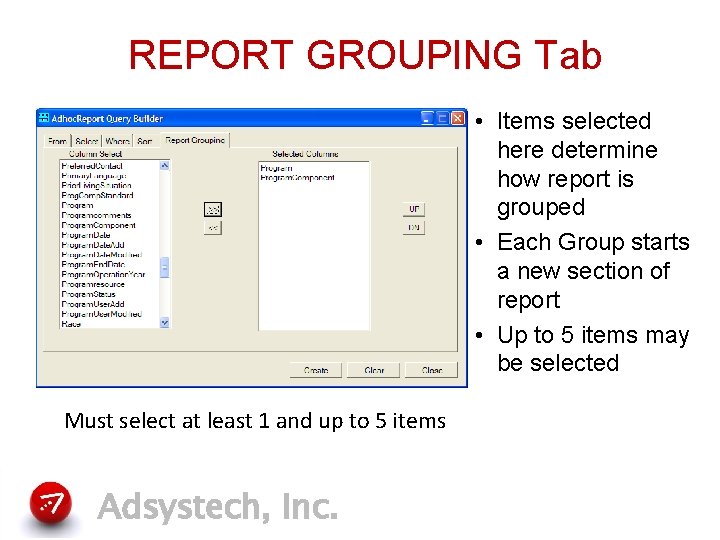
REPORT GROUPING Tab • Items selected here determine how report is grouped • Each Group starts a new section of report • Up to 5 items may be selected Must select at least 1 and up to 5 items Adsystech, Inc.
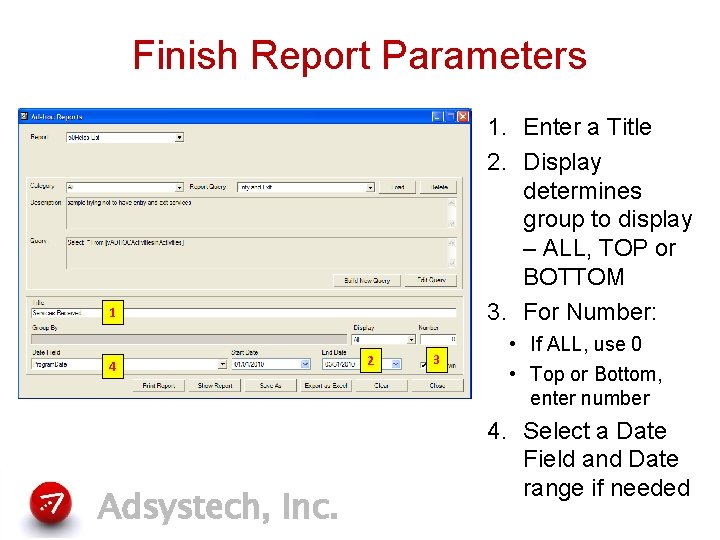
Finish Report Parameters 1. Enter a Title 2. Display determines group to display – ALL, TOP or BOTTOM 3. For Number: 1 4 Adsystech, Inc. 2 3 • If ALL, use 0 • Top or Bottom, enter number 4. Select a Date Field and Date range if needed
Run Report • SHOW REPORT opens in Internet browser window – Can still export to Excel from window • EXPORT TO EXCEL opens in Excel Adsystech, Inc.
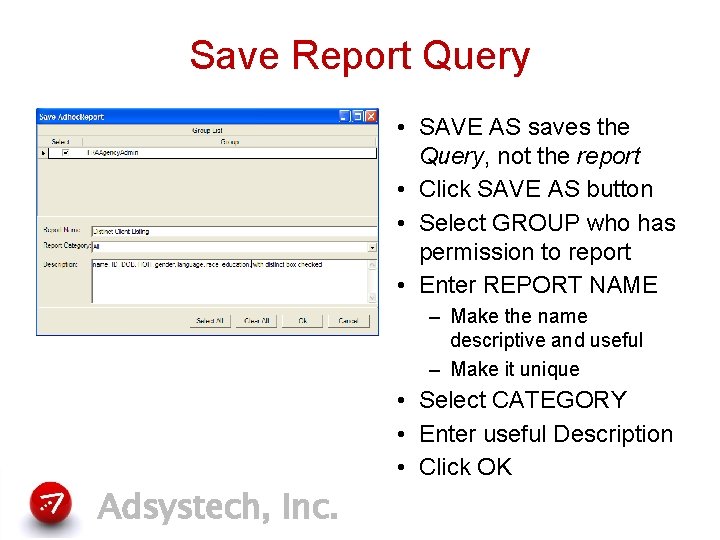
Save Report Query • SAVE AS saves the Query, not the report • Click SAVE AS button • Select GROUP who has permission to report • Enter REPORT NAME – Make the name descriptive and useful – Make it unique • Select CATEGORY • Enter useful Description • Click OK Adsystech, Inc.