
Aerotech Lab VIEW Interface What Why and How

Aerotech Lab. VIEW Interface What, Why, and How Proprietary and Confidential
Your Mission After today, you should be able to: ● Explain how the Aerotech Lab. VIEW VIs are organized ● Debug and troubleshoot Lab. VIEW VIs ● Create a new Lab. VIEW project that used the Aerotech VIs ● Create a simple VI Proprietary and Confidential

What You Will Learn ● WHY you want to use Lab. VIEW ● Information about ORDERING Aerotech Lab. VIEW VIs ● How to USE the Aerotech Lab. VIEW VIs ○ How to use the Samples project ○ How to reuse the VIs in another project, including keeping the files in the project synchronized with the installed version of Aerotech software ○ How to debug and troubleshoot a VI ○ How to create a simple VI Proprietary and Confidential
Why You Want to Use it Proprietary and Confidential
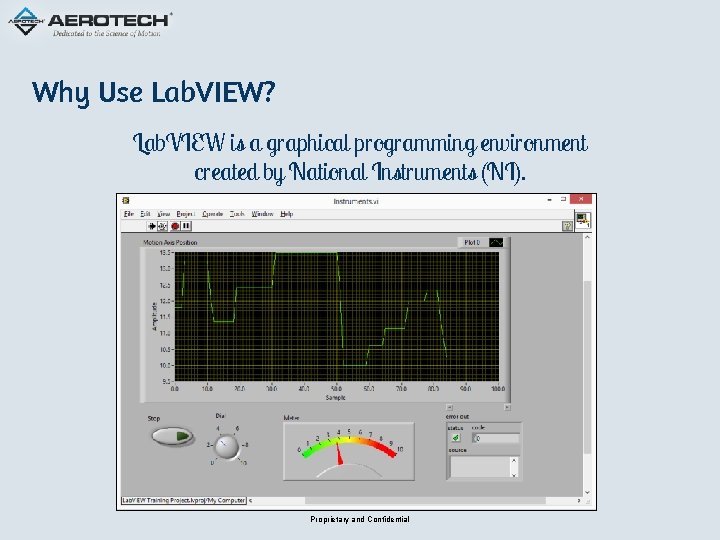
Why Use Lab. VIEW? Lab. VIEW is a graphical programming environment created by National Instruments (NI). Proprietary and Confidential

Why Use Lab. VIEW? ● Lab. VIEW is useful for creating applications that interface to multiple components in a system (e. g. , data acquisition, measurement, motion control, communications). ● Many university and R&D centers program in Lab. VIEW. Users that know and use Lab. VIEW want to program in Lab. VIEW. ● Resources ○ http: //www. ni. com/labview/why/ ○ http: //www. ni. com/getting-started/labview-basics/ Proprietary and Confidential
Why Use Aerotech Lab. VIEW VIs? ● Any company can create a library of Lab. VIEW Virtual Instruments (VIs). Customers can use Lab. VIEW to combine Aerotech VIs and VIs for other instruments in their system. ● The Aerotech VIs use the. NET Library so the user doesn’t have to. Lab. VIEW users only need to use the Aerotech VIs. ● Aerotech offers Lab. VIEW VIs for each motion controller. Proprietary and Confidential

Information About Ordering Aerotech Lab. VIEW VIs Proprietary and Confidential
Version Information ● Installed only with a license key that includes the Lab. VIEW option. ● There is a Lab. VIEW option for the A 3200, Ensemble, and Soloist software. ● In A 3200 3. 00, the Lab. VIEW offering was remodeled. You cannot use the 2. 5 x Lab. VIEW VIs in A 3200 3. 00 or above. Proprietary and Confidential
Supported Versions of Lab. VIEW The controller software supports these versions of Lab. VIEW. ● 2015 (32 -bit and 64 -bit) ● 2014 (32 -bit and 64 -bit) ● 2013 (32 -bit and 64 -bit) ● 2012 (32 -bit and 64 -bit) ● 2011 (32 -bit and 64 -bit) ● 2010 (32 -bit and 64 -bit) Proprietary and Confidential

How to Use Aerotech Lab. VIEW VIs Proprietary and Confidential

Overview General stuff you need to know Proprietary and Confidential
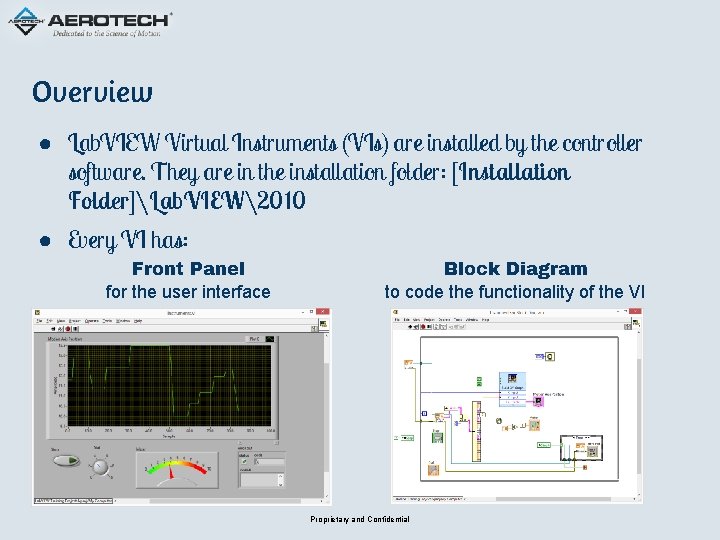
Overview ● Lab. VIEW Virtual Instruments (VIs) are installed by the controller software. They are in the installation folder: [Installation Folder]Lab. VIEW2010 ● Every VI has: Front Panel for the user interface Block Diagram to code the functionality of the VI Proprietary and Confidential
Overview (continued) ● Lab. VIEW VIs use objects in the. NET Library. National Instruments strongly recommends that VIs that use. NET objects be contained in a Lab. VIEW project and not be used as standalone VIs. For more information, refer to the National Instruments Lab. VIEW help topic: Using. NET with Lab. VIEW Proprietary and Confidential
Overview (continued) ● Most Aerotech VIs are designed to be used as sub-VIs — components to construct higher level VIs. For example, you can open the Front Panel and run Connect. vi to connect to a controller. But, the purpose of the VI is to be used within another VI’s Block Diagram (e. g. , another VI that will connect, enable, move an axis, check status, disconnect). Proprietary and Confidential
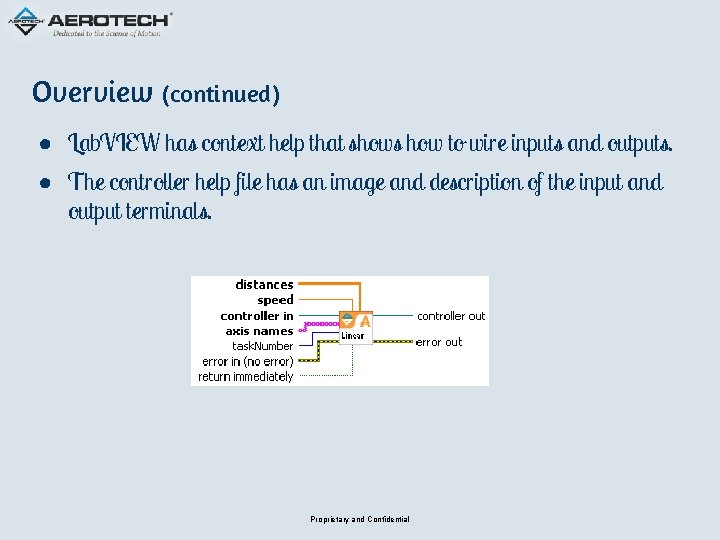
Overview (continued) ● Lab. VIEW has context help that shows how to wire inputs and outputs. ● The controller help file has an image and description of the input and output terminals. Proprietary and Confidential
Overview (continued) ● Some Aerotech VIs are polymorphic VIswhich can accommodate different data types for an input terminal. For example, Enable. vi can do either of the following: ○ Accept a string for an axis name and enable only one axis. The corresponding VI is also in the project: Enable. Single. vi ○ Accept an array of strings for axis name and enable each axis. The corresponding VI is also in the project: Enable. Multiple. vi Proprietary and Confidential
● Overview ● Samples Project folders ○ Initialize ○ Motion ○ Utility Samples Project ○ Status ○ Commands ○ Parameters ○ Scope ○ File (standalone only) ○ Examples ● Debugging and troubleshooting VIs Proprietary and Confidential
![Samples Project ● The Samples project file is installed to [Installation Folder]Lab. VIEW2010Samples. lvproj](http://slidetodoc.com/presentation_image/5852ce82ef8d3d21041195fb8567b332/image-19.jpg "Samples Project ● The Samples project file is installed to [Installation Folder]Lab. VIEW2010Samples. lvproj")
Samples Project ● The Samples project file is installed to [Installation Folder]Lab. VIEW2010Samples. lvproj ● Customers should avoid saving changes to this project. ● The folders organize the VIs by related functionality. Proprietary and Confidential
Samples Project Folders Initialize ● VIs to connect, disconnect, and reset the controller. ● Connect. vi returns a controller handle that is required by most other VIs. ● On the standalone, a connect also returns an array of all connected controllers. Proprietary and Confidential
Samples Project Folders Motion ● Configure motion: Ramp. Rate. vi, Analog. Track. vi, Abs. vi, Inc. vi, etc. ● Enable and Disable: Enable. vi, Disable. vi ● Command motion: Home. vi, Linear. vi, Circular. vi, Free. Run. vi, etc. ● Abort motion: Abort. vi ● Acknowledge Faults: Fault. Ack. vi ● Wait for motion to complete: Wait. vi Proprietary and Confidential
Samples Project Folders Utility (miscellaneous helper VIs and CTLs) ● Work with error codes: Parse. Error. vi, Alert. Error. vi ● Use Axis Names and Indices: Get. Axis. Index. vi, Get. Axis. Name. vi, etc. ● Get Version Information: Get. Version. vi ● Access a reusable graphical interface similar to the Axis Manager in the Motion Composer suite: Axis. Control. ctl ○ This is a reusable graphical type definition. Examples > Multi. Axis. Control. vishows how this CTL is used to provide a reusable graphical interface component. ○ Unlike a VI, you do not run a. ctl Proprietary and Confidential
Samples Project Folders Status ● Get Controller Diagnostic Packets: Retrieve. Diag. Packet. vi, Convert. Diag. Packet. vi ● Get Custom Diagnostics: Retrieve. Custom. Diag. Packet. vi A 3200 only starting in version 3. 04 ● Directly retrieve task status items: Get. Task. Status. vi A 3200 only Proprietary and Confidential
Samples Project Folders Commands ● Acknowledge faults and task errors: Acknowledge. All. vi ● Immediate Commands: Execute. Command. vi ● Program Control: Execute. Program. vi, Stop. Program. vi ● Set Outputs: Set. Analog. Output. vi, Set. Digitial. Output. vi ● Variables ○ Standalone: Read. Global(s). vi, Write. Global(s). vi ○ A 3200: Get. Global. Variable(s). vi, Set. Global. Variable(s). vi, Get. Double. Task. Variable(s). vi, Set. Double. Task. Variable(s). vi Proprietary and Confidential
Samples Project Folders Parameters ● Get and set parameters: Get. Axis. Parameter. vi, Set. Axis. Parameter. vi, ● Set Active Parameter File: Send. Parameter. File. vi A 3200 only ● Send/Commit: Send. Parameter. File. vi, Commit. Parameters. vi Standalone only ● Save parameter file: Save. Parameter. File. vi Proprietary and Confidential etc.
Samples Project Folders Scope (Data Collection) ● Typical order of operations: configure, collect, retrieve, extract ○ A 3200: Add. Data. Configuration. vi, Start. Data. Collection. vi, Retrieve. Data. vi, Get. Data. Results. vi, etc. ○ Standalone: Trigger. Scope. Collect. vi, Get. Scope. Data. vi, Axis. Data. Results. ctl, Controller. Data. Results. ctl File (Standalone only) ● Work with files on the controller file system: File. List. vi, File. Send. vi, File. Retrieve. vi, etc. Proprietary and Confidential
Samples Project Folders Examples ● These VIs are a good reference to see how to perform common controller operations by combining Aerotech sub-VIs. ● You can directly run the VIs in this folder. They will connect to a controller and either perform a sequence of operations or allow the user to initiate some operation(s). Proprietary and Confidential
Debugging and Troubleshooting VIs ● This document is a walk-through for debugging VIs. ● This walk-through demonstrates: ○ How to work with the Front Panel and the Block Diagram of a VI ○ How to use the Tools Palette ○ How to view Lab. VIEW’s Context Help window ○ How to run a VI ○ How to Highlight Execution, Set Breakpoints and use a Probe to monitor data. Proprietary and Confidential
Creating ● Creating a project ● Creating a VI ● Building an application Proprietary and Confidential
Creating Your Own Project ● National Instruments strongly recommends that VIs that use. NET objects be contained in a Lab. VIEW project and not be used as standalone VIs. ● Copy the Bin folder that is installed by the controller software to the project location. Lab. VIEW searches for necessary. NET assemblies in the Bin and Data subdirectories of the project path. ● When you upgrade the controller software, you must update the Bin folder in the project location. Any exception from a. NET object can cause an 1172 error code, but mismatched assembly versions is the most common cause. Proprietary and Confidential
Creating Your Own Project (continued) To copy the assemblies to the correct path: 1. Create a new Lab. VIEW project and save the project. Then you can use the controller VIs and not change the Samples. lvproj Lab. VIEW project that was installed with the controller software. 2. In [Installation Folder]Lab. VIEW2010, find the Bin folder. Copy the Bin folder to the folder where you saved the new Lab. VIEW project. 3. Close Lab. VIEW. Then reopen Lab. VIEW and it will locate the copied assemblies. Proprietary and Confidential
Creating Your Own Project (continued) ● Customers will generally want to include Aerotech VIs in their own project which can include VIs for other instruments. ● Customers typically copy the VIs from the installation folder to their project. In this case, these VIs must also be updated if a different version of controller software is installed. Proprietary and Confidential
Creating Your Own Project (continued) ● Customers shouldnot make changes to the Samples projectbecause: ○ There could be inadvertent changes to the Aerotech sub-VIs. ○ Administrative rights in Windows might be required to save changes to the project because of the required write permissions to the Program Files folder. Proprietary and Confidential
Creating Your Own VI ● This document is a walk-through for creating a simple VI. ● This walk-through demonstrates: ○ How to work with the Front Panel and the Block Diagram of a VI ○ How to use the Tools Palette ○ How to view Lab. VIEW’s Context Help window ○ How to wire VI inputs and outputs ○ How to arrange controls on the Front Panel of a VI. Proprietary and Confidential
Building an Application ● Customers often create an executable (. exe) from their Lab. VIEW project. ● The output folder for the executable must contain the same Bin folder that was copied to the project folder. ● Users can demo an Aerotech VI even if they do not have the Lab. VIEW development environment. ○ Aerotech distributes an executable for the demo. ○ To use the demo, you must have the Lab. VIEW 2010 runtime engine installed. [Installation Folder]Lab. VIEW2010Bin[Product] Lab. VIEW Operator Interface. exe Proprietary and Confidential
Questions? Proprietary and Confidential
- Slides: 36