
Aeries Registration Data Confirmation How to complete registration
- Slides: 23
Aeries Registration (Data Confirmation) How to complete registration online in Aeries Parent Portal Created by the OUSD Student Welcome Center May 2020
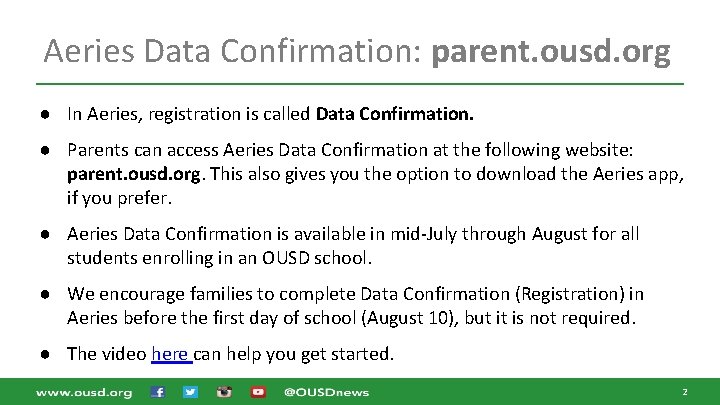
Aeries Data Confirmation: parent. ousd. org ● In Aeries, registration is called Data Confirmation. ● Parents can access Aeries Data Confirmation at the following website: parent. ousd. org. This also gives you the option to download the Aeries app, if you prefer. ● Aeries Data Confirmation is available in mid-July through August for all students enrolling in an OUSD school. ● We encourage families to complete Data Confirmation (Registration) in Aeries before the first day of school (August 10), but it is not required. ● The video here can help you get started. 2
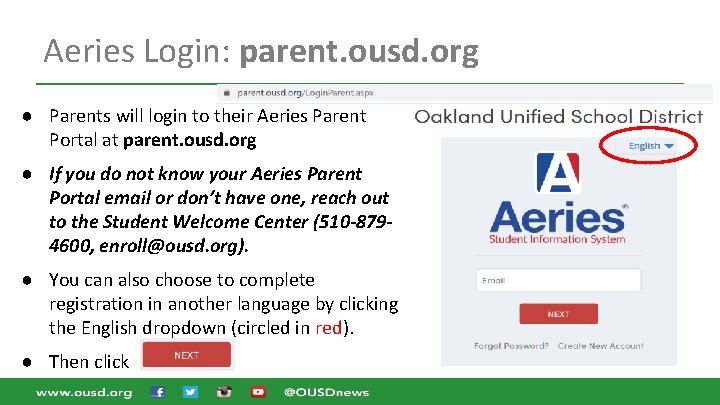
Aeries Login: parent. ousd. org ● Parents will login to their Aeries Parent Portal at parent. ousd. org ● If you do not know your Aeries Parent Portal email or don’t have one, reach out to the Student Welcome Center (510 -8794600, enroll@ousd. org). ● You can also choose to complete registration in another language by clicking the English dropdown (circled in red). ● Then click
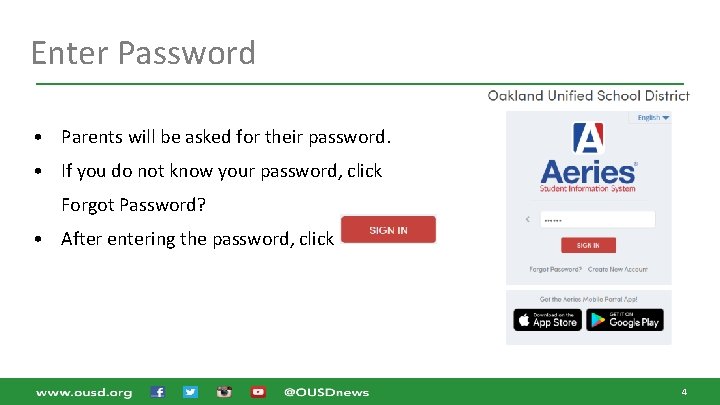
Enter Password • Parents will be asked for their password. • If you do not know your password, click Forgot Password? • After entering the password, click 4
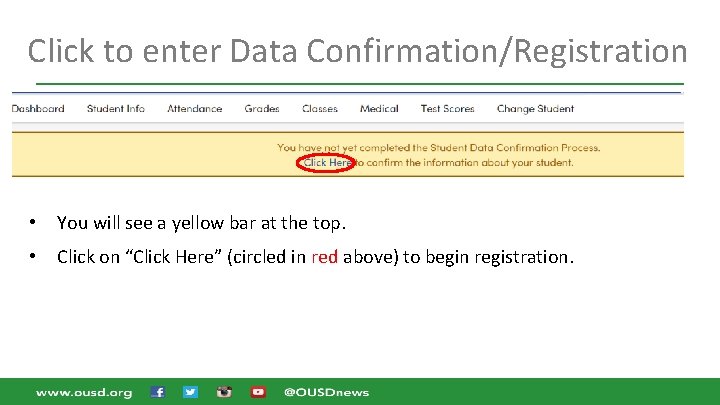
Click to enter Data Confirmation/Registration • You will see a yellow bar at the top. • Click on “Click Here” (circled in red above) to begin registration.
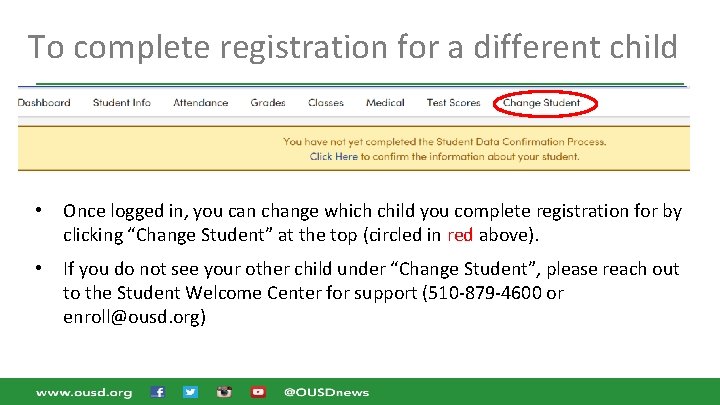
To complete registration for a different child • Once logged in, you can change which child you complete registration for by clicking “Change Student” at the top (circled in red above). • If you do not see your other child under “Change Student”, please reach out to the Student Welcome Center for support (510 -879 -4600 or enroll@ousd. org)
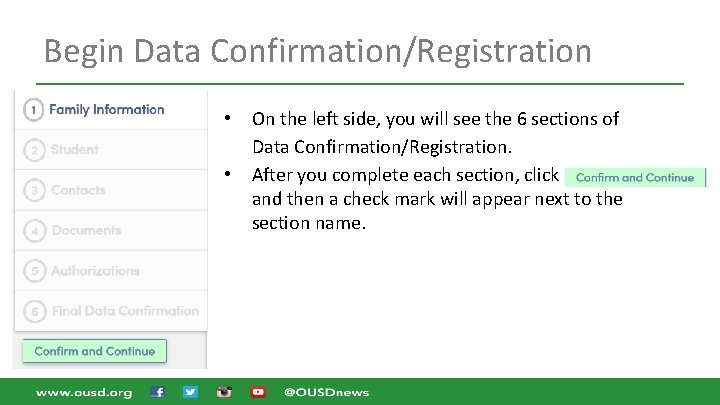
Begin Data Confirmation/Registration • • On the left side, you will see the 6 sections of Data Confirmation/Registration. After you complete each section, click and then a check mark will appear next to the section name.
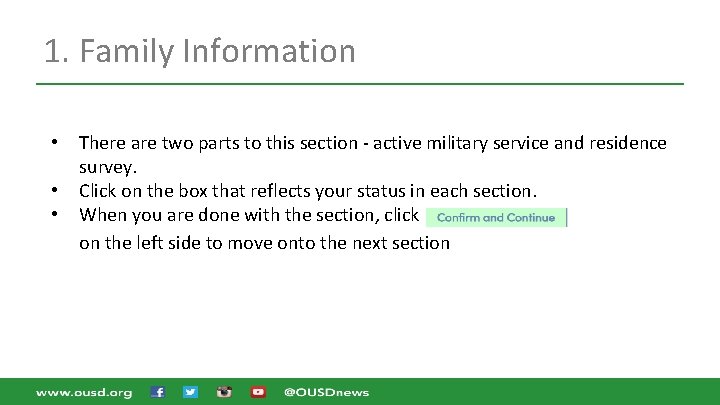
1. Family Information • • • There are two parts to this section - active military service and residence survey. Click on the box that reflects your status in each section. When you are done with the section, click on the left side to move onto the next section
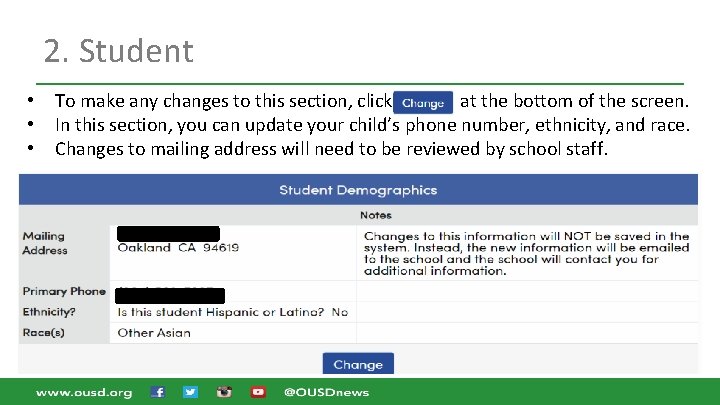
2. Student • • • To make any changes to this section, click at the bottom of the screen. In this section, you can update your child’s phone number, ethnicity, and race. Changes to mailing address will need to be reviewed by school staff.
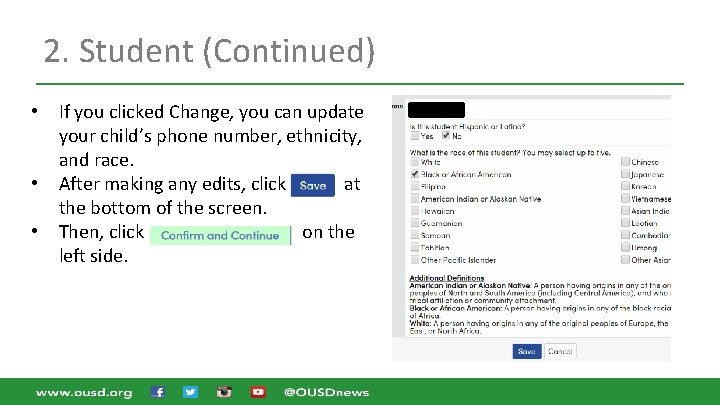
2. Student (Continued) • • • If you clicked Change, you can update your child’s phone number, ethnicity, and race. After making any edits, click at the bottom of the screen. Then, click on the left side.
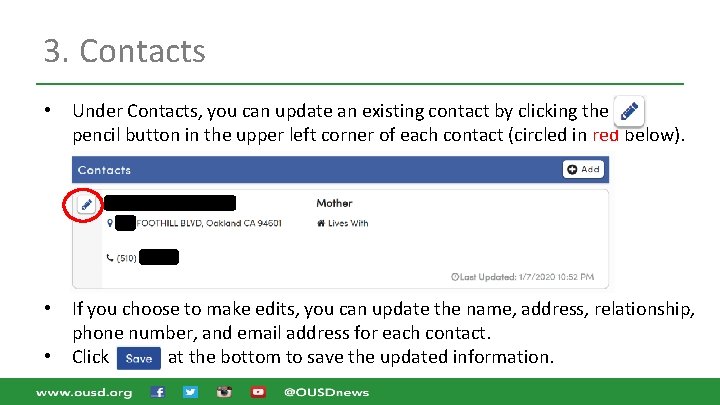
3. Contacts • Under Contacts, you can update an existing contact by clicking the pencil button in the upper left corner of each contact (circled in red below). • If you choose to make edits, you can update the name, address, relationship, phone number, and email address for each contact. Click at the bottom to save the updated information. •
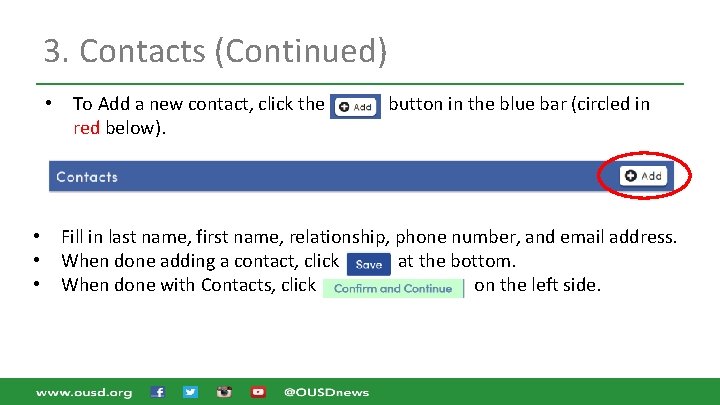
3. Contacts (Continued) • • To Add a new contact, click the red below). button in the blue bar (circled in Fill in last name, first name, relationship, phone number, and email address. When done adding a contact, click at the bottom. When done with Contacts, click on the left side.
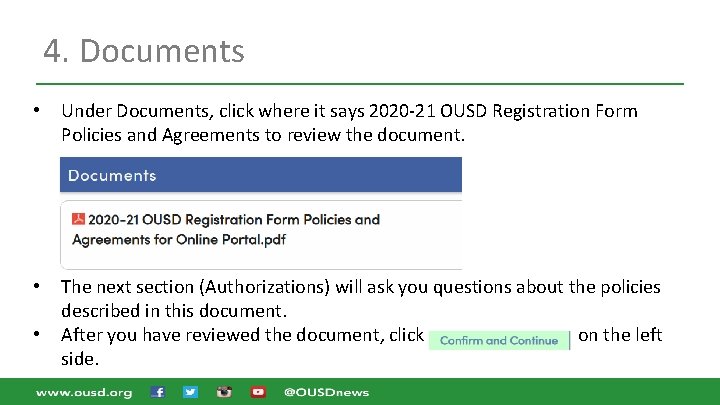
4. Documents • Under Documents, click where it says 2020 -21 OUSD Registration Form Policies and Agreements to review the document. • The next section (Authorizations) will ask you questions about the policies described in this document. After you have reviewed the document, click on the left side. •
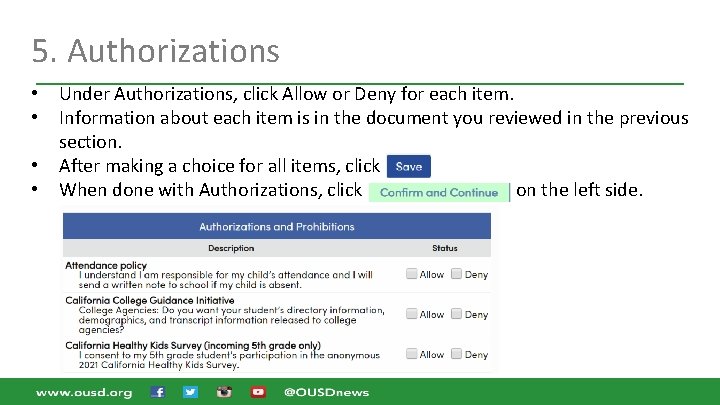
5. Authorizations • • Under Authorizations, click Allow or Deny for each item. Information about each item is in the document you reviewed in the previous section. After making a choice for all items, click When done with Authorizations, click on the left side.
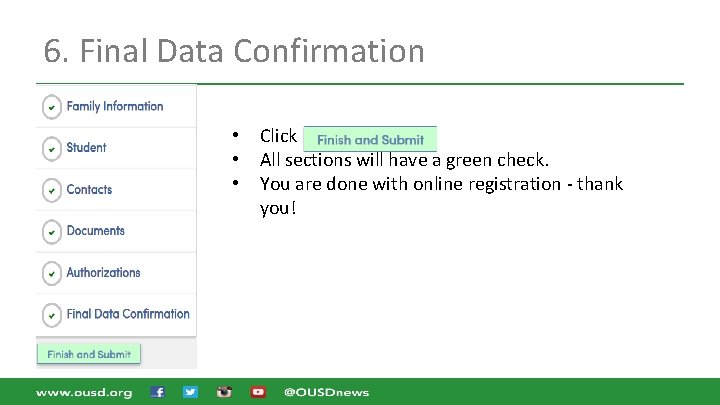
6. Final Data Confirmation • • • Click All sections will have a green check. You are done with online registration - thank you!
For School Staff
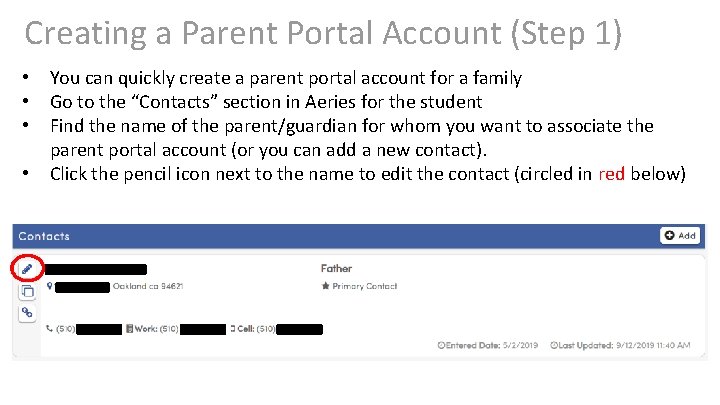
Creating a Parent Portal Account (Step 1) • • You can quickly create a parent portal account for a family Go to the “Contacts” section in Aeries for the student Find the name of the parent/guardian for whom you want to associate the parent portal account (or you can add a new contact). Click the pencil icon next to the name to edit the contact (circled in red below)
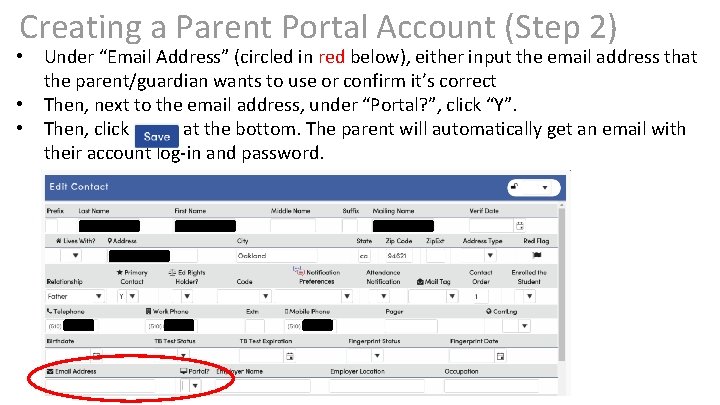
Creating a Parent Portal Account (Step 2) • • • Under “Email Address” (circled in red below), either input the email address that the parent/guardian wants to use or confirm it’s correct Then, next to the email address, under “Portal? ”, click “Y”. Then, click at the bottom. The parent will automatically get an email with their account log-in and password.
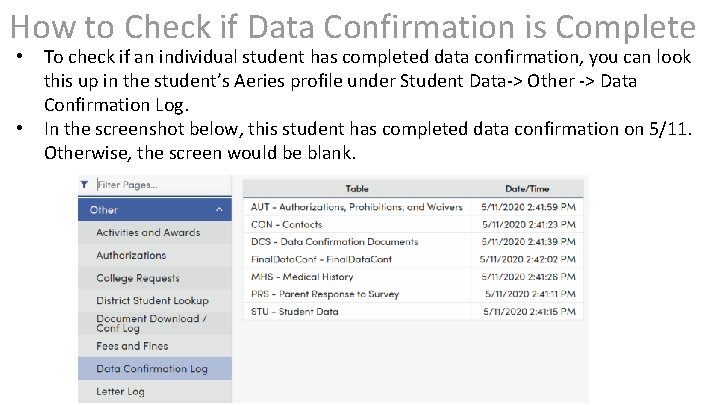
How to Check if Data Confirmation is Complete • • To check if an individual student has completed data confirmation, you can look this up in the student’s Aeries profile under Student Data-> Other -> Data Confirmation Log. In the screenshot below, this student has completed data confirmation on 5/11. Otherwise, the screen would be blank.
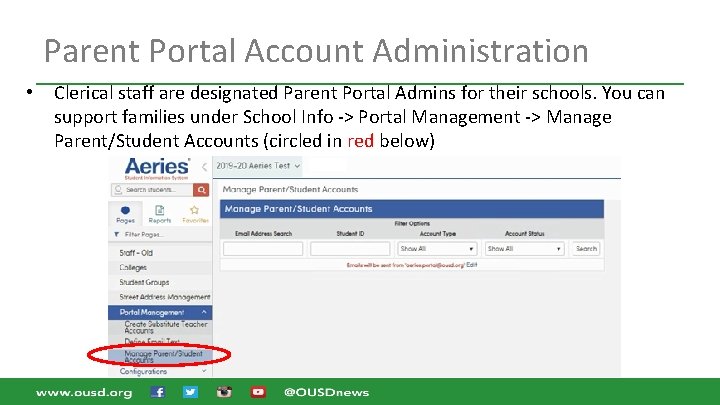
Parent Portal Account Administration • Clerical staff are designated Parent Portal Admins for their schools. You can support families under School Info -> Portal Management -> Manage Parent/Student Accounts (circled in red below)
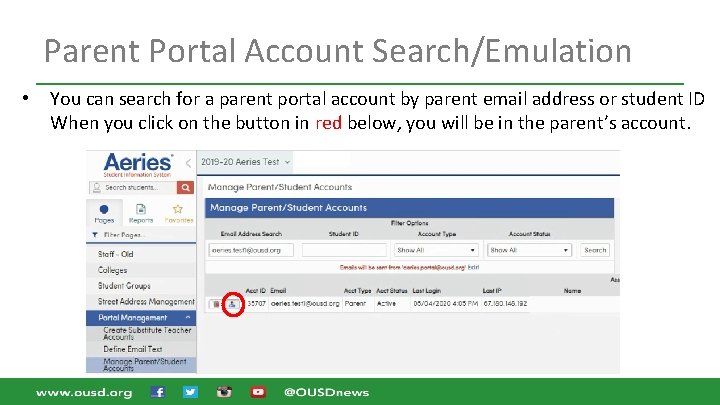
Parent Portal Account Search/Emulation • You can search for a parent portal account by parent email address or student ID When you click on the button in red below, you will be in the parent’s account.
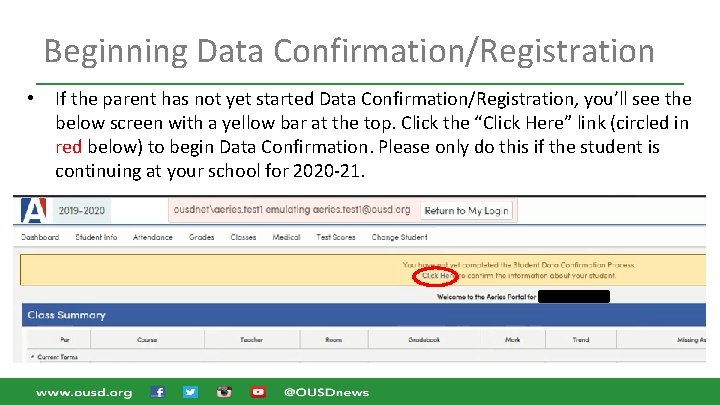
Beginning Data Confirmation/Registration • If the parent has not yet started Data Confirmation/Registration, you’ll see the below screen with a yellow bar at the top. Click the “Click Here” link (circled in red below) to begin Data Confirmation. Please only do this if the student is continuing at your school for 2020 -21.
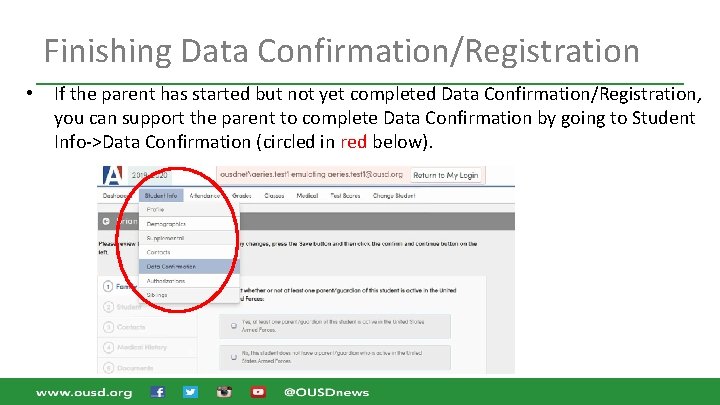
Finishing Data Confirmation/Registration • If the parent has started but not yet completed Data Confirmation/Registration, you can support the parent to complete Data Confirmation by going to Student Info->Data Confirmation (circled in red below).