
Aerial Robotics Camp Program Your LEGO Presented by
Aerial Robotics Camp Program Your LEGO Presented by: Dr. Mehran Andalibi Embry-Riddle Aeronautical University Prescott, AZ
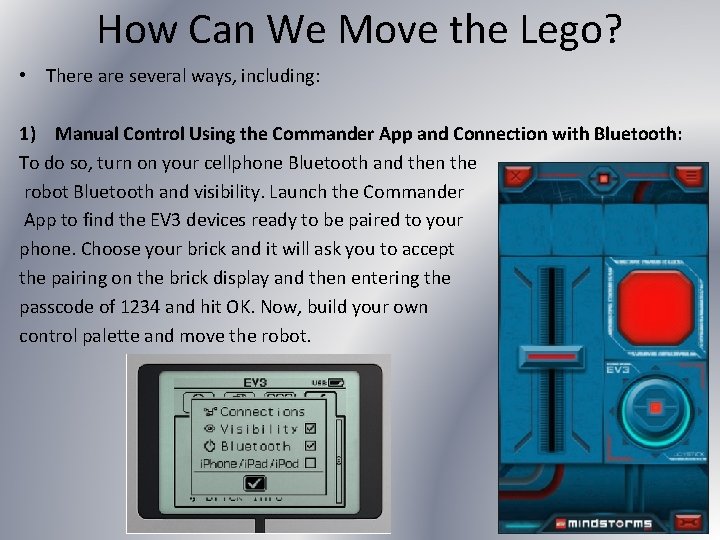
How Can We Move the Lego? • There are several ways, including: 1) Manual Control Using the Commander App and Connection with Bluetooth: To do so, turn on your cellphone Bluetooth and then the robot Bluetooth and visibility. Launch the Commander App to find the EV 3 devices ready to be paired to your phone. Choose your brick and it will ask you to accept the pairing on the brick display and then entering the passcode of 1234 and hit OK. Now, build your own control palette and move the robot.
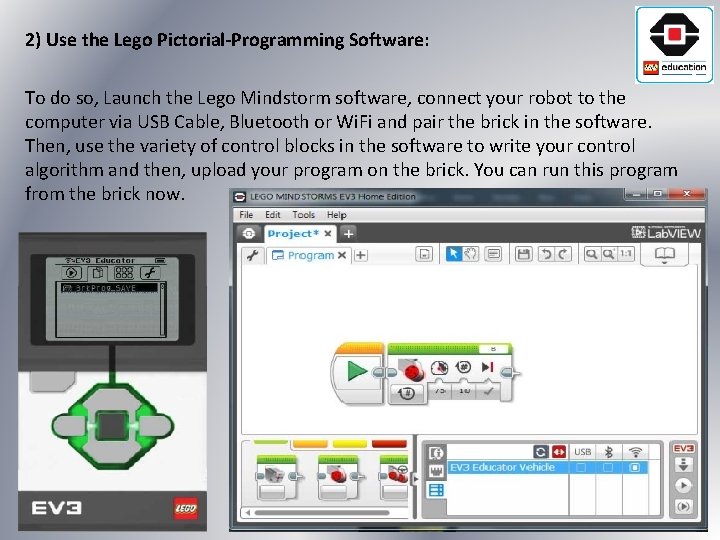
2) Use the Lego Pictorial-Programming Software: To do so, Launch the Lego Mindstorm software, connect your robot to the computer via USB Cable, Bluetooth or Wi. Fi and pair the brick in the software. Then, use the variety of control blocks in the software to write your control algorithm and then, upload your program on the brick. You can run this program from the brick now.
3) Use Lego EV 3 Support Package in MATLAB: To do so, you need the general-purpose programming software MATLAB and its support package for Lego EV 3 installed on your computer. Then, you can write your code in MATLAB and use the built-in functions from the Lego EV 3 library to communicate to your robot. To connect to the brick, all 3 connection modes (USB cable, Wi. Fi adapter, Bluetooth adapter) can be used. You can perform the following tasks directly in MATLAB: • • Control the motors Read color and light intensity Measure distance and proximity Detect touch Acquire rotation angle and rate Write text to EV 3 Brick LCD display Beep and play tones on EV 3 speaker Detect button presses

A Brief Introduction to Programming in MATLAB
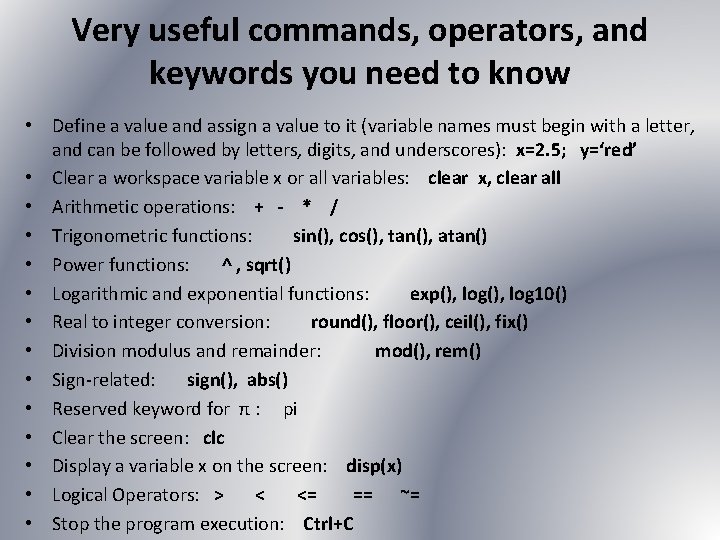
Very useful commands, operators, and keywords you need to know • Define a value and assign a value to it (variable names must begin with a letter, and can be followed by letters, digits, and underscores): x=2. 5; y=‘red’ • Clear a workspace variable x or all variables: clear x, clear all • Arithmetic operations: + - * / • Trigonometric functions: sin(), cos(), tan(), atan() • Power functions: ^ , sqrt() • Logarithmic and exponential functions: exp(), log 10() • Real to integer conversion: round(), floor(), ceil(), fix() • Division modulus and remainder: mod(), rem() • Sign-related: sign(), abs() • Reserved keyword for π : pi • Clear the screen: clc • Display a variable x on the screen: disp(x) • Logical Operators: > < <= == ~= • Stop the program execution: Ctrl+C
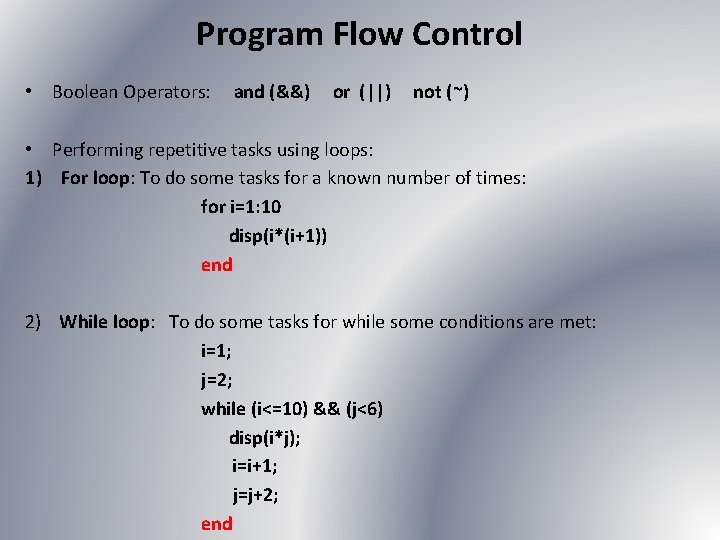
Program Flow Control • Boolean Operators: and (&&) or (||) not (~) • Performing repetitive tasks using loops: 1) For loop: To do some tasks for a known number of times: for i=1: 10 disp(i*(i+1)) end 2) While loop: To do some tasks for while some conditions are met: i=1; j=2; while (i<=10) && (j<6) disp(i*j); i=i+1; j=j+2; end
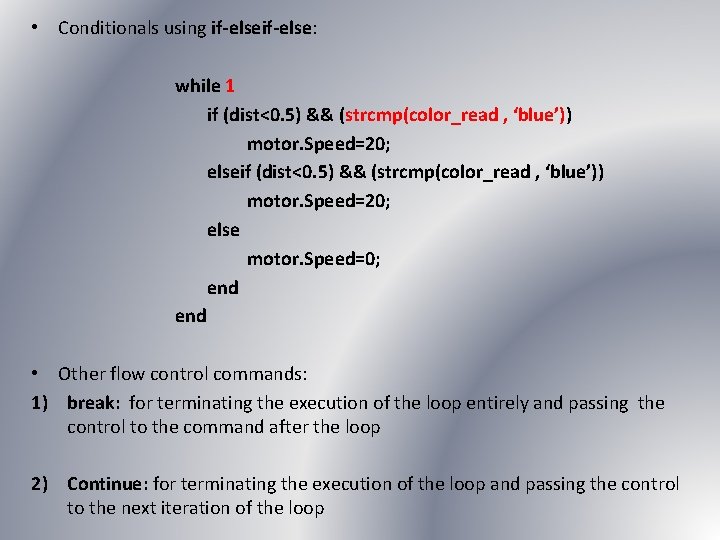
• Conditionals using if-else: while 1 if (dist<0. 5) && (strcmp(color_read , ‘blue’)) motor. Speed=20; else motor. Speed=0; end • Other flow control commands: 1) break: for terminating the execution of the loop entirely and passing the control to the command after the loop 2) Continue: for terminating the execution of the loop and passing the control to the next iteration of the loop
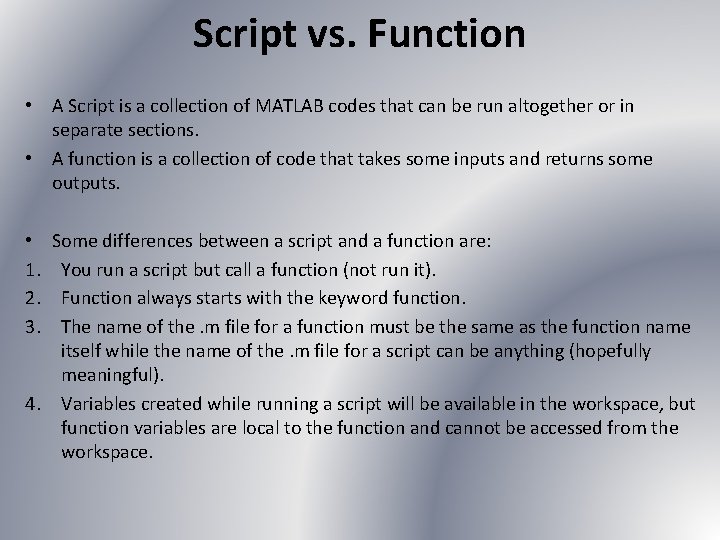
Script vs. Function • A Script is a collection of MATLAB codes that can be run altogether or in separate sections. • A function is a collection of code that takes some inputs and returns some outputs. Some differences between a script and a function are: You run a script but call a function (not run it). Function always starts with the keyword function. The name of the. m file for a function must be the same as the function name itself while the name of the. m file for a script can be anything (hopefully meaningful). 4. Variables created while running a script will be available in the workspace, but function variables are local to the function and cannot be accessed from the workspace. • 1. 2. 3.
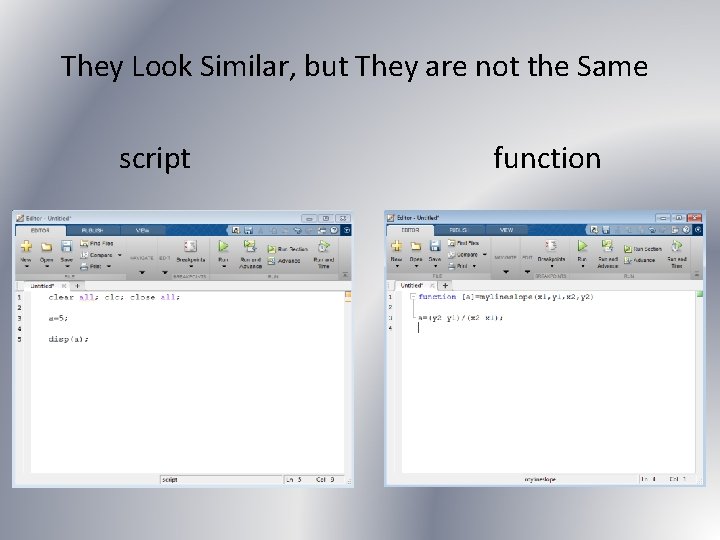
They Look Similar, but They are not the Same script function

Writing Your First MATLAB Program • Write a MATLAB script that generates a vector of N random numbers in the interval [1, 10] using the built-in command “rand”; counts how many elements in the vector are greater than 5 using a for loop; and displays the result.
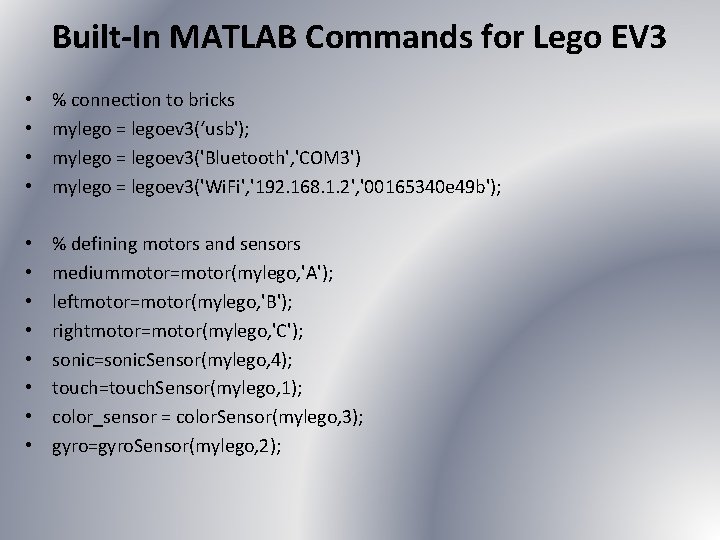
Built-In MATLAB Commands for Lego EV 3 • • % connection to bricks mylego = legoev 3(‘usb'); mylego = legoev 3('Bluetooth', 'COM 3') mylego = legoev 3('Wi. Fi', '192. 168. 1. 2', '00165340 e 49 b'); • • % defining motors and sensors mediummotor=motor(mylego, 'A'); leftmotor=motor(mylego, 'B'); rightmotor=motor(mylego, 'C'); sonic=sonic. Sensor(mylego, 4); touch=touch. Sensor(mylego, 1); color_sensor = color. Sensor(mylego, 3); gyro=gyro. Sensor(mylego, 2);
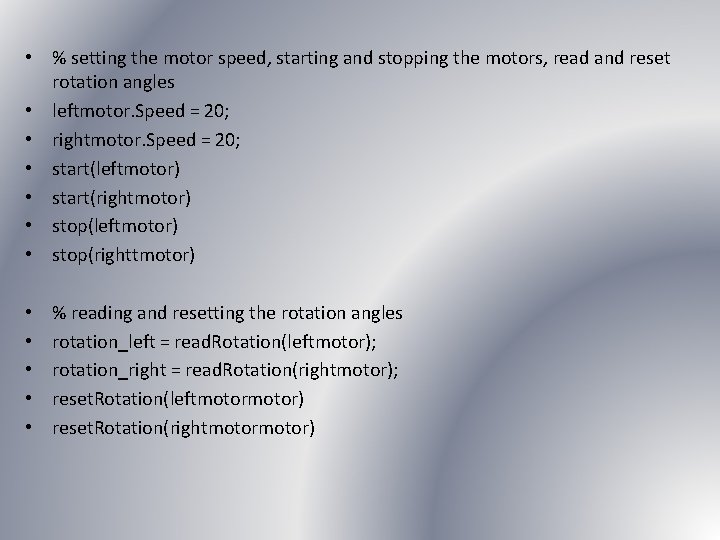
• % setting the motor speed, starting and stopping the motors, read and reset rotation angles • leftmotor. Speed = 20; • rightmotor. Speed = 20; • start(leftmotor) • start(rightmotor) • stop(leftmotor) • stop(righttmotor) • • • % reading and resetting the rotation angles rotation_left = read. Rotation(leftmotor); rotation_right = read. Rotation(rightmotor); reset. Rotation(leftmotor) reset. Rotation(rightmotor)
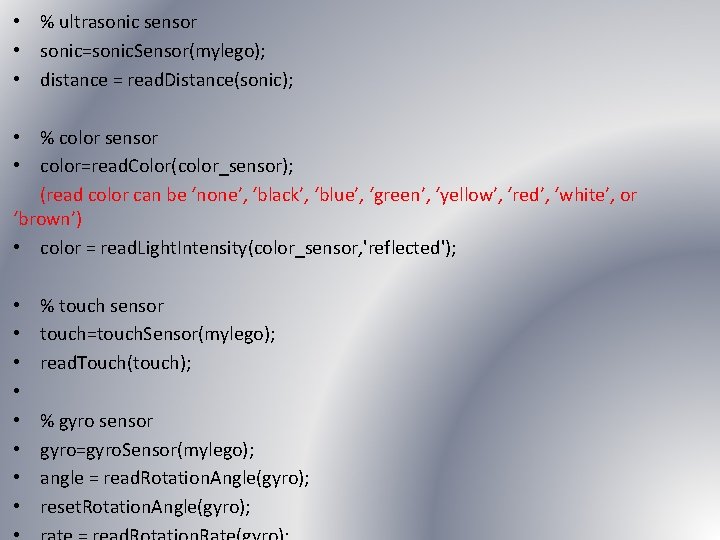
• % ultrasonic sensor • sonic=sonic. Sensor(mylego); • distance = read. Distance(sonic); • % color sensor • color=read. Color(color_sensor); (read color can be ‘none’, ‘black’, ‘blue’, ‘green’, ‘yellow’, ‘red’, ‘white’, or ‘brown’) • color = read. Light. Intensity(color_sensor, 'reflected'); • • % touch sensor touch=touch. Sensor(mylego); read. Touch(touch); % gyro sensor gyro=gyro. Sensor(mylego); angle = read. Rotation. Angle(gyro); reset. Rotation. Angle(gyro);
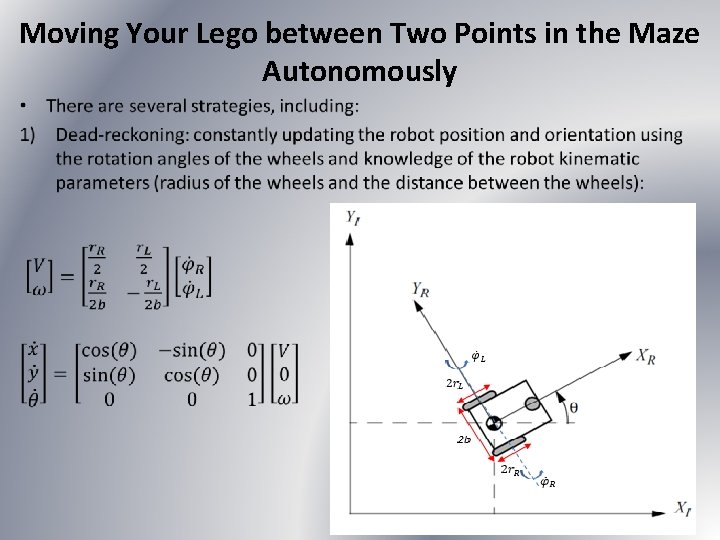
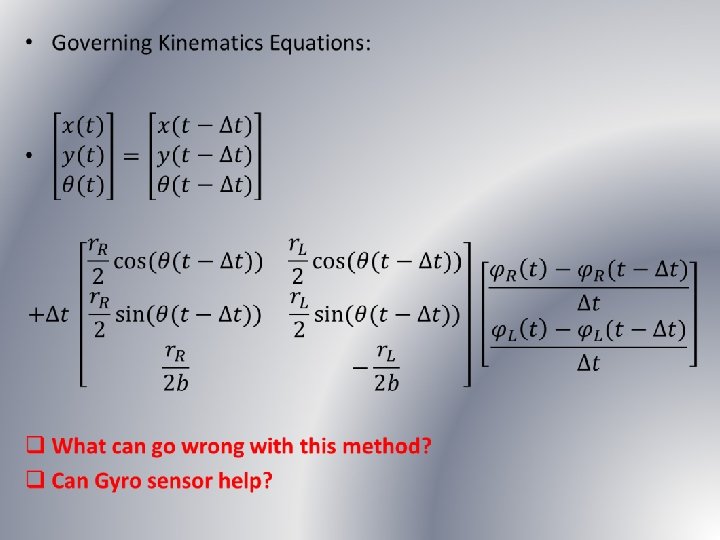
Moving Your Lego between Two Points in the Maze Autonomously •
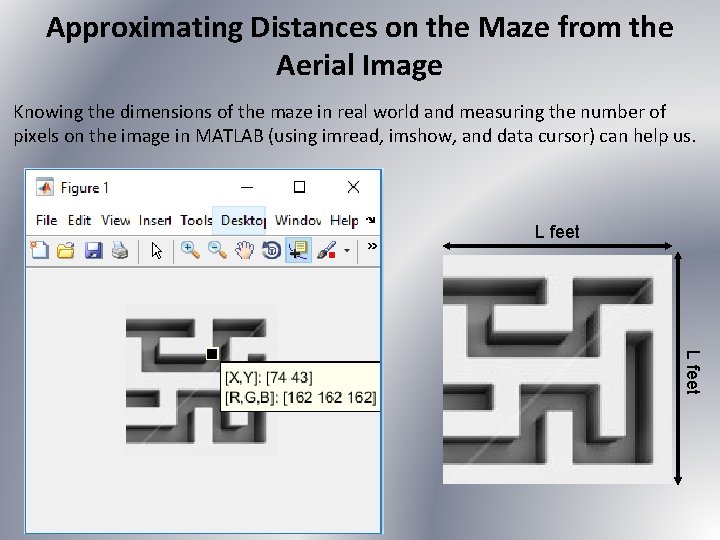
Approximating Distances on the Maze from the Aerial Image Knowing the dimensions of the maze in real world and measuring the number of pixels on the image in MATLAB (using imread, imshow, and data cursor) can help us. L feet
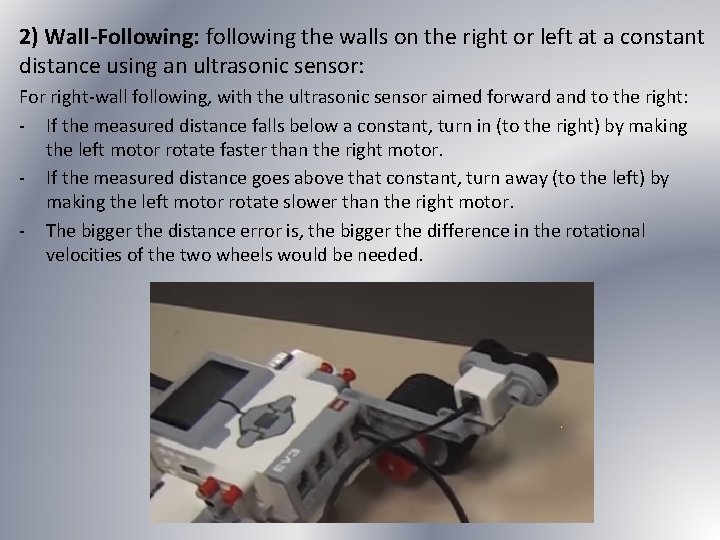
2) Wall-Following: following the walls on the right or left at a constant distance using an ultrasonic sensor: For right-wall following, with the ultrasonic sensor aimed forward and to the right: - If the measured distance falls below a constant, turn in (to the right) by making the left motor rotate faster than the right motor. - If the measured distance goes above that constant, turn away (to the left) by making the left motor rotate slower than the right motor. - The bigger the distance error is, the bigger the difference in the rotational velocities of the two wheels would be needed.
- Slides: 18