
Advisor 101 Welcome This class is for advisors
- Slides: 37
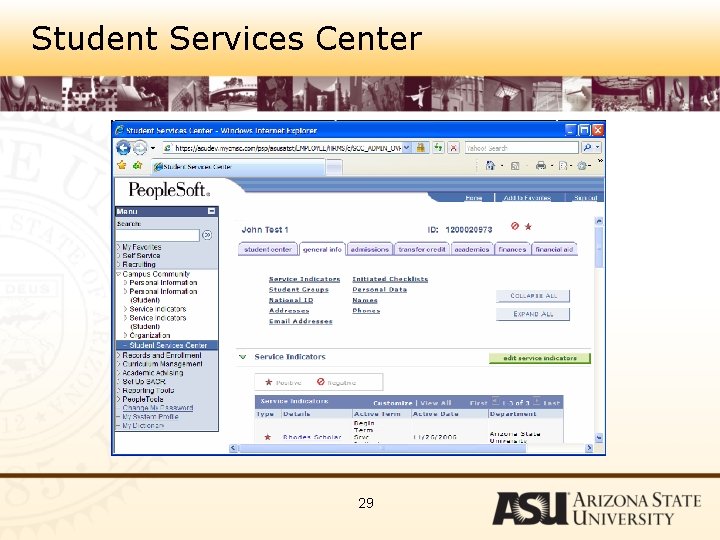
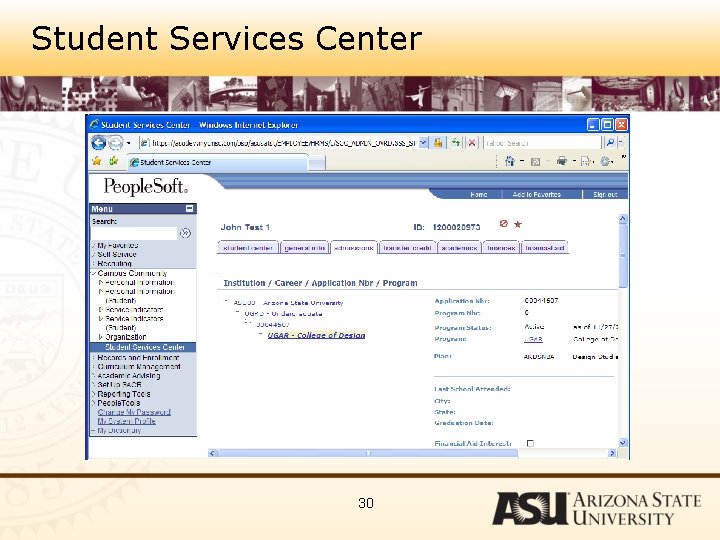
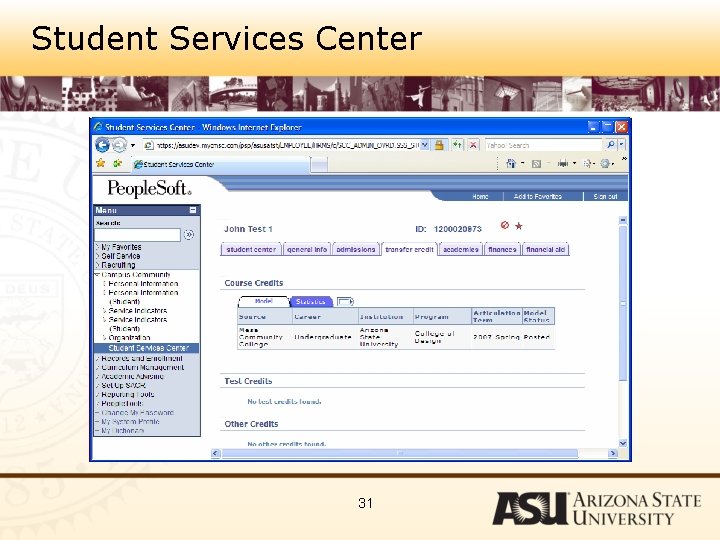
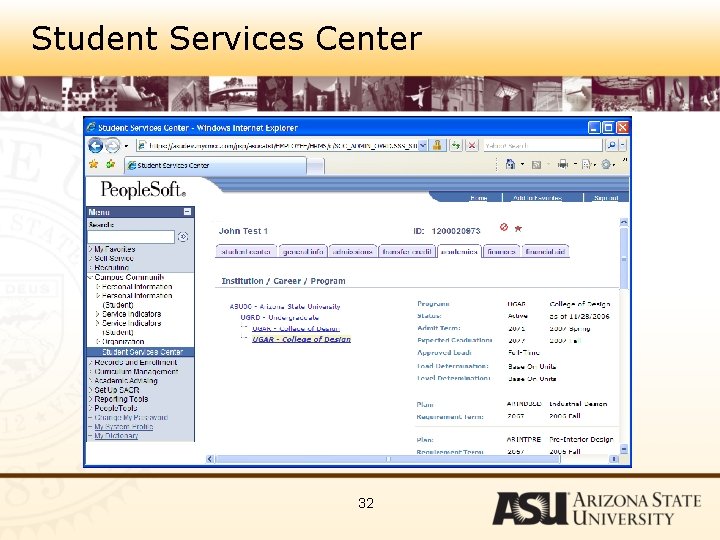
Advisor 101 Welcome! This class is for advisors who will use student data in People. Soft to advise their students. The agenda is: – Setup People. Soft for Advising (SACR & Favorites) – Use People. Soft to see student data • Student Center • Program Plan Stack • Unofficial Transcript • Enrollment Search • FERPA 1
Class Mechanics Class will run about 2 hours. There is a 30 minute presentation The rest of the time will be hands-on practice in the system Take a look at your handbook: Section 1 – This presentation Section 2 - Exercises Section 3 – Student Center BPG Section 4 – Unofficial Transcripts Section 5 – Enrollment Search Section 6 – Service Indicators Section 7 – Job Aids: Set up SACR, Add Favorites, Clear Cache, FERPA Consent and Holds, Where to Get Help, Next Steps 2
Agenda Finding Student Data in People. Soft – Academic Structure – Logging in – Setting User Defaults – Setting Favorites – Seeing Student Data – Ongoing Support – Next Steps 3
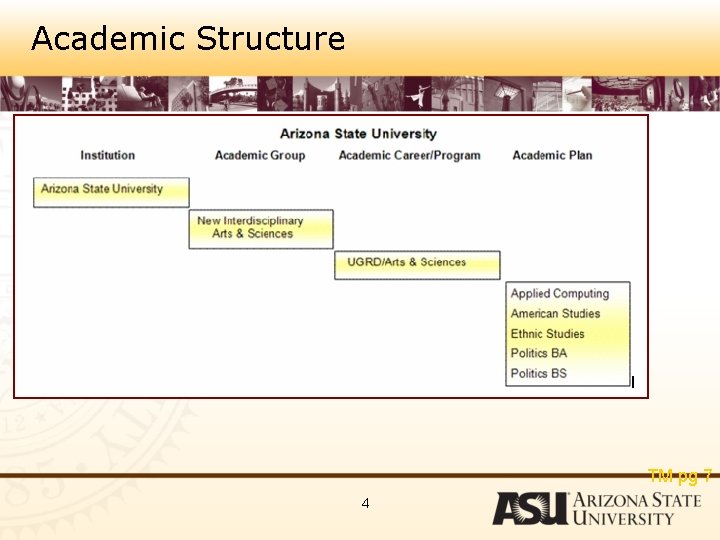
Academic Structure TM pg 7 4
Academic Structure – Institution INSTITUTION: There is one institution at ASU: Arizona State University – the code is ASU 00 5
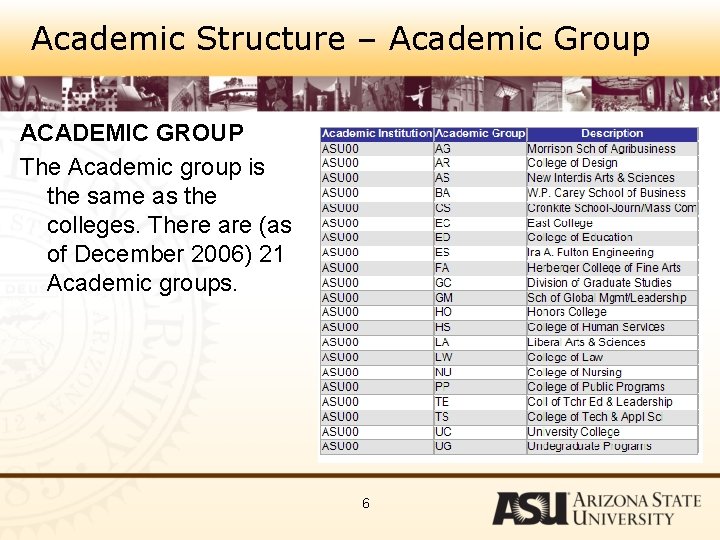
Academic Structure – Academic Group ACADEMIC GROUP The Academic group is the same as the colleges. There are (as of December 2006) 21 Academic groups. 6
Academic Structure - Careers CAREERS: There are four careers: • Undergraduate, • Graduate, • Law and • No-Credit 7
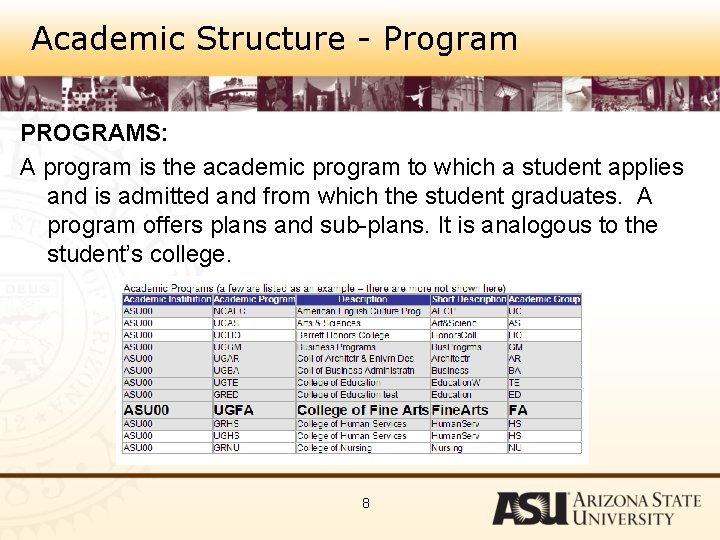
Academic Structure - Program PROGRAMS: A program is the academic program to which a student applies and is admitted and from which the student graduates. A program offers plans and sub-plans. It is analogous to the student’s college. 8
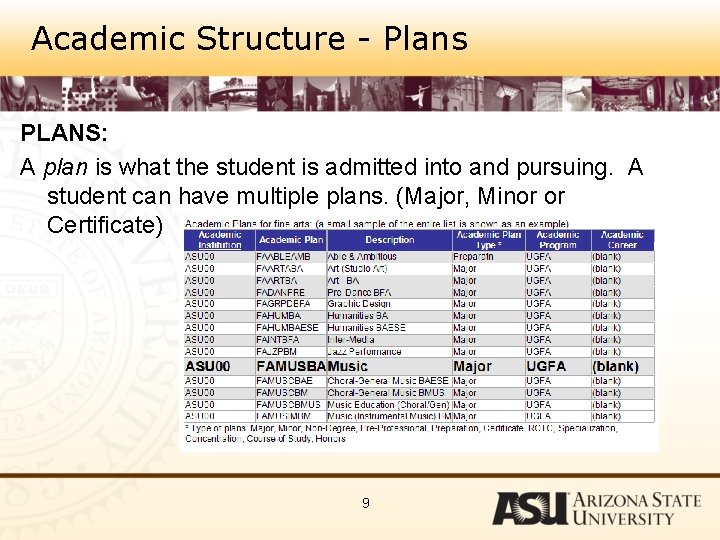
Academic Structure - Plans PLANS: A plan is what the student is admitted into and pursuing. A student can have multiple plans. (Major, Minor or Certificate) 9
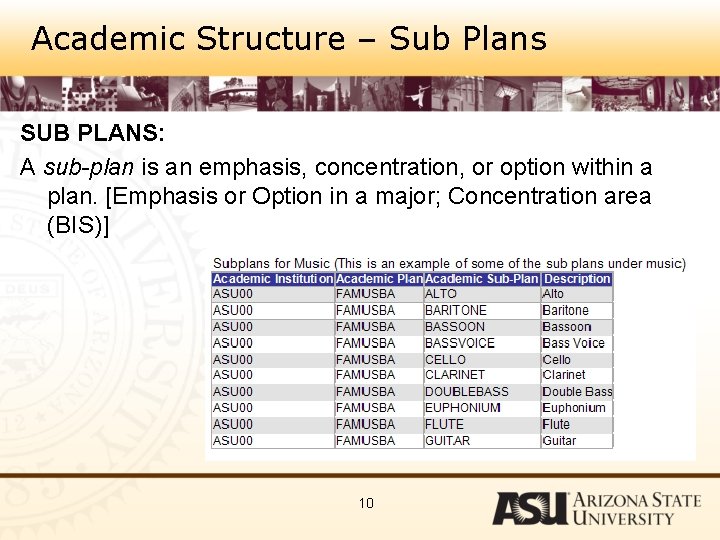
Academic Structure – Sub Plans SUB PLANS: A sub-plan is an emphasis, concentration, or option within a plan. [Emphasis or Option in a major; Concentration area (BIS)] 10
Agenda Finding Student Data in People. Soft – Academic Structure – Logging in – Setting User Defaults & Favorites – Seeing Student Data – Ongoing Support – Next Steps 11
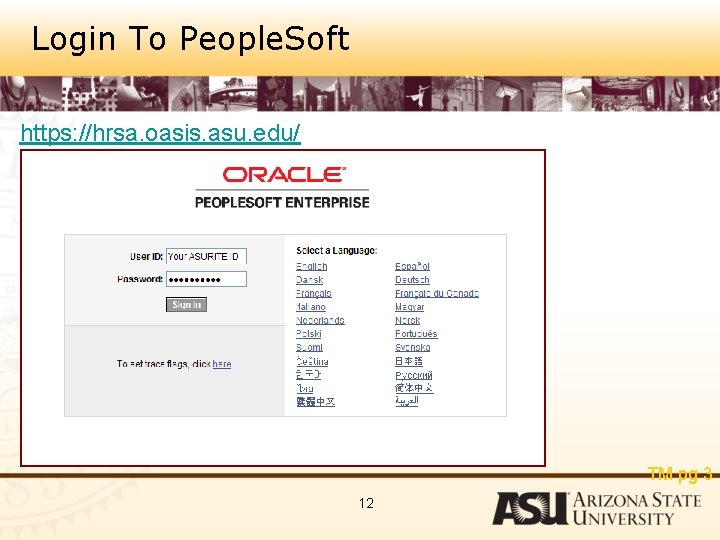
Login To People. Soft https: //hrsa. oasis. asu. edu/ TM pg 3 12
Agenda Finding Student Data in People. Soft – Academic Structure – Logging in – Setting User Defaults & Favorites – Seeing Student Data – Ongoing Support – Next Steps 13
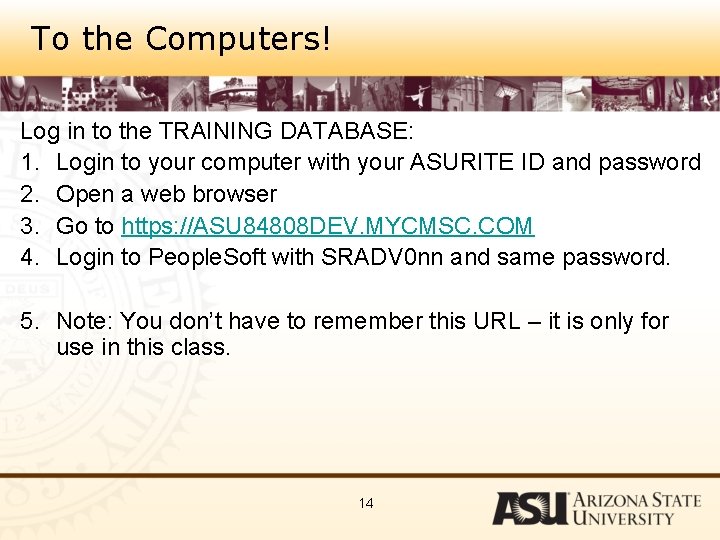
To the Computers! Log in to the TRAINING DATABASE: 1. Login to your computer with your ASURITE ID and password 2. Open a web browser 3. Go to https: //ASU 84808 DEV. MYCMSC. COM 4. Login to People. Soft with SRADV 0 nn and same password. 5. Note: You don’t have to remember this URL – it is only for use in this class. 14
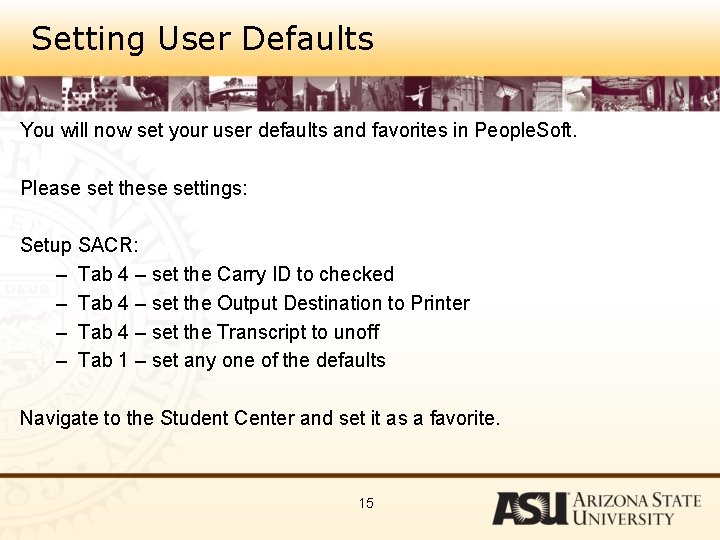
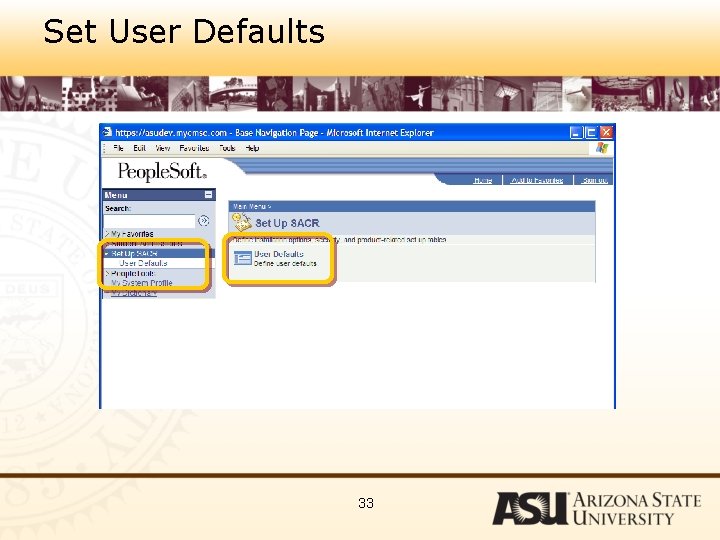
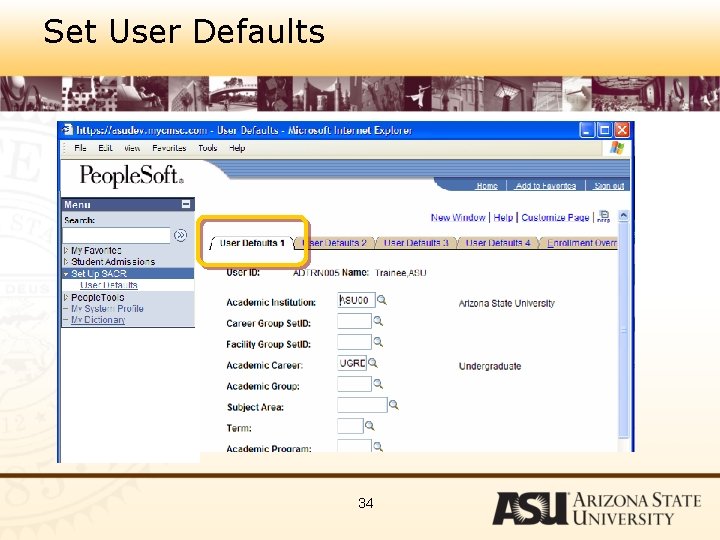
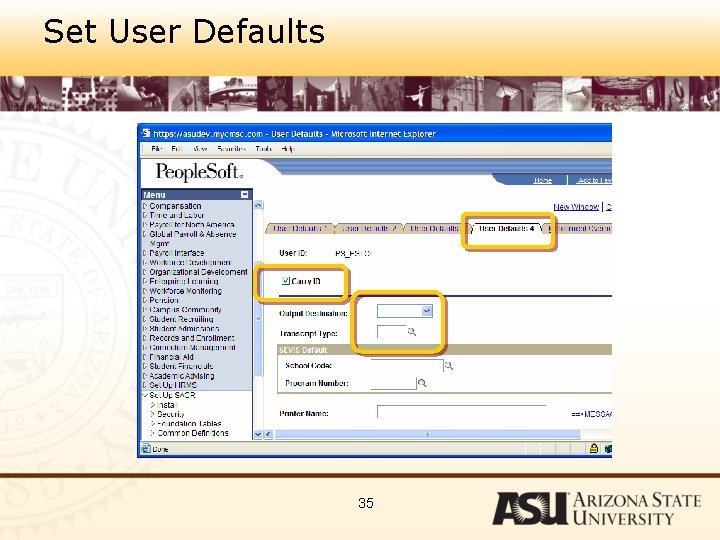
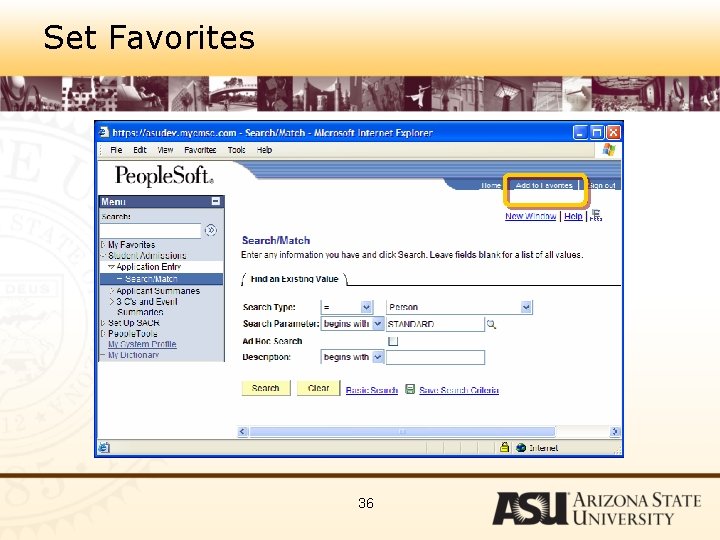
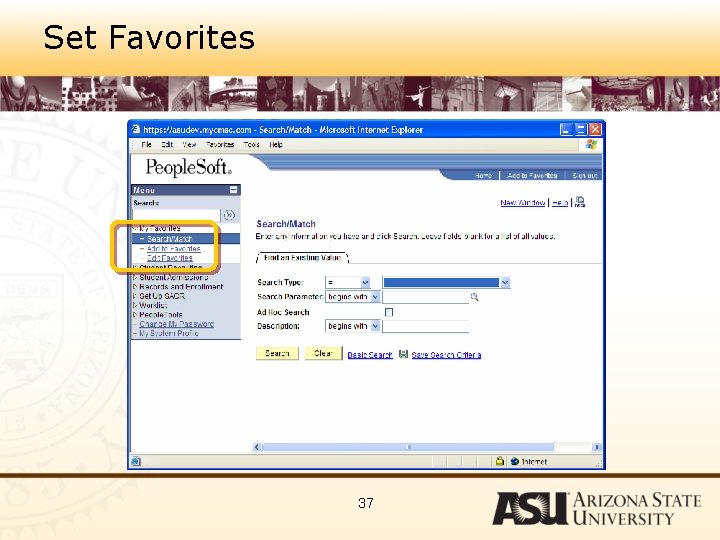
Setting User Defaults You will now set your user defaults and favorites in People. Soft. Please set these settings: Setup SACR: – Tab 4 – set the Carry ID to checked – Tab 4 – set the Output Destination to Printer – Tab 4 – set the Transcript to unoff – Tab 1 – set any one of the defaults Navigate to the Student Center and set it as a favorite. 15
Agenda Finding Student Data in People. Soft – Academic Structure – Logging in – Setting User Defaults & Favorites – Seeing Student Data – Ongoing Support – Next Steps 16
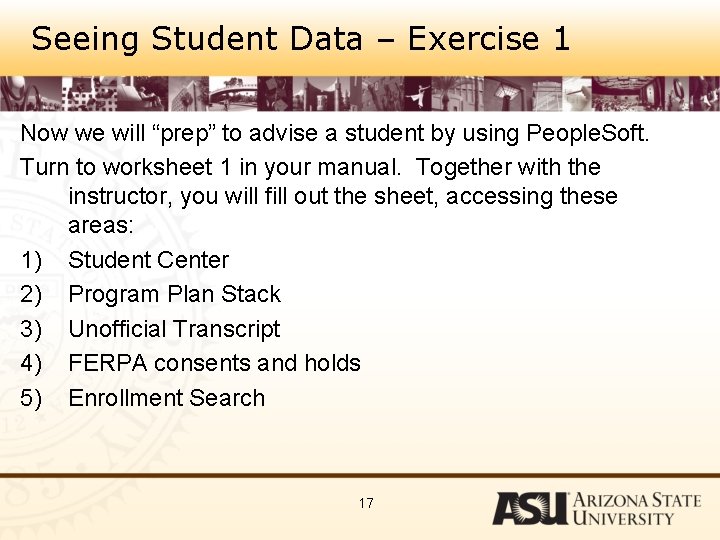
Seeing Student Data – Exercise 1 Now we will “prep” to advise a student by using People. Soft. Turn to worksheet 1 in your manual. Together with the instructor, you will fill out the sheet, accessing these areas: 1) Student Center 2) Program Plan Stack 3) Unofficial Transcript 4) FERPA consents and holds 5) Enrollment Search 17
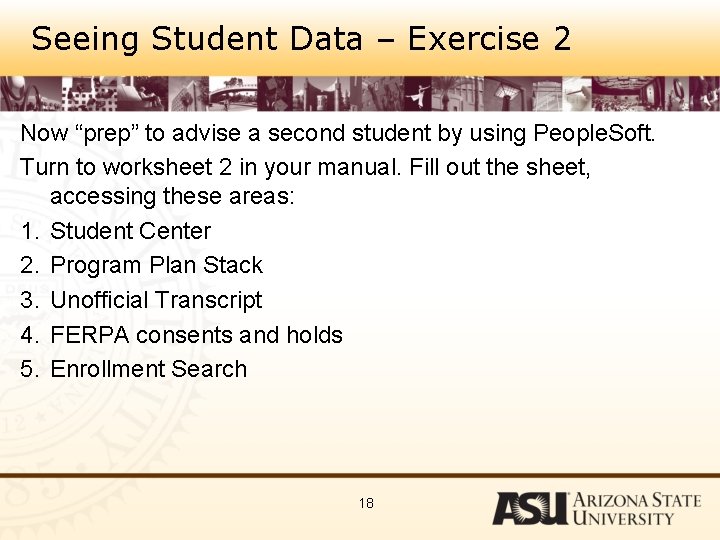
Seeing Student Data – Exercise 2 Now “prep” to advise a second student by using People. Soft. Turn to worksheet 2 in your manual. Fill out the sheet, accessing these areas: 1. Student Center 2. Program Plan Stack 3. Unofficial Transcript 4. FERPA consents and holds 5. Enrollment Search 18
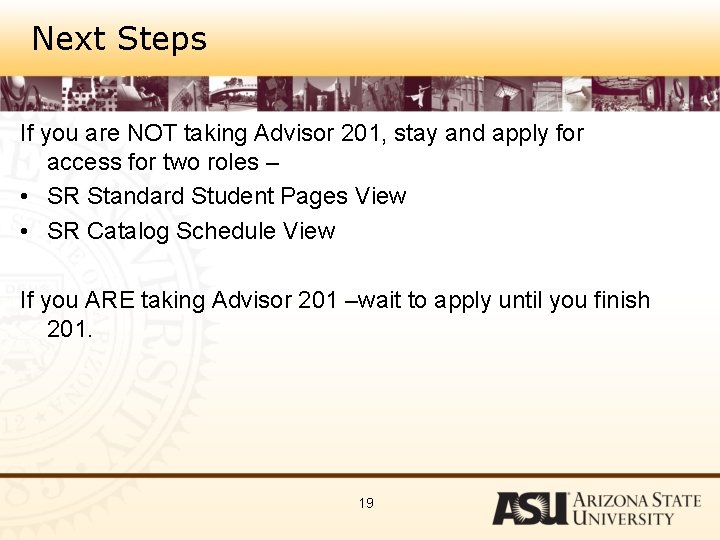
Next Steps If you are NOT taking Advisor 201, stay and apply for access for two roles – • SR Standard Student Pages View • SR Catalog Schedule View If you ARE taking Advisor 201 –wait to apply until you finish 201. 19
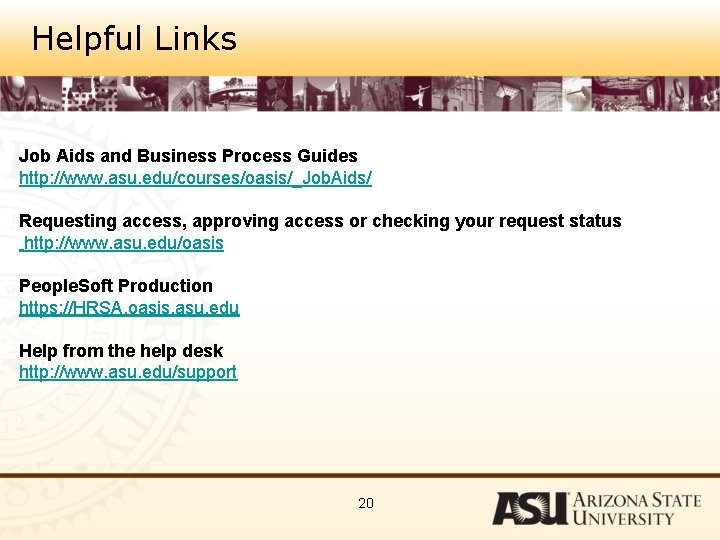
Helpful Links Job Aids and Business Process Guides http: //www. asu. edu/courses/oasis/_Job. Aids/ Requesting access, approving access or checking your request status http: //www. asu. edu/oasis People. Soft Production https: //HRSA. oasis. asu. edu Help from the help desk http: //www. asu. edu/support 20
Ongoing Communication For suggestions for improvements: Email Ask. Oasis. Training@asu. edu – put “Faculty Center Suggestion” in the subject line. For immediate help, submit a help ticket http: //www. asu. edu/support Select University Technology Office for the organization, Select People. Soft for the category Type in a summary and description of your problem. How do you want to be communicated with? 21
End of Class Questions? 22
FOR YOUR REFERENCE These next slides are for your reference after the class. 23
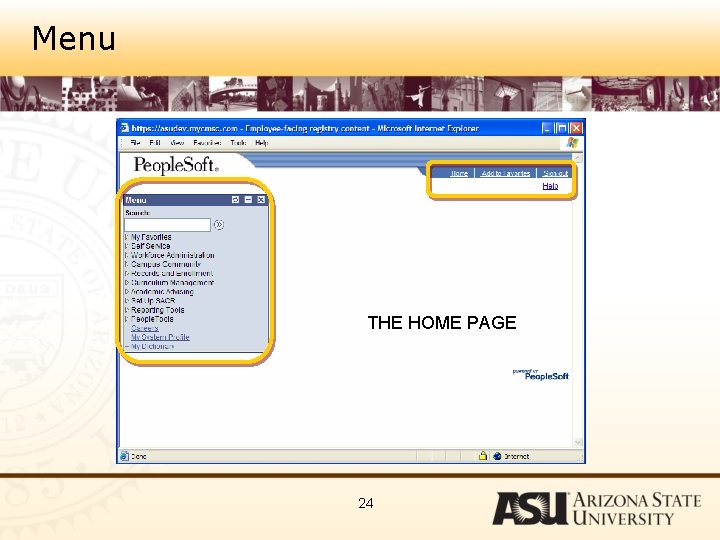
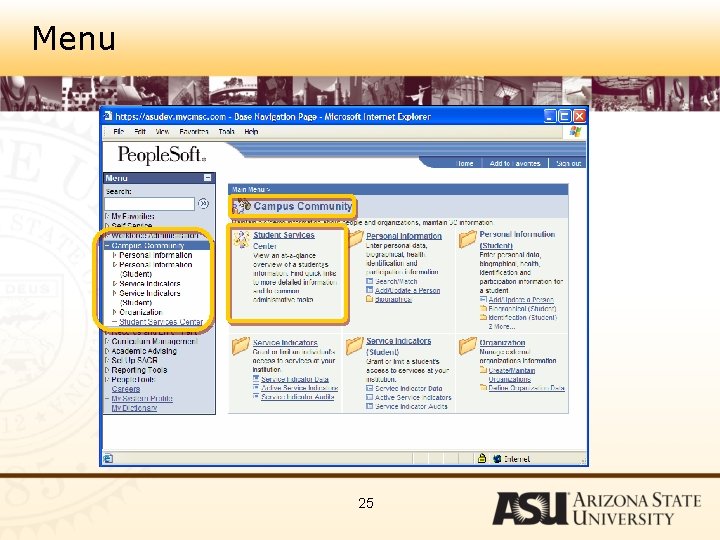
Menu THE HOME PAGE 24
Menu 25
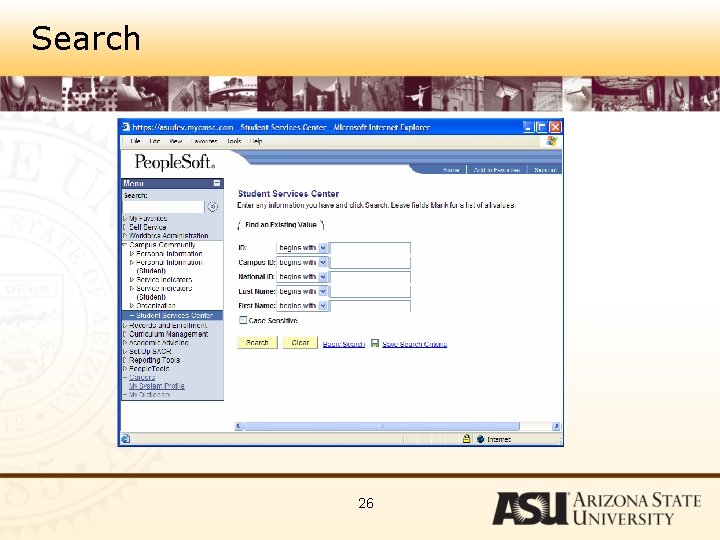
Search 26
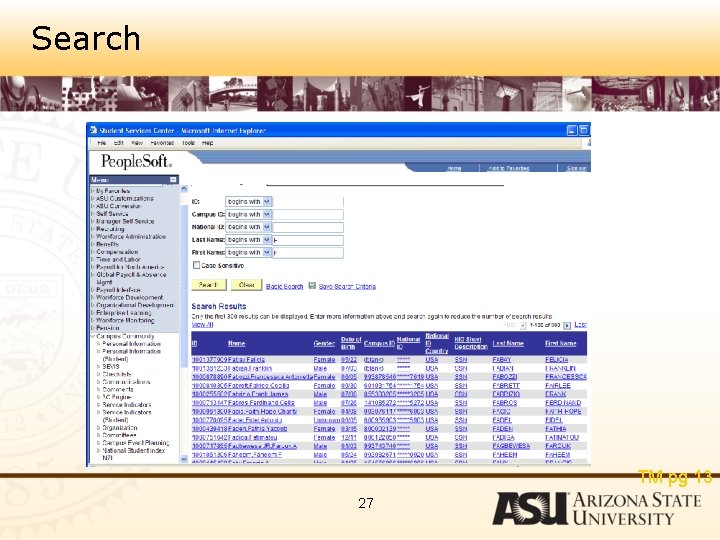
Search TM pg 13 27
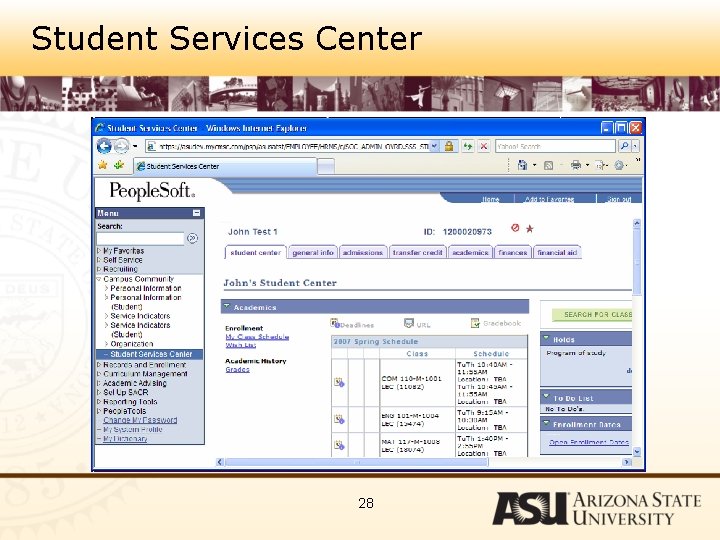
Student Services Center 28
Student Services Center 29
Student Services Center 30
Student Services Center 31
Student Services Center 32
Set User Defaults 33
Set User Defaults 34
Set User Defaults 35
Set Favorites 36
Set Favorites 37