
Advanced Web Development IT 125 Spring Term 2017

Advanced Web Development IT 125 Spring Term 2017 Marymount University School of Business Administration Professor Suydam Week 3 HTML & Mini-Project (MP 1) 1
Outline Working with website (File Zilla) Mini-Project (MP 1)
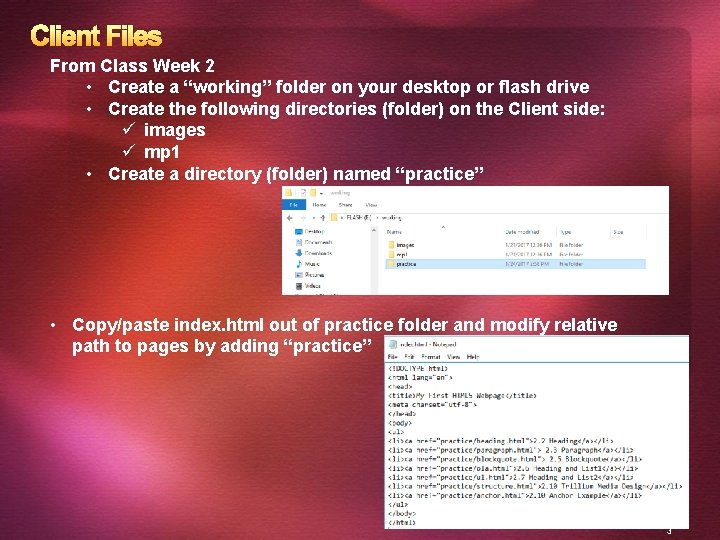
Client Files From Class Week 2 • Create a “working” folder on your desktop or flash drive • Create the following directories (folder) on the Client side: ü images ü mp 1 • Create a directory (folder) named “practice” • Copy/paste index. html out of practice folder and modify relative path to pages by adding “practice” 3
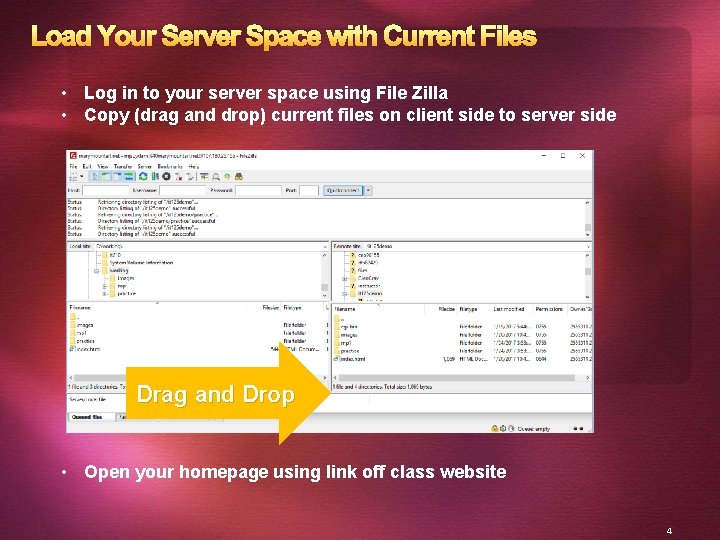
Load Your Server Space with Current Files • Log in to your server space using File Zilla • Copy (drag and drop) current files on client side to server side Drag and Drop • Open your homepage using link off class website 4
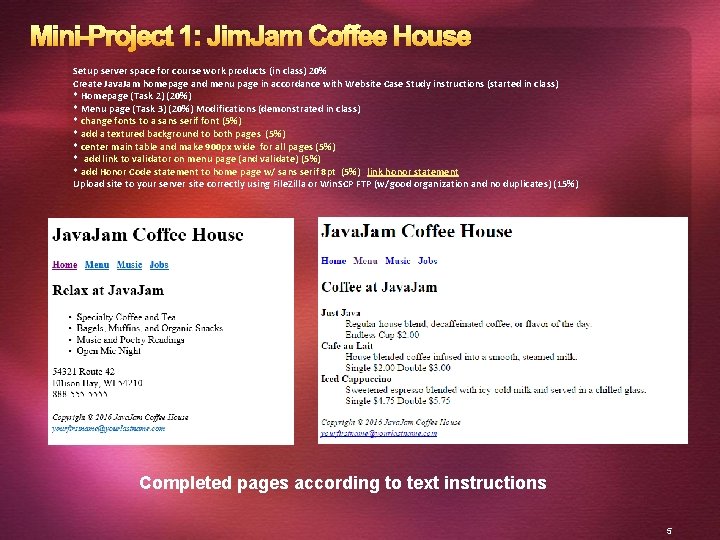
Mini-Project 1: Jim. Jam Coffee House Setup server space for course work products (in class) 20% Create Java. Jam homepage and menu page in accordance with Website Case Study instructions (started in class) * Homepage (Task 2) (20%) * Menu page (Task 3) (20%) Modifications (demonstrated in class) * change fonts to a sans serif font (5%) * add a textured background to both pages (5%) * center main table and make 900 px wide for all pages (5%) * add link to validator on menu page (and validate) (5%) * add Honor Code statement to home page w/ sans serif 8 pt (5%) link honor statement Upload site to your server site correctly using File. Zilla or Win. SCP FTP (w/good organization and no duplicates) (15%) Completed pages according to text instructions 5
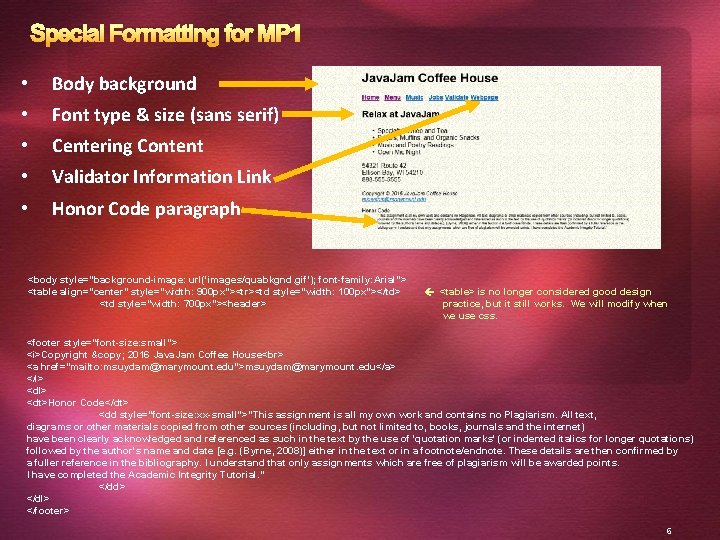
Special Formatting for MP 1 • Body background • Font type & size (sans serif) • Centering Content • Validator Information Link • Honor Code paragraph <body style="background-image: url('images/quabkgnd. gif'); font-family: Arial"> <table align="center" style="width: 900 px"><tr><td style="width: 100 px"></td> <td style="width: 700 px"><header> <table> is no longer considered good design practice, but it still works. We will modify when we use css. <footer style="font-size: small"> <i>Copyright © 2016 Java. Jam Coffee House <a href="mailto: msuydam@marymount. edu">msuydam@marymount. edu</a> </i> <dl> <dt>Honor Code</dt> <dd style="font-size: xx-small">"This assignment is all my own work and contains no Plagiarism. All text, diagrams or other materials copied from other sources (including, but not limited to, books, journals and the internet) have been clearly acknowledged and referenced as such in the text by the use of 'quotation marks' (or indented italics for longer quotations) followed by the author's name and date [e. g. (Byrne, 2008)] either in the text or in a footnote/endnote. These details are then confirmed by a fuller reference in the bibliography. I understand that only assignments which are free of plagiarism will be awarded points. I have completed the Academic Integrity Tutorial. " </dd> </dl> </footer> 6
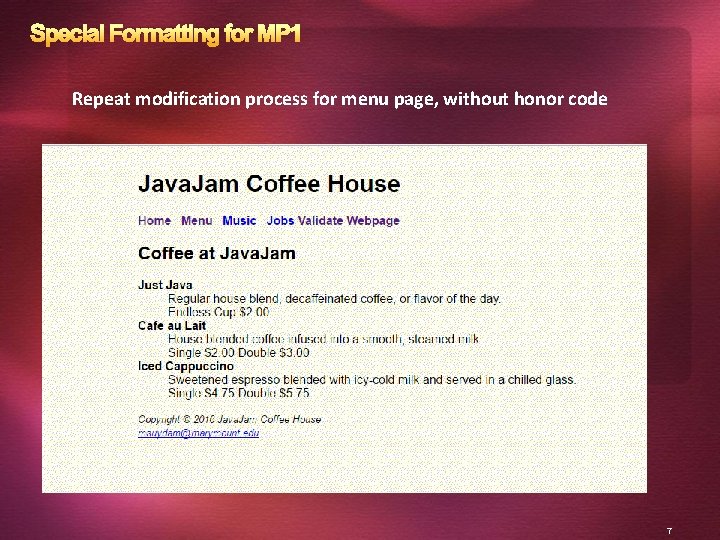
Special Formatting for MP 1 Repeat modification process for menu page, without honor code 7
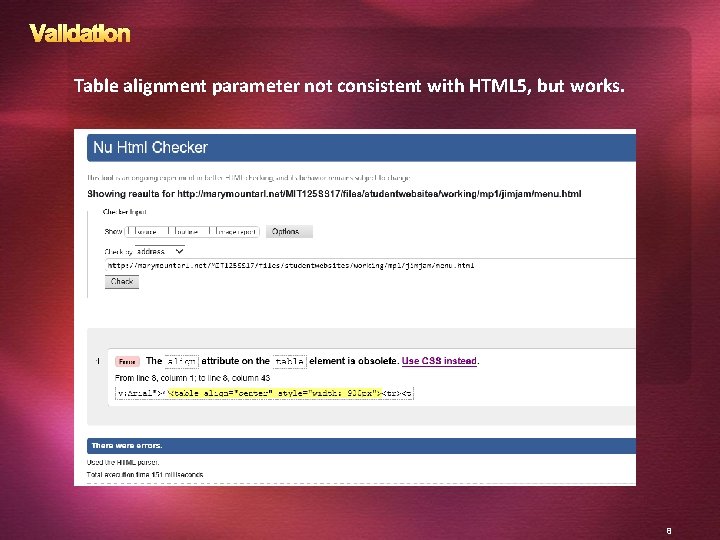
Validation Table alignment parameter not consistent with HTML 5, but works. 8
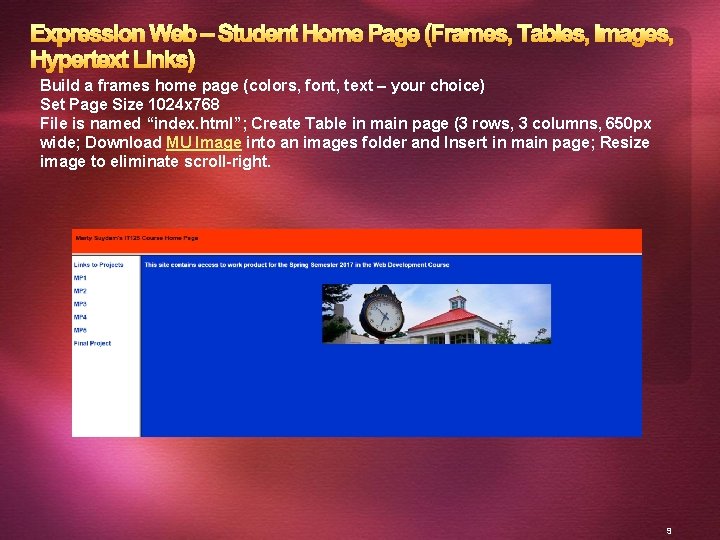
Expression Web – Student Home Page (Frames, Tables, Images, Hypertext Links) Build a frames home page (colors, font, text – your choice) Set Page Size 1024 x 768 File is named “index. html”; Create Table in main page (3 rows, 3 columns, 650 px wide; Download MU Image into an images folder and Insert in main page; Resize image to eliminate scroll-right. 9
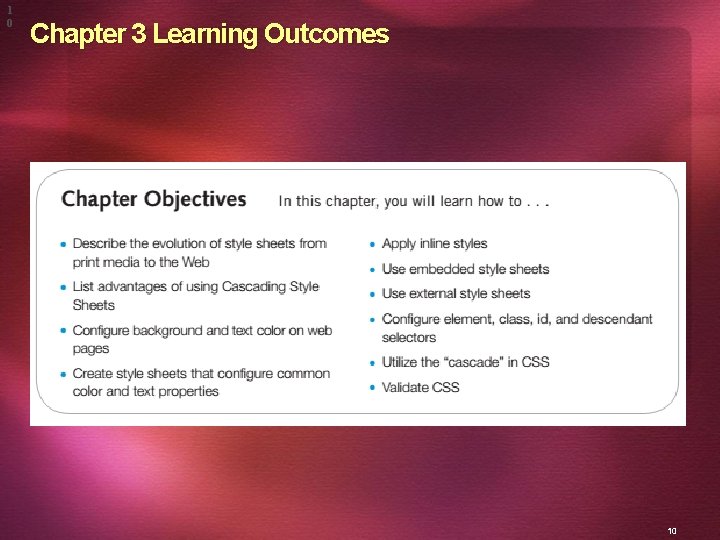
1 0 Chapter 3 Learning Outcomes 10
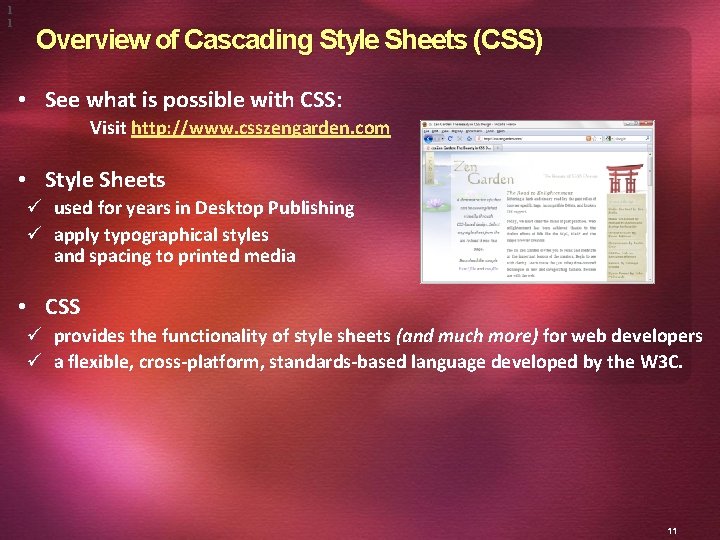
1 1 Overview of Cascading Style Sheets (CSS) • See what is possible with CSS: Visit http: //www. csszengarden. com • Style Sheets ü used for years in Desktop Publishing ü apply typographical styles and spacing to printed media • CSS ü provides the functionality of style sheets (and much more) for web developers ü a flexible, cross-platform, standards-based language developed by the W 3 C. 11
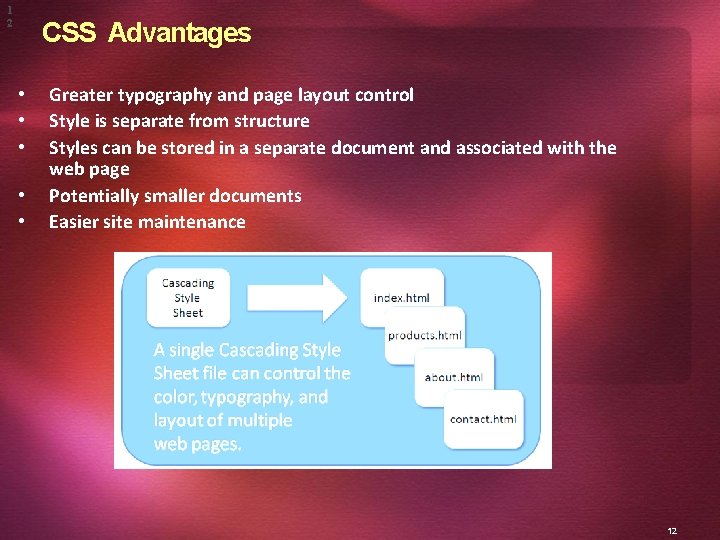
1 2 CSS Advantages • • • Greater typography and page layout control Style is separate from structure Styles can be stored in a separate document and associated with the web page Potentially smaller documents Easier site maintenance 12
1 3 Cascading Style Sheets � Inline Styles P body section P HTML style attribute P apply only to the specific element � Embedded Styles P head section P HTML style element P apply to the entire web page document � External Styles P Separate text file with. css file extension P Associate with a HTML link element in the head section of a web page � Imported Styles P Similar to External Styles P We’ll concentrate on the other three types of styles. 13
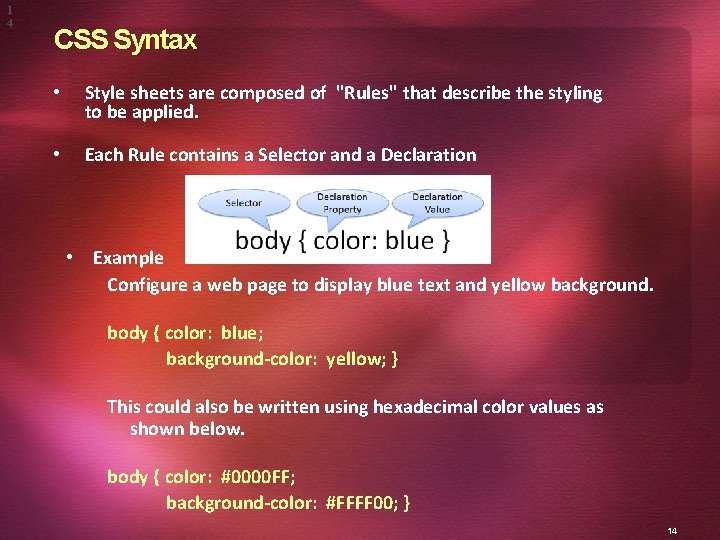
1 4 CSS Syntax • Style sheets are composed of "Rules" that describe the styling to be applied. • Each Rule contains a Selector and a Declaration • Example Configure a web page to display blue text and yellow background. body { color: blue; background-color: yellow; } This could also be written using hexadecimal color values as shown below. body { color: #0000 FF; background-color: #FFFF 00; } 14
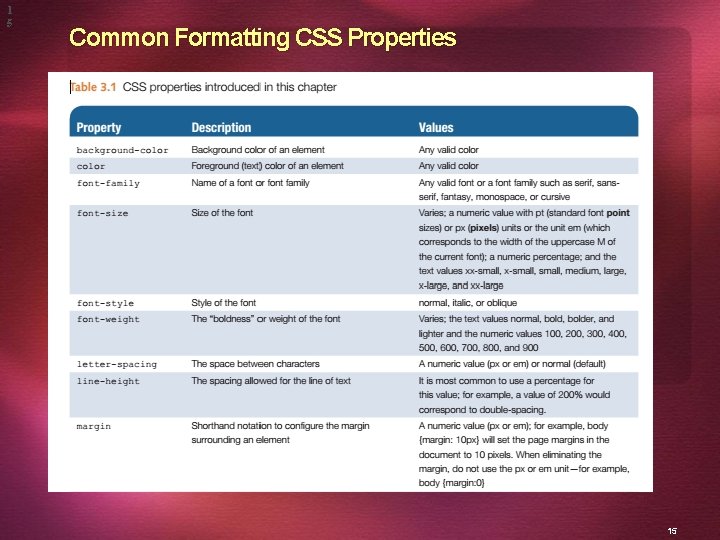
1 5 Common Formatting CSS Properties 15
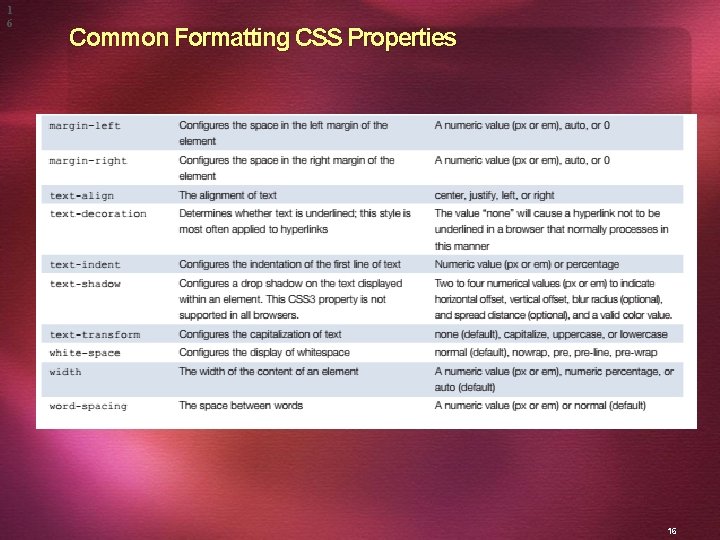
1 6 Common Formatting CSS Properties 16
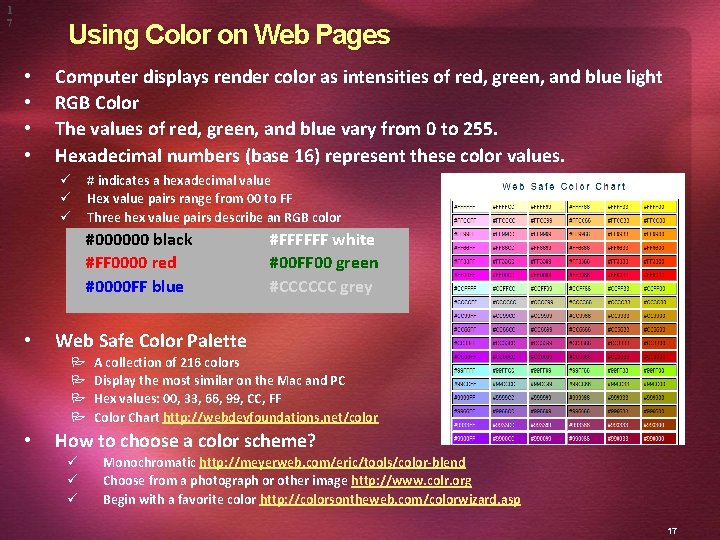
1 7 Using Color on Web Pages • • Computer displays render color as intensities of red, green, and blue light RGB Color The values of red, green, and blue vary from 0 to 255. Hexadecimal numbers (base 16) represent these color values. # indicates a hexadecimal value Hex value pairs range from 00 to FF Three hex value pairs describe an RGB color ü ü ü #000000 black #FF 0000 red #0000 FF blue • Web Safe Color Palette P P • #FFFFFF white #00 FF 00 green #CCCCCC grey A collection of 216 colors Display the most similar on the Mac and PC Hex values: 00, 33, 66, 99, CC, FF Color Chart http: //webdevfoundations. net/color How to choose a color scheme? ü ü ü Monochromatic http: //meyerweb. com/eric/tools/color-blend Choose from a photograph or other image http: //www. colr. org Begin with a favorite color http: //colorsontheweb. com/colorwizard. asp 17
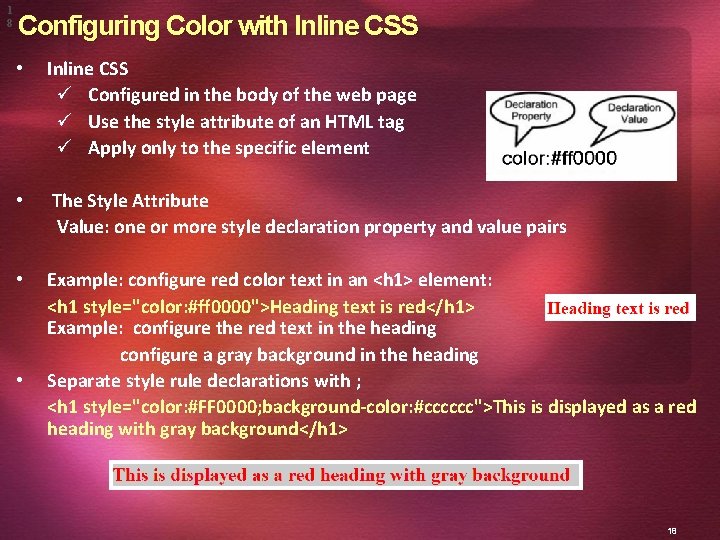
1 8 Configuring Color with Inline CSS • Inline CSS ü Configured in the body of the web page ü Use the style attribute of an HTML tag ü Apply only to the specific element • The Style Attribute Value: one or more style declaration property and value pairs • Example: configure red color text in an <h 1> element: <h 1 style="color: #ff 0000">Heading text is red</h 1> Example: configure the red text in the heading configure a gray background in the heading Separate style rule declarations with ; <h 1 style="color: #FF 0000; background-color: #cccccc">This is displayed as a red heading with gray background</h 1> • 18
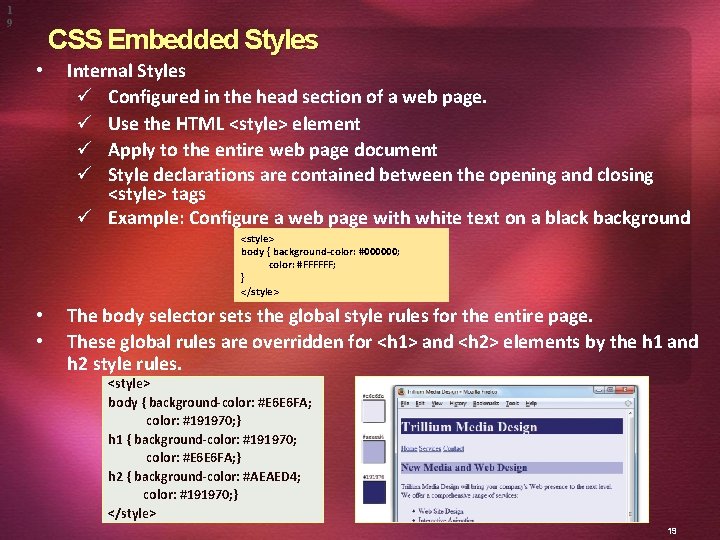
1 9 CSS Embedded Styles • Internal Styles ü Configured in the head section of a web page. ü Use the HTML <style> element ü Apply to the entire web page document ü Style declarations are contained between the opening and closing <style> tags ü Example: Configure a web page with white text on a black background <style> body { background-color: #000000; color: #FFFFFF; } </style> • • The body selector sets the global style rules for the entire page. These global rules are overridden for <h 1> and <h 2> elements by the h 1 and h 2 style rules. <style> body { background-color: #E 6 E 6 FA; color: #191970; } h 1 { background-color: #191970; color: #E 6 E 6 FA; } h 2 { background-color: #AEAED 4; color: #191970; } </style> 19
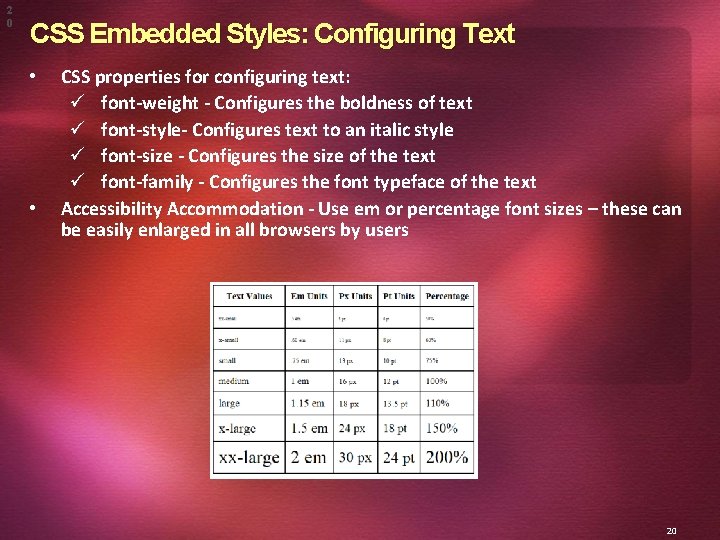
2 0 CSS Embedded Styles: Configuring Text • • CSS properties for configuring text: ü font-weight - Configures the boldness of text ü font-style- Configures text to an italic style ü font-size - Configures the size of the text ü font-family - Configures the font typeface of the text Accessibility Accommodation - Use em or percentage font sizes – these can be easily enlarged in all browsers by users 20
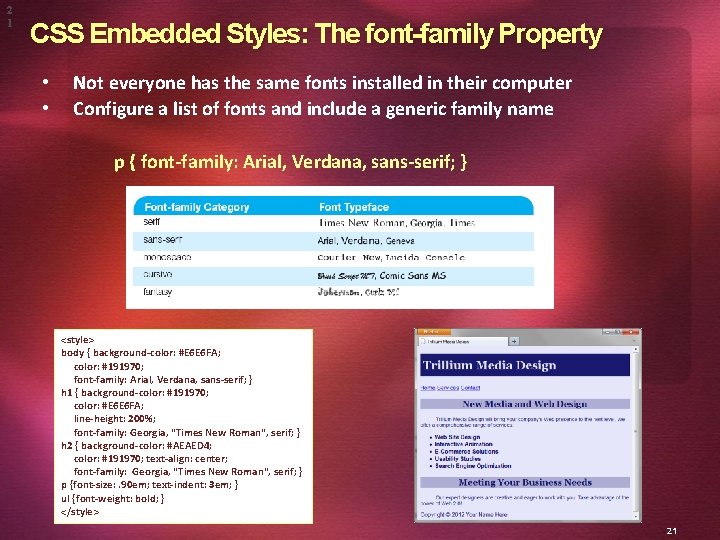
2 1 CSS Embedded Styles: The font-family Property • • Not everyone has the same fonts installed in their computer Configure a list of fonts and include a generic family name p { font-family: Arial, Verdana, sans-serif; } <style> body { background-color: #E 6 E 6 FA; color: #191970; font-family: Arial, Verdana, sans-serif; } h 1 { background-color: #191970; color: #E 6 E 6 FA; line-height: 200%; font-family: Georgia, "Times New Roman", serif; } h 2 { background-color: #AEAED 4; color: #191970; text-align: center; font-family: Georgia, "Times New Roman", serif; } p {font-size: . 90 em; text-indent: 3 em; } ul {font-weight: bold; } </style> 21
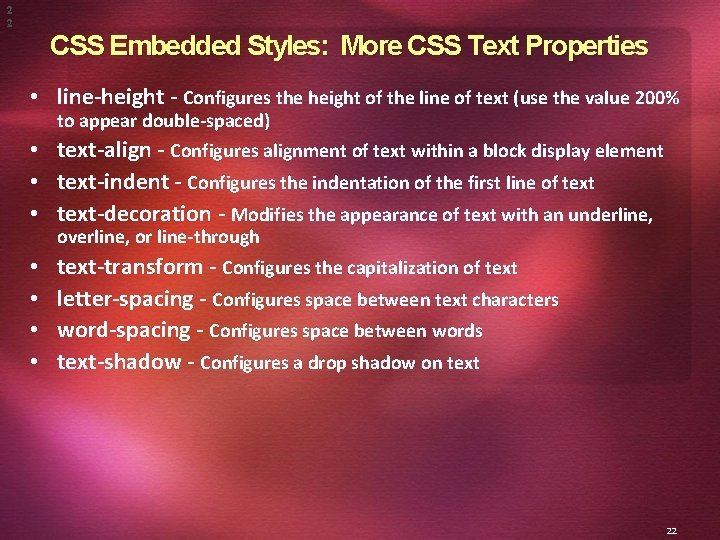
2 2 CSS Embedded Styles: More CSS Text Properties • line-height - Configures the height of the line of text (use the value 200% to appear double-spaced) • text-align - Configures alignment of text within a block display element • text-indent - Configures the indentation of the first line of text • text-decoration - Modifies the appearance of text with an underline, overline, or line-through • • text-transform - Configures the capitalization of text letter-spacing - Configures space between text characters word-spacing - Configures space between words text-shadow - Configures a drop shadow on text 22
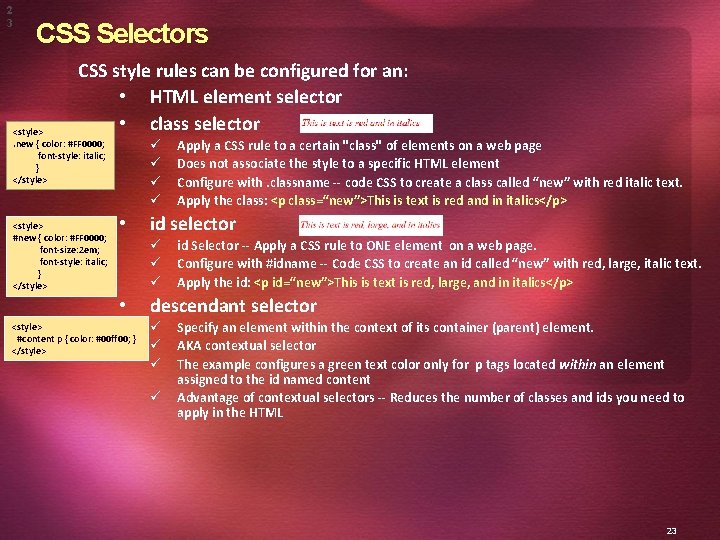
2 3 CSS Selectors CSS style rules can be configured for an: • HTML element selector • class selector <style>. new { color: #FF 0000; font-style: italic; } </style> <style> #new { color: #FF 0000; font-size: 2 em; font-style: italic; } </style> ü ü • id selector ü ü ü • <style> #content p { color: #00 ff 00; } </style> Apply a CSS rule to a certain "class" of elements on a web page Does not associate the style to a specific HTML element Configure with. classname -- code CSS to create a class called “new” with red italic text. Apply the class: <p class=“new”>This is text is red and in italics</p> id Selector -- Apply a CSS rule to ONE element on a web page. Configure with #idname -- Code CSS to create an id called “new” with red, large, italic text. Apply the id: <p id=“new”>This is text is red, large, and in italics</p> descendant selector ü ü Specify an element within the context of its container (parent) element. AKA contextual selector The example configures a green text color only for p tags located within an element assigned to the id named content Advantage of contextual selectors -- Reduces the number of classes and ids you need to apply in the HTML 23
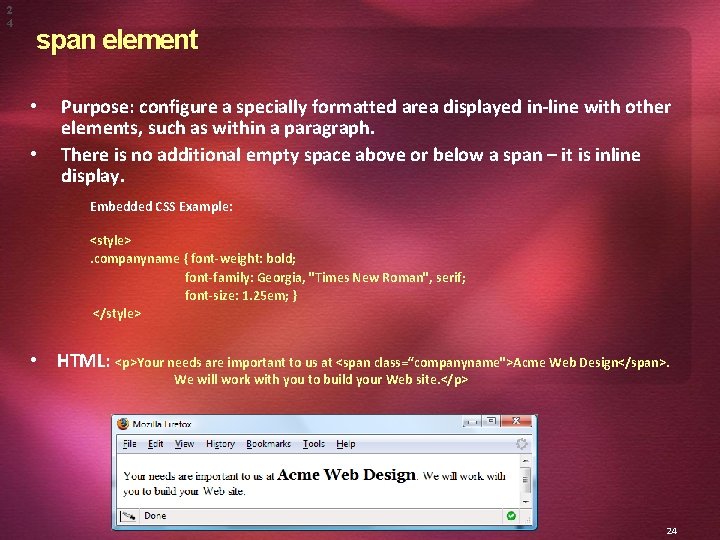
2 4 span element • • Purpose: configure a specially formatted area displayed in-line with other elements, such as within a paragraph. There is no additional empty space above or below a span – it is inline display. Embedded CSS Example: <style>. companyname { font-weight: bold; font-family: Georgia, "Times New Roman", serif; font-size: 1. 25 em; } </style> • HTML: <p>Your needs are important to us at <span class=“companyname">Acme Web Design</span>. We will work with you to build your Web site. </p> 24
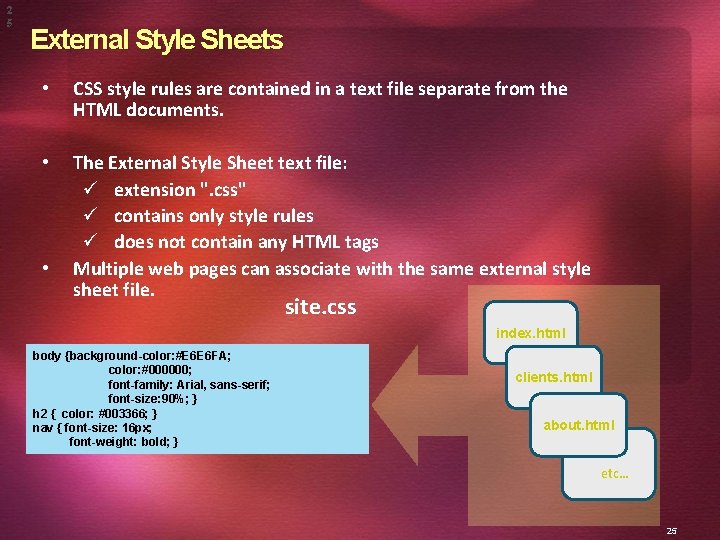
2 5 External Style Sheets • CSS style rules are contained in a text file separate from the HTML documents. • The External Style Sheet text file: ü extension ". css" ü contains only style rules ü does not contain any HTML tags Multiple web pages can associate with the same external style sheet file. • site. css index. html body {background-color: #E 6 E 6 FA; color: #000000; font-family: Arial, sans-serif; font-size: 90%; } h 2 { color: #003366; } nav { font-size: 16 px; font-weight: bold; } clients. html about. html etc… 25
2 6 link Element • • • A self-contained tag Placed in the head section Purpose: associates the external style sheet file with the web page. <link rel="stylesheet" href="color. css"> Example: External Style Sheet color. css body { background-color: #0000 FF; color: #FFFFFF; } • To associate the external style sheet called color. css, the HTML code placed in the head section is: <link rel="stylesheet" href="color. css"> 26
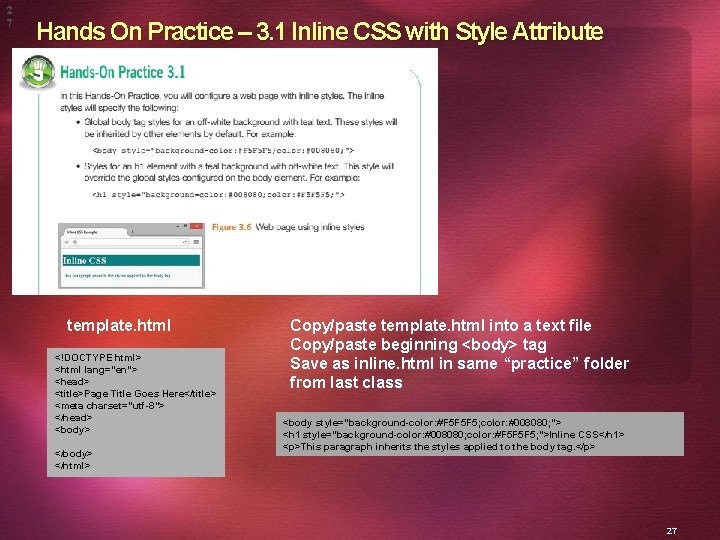
2 7 Hands On Practice – 3. 1 Inline CSS with Style Attribute template. html <!DOCTYPE html> <html lang="en"> <head> <title>Page Title Goes Here</title> <meta charset="utf-8"> </head> <body> </html> Copy/paste template. html into a text file Copy/paste beginning <body> tag Save as inline. html in same “practice” folder from last class <body style="background-color: #F 5 F 5 F 5; color: #008080; "> <h 1 style="background-color: #008080; color: #F 5 F 5 F 5; ">Inline CSS</h 1> <p>This paragraph inherits the styles applied to the body tag. </p> 27
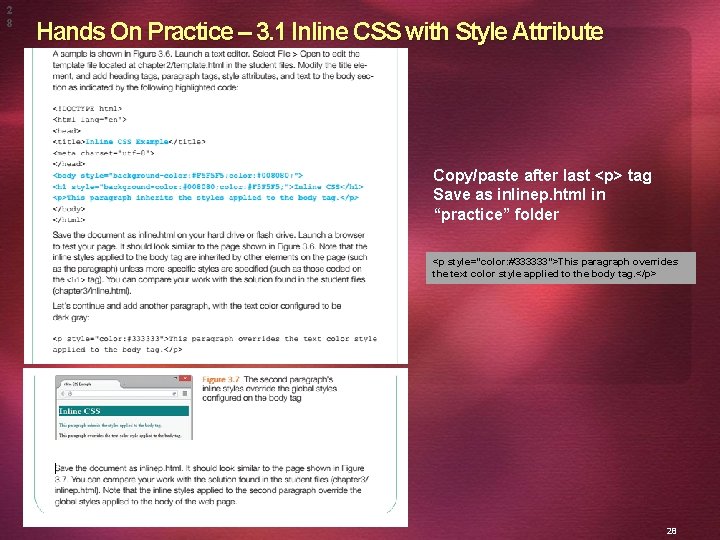
2 8 Hands On Practice – 3. 1 Inline CSS with Style Attribute Copy/paste after last <p> tag Save as inlinep. html in “practice” folder <p style="color: #333333">This paragraph overrides the text color style applied to the body tag. </p> 28
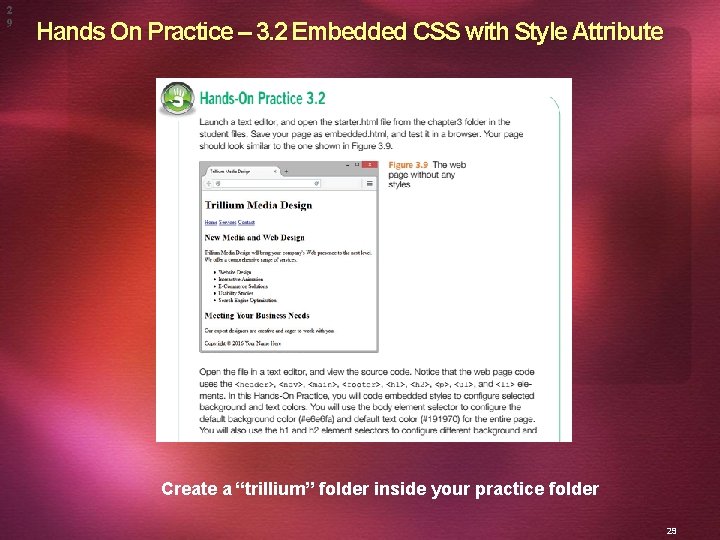
2 9 Hands On Practice – 3. 2 Embedded CSS with Style Attribute Create a “trillium” folder inside your practice folder 29
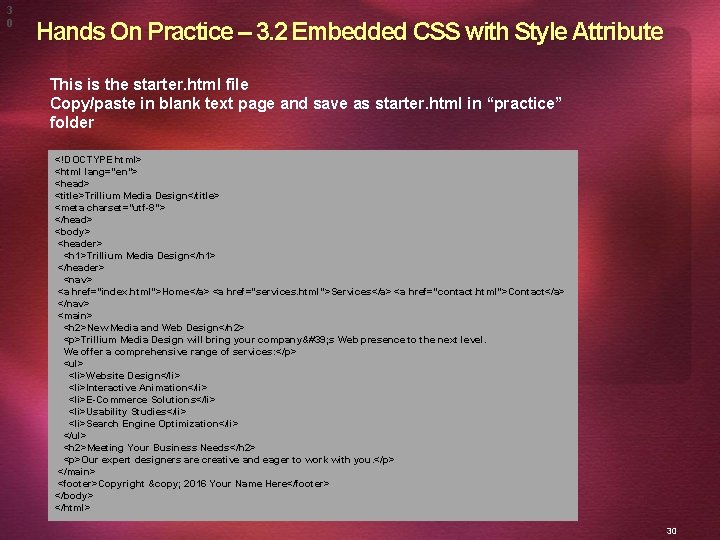
3 0 Hands On Practice – 3. 2 Embedded CSS with Style Attribute This is the starter. html file Copy/paste in blank text page and save as starter. html in “practice” folder <!DOCTYPE html> <html lang="en"> <head> <title>Trillium Media Design</title> <meta charset="utf-8"> </head> <body> <header> <h 1>Trillium Media Design</h 1> </header> <nav> <a href="index. html">Home</a> <a href="services. html">Services</a> <a href="contact. html">Contact</a> </nav> <main> <h 2>New Media and Web Design</h 2> <p>Trillium Media Design will bring your company' s Web presence to the next level. We offer a comprehensive range of services: </p> <ul> <li>Website Design</li> <li>Interactive Animation</li> <li>E-Commerce Solutions</li> <li>Usability Studies</li> <li>Search Engine Optimization</li> </ul> <h 2>Meeting Your Business Needs</h 2> <p>Our expert designers are creative and eager to work with you. </p> </main> <footer>Copyright © 2016 Your Name Here</footer> </body> </html> 30
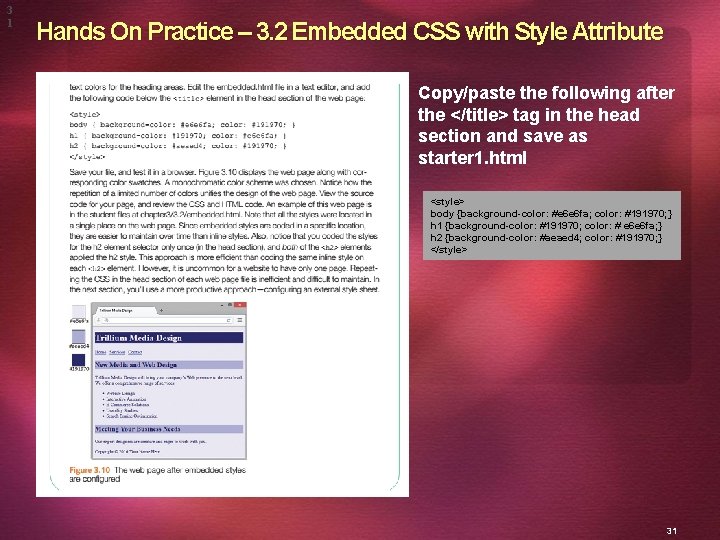
3 1 Hands On Practice – 3. 2 Embedded CSS with Style Attribute Copy/paste the following after the </title> tag in the head section and save as starter 1. html <style> body {background-color: #e 6 e 6 fa; color: #191970; } h 1 {background-color: #191970; color: # e 6 e 6 fa; } h 2 {background-color: #aeaed 4; color: #191970; } </style> 31
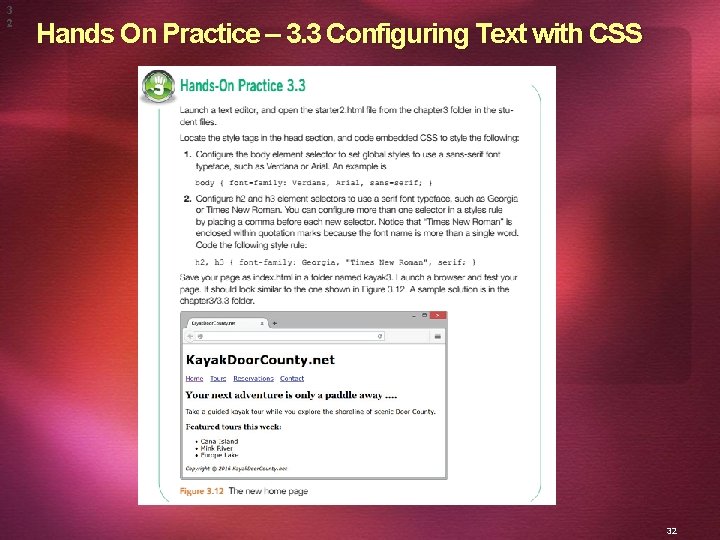
3 2 Hands On Practice – 3. 3 Configuring Text with CSS 32
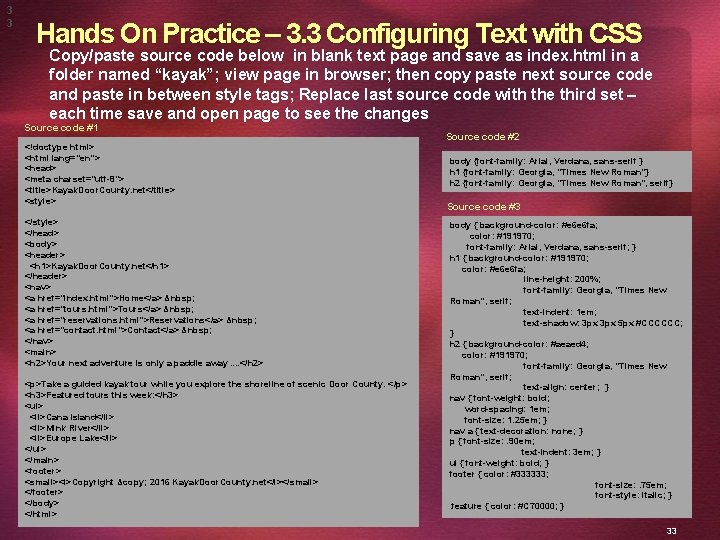
3 3 Hands On Practice – 3. 3 Configuring Text with CSS Copy/paste source code below in blank text page and save as index. html in a folder named “kayak”; view page in browser; then copy paste next source code and paste in between style tags; Replace last source code with the third set – each time save and open page to see the changes Source code #1 <!doctype html> <html lang="en"> <head> <meta charset="utf-8"> <title>Kayak. Door. County. net</title> <style> </head> <body> <header> <h 1>Kayak. Door. County. net</h 1> </header> <nav> <a href="index. html">Home</a> <a href="tours. html">Tours</a> <a href="reservations. html">Reservations</a> <a href="contact. html">Contact</a> </nav> <main> <h 2>Your next adventure is only a paddle away. . </h 2> <p>Take a guided kayak tour while you explore the shoreline of scenic Door County. </p> <h 3>Featured tours this week: </h 3> <ul> <li>Cana Island</li> <li>Mink River</li> <li>Europe Lake</li> </ul> </main> <footer> <small><i>Copyright © 2016 Kayak. Door. County. net</i></small> </footer> </body> </html> Source code #2 body {font-family: Arial, Verdana, sans-serif } h 1 {font-family: Georgia, "Times New Roman"} h 2 {font-family: Georgia, "Times New Roman", serif} Source code #3 body { background-color: #e 6 e 6 fa; color: #191970; font-family: Arial, Verdana, sans-serif; } h 1 { background-color: #191970; color: #e 6 e 6 fa; line-height: 200%; font-family: Georgia, "Times New Roman", serif; text-indent: 1 em; text-shadow: 3 px 5 px #CCCCCC; } h 2 { background-color: #aeaed 4; color: #191970; font-family: Georgia, "Times New Roman", serif; text-align: center; } nav { font-weight: bold; word-spacing: 1 em; font-size: 1. 25 em; } nav a { text-decoration: none; } p { font-size: . 90 em; text-indent: 3 em; } ul { font-weight: bold; } footer { color: #333333; font-size: . 75 em; font-style: italic; }. feature { color: #C 70000; } 33
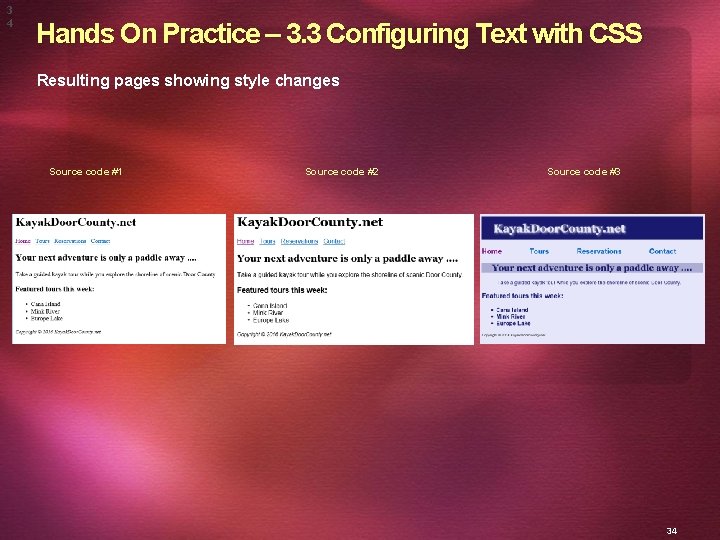
3 4 Hands On Practice – 3. 3 Configuring Text with CSS Resulting pages showing style changes Source code #1 Source code #2 Source code #3 34
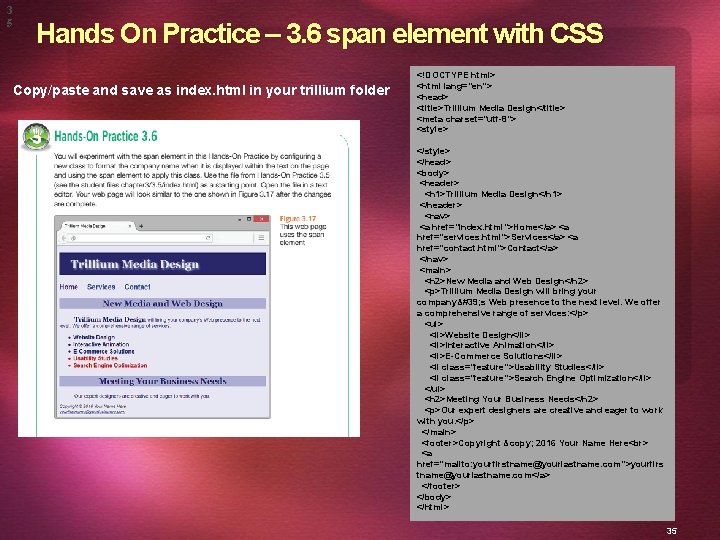
3 5 Hands On Practice – 3. 6 span element with CSS Copy/paste and save as index. html in your trillium folder <!DOCTYPE html> <html lang="en"> <head> <title>Trillium Media Design</title> <meta charset="utf-8"> <style> </head> <body> <header> <h 1>Trillium Media Design</h 1> </header> <nav> <a href="index. html">Home</a> <a href="services. html">Services</a> <a href="contact. html">Contact</a> </nav> <main> <h 2>New Media and Web Design</h 2> <p>Trillium Media Design will bring your company' s Web presence to the next level. We offer a comprehensive range of services: </p> <ul> <li>Website Design</li> <li>Interactive Animation</li> <li>E-Commerce Solutions</li> <li class="feature">Usability Studies</li> <li class="feature">Search Engine Optimization</li> </ul> <h 2>Meeting Your Business Needs</h 2> <p>Our expert designers are creative and eager to work with you. </p> </main> <footer>Copyright © 2016 Your Name Here <a href="mailto: yourfirstname@yourlastname. com">yourfirs tname@yourlastname. com</a> </footer> </body> </html> 35
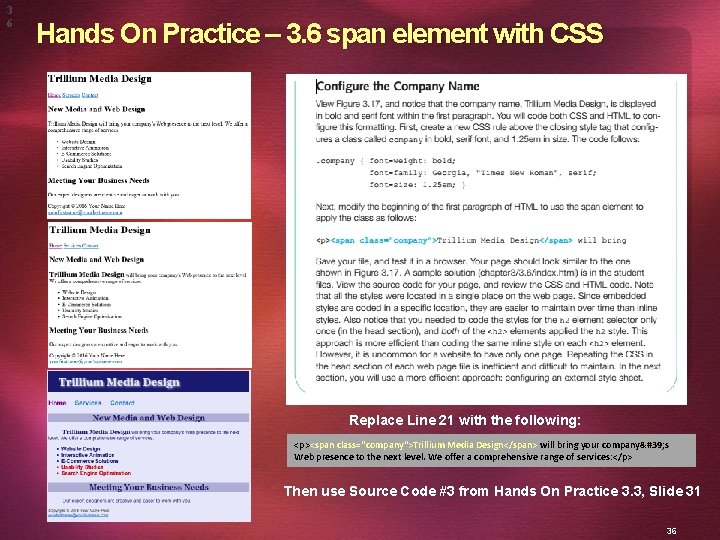
3 6 Hands On Practice – 3. 6 span element with CSS Replace Line 21 with the following: <p><span class="company">Trillium Media Design</span> will bring your company' s Web presence to the next level. We offer a comprehensive range of services: </p> Then use Source Code #3 from Hands On Practice 3. 3, Slide 31 36
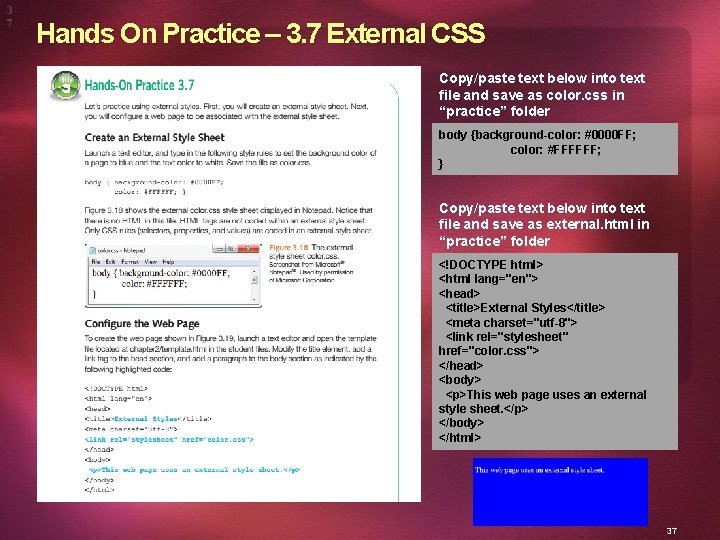
3 7 Hands On Practice – 3. 7 External CSS Copy/paste text below into text file and save as color. css in “practice” folder body {background-color: #0000 FF; color: #FFFFFF; } Copy/paste text below into text file and save as external. html in “practice” folder <!DOCTYPE html> <html lang="en"> <head> <title>External Styles</title> <meta charset="utf-8"> <link rel="stylesheet" href="color. css"> </head> <body> <p>This web page uses an external style sheet. </p> </body> </html> 37
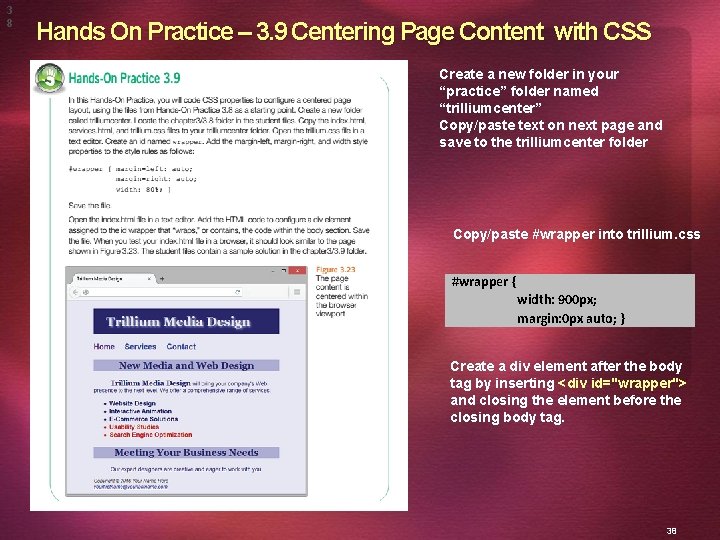
3 8 Hands On Practice – 3. 9 Centering Page Content with CSS Create a new folder in your “practice” folder named “trilliumcenter” Copy/paste text on next page and save to the trilliumcenter folder Copy/paste #wrapper into trillium. css #wrapper { width: 900 px; margin: 0 px auto; } Create a div element after the body tag by inserting <div id="wrapper"> and closing the element before the closing body tag. 38
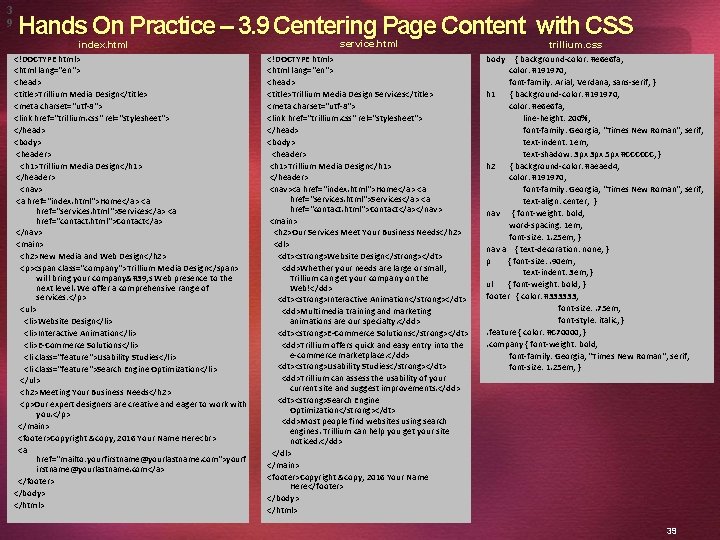
3 9 Hands On Practice – 3. 9 Centering Page Content with CSS index. html <!DOCTYPE html> <html lang="en"> <head> <title>Trillium Media Design</title> <meta charset="utf-8"> <link href="trillium. css" rel="stylesheet"> </head> <body> <header> <h 1>Trillium Media Design</h 1> </header> <nav> <a href="index. html">Home</a> <a href="services. html">Services</a> <a href="contact. html">Contact</a> </nav> <main> <h 2>New Media and Web Design</h 2> <p><span class="company">Trillium Media Design</span> will bring your company' s Web presence to the next level. We offer a comprehensive range of services: </p> <ul> <li>Website Design</li> <li>Interactive Animation</li> <li>E-Commerce Solutions</li> <li class="feature">Usability Studies</li> <li class="feature">Search Engine Optimization</li> </ul> <h 2>Meeting Your Business Needs</h 2> <p>Our expert designers are creative and eager to work with you. </p> </main> <footer>Copyright © 2016 Your Name Here <a href="mailto: yourfirstname@yourlastname. com">yourf irstname@yourlastname. com</a> </footer> </body> </html> service. html <!DOCTYPE html> <html lang="en"> <head> <title>Trillium Media Design Services</title> <meta charset="utf-8"> <link href="trillium. css" rel="stylesheet"> </head> <body> <header> <h 1>Trillium Media Design</h 1> </header> <nav><a href="index. html">Home</a> <a href="services. html">Services</a> <a href="contact. html">Contact</a></nav> <main> <h 2>Our Services Meet Your Business Needs</h 2> <dl> <dt><strong>Website Design</strong></dt> <dd>Whether your needs are large or small, Trillium can get your company on the Web!</dd> <dt><strong>Interactive Animation</strong></dt> <dd>Multimedia training and marketing animations are our specialty. </dd> <dt><strong>E-Commerce Solutions</strong></dt> <dd>Trillium offers quick and easy entry into the e-commerce marketplace. </dd> <dt><strong>Usability Studies</strong></dt> <dd>Trillium can assess the usability of your current site and suggest improvements. </dd> <dt><strong>Search Engine Optimization</strong></dt> <dd>Most people find websites using search engines. Trillium can help you get your site noticed. </dd> </dl> </main> <footer>Copyright © 2016 Your Name Here</footer> </body> </html> trillium. css body { background-color: #e 6 e 6 fa; color: #191970; font-family: Arial, Verdana, sans-serif; } h 1 { background-color: #191970; color: #e 6 e 6 fa; line-height: 200%; font-family: Georgia, "Times New Roman", serif; text-indent: 1 em; text-shadow: 3 px 5 px #CCCCCC; } h 2 { background-color: #aeaed 4; color: #191970; font-family: Georgia, "Times New Roman", serif; text-align: center; } nav { font-weight: bold; word-spacing: 1 em; font-size: 1. 25 em; } nav a { text-decoration: none; } p { font-size: . 90 em; text-indent: 3 em; } ul { font-weight: bold; } footer { color: #333333; font-size: . 75 em; font-style: italic; }. feature { color: #C 70000; }. company { font-weight: bold; font-family: Georgia, "Times New Roman", serif; font-size: 1. 25 em; } 39
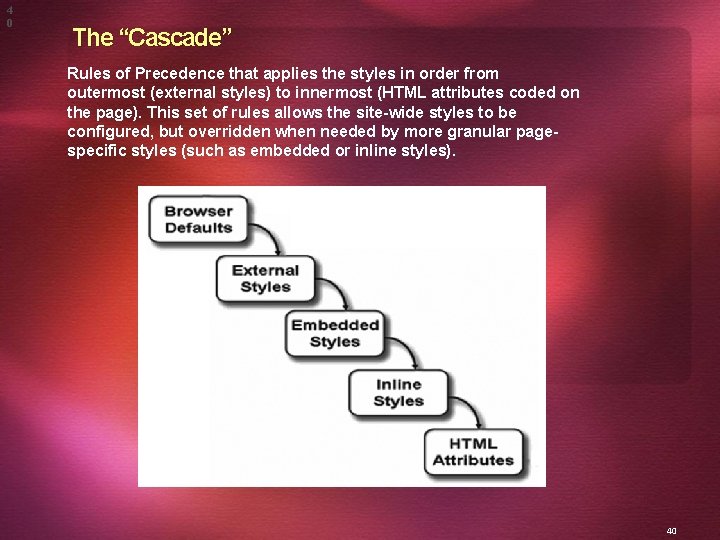
4 0 The “Cascade” Rules of Precedence that applies the styles in order from outermost (external styles) to innermost (HTML attributes coded on the page). This set of rules allows the site-wide styles to be configured, but overridden when needed by more granular pagespecific styles (such as embedded or inline styles). 40
- Slides: 40