
Advanced Graphics Part 6 The big picture Still
Advanced Graphics - Part 6 • The big picture: – Still working on advanced polygonal techniques with a special focus on Open. GL. – Have almost finished some of the texture mapping techniques. – Today: Blending, simple antialiasing, fog, polygon offset. – Some simple applications: billboarding, lightmaps. COMP 9018 - Advanced Graphics
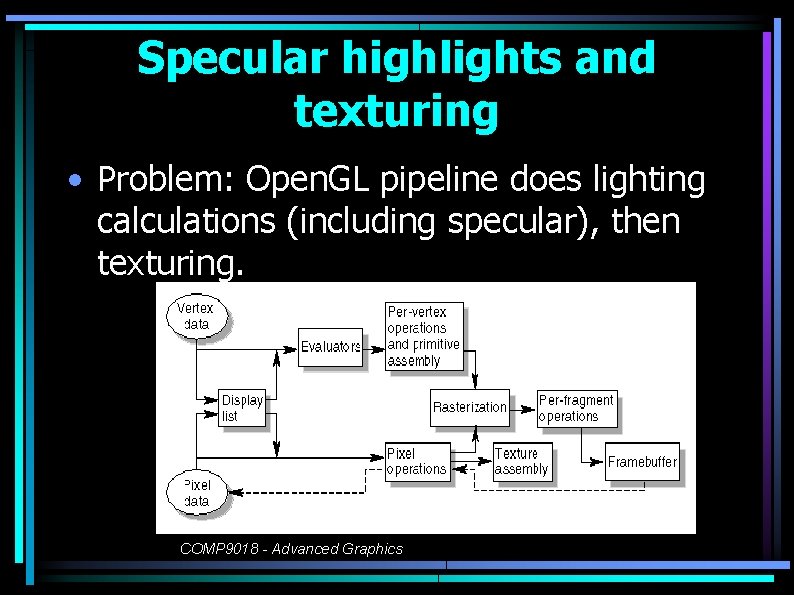
Specular highlights and texturing • Problem: Open. GL pipeline does lighting calculations (including specular), then texturing. COMP 9018 - Advanced Graphics
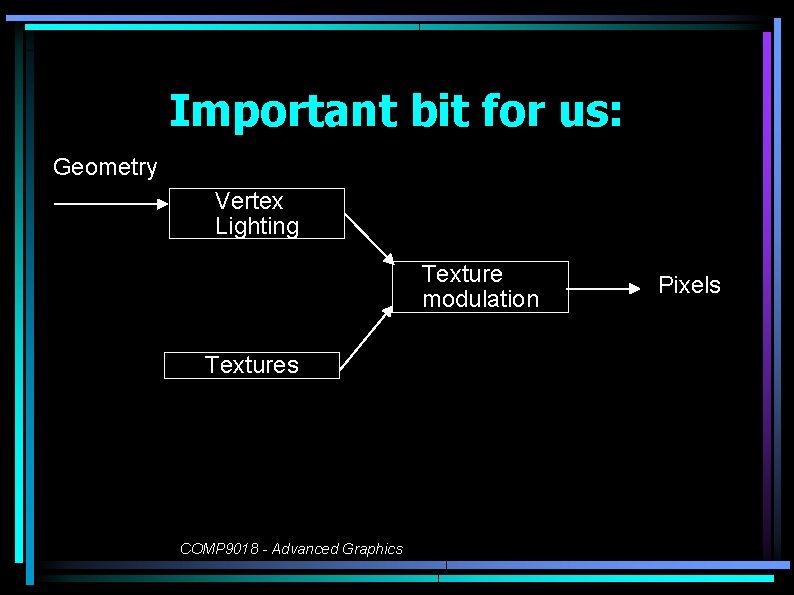
Important bit for us: Geometry Vertex Lighting Texture modulation Textures COMP 9018 - Advanced Graphics Pixels
So what? • So what? If the texture is modulating the lighting, then this will break things. • Why? Because specular should be last thing applied: should be after texture mapping. • Idea: Specular is because of light sources, not because of texture. • Solution: Postpone specular 'til after texture mapping. COMP 9018 - Advanced Graphics
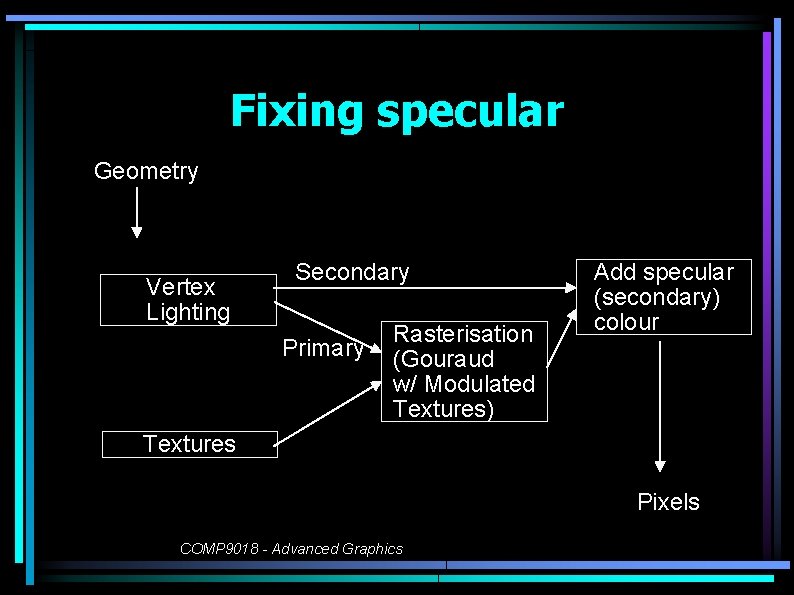
Fixing specular Geometry Vertex Lighting Secondary Primary Rasterisation (Gouraud w/ Modulated Textures) Add specular (secondary) colour Textures Pixels COMP 9018 - Advanced Graphics
How does this work? • Ambient/Diffuse component is modulated by texture. • Specular component is added after texture mapping. COMP 9018 - Advanced Graphics
Usefulness • Pro: – Fixes the problem. • Con: – Slow! Have to do a Gouraud shading again. . . just for specular. – Doesn't hide geometry. • Better solution? – Exists -- will talk about later. Hint: If we are doing Gouraud, might as well use texture mapping. . . COMP 9018 - Advanced Graphics
Using Open. GL for this • Ambient + diffuse = primary colour, specular = secondary colour. • Easy to do: • gl. Light. Modeli(GL_LIGHT_MODEL_COLOR_CO NTROL, GL_SEPARATE_SPECULAR_COLOR) • To switch back to normal: • gl. Light. Modeli(GL_LIGHT_MODEL_COLOR_CO NTROL, GL_SINGLE_COLOR). COMP 9018 - Advanced Graphics
Demo • Go through spectex. COMP 9018 - Advanced Graphics
Texture stack • • • Just like modelview stack. Matrices are 4 x 4. Remember, textures are (s, t, r, q). If q!=1, then s' = s/q, t' = t/q, r' = r/q. Will turn out to be useful for some weird things like projective texturing. • But even now can be used for things like animated textures. COMP 9018 - Advanced Graphics
Multitexturing • Won't go into details too much • But some graphics hardware supports applying more than one texture in a single pass. • Can always accomplish same effect in multiple passes • Open. GL supports multitexturing. • Why > 1 texture? Envmapping, bump mapping, light maps --wait a while. COMP 9018 - Advanced Graphics
Blending • Explains mysterious alpha channel. • Convention: alpha = 0 means transparent alpha = 1 means completely opaque. • Important Open. GL concept: Fragment. Basically same as a pixel. • A very flexible system that can be used for lots of applications. COMP 9018 - Advanced Graphics
How blending works • You have the source(s): The fragment that we're working on adding right now. • You have the destination(d): The fragment that's already saved in the frame buffer and that we'll eventually overwrite. • You have source and destination blending factors fs and fd COMP 9018 - Advanced Graphics
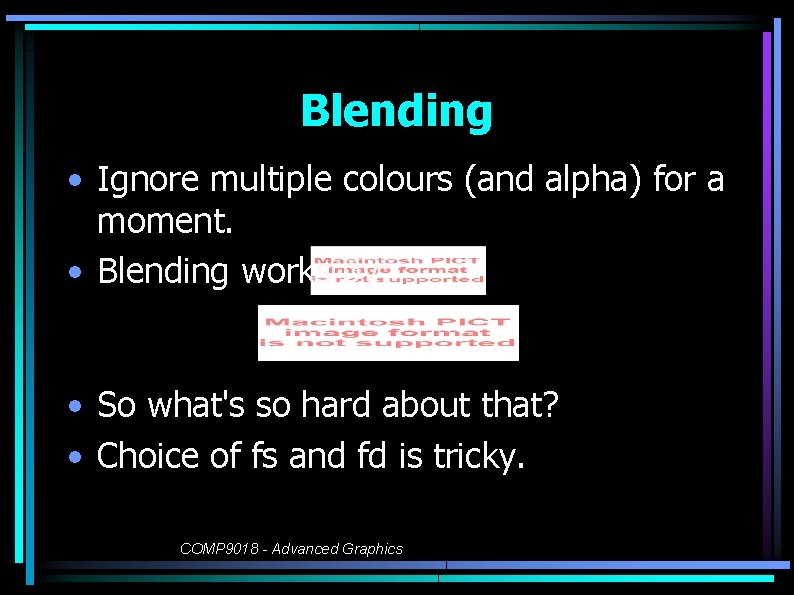
Blending • Ignore multiple colours (and alpha) for a moment. • Blending works by: • So what's so hard about that? • Choice of fs and fd is tricky. COMP 9018 - Advanced Graphics
Question: What is "normal" rendering? • What settings of fs and fd give normal rendering? COMP 9018 - Advanced Graphics
Answer • fs = 1, fd = 0 • Why? • Because normally later rendered polygons overwrite earlier written polygons • We are ignoring depth tests for now, but that is an issue. COMP 9018 - Advanced Graphics
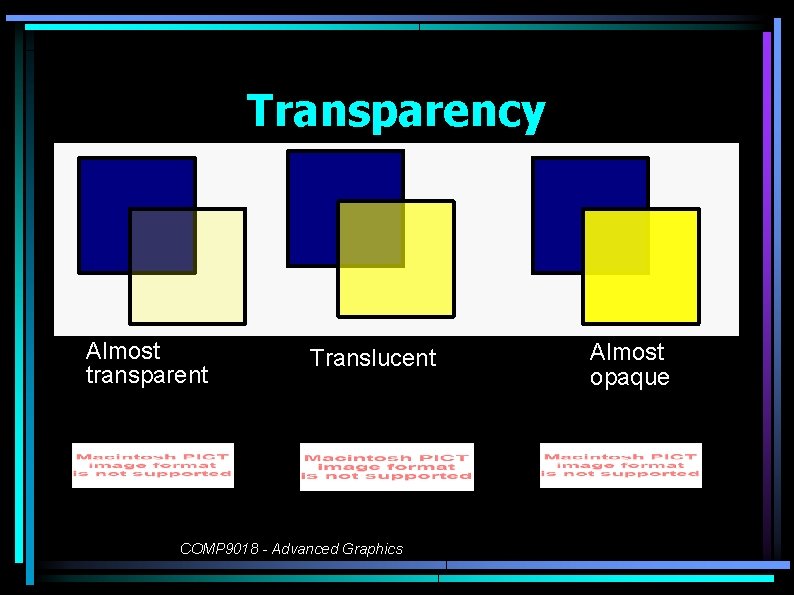
Transparency Almost transparent Translucent COMP 9018 - Advanced Graphics Almost opaque
Question: How to do transparency? • Reminder: Alpha encodes transparency. • What settings of fs and fd allow us to model transparency? • Assume source is in front of destination. • Depends on source's alpha. • If , then source is transparent so output should be destination • If , source is opaque, so output should be source COMP 9018 - Advanced Graphics
Question: Appropriate factors? • So. . . what are appropriate blending factors to implement transparency? COMP 9018 - Advanced Graphics
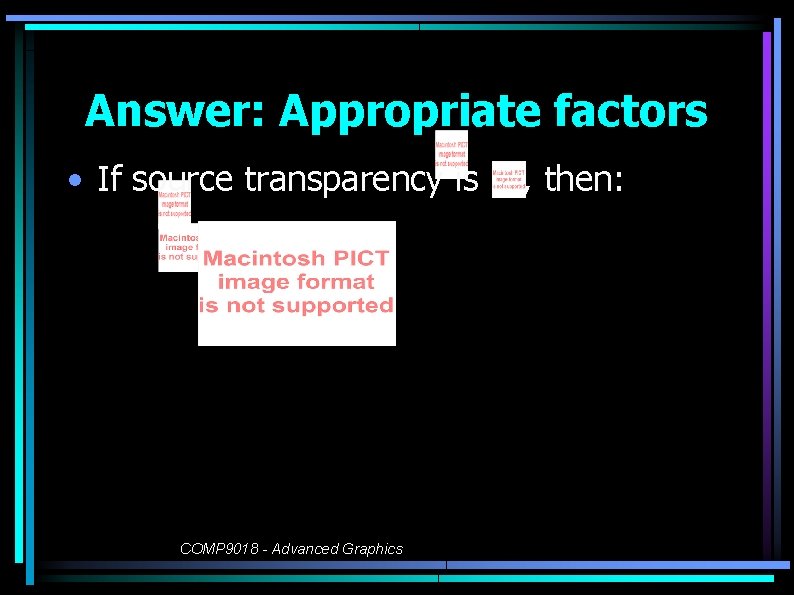
Answer: Appropriate factors • If source transparency is COMP 9018 - Advanced Graphics , then:
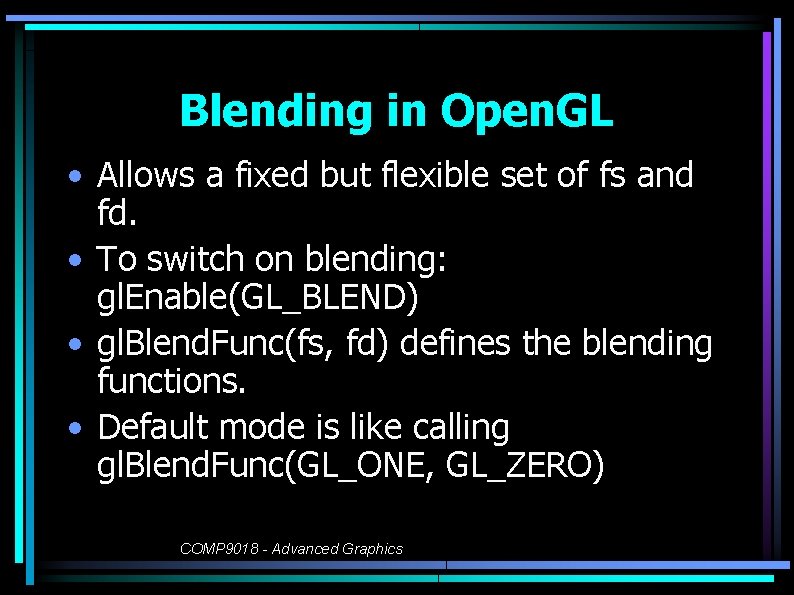
Blending in Open. GL • Allows a fixed but flexible set of fs and fd. • To switch on blending: gl. Enable(GL_BLEND) • gl. Blend. Func(fs, fd) defines the blending functions. • Default mode is like calling gl. Blend. Func(GL_ONE, GL_ZERO) COMP 9018 - Advanced Graphics
Available blending functions • Plenty to choose from! • Can affect different colours differently. • Some can only be used for either source or destination. • Reminder: the blending function is multiplied by the incoming colour fragment (source), or the fragment in the frame buffer (destination) COMP 9018 - Advanced Graphics
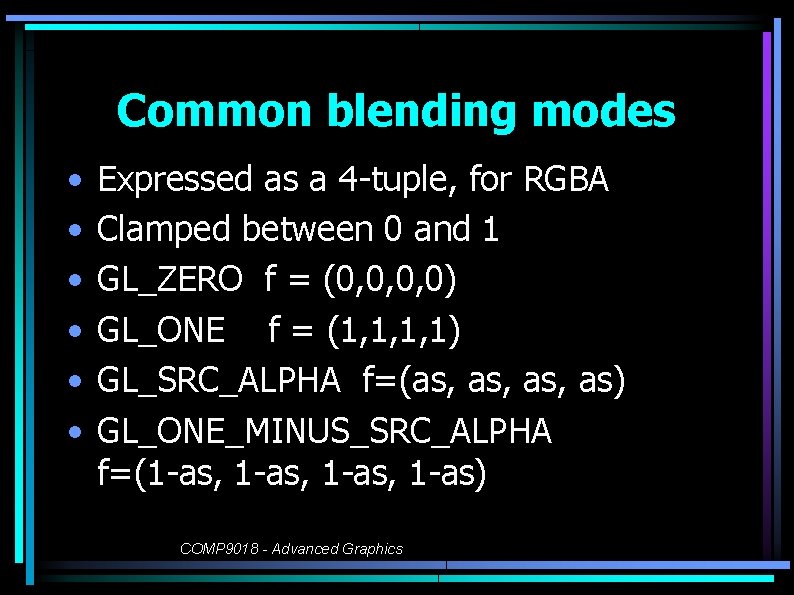
Common blending modes • • • Expressed as a 4 -tuple, for RGBA Clamped between 0 and 1 GL_ZERO f = (0, 0, 0, 0) GL_ONE f = (1, 1, 1, 1) GL_SRC_ALPHA f=(as, as, as) GL_ONE_MINUS_SRC_ALPHA f=(1 -as, 1 -as) COMP 9018 - Advanced Graphics
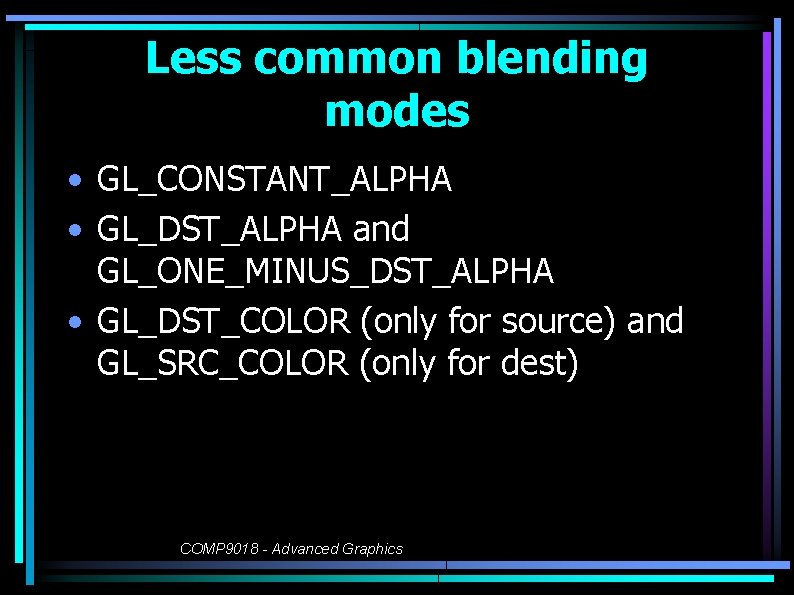
Less common blending modes • GL_CONSTANT_ALPHA • GL_DST_ALPHA and GL_ONE_MINUS_DST_ALPHA • GL_DST_COLOR (only for source) and GL_SRC_COLOR (only for dest) COMP 9018 - Advanced Graphics
Demo • Blend two triangles - alpha. c COMP 9018 - Advanced Graphics
Nasty surprises • It doesn't commute! • Final colour observed depends on order of polygons. Example: do calculations on OHP with left = (1, 1, 0, 0. 75) right = (0, 1, 1, 0. 75) • Why is this bad? • Come back to it in a moment COMP 9018 - Advanced Graphics
Transparency and 3 D graphics • Do we need to change anything in our approach when rendering a 3 D scene? • Are there problems? • Hint: Consider visible surface determination. COMP 9018 - Advanced Graphics
Issues with 3 D transparency • Problem: If we draw a translucent object into the frame buffer that's close to us, then because of Z buffering, we won't draw what's behind it (because it will be further away). • Z buffer means the destination may not be written • Oh no! Does this mean that we have to resort to depth sorting again? • What's the solution? COMP 9018 - Advanced Graphics
Solution • Problem is that close translucent objects prevent rendering of far opaque objects, effectively making translucent objects opaque some of the time. • What if we render opaque objects first? • Then translucent objects behind opaque objects won't be rendered (good). • But what about translucent objects that are close obscuring far translucent object due to the depth buffer? COMP 9018 - Advanced Graphics
The algorithm • Render opaque objects • Keep depth buffer test on, but switch off writing to the depth buffer. • Why? Prevent translucent-translucent occlusion • Render translucent objects • Switch depth buffer writing back on COMP 9018 - Advanced Graphics
Problem solved? • That problem is solved. • But are there any other problems? • Hint: Order-dependence of translucence. COMP 9018 - Advanced Graphics
More problems! • Strictly speaking, the translucent polygons should be rendered back to front. • But we can't guarantee this, now that we're not using the depth buffer. • Is there a solution? • Not an easy one. We could: – Use painter's algorithm – Use BSP trees. COMP 9018 - Advanced Graphics
How serious is this problem? • In many cases, order of translucent objects not critical. • In many cases, not likely to have too many translucent objects. • If things are near translucent, it doesn’t make much difference. • Example: Game levels COMP 9018 - Advanced Graphics
Demonstration • Have a look at (hacked) alpha 3 D. c COMP 9018 - Advanced Graphics
Other issues? • What happens to back face culling? • What about two-sided lighting? COMP 9018 - Advanced Graphics
Conclusions • Blending is good (we'll see why soon). • But many of our assumptions when rendering were built on the basis of opaque polygons. • Blending breaks things if you're not careful. COMP 9018 - Advanced Graphics
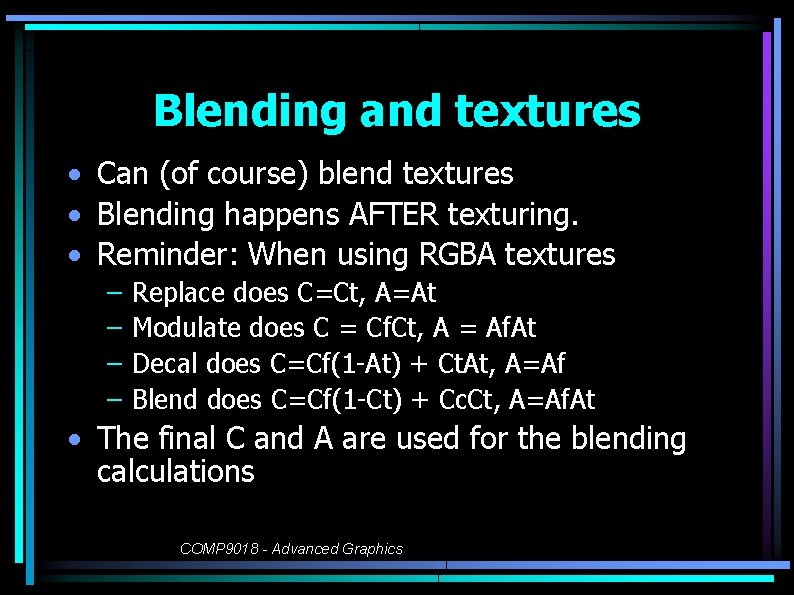
Blending and textures • Can (of course) blend textures • Blending happens AFTER texturing. • Reminder: When using RGBA textures – – Replace does C=Ct, A=At Modulate does C = Cf. Ct, A = Af. At Decal does C=Cf(1 -At) + Ct. At, A=Af Blend does C=Cf(1 -Ct) + Cc. Ct, A=Af. At • The final C and A are used for the blending calculations COMP 9018 - Advanced Graphics
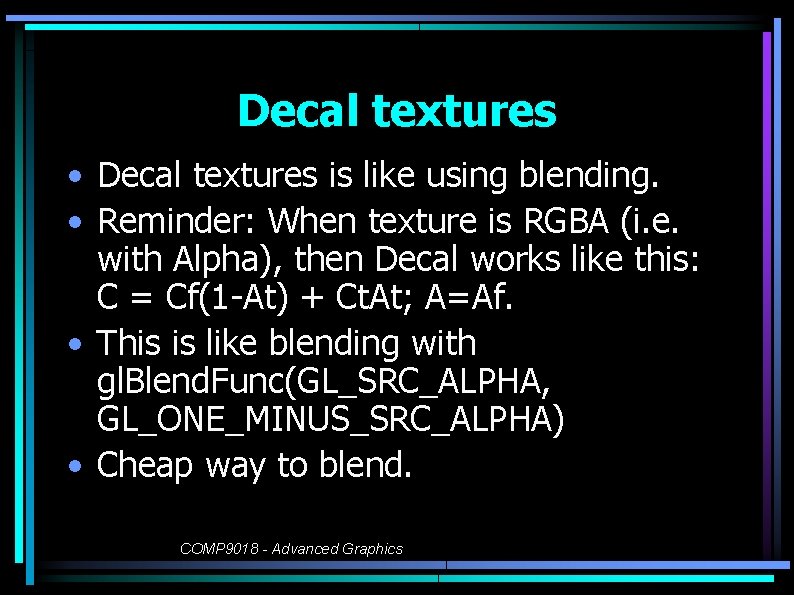
Decal textures • Decal textures is like using blending. • Reminder: When texture is RGBA (i. e. with Alpha), then Decal works like this: C = Cf(1 -At) + Ct. At; A=Af. • This is like blending with gl. Blend. Func(GL_SRC_ALPHA, GL_ONE_MINUS_SRC_ALPHA) • Cheap way to blend. COMP 9018 - Advanced Graphics
Applications of blending • Lots of applications for blending. • Important infrastructure. . . we'll use it for almost everything, but in combination with other effects. • Basically a mechanism for mixing different visual effects. • We'll be looking at – Prefilter antialiasing – Billboarding – Lightmaps COMP 9018 - Advanced Graphics
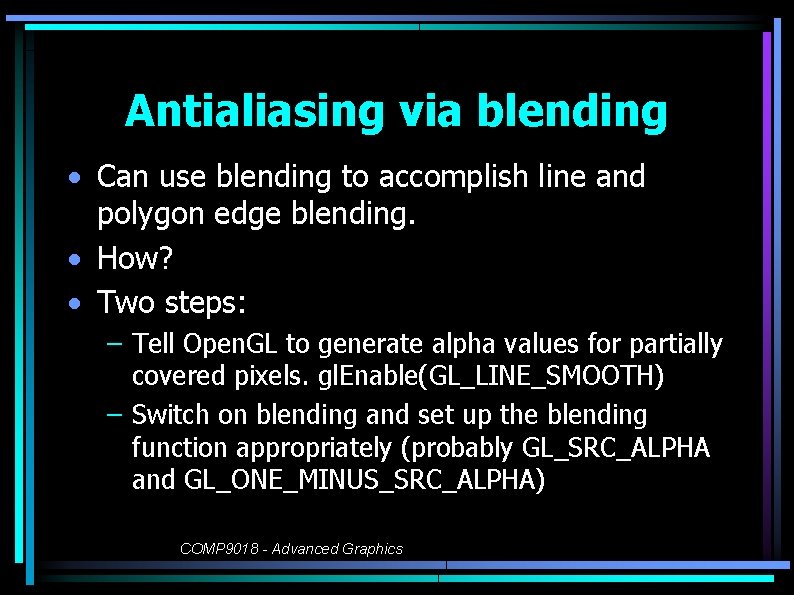
Antialiasing via blending • Can use blending to accomplish line and polygon edge blending. • How? • Two steps: – Tell Open. GL to generate alpha values for partially covered pixels. gl. Enable(GL_LINE_SMOOTH) – Switch on blending and set up the blending function appropriately (probably GL_SRC_ALPHA and GL_ONE_MINUS_SRC_ALPHA) COMP 9018 - Advanced Graphics
Demo • aargb. c COMP 9018 - Advanced Graphics
Aside: Hints • Hints? • Sometimes you can tell Open. GL how important it is that it do things well or fast. • gl. Hint(target, mode) • mode = GL_FASTEST, GL_NICEST, GL_DONT_CARE • Example target: GL_LINE_SMOOTH_HINT • But you never know what your implementation will do COMP 9018 - Advanced Graphics
Antialiasing with blending • Can be used for lines, polygons, etc. • To use for polygons, gl. Enable(GL_POLYGON_SMOOTH) • But does not solve problem for textures. • Still useful, especially with pure geometry applications. COMP 9018 - Advanced Graphics
Billboarding • With hardware acceleration: textures are cheap, geometry is expensive • So. . . can we "fake" geometry using textures? • Problem: Textures are rectangular. And if you want to make them non-rectangular, then you need geometry. -> Catch 22! • Solution: Use transparency. COMP 9018 - Advanced Graphics
Billboarding concepts • For objects in distance, use rectangle with transparent texture on it. • Example: Tree. • No need to make all geometry of a tree, simply put up rectangle and paint tree on it. COMP 9018 - Advanced Graphics
What about close? • Problem: If user turns we can see side of flat polygon! • Hack solution 1: Turn polygon so that it always faces the eye. • How? Grab modelview matrix and invert rotation. • Hack solution 2: Use two polygons at right angles. Called a "fin" billboard. COMP 9018 - Advanced Graphics
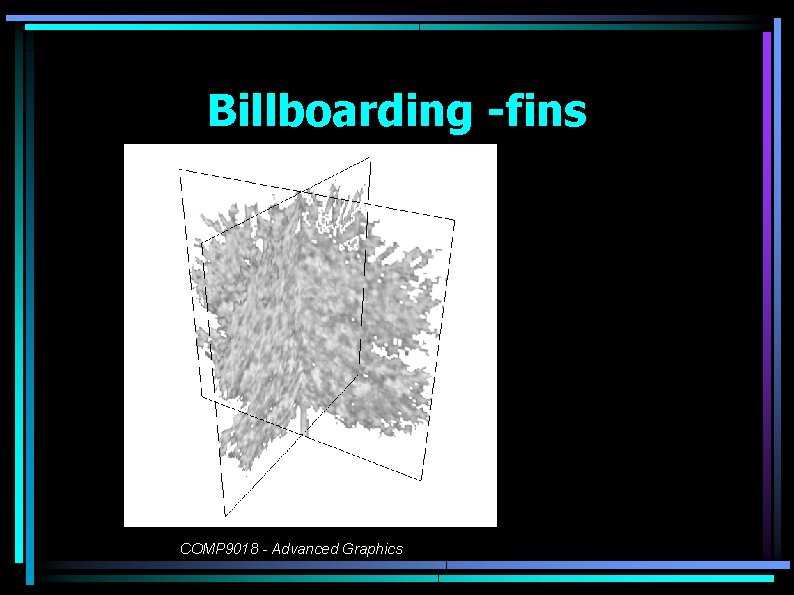
Billboarding -fins COMP 9018 - Advanced Graphics
Demos • billboard-blend. c • Show texture using gimp COMP 9018 - Advanced Graphics
Billboards • Can use other shapes, e. g. cylinder billboarding. • Generally, any technique where we use a 2 D texture to represent a 3 D object. • Hacky but workable. • Example: tuxracer COMP 9018 - Advanced Graphics
Alpha test • Blending is slow. Involves 8 multiplies and 4 adds per pixel. • But if all we want to do is simple on-off transparency (note. . . NOT partial transparency) can simply test alpha value. If alpha value meets certain criteria, can then render or not. COMP 9018 - Advanced Graphics
Alpha testing in Open. GL • • Enabling: gl. Enable(GL_ALPHA_TEST) Define function used with gl. Alpha. Func: gl. Alpha. Func(function, reference) function = GL_NEVER, GL_LESS, GL_EQUAL, GL_LEQUAL, GL_GREATER, GL_GEQUAL, GL_NOTEQUAL, GL_ALWAYS. • reference value to compare against. • Fun fact. You can do this with the depth buffer too. COMP 9018 - Advanced Graphics
Demo • billboard-alpha. c COMP 9018 - Advanced Graphics
- Slides: 52