
Advanced Employee Masterfile Maintenance through Manual Pay Adjustments
- Slides: 44
Advanced Employee Masterfile Maintenance through Manual Pay Adjustments June 2, 2015 Photo by Karl Steinbrenner
Overview Within the Payroll cycle, it is often necessary to reclassify earnings or refund to employees deduction amounts taken in error. Manual pay adjustments are necessary to perform many of these tasks, especially if an employee is no longer receiving pay.
Learning Objectives § Structure of Manual Pay Adjustments § How CIPPS Processes Manual Pay Adjustments § Rules and Tips for Manual Pay Adjustments § Special Situations for Using Manual Pay Adjustments
Structure of Manual Pays All Manual Pay screens include: – 503 transaction is required – 500 transaction line usually requires Adjustment indicator and Y/Q indicator values HTPSA screen includes: – 400 transactions: regular pay, overtime and shift hours and earnings – 6 XX transactions: special pays
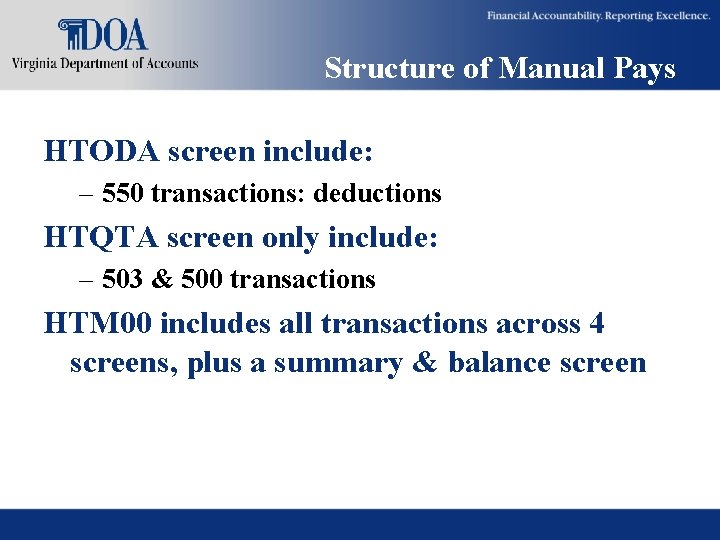
Structure of Manual Pays HTODA screen include: – 550 transactions: deductions HTQTA screen only include: – 503 & 500 transactions HTM 00 includes all transactions across 4 screens, plus a summary & balance screen
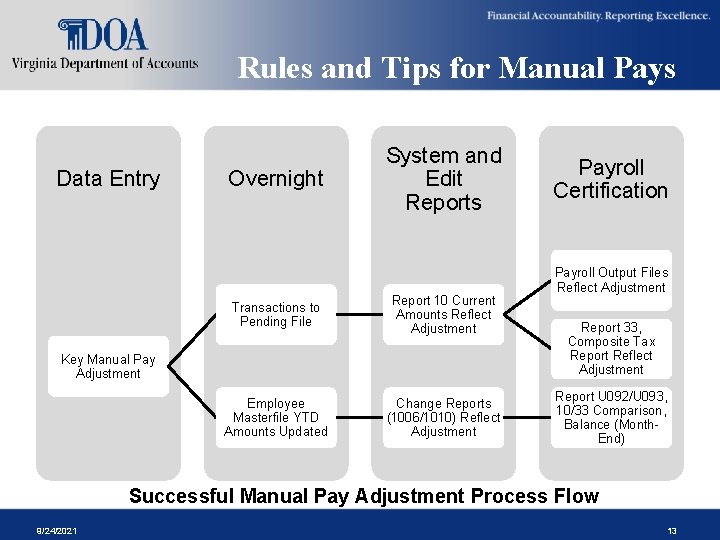
How CIPPS Handles Manual Pays Unlike standard batch entry of time and attendance, special pays, and deduction overrides, manual pay transactions are processed in 2 major steps.
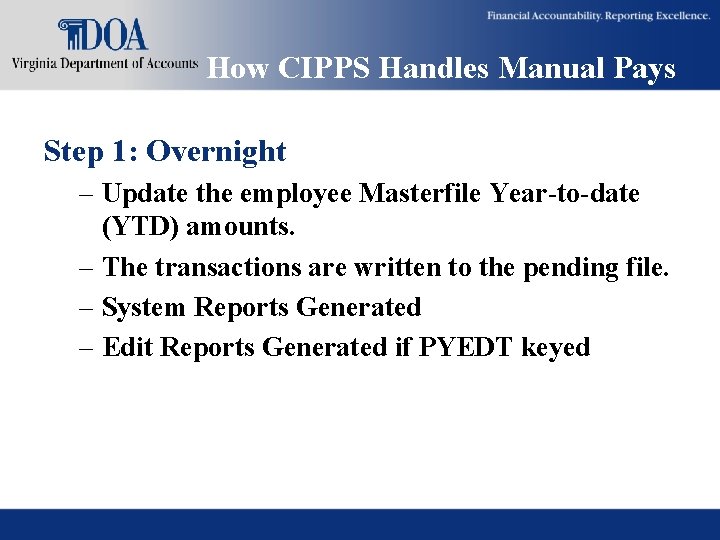
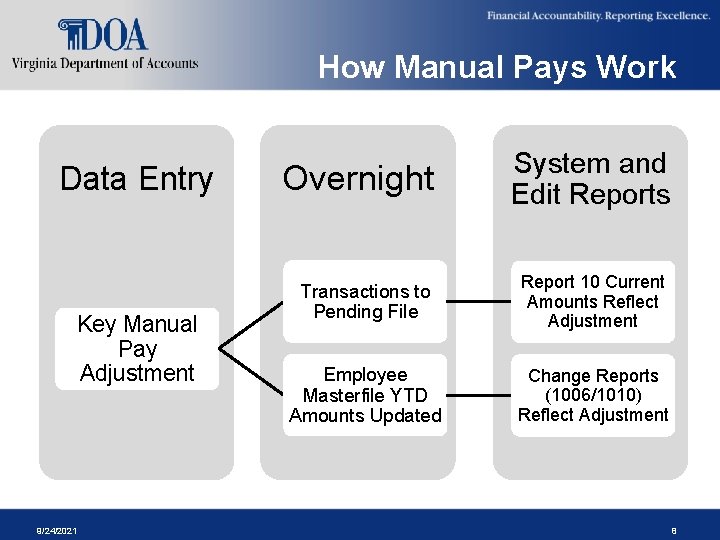
How CIPPS Handles Manual Pays Step 1: Overnight – Update the employee Masterfile Year-to-date (YTD) amounts. – The transactions are written to the pending file. – System Reports Generated – Edit Reports Generated if PYEDT keyed
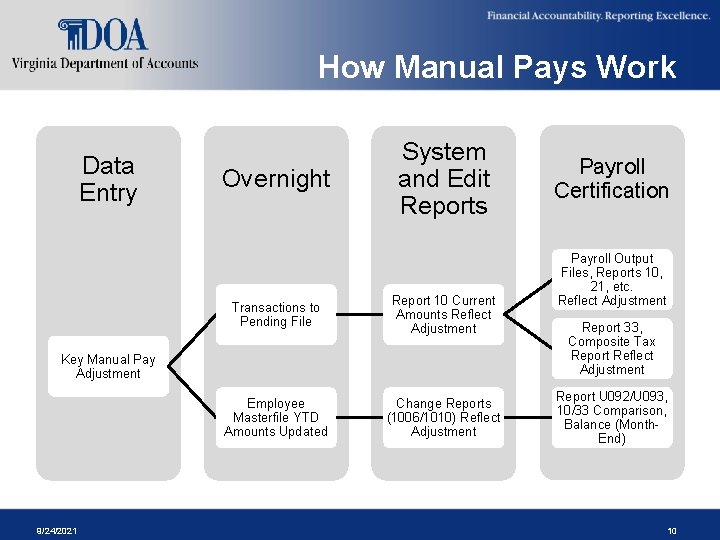
How Manual Pays Work Data Entry Key Manual Pay Adjustment 9/24/2021 Overnight System and Edit Reports Transactions to Pending File Report 10 Current Amounts Reflect Adjustment Employee Masterfile YTD Amounts Updated Change Reports (1006/1010) Reflect Adjustment 8
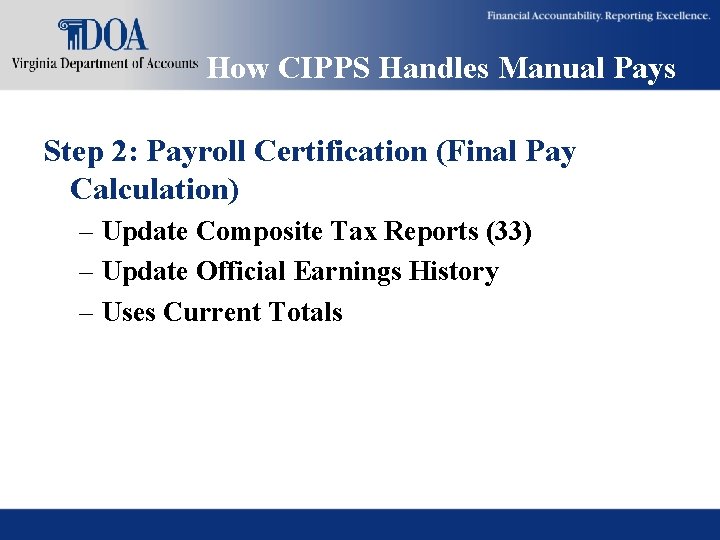
How CIPPS Handles Manual Pays Step 2: Payroll Certification (Final Pay Calculation) – Update Composite Tax Reports (33) – Update Official Earnings History – Uses Current Totals
How Manual Pays Work Data Entry Overnight System and Edit Reports Transactions to Pending File Report 10 Current Amounts Reflect Adjustment Employee Masterfile YTD Amounts Updated Change Reports (1006/1010) Reflect Adjustment Key Manual Pay Adjustment 9/24/2021 Payroll Certification Payroll Output Files, Reports 10, 21, etc. Reflect Adjustment Report 33, Composite Tax Report Reflect Adjustment Report U 092/U 093, 10/33 Comparison, Balance (Month. End) 10
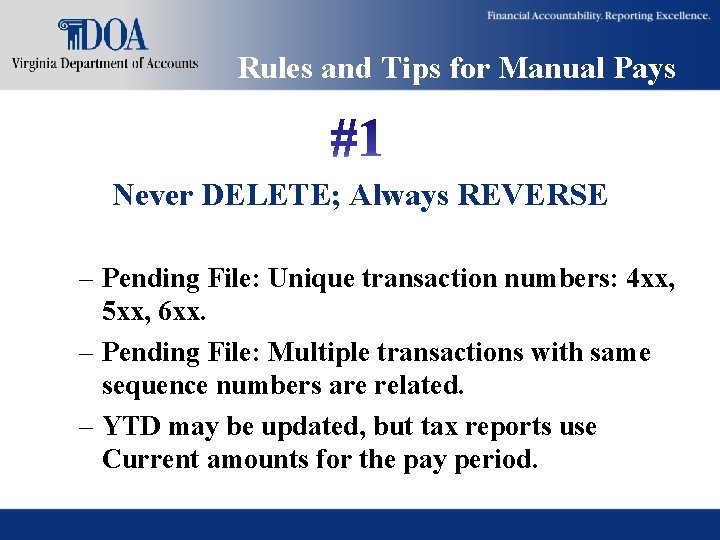
Rules and Tips for Manual Pays Never DELETE; Always REVERSE – Pending File: Unique transaction numbers: 4 xx, 5 xx, 6 xx. – Pending File: Multiple transactions with same sequence numbers are related. – YTD may be updated, but tax reports use Current amounts for the pay period.
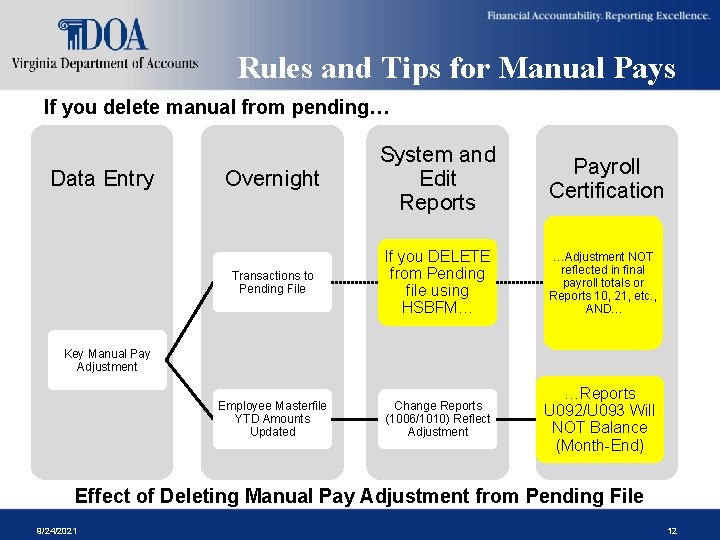
Rules and Tips for Manual Pays If you delete manual from pending… Data Entry Overnight System and Edit Reports Transactions to Pending File If you DELETE from Pending file using HSBFM… …Adjustment NOT reflected in final payroll totals or Reports 10, 21, etc. , AND… Employee Masterfile YTD Amounts Updated Change Reports (1006/1010) Reflect Adjustment …Reports U 092/U 093 Will NOT Balance (Month-End) Payroll Certification Key Manual Pay Adjustment Effect of Deleting Manual Pay Adjustment from Pending File 9/24/2021 12
Rules and Tips for Manual Pays Data Entry Overnight System and Edit Reports Transactions to Pending File Report 10 Current Amounts Reflect Adjustment Employee Masterfile YTD Amounts Updated Change Reports (1006/1010) Reflect Adjustment Key Manual Pay Adjustment Payroll Certification Payroll Output Files Reflect Adjustment Report 33, Composite Tax Report Reflect Adjustment Report U 092/U 093, 10/33 Comparison, Balance (Month. End) Successful Manual Pay Adjustment Process Flow 9/24/2021 13
Rules and Tips for Manual Pays Always Request an Edit/Scrub When You Key a Manual Pay – Review your reports the next day. – ALWAYS review Report 1009 daily when you have keyed any transactions – batch or manual pay.
Rules and Tips for Manual Pays Always Move Amounts as Non-Paid (+/-) Adjustments – Will not pay the employee – Moving amount from one deduction to another – These are not included in Vendor files
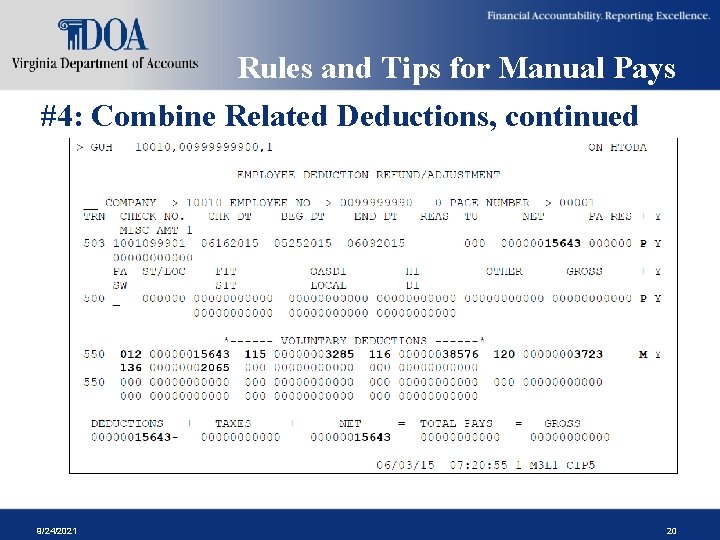
Rules and Tips for Manual Pays Combine Related Deductions – Paid (P/M) adjustments may include memo (agency-paid) deductions. – Net pay only include employee deduction amounts.
Rules and Tips for Manual Pays Combine Related Deductions, continued – Paid adjustments are included in vendor extract file. Manual adjustments must be manually added to extract file.
Rules and Tips for Manual Pays Use Agency Number as First 3 Digits of Check Number – This identifies the check as a manual adjustment, such as with PAT reports. – Simplifies filtering of PAT reports and PAT queries.
Rules and Tips for Manual Pays Print the Manual Pay Screen(s) After Keying – Provides reference in case of an error or manual pay is rejected. – Allows another person, who may not have CIPPS access, to review what you keyed. (e. g. , Fiscal Officer). – Shows final data keyed.
Rules and Tips for Manual Pays #4: Combine Related Deductions, continued 9/24/2021 20
Special Manual Pay Scenarios § Refunding Pre-Tax Benefits (Employee not paid) § Earnings Reclassifications with Reciprocal State Taxation § Non-paid/Non-cash Taxable Benefits (Employee not paid)
Refunding Pre-Tax Benefits § Never put full amount in Net Pay! § We already have the FICA taxes on-hand. § Do not reclassify as Earnings § Two-step process: – Refund net – Reclassify taxes
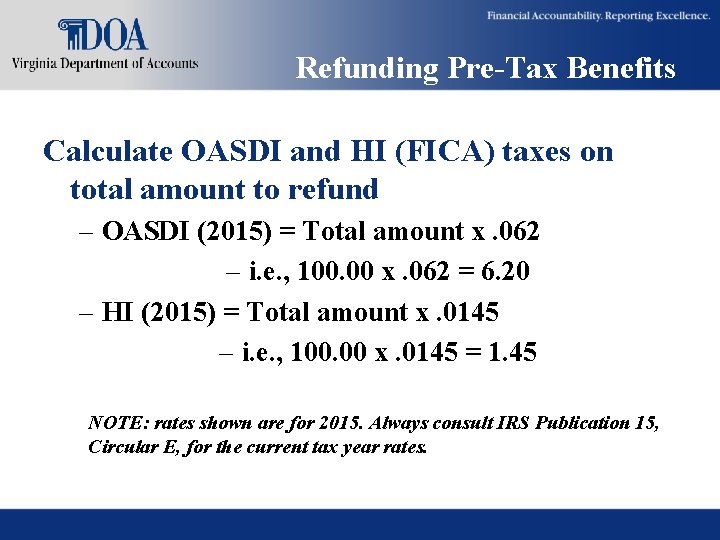
Refunding Pre-Tax Benefits Calculate OASDI and HI (FICA) taxes on total amount to refund – OASDI (2015) = Total amount x. 062 – i. e. , 100. 00 x. 062 = 6. 20 – HI (2015) = Total amount x. 0145 – i. e. , 100. 00 x. 0145 = 1. 45 NOTE: rates shown are for 2015. Always consult IRS Publication 15, Circular E, for the current tax year rates.
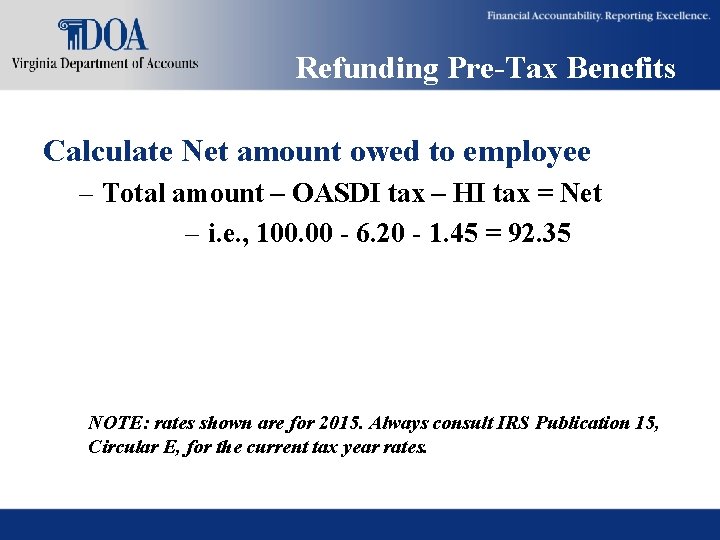
Refunding Pre-Tax Benefits Calculate Net amount owed to employee – Total amount – OASDI tax – HI tax = Net – i. e. , 100. 00 - 6. 20 - 1. 45 = 92. 35 NOTE: rates shown are for 2015. Always consult IRS Publication 15, Circular E, for the current tax year rates.
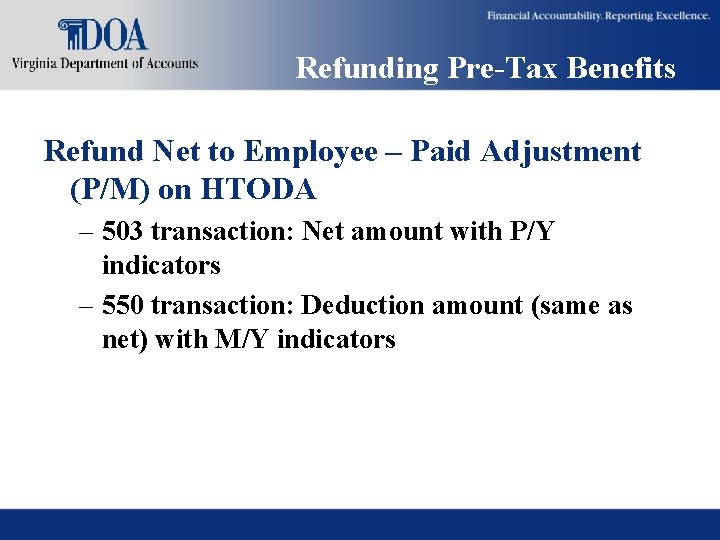
Refunding Pre-Tax Benefits Refund Net to Employee – Paid Adjustment (P/M) on HTODA – 503 transaction: Net amount with P/Y indicators – 550 transaction: Deduction amount (same as net) with M/Y indicators
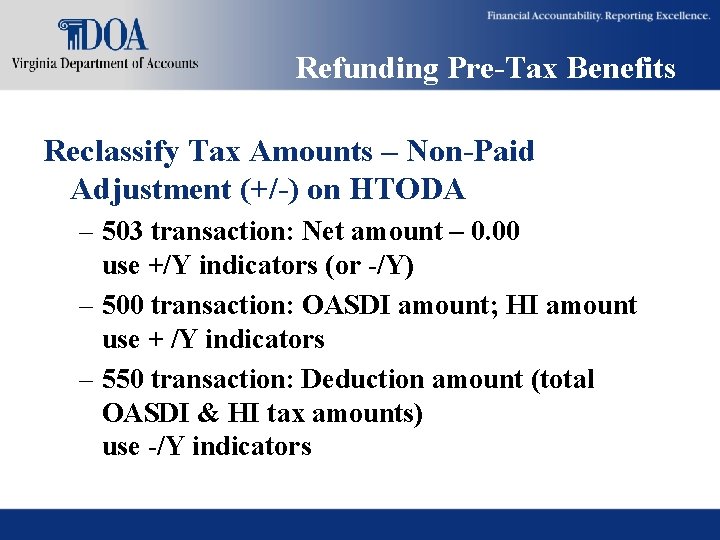
Refunding Pre-Tax Benefits Reclassify Tax Amounts – Non-Paid Adjustment (+/-) on HTODA – 503 transaction: Net amount – 0. 00 use +/Y indicators (or -/Y) – 500 transaction: OASDI amount; HI amount use + /Y indicators – 550 transaction: Deduction amount (total OASDI & HI tax amounts) use -/Y indicators
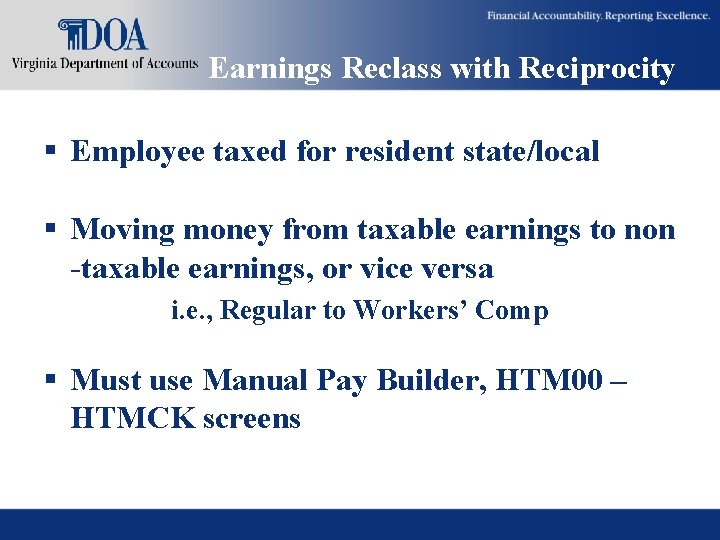
Earnings Reclass with Reciprocity § Employee taxed for resident state/local § Moving money from taxable earnings to non -taxable earnings, or vice versa i. e. , Regular to Workers’ Comp § Must use Manual Pay Builder, HTM 00 – HTMCK screens
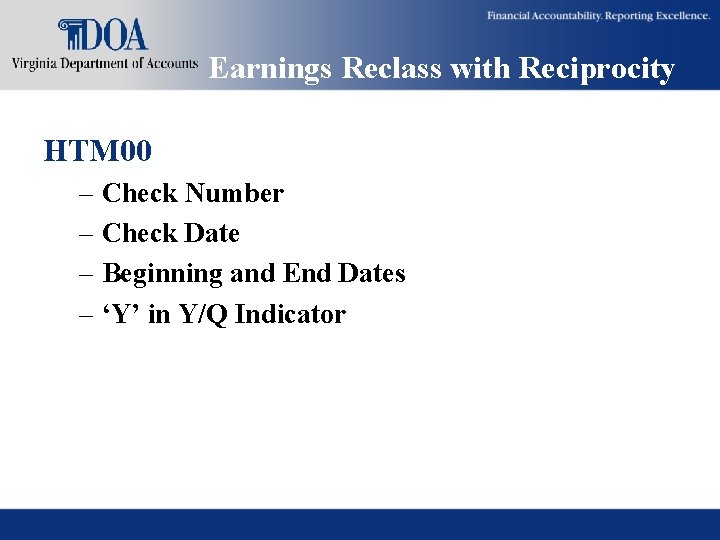
Earnings Reclass with Reciprocity HTM 00 – Check Number – Check Date – Beginning and End Dates – ‘Y’ in Y/Q Indicator
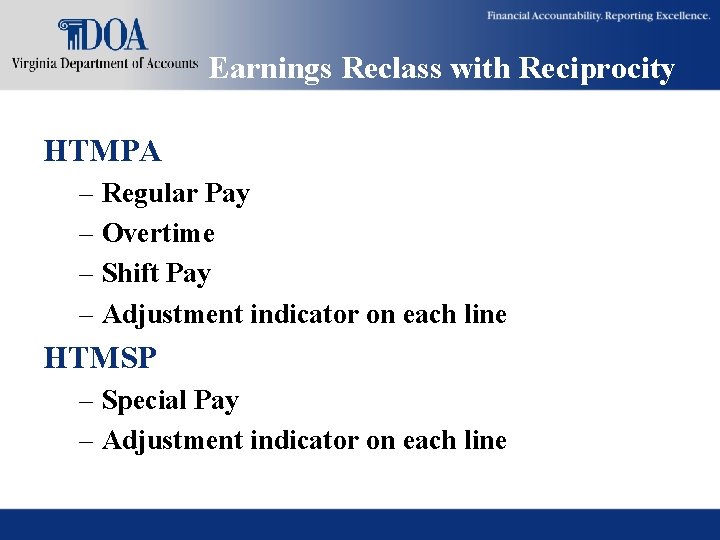
Earnings Reclass with Reciprocity HTMPA – Regular Pay – Overtime – Shift Pay – Adjustment indicator on each line HTMSP – Special Pay – Adjustment indicator on each line
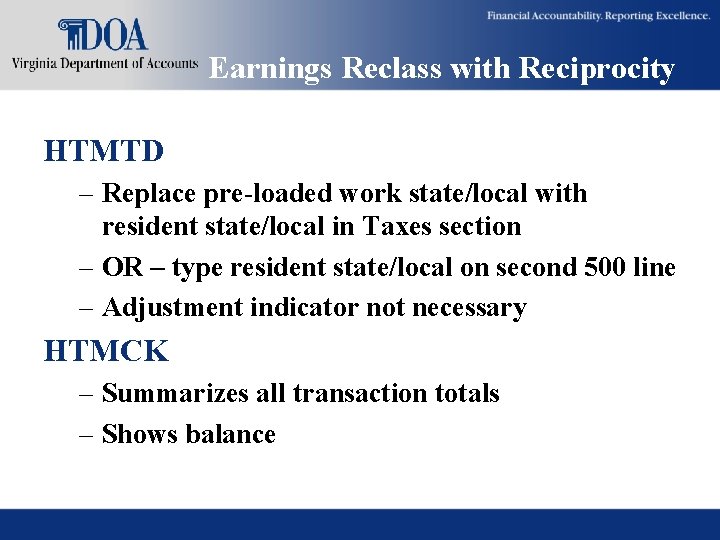
Earnings Reclass with Reciprocity HTMTD – Replace pre-loaded work state/local with resident state/local in Taxes section – OR – type resident state/local on second 500 line – Adjustment indicator not necessary HTMCK – Summarizes all transaction totals – Shows balance
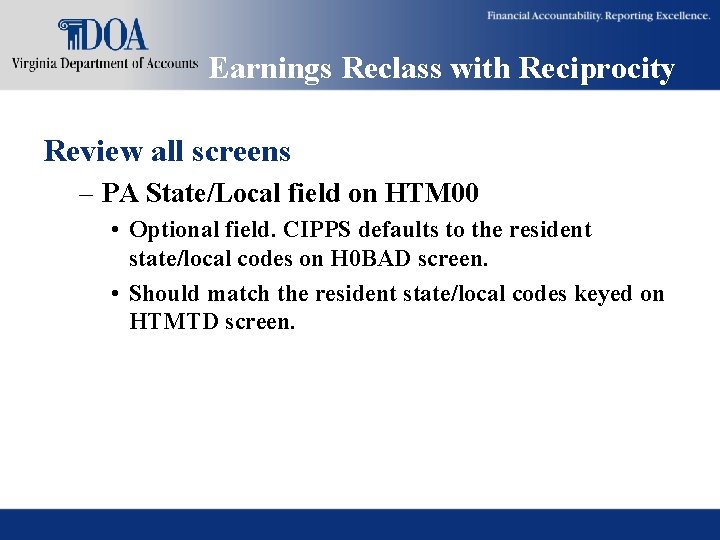
Earnings Reclass with Reciprocity Review all screens – PA State/Local field on HTM 00 • Optional field. CIPPS defaults to the resident state/local codes on H 0 BAD screen. • Should match the resident state/local codes keyed on HTMTD screen.
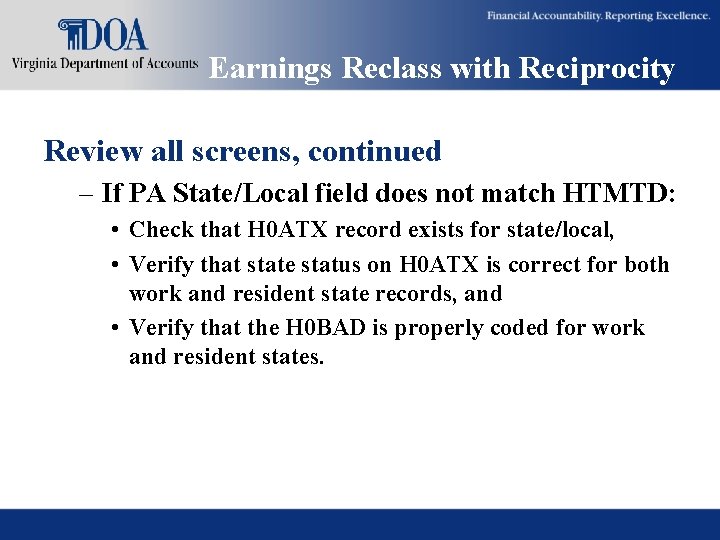
Earnings Reclass with Reciprocity Review all screens, continued – If PA State/Local field does not match HTMTD: • Check that H 0 ATX record exists for state/local, • Verify that state status on H 0 ATX is correct for both work and resident state records, and • Verify that the H 0 BAD is properly coded for work and resident states.
Earnings Reclass with Reciprocity Review all screens, continued – Work State/Local code on HTMTD: • If you replaced the work state/local code on HTMTD with the employee’s resident state/local, CIPPS will insert another 500 transaction for work state. • Federal (FIT, OASDI, HI) taxable wage and tax accumulators are “attached” to the work state/local tax record. • Cannot be deleted.
Non-cash Taxable Benefits Overview – OASDI/HI (FICA) taxes are owed whenever earnings are recorded and/or paid. – When non-paid/non-cash earnings are recorded for an employee who is terminated, earnings must be grossed-up and employer pays taxes for both employee and employer. – Ensures timely reporting and payment of FICA taxes.
Non-cash Taxable Benefits Overview, continued – Employer may recover FICA taxes paid from employee. – Employee only owes amount of FICA on the original amount of non-paid/non-cash earnings. NOTE: rates shown are for 2015. Always consult IRS Publication 15, Circular E, for the current tax year rates.
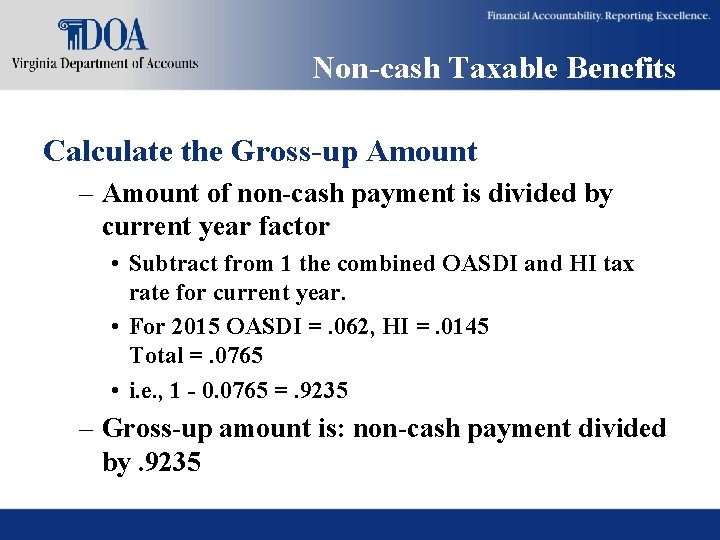
Non-cash Taxable Benefits Calculate the Gross-up Amount – Amount of non-cash payment is divided by current year factor • Subtract from 1 the combined OASDI and HI tax rate for current year. • For 2015 OASDI =. 062, HI =. 0145 Total =. 0765 • i. e. , 1 - 0. 0765 =. 9235 – Gross-up amount is: non-cash payment divided by. 9235
Non-cash Taxable Benefits Recording Non-cash Earnings and Employerpaid Tax – First, re-activate the employee to non-auto status in CIPPS – The amount of Employer paid tax, SP 071, is difference between the non-cash payment amount and the gross-up amount. – On HUE 01, key the non-cash special pay, such as SP 049. Tax-check-deduction indicators are 00 -0
Non-cash Taxable Benefits Recording Non-cash Earnings and Employerpaid Tax, continued – On HUE 01, key the amount for SP 071. Taxcheck-deduction indicators are 0 -0 -0
Non-cash Taxable Benefits Recording the FICA Taxes – Using the Gross-Up amount, calculate OASDI and HI taxes – On HTQTA: • 503 transaction: Net amount = total FICA taxes. ‘- Y’ indicators • 500 transaction: Enter OASDI tax, HI tax. ‘+ Y’ indicators
Non-cash Taxable Benefits Recording the Employer Paid Taxes Only – When non-paid/non-cash earning has already been added to earnings and FICA taxes on that amount were entered on HTQTA. – Non-cash earning was not grossed-up. – Calculate the gross-up amount on the original non-cash amount. Then determine amount of employer paid tax, SP 071.
Non-cash Taxable Benefits Recording the Employer Paid Taxes Only, continued – On HUE 01, enter SP 071. Tax-check-deduction indicators are 0 -0 -0. – Calculate OASDI/HI taxes only on SP 071. – On HTQTA: • 503 transaction: Net amount = total FICA taxes. ‘- Y’ indicators • 500 transaction: Enter OASDI tax, HI tax. ‘+ Y’ indicators
Non-cash Taxable Benefits Recording FICA Taxes Only – If you already recorded the non-cash earnings, including SP 071, Employer paid taxes but you did not key the HTQTA adjustment. – Ensure that the employee has been reactivated to non-auto status in CIPPS – On HTQTA: • 503 transaction: Net amount = total FICA taxes. ‘- Y’ indicators • 500 transaction: Enter OASDI tax, HI tax. ‘+ Y’ indicators
Non-cash Taxable Benefits Recording FICA Taxes Only, continued – On HUA 03, key a penny (0. 01) of regular pay. • This is required to ensure that CIPPS clears the UNC OASDI and UNC HI fields on H 0 BTT. • NOTE: You do not need to key the penny of regular pay if you process the HTQTA at the same time you key the HUE 01 transactions.
Contact Us Email: payroll@doa. virginia. gov Director, State Payroll Operations – Voice: (804) 225 -2245 or (804) 371 -7800 Payroll Support Analyst/Trainer – Voice: (804) 786 -1083